यह आर्टिकल अभी हिंदी में नहीं है, इसलिए इसे अंग्रेज़ी में दिखाया जा रहा है।
कैसे करें
Push notifications on mobile
Real-time alerts for orders and payments.
Push notifications are short alerts that pop up on your customers' phones when something happens with their order or payment, for example when you get their order or when a payment fails. You connect your app to Firebase once, then choose which alerts Ordrio sends.
Before you start
- Push notifications only reach customers who use your own Ordrio app on their phone. They do not reach customers who order on your website. You set up your app in Your app in your Ordrio admin panel.
- You need a Firebase project (Google's service for app notifications) with your Android app and iPhone app added to it. You download the files Ordrio needs from your Firebase project.
Switch on Google Firebase
- Open nadi.ordrio.com (your Ordrio admin panel) and log in.
- In the menu on the left, click Add-ons.
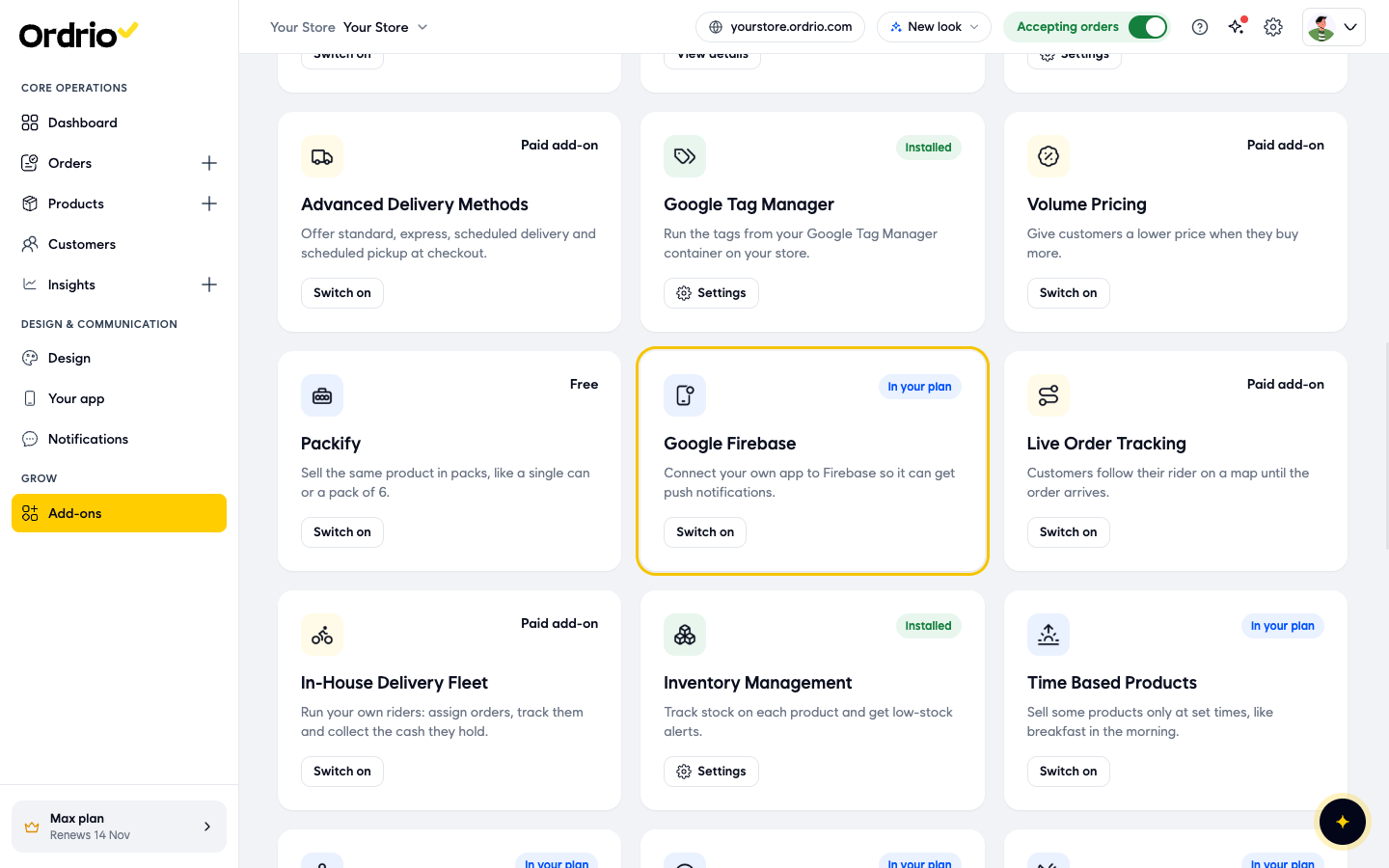
- Find the Google Firebase card ("Connect your own app to Firebase so it can get push notifications") and click Switch on.
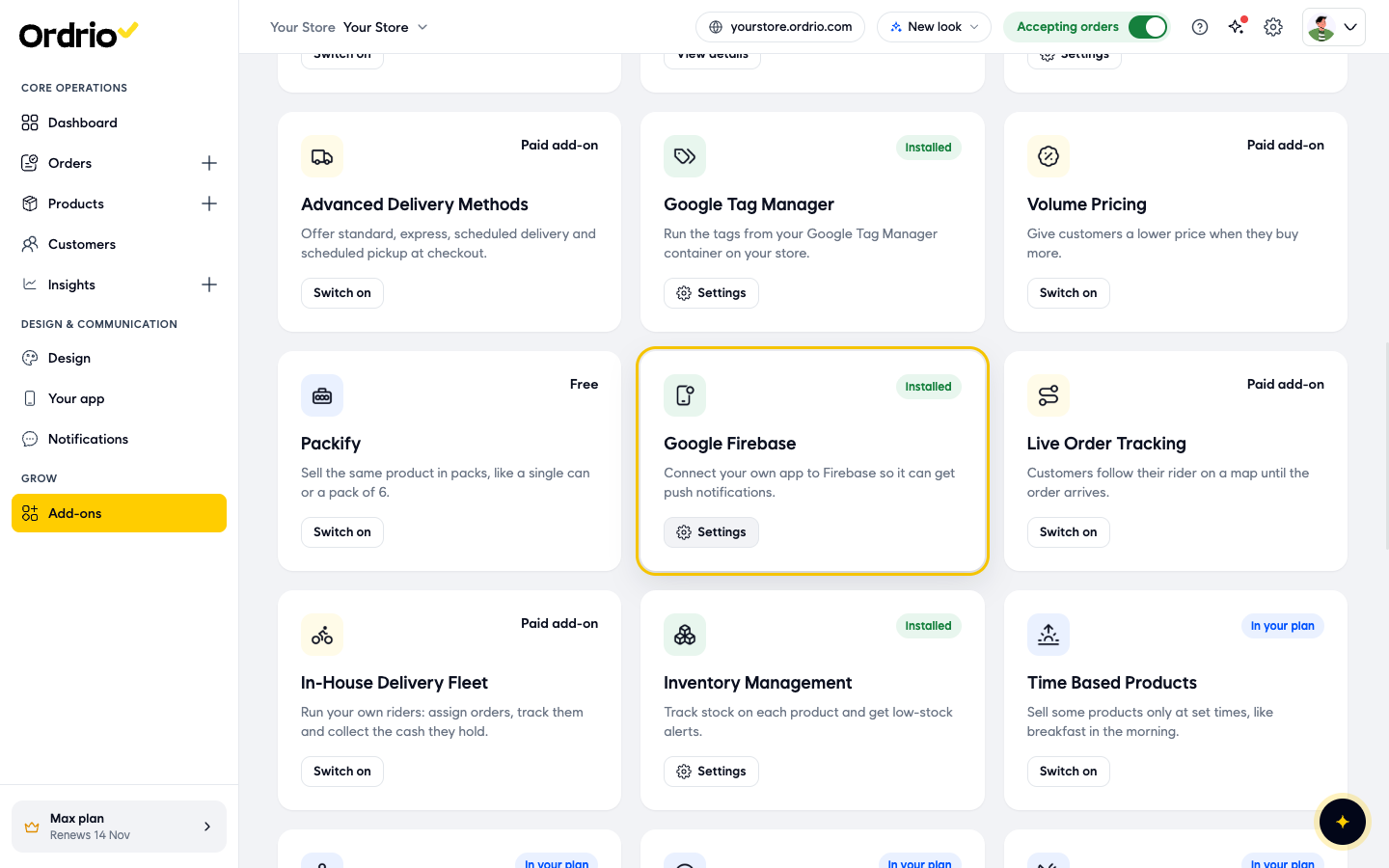
- The card now shows Installed. Click Settings on the card. This opens the Firebase page.
Connect your app to Firebase
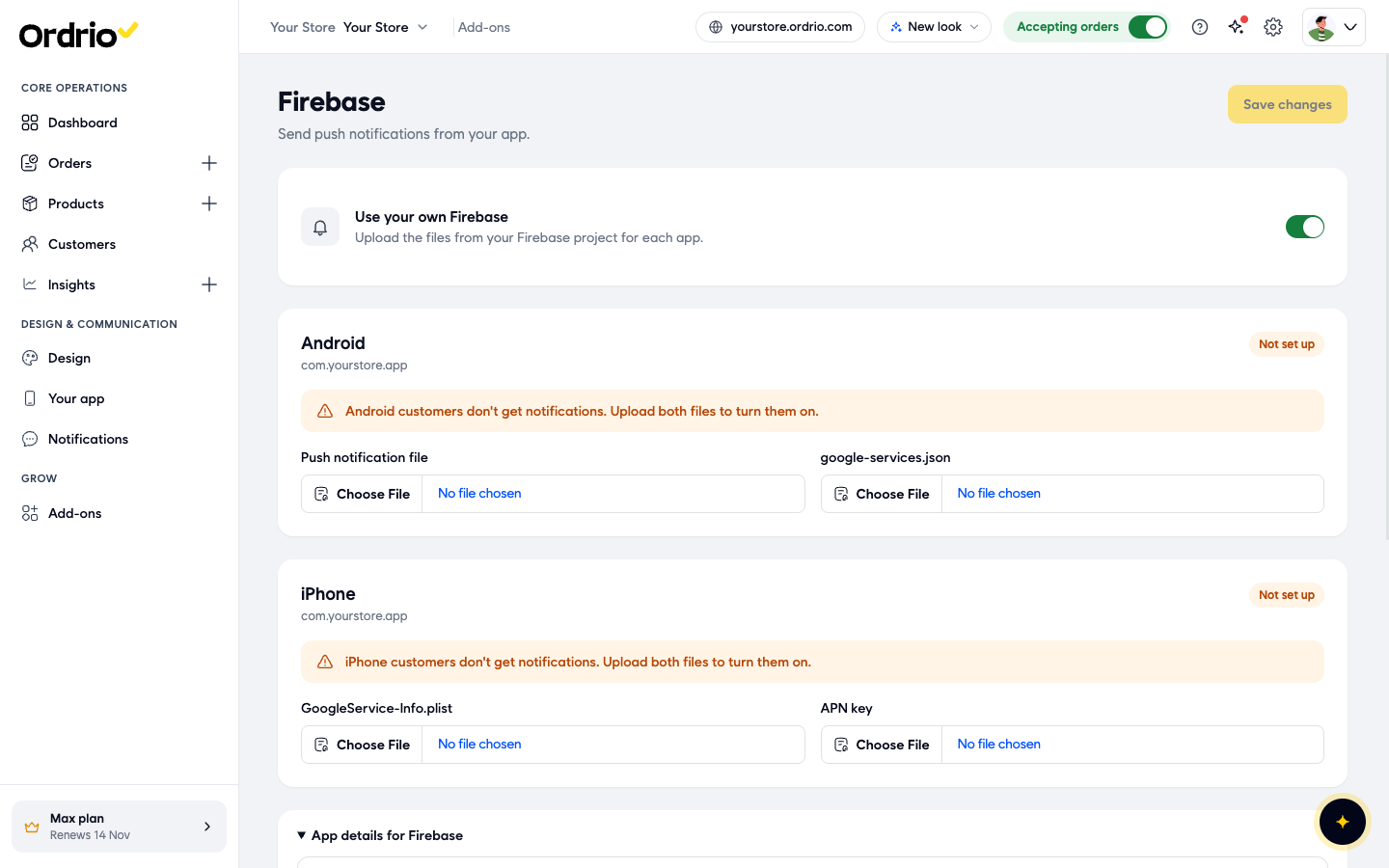
The Firebase page ("Send push notifications from your app") has these parts:
- Use your own Firebase: keep this switch on. It lets you upload the files from your own Firebase project for each app.
- Android: the files for your Android app. The label under it is your Android package name, for example com.yourstore.app.
- iPhone: the files for your iPhone app.
- App details for Firebase: the details you need when you add your apps in the Firebase console.
While a section still needs files, it shows Not set up and a note such as "Android customers don't get notifications. Upload both files to turn them on."
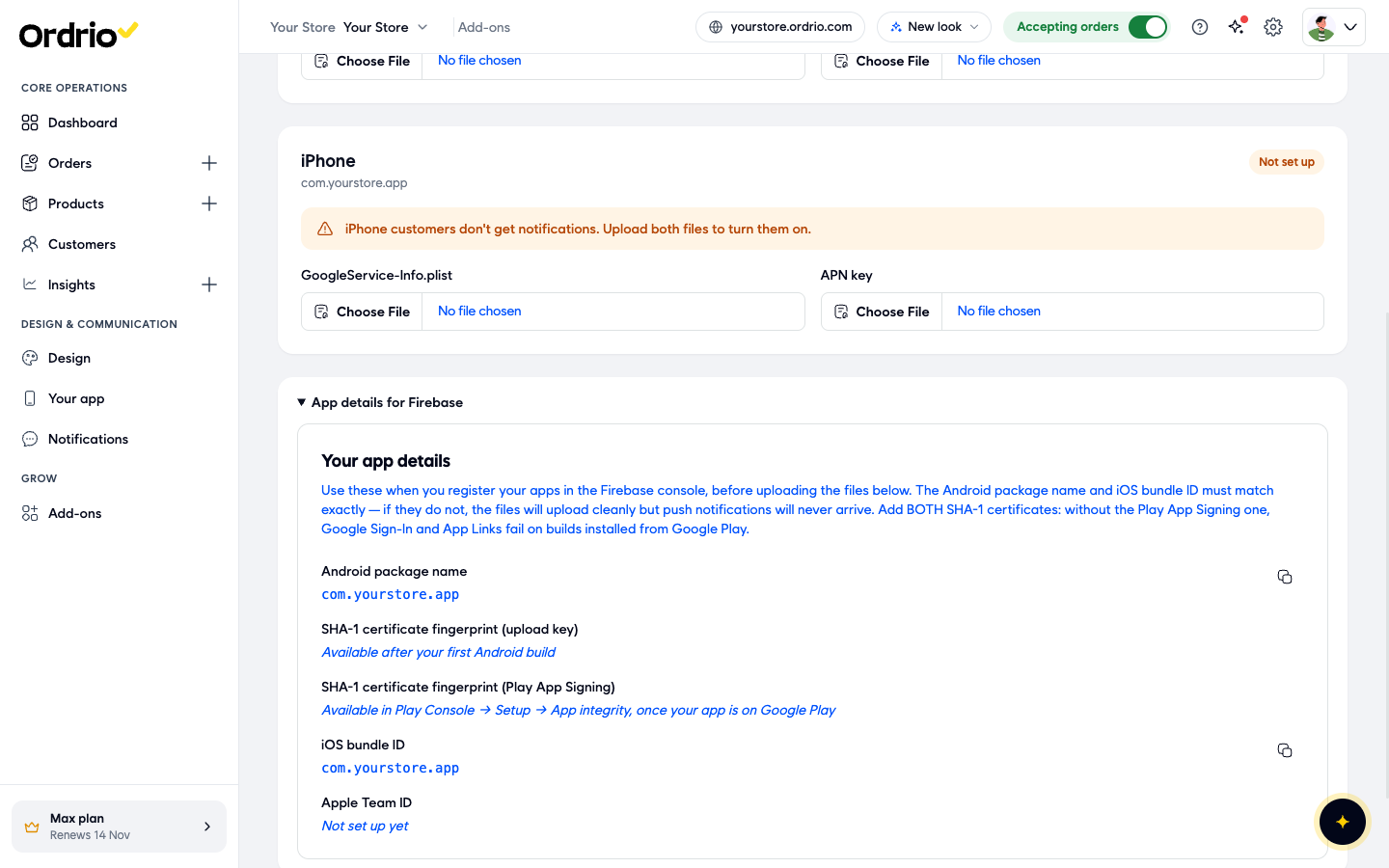
- Click App details for Firebase at the bottom of the page to open it. It shows:
- Android package name: copy it with the copy button and use it when you add your Android app in Firebase.
- SHA-1 certificate fingerprint (upload key): shown here after your first Android build.
- SHA-1 certificate fingerprint (Play App Signing): you find this in Google Play Console under Setup > App integrity, once your app is on Google Play.
- iOS bundle ID: copy it and use it when you add your iPhone app in Firebase.
- Apple Team ID: shows "Not set up yet" until your Apple account is connected.
- In the Firebase console, add your apps using exactly the Android package name and iOS bundle ID shown here. Add both SHA-1 fingerprints to your Android app.
- Under Android, click Choose File next to Push notification file and upload the push notification file from your Firebase project.
- Under Android, click Choose File next to google-services.json and upload that file from your Firebase project.
- Under iPhone, click Choose File next to GoogleService-Info.plist and upload that file from your Firebase project.
- Under iPhone, click Choose File next to APN key and upload your Apple push notification key.
- Click Save changes at the top right.
Choose which alerts to send
- Click the Settings icon at the top right, then Customer messages (under Customers). This page shows "What your customers get on WhatsApp, SMS, email and app, and when."
- Check the Sent through box. App push shows if push is ready. If it says "Firebase not set up", go back to the Firebase page and finish uploading your files.
- Click Push above the list to see only push alerts.
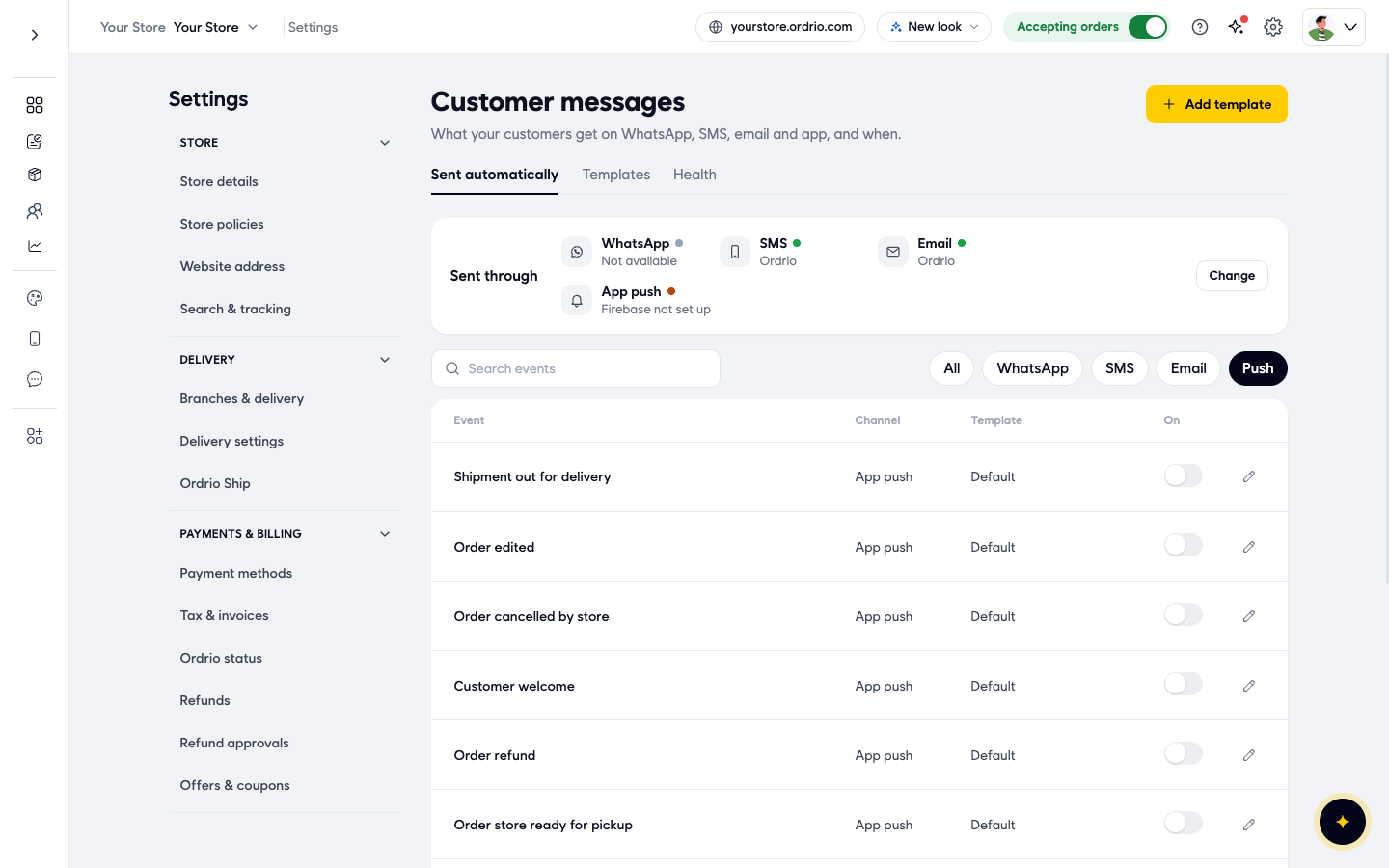
- Turn on the switch in the On column for each alert you want customers to get. The change saves straight away. There is no separate save button.
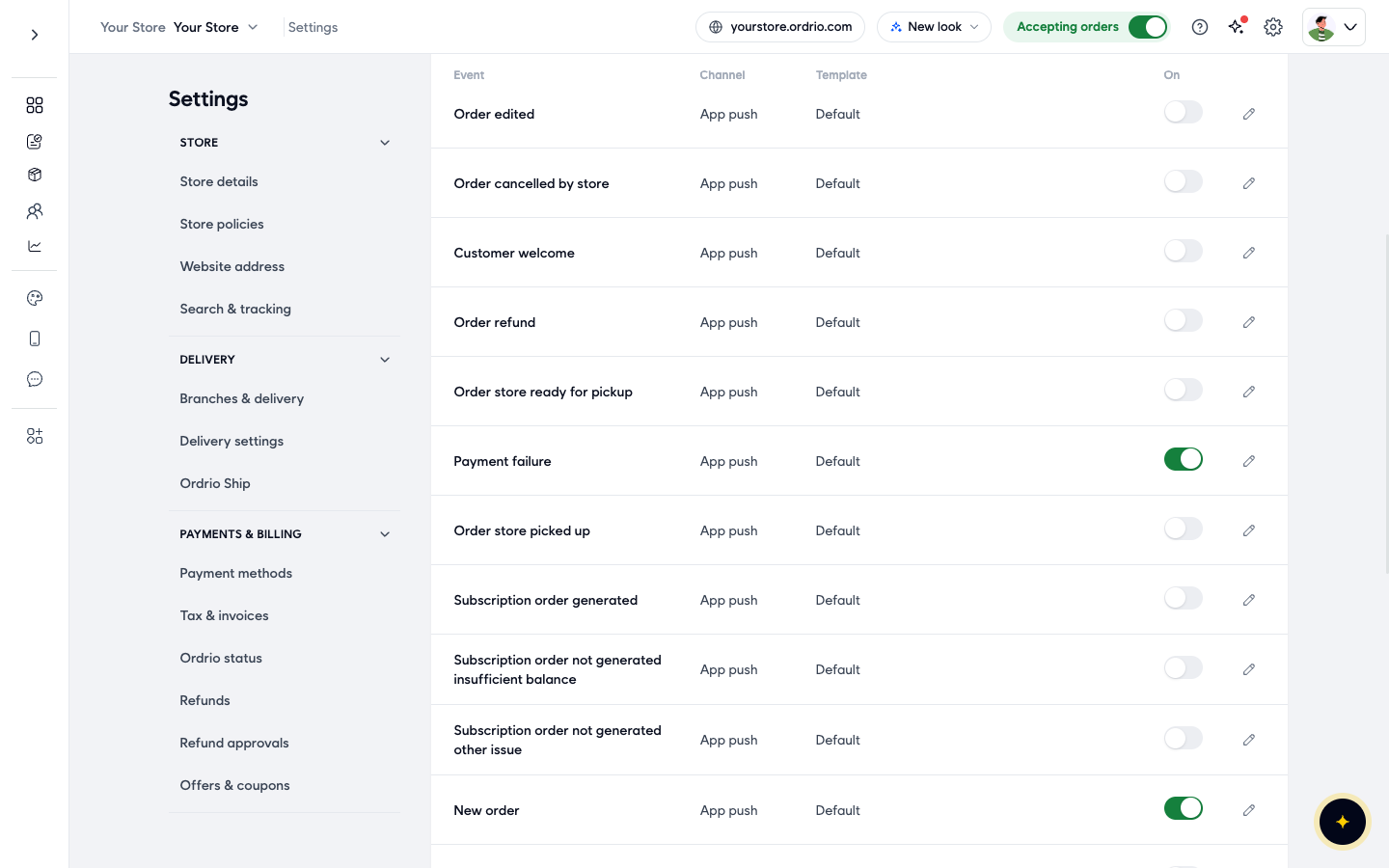
Each row shows the Event (what triggers the alert), the Channel (App push) and the Template (the message that is sent). Default means Ordrio's ready-made message.
The order and payment alerts include:
- New order and Customer order confirmation push: the customer has placed an order.
- Order edited, Order rescheduled: you changed the order or its delivery time.
- Out for delivery, Shipment out for delivery: the order is on its way.
- Order delivered, Order partially delivered: the order has arrived, fully or in part.
- Order ready for pickup, Order store ready for pickup, Order store picked up: for pickup orders.
- Order cancelled, Order cancelled by store: the order was cancelled.
- Order refund: you refunded the customer.
- Payment failure: the customer's payment did not go through.
- Wallet top up: the customer added money to their wallet.
The list also has alerts for subscriptions (for example Subscription order generated and Subscription renewal reminder), memberships, Abandoned cart recovery and Customer welcome. Type in Search events to find one quickly.
Write your own push message (optional)
If you want your own wording instead of the Default message, create a push template, then pick it for an event.
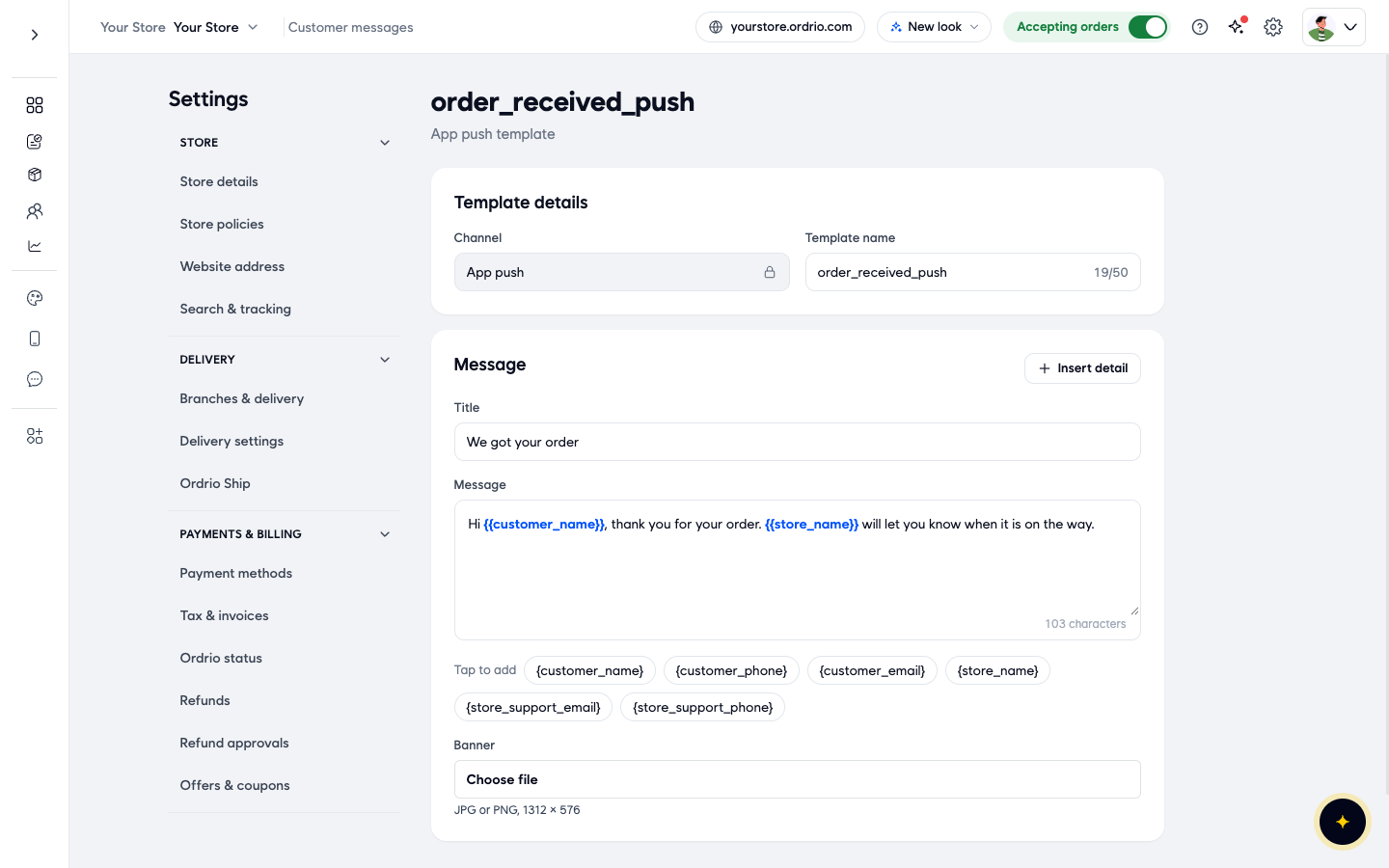
- On Customer messages, click Add template.
- In Channel, choose App push.
- In Template name, type a short name you will recognise, for example order_received_push (up to 50 characters).
- In Title, type the heading of the alert, for example "We got your order".
- In Message, type the text of the alert. To add a customer's or your store's details, tap one under Tap to add: {customer_name}, {customer_phone}, {customer_email}, {store_name}, {store_support_email} or {store_support_phone}. Ordrio fills in the real details when it sends the alert.
- In Banner, you can add a picture with Choose file (JPG or PNG, 1312 × 576). This is optional.
- Click Save in the bar at the bottom.
The example values shown on screen are only examples. Use your own wording for the title and message.
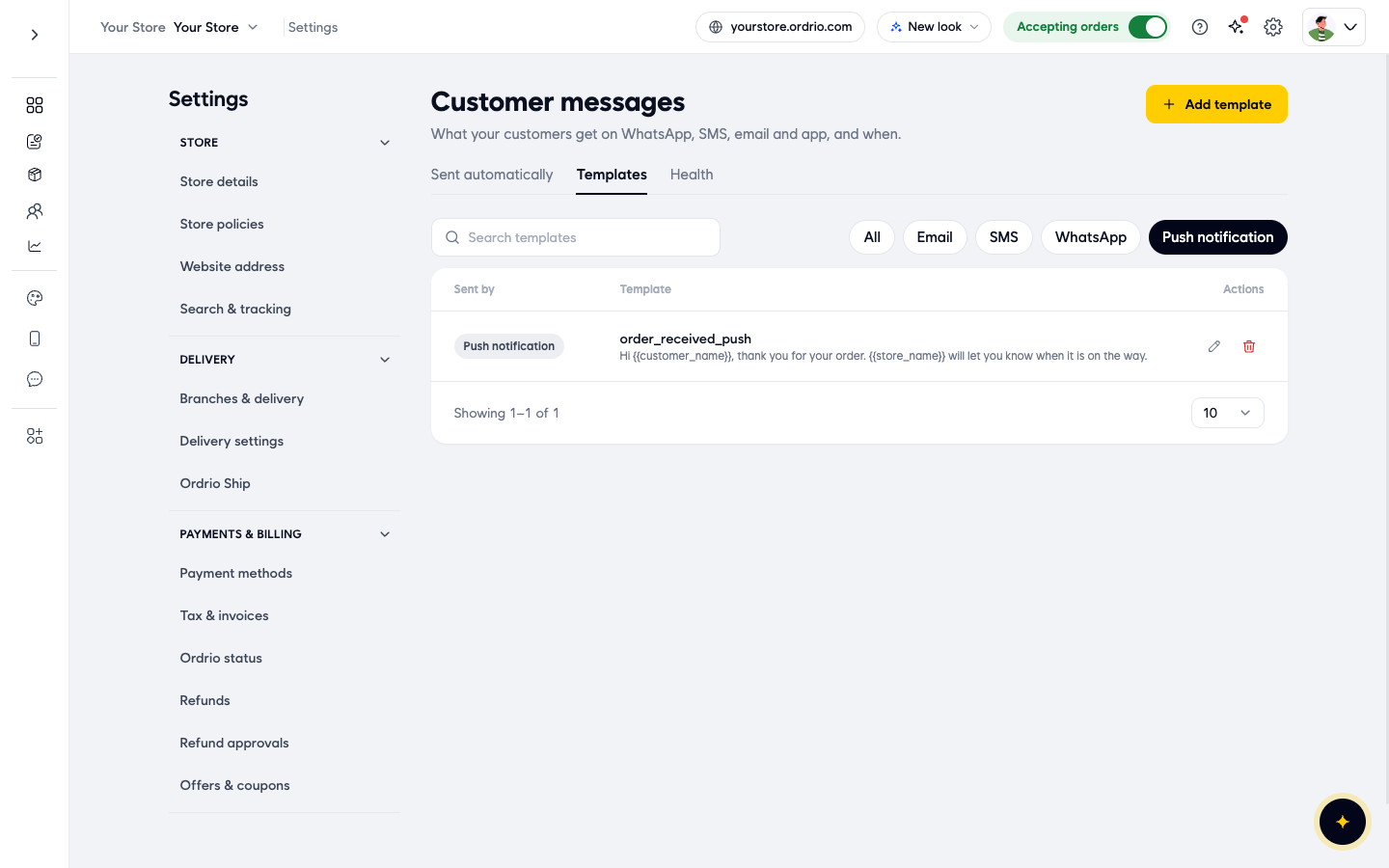
- Ordrio takes you to the Templates tab, where your new template is listed. Click Push notification to see only push templates. Use the pencil icon to edit a template, or the bin icon to delete it.
- Click the Sent automatically tab, click Push, and find the event you want, for example New order.
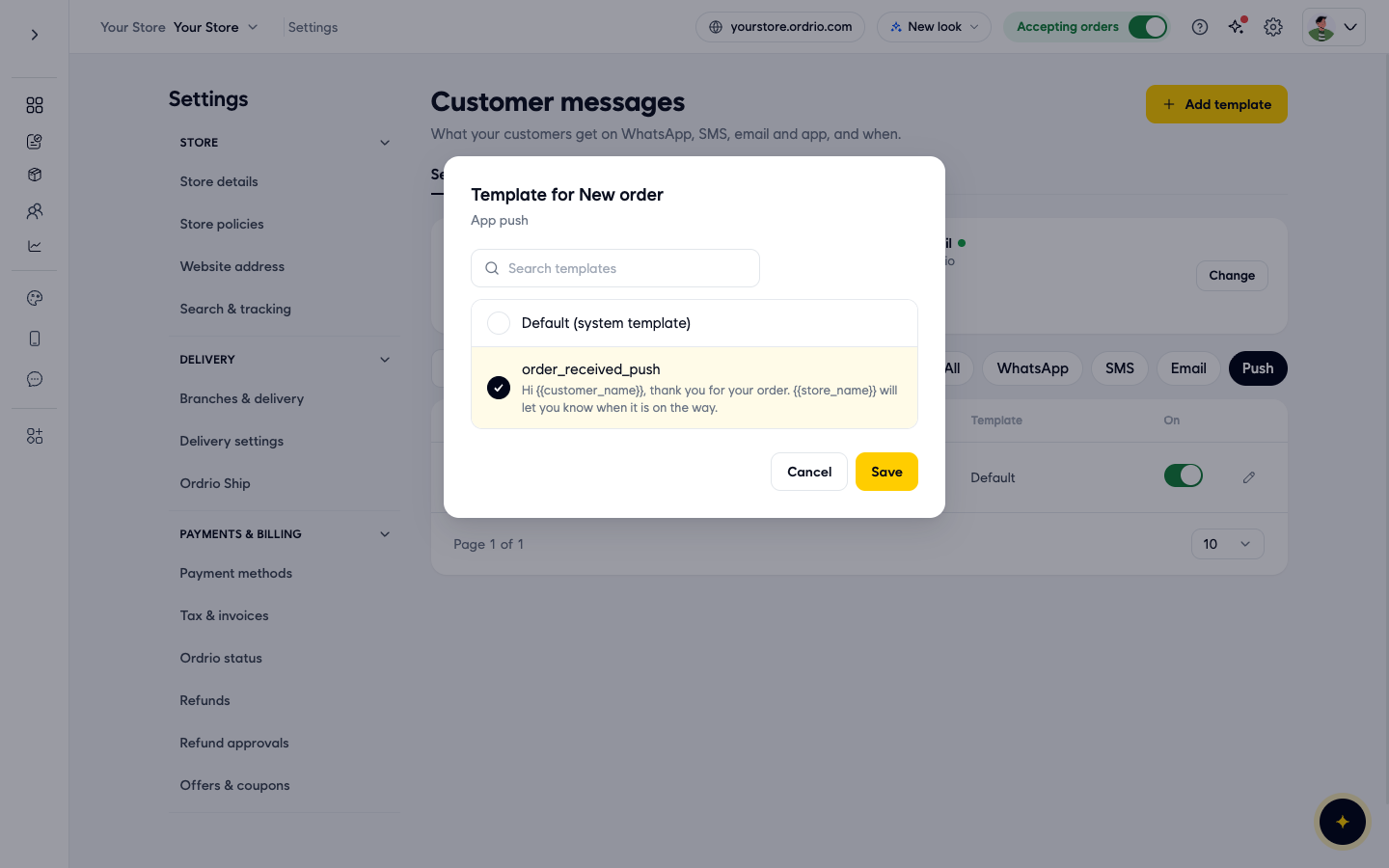
- Click the pencil icon at the end of that row. The Template for New order box opens.
- Select your template and click Save.
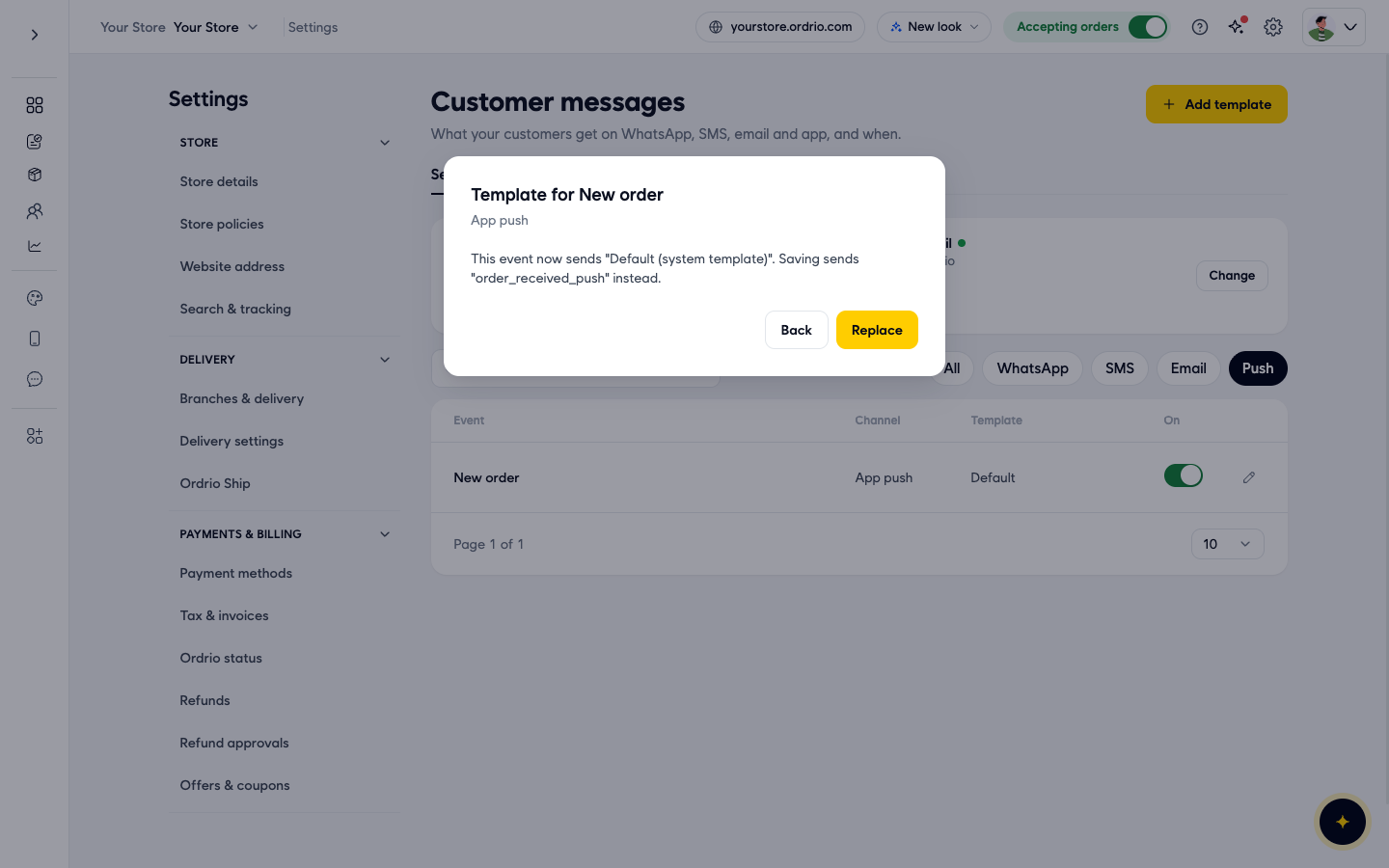
- Ordrio tells you which message the event sends now and which one it will send instead. Click Replace to confirm, or Back to keep the current one.
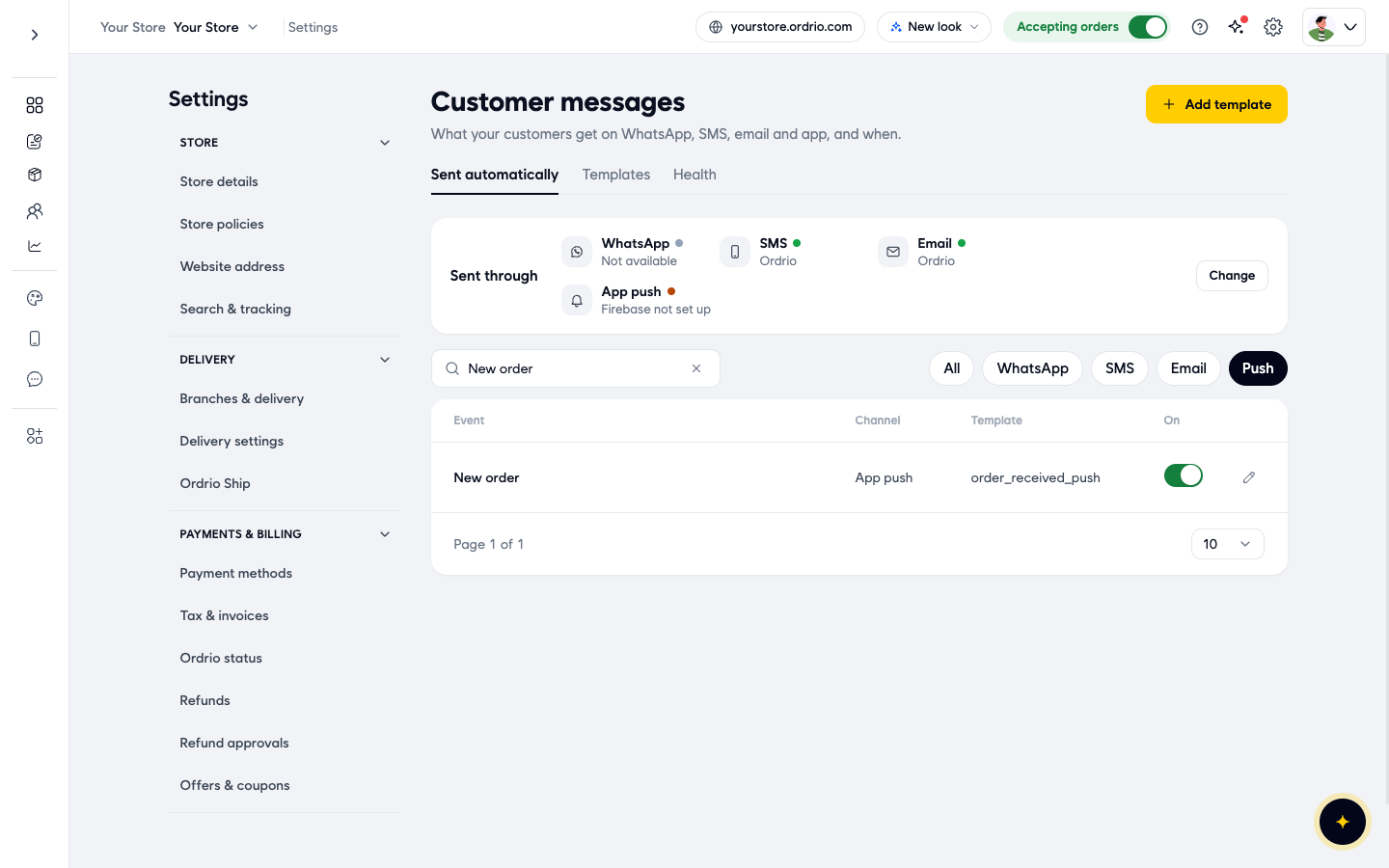
The Template column for that event now shows your template's name.
Good to know
- Firebase must be set up first. Until it is, Ordrio shows "Firebase is not set up, so pushes will not arrive", even if an alert's switch is on.
- Android and iPhone are set up separately. Each needs both of its files. If you upload only the Android files, iPhone customers do not get alerts.
- The names must match exactly. If the package name or bundle ID in your Firebase project is different from the one in App details for Firebase, the files still upload but push notifications never arrive.
- Push is one of several channels. The Sent through box also shows WhatsApp, SMS and email. Click Change to open Message providers, where the App push switch turns push on or off for your whole store.
- Offers and news are separate. These alerts are sent automatically. To send a one-off offer to customers who have your app, use Notifications in the menu on the left and click New message.
Related
- Publishing on Play Store and App Store
- Abandoned cart recovery
- Marketing notifications