यह आर्टिकल अभी हिंदी में नहीं है, इसलिए इसे अंग्रेज़ी में दिखाया जा रहा है।
कैसे करें
Product bundles and combos
Sell products together as bundles or combos.
A combo puts a few products together at one price, like bread, butter and milk as a "Breakfast combo". Combos help customers buy more in one tap, and help you move items that sell well together.
There are two ways to sell products together in Ordrio:
- A fixed combo. You choose what goes in it. You add it as one product in Products. Every store can do this.
- A box customers fill themselves. You set groups of items and the customer picks from them. This needs the FlexiBox Products add-on.
Before you start
- Decide what goes in the combo and the price you want to sell it for.
- Make sure the category you want to show the combo in already exists in Products > Categories.
Add a fixed combo
- Open nadi.ordrio.com (your Ordrio admin panel) and log in.
- In the menu on the left, click Products, then Products. You see the list of all your products.
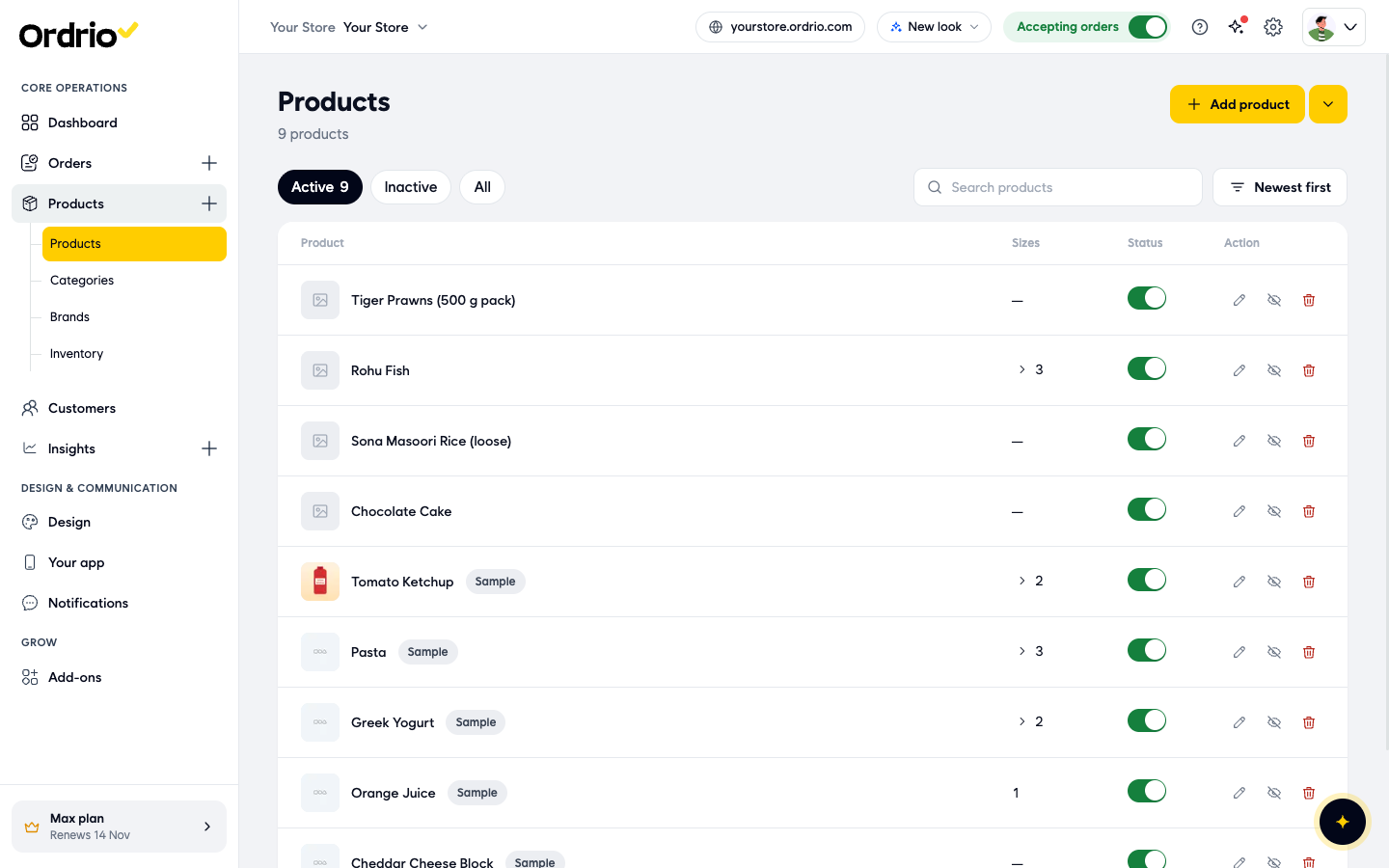
- Click Add product at the top right. The Add product screen opens.
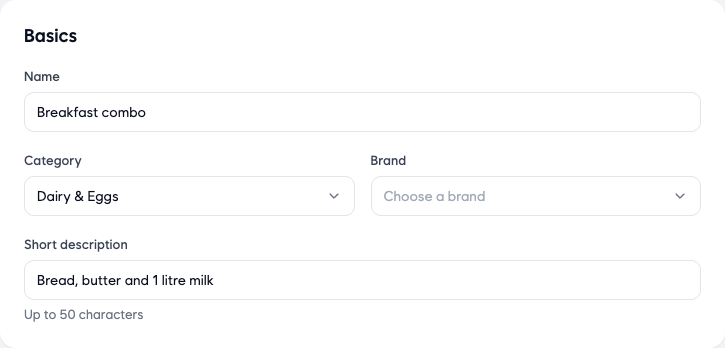
- Fill in Basics:
- Name: what customers see. Put "combo" or "pack" in the name so customers know it is a set, for example "Breakfast combo".
- Category: where the combo shows in your store. You can pick more than one.
- Brand: optional. Leave it empty for a combo of mixed brands.
- Short description: one line under the name, up to 50 characters. Say what is inside, for example "Bread, butter and 1 litre milk".
- Under Photos, click Add photos and add a picture of the items together. You can add JPG, PNG, GIF or an MP4 video, up to 5 MB each.
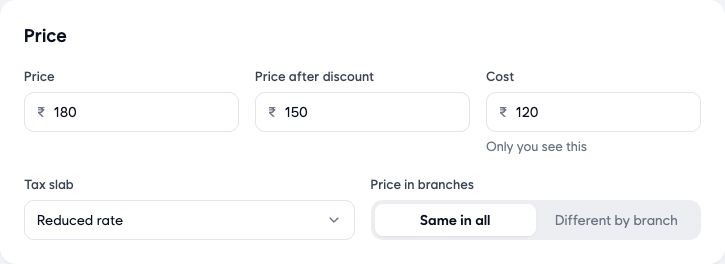
- Fill in Price:
- Price: the full price of the combo, for example the total of the single items.
- Price after discount: the lower price you sell the combo for. Leave it empty if there is no discount.
- Cost: what the combo costs you. Only you see this.
- Tax slab: the tax rate for the combo. Choose one from the list, or click Create tax slab to add a new one.
- Price in branches: choose Same in all to use one price in every branch, or Different by branch to set a price for each branch.
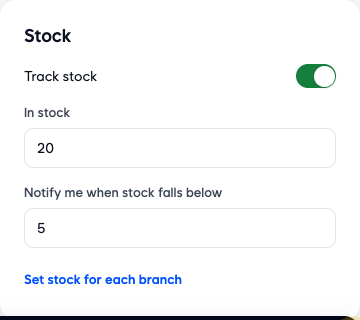
- Fill in Stock:
- Track stock: keep this on if you only have a set number of combos ready.
- In stock: how many combos you have.
- Notify me when stock falls below: you get an alert when the number of combos drops below this.
- Set stock for each branch: click this if each branch has a different number of combos.
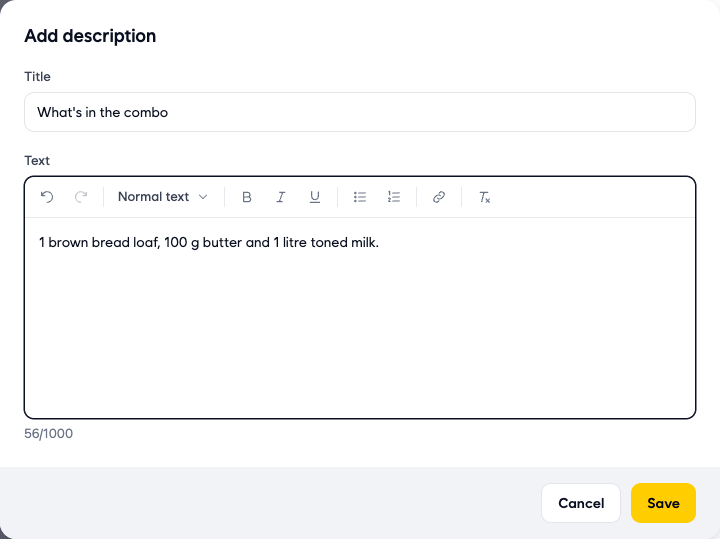
- Under More options, click Descriptions, then Add description. Type a Title, for example "What's in the combo", and list the items in Text (up to 1000 characters). Click Save, then Done. Customers see this on the product page.
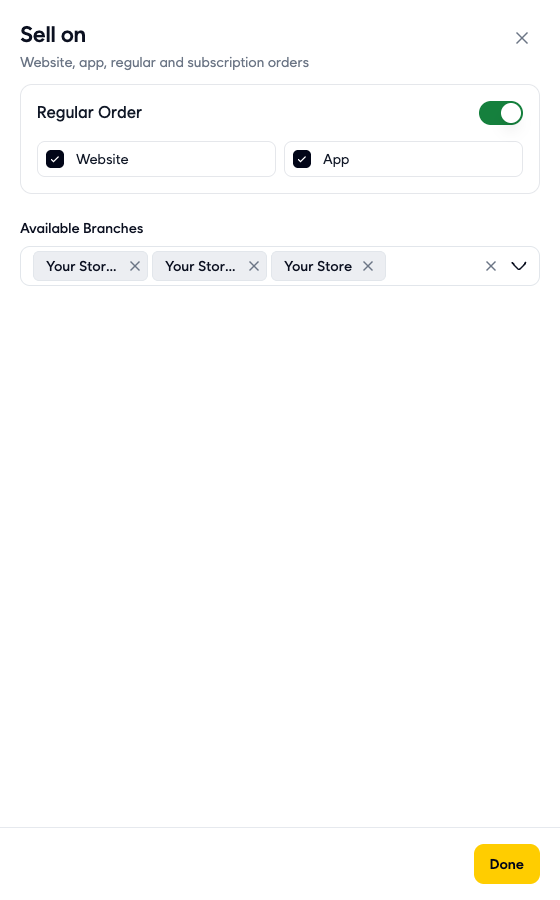
- Under More options, click Sell on. Keep Regular Order on, tick Website and App, and choose the branches that sell the combo in Available Branches. Click Done.
- Click Create product. You go back to Products, and your combo is at the top of the list with its Status switch on. Customers can now order it.
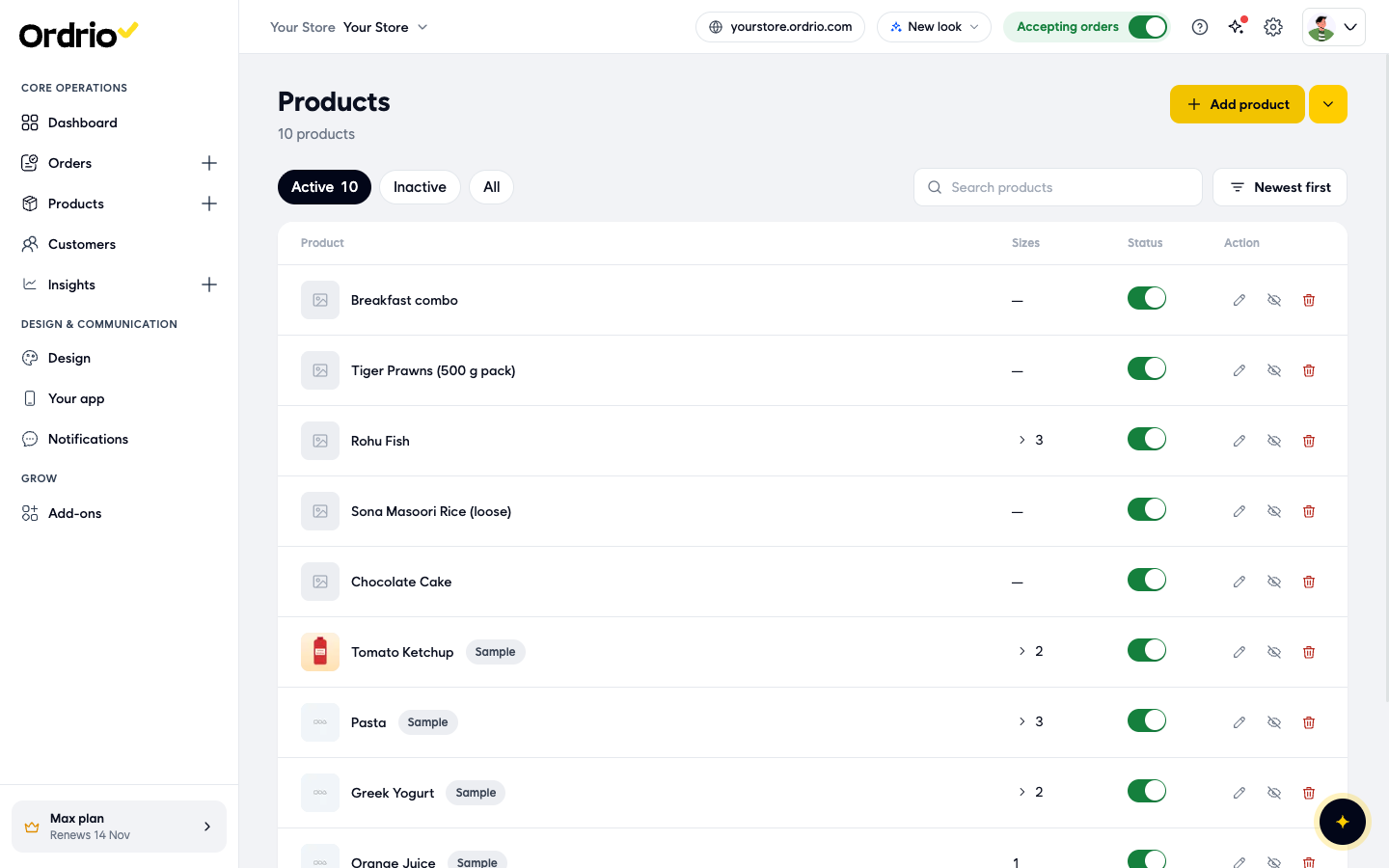
The names and numbers in the screenshots are examples. Use your own products, prices and stock.
Let customers build their own box
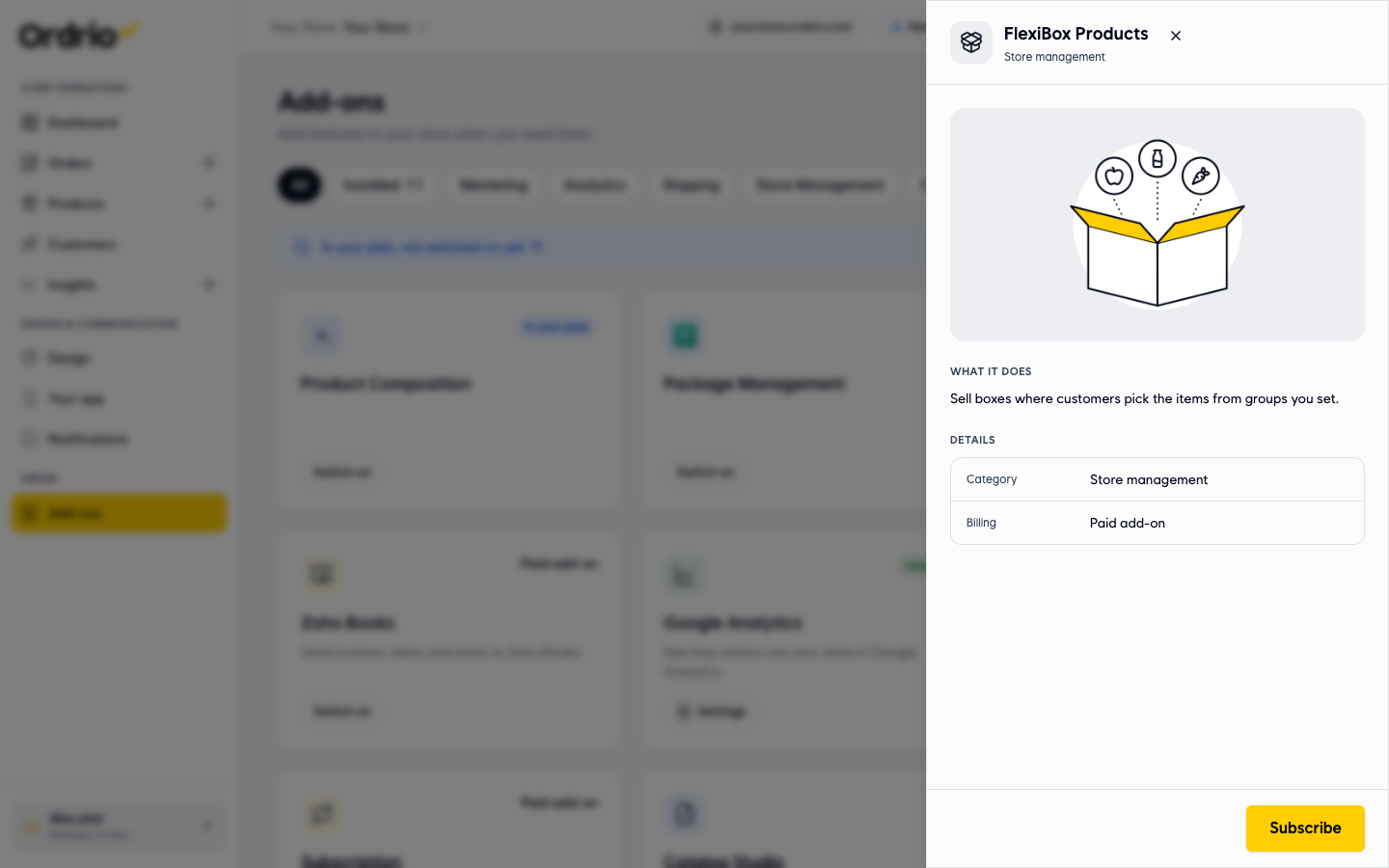
With the FlexiBox Products add-on, you sell boxes where customers pick the items from groups you set. For example, a fruit box where the customer picks any three fruits.
- In the menu on the left, click Add-ons.
- Find FlexiBox Products. It is a paid add-on.
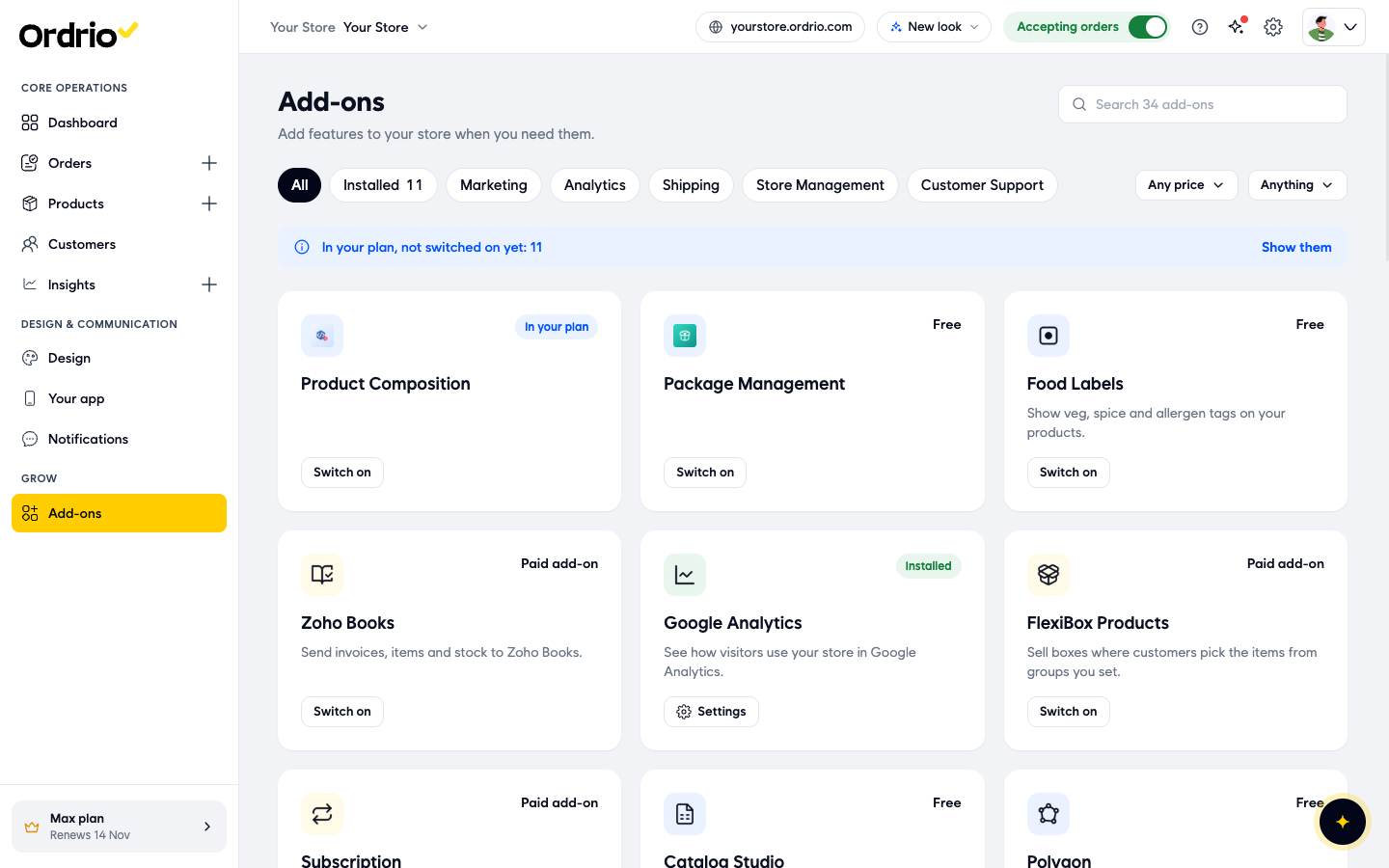
- Click FlexiBox Products to read what it does, then click Subscribe to add it to your store.
Good to know
- A fixed combo is its own product. The stock you set counts combos, not the single items inside them, so keep an eye on the stock of the single items too.
- To stop selling a combo for a while, turn off its switch in the Status column of Products, or click its hide button. Turn it back on when you have stock again.
- To change a combo later, click its edit button in Products, make your changes and save.
- Leave Options empty for a combo. Options are for one product in different sizes, like 500 ml and 1 litre.
- More details has Search tags. Click Add a word to add words customers may search for, like "breakfast" or "pack".
- Order limits under More options sets the smallest and largest number of combos a customer can buy in one order.
Related
- Adding your first product
- Managing product categories
- Smart inventory controls
- Enabling and managing add-ons
क्या यह आर्टिकल काम का था?