यह आर्टिकल अभी हिंदी में नहीं है, इसलिए इसे अंग्रेज़ी में दिखाया जा रहा है।
कैसे करें
Pickup orders
Let customers collect orders from the store.
Pickup lets your customers collect their orders from your store instead of waiting for a delivery. Turn it on when customers live close by, or when you want to save on delivery for orders people are happy to collect.
Before you start
- Check your store address in Settings > Store details. Customers come to your store to collect their orders, so the address must be right.
- Check your opening hours in Settings > Store hours, so customers know when they can come.
Turn on customer pickup
- Open nadi.ordrio.com (your Ordrio admin panel) and log in.
- Click the Settings icon (the gear) at the top right. The Settings page opens.
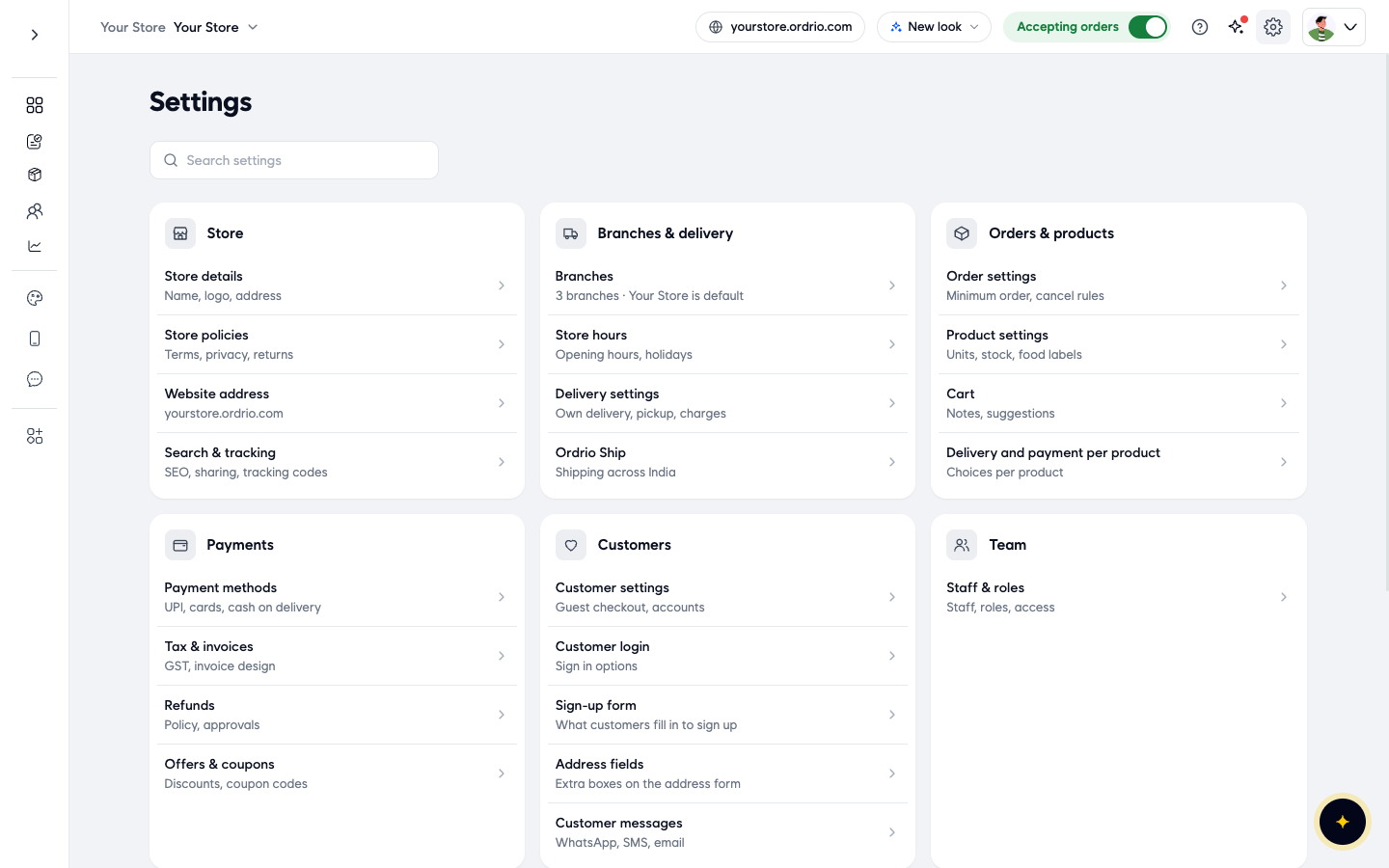
- Under Branches & delivery, click Delivery settings. The page shows your Delivery areas, Additional charges and Ways to deliver.
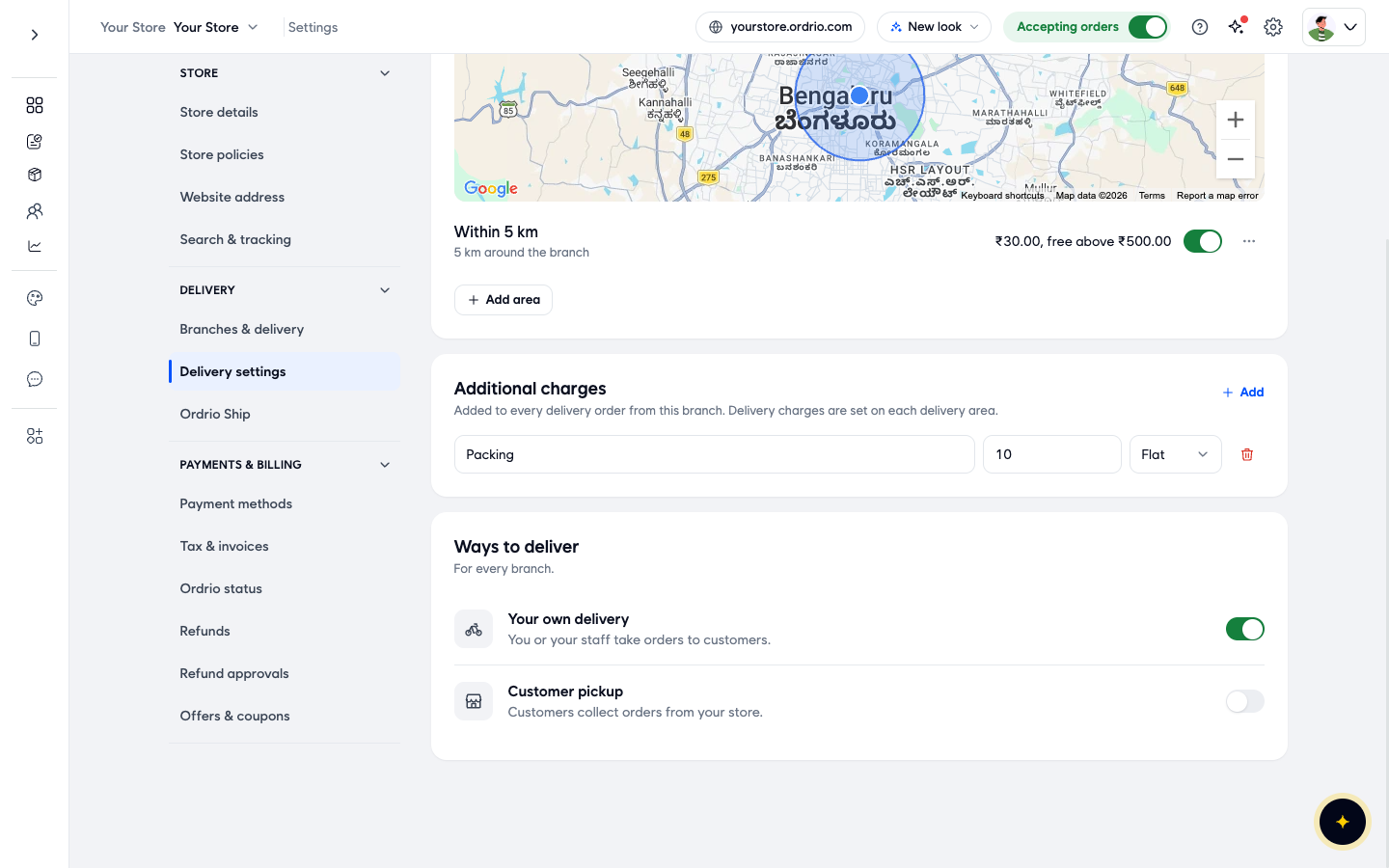
- Scroll down to Ways to deliver. You see two options:
- Your own delivery: you or your staff take orders to customers.
- Customer pickup: customers collect orders from your store. It is off until you turn it on.
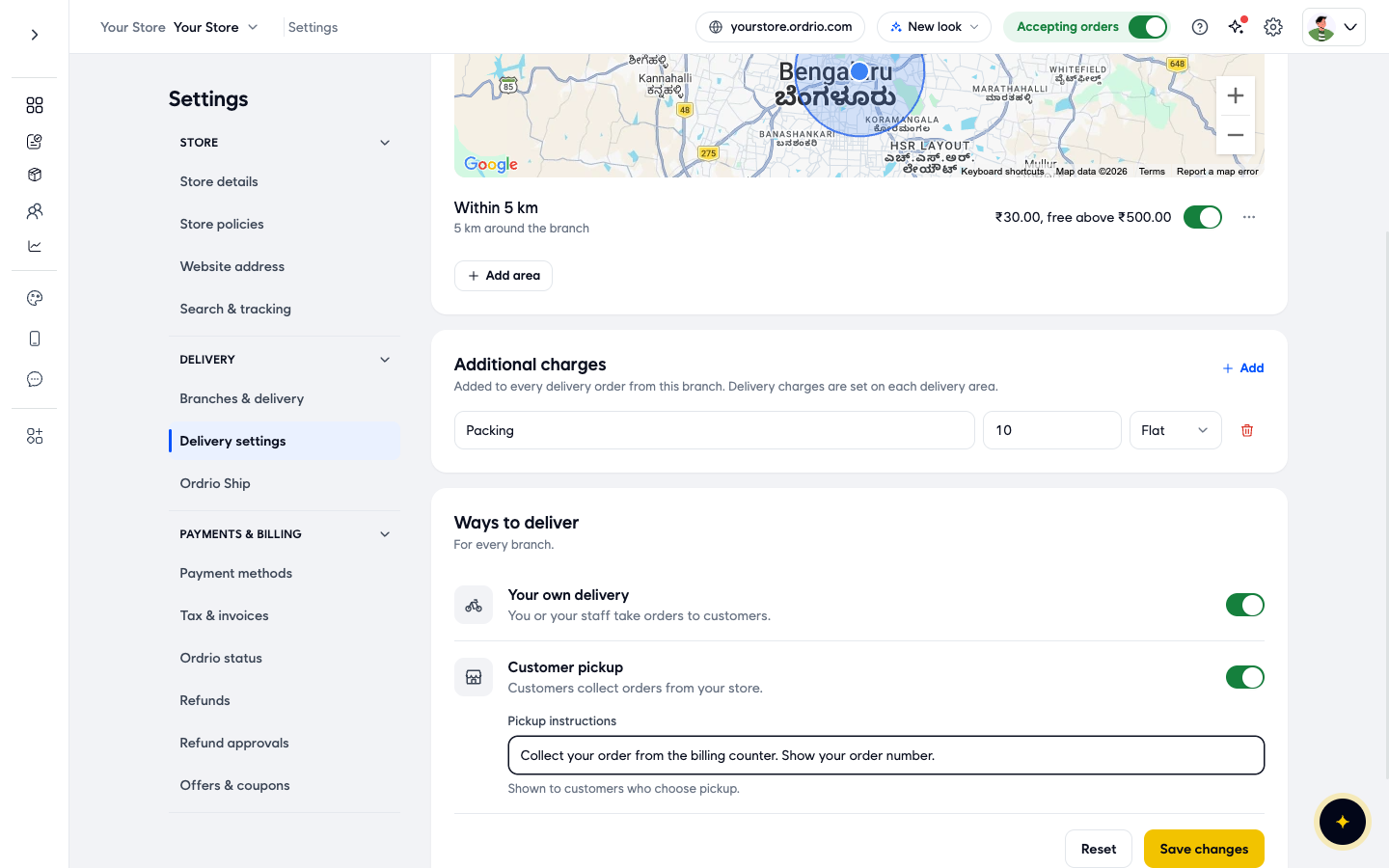
- Turn on the Customer pickup switch. A Pickup instructions box appears below it, with Reset and Save changes buttons.
- In Pickup instructions, type what customers need to know when they come to collect. For example: "Collect your order from the billing counter. Show your order number." These instructions are shown to customers who choose pickup. Write your own instructions, the text above is only an example.
- Click Save changes. The buttons go away and Customer pickup stays on with your instructions saved.
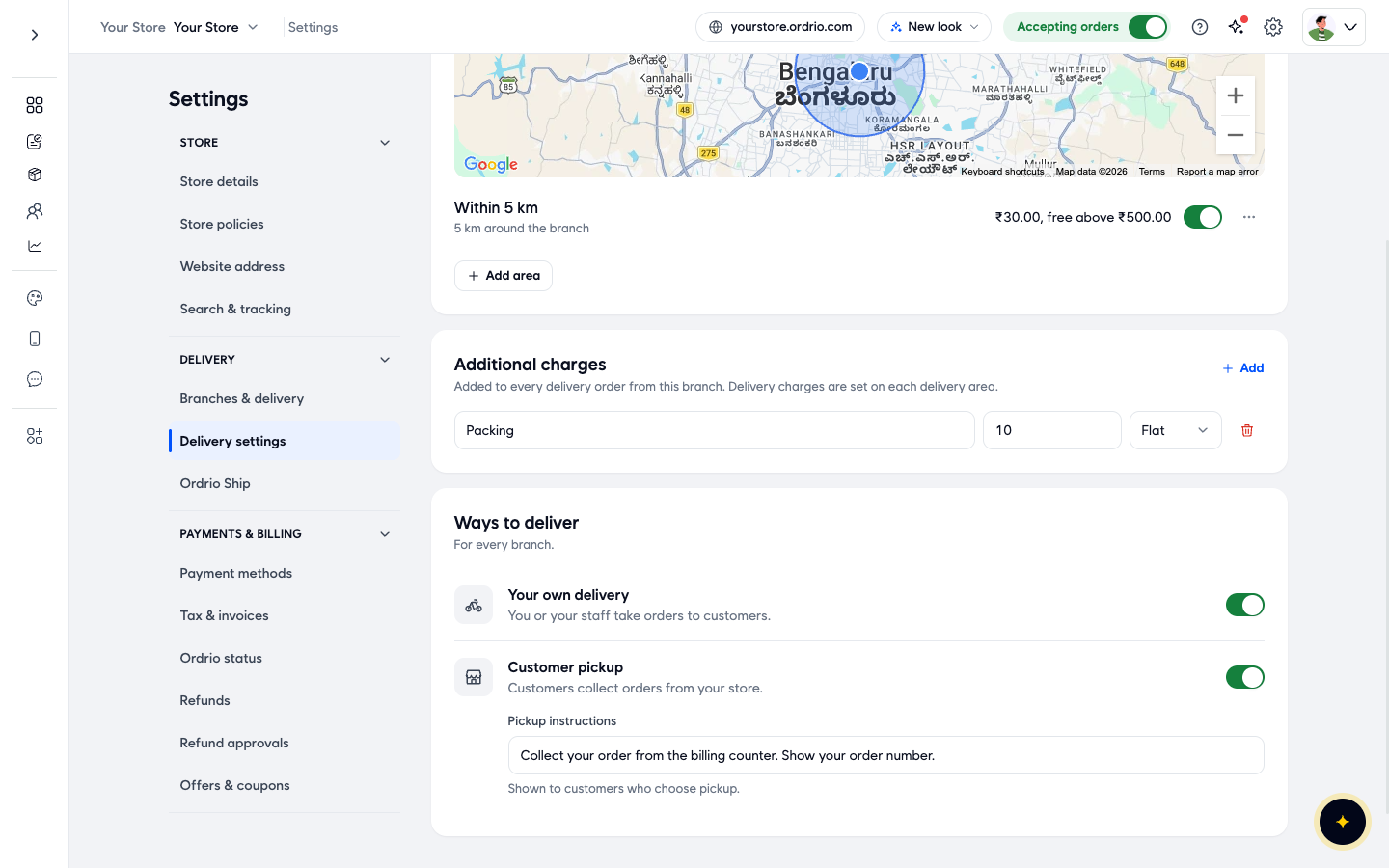
You can keep Your own delivery on as well. Then customers can get their order delivered or collect it themselves.
See your pickup orders
- In the menu on the left, click Orders.
- Click Filters.
- Under Delivery Type, turn on Scheduled pickup.
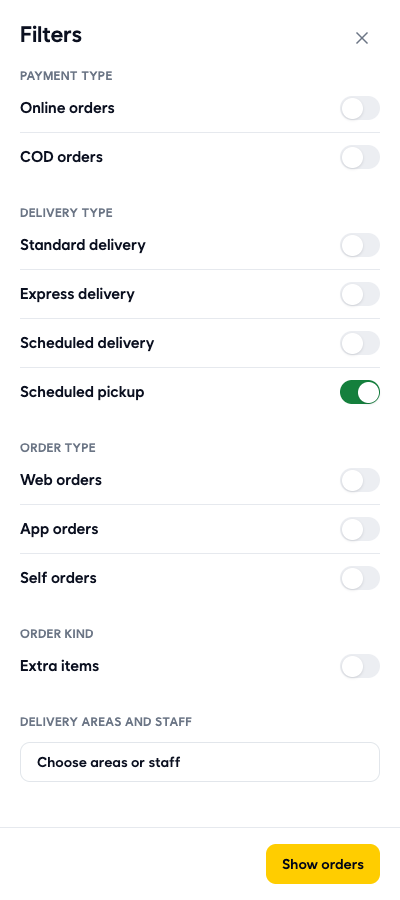
- Click Show orders. The list now shows only pickup orders, and a Scheduled pickup chip appears above the list. If there are no pickup orders yet, you see No orders here.
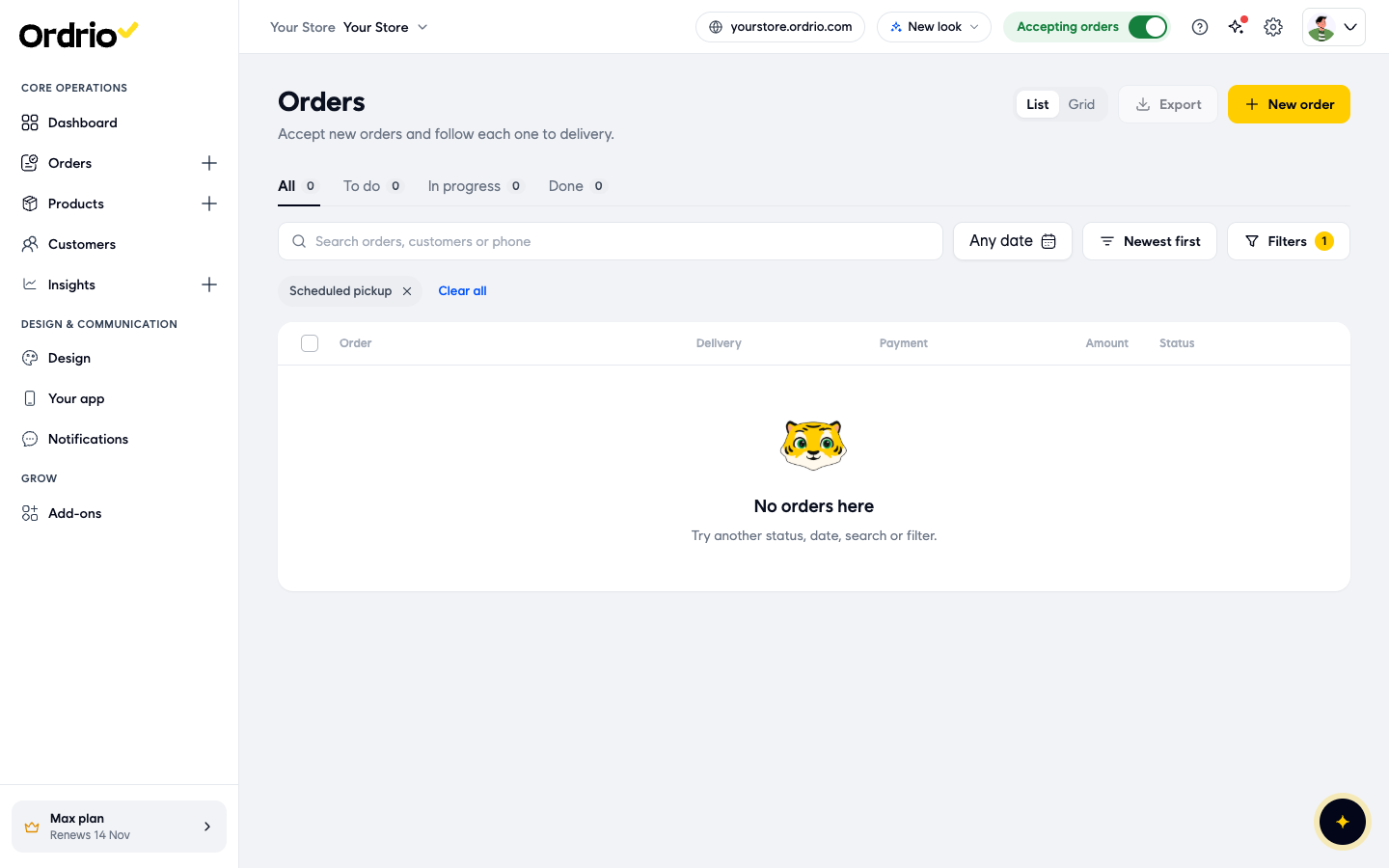
- To see all orders again, click the x on the Scheduled pickup chip, or click Clear all.
The Delivery column in Orders shows the delivery type of each order.
Good to know
- Ways to deliver applies to every branch. If you have more than one branch, turning on Customer pickup turns it on for all of them.
- Keep your pickup instructions short and clear: where to go in the store, and what to show (for example the order number).
- To stop offering pickup, turn off Customer pickup and click Save changes.
- If you do not see Save changes, nothing has changed yet. Turn the switch or edit the instructions first.
Related
- Delivery charges
- Branch operating hours and availability
- Creating and managing branches
- Viewing and managing orders
क्या यह आर्टिकल काम का था?