यह आर्टिकल अभी हिंदी में नहीं है, इसलिए इसे अंग्रेज़ी में दिखाया जा रहा है।
कैसे करें
Cancelling orders and refunds
Cancel orders and refund in full or in part.
Sometimes you can't fulfil an order, or only part of it. You can cancel the whole order from your Ordrio admin panel, or edit it to take off some items, and Ordrio shows you any refund before you confirm.
Before you start
- You need an order that has not been delivered yet. Once an order is delivered, Cancel order no longer shows for it.
- The customer details in the screenshots below are examples. You will see your own customers' names, numbers and addresses.
Find the order
- Open nadi.ordrio.com (your Ordrio admin panel) and log in with your registered email or mobile number.
- In the left menu, click Orders, then click Orders again. The list shows every order with its Delivery, Payment, Amount and Status. New orders waiting for you are in the To do tab. You can also type an order number, customer name or phone in Search orders, customers or phone.
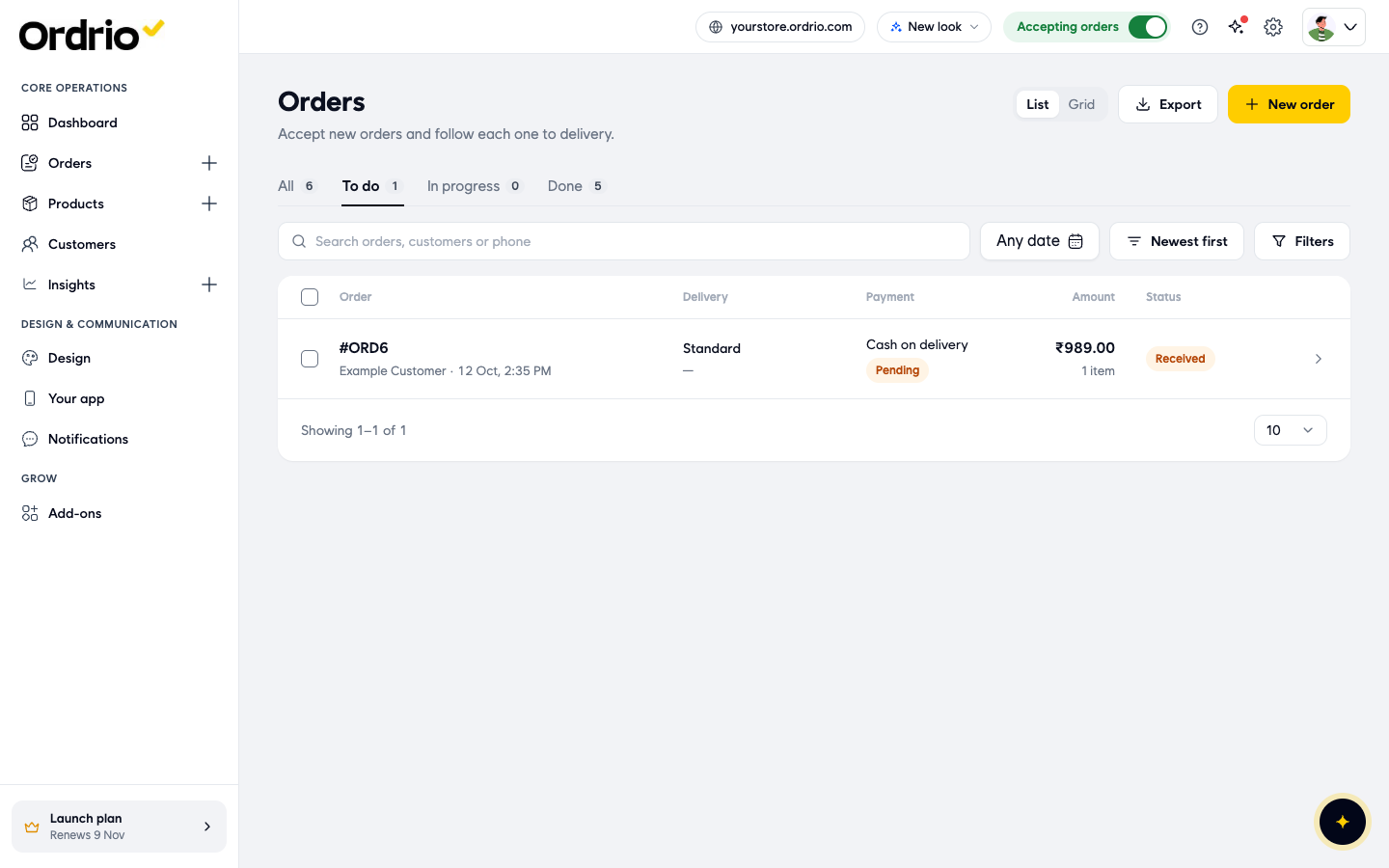
- Click the order to open it.
Cancel a new order (Decline)
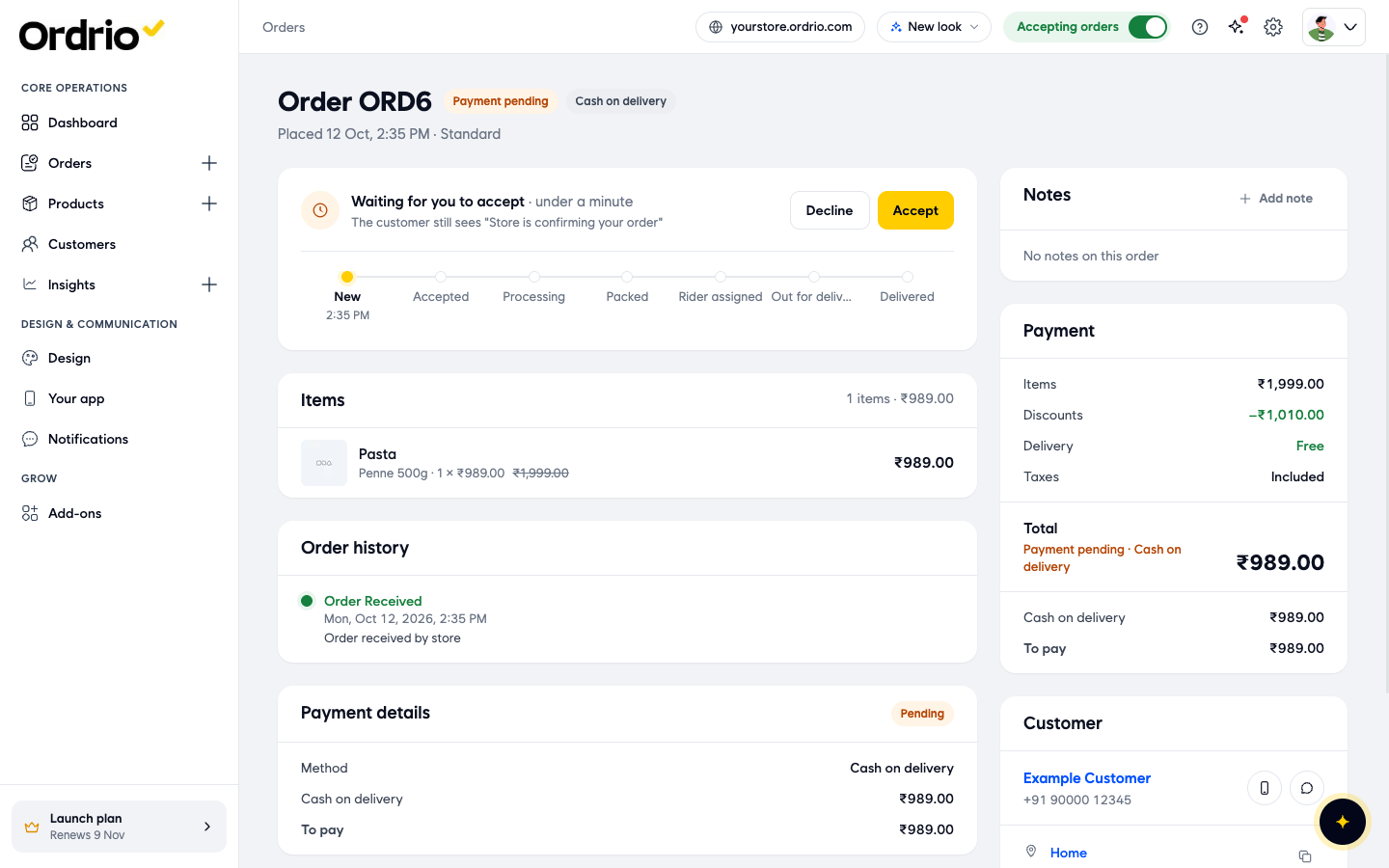
A new order shows Waiting for you to accept at the top, with Decline and Accept buttons. Until you accept, the customer sees "Store is confirming your order".
- Click Decline.
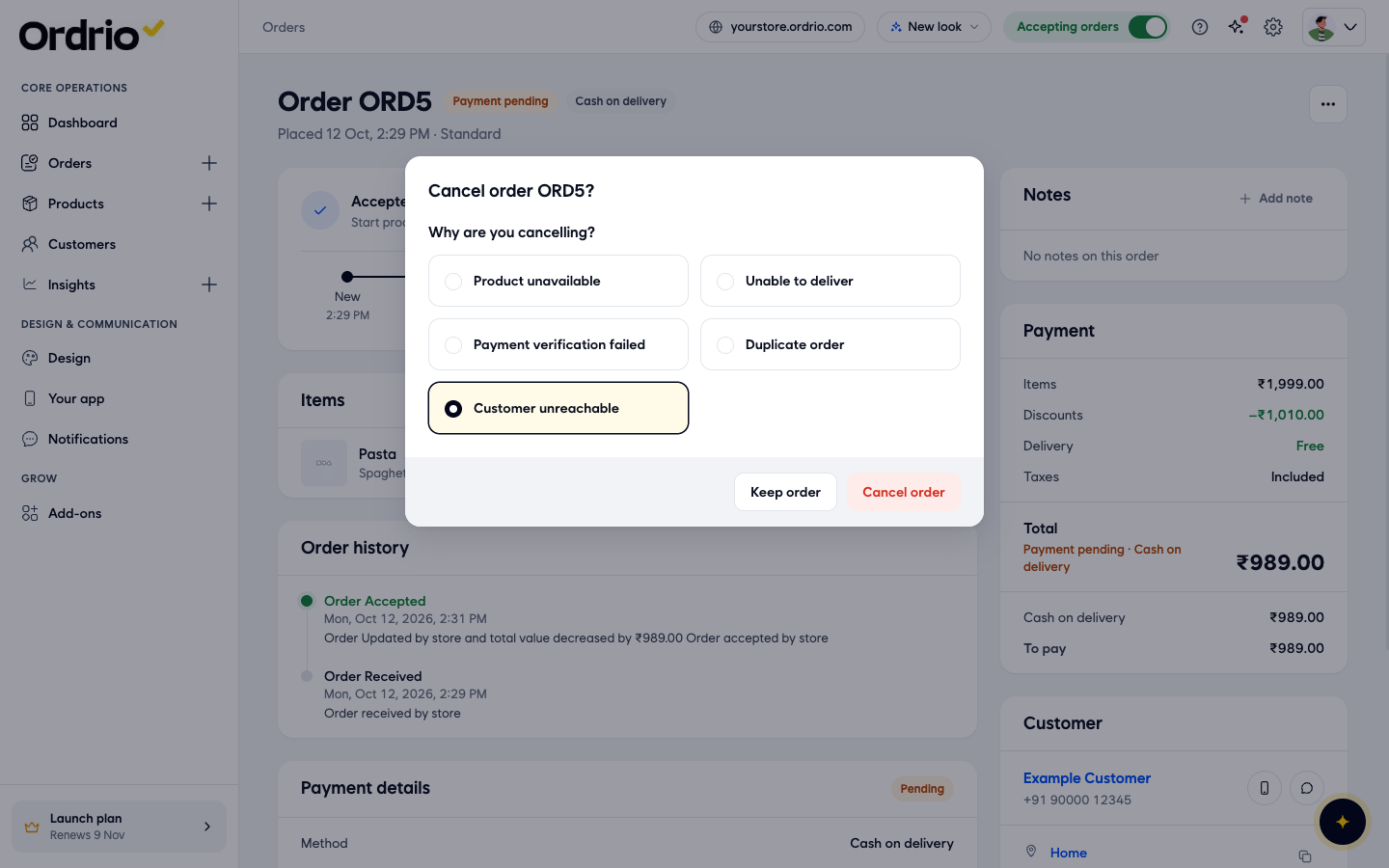
- The Cancel order box opens and asks Why are you cancelling? Pick one reason:
- Product unavailable
- Unable to deliver
- Payment verification failed
- Duplicate order
- Customer unreachable
Product unavailable is picked by default, so change it if another reason fits.
- Click Cancel order to cancel. Click Keep order if you changed your mind.
Cancel an order you already accepted
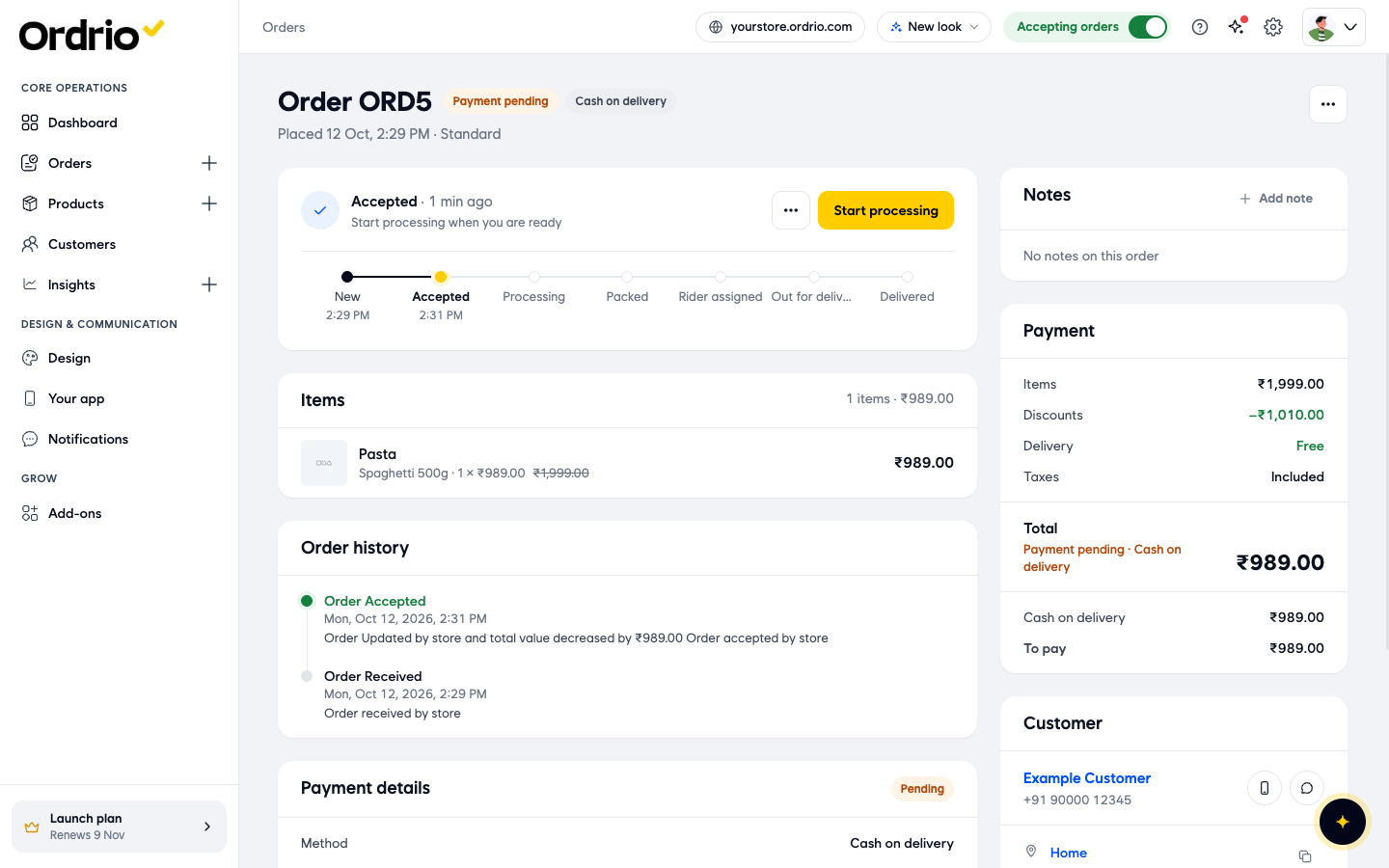
- On the order, click the ... (More actions) button next to the main action button (for example Start processing). The menu shows Edit order and Cancel order.
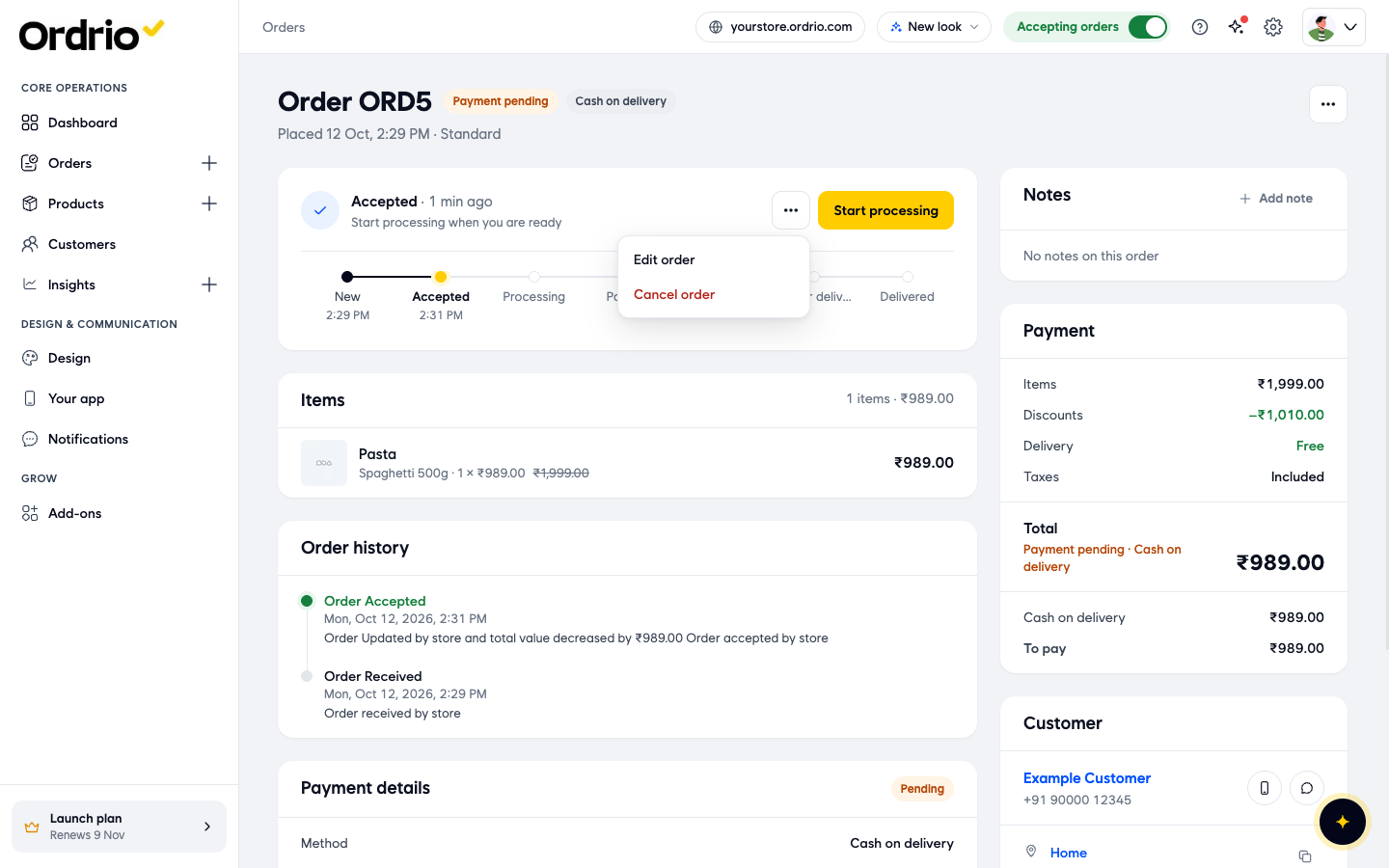
- Click Cancel order, pick the reason in Why are you cancelling? and click Cancel order. This is the same box you see when you decline a new order.
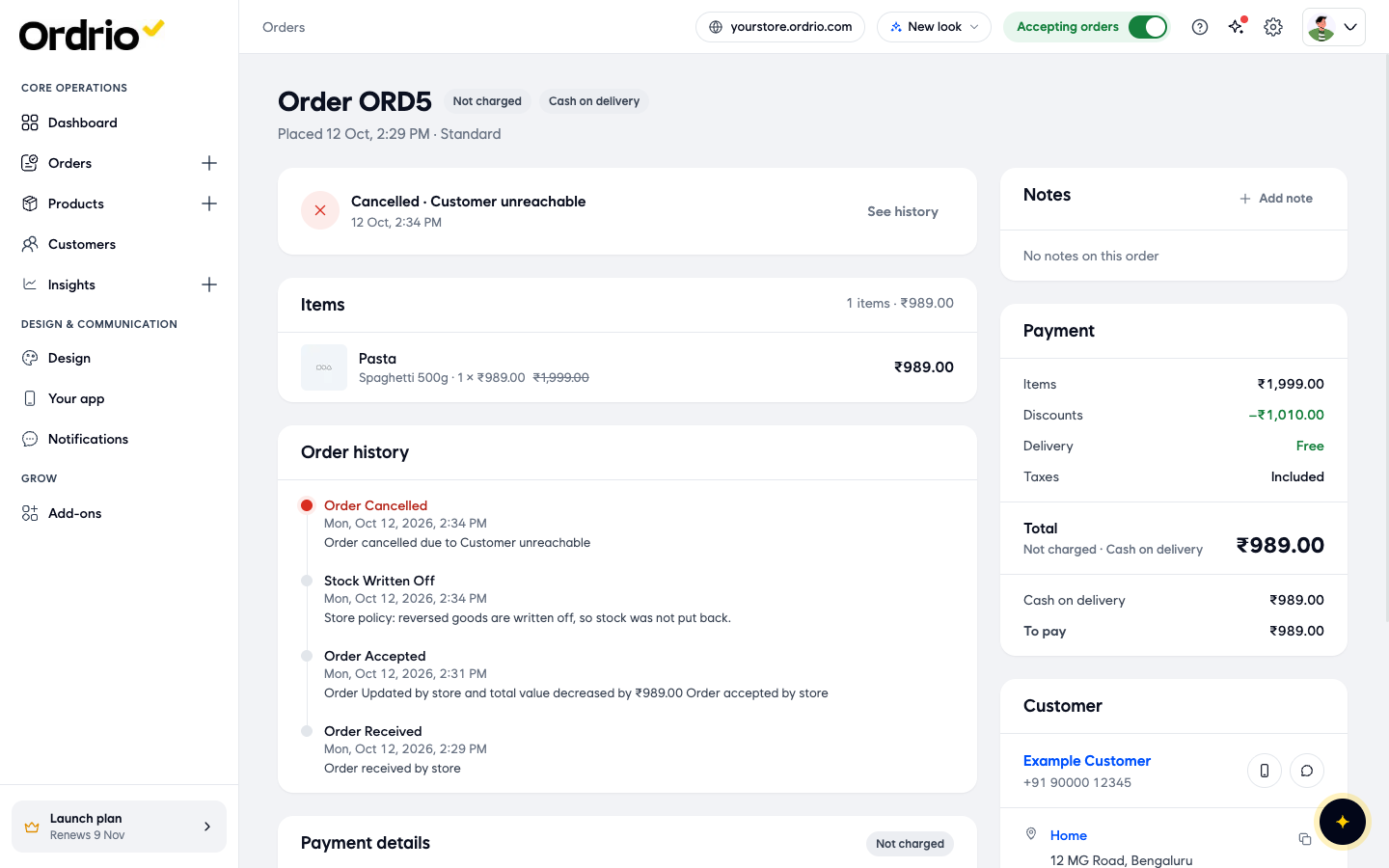
After you cancel, the top of the order shows Cancelled and the reason, for example Cancelled · Customer unreachable. Order history adds an Order Cancelled line with the reason. For a cash on delivery order, the payment shows Not charged. The order moves to the Done tab in Orders.
Cancel part of an order
If you can send most of the order but not all of it, edit the order instead of cancelling it.
- On the order, click ... (More actions) and then Edit order. The Edit order page opens. It says "Change items, quantities or discounts. You see every refund or extra payment before saving."
- In Items, find the product and lower its Quantity with the − button. The table shows each item's Media, Product, Selling Price, Quantity, Discount and Item Total. Use Add products if you want to add something instead, and Reset to undo your changes.
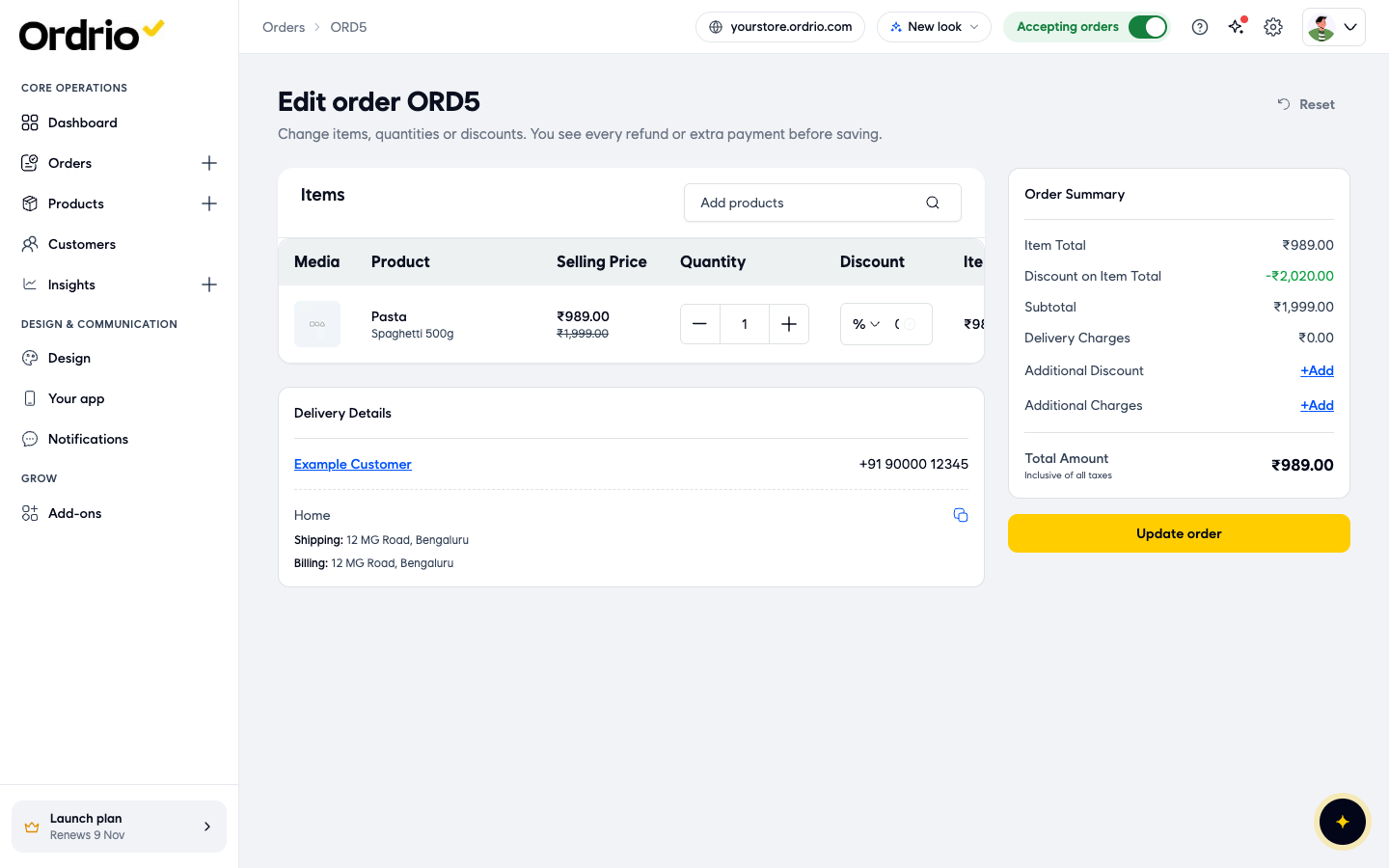
- Check the Order Summary on the right: Item Total, Discount on Item Total, Subtotal, Delivery Charges, Additional Discount, Additional Charges and Total Amount. Delivery Details shows the customer and the shipping and billing address. You can't change these here.
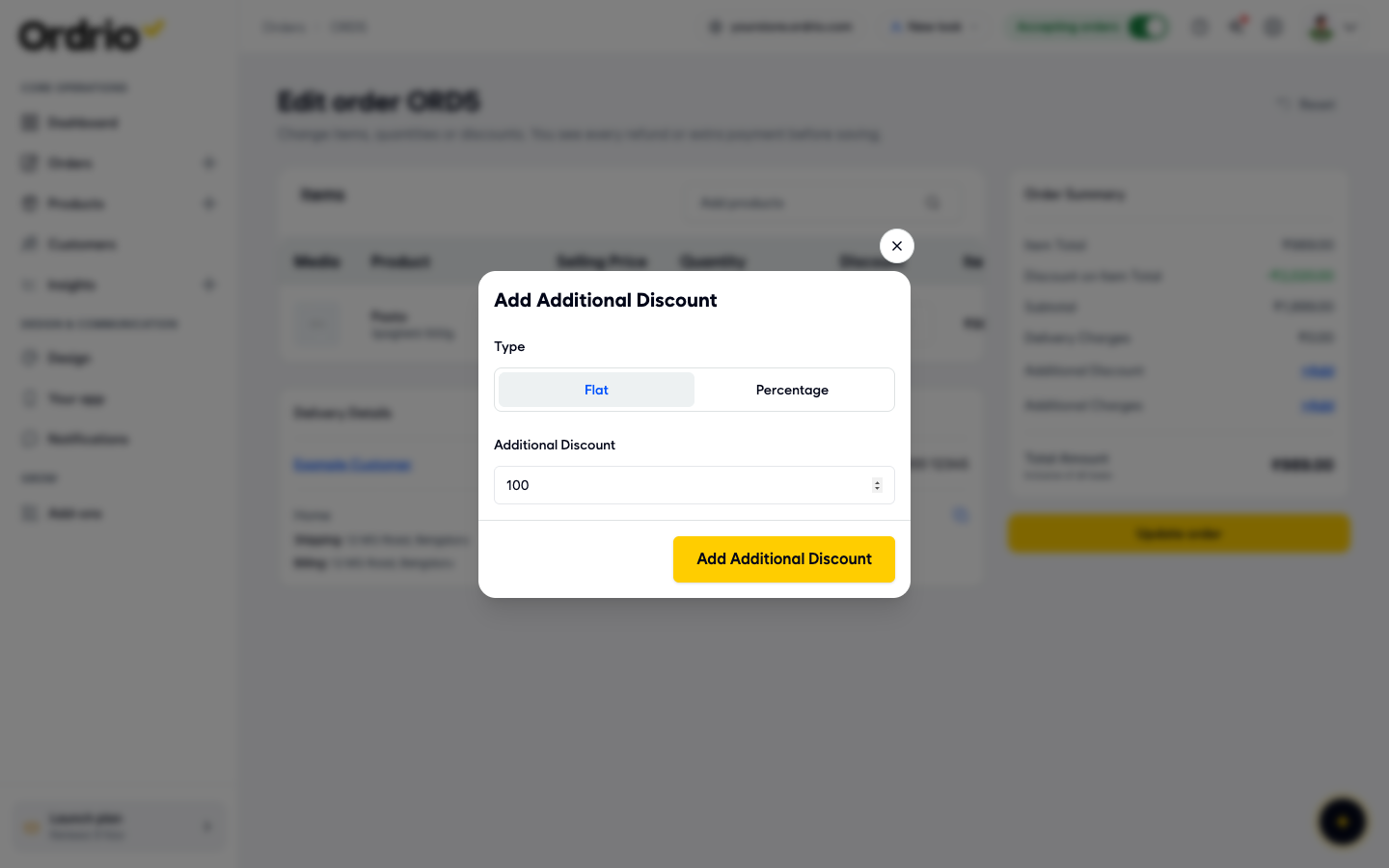
- To lower the bill by an amount instead of removing items, click +Add next to Additional Discount. Choose Flat (an amount in rupees) or Percentage, type the value in Additional Discount and click Add Additional Discount. The example below uses 100. Type your own amount.
- Click Update order. The Updated Order box opens so you can check the change before you save it.
Check the refund and confirm
- In the Updated Order box, check each changed product: Original, Updated and Net Difference (the amount taken off).
- For each changed product, pick a Reason: Out of Stock, Poor Quality, Request from Customer or Other Reason.
- Check the panels on the right. Original Order shows the Payment Mode and the Original Order Value. Updated Order shows the new Updated Order Value. Refund Amount shows how much goes back to the customer. It is ₹0.00 when the customer has not paid yet, as in this cash on delivery example. Read the note at the bottom, which tells you how the payment will be marked.
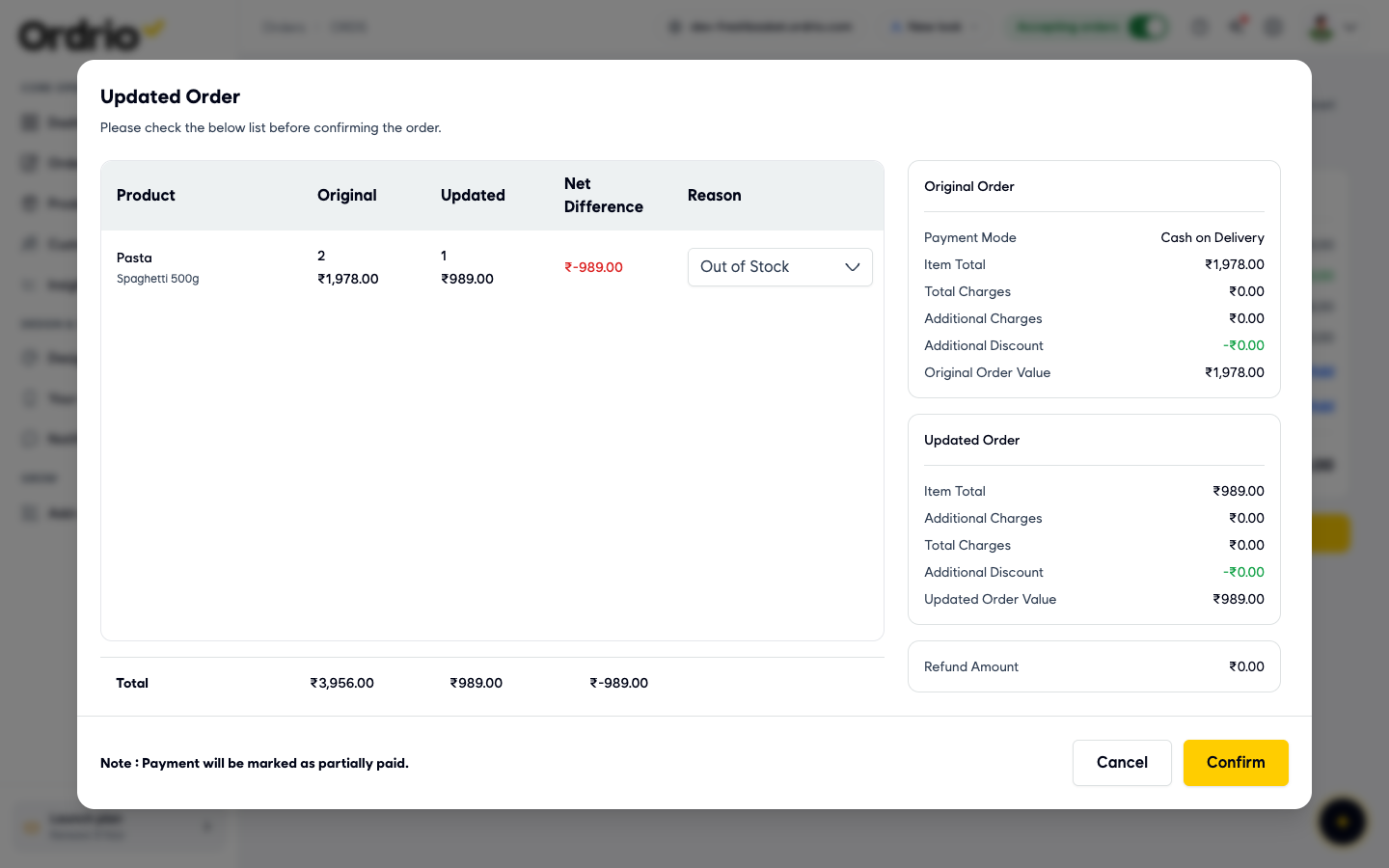
- Click Confirm to save, or Cancel to go back without changing the order.
The order now shows the new items and total. Order history adds a line such as "Order Updated by store and total value decreased by ₹989.00".
Good to know
- New orders have Decline. Accepted orders have Cancel order under ... (More actions). Both open the same box and ask for a reason.
- Delivered orders can't be cancelled. Cancel order does not show for them.
- Stock after a cancel. Order history shows what happened to the stock. In the example store it showed Stock Written Off with the message "Store policy: reversed goods are written off, so stock was not put back." Check this line if you need the stock back on your shelf.
- Refunds. The Refund Amount in the Updated Order box tells you what goes back before you confirm. The examples here are cash on delivery orders that were not paid yet, so nothing was charged and the refund was ₹0.00. If your customer paid online, check Payment details on the order after you cancel or edit it.
- Pick the right reason. The reason is saved in Order history and shows at the top of a cancelled order, so your team can see why later.
- Cancelled by mistake? A cancelled order has no button to bring it back. Place a new order for the customer from Orders > New order.
Related
- Viewing and managing orders
- Creating manual orders (walk-in or phone)
- Editing orders after placement