यह आर्टिकल अभी हिंदी में नहीं है, इसलिए इसे अंग्रेज़ी में दिखाया जा रहा है।
कैसे करें
Creating manual orders (walk-in or phone)
Create orders for customers who buy in store or over the phone.
When a customer buys at your counter or orders over the phone, you can put the order into Ordrio yourself. This keeps every sale in one place: your stock, sales reports and order history stay correct, and nothing is written on paper.
Before you start
- Add the products you sell in Products. The new order screen only finds products that are already in your store.
- For phone orders, it helps to have the customer's name and mobile number ready.
Open the new order screen
- Open nadi.ordrio.com (your Ordrio admin panel) and log in.
- In the left menu, click Orders, then Orders.
- Click New order at the top right of the page.

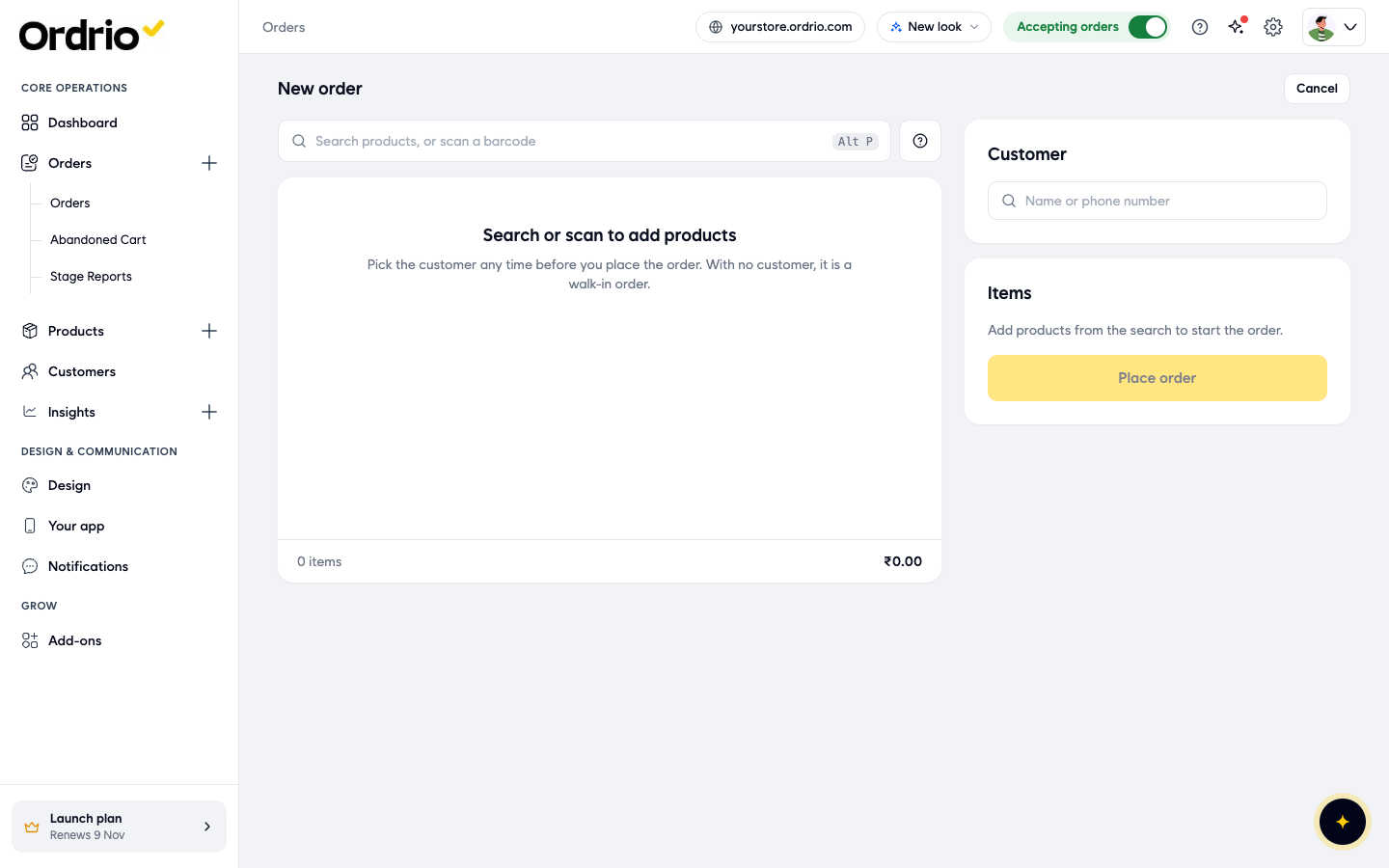
The New order screen opens. On the left is the product search. On the right are the Customer box and the Items box, where you see the bill. Click Cancel at the top right at any time to leave without placing the order.
Add the products
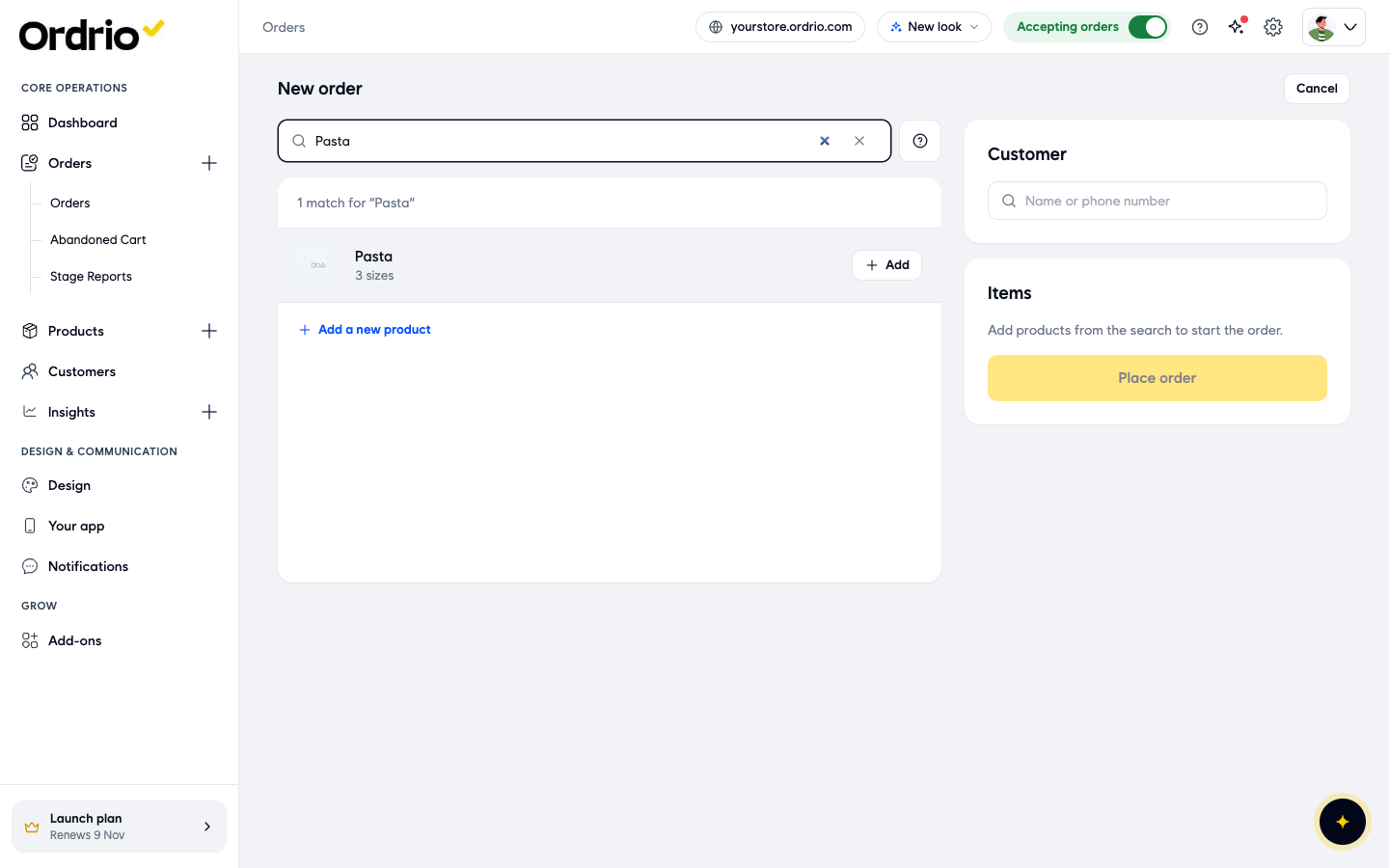
- Click the search box (Search products, or scan a barcode) and type the product name. You can also scan the product's barcode. Tip: press Alt and P to jump to the search box.
- Click Add next to the product you want.
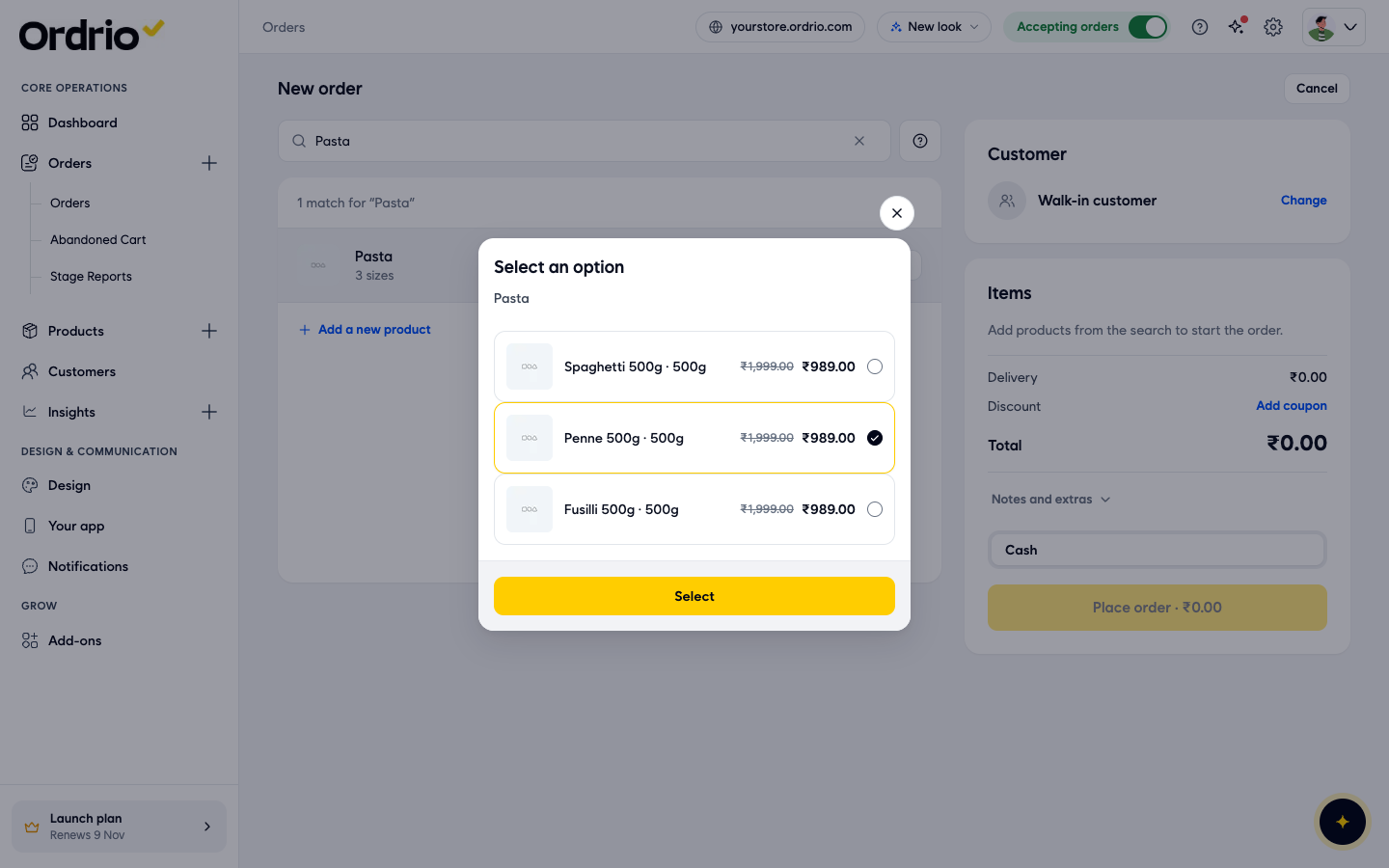
- If the product comes in more than one size or type, the Select an option window opens. Tick the option the customer wants and click Select.
- Set the quantity with the - and + buttons next to the product. The line under the product name shows its price and how many are in stock.
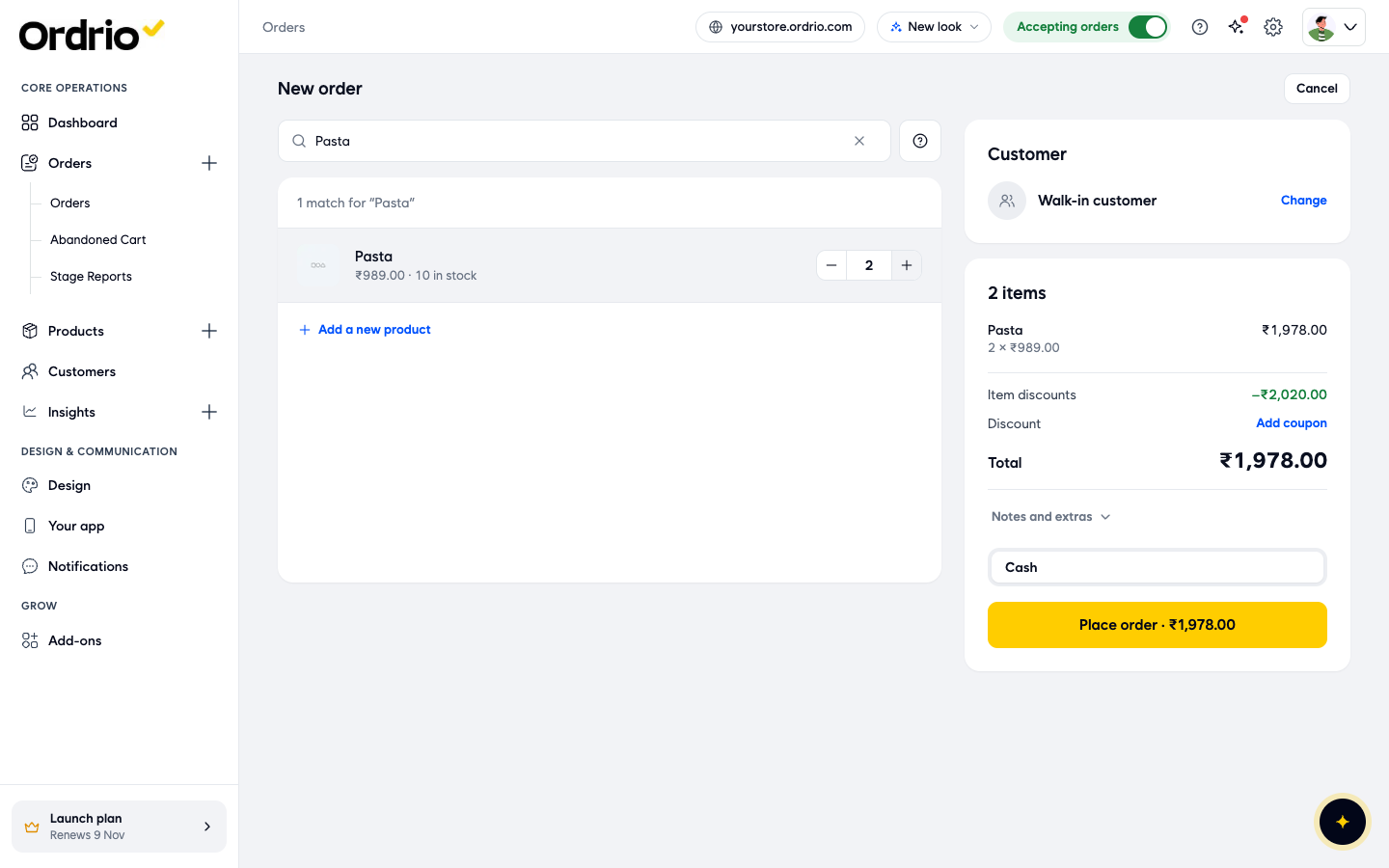
Repeat steps 4 to 7 for every product in the order. The Items box on the right updates as you go:
- Each product, with its quantity and line price.
- Item discounts: the savings from products that are on sale.
- Discount: where you add a coupon (see step 13).
- Total: what the customer pays.
If a product is not in your store yet, click Add a new product under the search results.
Choose the customer
You can pick the customer at any time before you place the order.
- For a walk-in customer, do nothing. With no customer chosen, the Customer box shows Walk-in customer and the order is saved as a walk-in order.
- For a phone order or a regular customer, click the Name or phone number box under Customer (or click Change next to Walk-in customer). Type the customer's name or mobile number, then click the customer in the list.
- If the customer is not in the list, click Add a new customer. In the Add New Customer window, fill in:
- Customer Name: the customer's full name.
- Email Address: the customer's email.
- Phone Number: the customer's mobile number, after +91.
Then click Add Customer. The name, email and number in the screenshot are examples. Type your customer's own details.
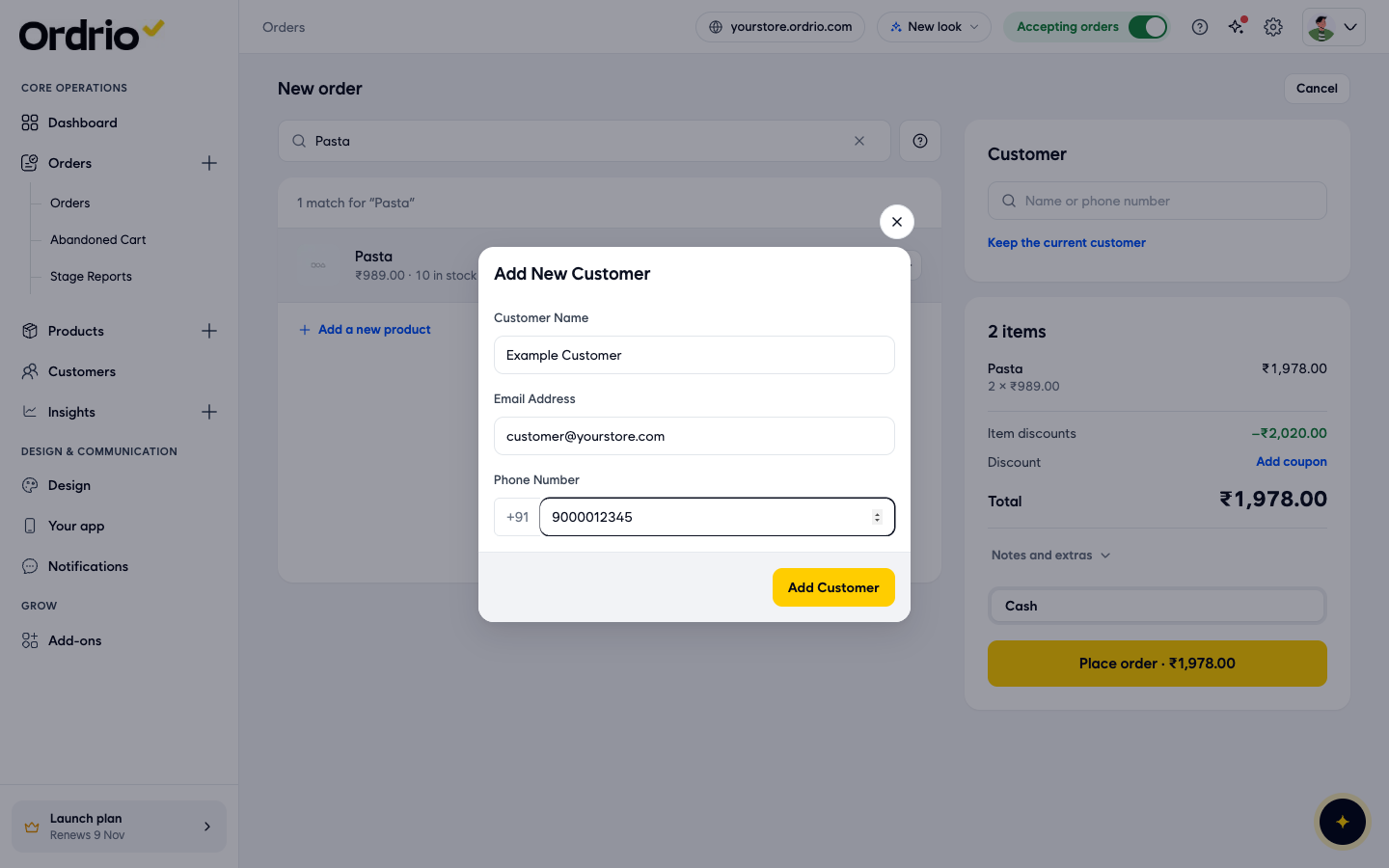
To go back without changing the customer, click Keep the current customer.
Choose pickup or delivery
When a customer is chosen, a How it reaches them switch appears in the Customer box.
- Click At counter if the customer takes the order now or picks it up from your store.
- Click Delivery if you will deliver it. Then click Add delivery address and, in the Select Address window, click one of the customer's saved addresses. To add a new one, click Add New Address and pick the location on the map in Select Delivery Location, or click Search Manually to search for it.
When you choose Delivery, the payment choice under the bill changes to Cash on Delivery.
Add discounts, charges or a coupon (optional)
- To use a coupon, click Add coupon next to Discount. In the Apply Coupon window, search for the coupon and pick it. If you have no coupons, the window shows No coupons available.
- To give a discount of your own, click Notes and extras, then Add next to Extra discount. In the Add Additional Discount window, choose Flat (an amount in rupees) or Percentage, type the value in Additional Discount and click Add.
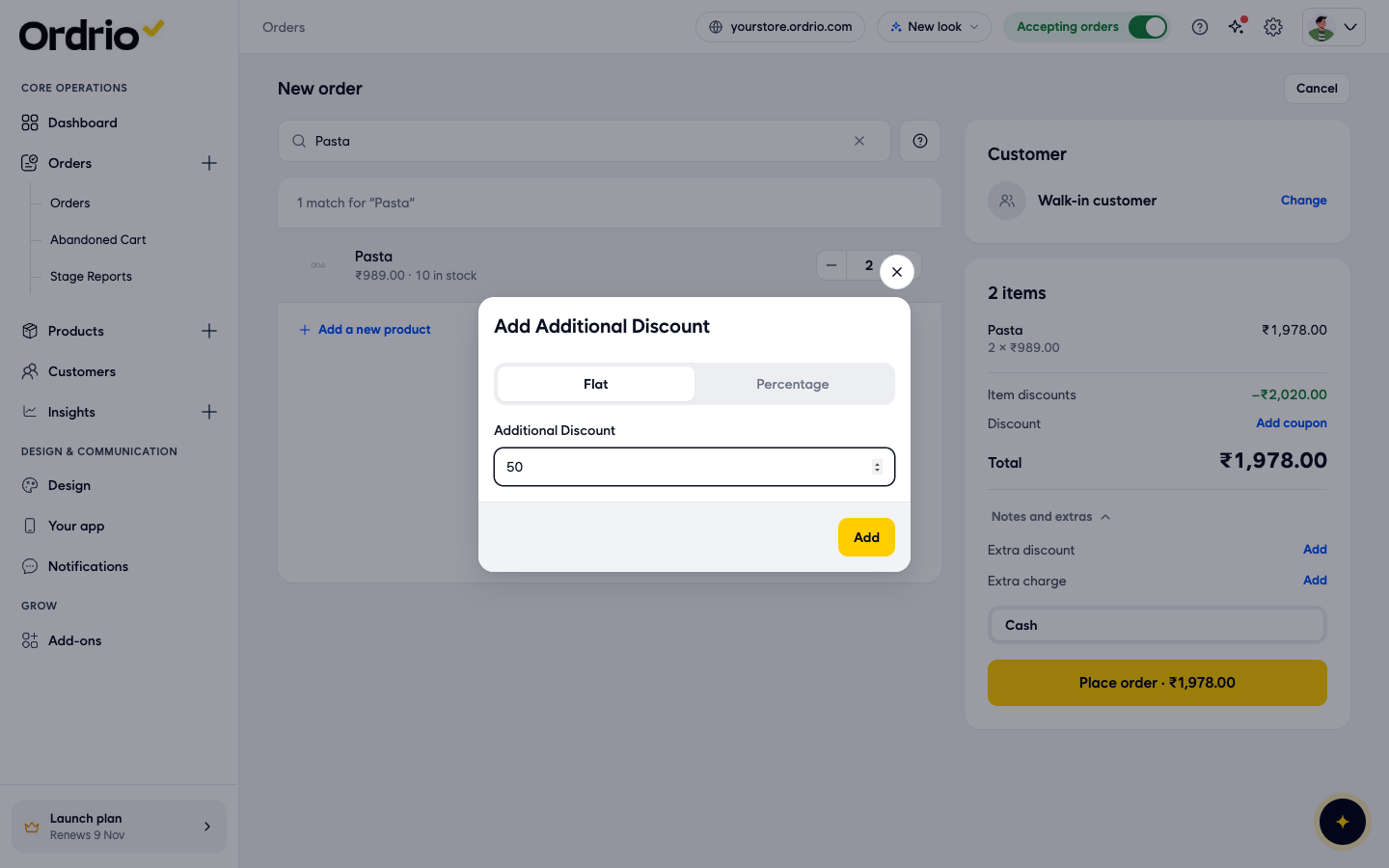
- To add an extra cost, such as packing, click Add next to Extra charge. In the Add Additional Charge window, choose Flat or Percentage, type the value in Charge Amount and click Add.
Extra discounts and charges show under Notes and extras, with an Edit link to change them, and the Total updates.
Place the order
- Check the products, the customer and the Total. Under the bill, check how the customer pays. For a counter order this is Cash.
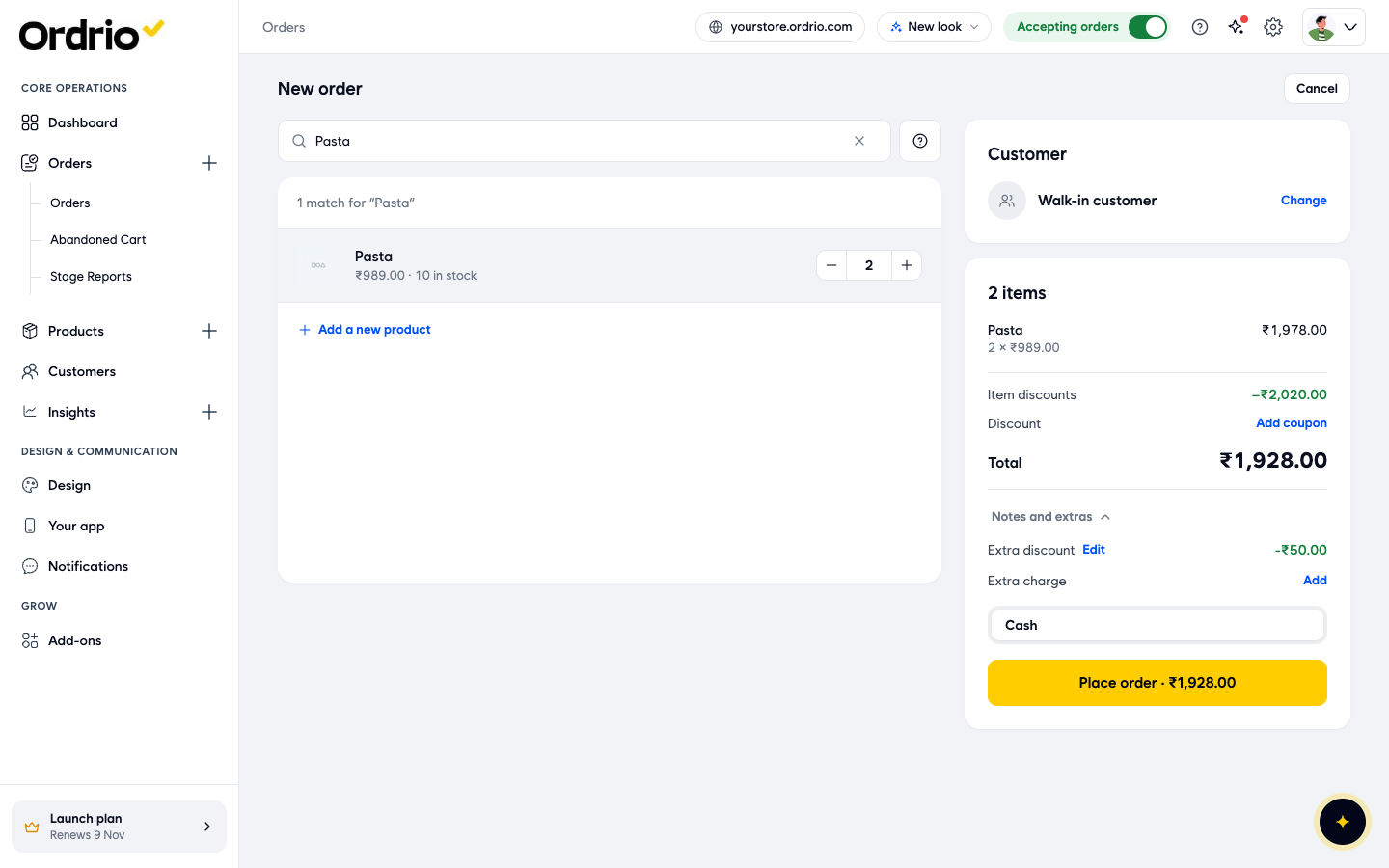
- Click Place order. The button shows the total, for example Place order · ₹1,928.00.
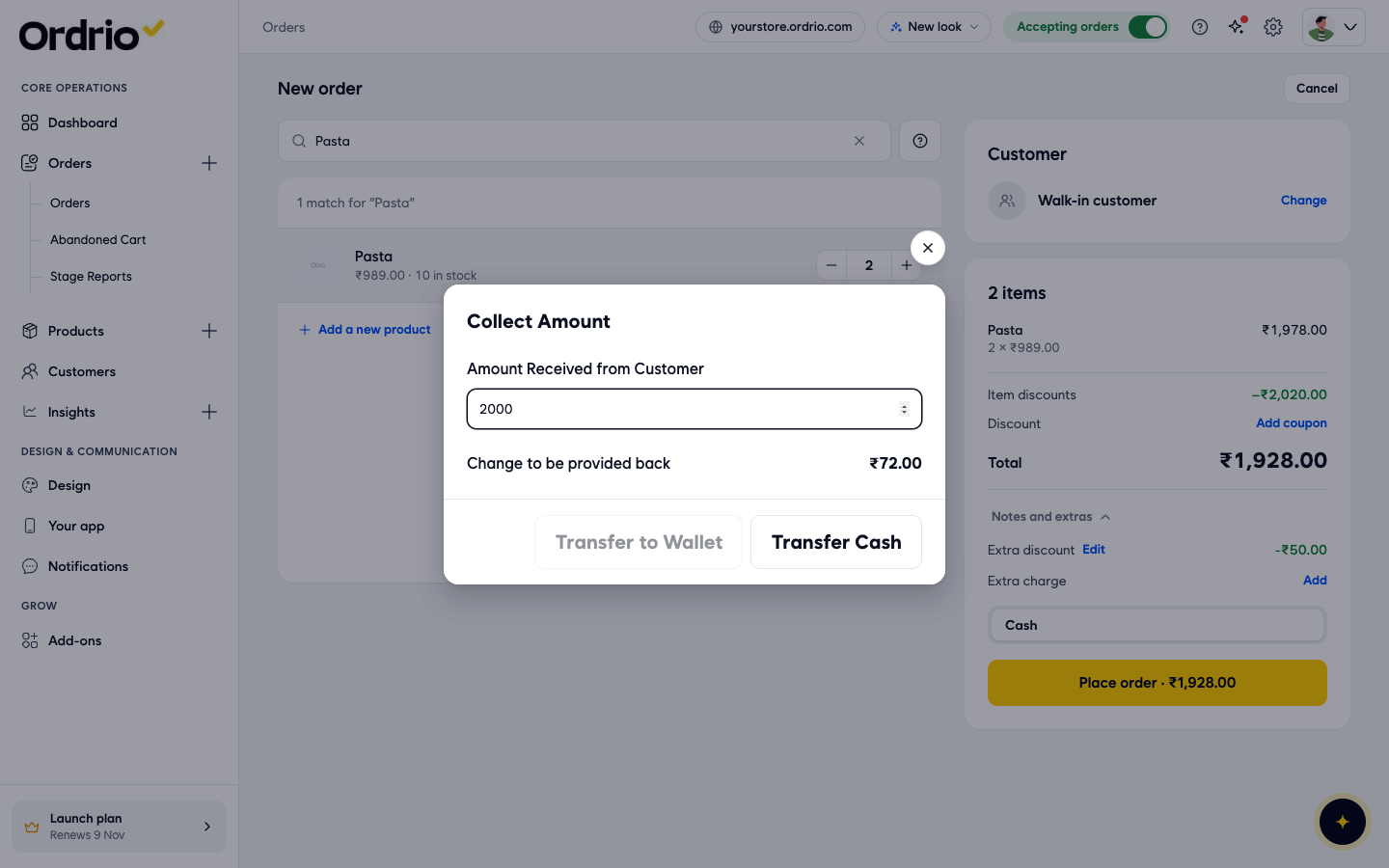
- For a cash order at the counter, the Collect Amount window opens. In Amount Received from Customer, type the cash the customer gave you. It starts with the exact total. Change to be provided back shows how much change to return.
- Finish the order:
- If the customer paid the exact amount, click Complete Order.
- If the customer paid more, click Transfer Cash when you give the change back in cash, or Transfer to Wallet to put the change in the customer's wallet instead. Transfer to Wallet is greyed out for a walk-in customer.
What you see after saving
Ordrio takes you back to Orders, and the new order is at the top of the list. A walk-in order from the counter shows:
- Guest as the customer.
- In-store under Delivery.
- Paid under Payment.
- Delivered as the status, because the customer already has the goods.
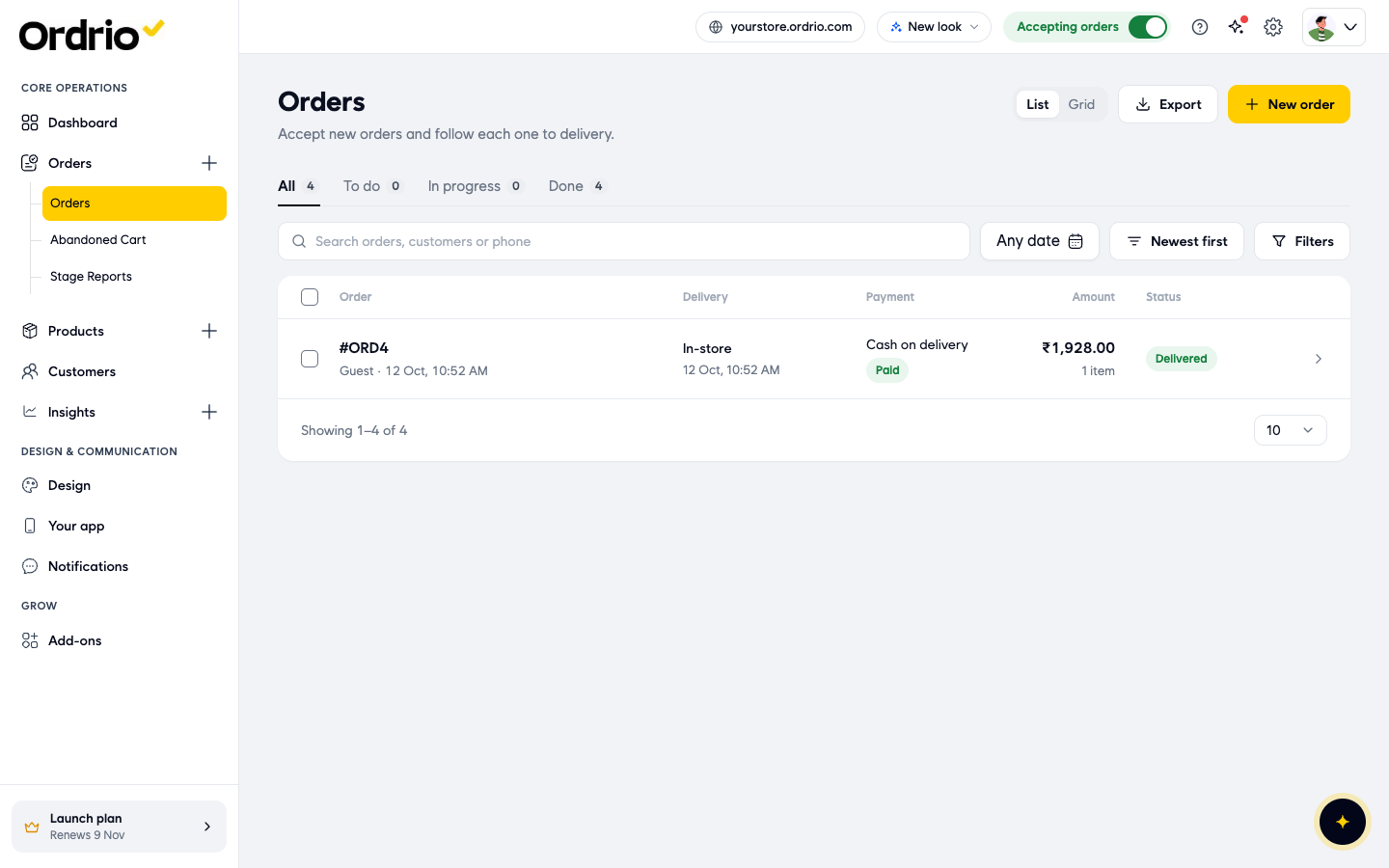
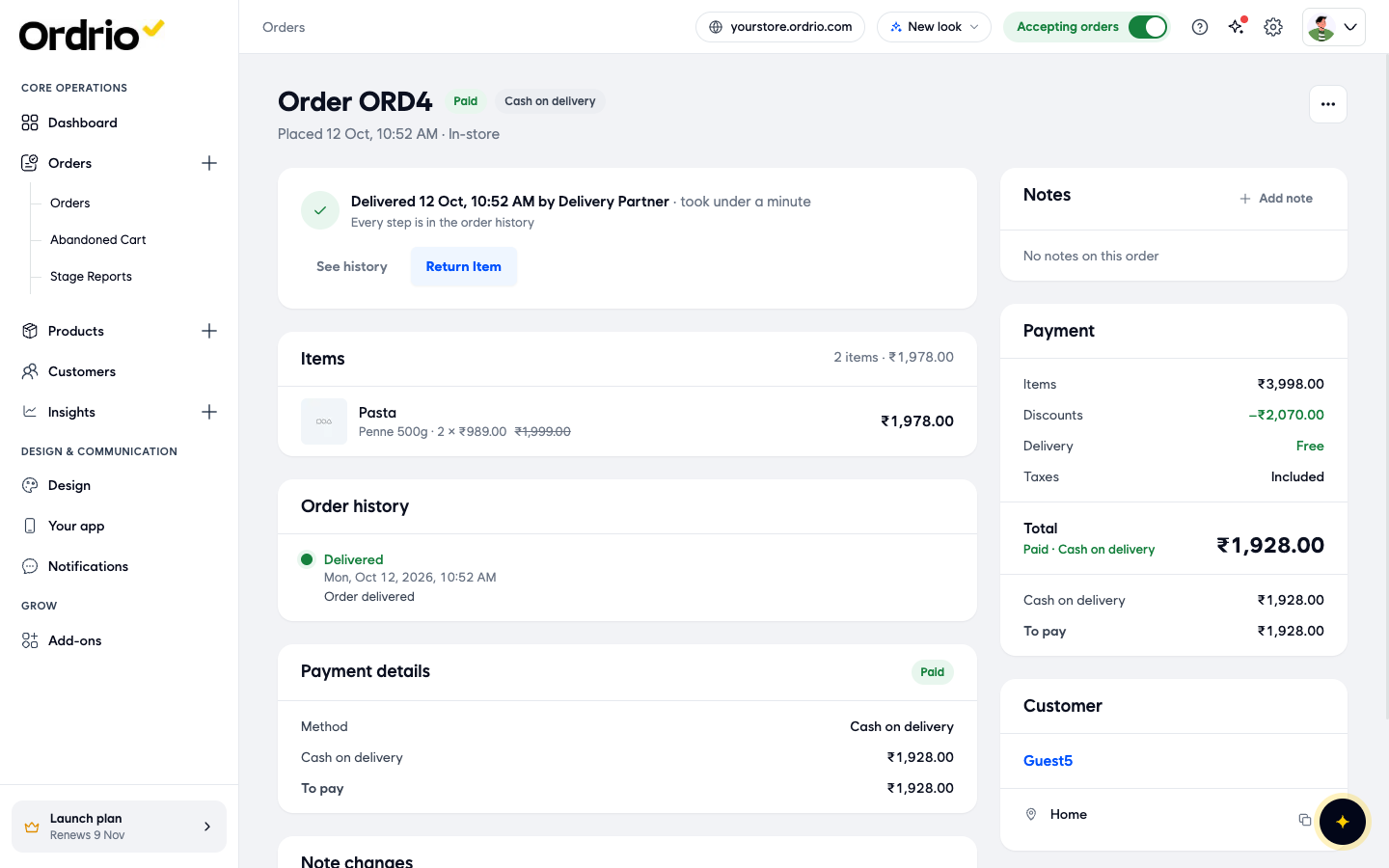
Click the order to open it. You see the items, the Order history, the Payment details with the discounts you gave, and the Customer. You can add a note with Add note, and use Return Item if the customer brings something back.
Good to know
- Walk-in orders are complete straight away. A counter order with cash is saved as paid and delivered, so it goes into Done in your orders list. There is nothing more to do.
- Your reports count these orders. On your Dashboard, the Where orders come from card lists orders you create here as Added by you, next to orders from your website and app.
- The payment label. On the order, a cash sale at the counter shows as Cash on delivery with Paid. This is normal.
- "Customer already exists". If you see this message when you add a new customer, that mobile number is already saved. Search for the number in the Customer box and pick the customer instead.
- Stock. The product search shows how many of each product are in stock, so you can tell the customer straight away if something has run out.
- Pick the customer before placing the order. To save a phone order under the right customer, or to deliver it, choose the customer first. Without a customer, the order is saved as a walk-in order.
Related
- Managing your orders
- Adding a product
- Managing your customers
- Setting up delivery areas and charges
- Creating coupons