यह आर्टिकल अभी हिंदी में नहीं है, इसलिए इसे अंग्रेज़ी में दिखाया जा रहा है।
कैसे करें
New order alerts
Ring, tone and pop-up alerts so no new order is missed.
New order alerts ring and show a pop-up in your Ordrio admin panel as soon as a customer places an order. Turn them on so that no order waits unseen, even on a busy day.
Before you start
You need to be able to log in to your Ordrio admin panel at nadi.ordrio.com. The alert setting applies to everyone who manages orders for your store, so check with your team before you change it.
Turn on new order alerts
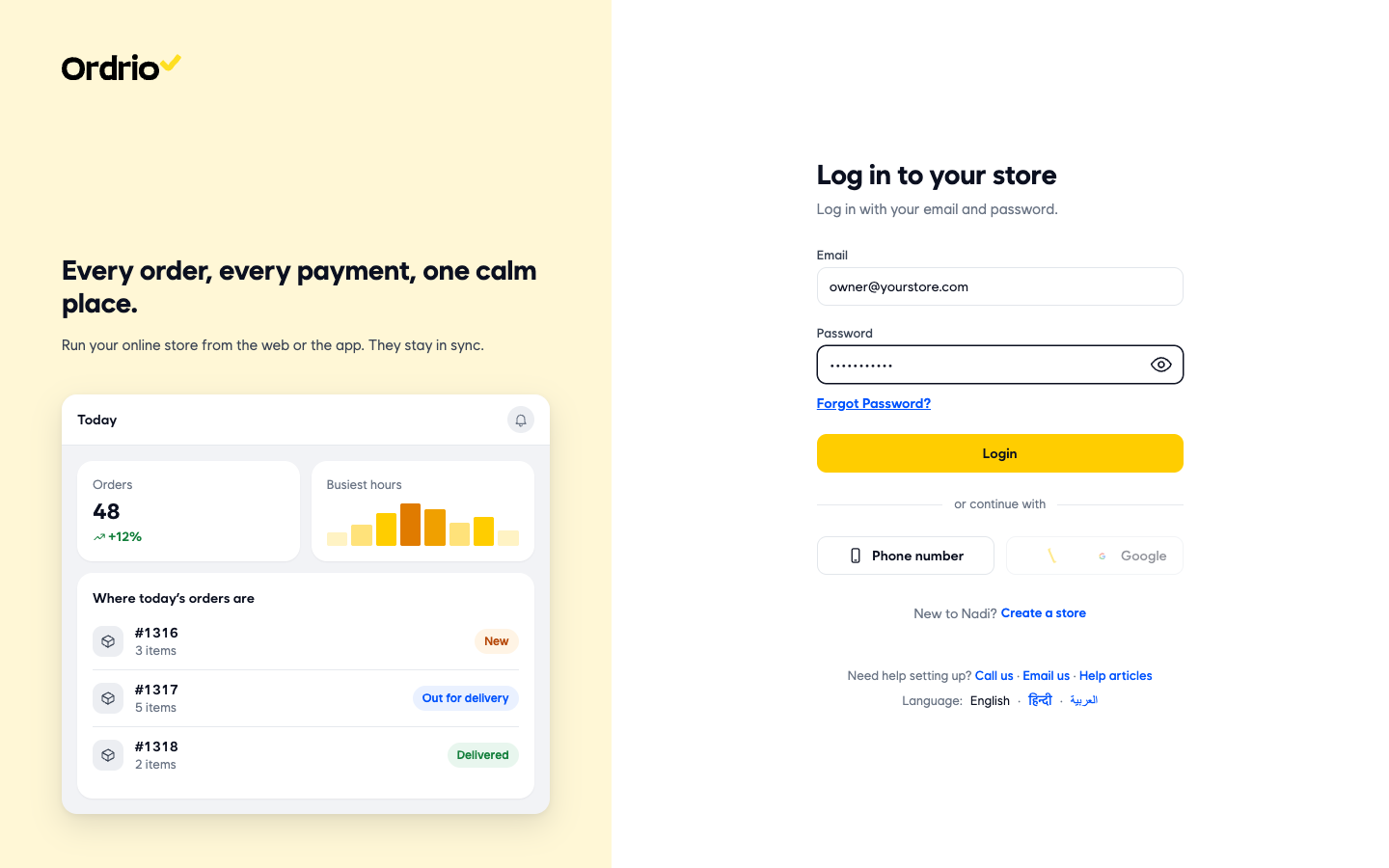
- Open nadi.ordrio.com (your Ordrio admin panel) and log in. Type your own registered email and password. The screenshot shows example values only. You can also click Phone number and log in with your registered mobile number and the code sent to it.
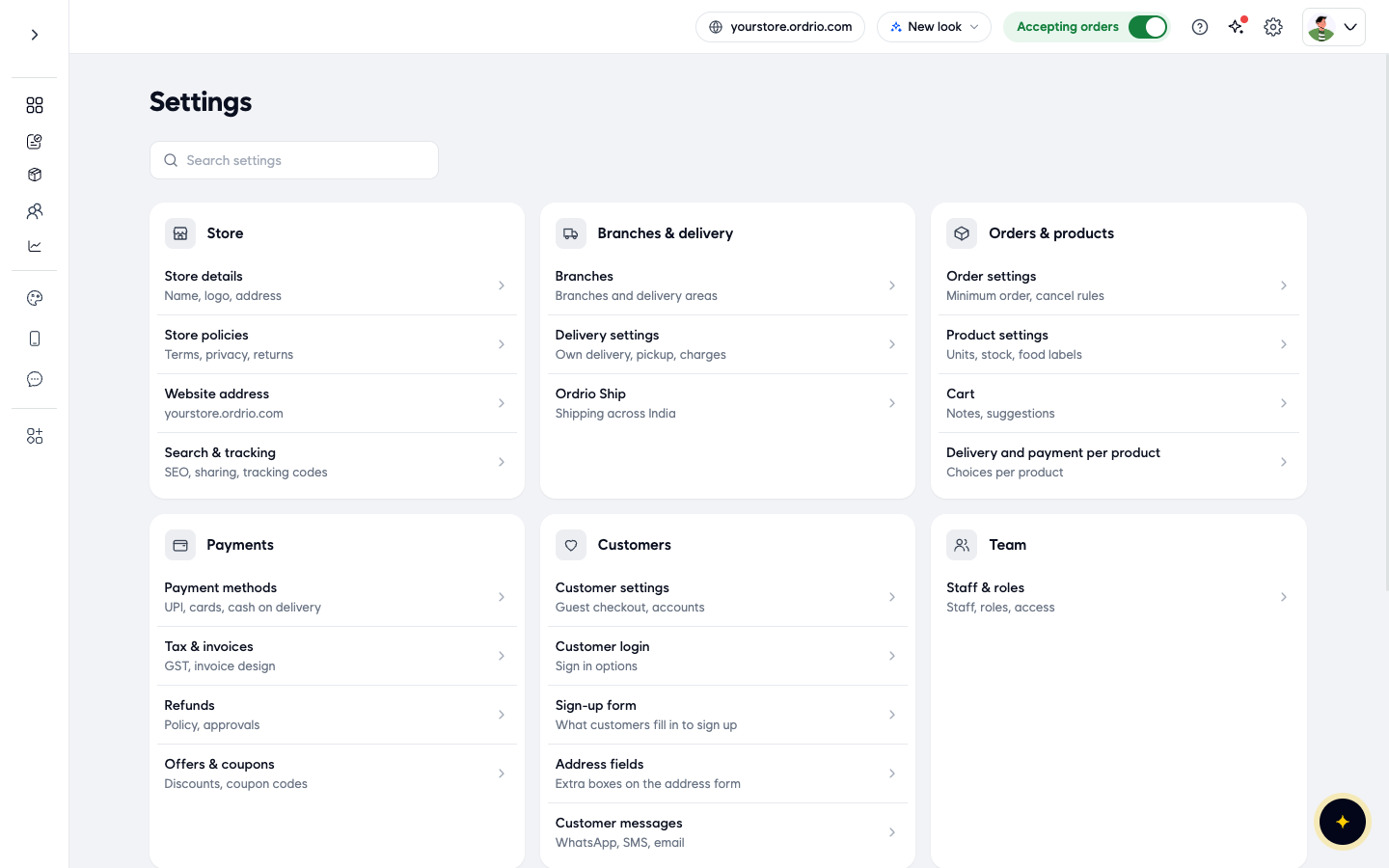
- Click the Settings icon (the gear) at the top right of your admin panel. The Settings page opens.
- Under Orders & products, click Order settings. This page holds your order rules: Customer cancellations, Minimum order value and New order alerts.
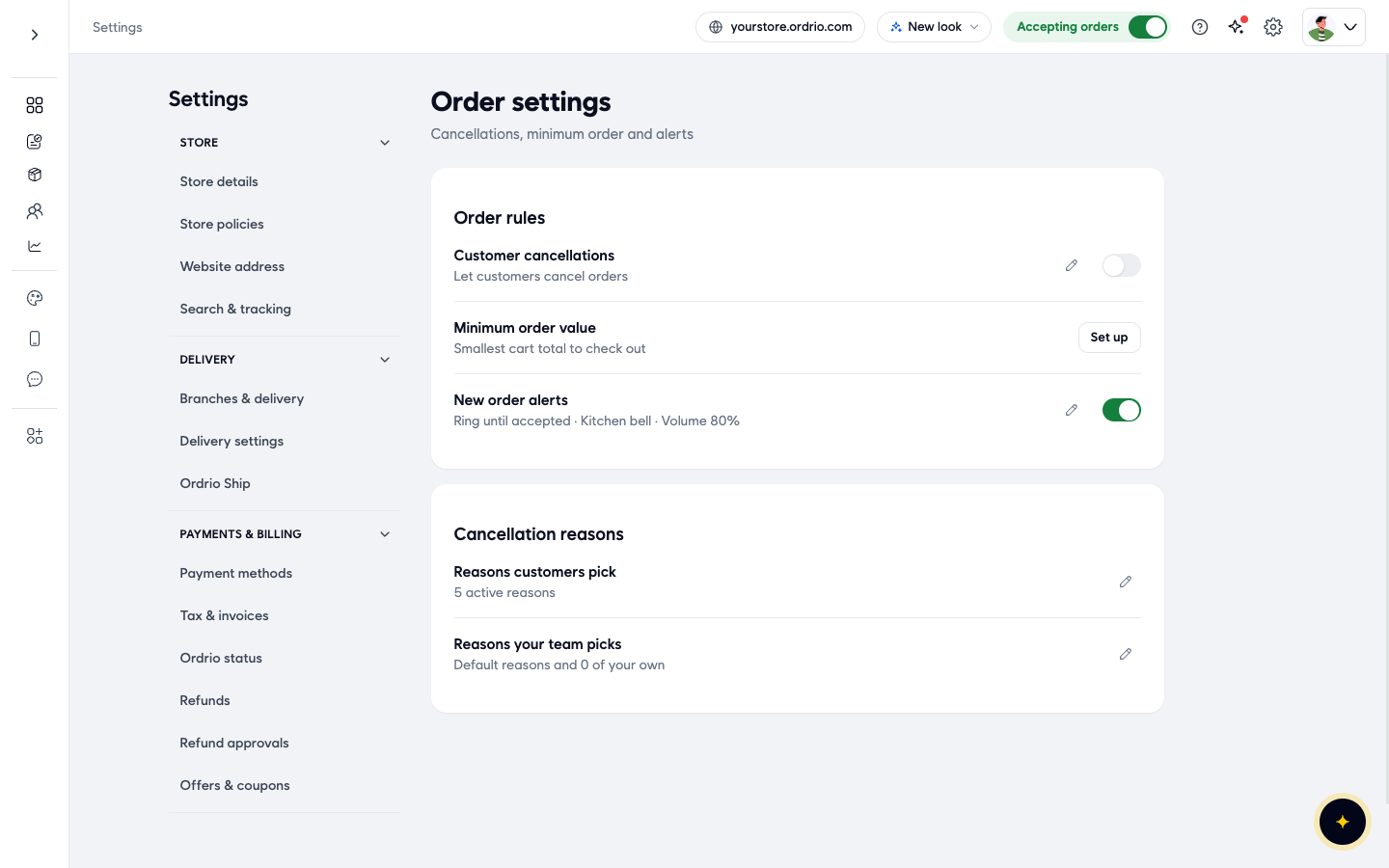
- Next to New order alerts ("Ring when a new order comes in"), click Set up. If alerts were set up before, click the pencil icon instead. The New order alert window opens.
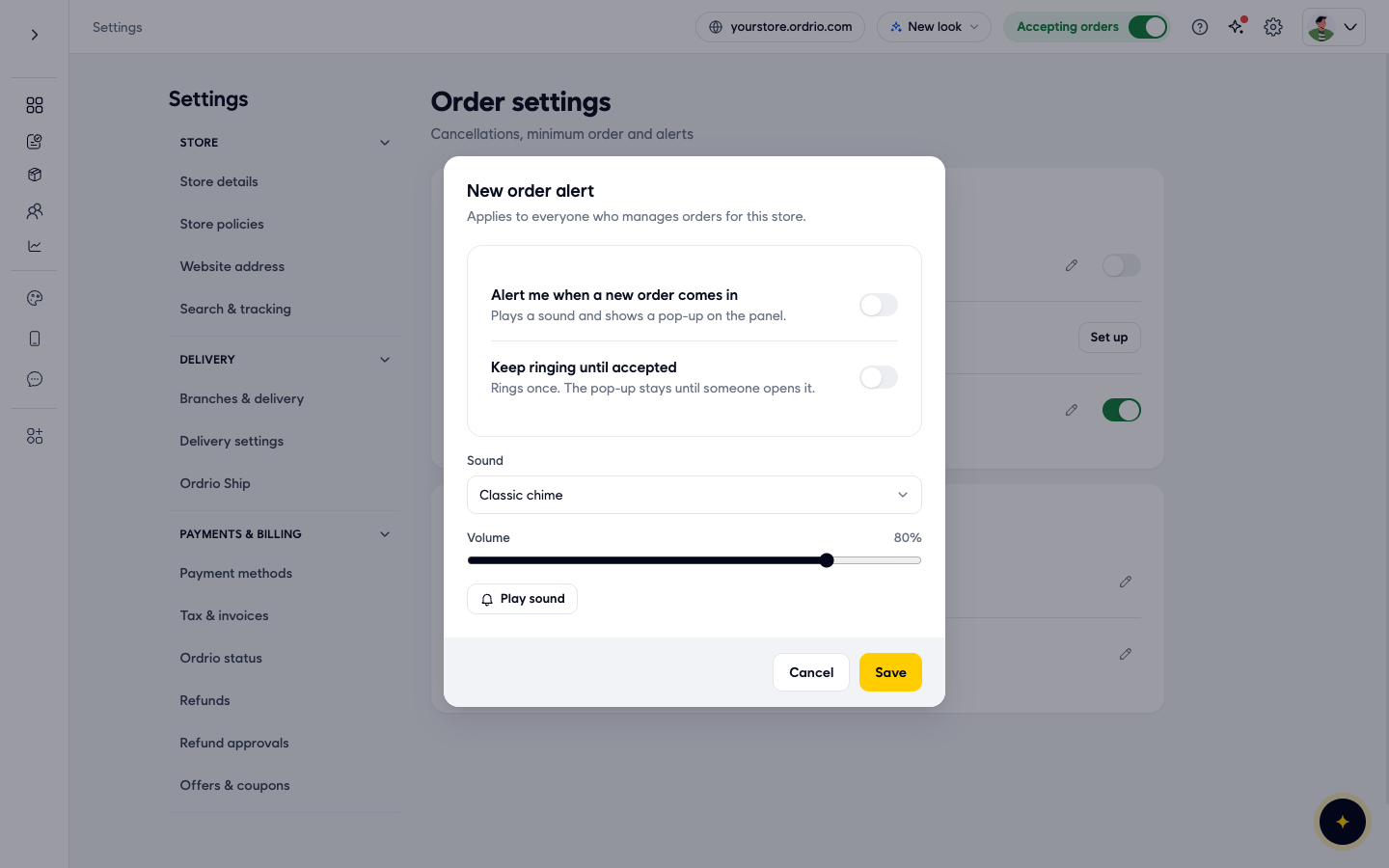
- Turn on Alert me when a new order comes in. With this on, your admin panel plays a sound and shows a pop-up when a new order arrives.
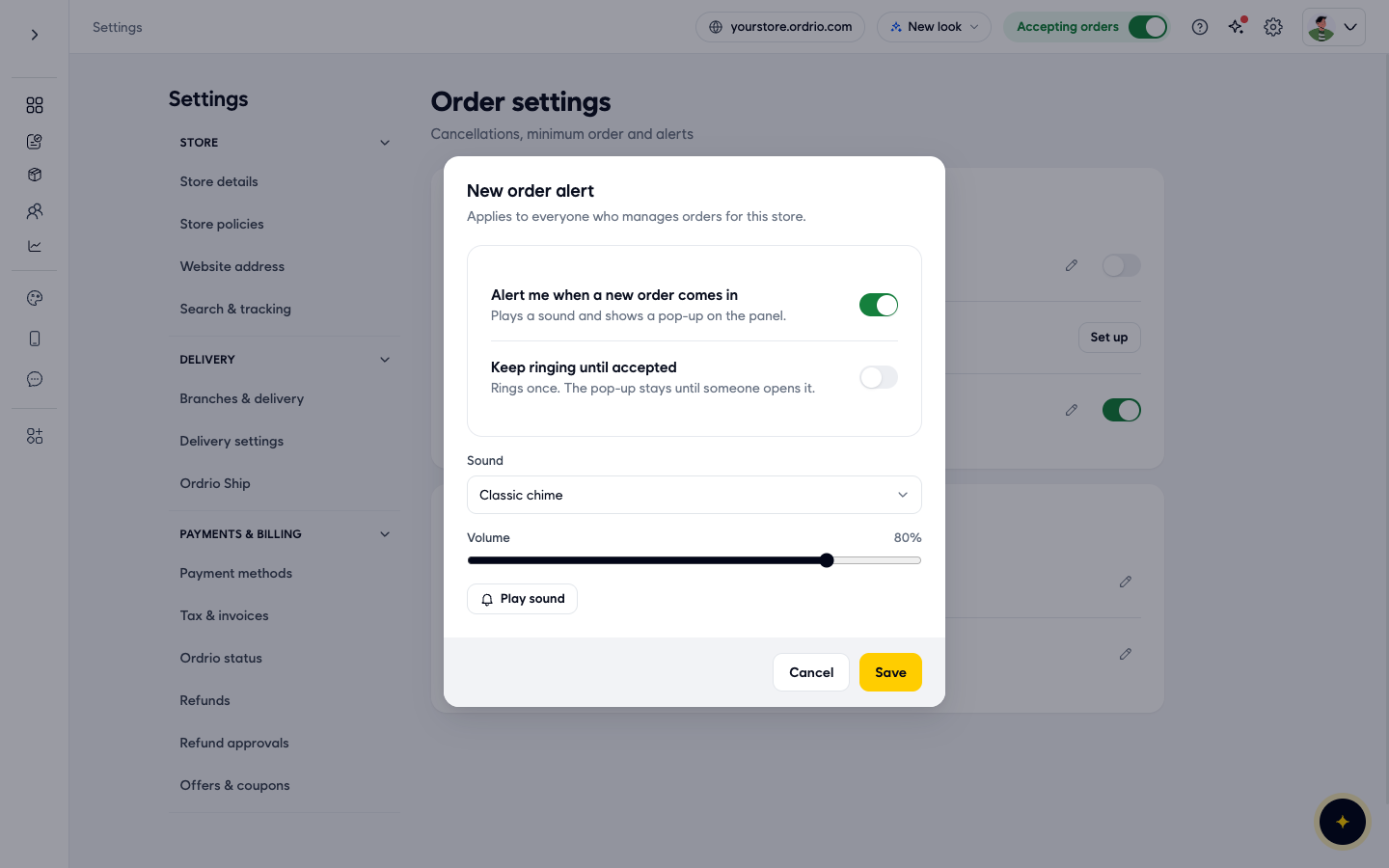
- Choose how long the alert rings with Keep ringing until accepted:
- Off: it rings once, and the pop-up stays until someone opens it.
- On: it keeps ringing until someone accepts the order or taps Mute. Turn this on if your counter is noisy or nobody sits at the screen all the time.
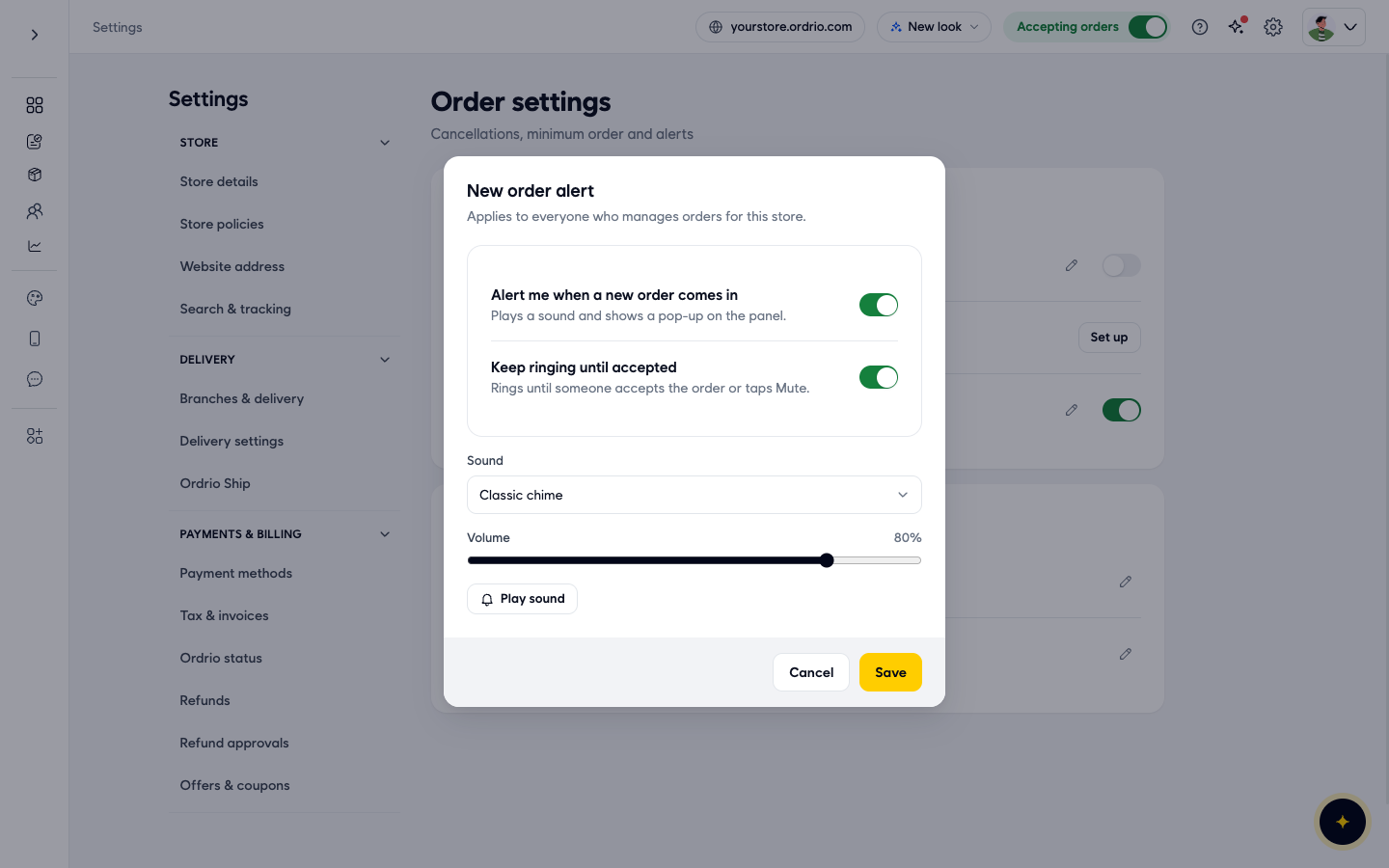
- Open the Sound list and pick a tone: Classic chime, Kitchen bell, Loud ring or Soft ping.
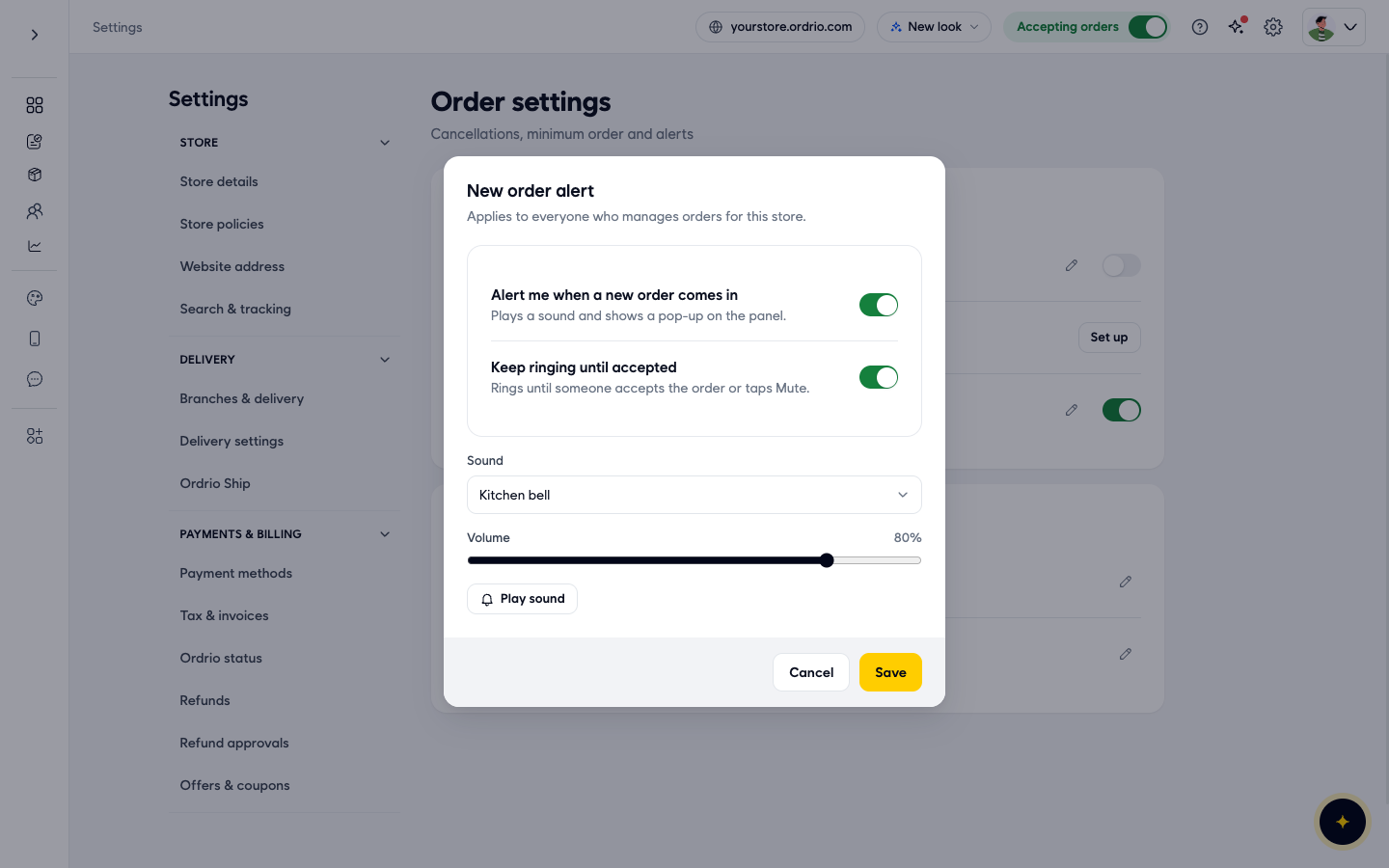
- Drag the Volume slider to set how loud the alert is. The percentage next to it shows the level (80% at first).
- Click Play sound to hear the tone at that volume. Change the sound or volume until it is easy to hear in your shop.
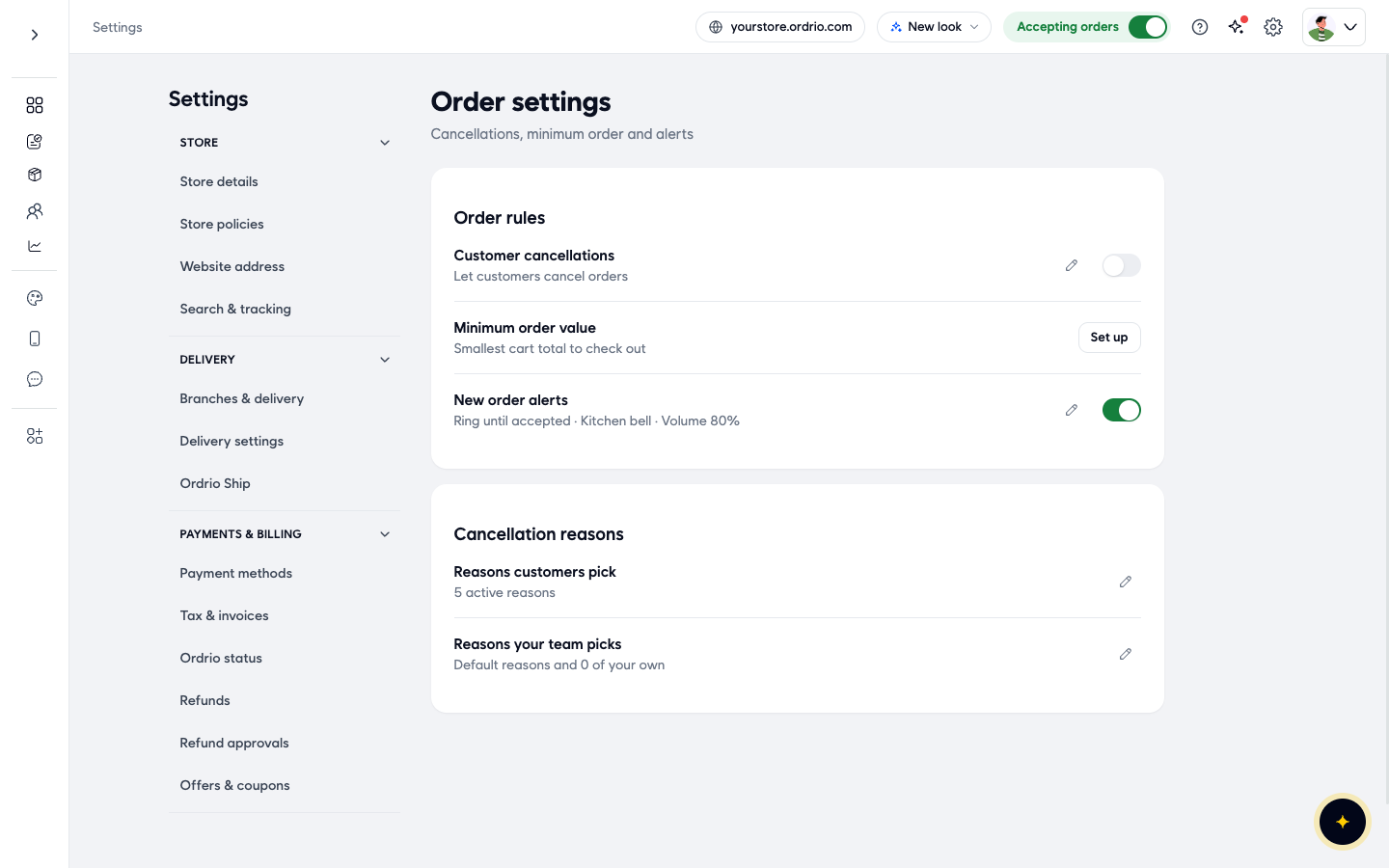
- Click Save. The window closes, and the New order alerts row now shows your choices, for example "Ring until accepted · Kitchen bell · Volume 80%", with a switch that is on.
Turn alerts off or change them
- To pause alerts, turn off the switch on the New order alerts row in Order settings. Your sound and volume choices are kept, so you can turn it back on later.
- To change the sound, volume or ringing, click the pencil icon on the same row, make your changes and click Save. Click Cancel to close the window without changing anything.
Good to know
- One setting for the whole team. The alert applies to everyone who manages orders for your store, not only to you.
- Keep your admin panel open. The sound and pop-up show on the panel, so keep nadi.ordrio.com open on the computer or tablet at your counter, and keep the device's sound on.
- Stopping the ringing. With Keep ringing until accepted on, the ring stops when someone accepts the order or taps Mute.
- Test before a busy day. Use Play sound to check that the tone is loud enough over the noise in your shop.
Related
- Viewing and managing orders
- Order statuses explained
- Creating manual orders (walk-in or phone)
क्या यह आर्टिकल काम का था?