यह आर्टिकल अभी हिंदी में नहीं है, इसलिए इसे अंग्रेज़ी में दिखाया जा रहा है।
कैसे करें
Cash on delivery
Turn on COD and set its rules and charges.
Cash on delivery lets your customers pay in cash when their order arrives, so they don't have to pay online at checkout. You turn it on and set a limit for cash orders in Payment methods in your Ordrio admin panel.
Turn on cash on delivery and set a limit
- Open nadi.ordrio.com (your Ordrio admin panel) and log in.
- Click the Settings gear icon at the top right.
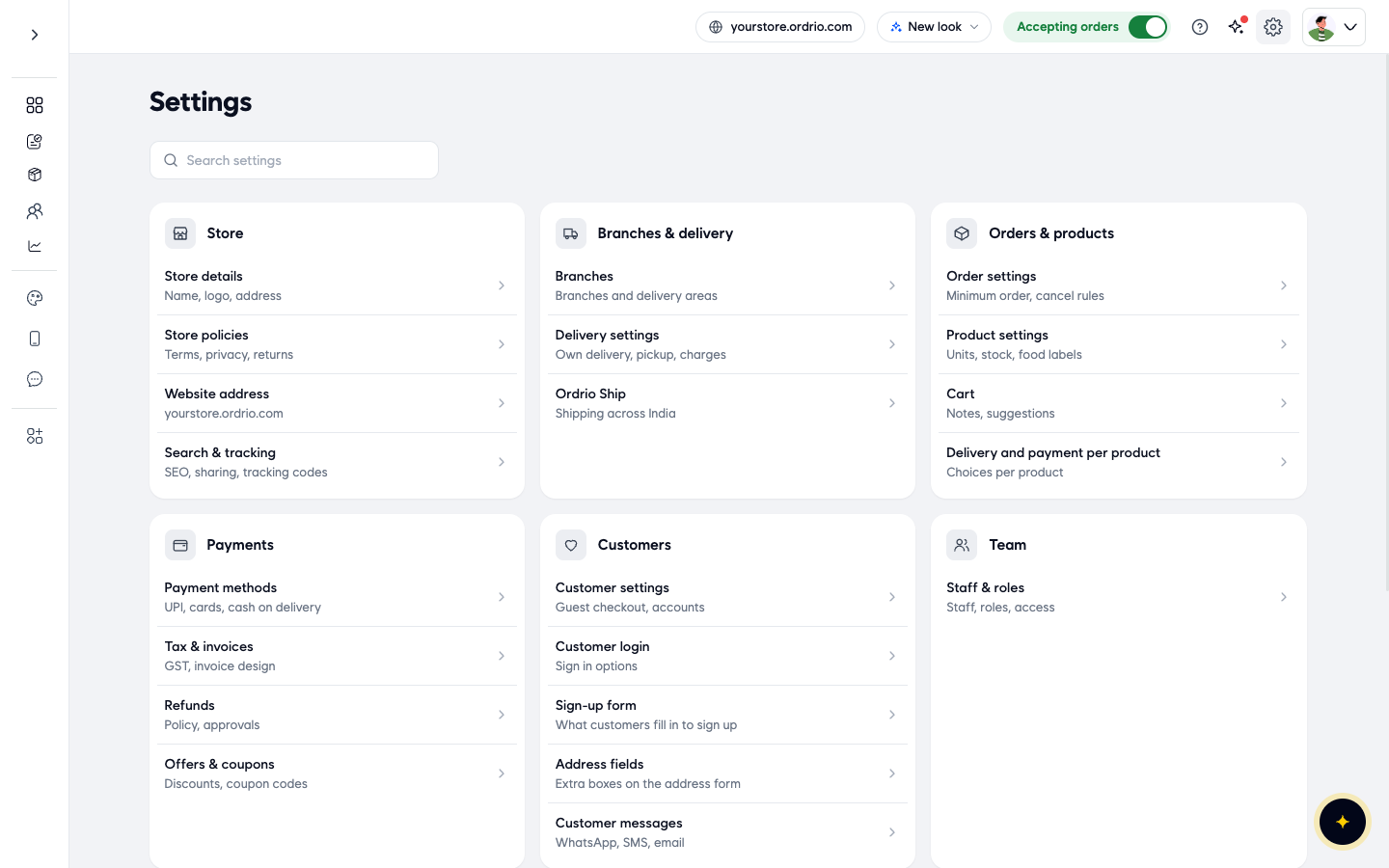
- In the Payments section, click Payment methods. Under the name it says "UPI, cards, cash on delivery".
- The Payment methods page opens. It lists every way customers can pay you: UPI & cards, Cash on delivery, Bank transfer and Pay later. Find the Cash on delivery card.
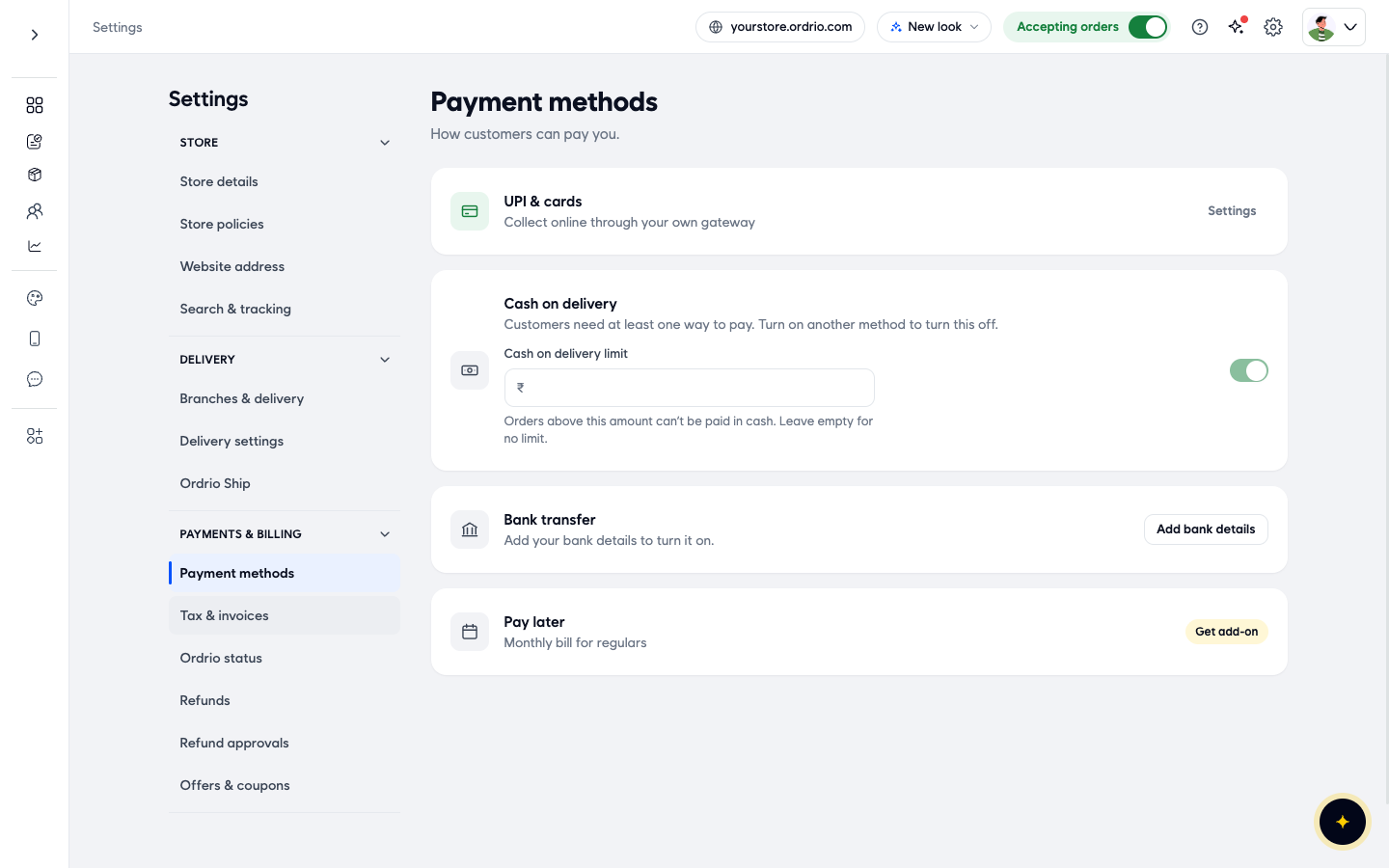
- Check the switch on the right of the Cash on delivery card. If it is off, turn it on. When the switch is green, customers can choose cash on delivery.
- In the Cash on delivery limit box, type the largest order amount, in ₹, that customers can pay in cash. For example, type 2000 if orders above ₹2000 must be paid online. Use your own amount. Leave the box empty if you don't want a limit.
- A You have unsaved changes bar appears at the bottom of the page. Click Save. To undo your change instead, click Discard.
- Limit saved appears under the box. Your limit is now active.
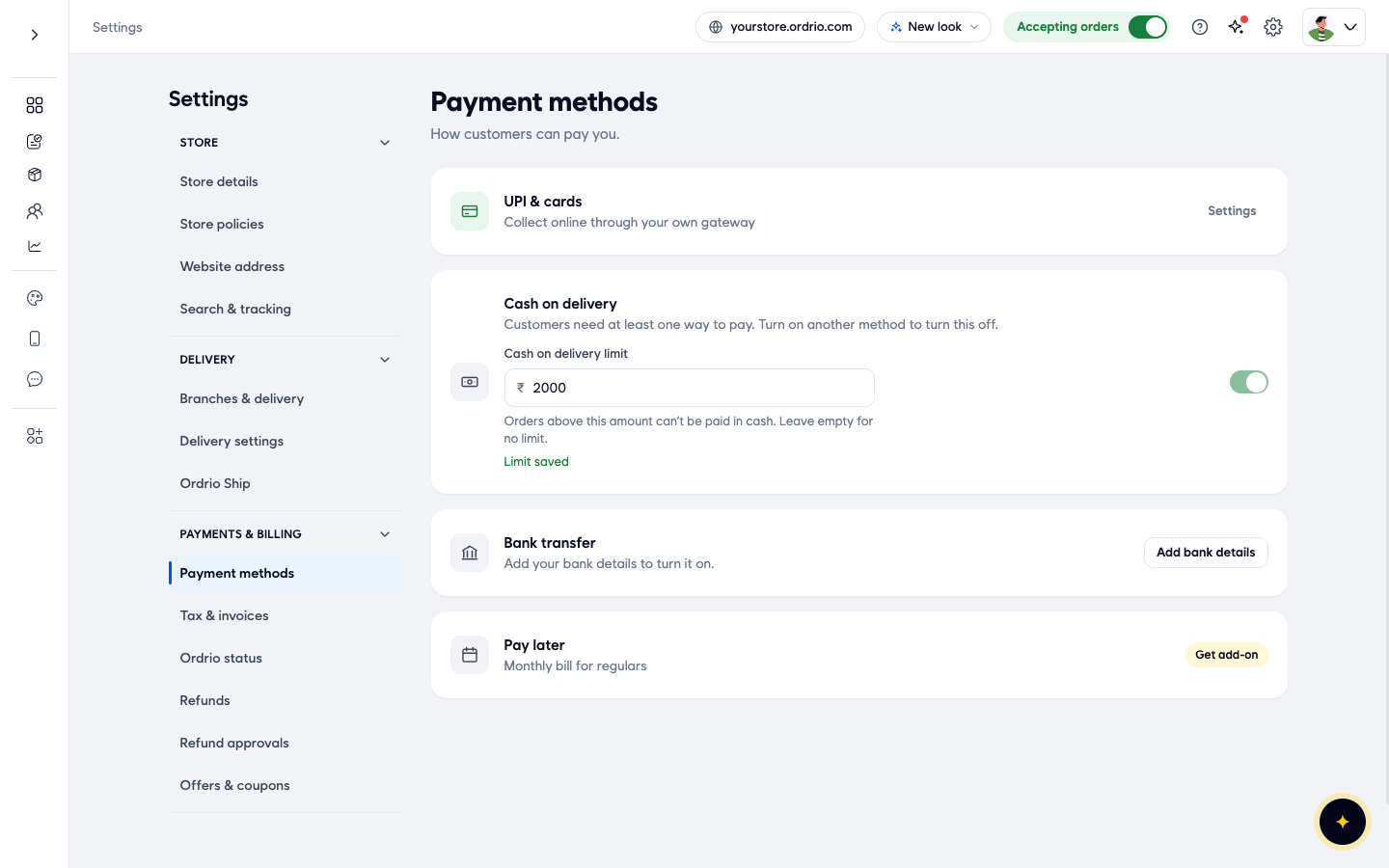
To remove the limit later, clear the Cash on delivery limit box and click Save again.
Good to know
- Customers always need a way to pay. If cash on delivery is the only payment method you have turned on, its switch is locked on. The card says "Customers need at least one way to pay. Turn on another method to turn this off." To turn cash on delivery off, first set up UPI & cards (click Settings on that card) or click Add bank details on the Bank transfer card.
- The limit is per order. Orders above your limit can't be paid in cash, so those customers pay with another method you offer.
- Charging more for cash orders. The Payment methods page has no cash fee setting. Instead, each delivery area can have its own charge for cash orders: in Settings > Delivery settings, edit the area and turn on Different charge for cash on delivery. See Delivery charges.
- Different choices for different products. By default, every product uses the payment methods your store offers. To choose delivery and payment for each product, go to Settings > Delivery and payment per product and turn on Choose delivery and payment for each product.
- Pay later is a separate add-on for a monthly bill for regular customers. Click Get add-on on its card to learn more.
Related
- Setting up a payment gateway
- Delivery charges
क्या यह आर्टिकल काम का था?