यह आर्टिकल अभी हिंदी में नहीं है, इसलिए इसे अंग्रेज़ी में दिखाया जा रहा है।
कैसे करें
Bulk product upload
Add or update many products at once with a CSV file.
With a CSV file you can add many products to your store at once, or change the price, stock or status of many products in one go. This saves time when you are setting up your catalogue or changing prices across your store.
There are two tools, both under Products:
- Bulk upload adds new products from a CSV file.
- Bulk update changes products that are already in your store.
Before you start
- You need a spreadsheet app that can save a file as CSV, such as Microsoft Excel, Google Sheets or Numbers.
- The file must be a CSV file and can be up to 20 MB.
- The products and values in this article (Basmati Rice, Tomato and their prices) are examples. Use your own products and prices.
Add new products with Bulk upload
- Open nadi.ordrio.com (your Ordrio admin panel) and log in.
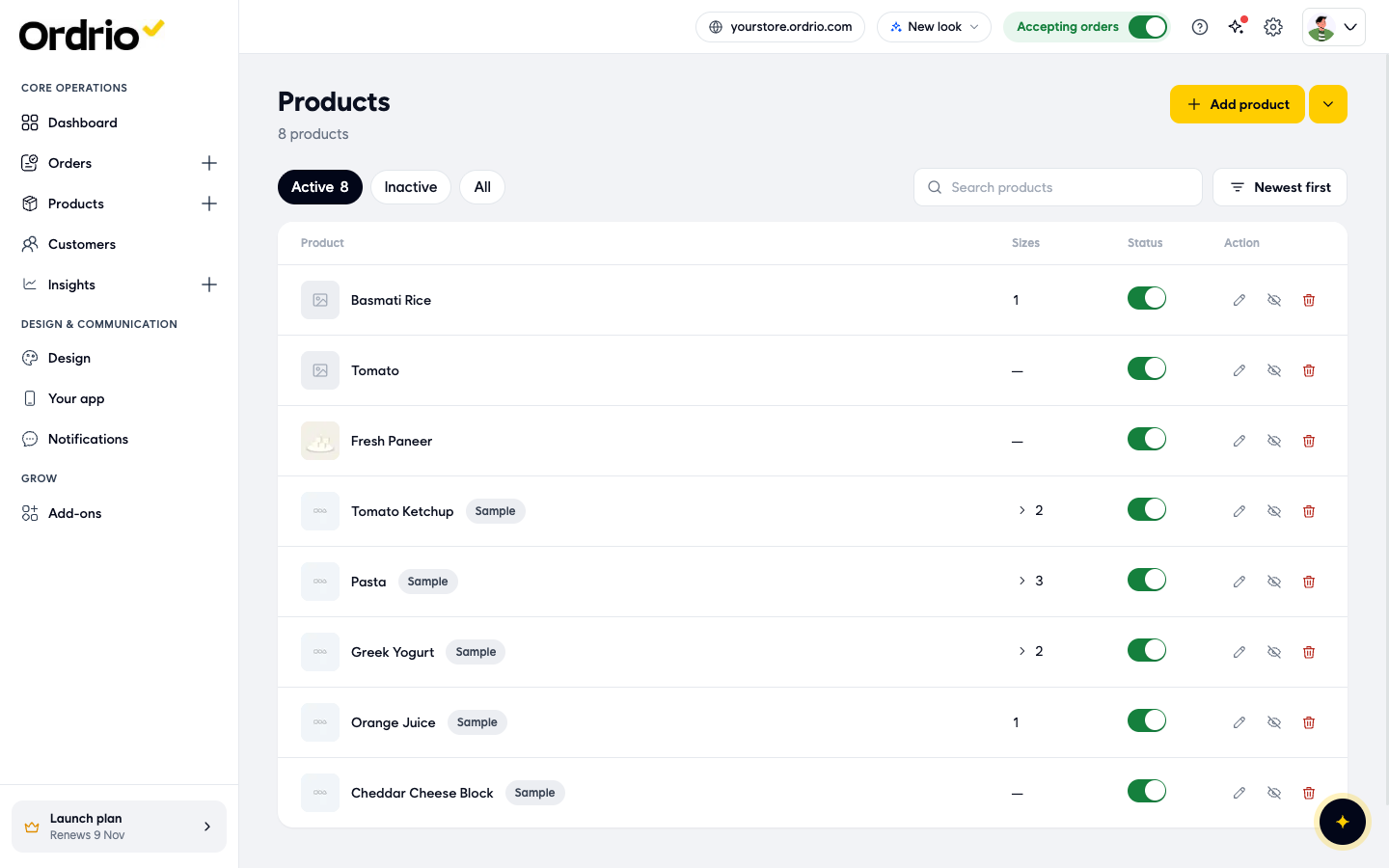
- In the menu on the left, click Products, then Products.
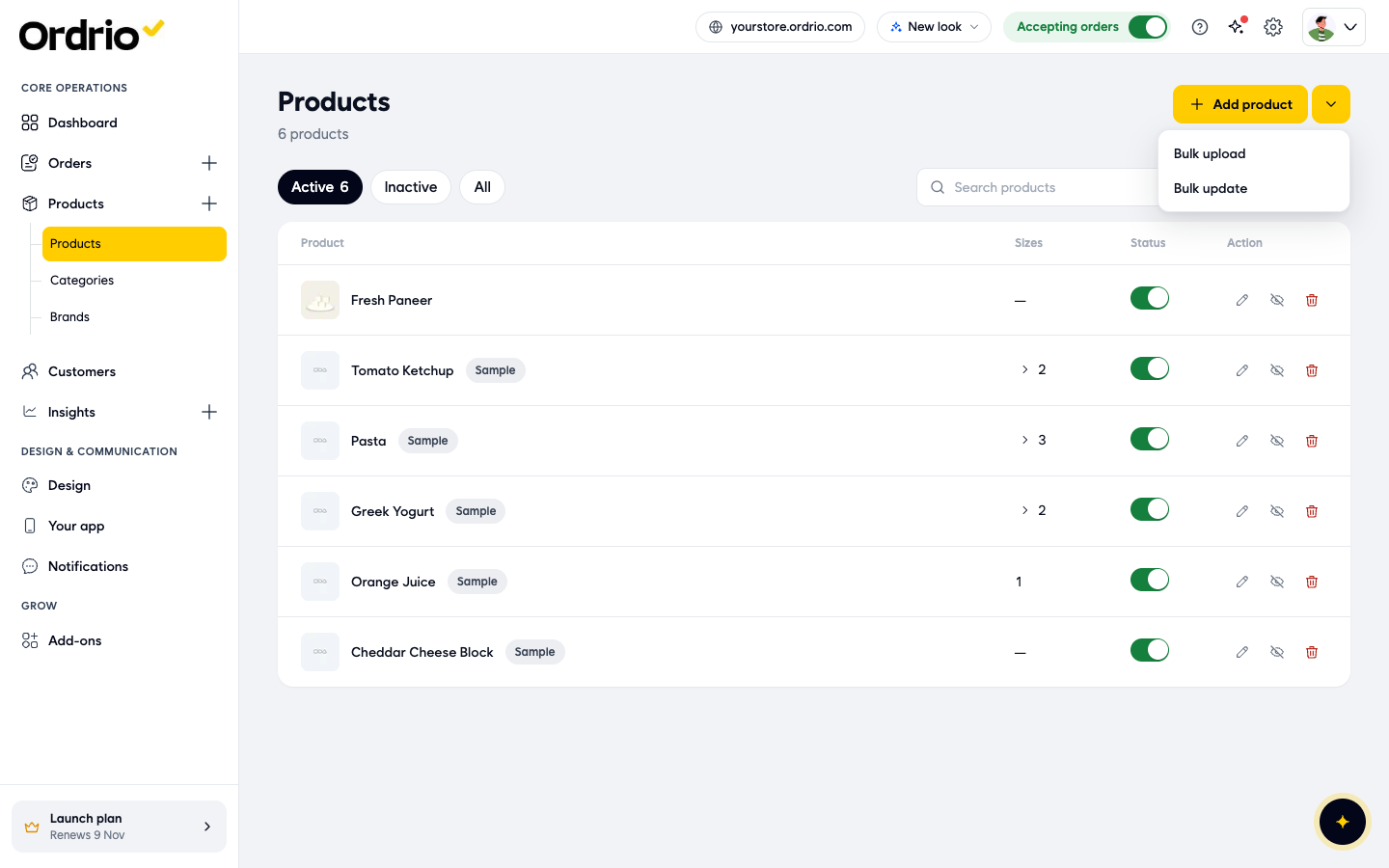
- Next to Add product, click the arrow (More ways to add). Choose Bulk upload.
- The Bulk upload page opens. At the top you see three steps: Download template, Upload file and Check & add. Click Download template. A CSV template downloads to your computer. It has the right column names and a few example rows that show how to fill it in.
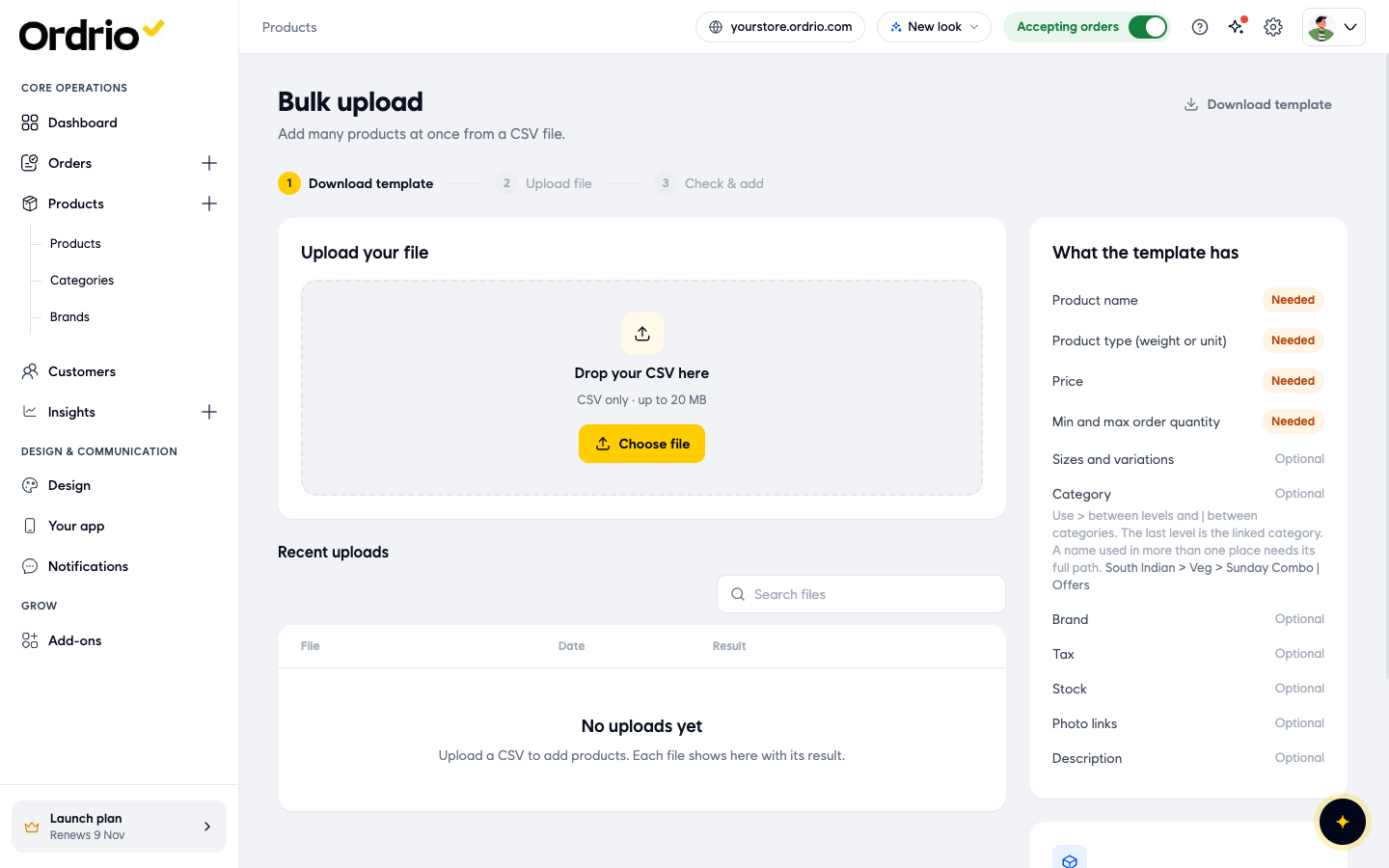
- Open the template in your spreadsheet app. Delete the example rows and add one row for each product. The panel What the template has on the right of the page lists what is needed and what is optional. See The columns in the Bulk upload template below for what each column means.
- Save the file as CSV.
- Back on the Bulk upload page, click Choose file and pick your CSV file. You can also drag the file onto Drop your CSV here. The file name and size show under the box. To pick a different file, click the bin icon next to the file name.
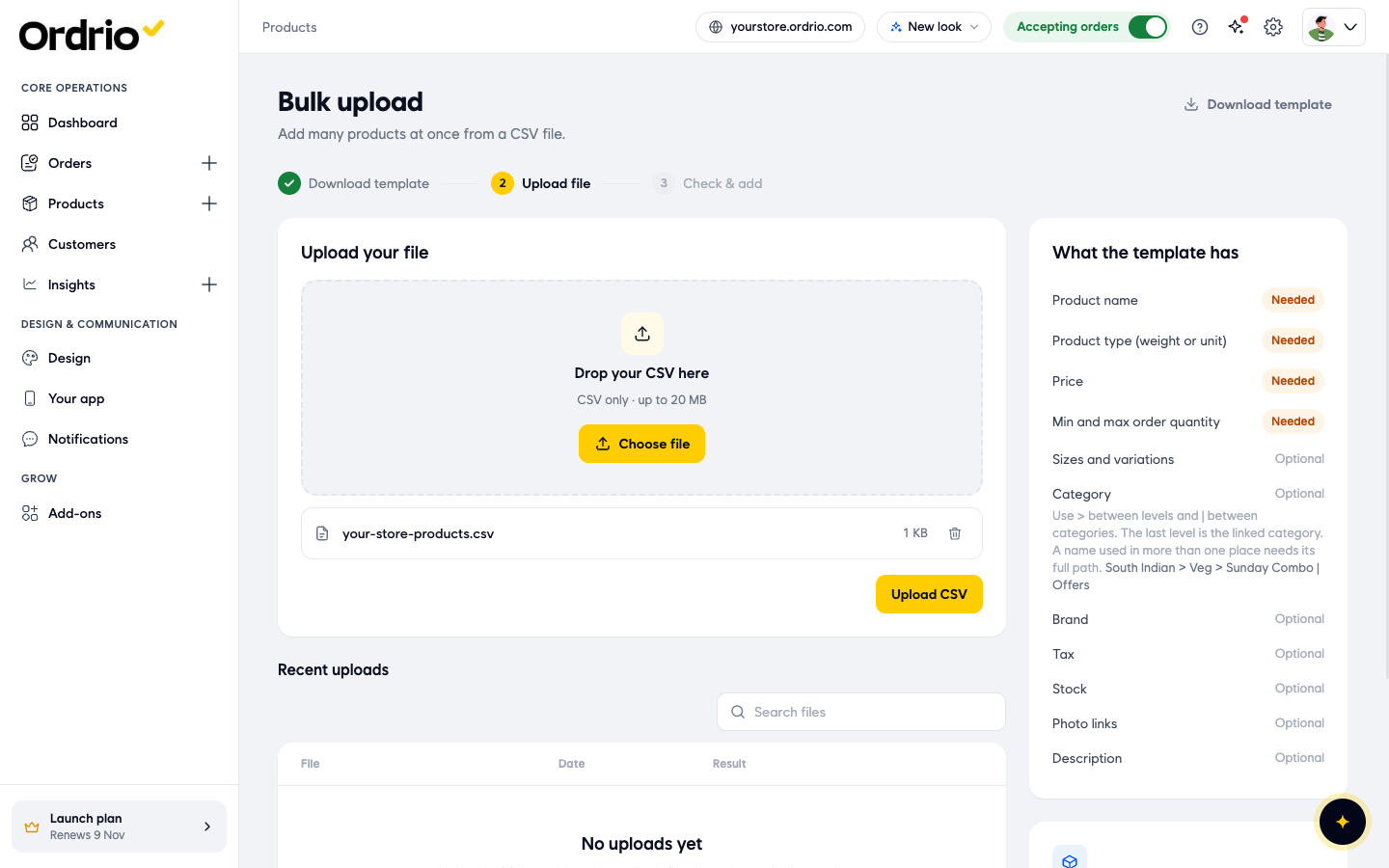
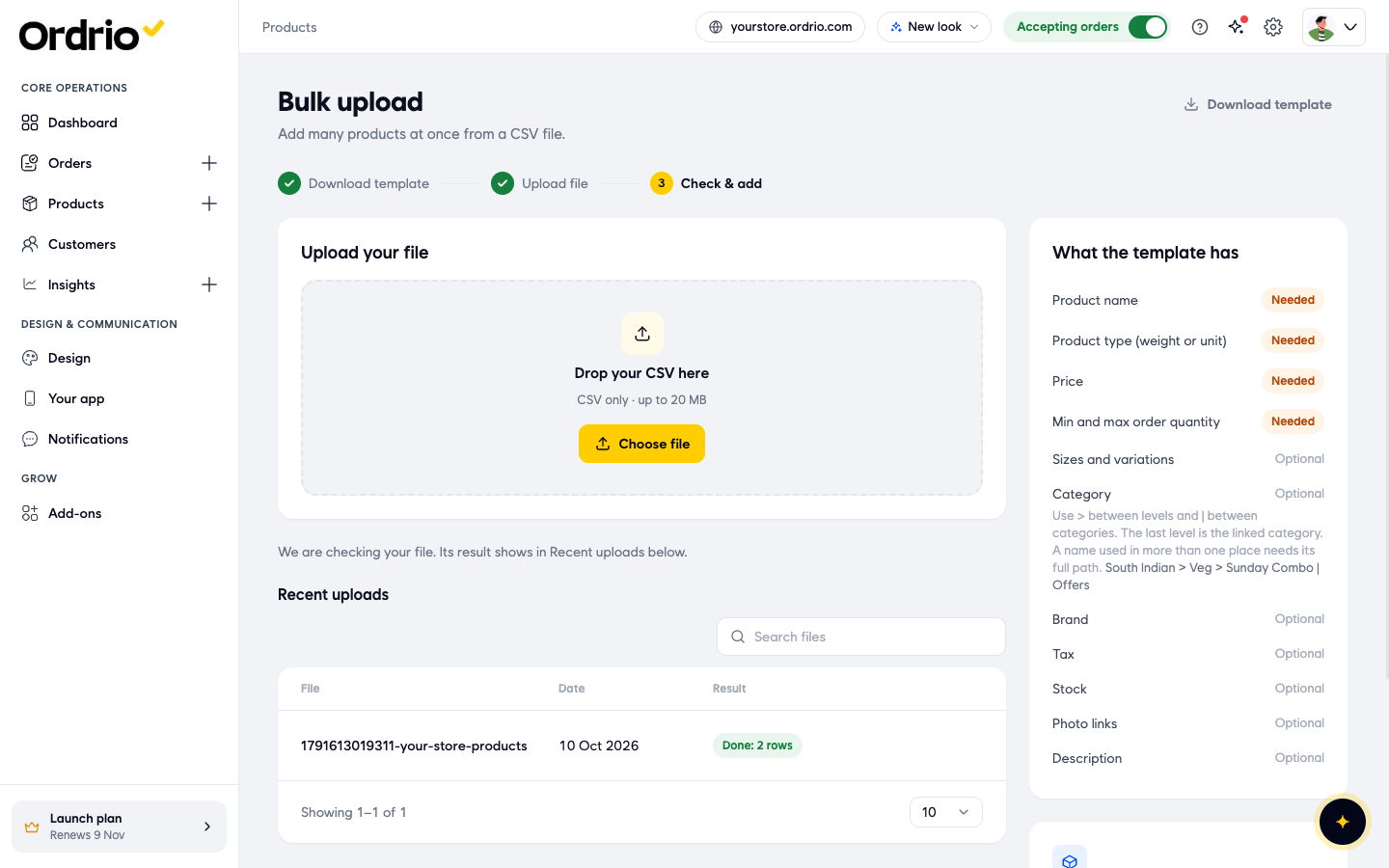
- Click Upload CSV. You see the message "We are checking your file. Its result shows in Recent uploads below."
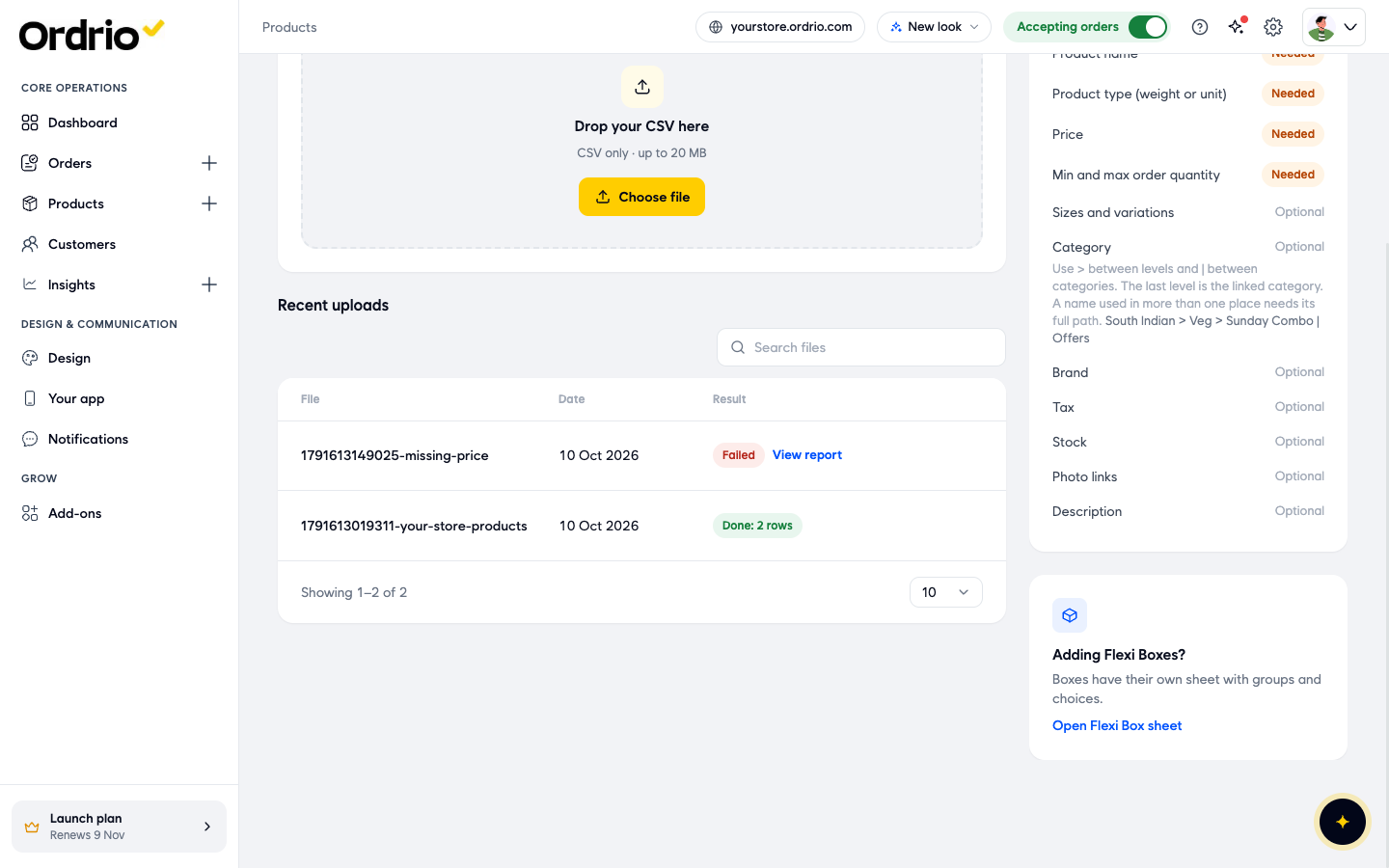
- Look at Recent uploads. Your file shows with the date and its Result. Done and the number of rows means the products were added. For example, Done: 2 rows means two products were added.
- Go to Products to see your new products. They show in the list as active, so customers can see them on your website and app.
The columns in the Bulk upload template
Column names that end with * must be filled in for every product.
Needed
- Product Name*: the name customers see, for example Basmati Rice.
- Product Type*: unit for products sold by the piece or pack, or weight for products sold by weight, such as vegetables.
- Price*: the selling price.
- Min Order Quantity* and Max Order Quantity*: the smallest and largest quantity a customer can order in one go.
Optional
- Discounted Price: the offer price, if the product is on offer.
- Variation Name, Variation Colour, Variation Size, Variation Material, Variation Weight and Variation Style: the size or variation of the product, for example 1 Kg.
- Category Names: the category the product goes in. Use > between levels and | between categories. The last level is the category the product is linked to. If the same category name is used in more than one place, write its full path. For example: South Indian > Veg > Sunday Combo | Offers.
- Brand: the brand name.
- Tax Slab: the tax for the product. The template uses standard.
- Weight Unit: for weight products, the unit, for example kg.
- Stock: how many you have in stock.
- Main Images: the product photos.
- Description Title 1 to 3 and Description Content 1 to 3: up to three description sections, each with a heading and text.
- SKU, HSN and Barcode Number: your own product codes, if you use them.
The template also has the columns Stock NotifyOn, Increment Value, Branches and Store Set Quantity. If you are not sure what to put in them, leave them empty.
Change many products with Bulk update
- In Products, click the arrow next to Add product (More ways to add) and choose Bulk update.
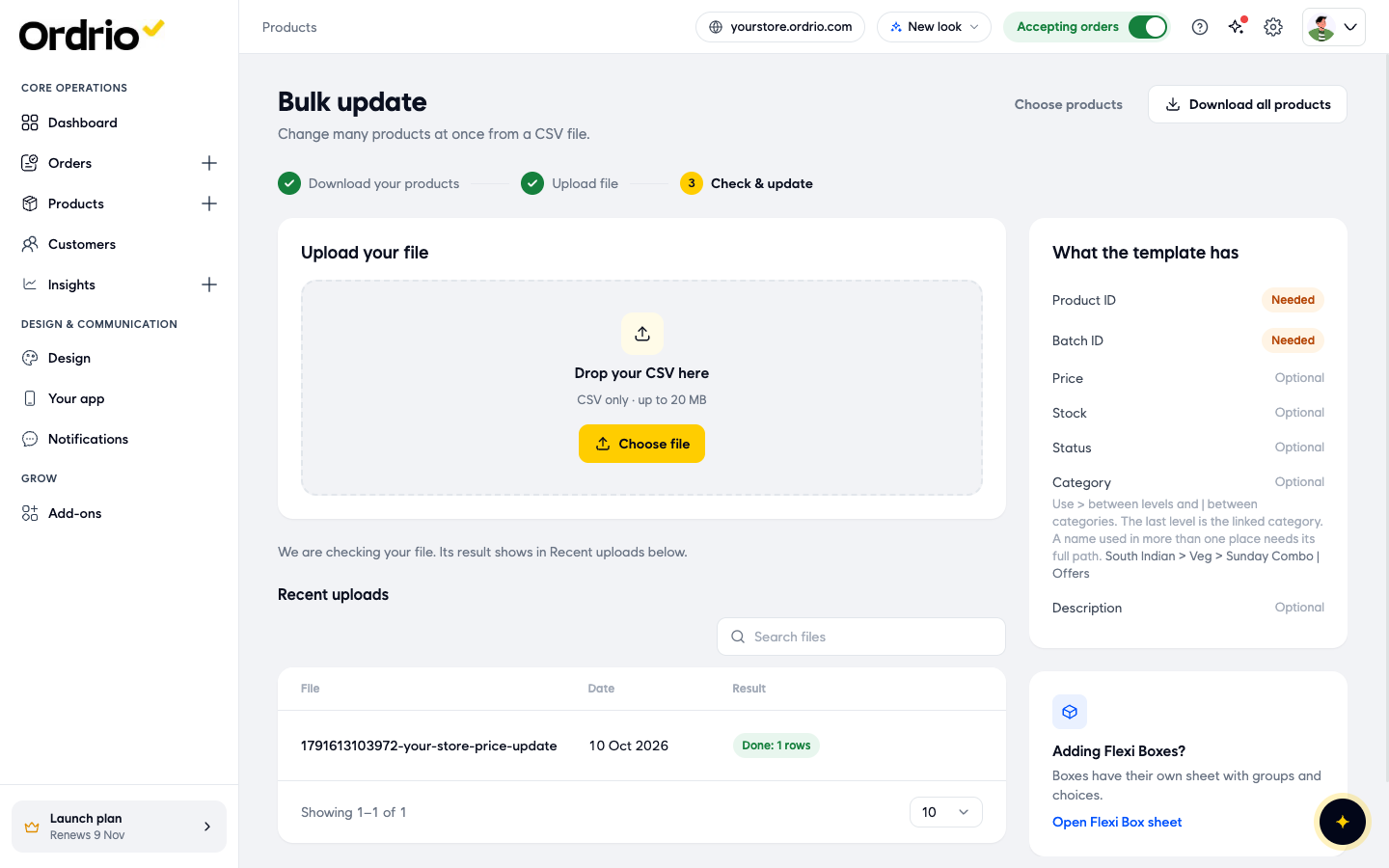
- The Bulk update page opens. At the top you see three steps: Download your products, Upload file and Check & update.
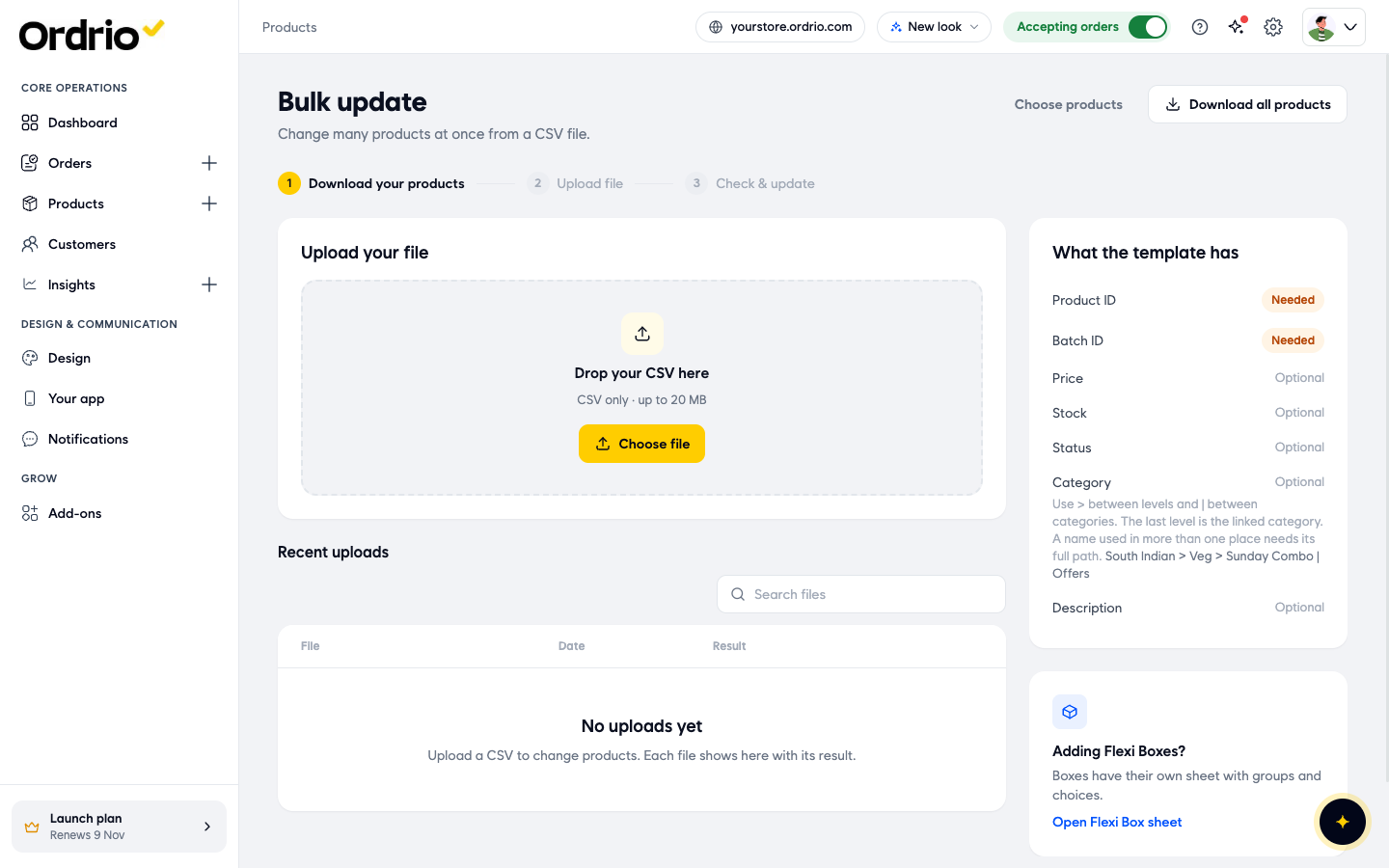
- Download your products as a CSV file. You have two ways:
- Click Download all products to get every product in your store.
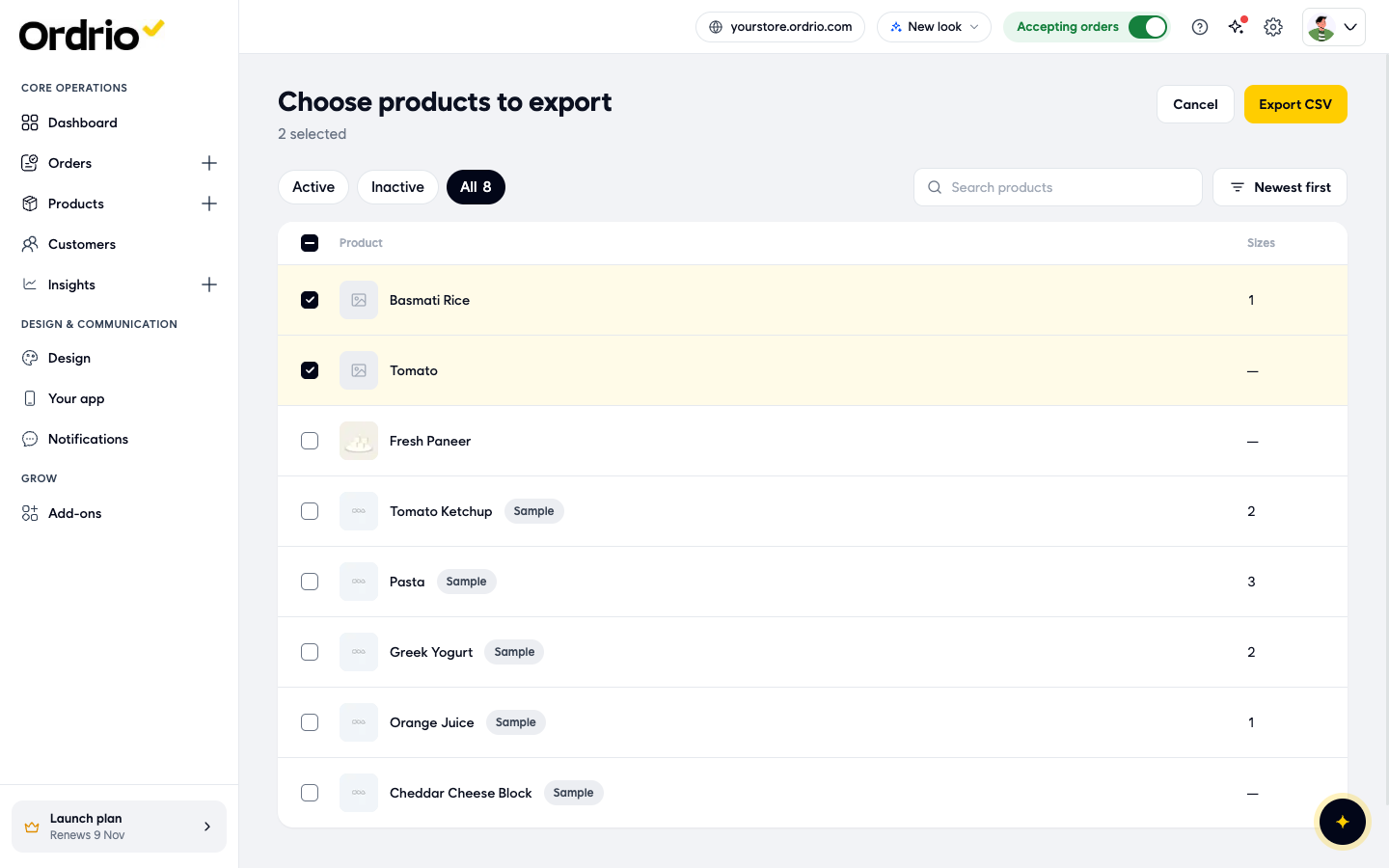
- Click Choose products to pick only some. The page Choose products to export opens. Tick the products you want to change, or tick the box at the top of the list to select all. You can filter by Active, Inactive or All, and search by name. Then click Export CSV. Click Cancel to go back without exporting.
- Open the downloaded file in your spreadsheet app. Each row is one of your products. Change the values you want, for example Price, Discounted Price, Stock, Status, Category Names or the description columns.
- Do not change Product ID* or Batch ID*. They tell Ordrio which product each row is, and the page marks them as Needed. Delete any rows you do not want to change.
- Save the file as CSV.
- Back on the Bulk update page, click Choose file and pick your file, or drag it onto Drop your CSV here.
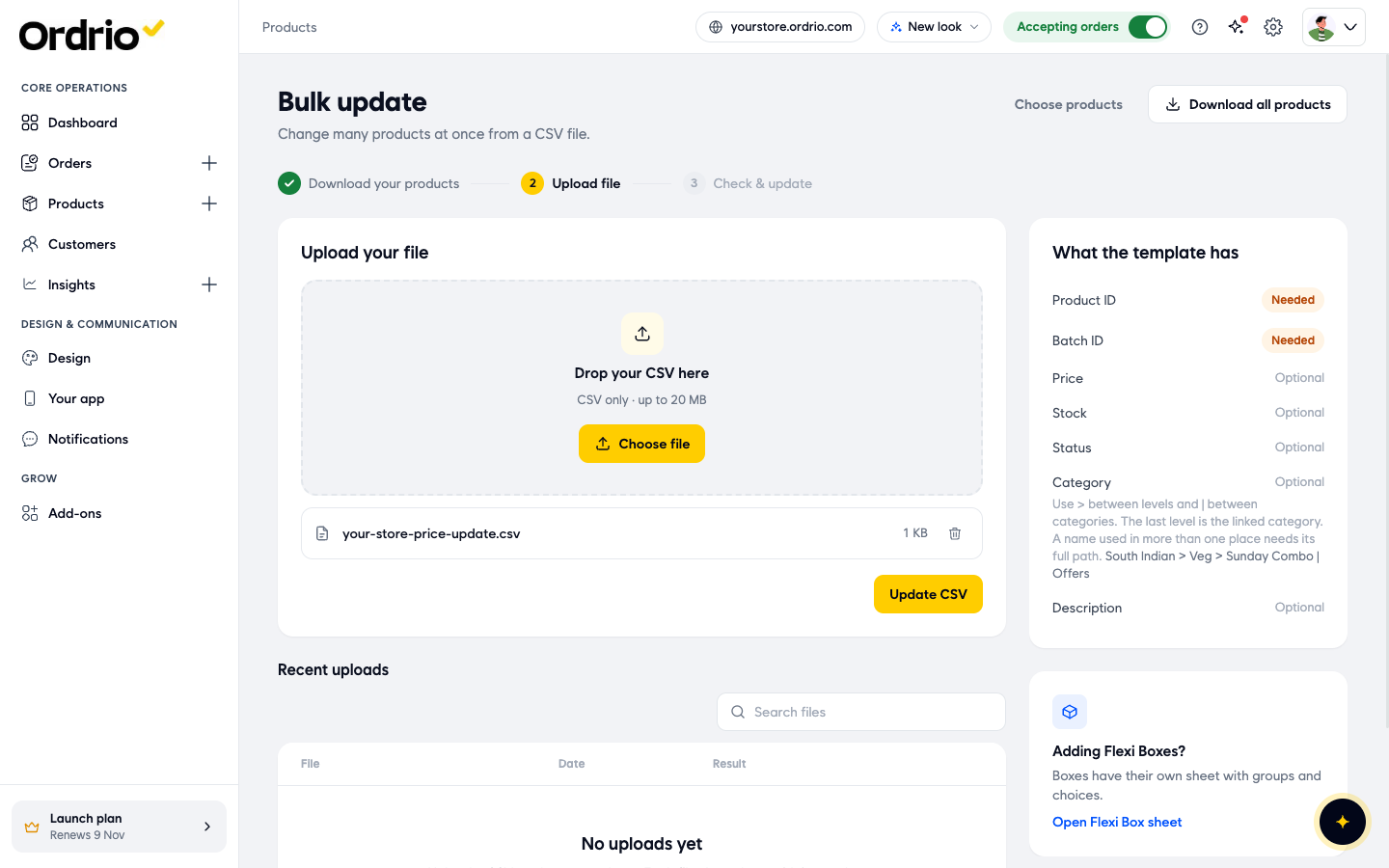
- Click Update CSV. You see the message "We are checking your file. Its result shows in Recent uploads below."
- Look at Recent uploads. Done and the number of rows means your changes were saved. Open the product in Products to check the new values.
Good to know
- If an upload fails, its Result shows Failed and a View report link. Click View report to see what went wrong, fix your file and upload it again. A common cause is an empty needed column, such as a missing Price.
- Save as CSV. The upload box takes CSV files only, up to 20 MB. Keep the column names from the template or the downloaded file as they are.
- Bulk upload adds, Bulk update changes. To change products that are already in your store, use Bulk update, not Bulk upload.
- Recent uploads keeps a list of your files. Click a file name to download it again, and use Search files to find an older file.
- Flexi Boxes have their own sheet with groups and choices. On the Bulk upload or Bulk update page, click Open Flexi Box sheet.
- To add or change just one or two products, it is often quicker to use Add product or edit the product in Products.
Related
- Adding a product
- Managing categories
- Managing stock
क्या यह आर्टिकल काम का था?