यह आर्टिकल अभी हिंदी में नहीं है, इसलिए इसे अंग्रेज़ी में दिखाया जा रहा है।
कैसे करें
Exporting and scheduling reports
Download reports as Excel or CSV, or have them sent automatically.
You can download your Ordrio reports as a CSV file and open them in Excel, Google Sheets or any spreadsheet app. This is useful when you want to share numbers with your accountant, keep your own records or look at your sales in more detail.
Which reports you can download
Each report under Insights has its own Download button:
- Sales: total sales, orders, average order, guest sign-ups, where sales come from and how customers paid.
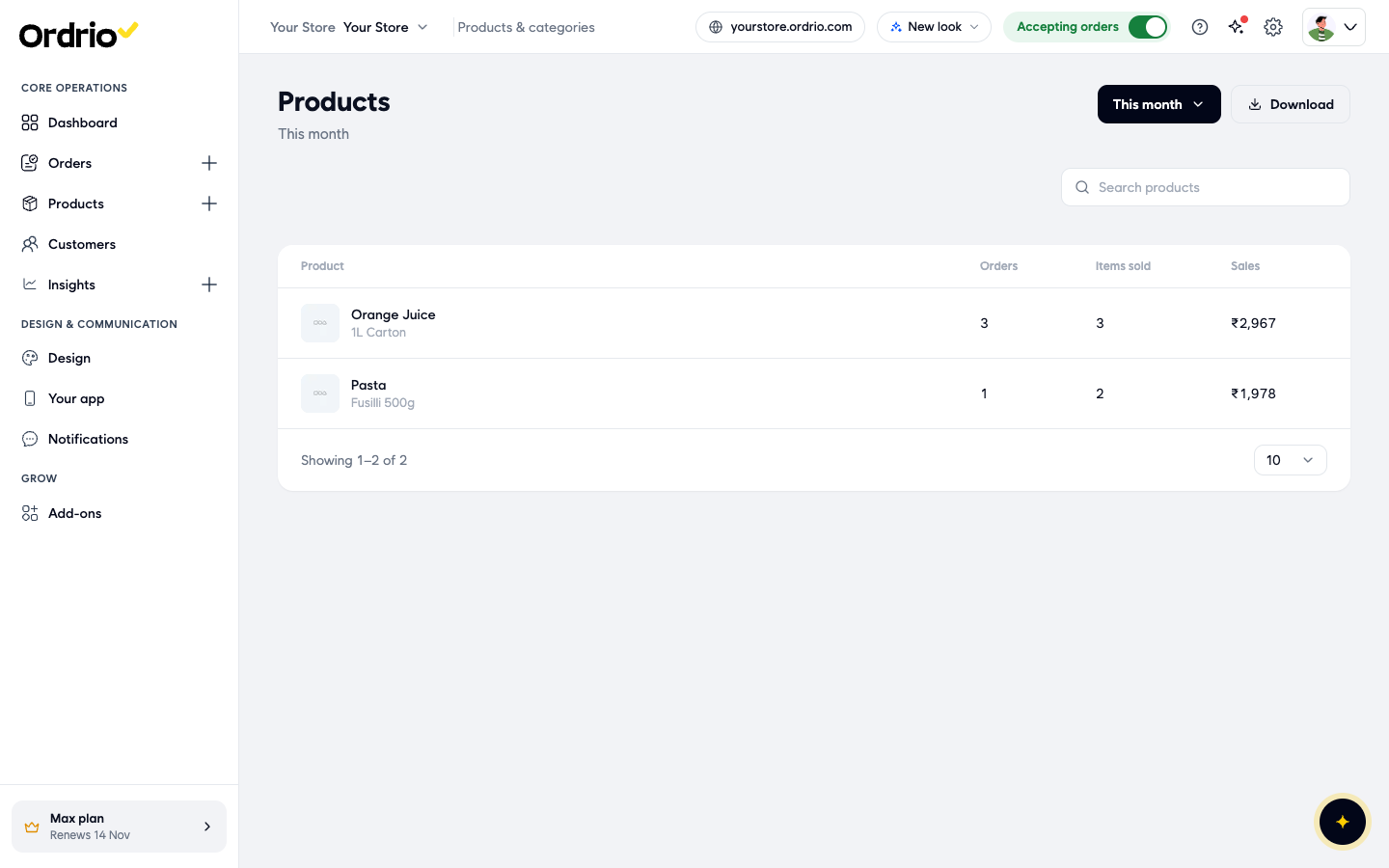
- Products and Categories: open View all next to Top products or Top categories to see the full list and download it. The products list shows each product with its orders, items sold and sales.
- Customer Data: customers, new and returning customers, repeat purchase rate and days between orders.
- Search: what customers searched for in your store.
Download a report
- Open nadi.ordrio.com (your Ordrio admin panel) and log in.
- In the menu on the left, click Insights, then click the report you want, for example Sales.
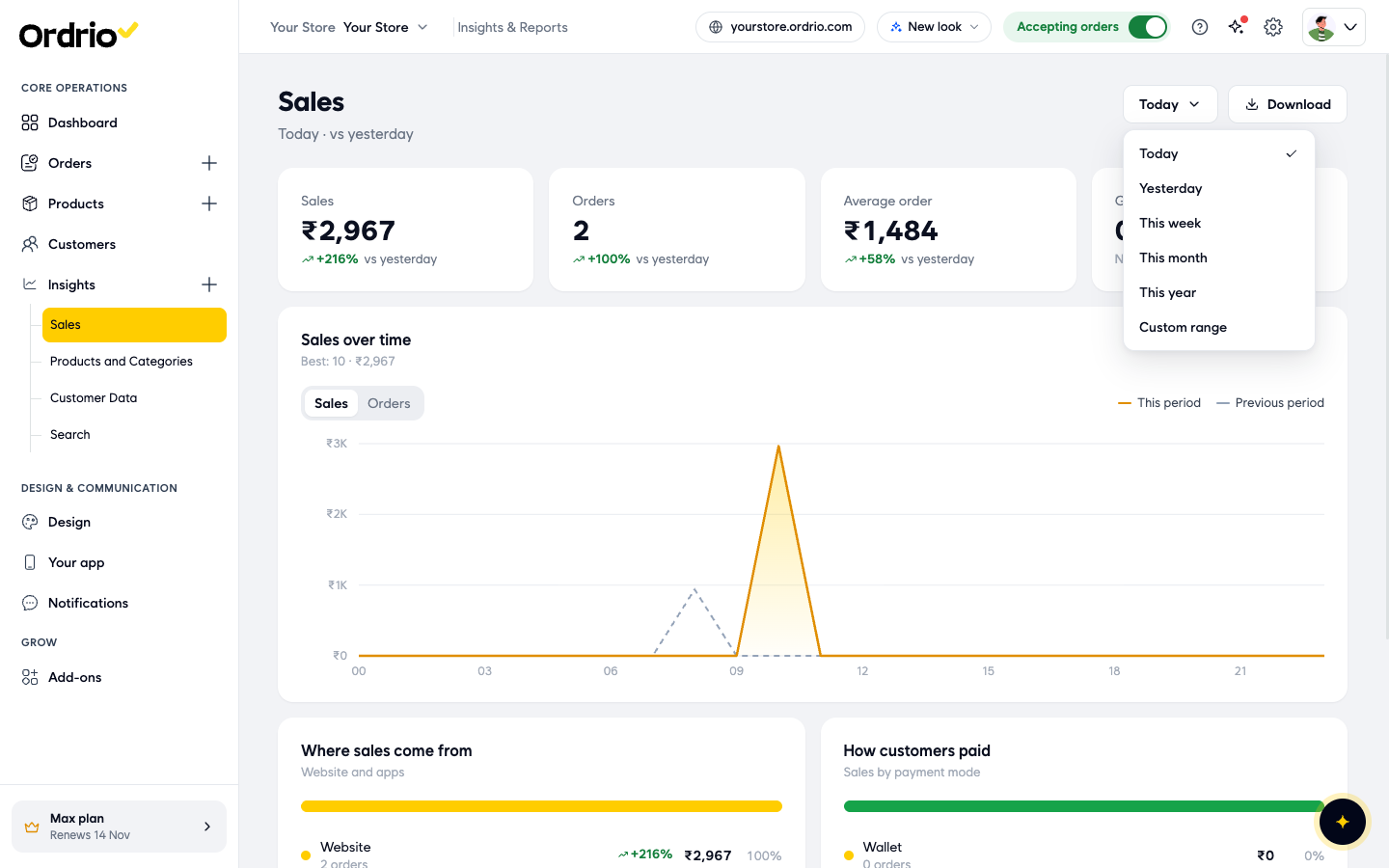
- Click the time period button at the top right. It shows the period you are looking at, for example Today.
- Choose a period: Today, Yesterday, This week, This month, This year or Custom range.
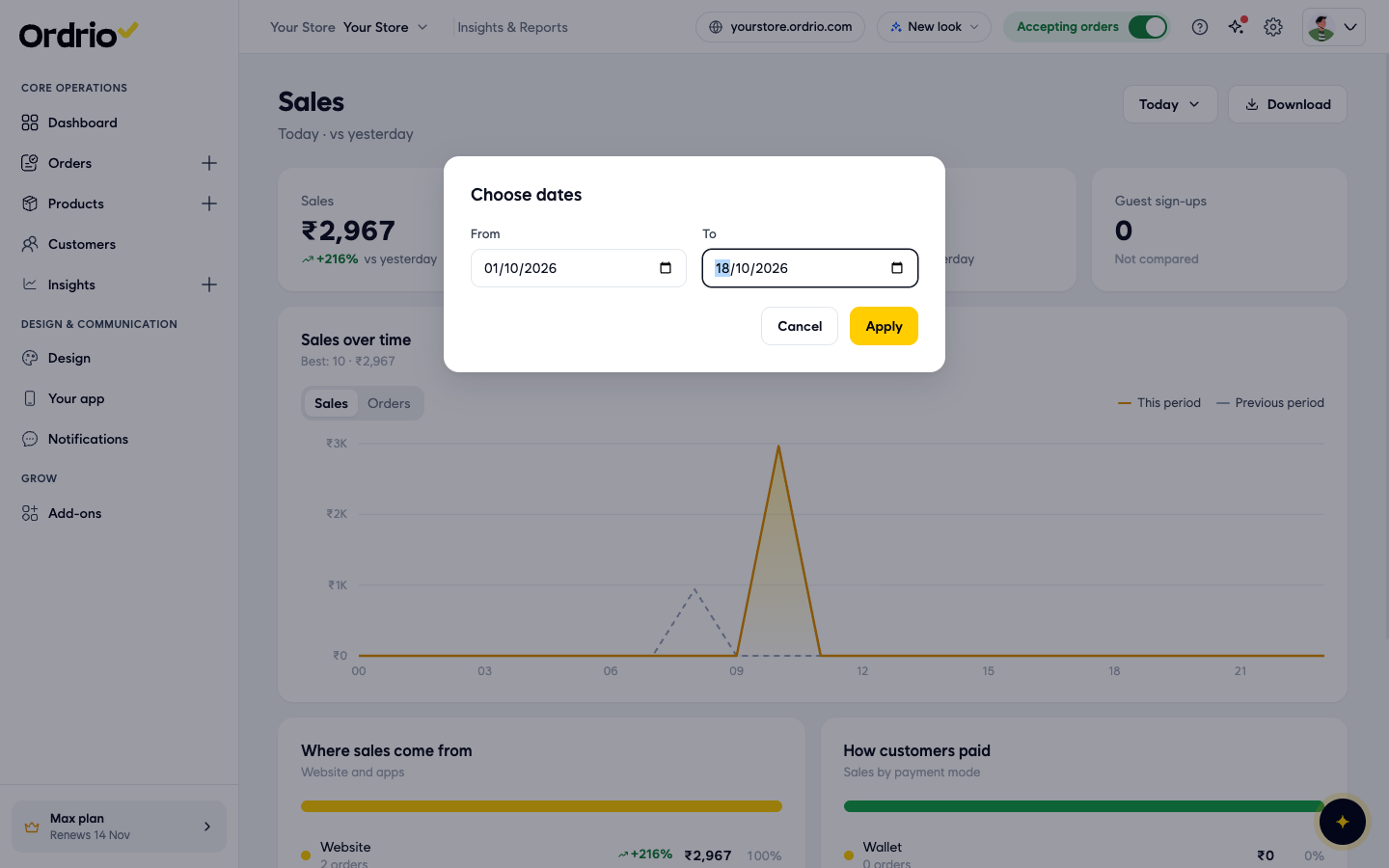
- If you chose Custom range, the Choose dates box opens. Pick the first day in From and the last day in To, then click Apply. To close the box without changing anything, click Cancel. The dates in the picture are examples, so pick your own.
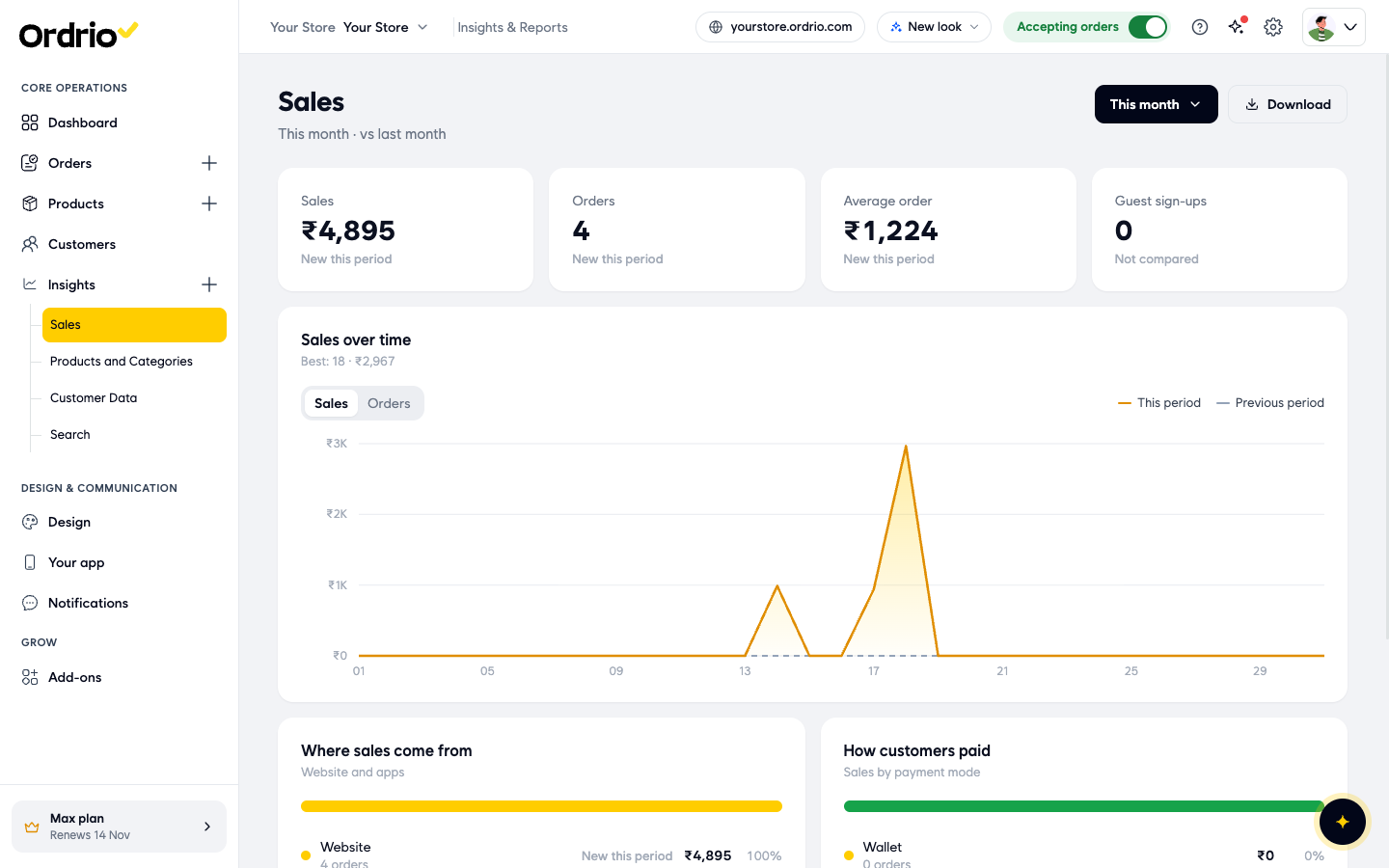
- Check that the report now shows the period you want. The period appears under the report name, for example "This month · vs last month".
- Click Download. A message says "CSV download has been initiated. Your CSV file is being generated and will be ready shortly."
The Products list under Products and Categories works the same way: choose the period, then click Download.
Get your file from Downloads
Your file is made in the background, so you can keep working while it is prepared. When it is ready, you collect it from Downloads.
- Click the Settings icon (the gear) at the top right of your admin panel.
- Under Files & data, click Downloads.
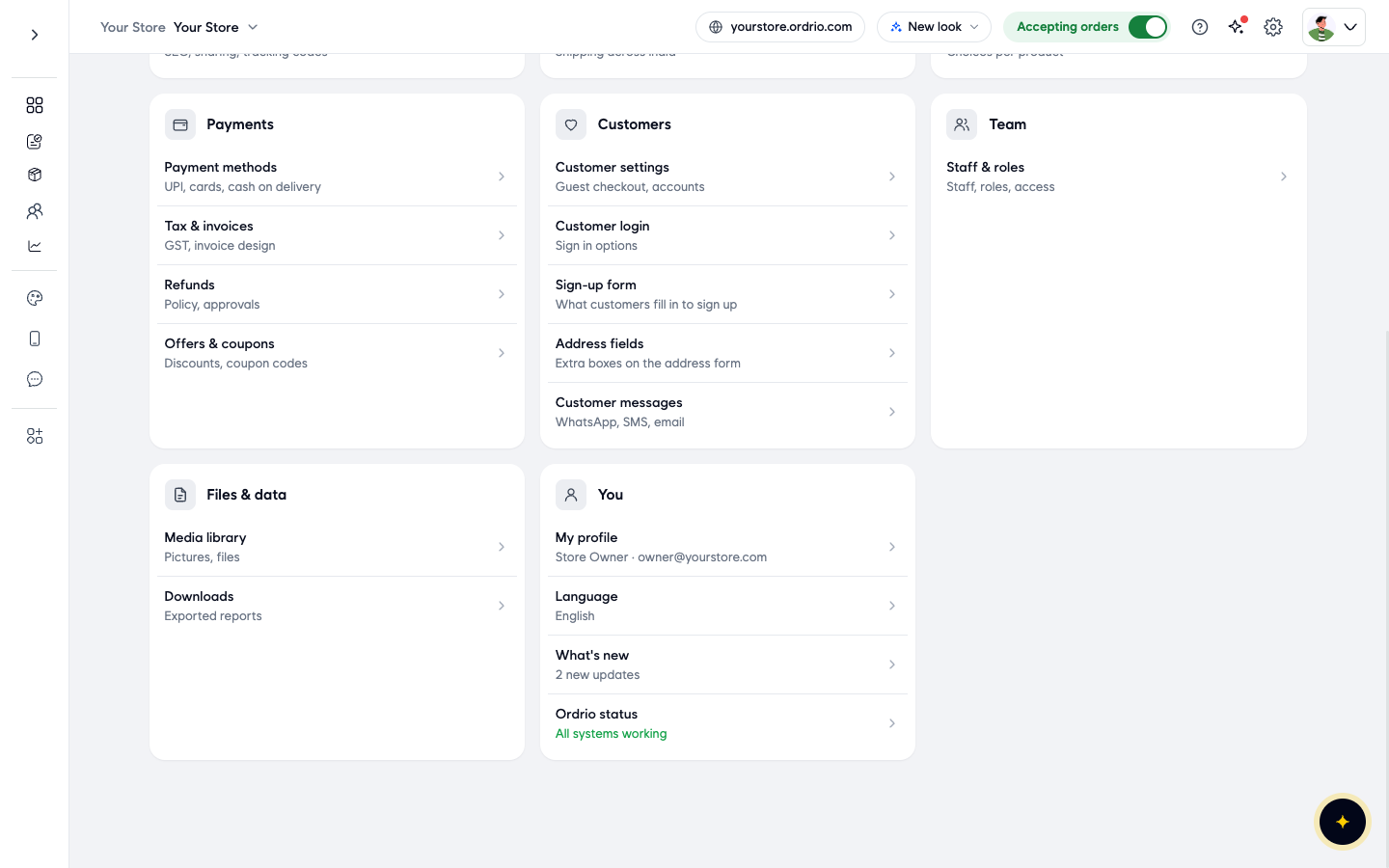
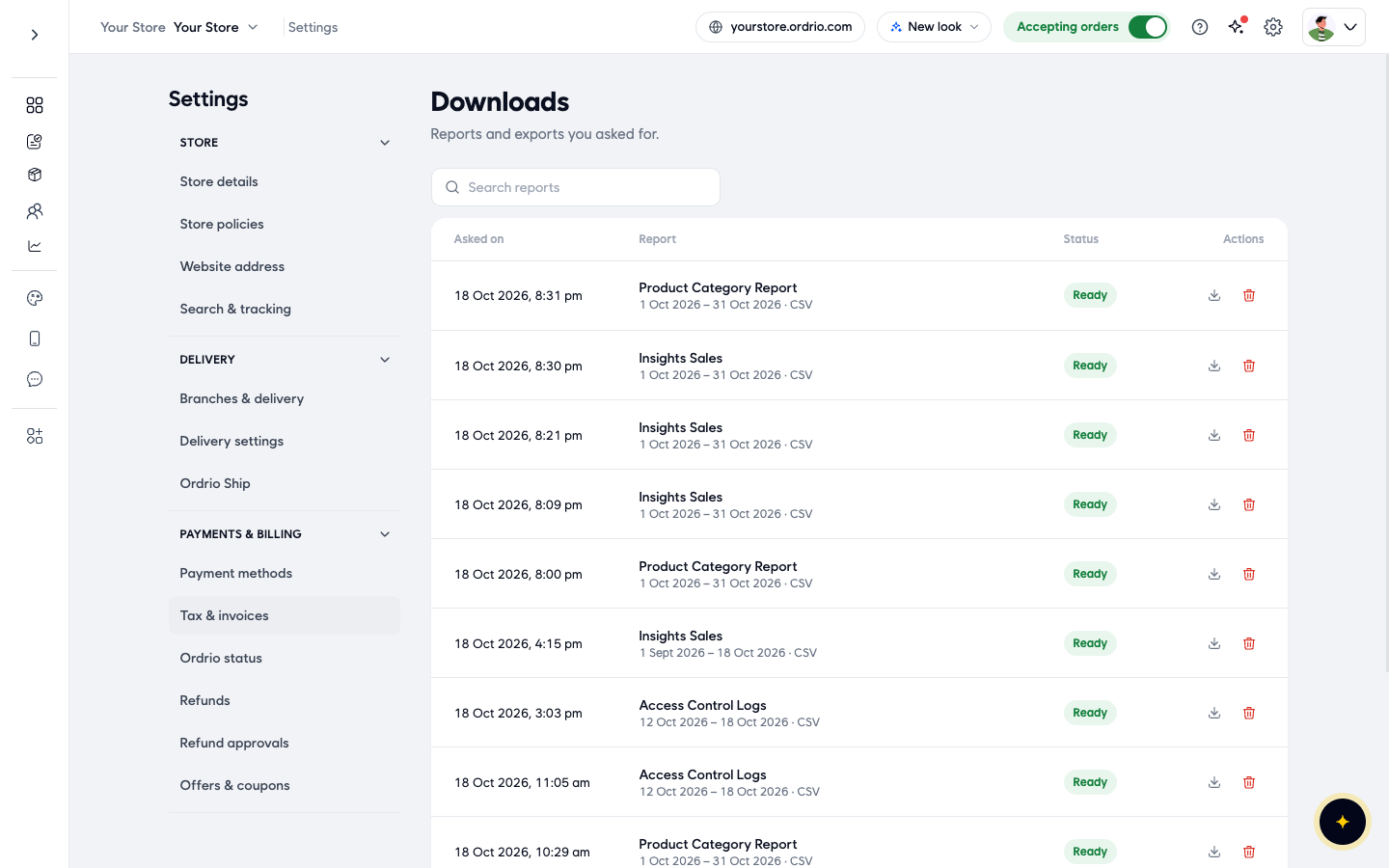
- Find your report in the list. Each row shows:
- Asked on: the date and time you clicked Download.
- Report: the report name, the dates it covers and the file type (CSV).
- Status: Ready means the file can be downloaded.
- Actions: the download icon and the delete icon.
- Click the download icon in the Actions column. The CSV file is saved to your computer.
- Open the file in Excel, Google Sheets or another spreadsheet app.
To find an older file, type its name in Search reports. To remove a file you no longer need, click the delete icon in its row.
Good to know
- Reports download as CSV files. Excel and Google Sheets open CSV files directly, and you can save the file as an Excel workbook from there.
- The file covers the time period that was selected when you clicked Download. Check the period before you download.
- If a report does not show Ready yet, wait a moment and open Downloads again.
- Reports you asked for are listed in Downloads, so you can download them again later without making a new one.
Related
- Sales and revenue reports
- Product, category and SKU performance
- Customer reports (new vs returning)
- Recommended setup order for new stores