यह आर्टिकल अभी हिंदी में नहीं है, इसलिए इसे अंग्रेज़ी में दिखाया जा रहा है।
कैसे करें
Connecting your store domain
Use an Ordrio subdomain or connect your own custom domain.
Your store's website address is the link customers use to find and order from you online. Free subdomains end with .ordrio.com. You can change the name of your free address, or connect your own domain like yourbrand.com.
Where to find your website address
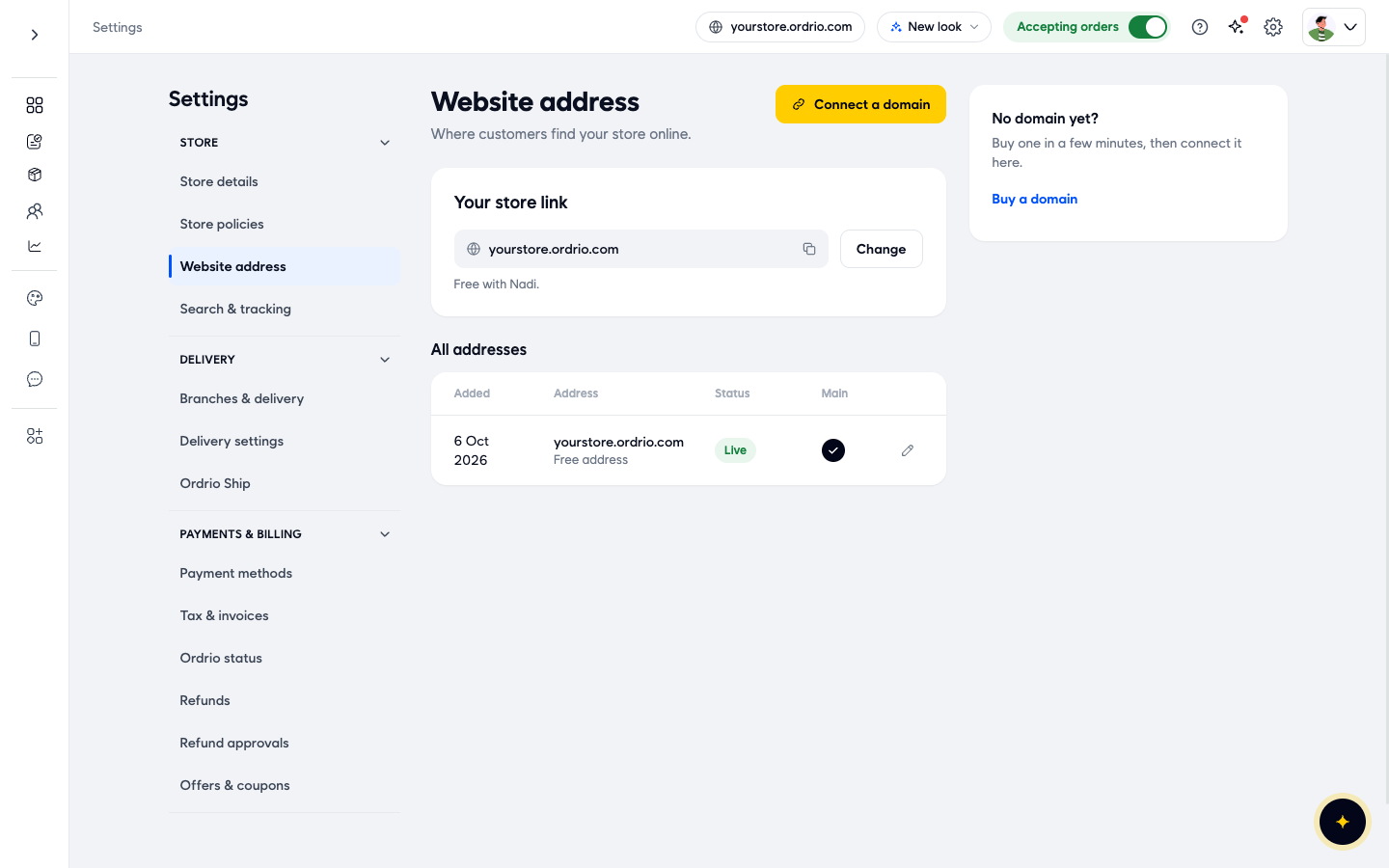
Your current store link is always shown at the top of your Ordrio admin panel, next to Accepting orders. To manage it, go to Settings and then Website address.
The Website address screen has these parts:
- Connect a domain: the button at the top right that starts connecting your own domain.
- Your store link: the address customers use now. Click the copy icon to copy it, or Change to pick a new name.
- All addresses: a table of every address your store has, with the date it was Added, the Address (for example "Free address" under your store link), its Status (for example Live or Not live yet), a tick in Main for the address customers see, and a pencil icon under Actions to change it.
- No domain yet?: a box with a Buy a domain button, if you do not own a domain yet.
Change your free Ordrio address
- Open nadi.ordrio.com (your Ordrio admin panel) and log in.
- Click the Settings icon (the gear) at the top right.
- Under Store, click Website address.
- Next to your store link, click Change. The Change free address window opens. It reminds you that old links stop working.
- In Address, type the name you want, for example yourstore-foods. The ending is already shown next to the field, so type only the name. Use your own store name, not the example shown here.
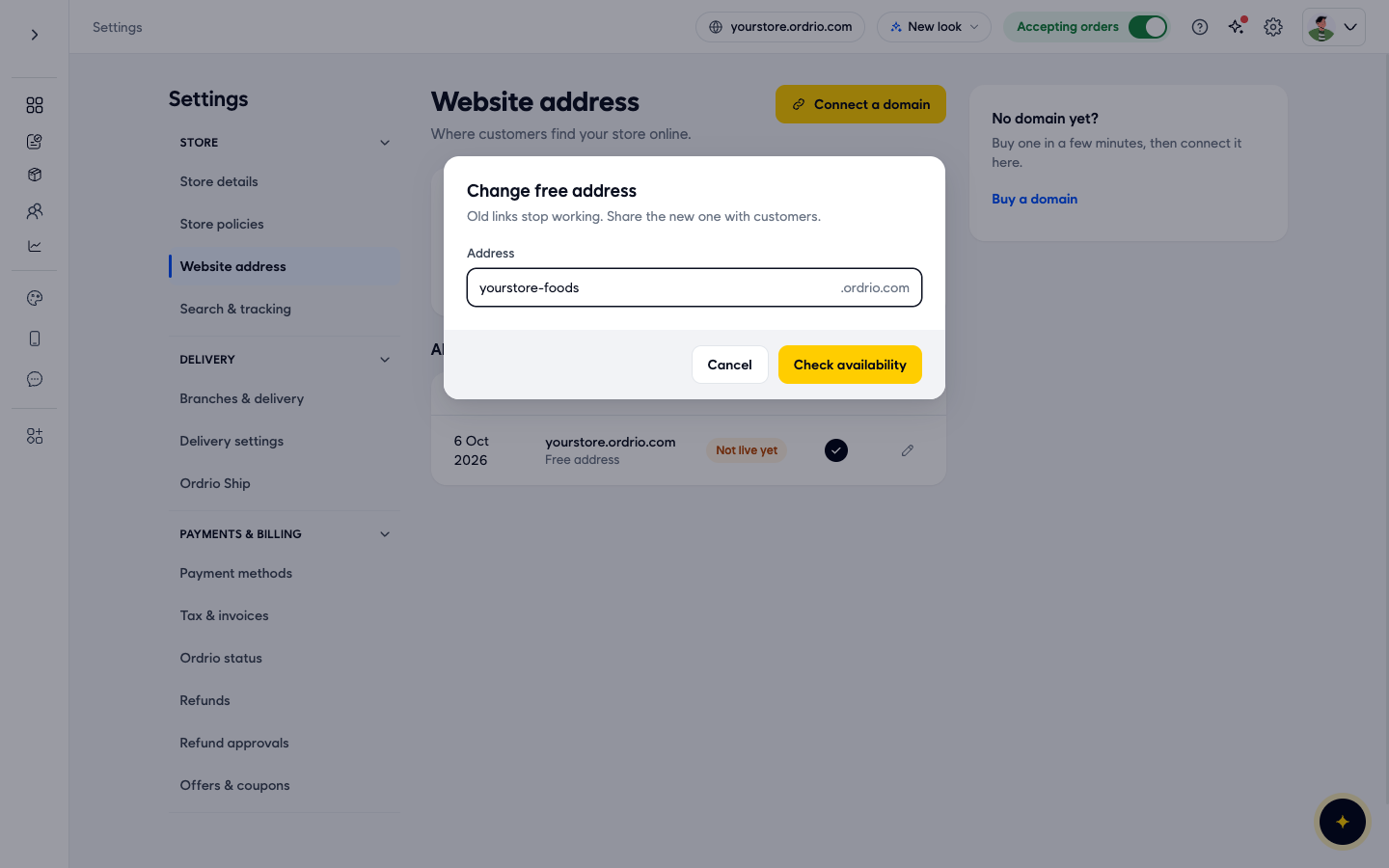
- Click Check availability.
- If the name is free, you see a line like "yourstore-foods.ordrio.com is free", and the button changes to Save.
- If someone else has it, you see "This subdomain is currently unavailable". Try a different name and click Check availability again.
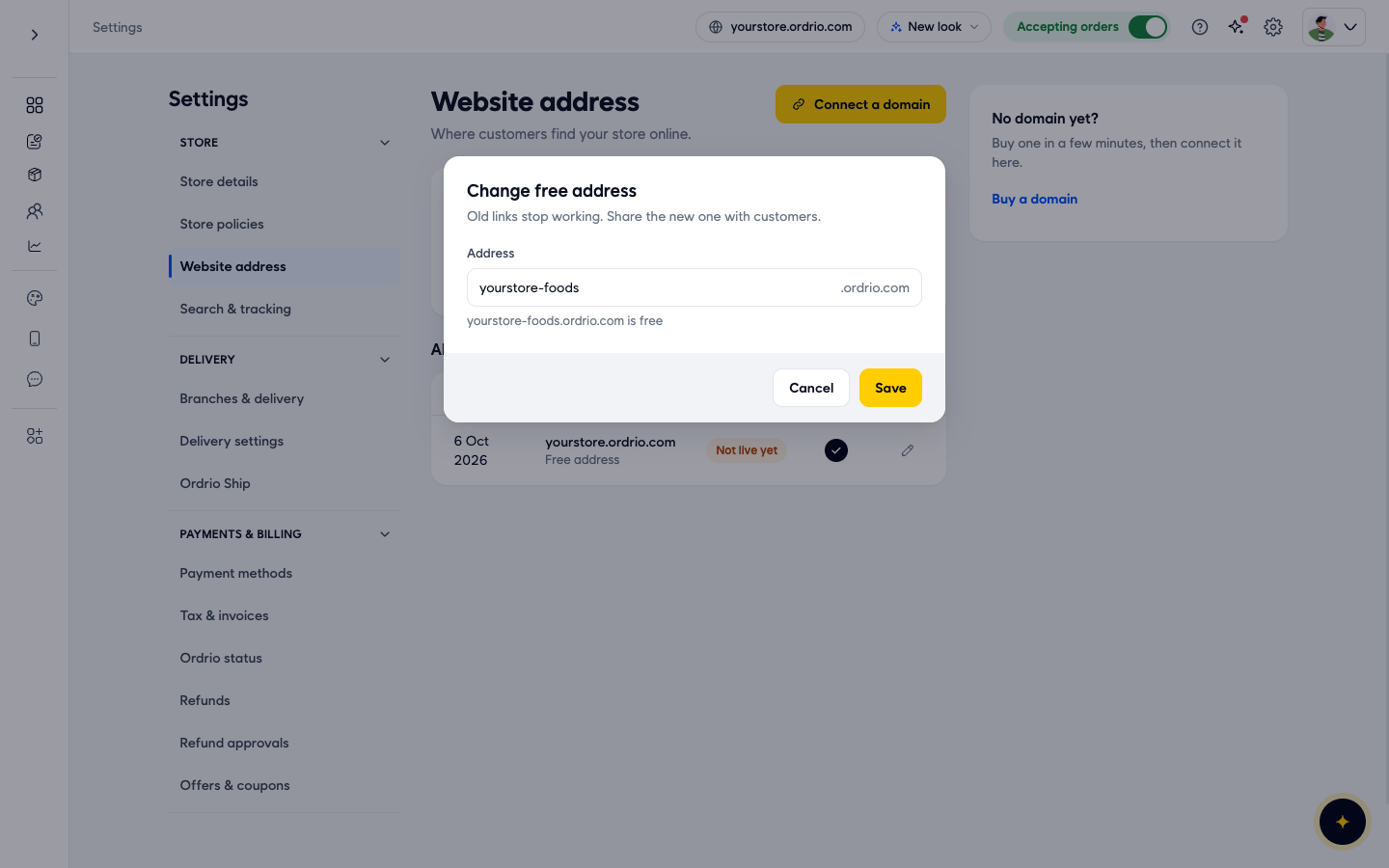
- Click Save.
After you save, customers find your store at the new address. Share it with your customers, on your social pages, printed bills and WhatsApp messages.
Use your own domain
Your own domain puts your brand in the link (like yourbrand.com), and customers trust it more at checkout. You need to own the domain first. If you do not have one, click Buy a domain in the No domain yet? box, or buy one from a provider such as GoDaddy or Hostinger, then come back.
Before you start
- Custom domains are supported on Launch plans and above.
- Keep the login for your domain provider (the company where you bought the domain) ready. You will add a record there.
Connect your domain
- In your Ordrio admin panel, go to Settings and then Website address.
- Click Connect a domain at the top right. The Your own domain window opens.
- In Domain, type your domain, for example yourbrand.com. Type your own domain, not the example shown here.
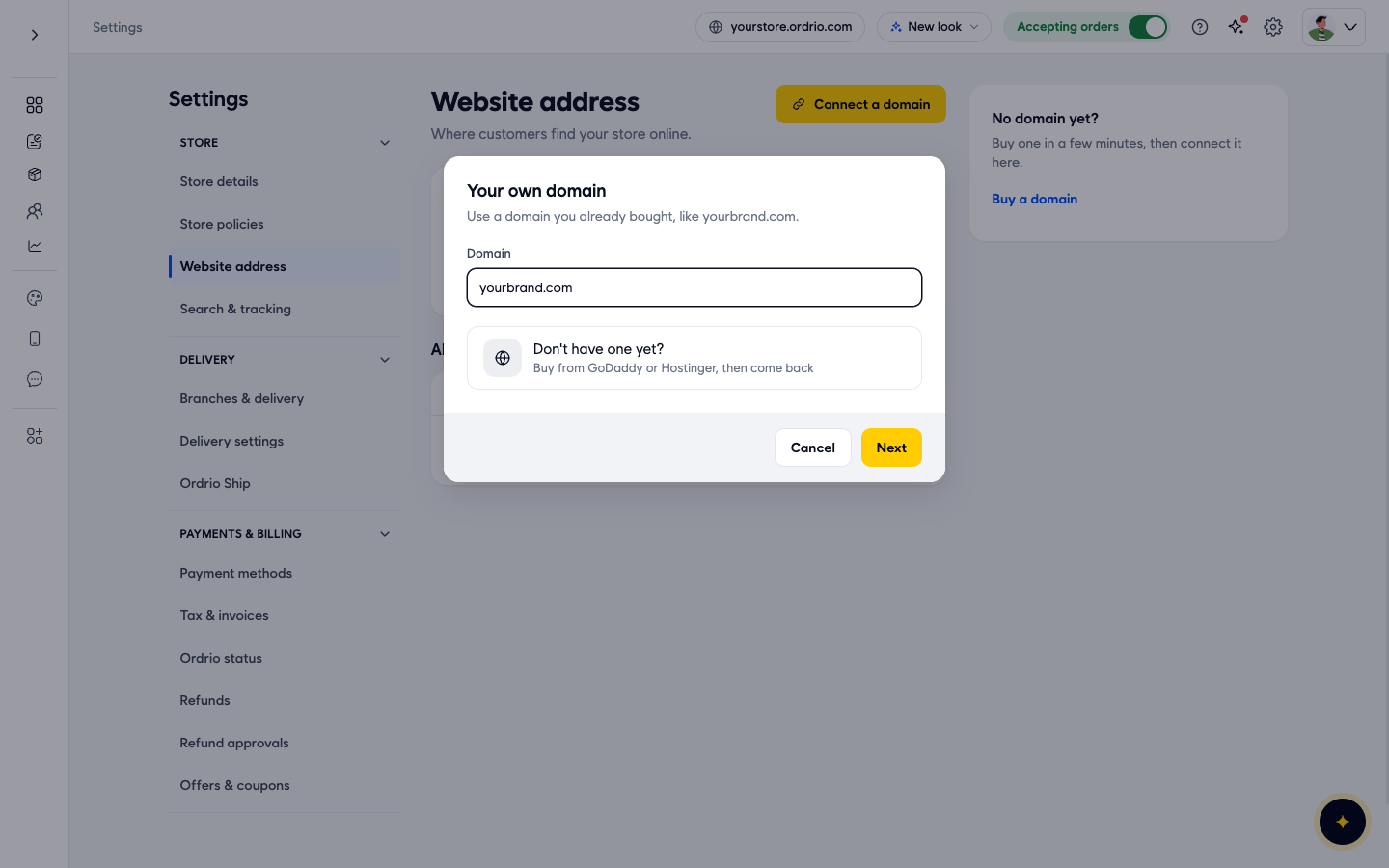
- Click Next. Ordrio checks the domain. If it can be used, you see "This domain is available" under the field and the button changes to Continue.
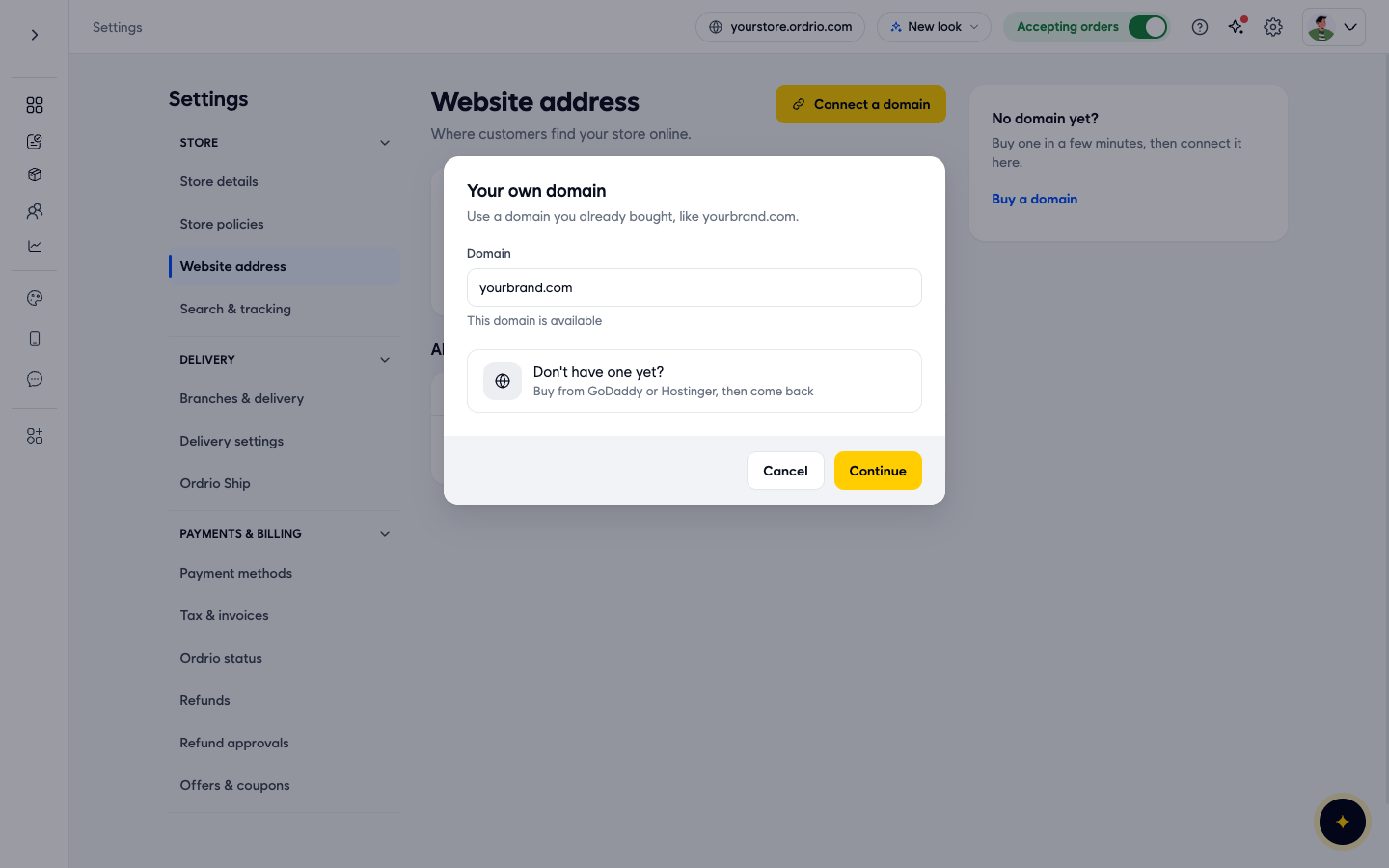
- Click Continue. The window now shows your domain at the top and an Add this record box with the DNS record to add at your domain provider:
- Type: A
- Name: @ (this means the domain itself, like yourbrand.com)
- Value: 95.211.81.166. Click Copy to copy it.
- TTL: 1 hour
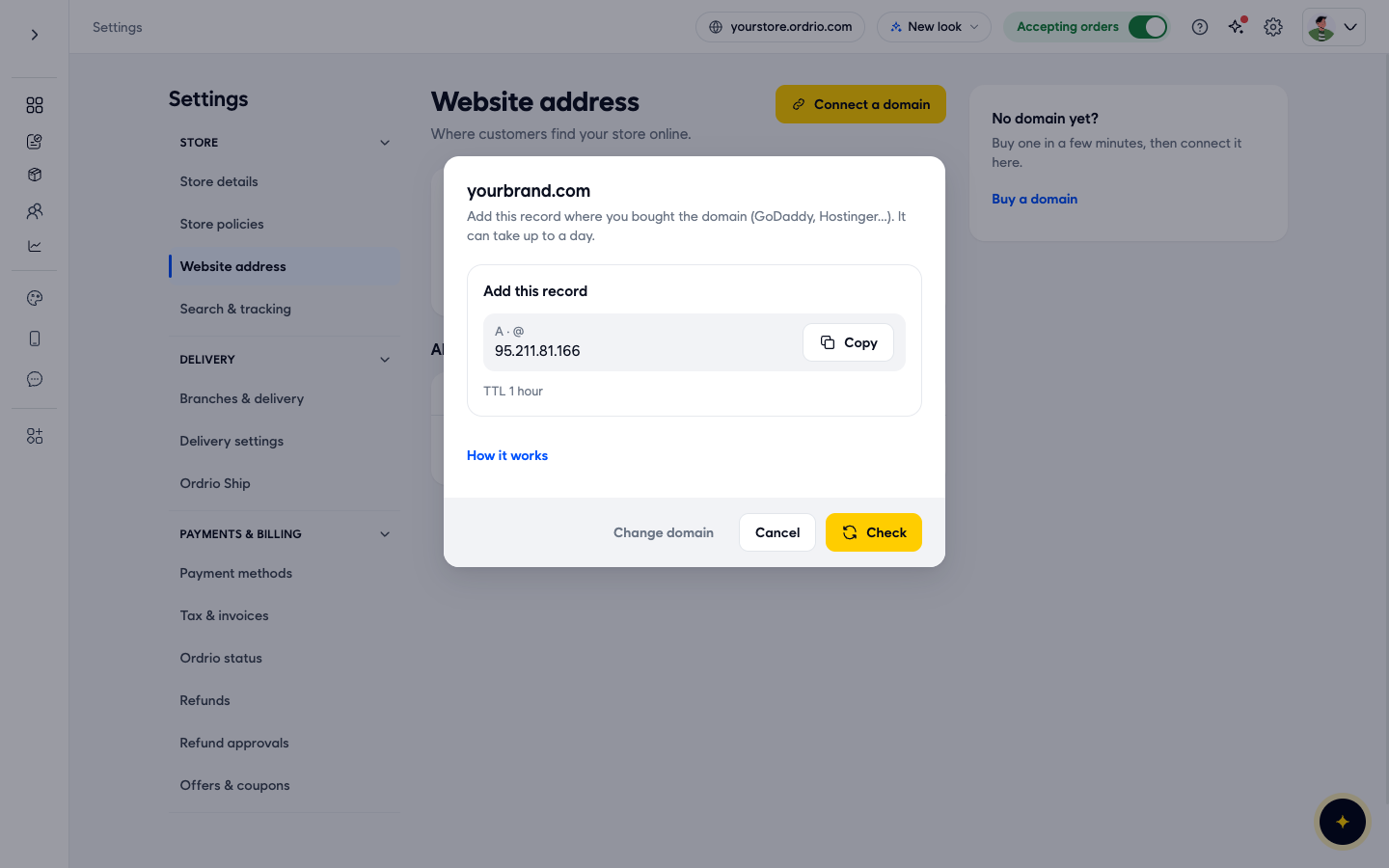
- In a new browser tab, log in to your domain provider and open the DNS settings for your domain. Add two records, both with a TTL of 1 hour: type A, name @, value 95.211.81.166; and type A, name www, value 95.211.81.166. Save them there. If a record with the name @ or www already exists (including a CNAME for www), edit or replace it so it uses these values.
- Go back to the Ordrio window and click Check.
While Ordrio waits for verification
After you add the record, it can take time before Ordrio can see it. The window says it can take up to a day, and some providers are slow to update.
- If Ordrio cannot see the record yet, the Add this record box shows Check failed with the message "We could not see this record yet. Check the values, and try again in a few minutes." The button changes to Check again.
- Make sure the type, name and value at your provider match exactly, then wait a few minutes and click Check again.
- While you wait, your free address keeps working, so customers can still order.
- Typed the wrong domain? Click Change domain to go back and type it again.
- Cancel closes the window. Your domain is not added to All addresses until the check passes, so come back later, click Connect a domain, type the same domain and check again.
- How it works opens a help page about connecting a domain.
Good to know
- When you change your free address, old links stop working. Update any link you have shared, like QR codes, social media bios and saved messages.
- Choose a short name that matches your store name, so customers can remember and type it.
- The address with the tick in Main is the one customers see.
- DNS changes are made at your domain provider, not in Ordrio. If you are not sure where to add the record, ask your provider's support, or use Help and support at the top of your admin panel.
Related
- Recommended setup order for new stores
- Accessing Ordrio for the first time
- What is Ordrio