यह आर्टिकल अभी हिंदी में नहीं है, इसलिए इसे अंग्रेज़ी में दिखाया जा रहा है।
कैसे करें
Languages and RTL support
Offer your store in more languages, including right-to-left layouts.
You can show your store to customers in more than one language with the Multi Language add-on, which shows your store in English and Arabic. Arabic reads right to left, so it also suits customers who read right to left. You can also change the language of your own Ordrio admin panel, including a right-to-left Arabic layout.
Before you start
- Multi Language is a paid add-on. You pay for it from your Ordrio admin panel when you switch it on.
- You need to be able to log in to your Ordrio admin panel at nadi.ordrio.com with your registered email or mobile number.
Show your store in English and Arabic
- Open nadi.ordrio.com (your Ordrio admin panel) and log in with your registered email or mobile number.
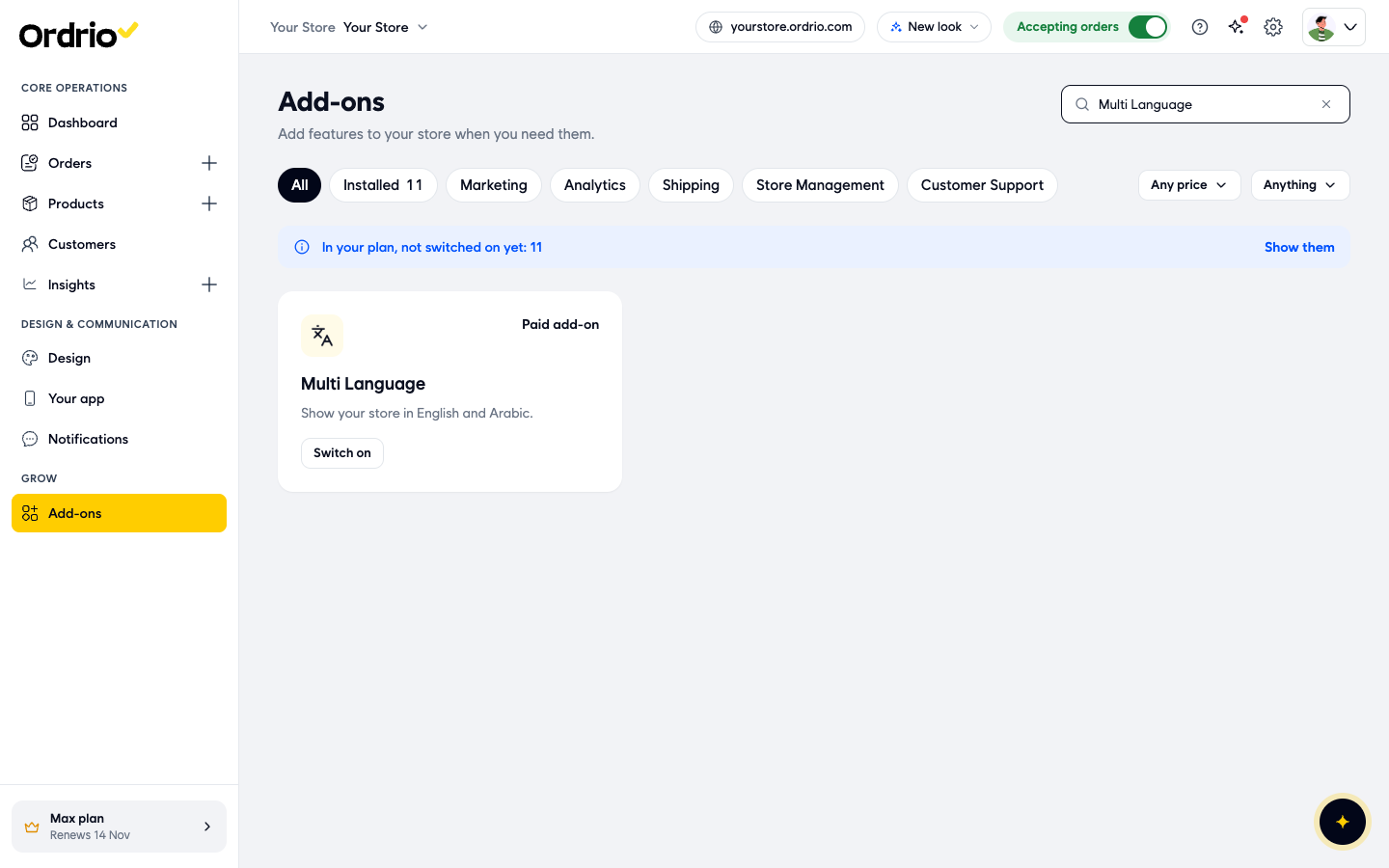
- In the left menu, under Grow, click Add-ons. This page lists every add-on you can switch on for your store.
- In the Search add-ons box at the top right, type Multi Language. The Multi Language card appears, marked Paid add-on, with the line "Show your store in English and Arabic."
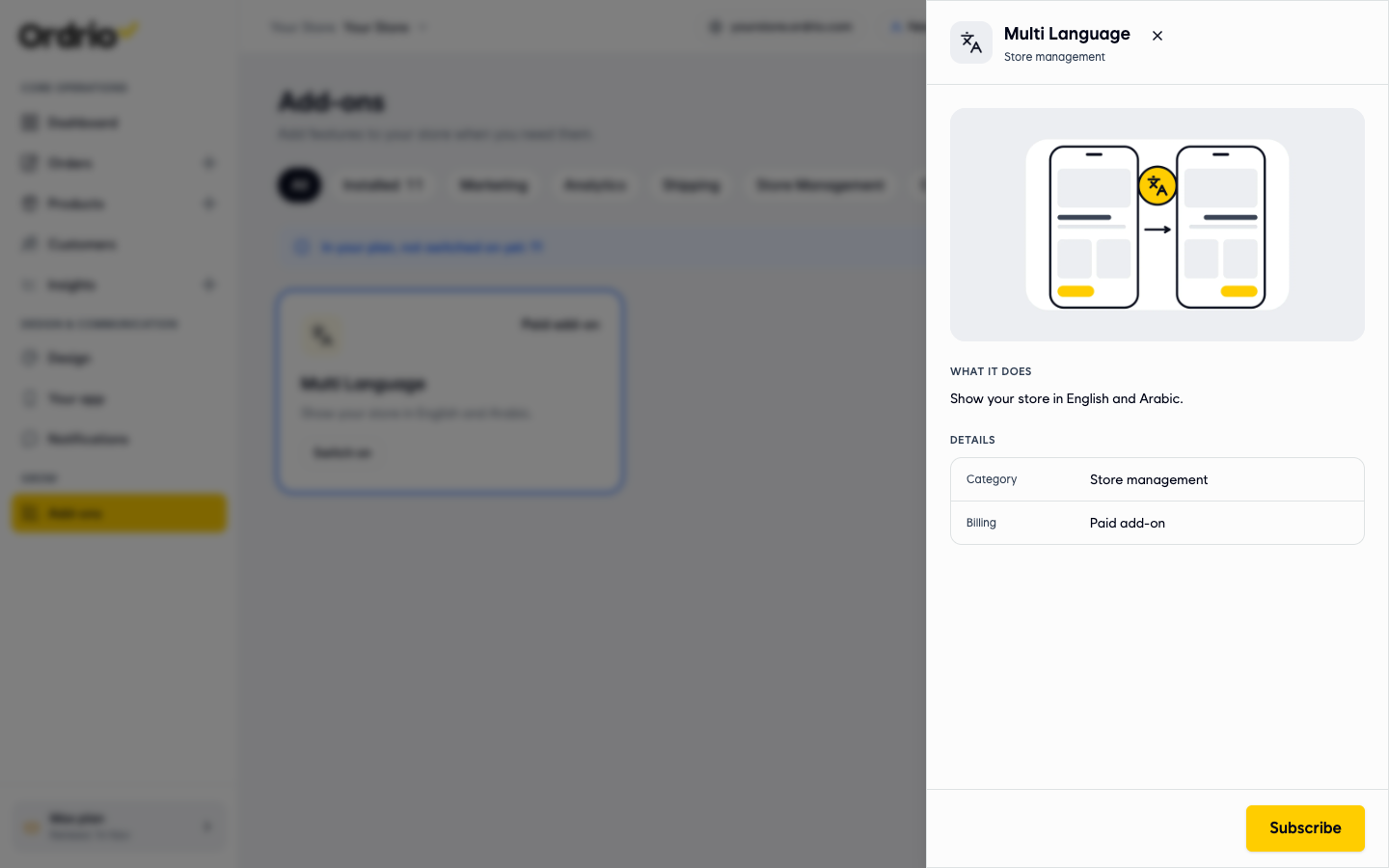
- Click the name Multi Language on the card. A panel opens on the right with:
- What it does: "Show your store in English and Arabic."
- Category: Store management
- Billing: Paid add-on
- Click Subscribe at the bottom of the panel. The Add Multi Language window opens and shows what you will pay:
- Multi Language: the price per month
- Subtotal
- Today, till your renewal: the part of the price for the days left in your current billing cycle
- Setup fee
- GST at 18%
- Pay now: the total you pay today
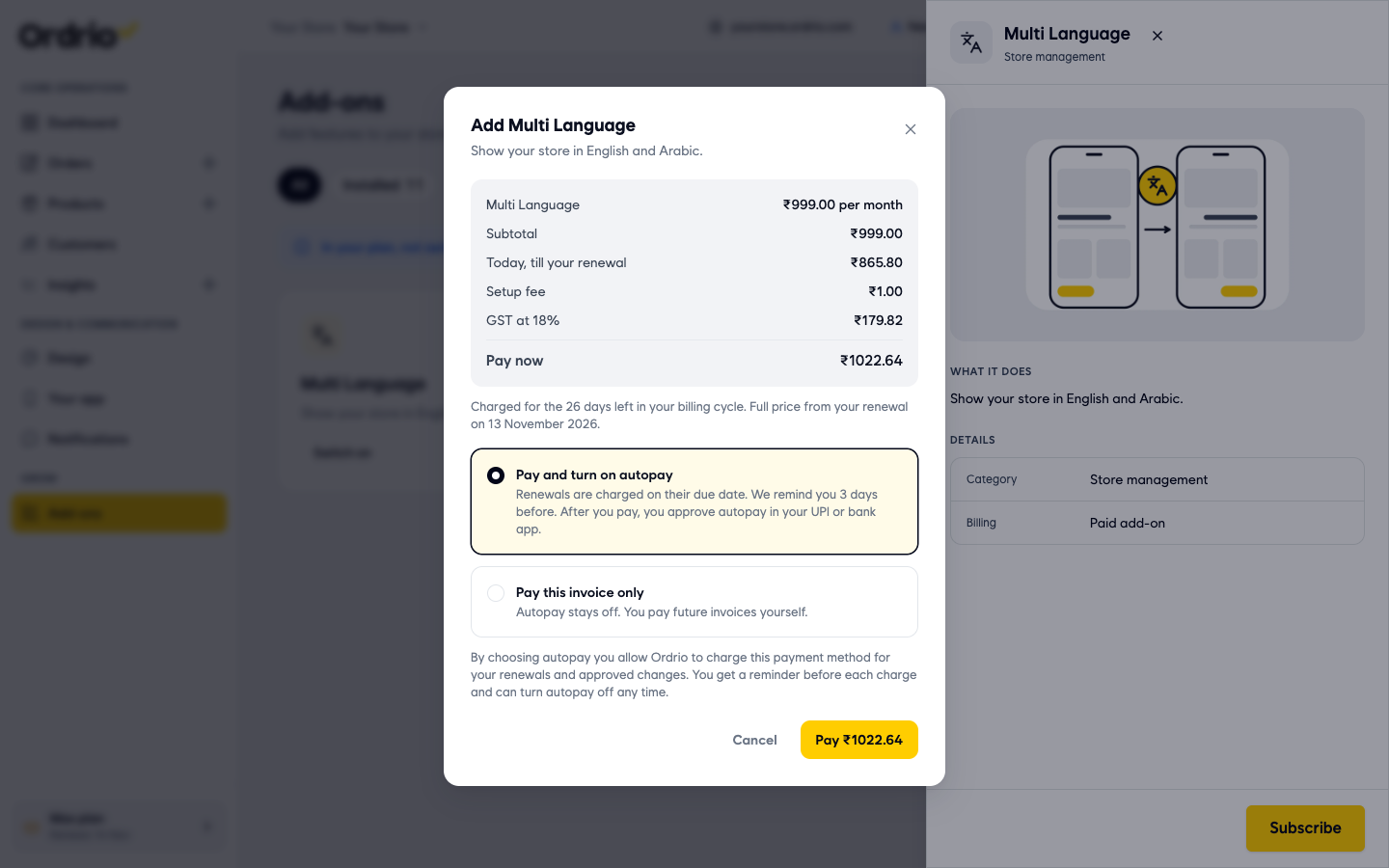
- Choose how you want to pay:
- Pay and turn on autopay: future renewals are charged on their due date. Ordrio reminds you 3 days before. After you pay, you approve autopay in your UPI or bank app.
- Pay this invoice only: autopay stays off and you pay future invoices yourself.
- Click the Pay button (it shows the amount) and finish the payment. To stop without paying, click Cancel.
After you pay, you can find Multi Language with your other switched-on add-ons under Installed on the Add-ons page.
Change the language of your admin panel
This changes only what you see in your Ordrio admin panel. It does not change your store for customers.
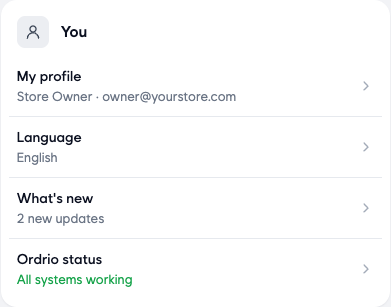
- In the top bar of your Ordrio admin panel, click the Settings icon (the gear).
- Scroll to the You section and click Language. It shows the language you use now, for example English.
- My profile opens. Scroll down to Preferences.
- Click the language you want for your admin panel:
- English
- हिन्दी (Hindi)
- العربية (Arabic), marked right to left
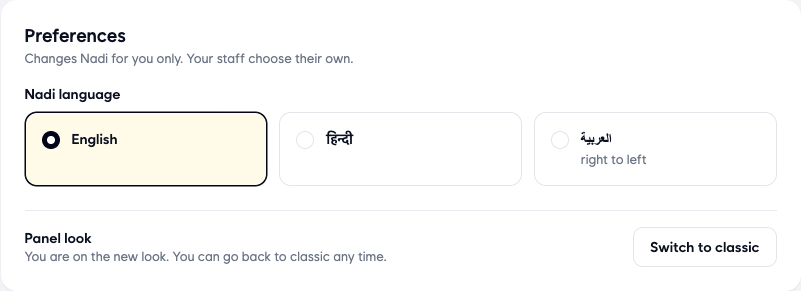
- The admin panel changes straight away. You do not need to click Save changes. Your choice stays the next time you open the page.
If you choose Arabic, the whole admin panel turns right to left: the menu moves to the right side of the screen and the text reads from right to left.
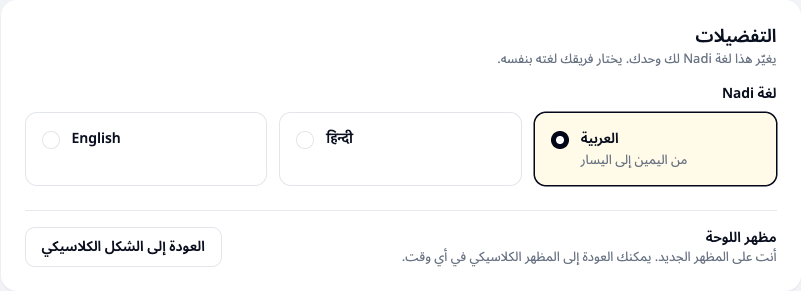
To switch back, open the same place and click English. In Arabic, Settings is the gear icon in the top bar, and the English option is always written English.
You can also choose English, हिन्दी or العربية at the bottom of the login page, next to Language, before you log in.
Good to know
- The Multi Language add-on shows your store in English and Arabic. Hindi is available for your admin panel only.
- Arabic is a right-to-left language, so screens in Arabic are mirrored. Menus and buttons that are on the left in English appear on the right.
- The admin panel language is set per person. Changing it changes the panel for you only, and your staff choose their own.
- The admin panel language does not change the language your customers see.
- When you add Multi Language in the middle of a billing cycle, you pay only for the days left in that cycle. The full price applies from your next renewal.
- If you turn on autopay, you can turn it off at any time.
Related
- Enabling and managing add-ons
- Accessing Ordrio for the first time
- Plans and billing