यह आर्टिकल अभी हिंदी में नहीं है, इसलिए इसे अंग्रेज़ी में दिखाया जा रहा है।
दिक्कत और हल
Store not visible or not loading
Why customers cannot open your store and how to fix it.
If a customer tells you they cannot open your store, or they can see it but cannot order, the cause is usually one of a few settings in your Ordrio admin panel. This article helps you find the cause and fix it, one check at a time.
Open nadi.ordrio.com (your Ordrio admin panel) and log in. Then work through the checks below in order.
Check 1: Is your store open?
The Accepting orders switch at the top of every page in your admin panel opens and closes your whole store.
- When it is on (green), the Dashboard shows Open and taking orders under the greeting.
- If someone turned it off, customers cannot place orders until you turn it back on.
To fix it, turn the Accepting orders switch back on.
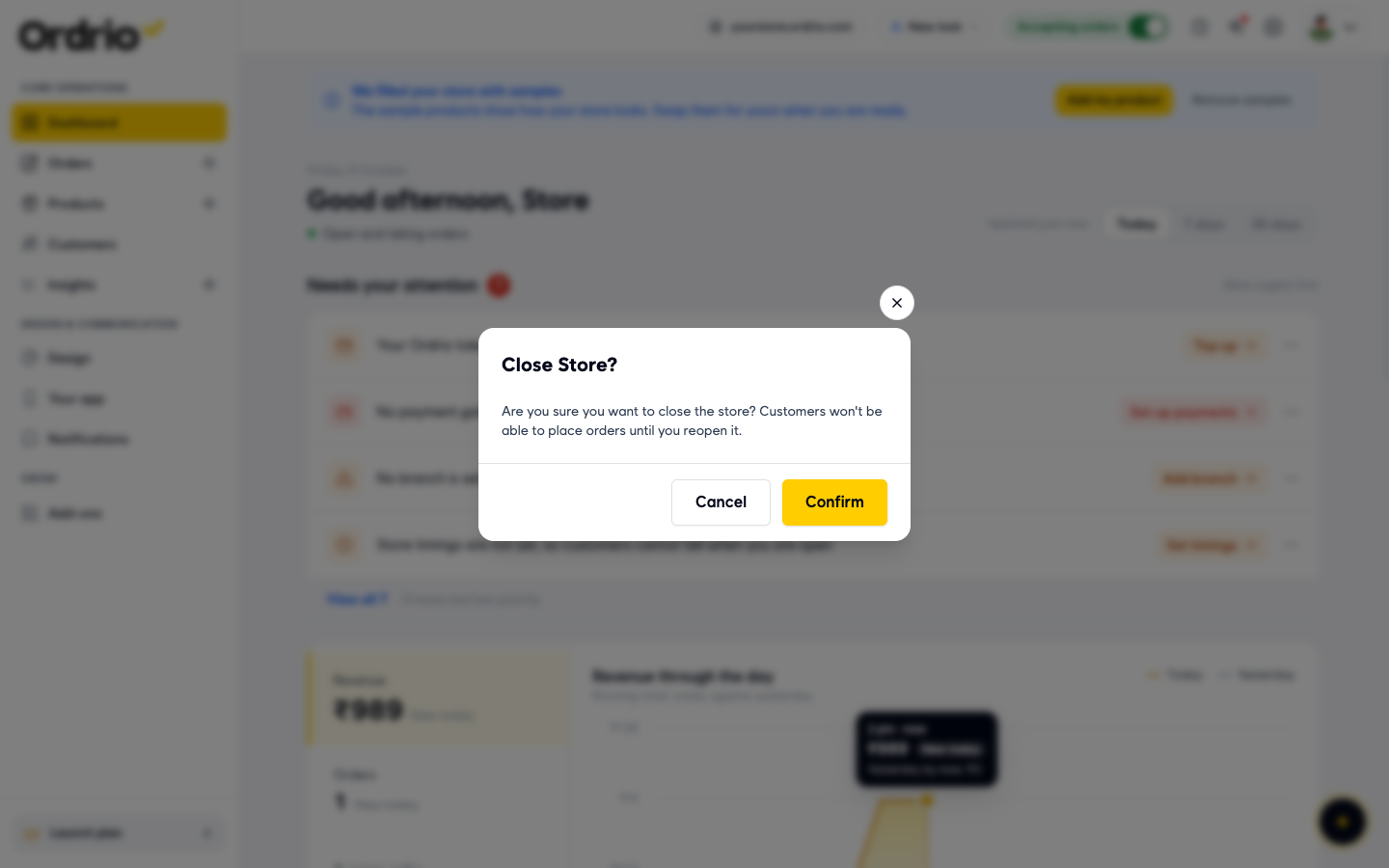
When you turn the switch off, Ordrio asks Close Store? and explains that customers won't be able to place orders until you reopen. Click Confirm only if you really mean to close. Click Cancel to keep the store open.
Check 2: Are customers using the right link?
Many "store not loading" reports come from a wrong or old link.
- At the top of your admin panel, click your store link (the address with the globe icon, next to New look).
- A small box called Your store link opens. It shows the exact address customers should use.
- Click Open store to check that the store opens for you.
- Click Copy link or Share and send that exact link to the customer.
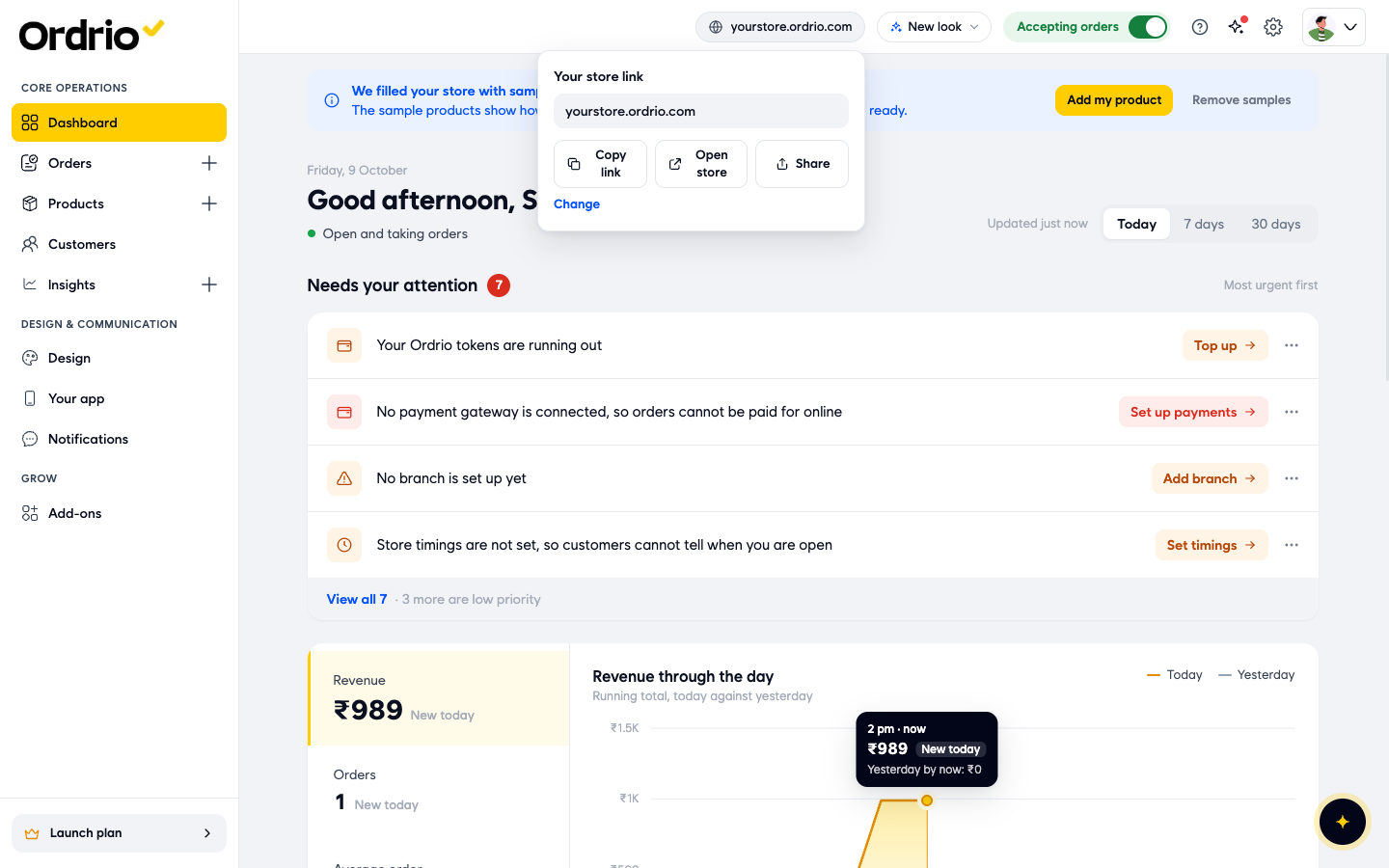
The screenshots show the example address yourstore.ordrio.com. Your admin panel shows your own store link. Always share the link you see there.
If the customer typed the address by hand, ask them to check every letter. One wrong letter takes them to a different address.
Check 3: Is your website address live?
Your website address settings show every address your store uses and whether each one is working.
- Click Settings (the gear icon at the top right).
- Under Store, click Website address.
- Look at Your store link. This is the free address that comes with Ordrio. Click the copy icon next to it to copy it, or Change to change it.
- Look at the All addresses table. For each address you see:
- Added: the date the address was added.
- Address: the address itself. Your free address is marked Free address.
- Status: Live means the address is working.
- Main: a tick marks the main address of your store.
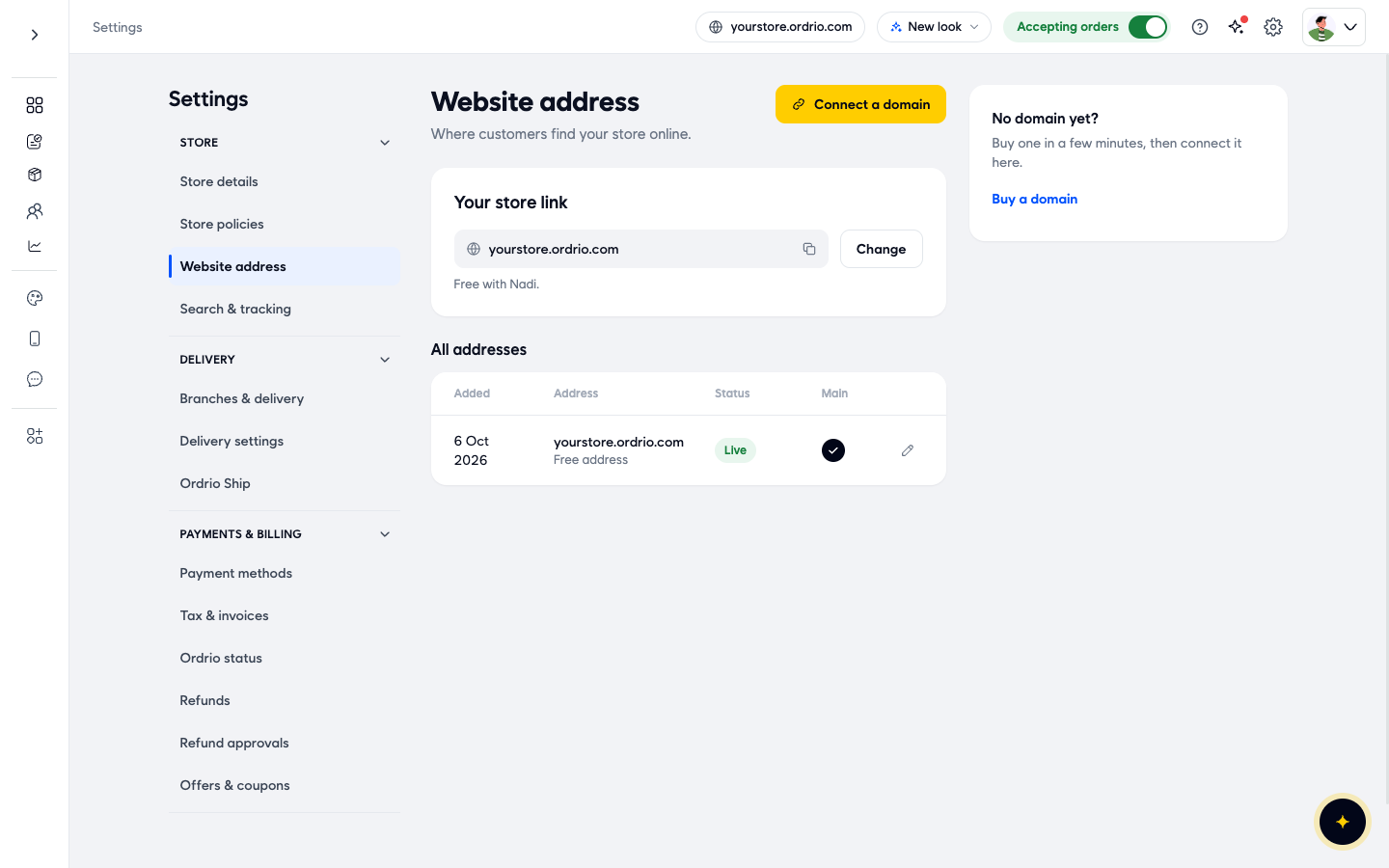
If you use your own domain (for example www.yourstore.in) and its Status is not Live, customers cannot reach your store on that domain yet. Share your free store link in the meantime. To add your own domain, click Connect a domain, type it in the Domain box and click Next. If you do not have a domain yet, the No domain yet? box on the right has a Buy a domain button.
If you changed your store link recently, customers with the old link or an old bookmark may not reach you. Send them the link shown in Your store link.
Check 4: Is your branch set up and taking orders?
Your store needs at least one branch that is taking orders. The Dashboard tells you when something is missing.
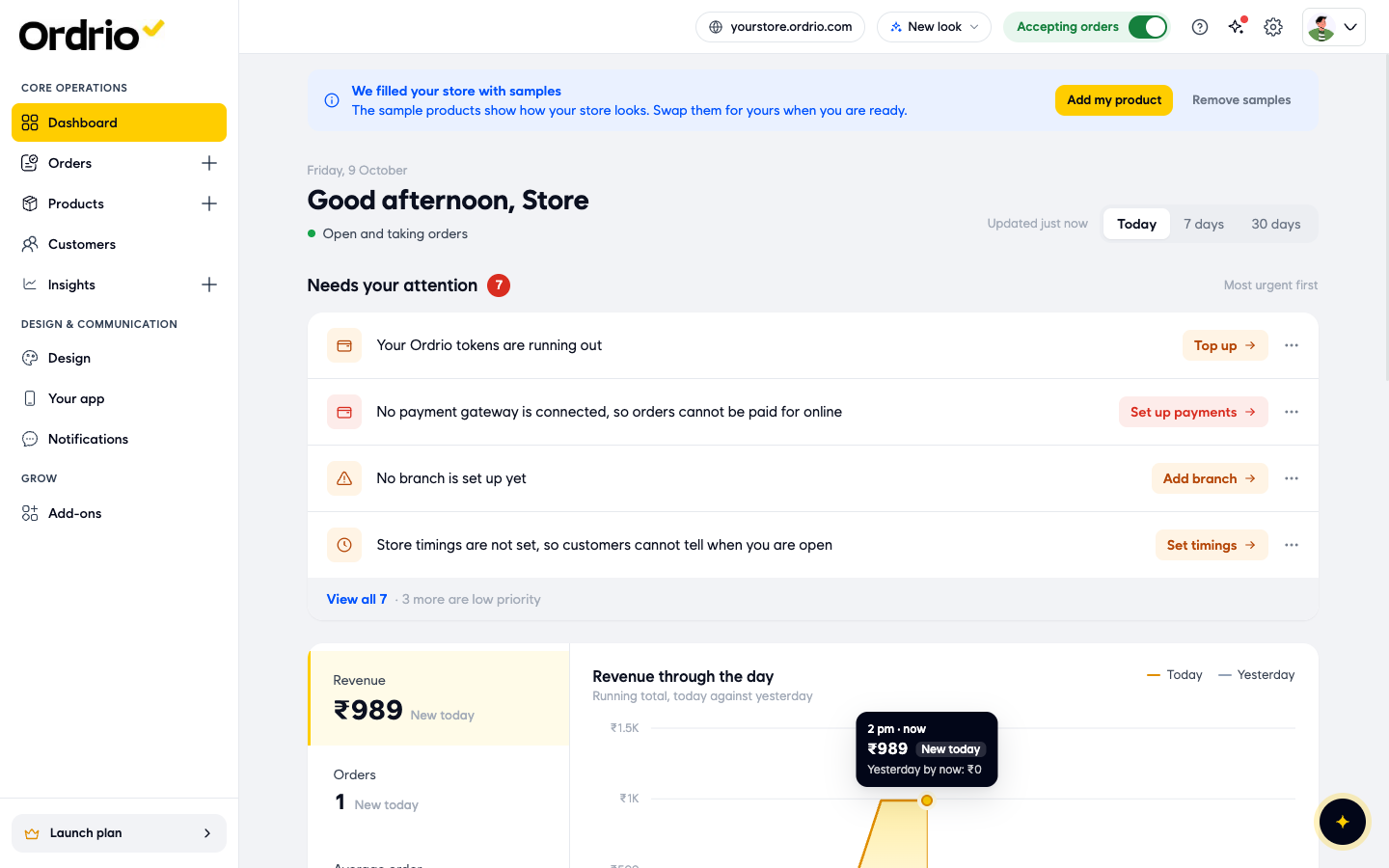
- Click Dashboard in the menu on the left.
- Look at Needs your attention. These messages point to settings that stop customers from ordering:
- No branch is set up yet: click Add branch to set up your branch.
- Store timings are not set, so customers cannot tell when you are open: click Set timings.
- No payment gateway is connected, so orders cannot be paid for online: click Set up payments.
- Click View all to see every message, including the low priority ones.
To check each branch:
- Click Settings, then under Delivery click Branches & delivery.
- In the Branches list, look at the Taking orders switch for each branch. A branch with the switch off does not take orders.
- Turn the switch on for any branch that should be taking orders.
- Click a branch to open Edit branch. Under Hours & delivery, check that Local delivery or Shipping is turned on, so customers have a way to get their order.
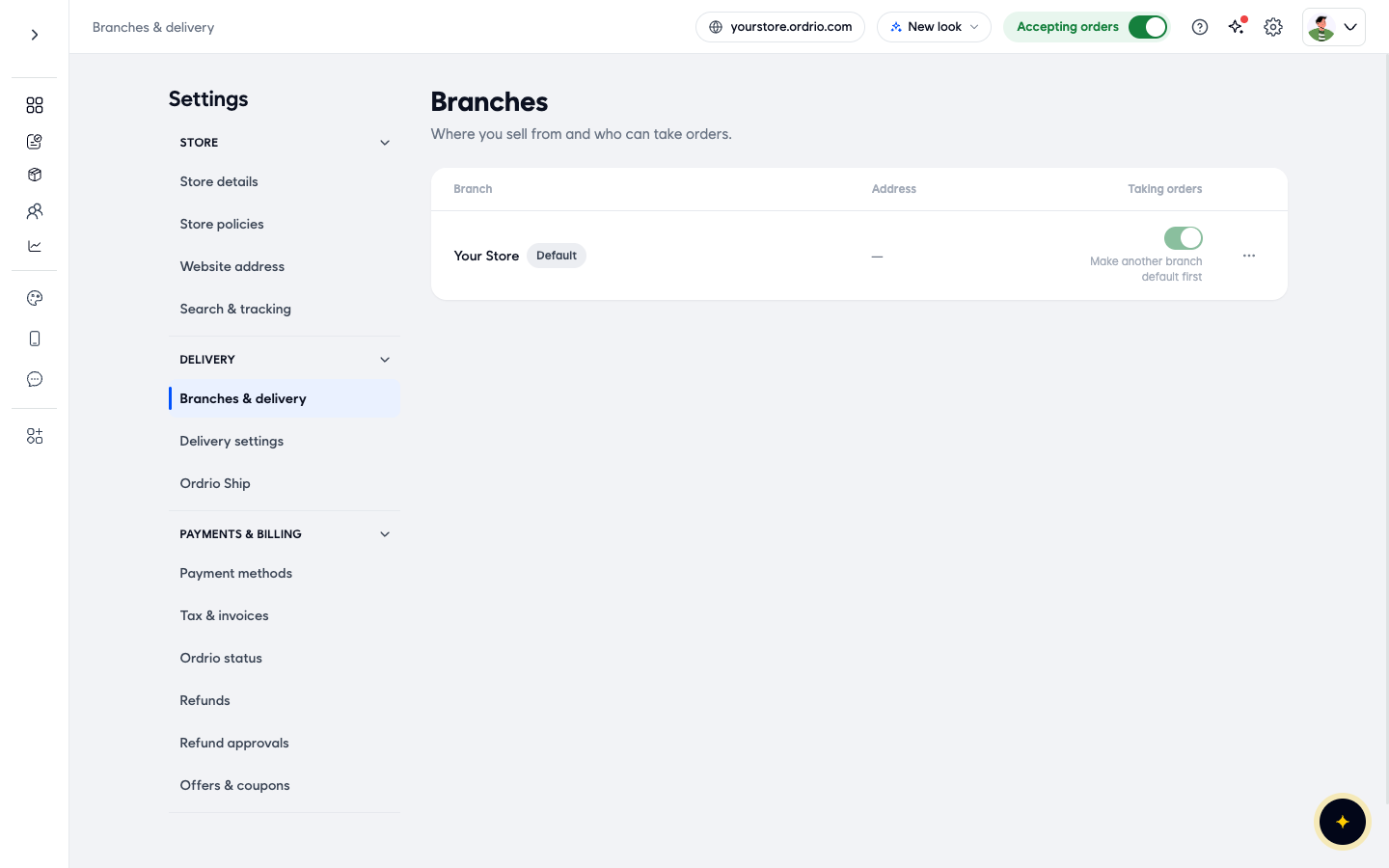
Your default branch is marked Default. Its Taking orders switch cannot be turned off. The admin shows Make another branch default first.
Check 5: Is there a problem on Ordrio's side?
Sometimes the problem is not in your settings. You can check this yourself.
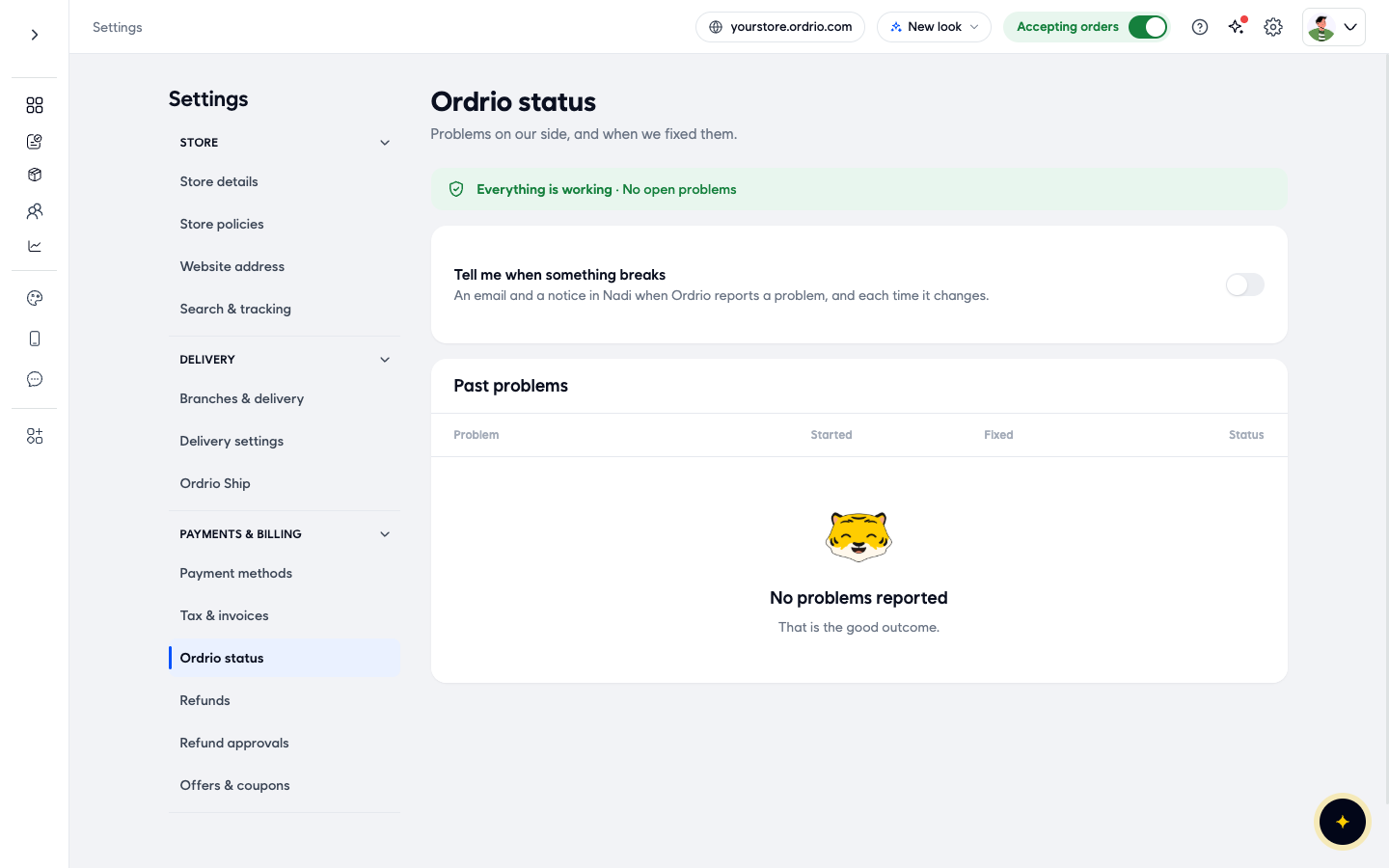
- Click Settings, then under Payments & billing click Ordrio status.
- The banner at the top shows the current state. Everything is working · No open problems means Ordrio is working normally.
- Past problems lists earlier problems with when each one Started, when it was Fixed and its Status.
- Turn on Tell me when something breaks to get an email and a notice in your admin panel when Ordrio reports a problem, and each time it changes.
Check 6: Is the problem on the customer's side?
If your store opens for you but not for one customer, the problem is usually their phone or internet. Ask them to:
- Check that they are online, for example by opening another website.
- Refresh the page, or close the browser and open the link again.
- Try a different browser or another phone.
Still not working?
- Click Help and support (the question mark icon at the top of your admin panel).
- On Help & Support, click Raise a ticket.
- Tell us your store link, what the customer sees, and when it started. A screenshot from the customer helps.
You can follow your ticket under the Open tab, and find finished ones under Closed.
Good to know
- Closing your store with Accepting orders stops all orders until you turn it back on.
- To see how your store looks to customers, go to Design and click Preview store.
- Customers can open your store but cannot pay online if no payment gateway is connected. The Dashboard shows this under Needs your attention.
Related
- Changing your store link
- Connecting your own domain
- Setting up branches and store timings
- Setting up online payments