यह आर्टिकल अभी हिंदी में नहीं है, इसलिए इसे अंग्रेज़ी में दिखाया जा रहा है।
कैसे करें
Activity logs
See who did what, for accountability and security.
The activity log shows who did what in your Ordrio admin panel, and when. Use it to check who changed an order or a staff member, and to spot anything that looks wrong.
Before you start
You need to log in as the store owner, or as a staff member whose role can open Staff & roles.
See your store's activity
- Open nadi.ordrio.com (your Ordrio admin panel) and log in with your registered email or mobile number. You land on your Dashboard.
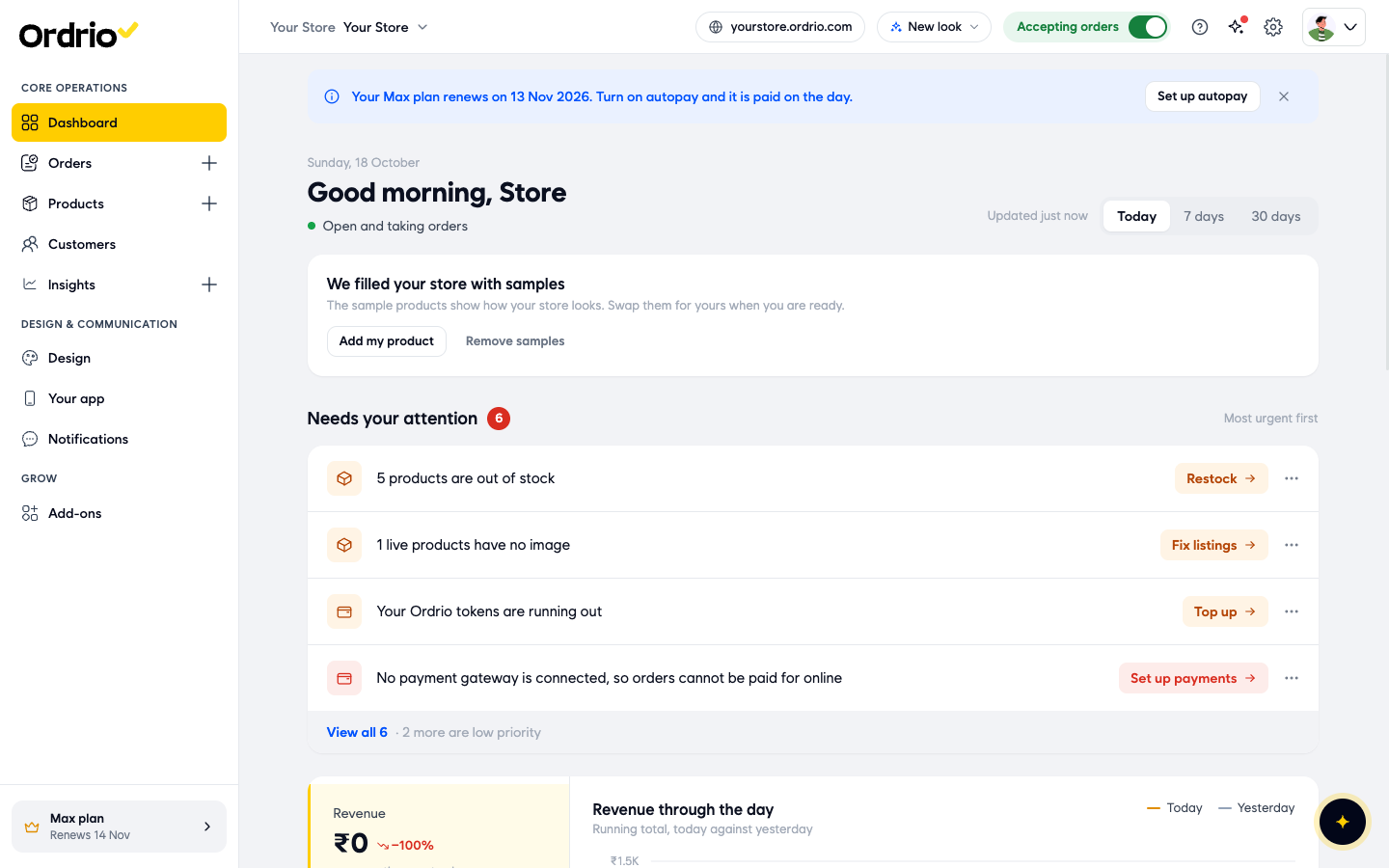
- Click Settings (the gear button at the top right).
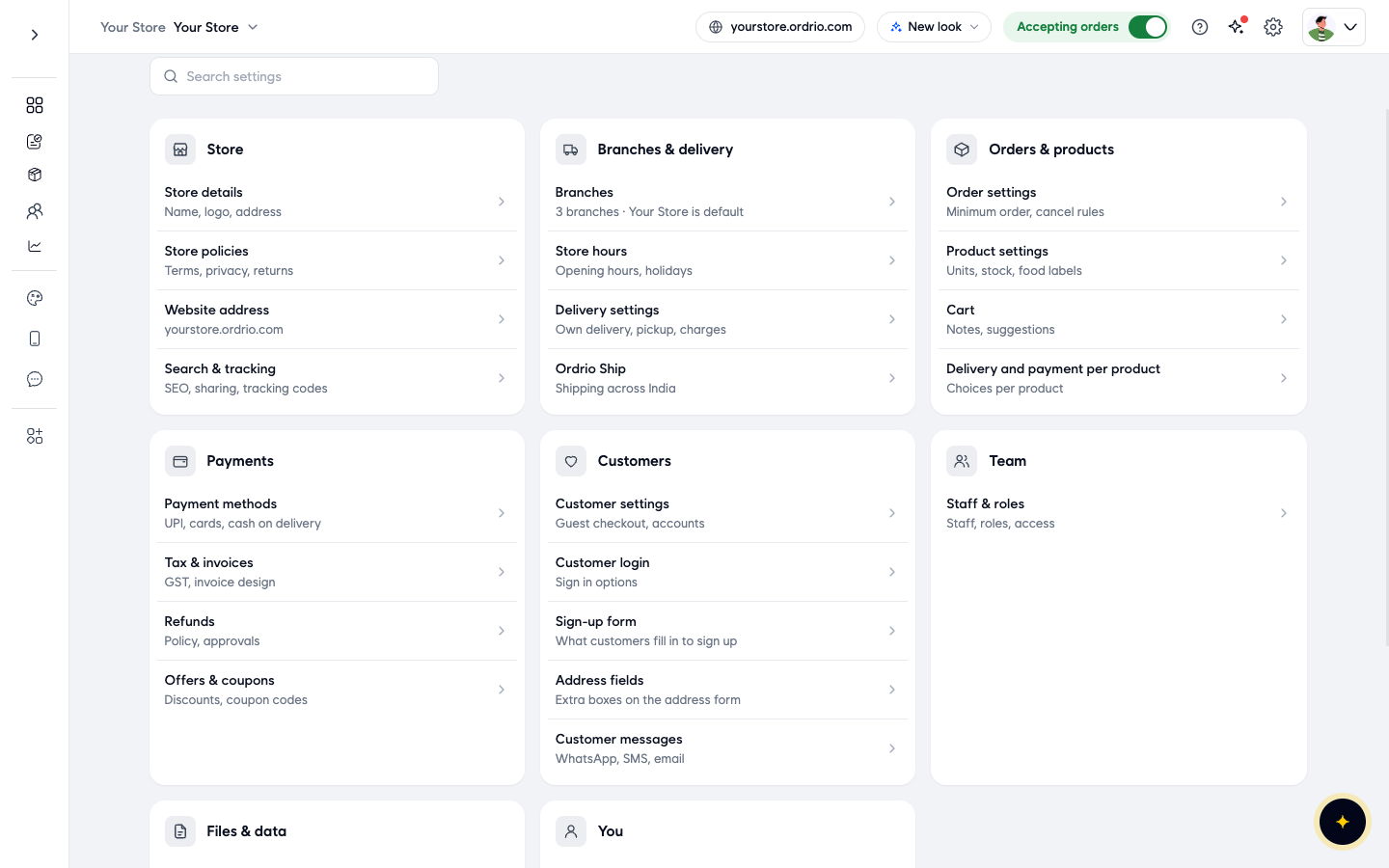
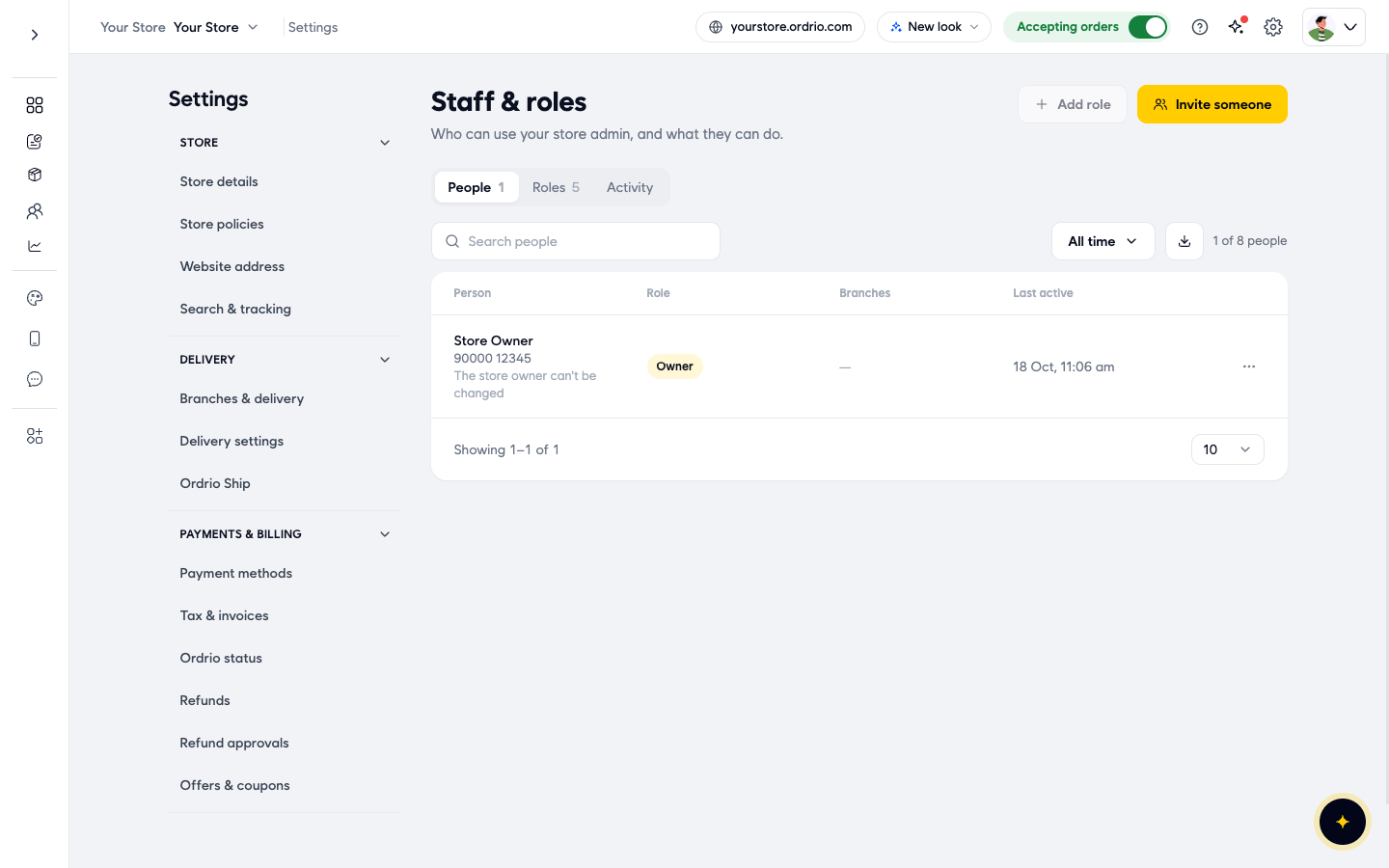
- Under Team, click Staff & roles. The page opens on the People tab, which lists everyone who can use your admin panel. The name and number shown in the screenshot are examples. You will see your own team.
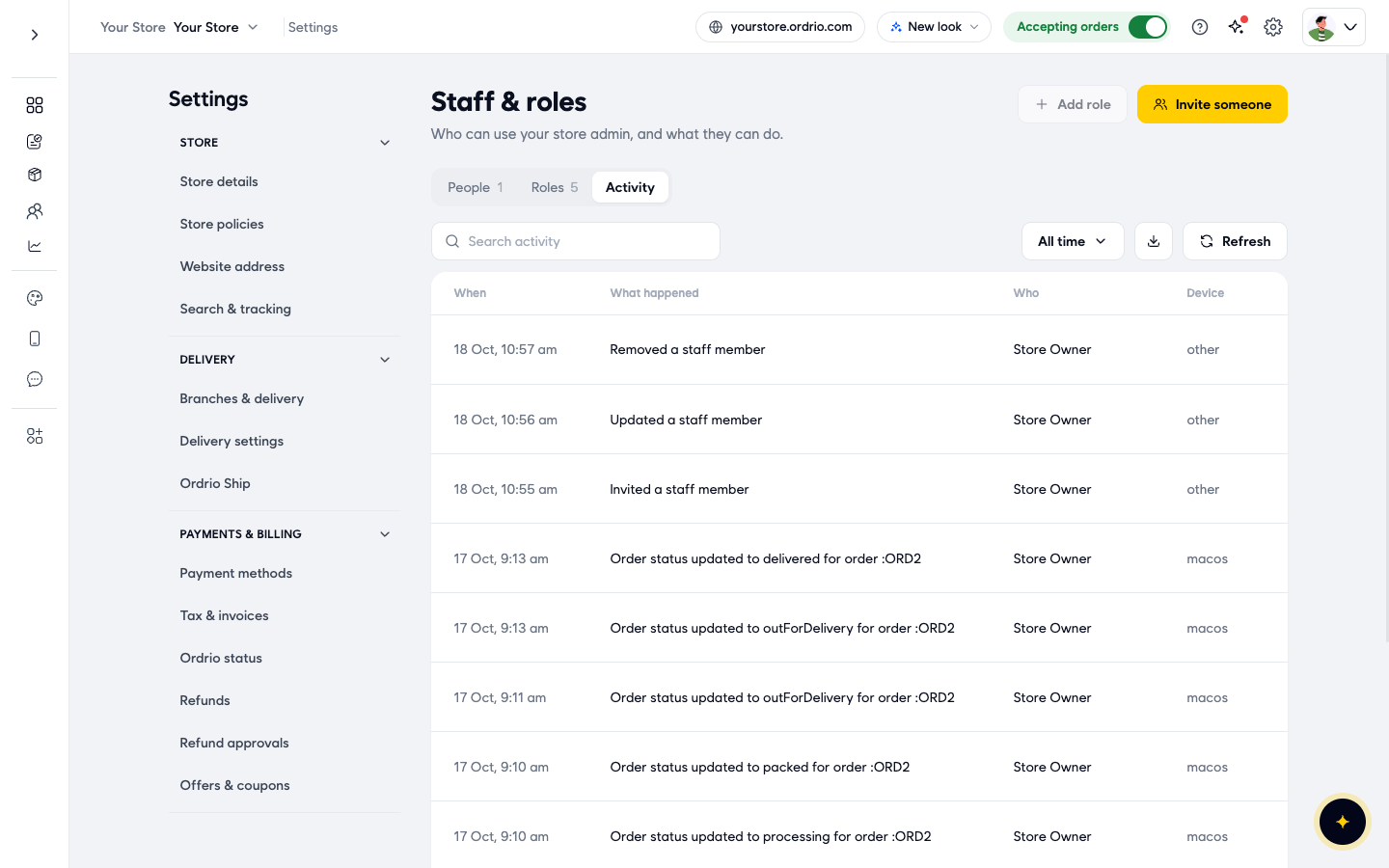
- Click the Activity tab. You see a list of actions, newest first. Each row has four columns:
- When: the date and time of the action.
- What happened: the action, for example "Order created", "Order status updated to packed" or "Invited a staff member".
- Who: the person who did it, for example Store Owner or a staff member's name.
- Device: the kind of device it was done from, for example "macos". Some actions show "other".
- To find something, type a word into Search activity, for example "staff" or an order number. The list shows only matching actions. Click the x in the box to clear the search.
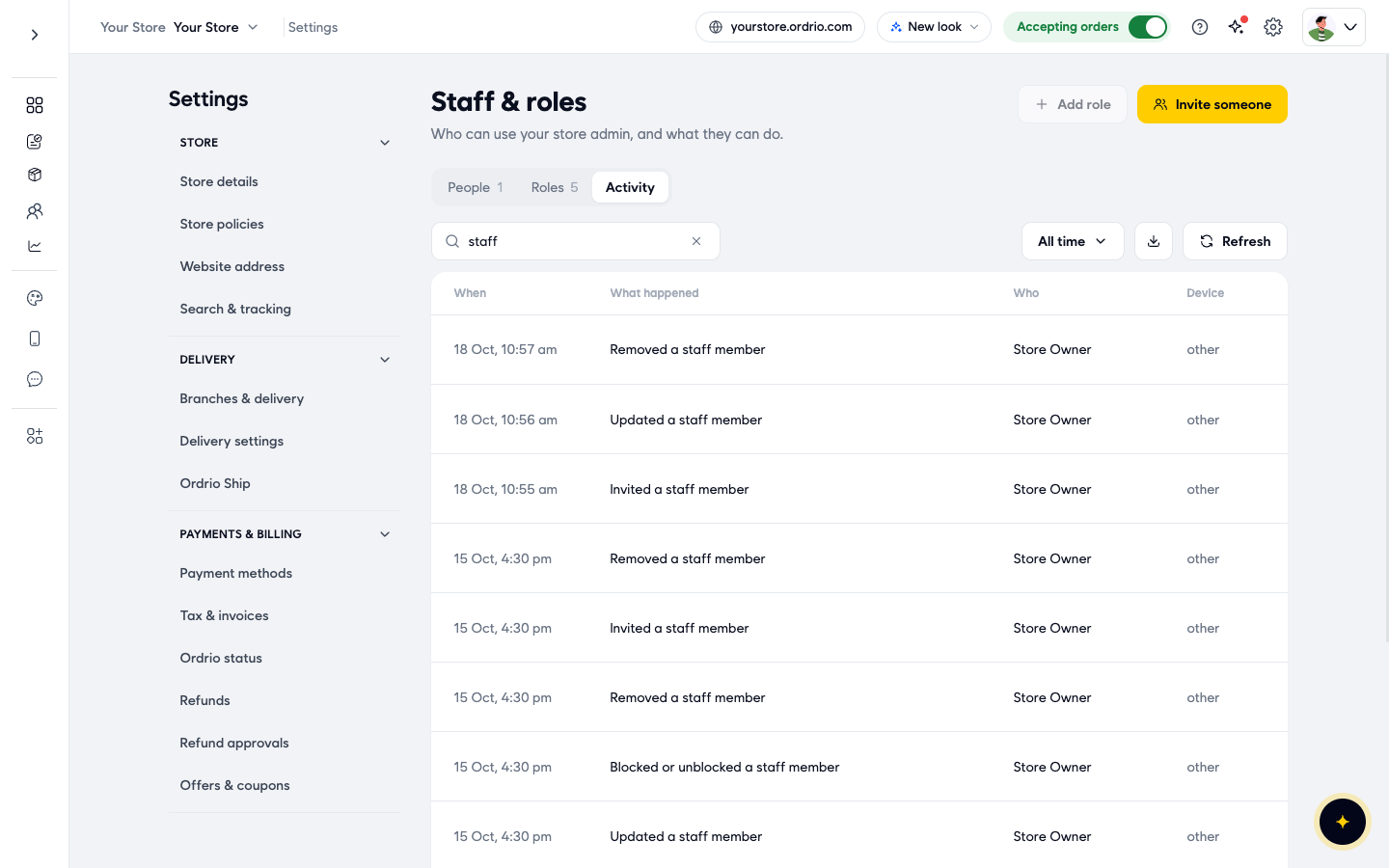
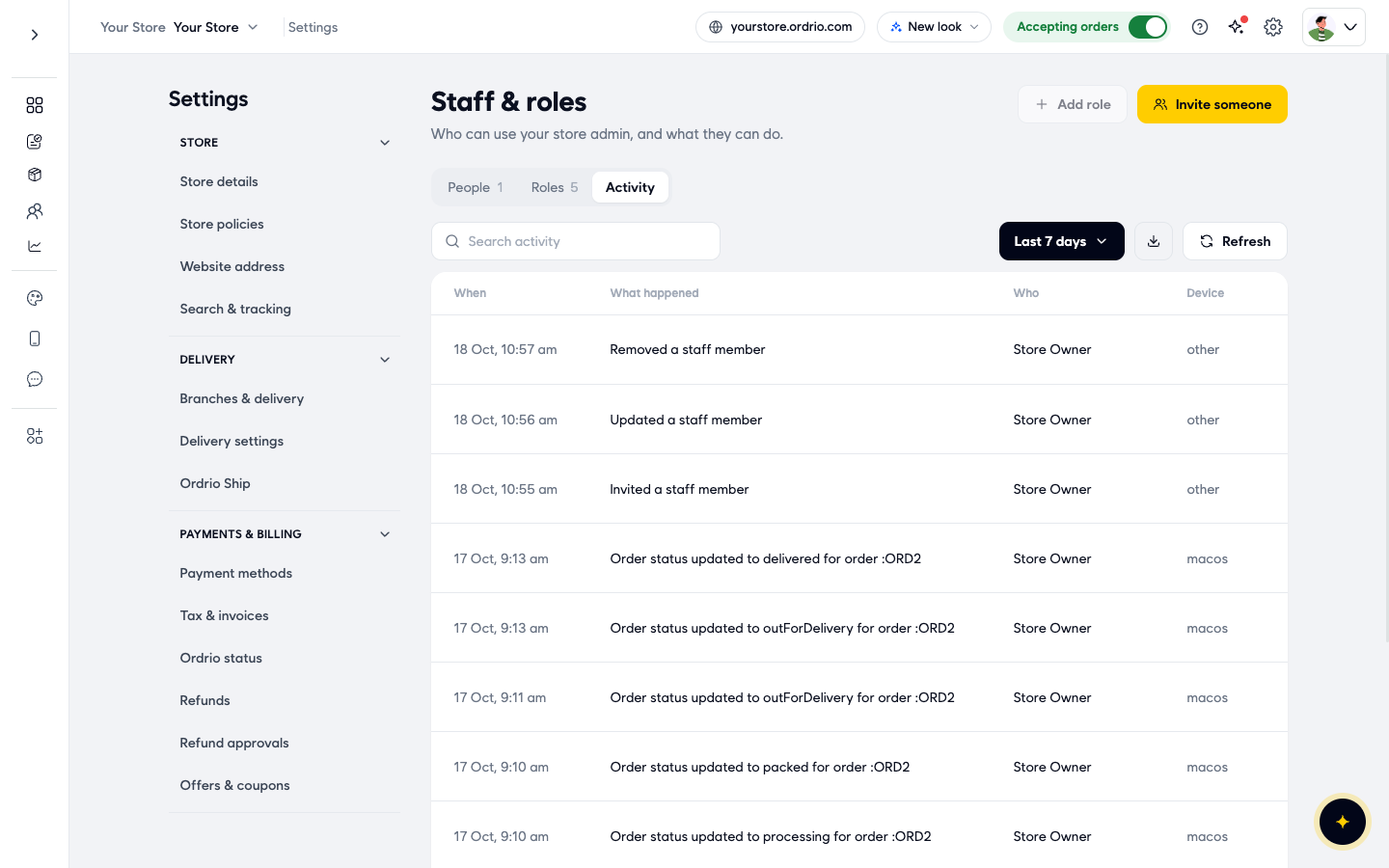
- To choose a time period, click the dates button (it shows All time at first). Pick All time, Today, Last 7 days, Last 30 days or Custom range.
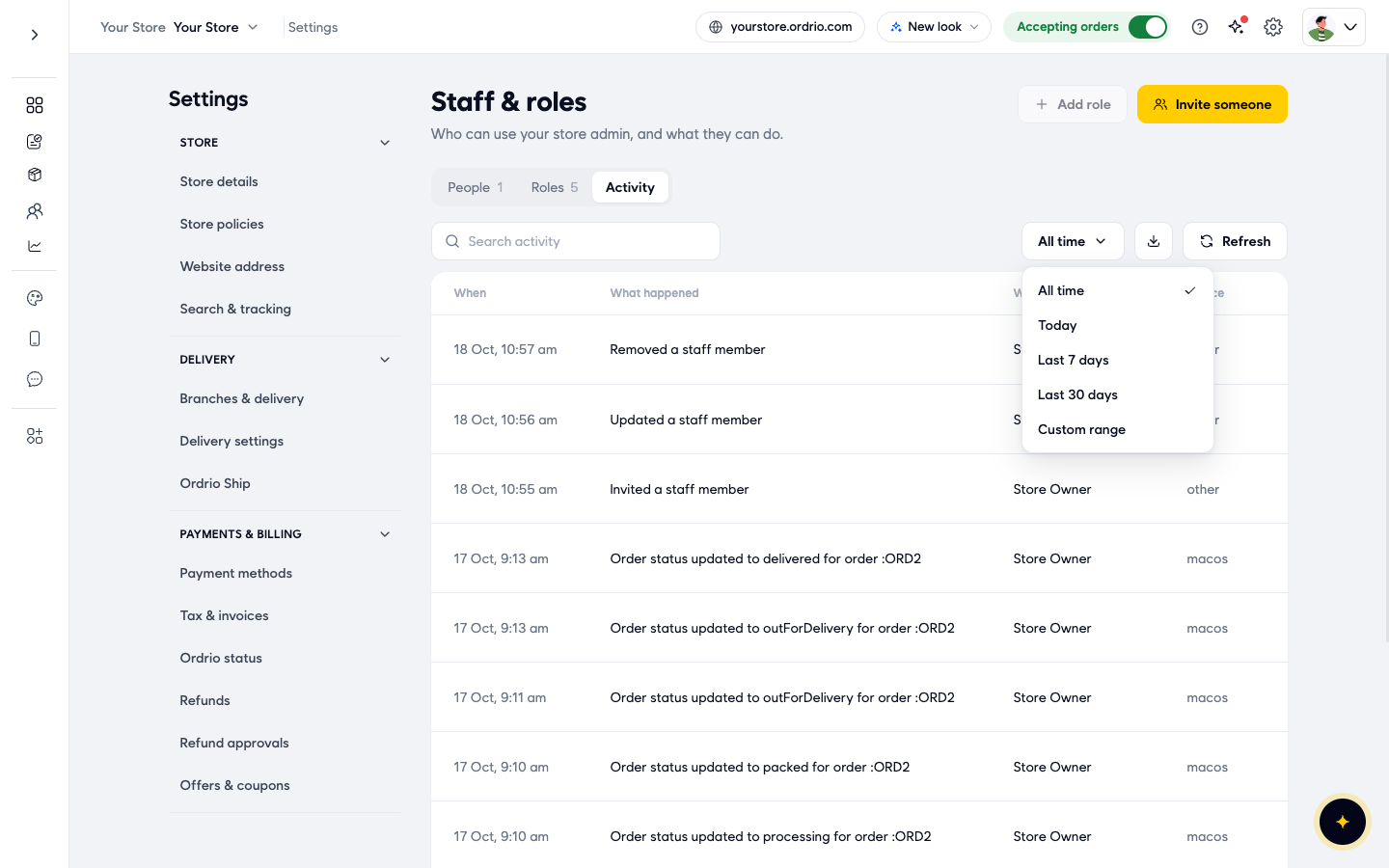
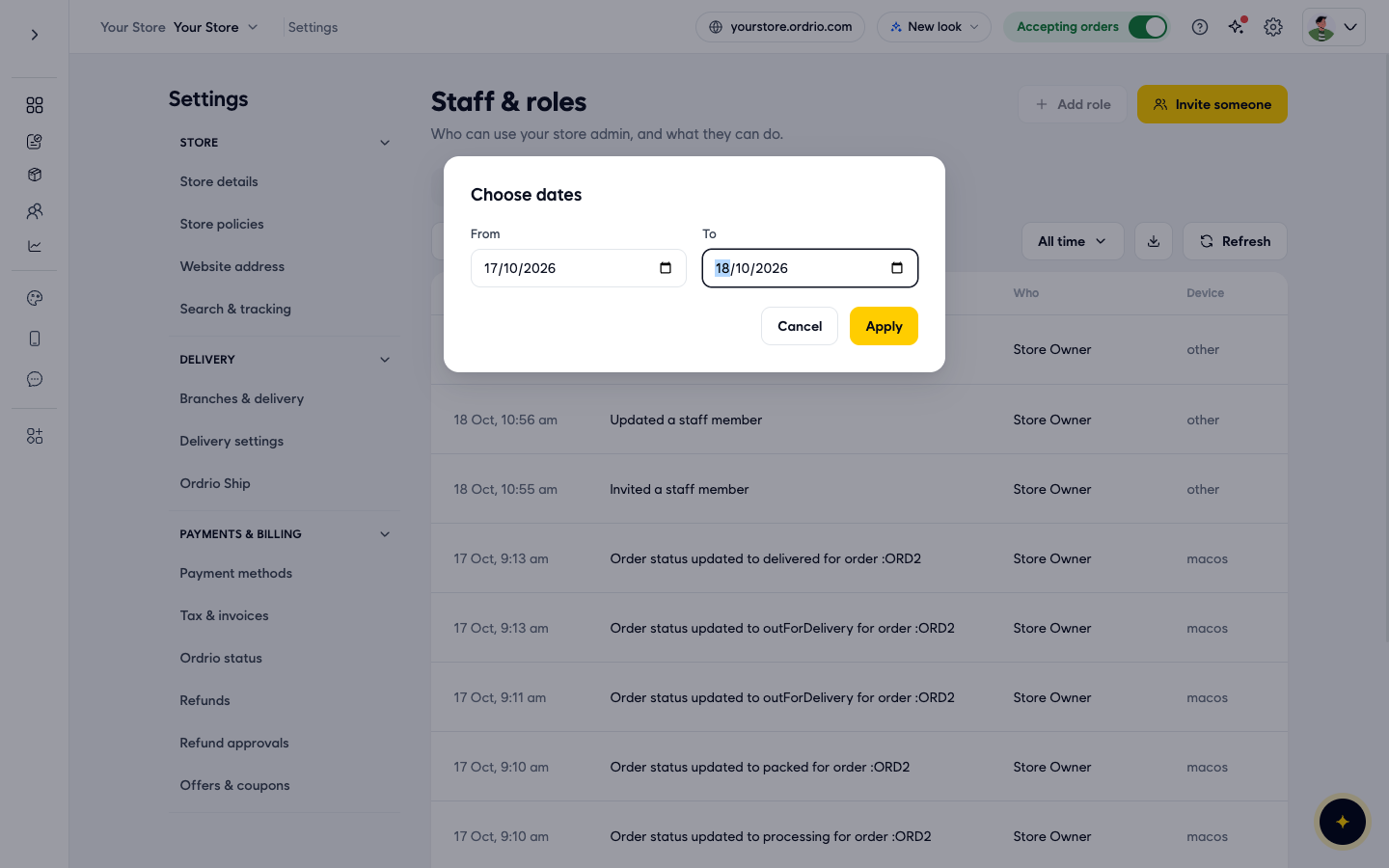
- If you picked Custom range, the Choose dates box opens. Set the From date and the To date, then click Apply. Click Cancel to close it without changing anything. The dates button now shows your range, for example "17 Oct – 18 Oct".
- Click Refresh to load the newest actions without leaving the page.
- To save a copy of the log, choose a date range first (any option except All time), then click the download button next to the dates button. A message tells you your CSV file is being generated and will be ready shortly.
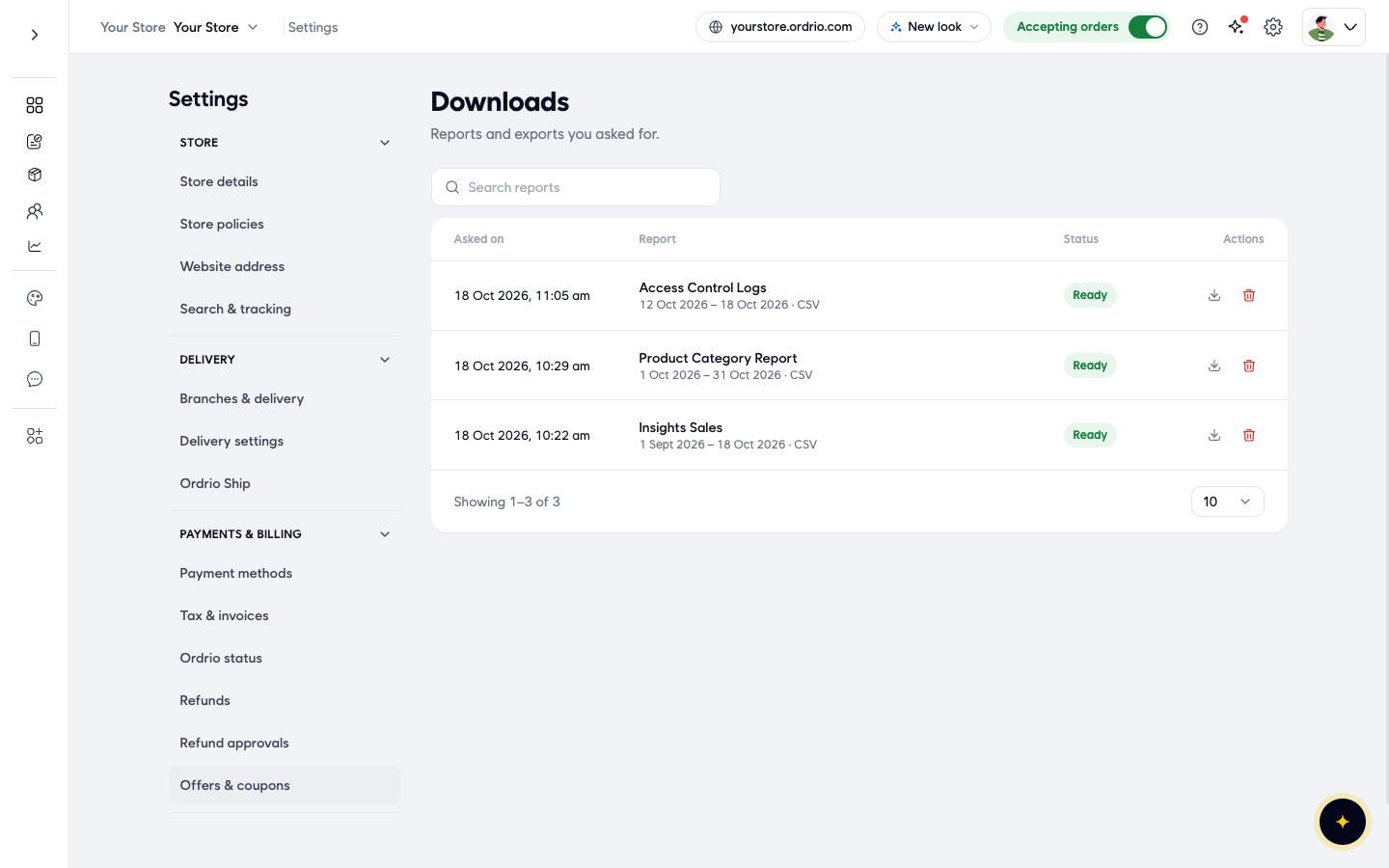
- Open Settings > Downloads (under Files & data). Your export is listed as Access Control Logs with its date range. When the Status shows Ready, click the download button in Actions to save the CSV file. Click the bin button to delete it from the list.
Good to know
- The newest actions are at the top. Use Previous and Next at the bottom of the list to see older ones, and the rows menu to show 10, 20 or 50 rows per page.
- If you click the download button while All time is selected, Ordrio shows "Pick a date range to export". Choose a range and try again.
- The activity log is for checking what happened. You cannot edit or delete rows in it.
- If you see an action you do not recognise, check that person's access on the People tab and change their role or remove them.
- Give each staff member their own login, so the Who column tells you exactly who did each action.
Related
- Adding staff members
- Roles and permissions
- Sales and revenue reports
क्या यह आर्टिकल काम का था?