यह आर्टिकल अभी हिंदी में नहीं है, इसलिए इसे अंग्रेज़ी में दिखाया जा रहा है।
कैसे करें
Password reset and login security
Reset your password and keep your account safe.
If you forget your password, you can reset it yourself from the login page of your Ordrio admin panel. This article also shows how to log in with your phone number, how to change your password, and how to keep your account safe.
Before you start
- Know how you log in to Ordrio. Some accounts use an email and password. Others use a mobile number and a code.
- Keep your registered email inbox, or WhatsApp on your registered mobile number, open on a device near you. Ordrio sends your codes there.
Reset a forgotten password
- Open nadi.ordrio.com (your Ordrio admin panel). You see the Log in to your store page.
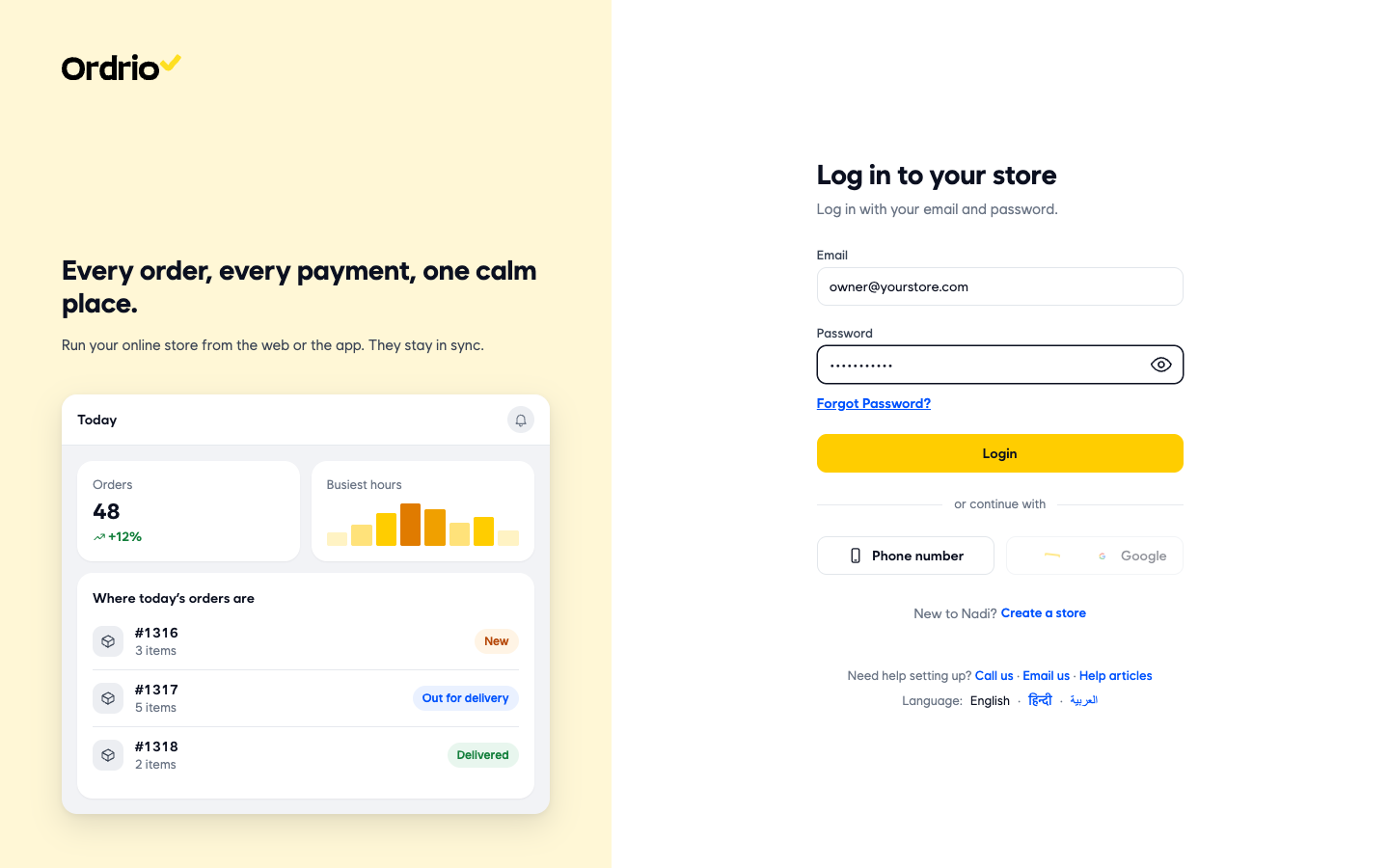
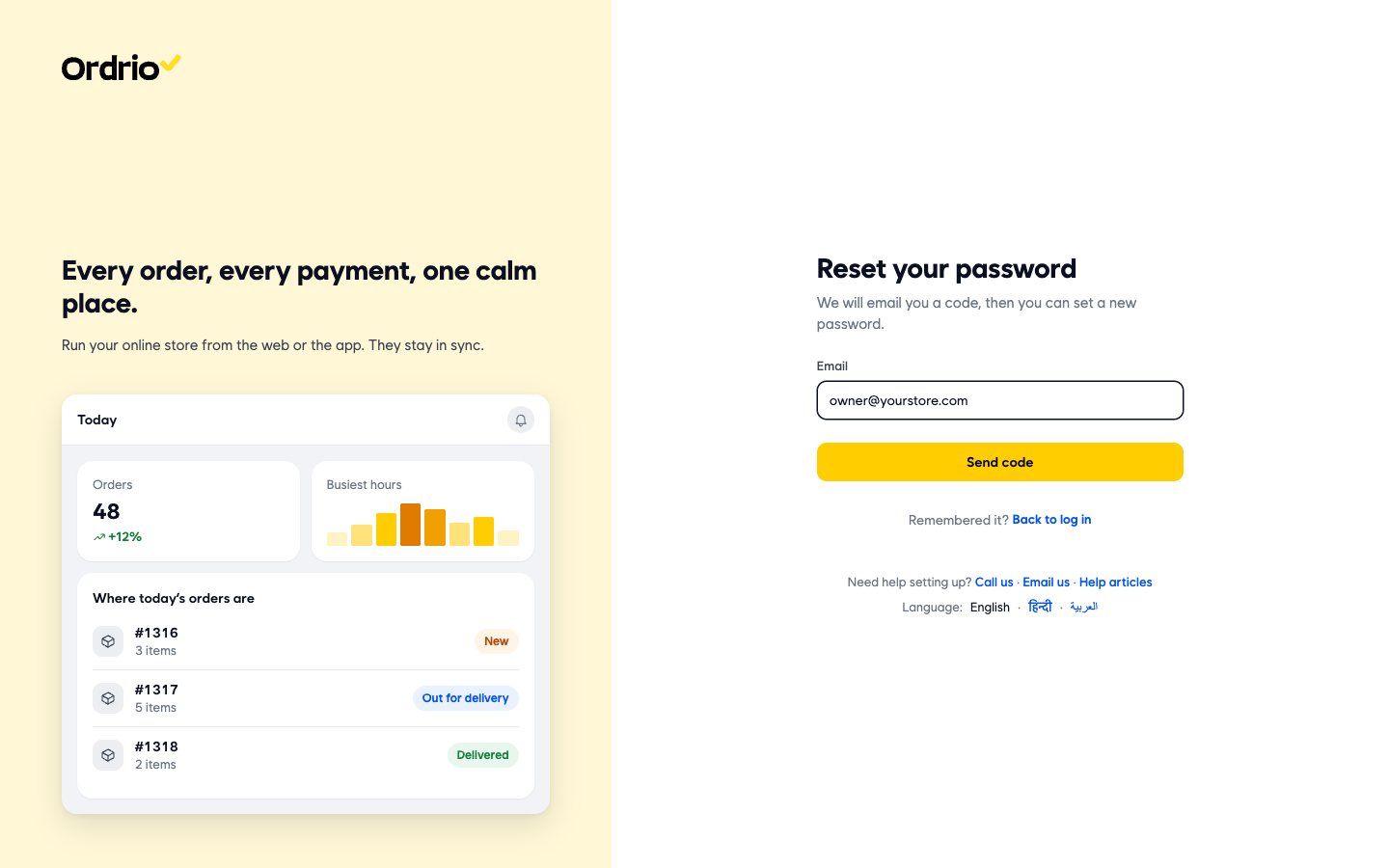
- Under the Password field, click Forgot Password?. On the Reset your password page, type your registered email in the Email field, then click Send code. The screenshot shows an example email. Use your own.
- Open the email from Ordrio and enter the code in your admin panel.
- Set your new password and save it. Then log in with your email and the new password.
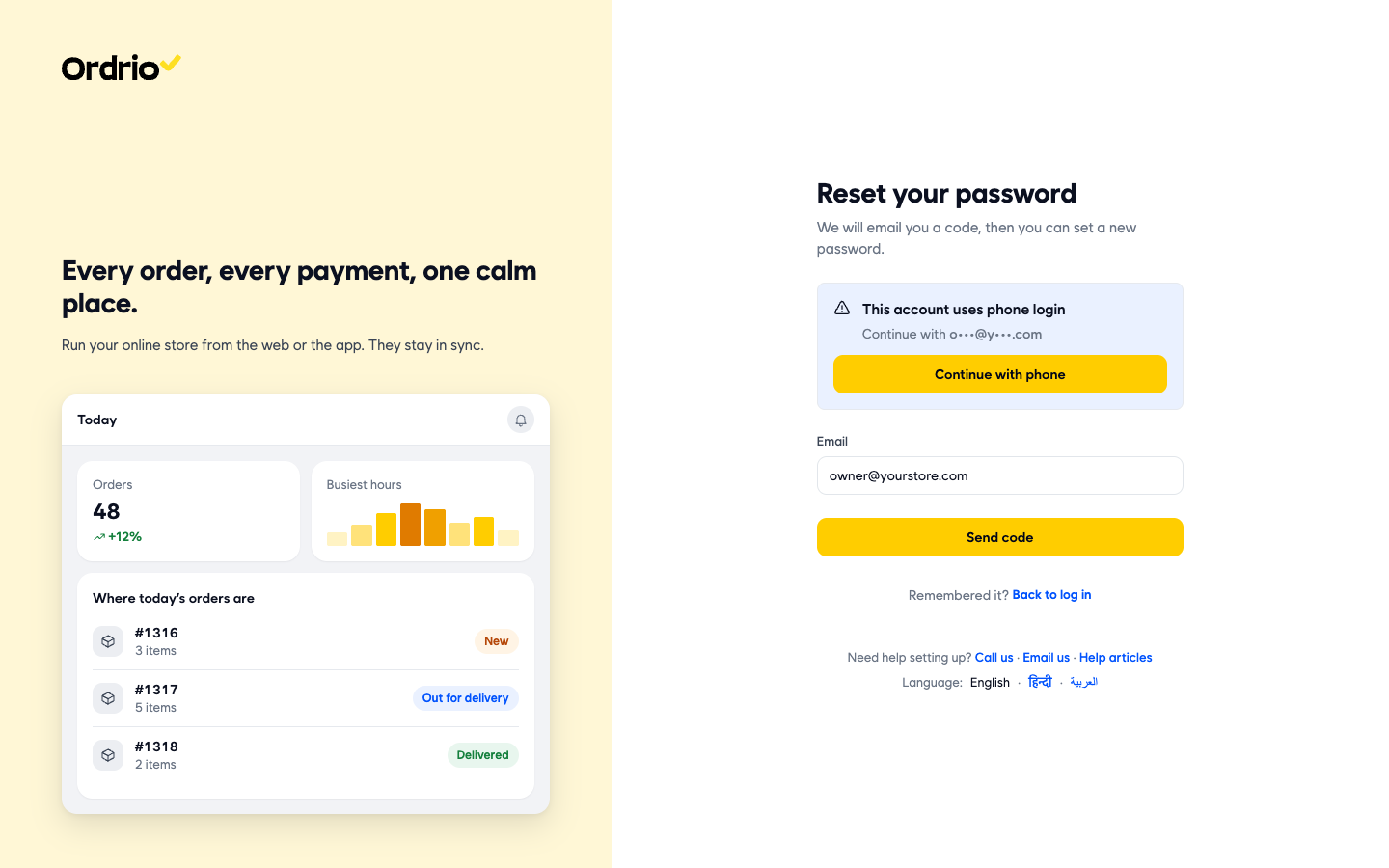
If you remember your password before you finish, click Back to log in to return to the login page. If your account uses phone login, you see This account uses phone login instead. Click Continue with phone and log in with your mobile number.
Log in with your phone number
You don't need a password to log in with your phone. Ordrio sends you a one-time code each time.
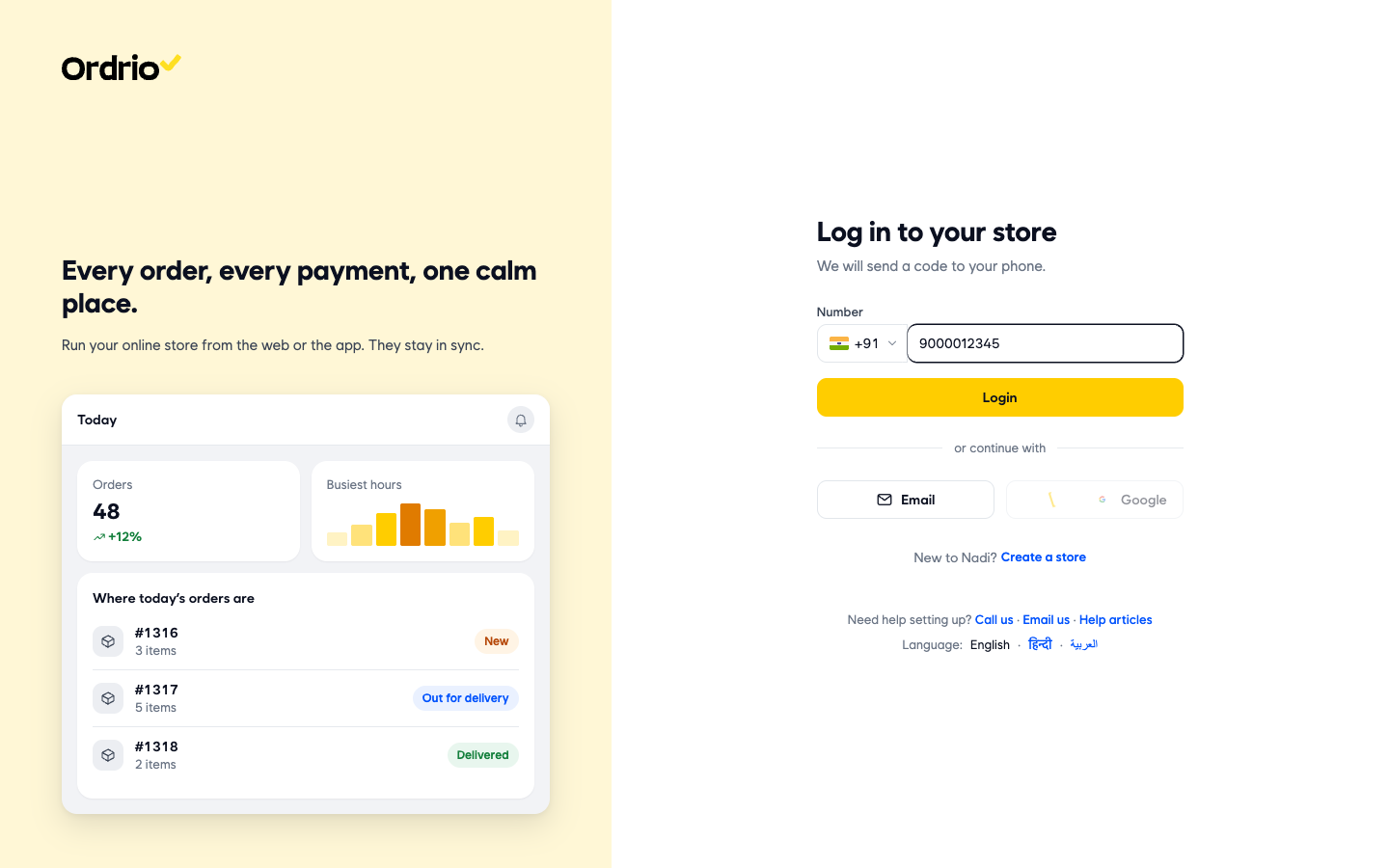
- Open nadi.ordrio.com and, under or continue with, click Phone number.
- Check the country code next to Number (for example +91 for India). Click it to pick another country.
- Type your registered mobile number in the Number field. The screenshot shows an example number. Use your own.
- On the Enter the 6-digit code page, open WhatsApp on your phone. Ordrio sends the code there. The page shows the last four digits of the number it was sent to.
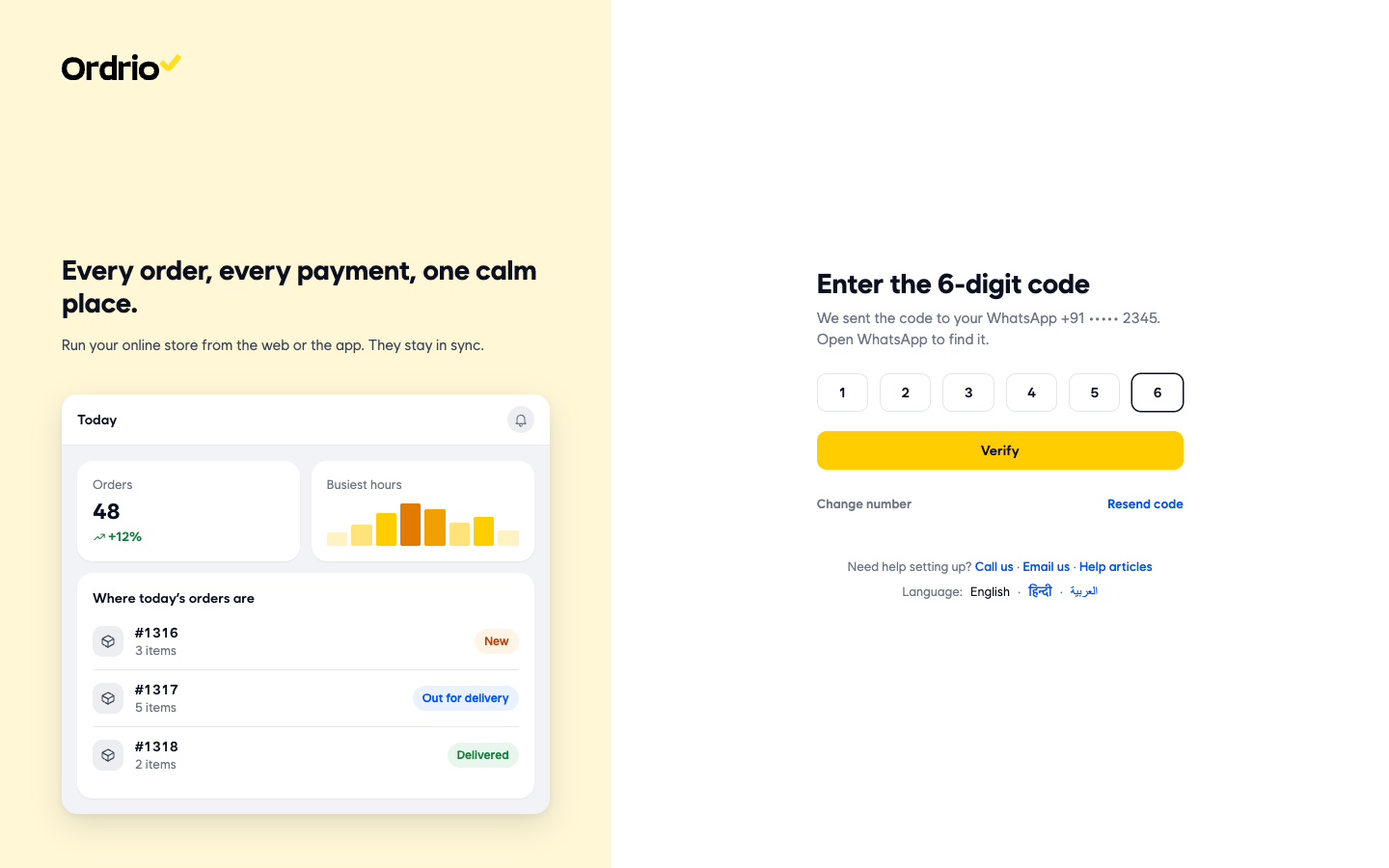
- Ordrio opens your Dashboard.
On the code page:
- Resend code sends a new code if the first one did not arrive.
- Change number takes you back so you can fix a wrong number.
To switch back to email and password, click Email under or continue with.
Change your password
If you know your current password and want a new one, change it from your account.
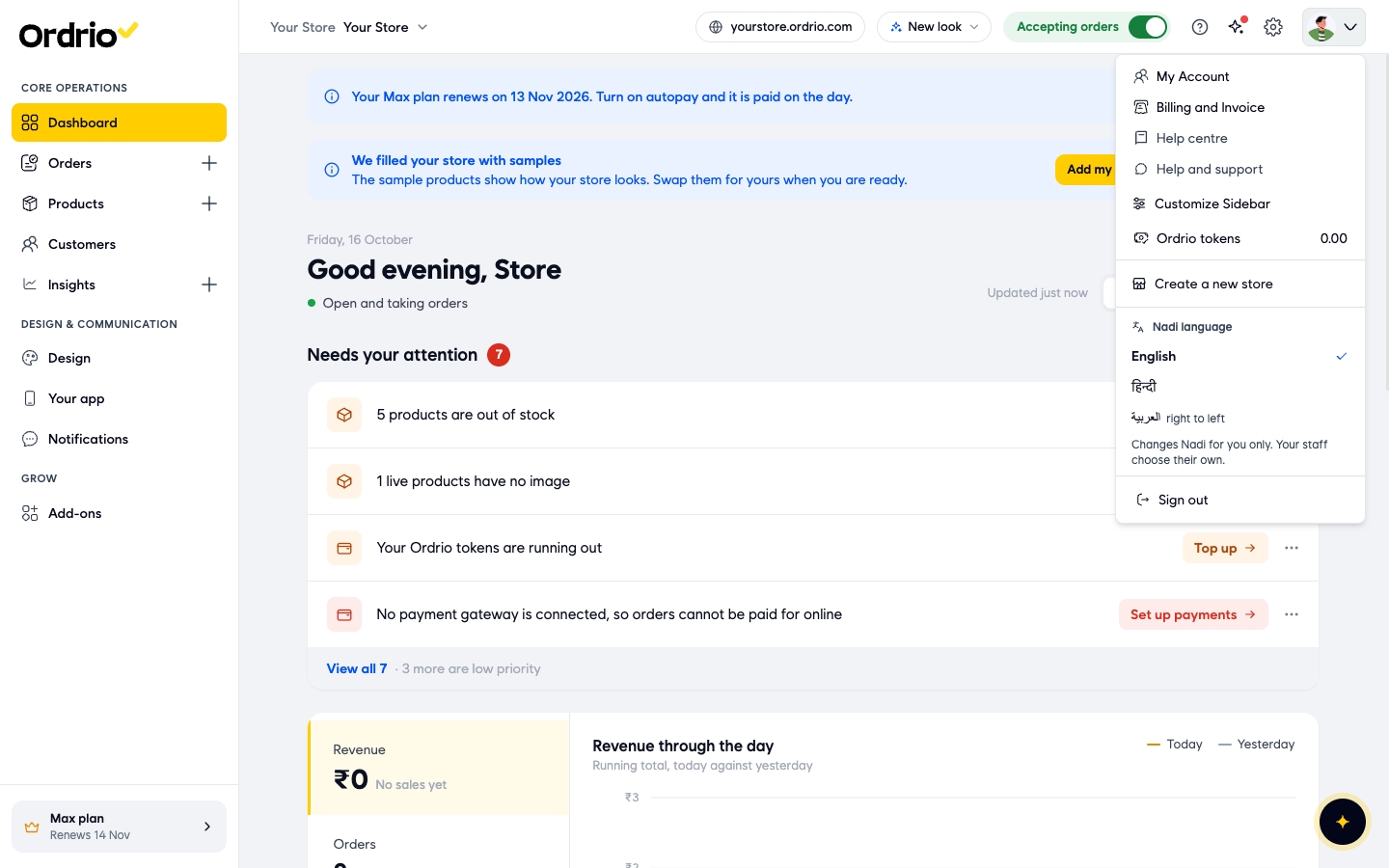
- In your Ordrio admin panel, click your profile picture in the top right corner, then click My Account. Find the Security section and click Change password.

- On the Set a new password page, fill in the fields:
- Current password: the password you use now.
- New password: the password you want to use from now on. The list under it turns green, rule by rule, as your password meets each one.
- Type it again: type the new password once more so Ordrio can check it matches.
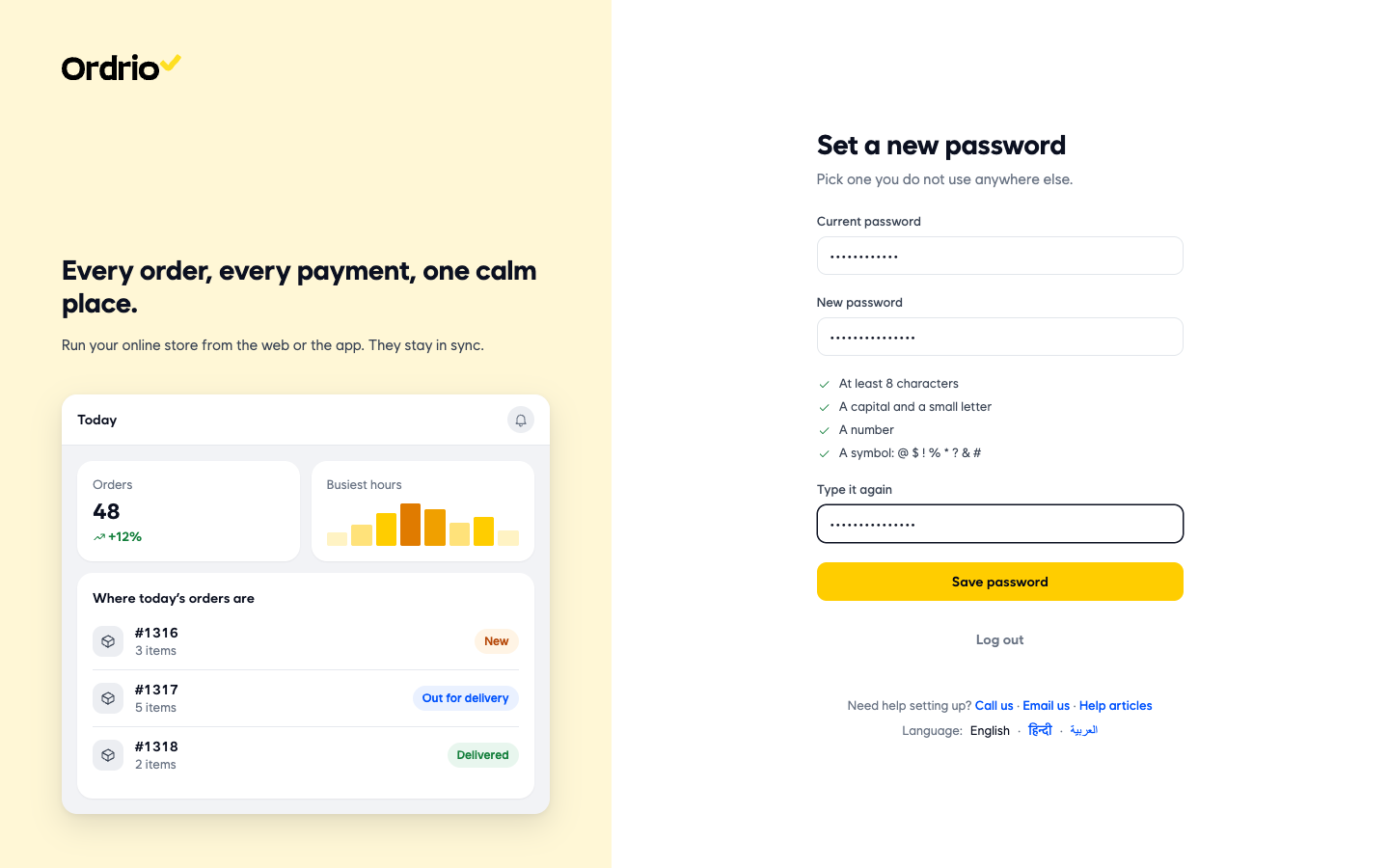
A new password must have:
- At least 8 characters
- A capital and a small letter
- A number
- A symbol: @ $ ! % * ? & #
If you opened this page by mistake, click Log out to leave it.
Keep your account safe
- Use a password you don't use anywhere else. Ordrio shows this reminder on the Security section and on the Set a new password page.
- Never share your codes. Ordrio sends login codes only to you, by email or WhatsApp. Don't give a code to anyone who calls or messages you asking for it.
- Give your staff their own logins. Don't share the owner's login with your team.
- Sign out on shared devices. Click your profile picture in the top right corner, then click Sign out.
- Keep your registered email and mobile number working. Your reset and login codes are sent there.
Good to know
- Your registered phone number and email are shown on the My profile page under Personal details. You can't edit them there.
- Forgot Password? works for accounts that log in with email and password. If your account uses phone login, log in with your mobile number instead. You don't need a password for that.
- Phone login codes come on WhatsApp, so make sure WhatsApp is set up on your registered mobile number.
- If you still can't log in, use Call us or Email us at the bottom of the login page.
Related
- Accessing Ordrio for the first time
- What you need before getting started
- Recommended setup order for new stores