هذا المقال غير متوفر بالعربية بعد، لذلك نعرضه بالإنجليزية.
دليل استخدام
Membership programs
Exclusive prices or benefits for members.
Give your members something other customers don't get, like a lower price or a members-only store. In Ordrio you do this with an offer only your members can use. You can also make your store members-only, or reward members with loyalty coins.
Before you start
- Your members must have a customer account in your store, so you can pick them. You can see them in Customers.
- Decide what members get, for example 10% off every order, up to ₹100.
Give members their own discount
- Open nadi.ordrio.com (your Ordrio admin panel) and log in. Click the Settings gear at the top right, then click Offers & coupons.
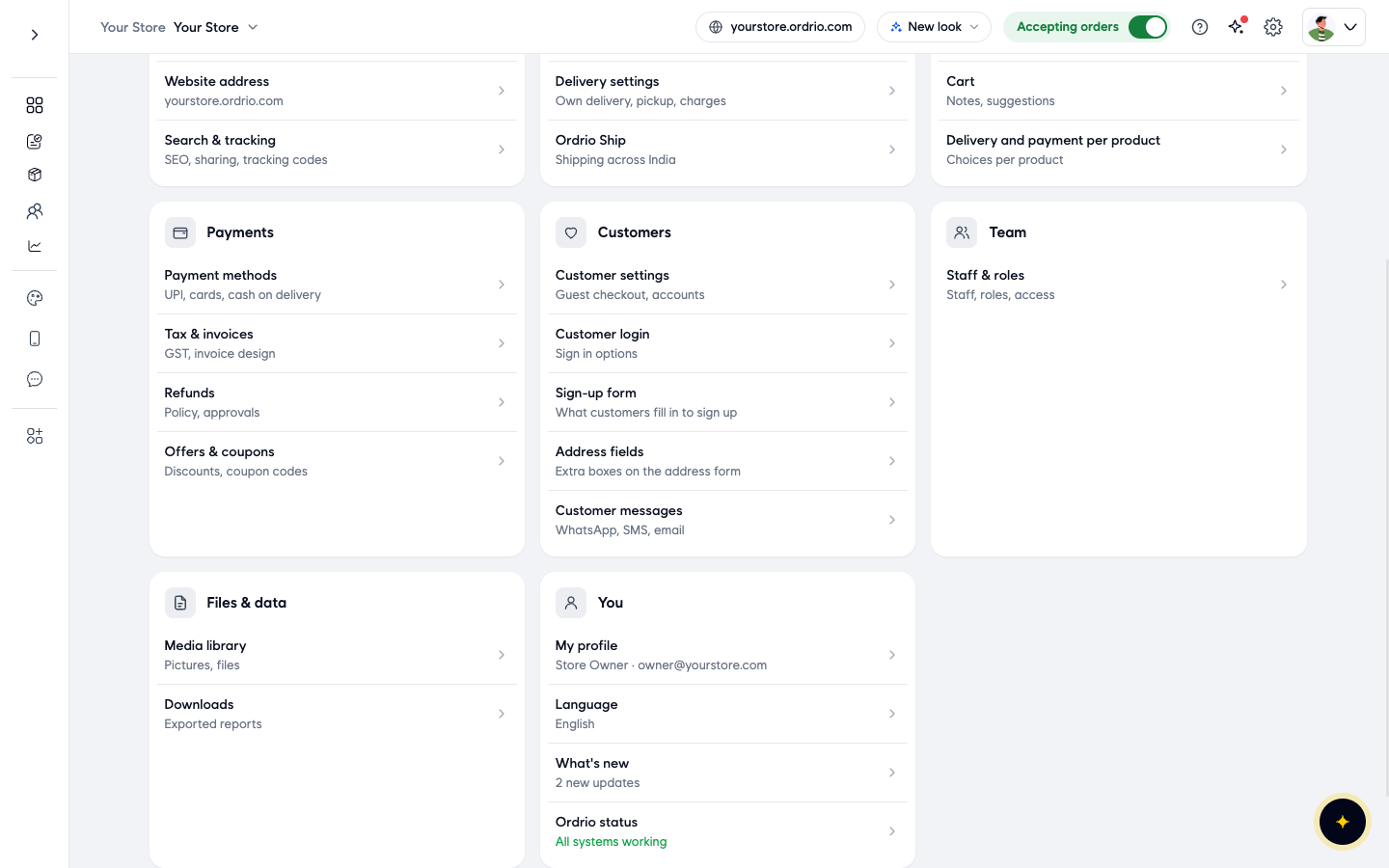
- Click Create offer. The New offer page opens.
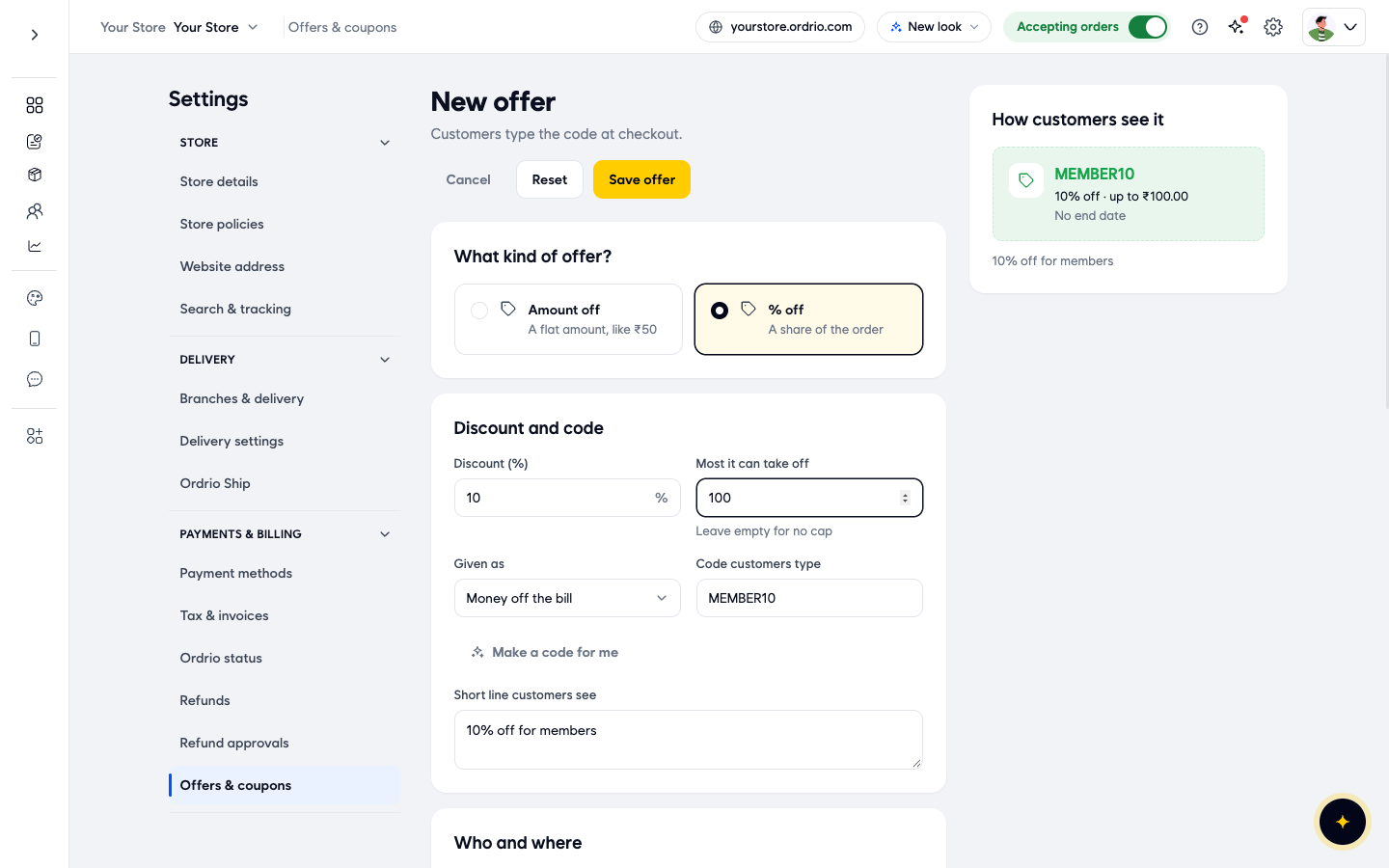
- Under What kind of offer?, choose Amount off (a flat amount, like ₹50) or % off (a share of the order).
- Under Discount and code, fill in the fields:
- Discount (or Discount (%) for a % off offer): how much members save.
- Most it can take off: only for % off. The highest discount one order can get. Leave it empty for no cap.
- Given as: Money off the bill, or Cashback.
- Code customers type: the code members use at checkout, for example MEMBER10. Click Make a code for me if you want Ordrio to make one.
- Short line customers see: one line that explains the offer, for example "10% off for members".
The How customers see it box on the right shows a preview of the offer as you type.
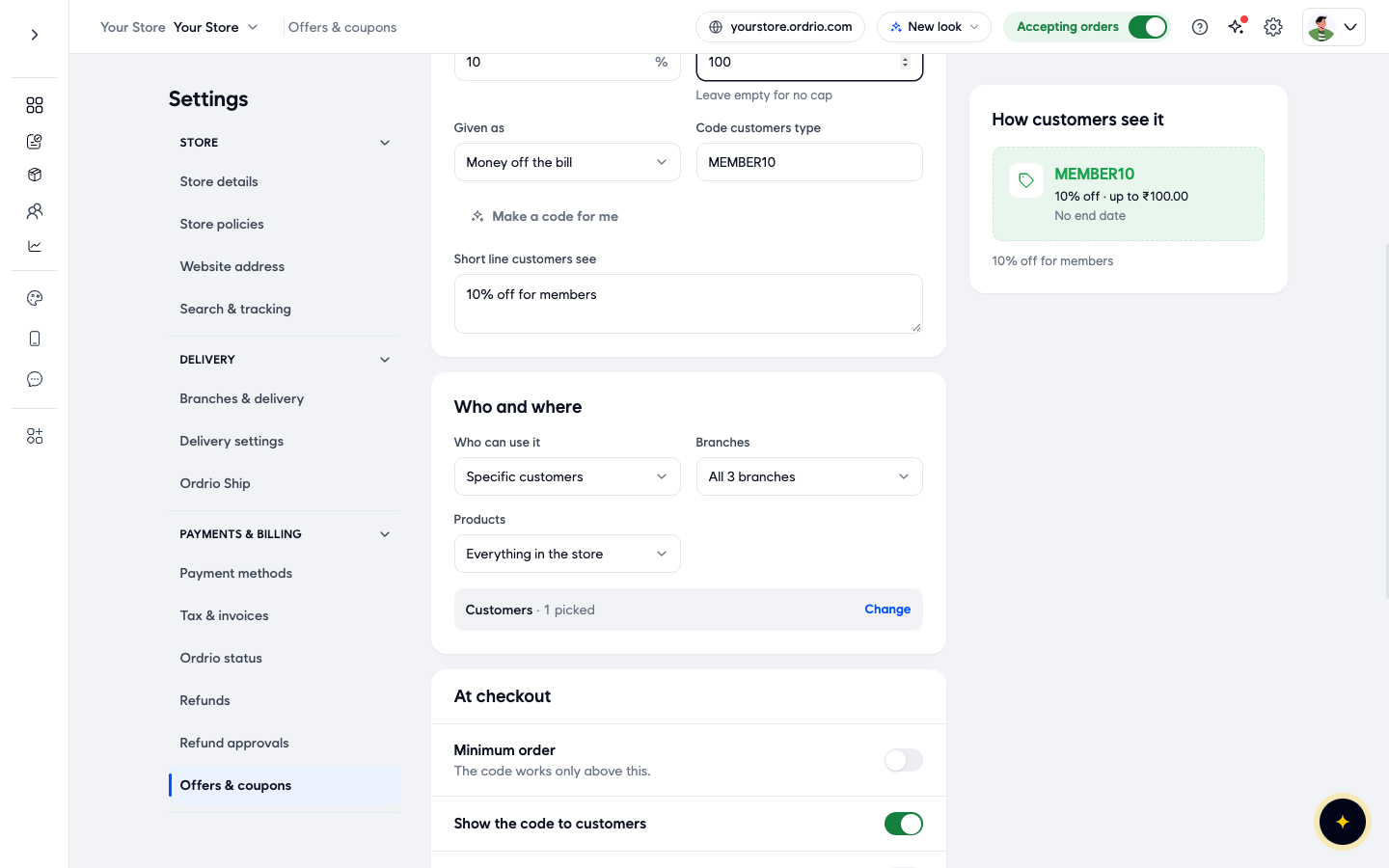
- Under Who and where, set Who can use it to Specific customers.
- Next to Customers, click Choose. In Choose customers, search by name, phone or email, tick each member, and click Done. The line now shows how many customers you picked, for example "1 picked". Click Change later to add or remove members.
- Set Branches to all your branches or Specific branches, and Products to Everything in the store, Specific categories or Specific products. Use this if members get a special price only on some products.
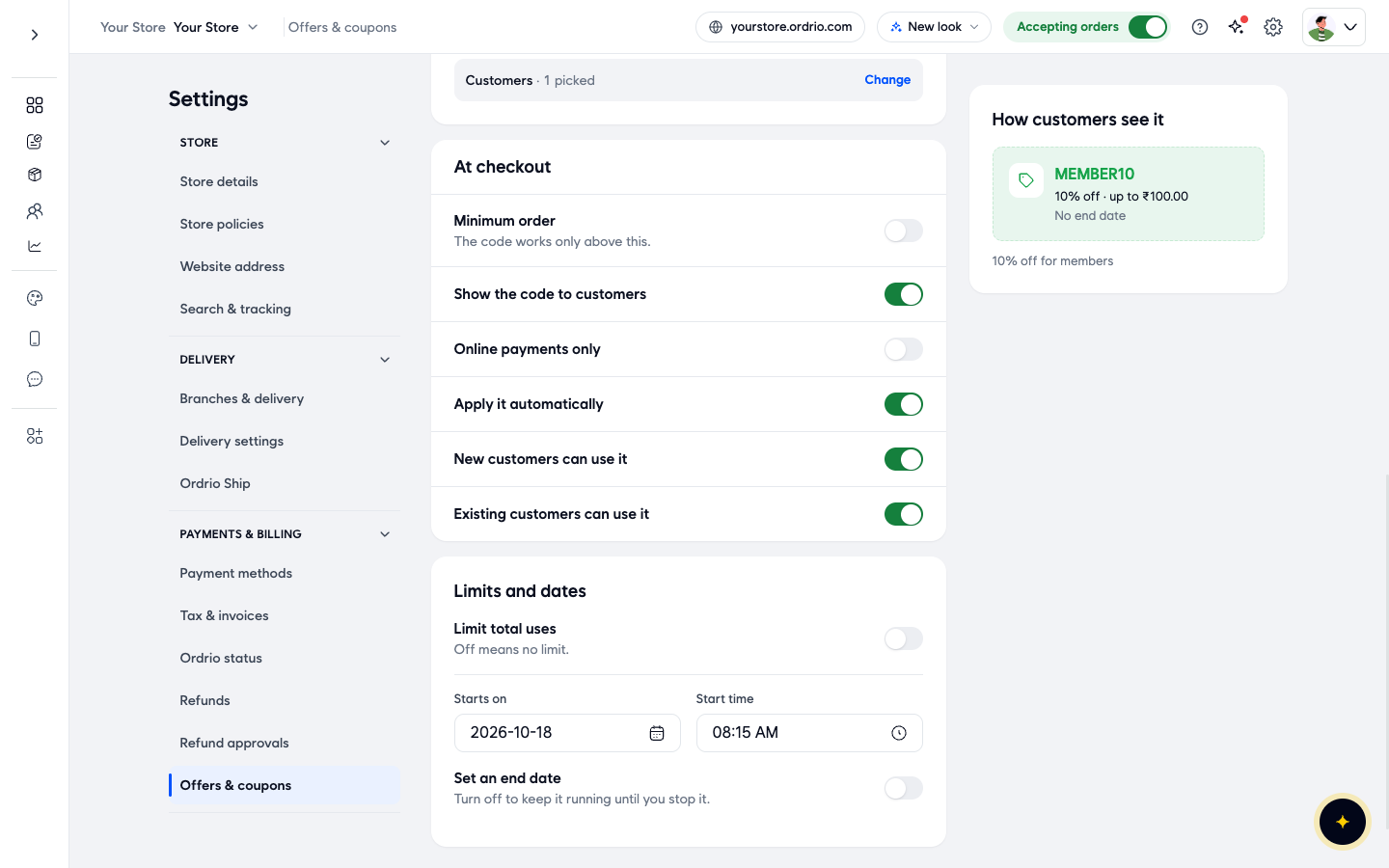
- Under At checkout, turn on what you need:
- Minimum order: the code works only above an order amount you set.
- Show the code to customers: shows the code to the customer in your store.
- Online payments only: the code works only when the customer pays online.
- Apply it automatically: applies the offer without the customer typing the code.
- New customers can use it and Existing customers can use it: who can use the offer, based on whether they ordered before.
- Under Limits and dates, set:
- Limit total uses: off means no limit.
- Starts on and Start time: when the offer begins.
- Set an end date: turn it on to stop the offer on a date. Leave it off to keep it running until you stop it.
- Click Save offer. You go back to Offers & coupons, and the offer shows under Running, or under Scheduled if its start time has not come yet. The Offer column shows the discount and how many customers can use it, for example "10% off, 1 customers".
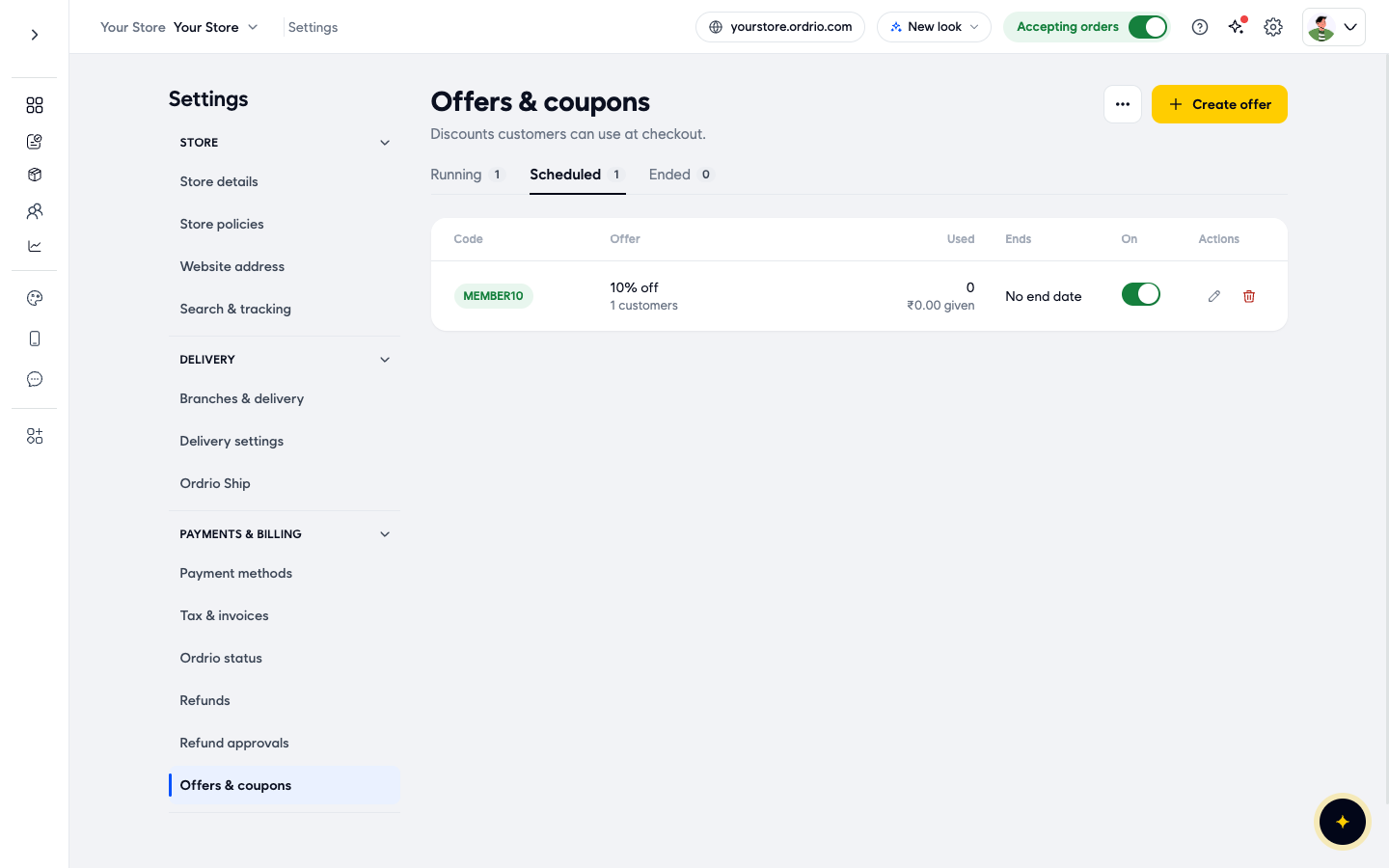
Use the switch in the On column to pause the offer, the pencil to edit it, and the bin to delete it.
The values above are only examples. Use your own discount, code and members.
Make your store members-only (optional)
If only members should shop with you, you can ask every customer to log in, and approve each new sign-up yourself.
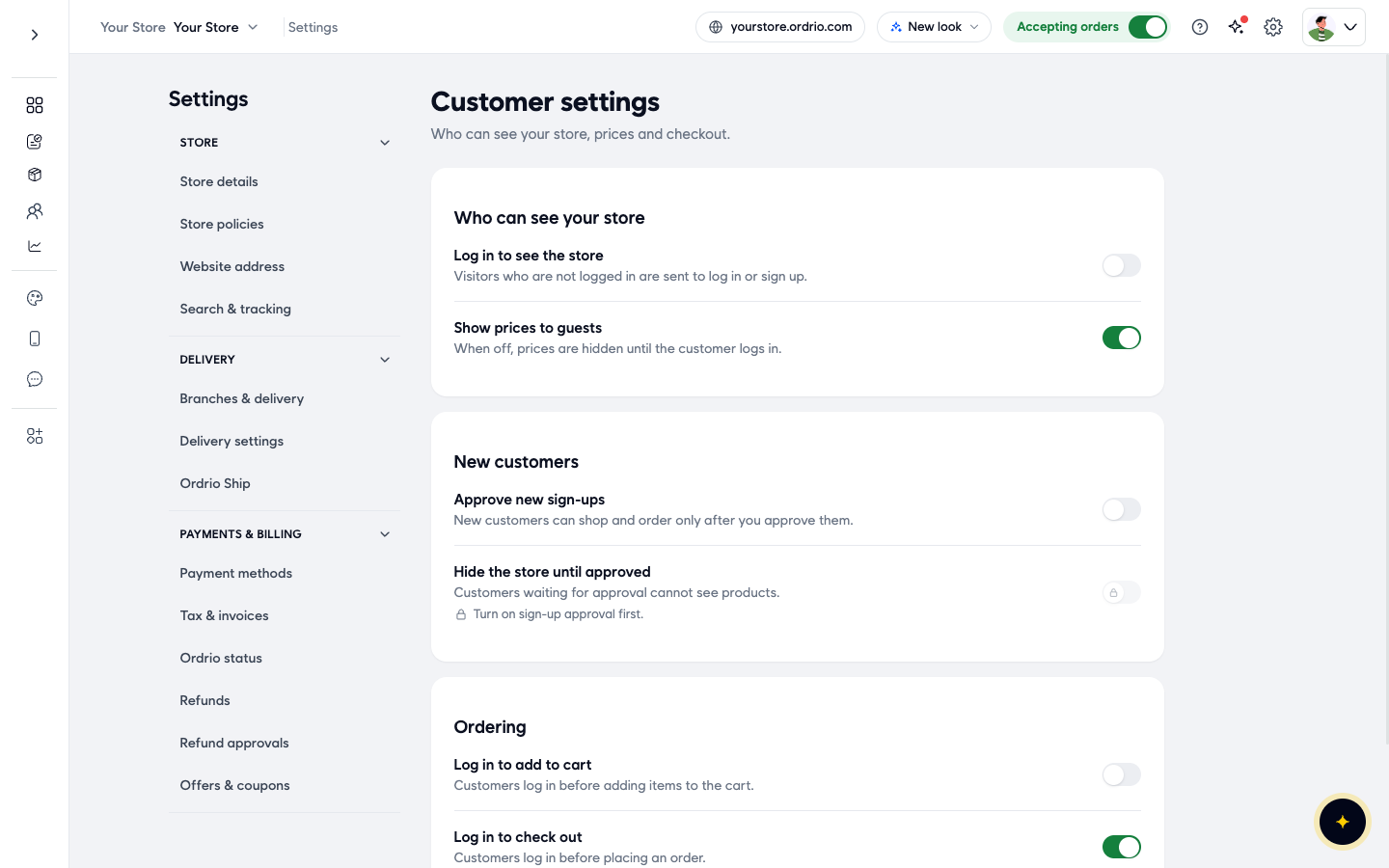
- Click the Settings gear at the top right, then click Customer settings.
- Under Who can see your store:
- Log in to see the store: visitors who are not logged in are sent to log in or sign up.
- Show prices to guests: when off, prices are hidden until the customer logs in.
- Under New customers:
- Approve new sign-ups: new customers can shop and order only after you approve them.
- Hide the store until approved: customers waiting for approval cannot see products. Turn on Approve new sign-ups first.
- Under Ordering:
- Log in to add to cart: customers log in before adding items to the cart.
- Log in to check out: customers log in before placing an order.
- When you change a switch, a "You have unsaved changes" bar appears. Click Save to keep the change, or Discard to undo it.
Reward members with loyalty coins (optional)
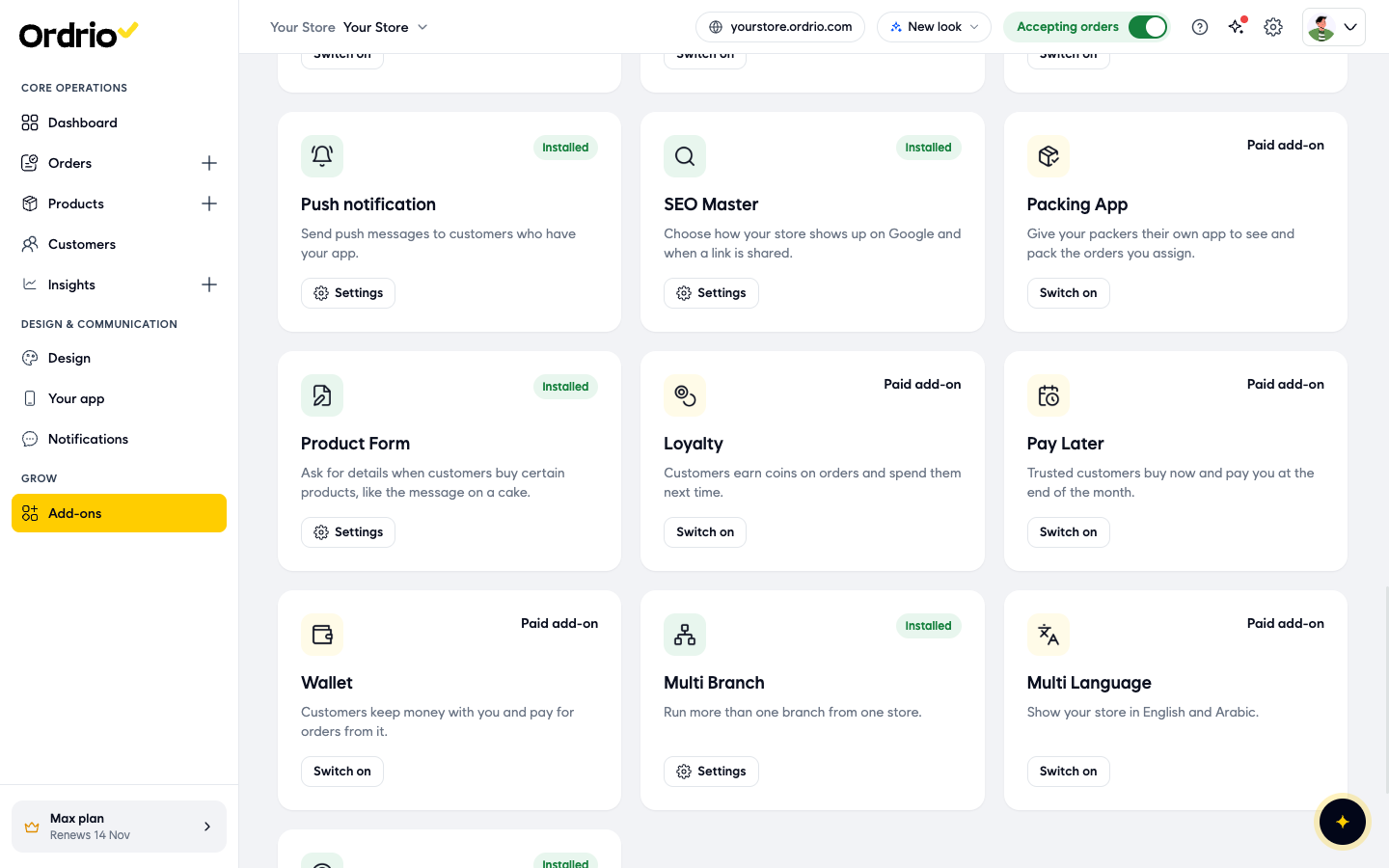
The Loyalty add-on lets customers earn coins on orders and spend them next time. It is a paid add-on. To find it, click Add-ons in the menu on the left and look for Loyalty. Click Switch on to add it.
Good to know
- A members offer works only for the customers you picked. When someone new joins, open the offer and add them with Change.
- If you want members to see the code in your store, keep Show the code to customers on. Turn on Apply it automatically so members don't have to type it.
- Turning off Show prices to guests hides prices from everyone who is not logged in, not only non-members.
- Before you tell members about the offer, place a test order from a member's account to check it works the way you want.
Related
- Creating and managing coupons
- Marketing notifications
- Loyalty points and rewards
- Enabling and managing add-ons