هذا المقال غير متوفر بالعربية بعد، لذلك نعرضه بالإنجليزية.
دليل استخدام
Delivery charges
Set the delivery fee for each delivery area: free, fixed, free above an amount, or by distance, plus extra charges like packing.
Delivery charges are what your customers pay to have an order delivered. In Ordrio you set them for each delivery area. An area's charge can be free, a fixed amount, free above an order amount, or based on distance. You can also add extra charges, such as packing, to every delivery order.
The names and amounts in this article and its screenshots are examples. Use your own area names and amounts.
Before you start
- Your Ordrio admin panel is at nadi.ordrio.com. You need to be able to log in there.
- Delivery charges belong to delivery areas. You set up an area and its charge on the same screen, as shown below.
Open your delivery settings
- Open nadi.ordrio.com (your Ordrio admin panel) and log in.
- Click the Settings gear at the top right.
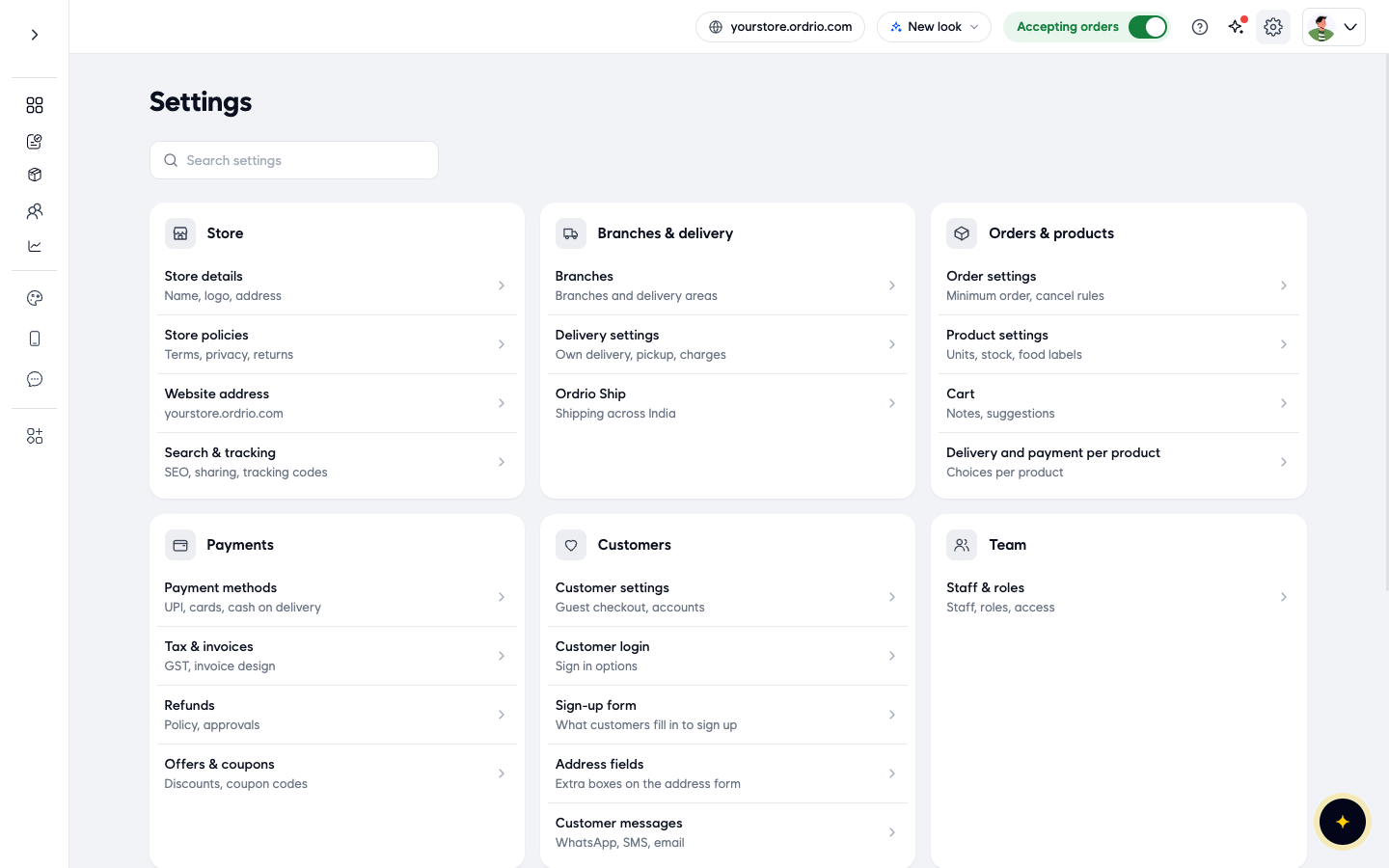
- Under Branches & delivery, click Delivery settings (Own delivery, pickup, charges).
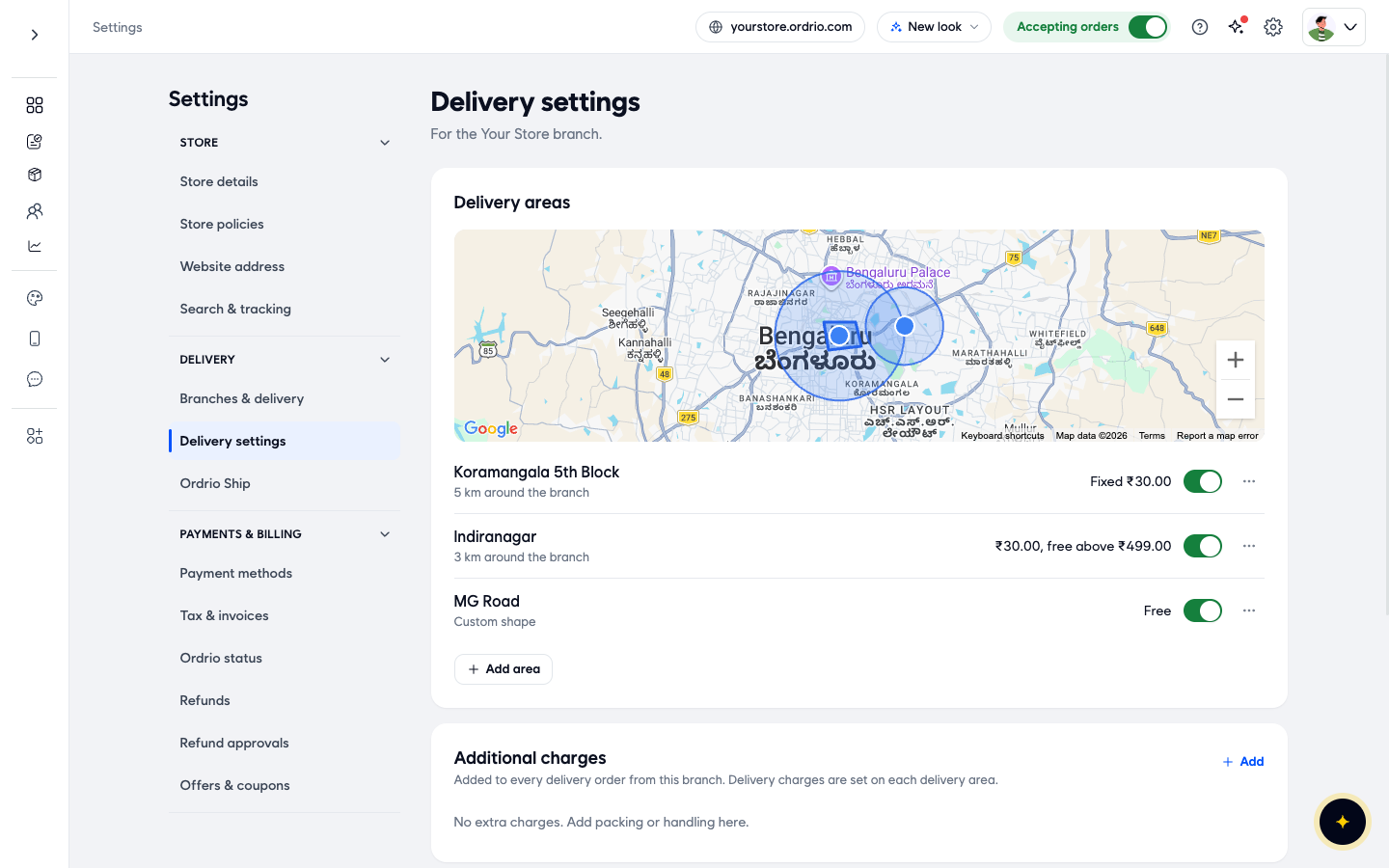
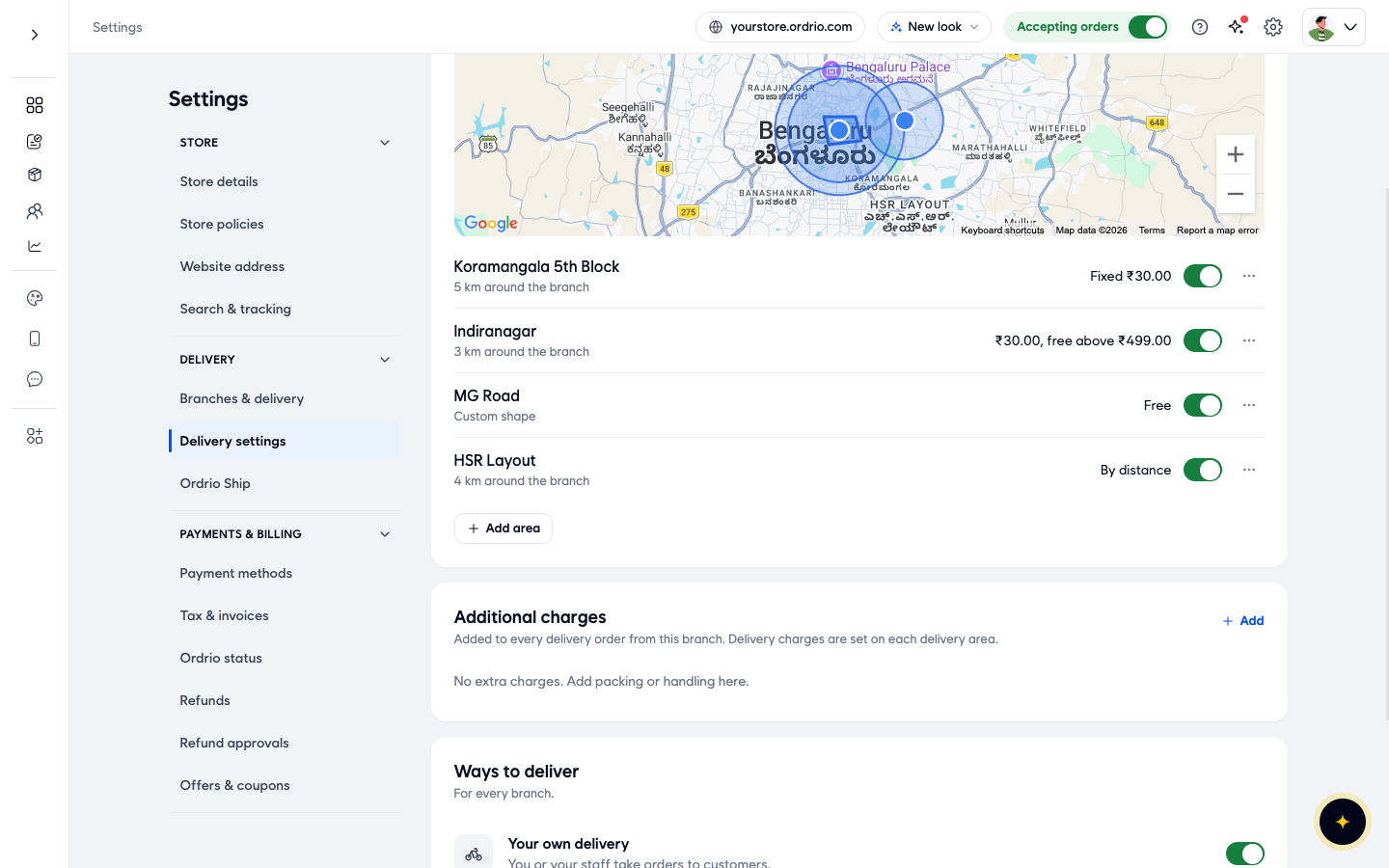
The Delivery settings page is for one branch. It has three parts:
- Delivery areas: a map and a list of the areas you deliver to. Each area shows its charge, for example Fixed ₹30.00, ₹30.00, free above ₹499.00, Free or By distance. The switch next to an area turns delivery to it on or off.
- Additional charges: extra charges added to every delivery order from this branch.
- Ways to deliver: Your own delivery (you or your staff take orders to customers) and Customer pickup (customers collect orders from your store). These switches apply to every branch.
Add a delivery area and its charge
- Under Delivery areas, click Add area. The New area screen opens.
- Choose how to draw the area. Pick the Distance tab or the Custom shape tab above the map.
- Distance: a circle around your branch. Type the size in the Distance box, in km. The limit is Up to 300 km.
- Custom shape: click on the map to add points. Join the last point to the first to finish. Click Clear shape to start again.
- You can use the Search a place box on the map to move to a place.
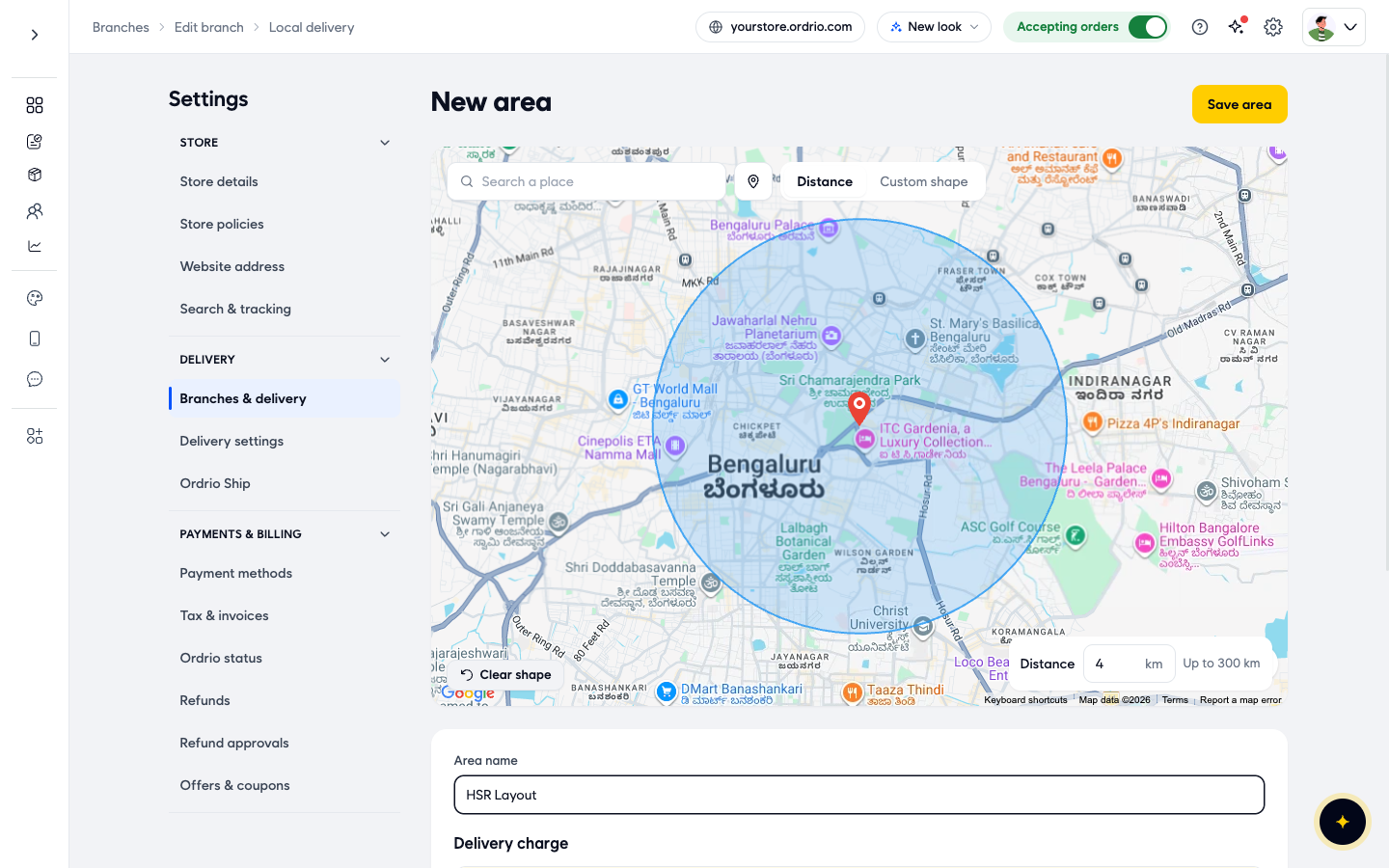
- In Area name, type a name your team will recognise, for example "HSR Layout".
- Under Delivery charge, choose one option:
- Free delivery: customers in this area pay no delivery charge.
- Fixed charge: the same charge on every order. Type the amount in Charge.
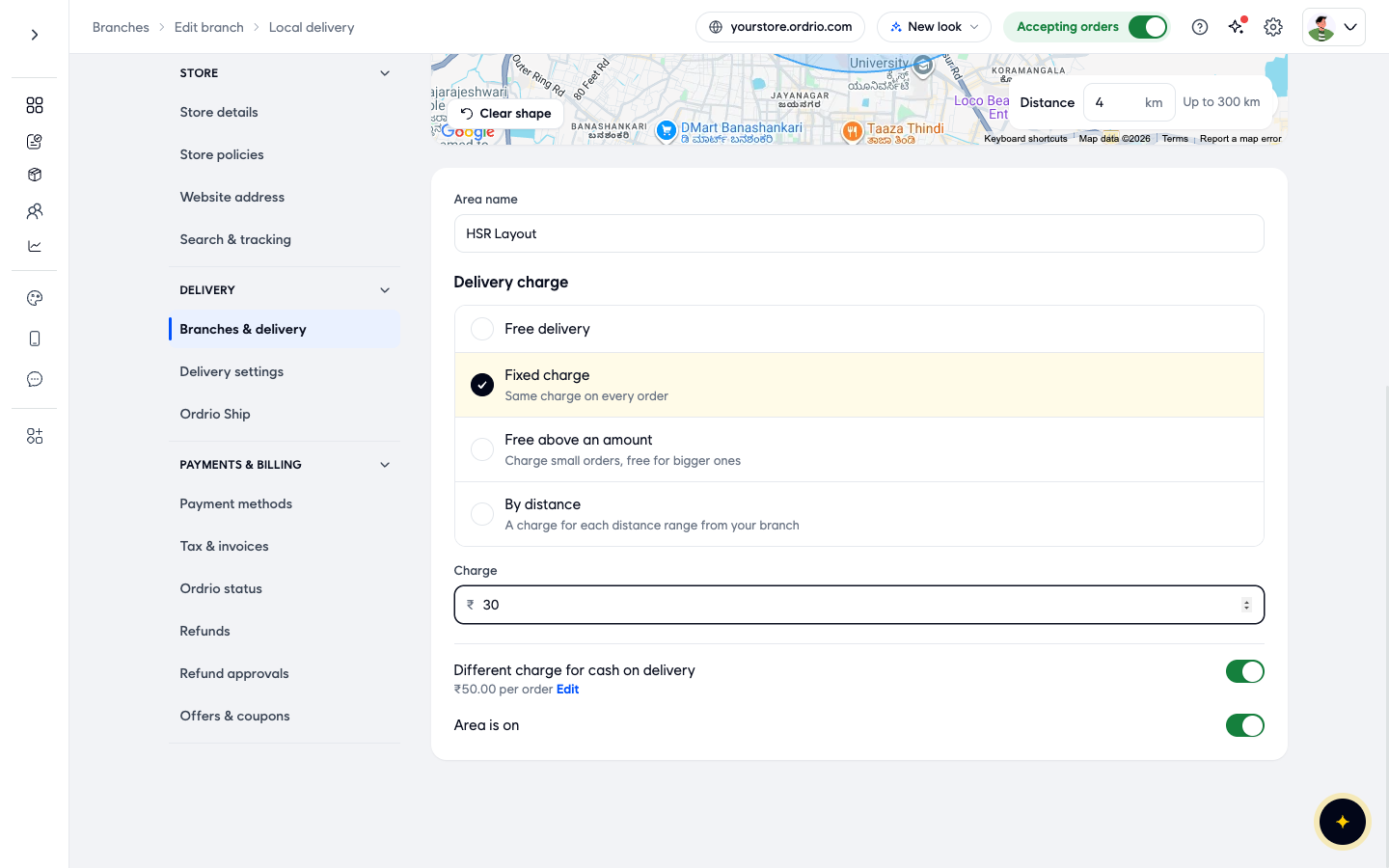
- Free above an amount: charge small orders, free for bigger ones. Type the delivery amount in Charge and the order amount in Free above. Orders above that amount get free delivery.
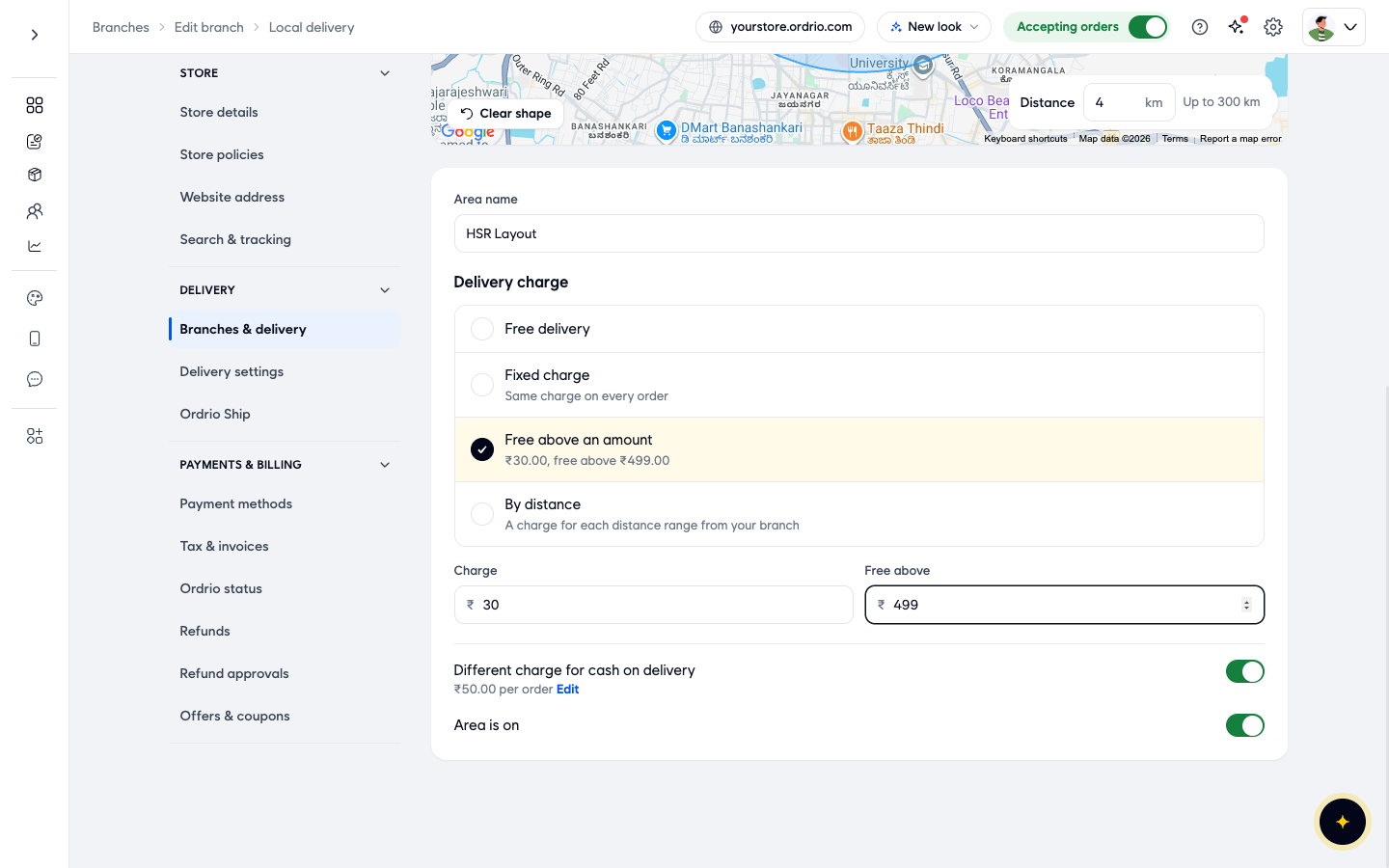
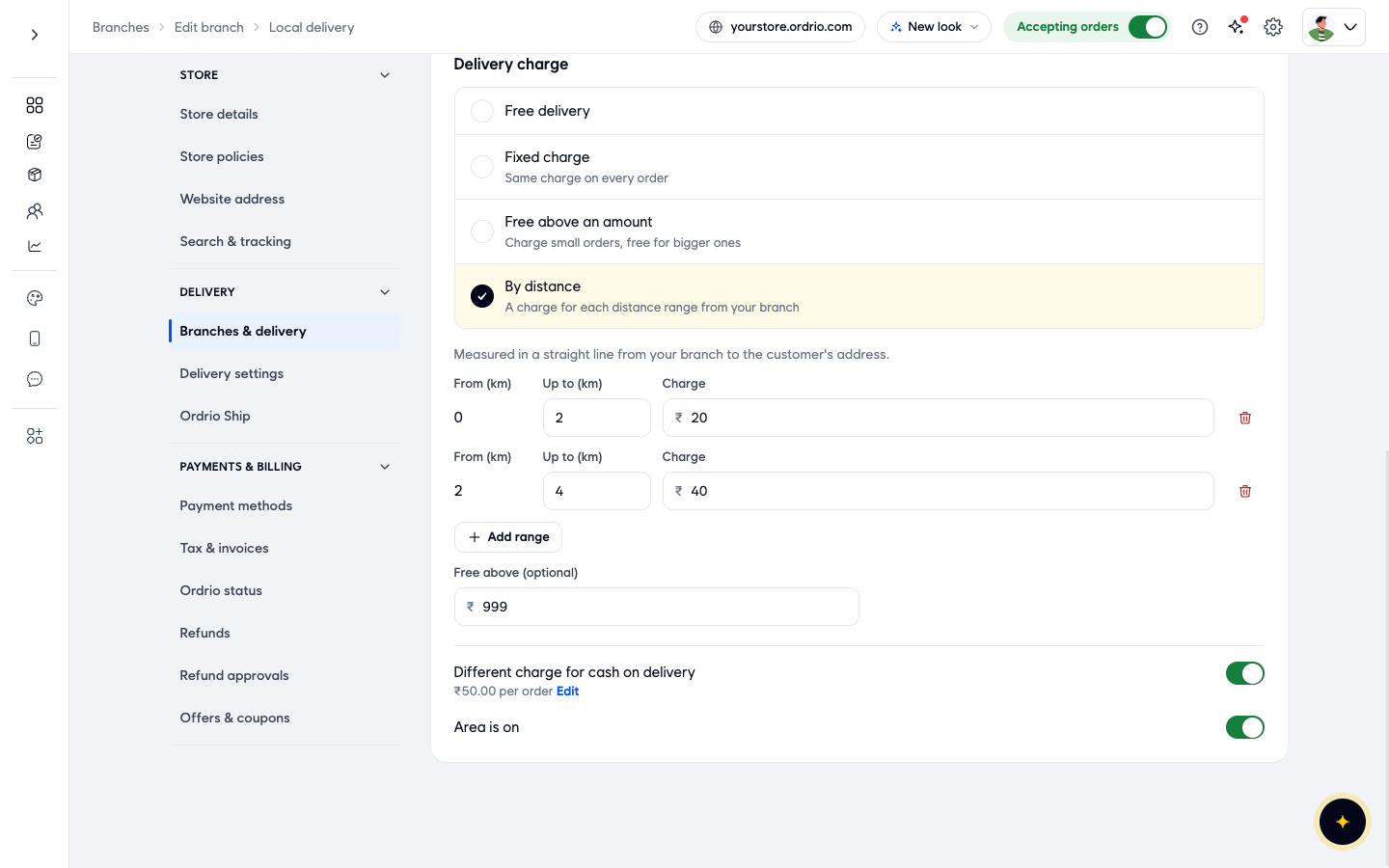
- By distance: a different charge for each distance range from your branch. Distance is measured in a straight line from your branch to the customer's address. See the next section for how to fill the ranges.
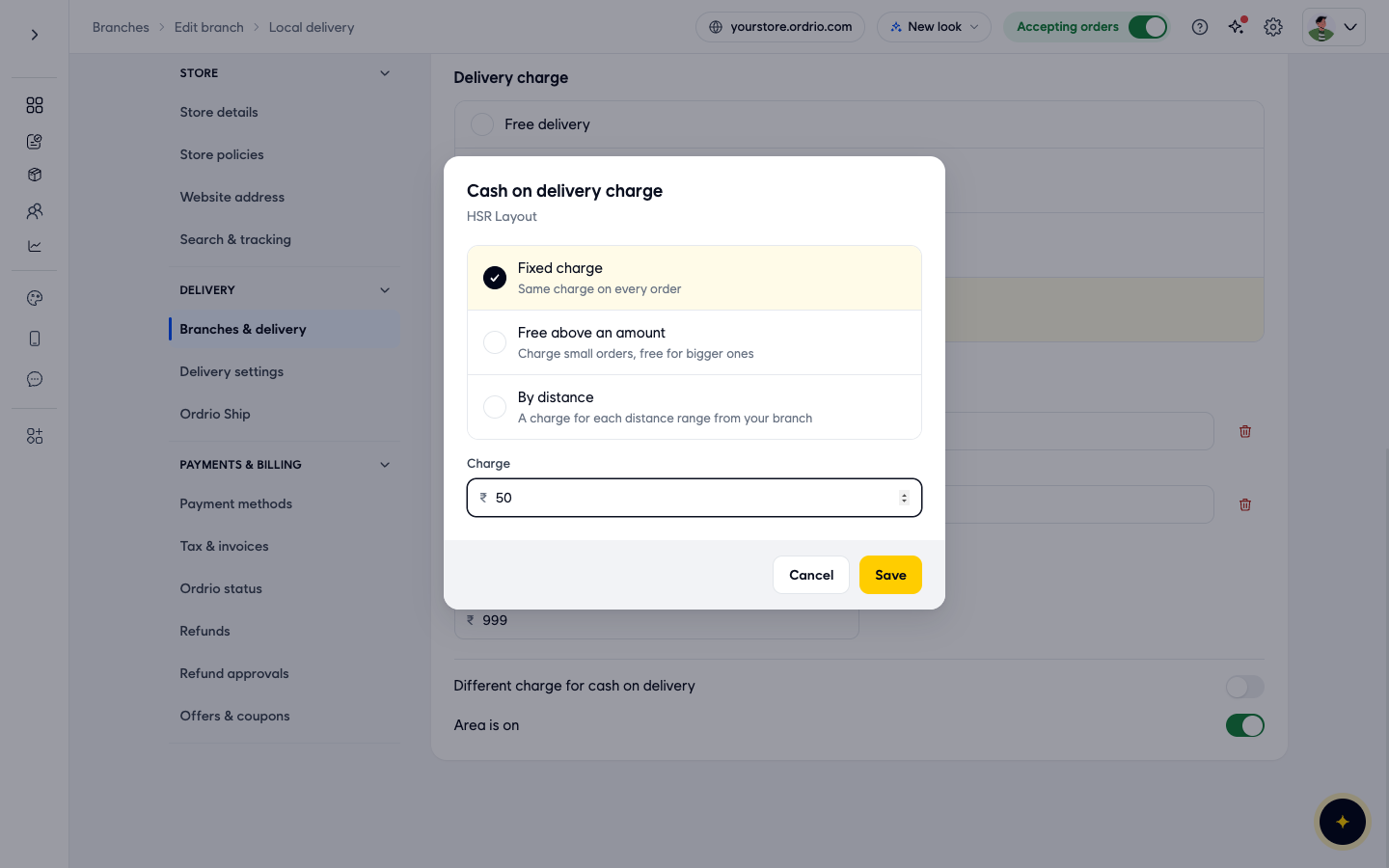
- Optional: turn on Different charge for cash on delivery if orders paid by cash on delivery should have their own delivery charge. A Cash on delivery charge window opens.
- Choose Fixed charge, Free above an amount or By distance, the same way as above.
- Type the amount in Charge.
- Click Save. The area now shows the cash on delivery charge, for example "₹50.00 per order", with an Edit link to change it.
- Leave Area is on switched on so customers in this area can order delivery. Switch it off to keep the area saved but not deliver there for now.
- Click Save area at the top right.
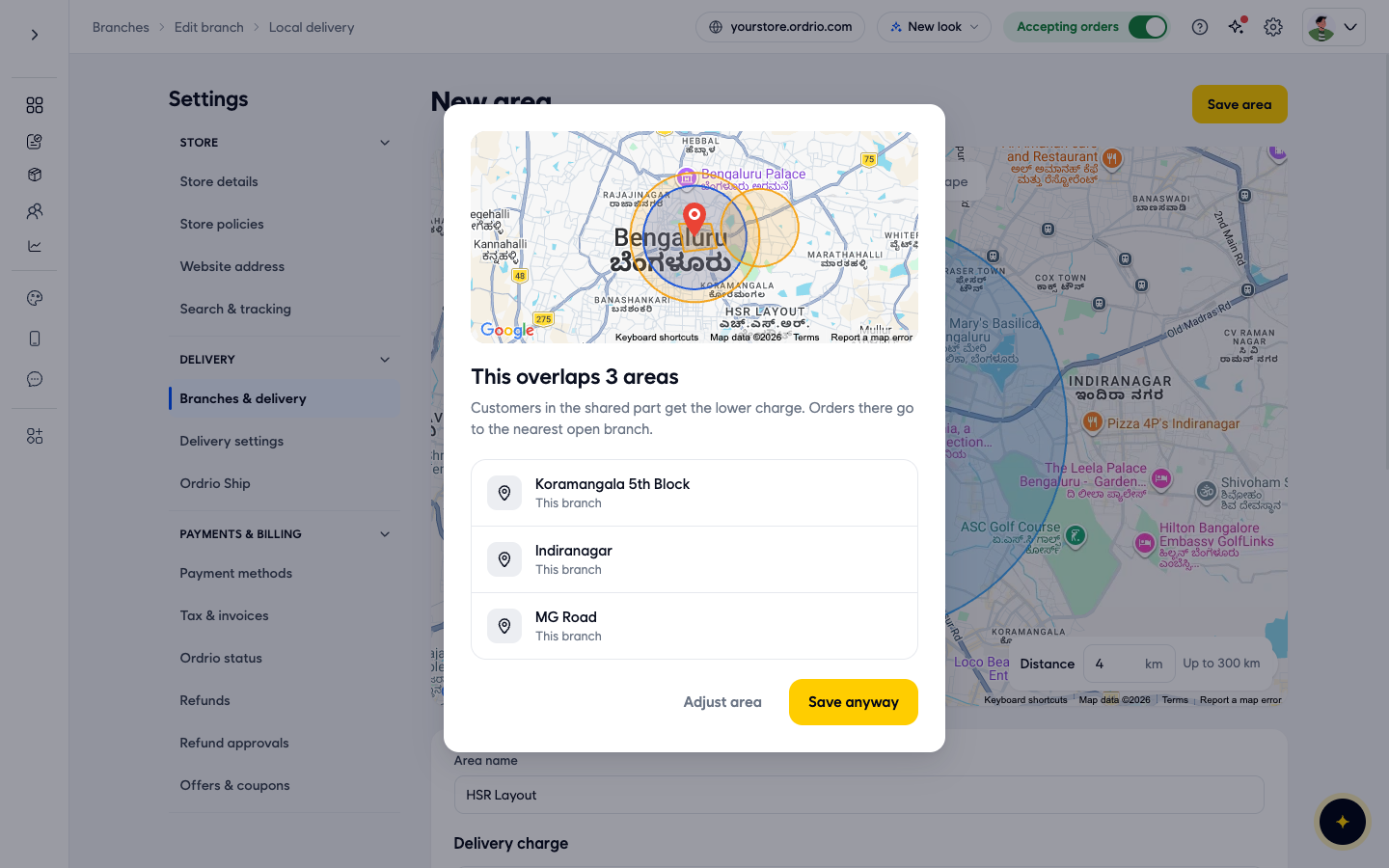
- If your new area overlaps areas you already have, Ordrio shows This overlaps with the list of those areas. Customers in the shared part get the lower charge, and orders there go to the nearest open branch. Click Adjust area to change the area, or Save anyway to keep it.
After saving, the Local delivery page opens. Your new area is in the Areas list, with its switch on.
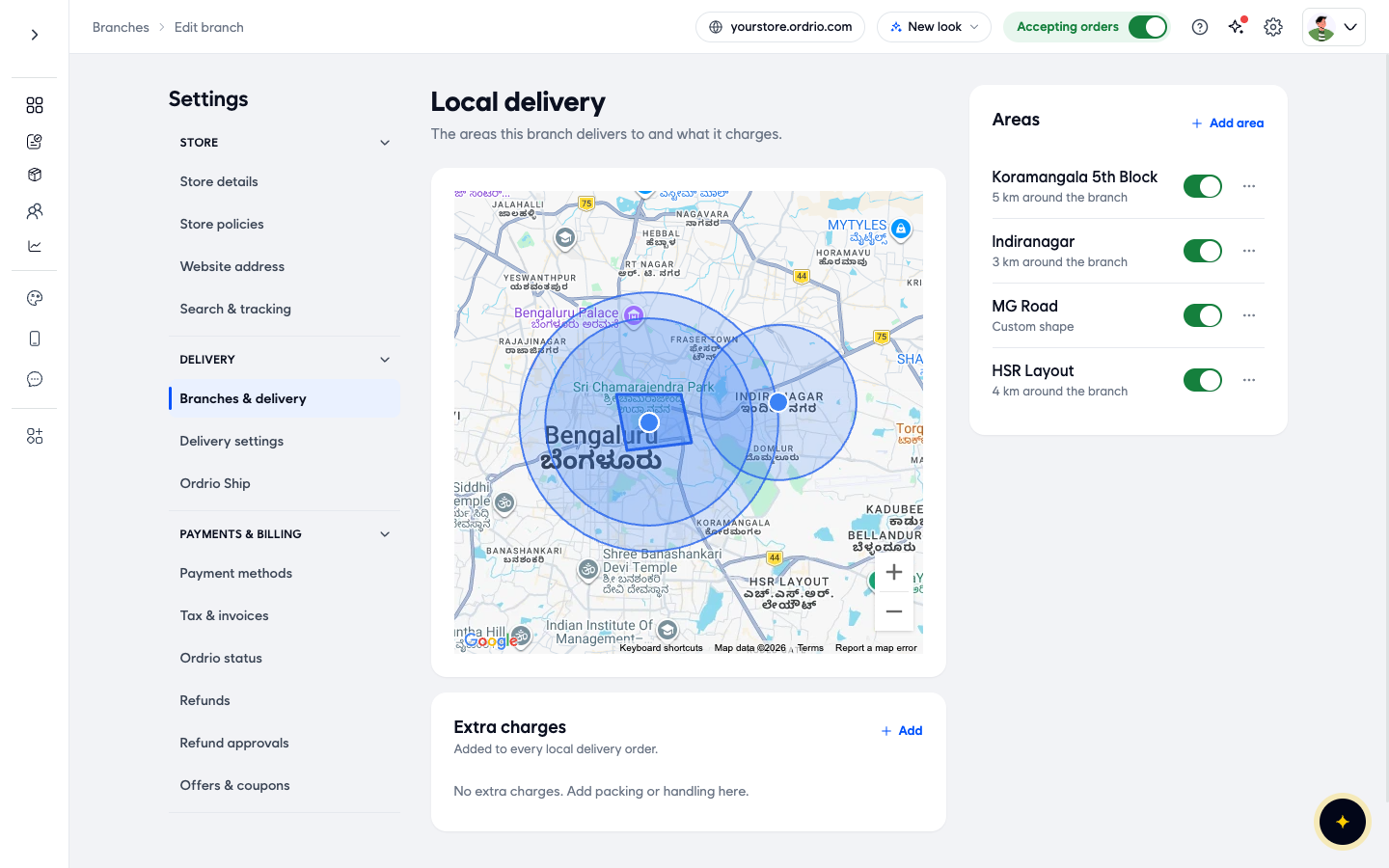
Back in Delivery settings, the area shows its charge type next to its name.
Set charges by distance
When you choose By distance under Delivery charge:
- In the first row, From (km) starts at 0. Type where the range ends in Up to (km), for example 2.
- Type the delivery charge for this range in Charge, for example ₹20.
- Click Add range to add the next range. Its From (km) starts where the last one ended. Type its Up to (km) and Charge, for example up to 4 km for ₹40.
- Optional: type an order amount in Free above (optional). Orders above that amount get free delivery at any distance.
To remove a range, click the bin icon at the end of its row.
Add extra charges to every delivery order
Use Additional charges for charges like packing or handling. They are added to every delivery order from this branch, on top of the area's delivery charge.
- In Delivery settings, under Additional charges, click Add.
- Type a name for the charge, for example "Packing".
- Type the amount.
- Choose Flat for a fixed amount, or % of bill for a percentage of the order.
- Click Save on the bar at the bottom of the page.
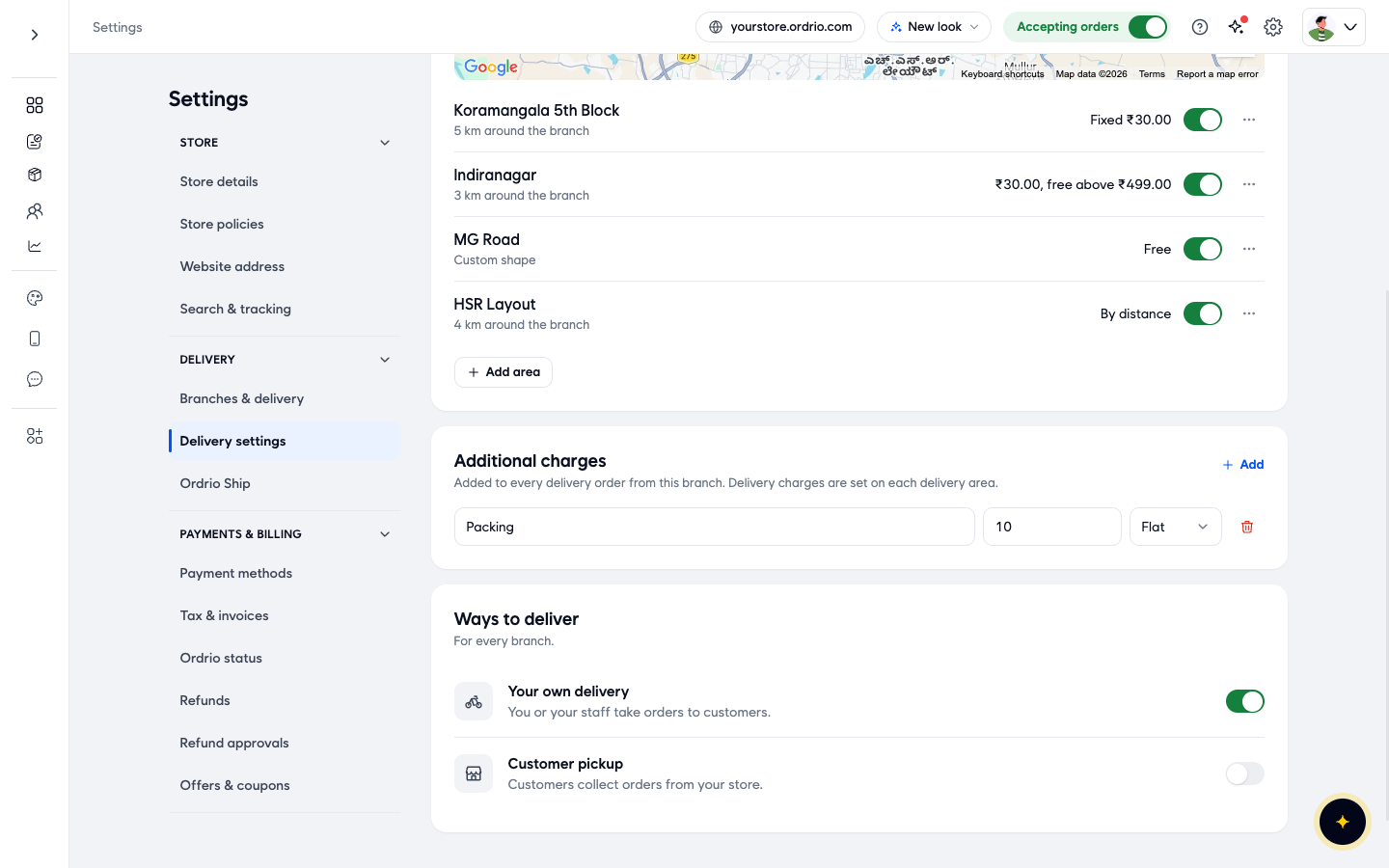
To remove an extra charge, click the bin icon next to it and confirm with Delete.
Good to know
- Each area has its own charge. To charge different amounts in different parts of town, add a separate area for each part, by distance or by custom shape.
- Change or remove an area. In Delivery settings, click ... next to the area and choose Edit area or Delete area. After you delete an area, customers there can no longer order delivery from this branch.
- Switching the charge type clears the amounts. If you change from one Delivery charge option to another, type the amounts again before you save.
- By distance uses a straight line, not the road distance, from your branch to the customer's address.
- Overlapping areas: customers in the shared part get the lower charge.
- Additional charges apply to every delivery order from the branch, in every area.
Related
- Delivery zones and geo mapping