هذا المقال غير متوفر بالعربية بعد، لذلك نعرضه بالإنجليزية.
دليل استخدام
Delivery exceptions and re-routing
Handle failed deliveries and reassignments.
Sometimes a delivery does not go to plan. A rider is busy, the customer is not home, or the order cannot reach them at all. This article shows you how to give an order to a different rider, how to send a failed delivery out again, and how to cancel an order you cannot deliver.
Before you start
- The order must be a delivery order (not pickup or at the counter).
- The rider buttons appear once the order is Packed. Accept the order, click Start processing and then Mark packed first.
Open the order
- Open nadi.ordrio.com (your Ordrio admin panel) and log in.
- In the left menu, click Orders and then Orders. Click the In progress tab to see orders that are being packed or delivered, and click the order you want to change.
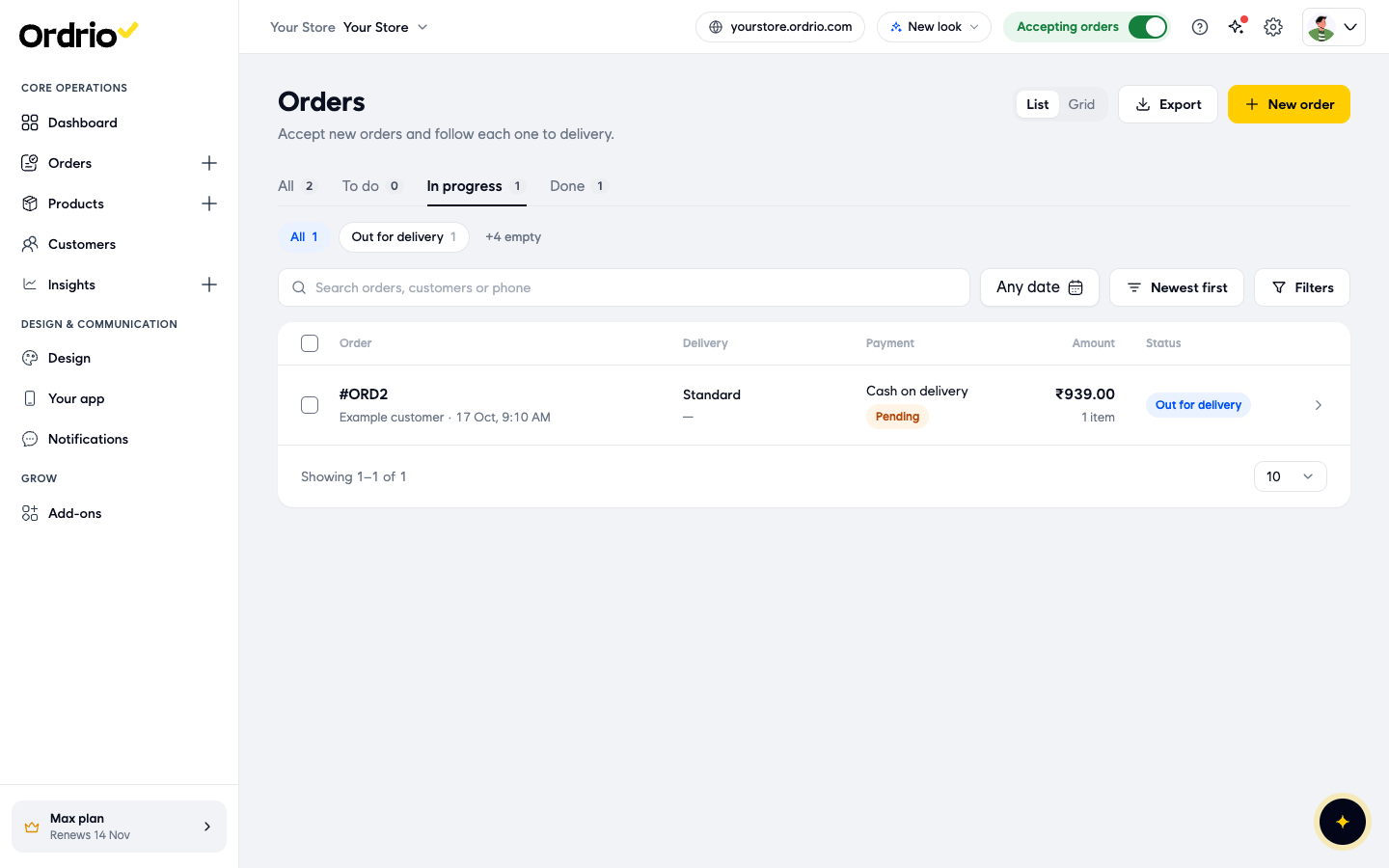
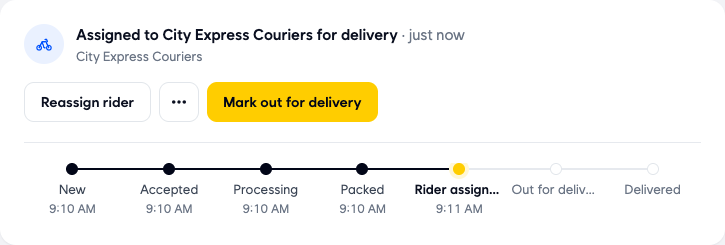
At the top of the order you see the order progress card. It shows the current step (New, Accepted, Processing, Packed, Rider assigned, Out for delivery, Delivered) and the buttons you can use right now.
Give the order to a different rider
Use this when the order has a rider but has not left your store yet.
- On the order progress card, click Reassign rider.
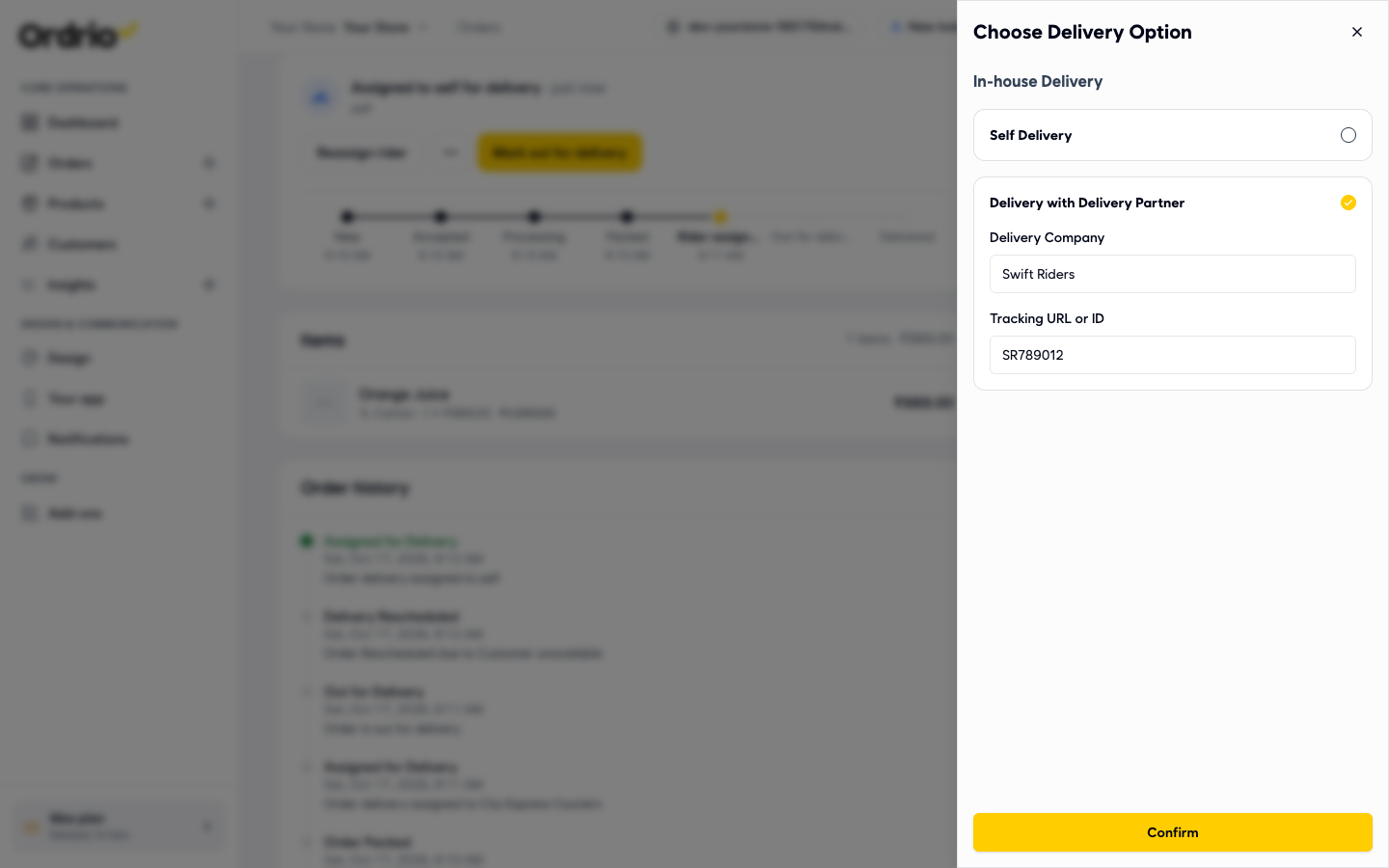
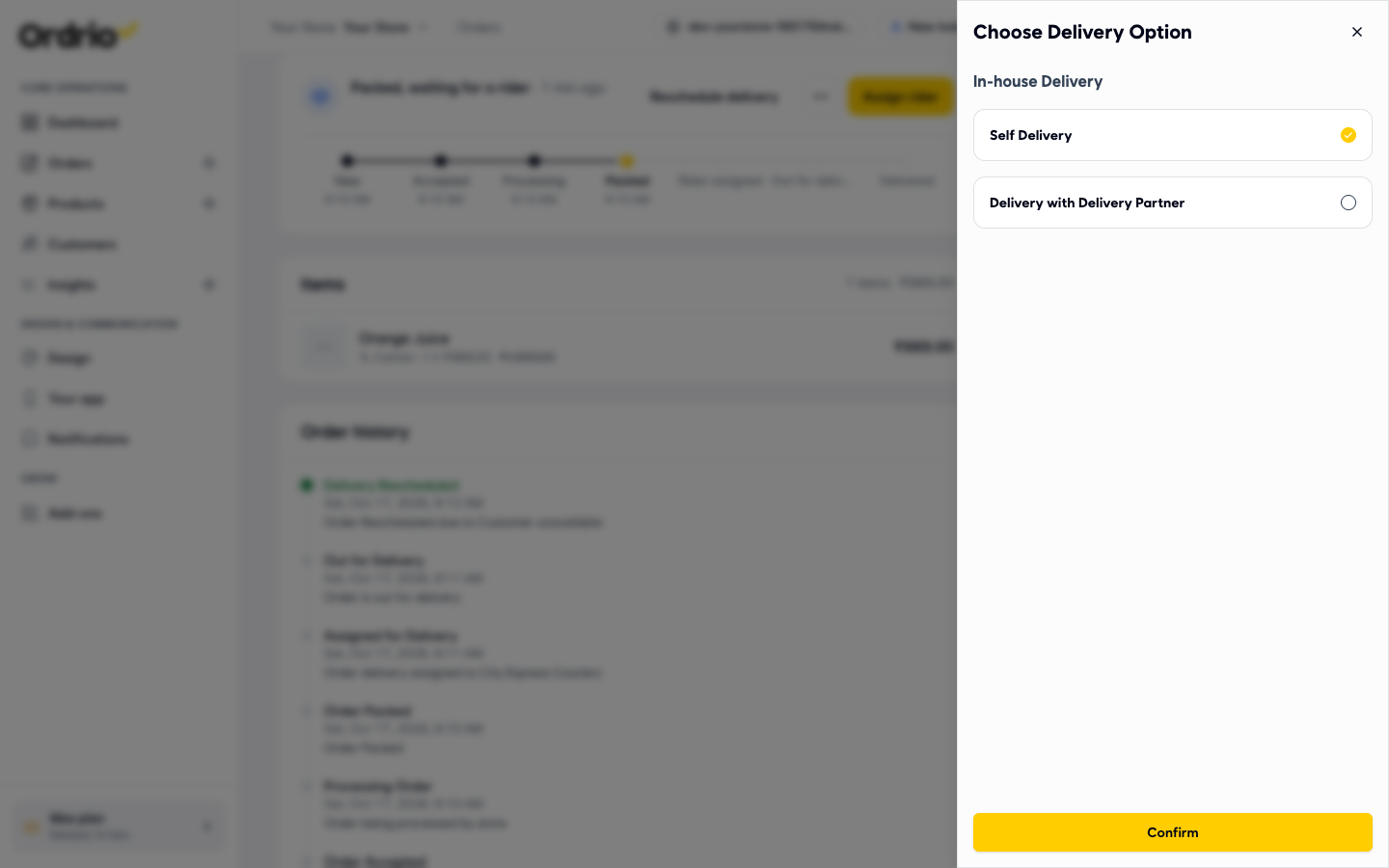
- The Choose Delivery Option panel opens. Under In-house Delivery, pick one option:
- Self Delivery: you or your own staff deliver the order. There is nothing else to fill in.
- Delivery with Delivery Partner: a courier company delivers it. Two fields appear:
- Delivery Company: the name of the courier company, for example "Swift Riders".
- Tracking URL or ID: the tracking link or tracking number the courier gave you, for example "SR789012". The names and numbers on the screen are only examples. Type your own courier's name and tracking details.
- Click Confirm. The card now says "Assigned to [rider or company] for delivery", and the Order history adds the line "Order delivery reassigned to [rider or company]".
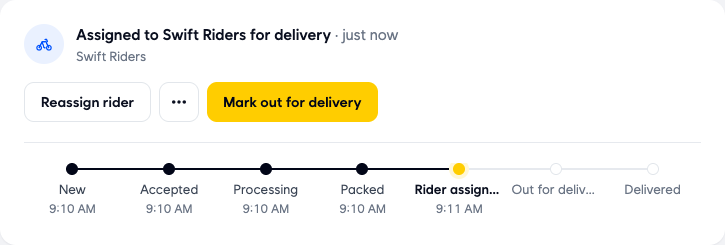
- When the new rider leaves with the order, click Mark out for delivery.
Handle a failed delivery
Use this when the rider could not hand over the order, for example because the customer was not at home.
- Open the order. While it is out for delivery, the card shows Reschedule delivery, the ... button and Mark delivered.
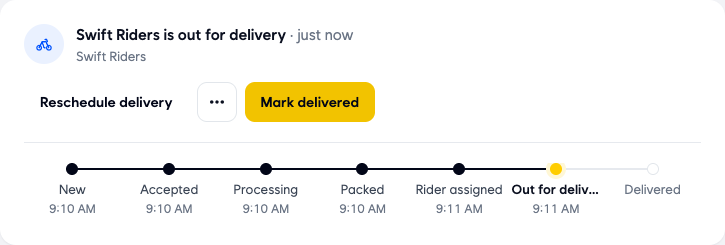
- Click Reschedule delivery. The Reschedule delivery window opens. It shows:
- Current slot: the delivery slot the order was booked for, or "No slot booked".
- Reason: why the delivery failed. Pick one: Customer unavailable, Customer asked for another day, Could not deliver or Other. If you pick Other, a box opens where you type the reason (up to 200 characters).
- A new slot, if your delivery method uses delivery slots. If it does not, the window tells you there is no slot to pick, and you can still reschedule.
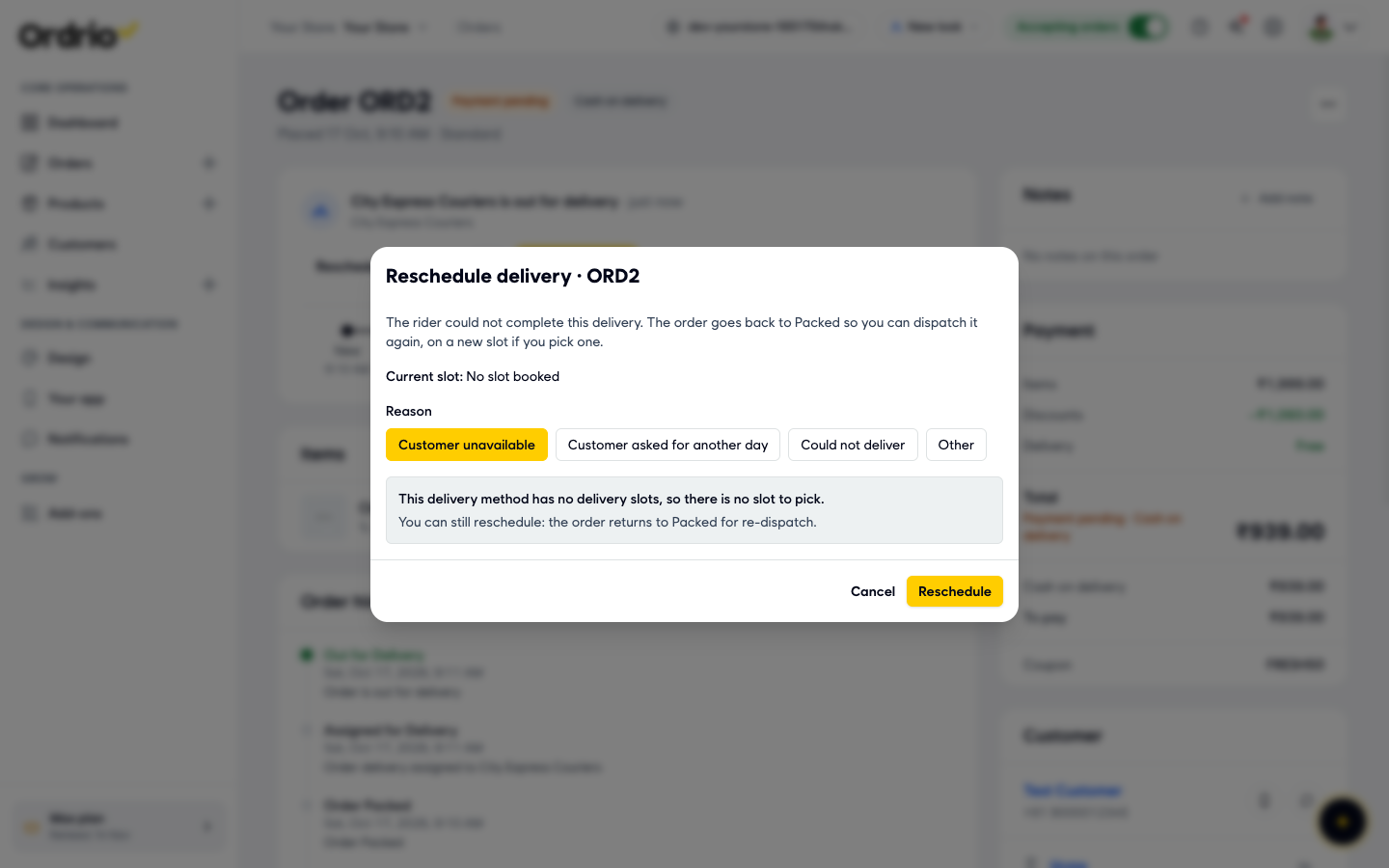
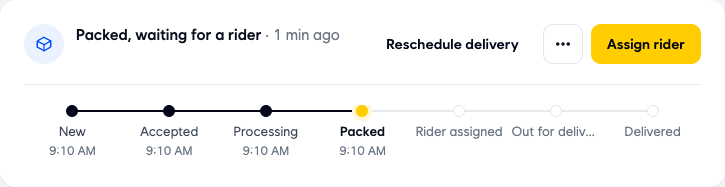
- Click Reschedule. The order goes back to Packed and the card says "Packed, waiting for a rider".
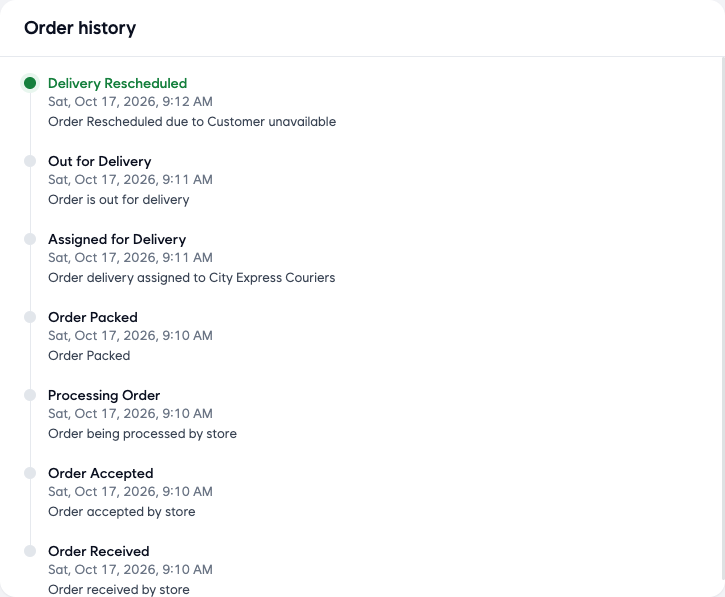
The Order history shows a Delivery Rescheduled line with the reason you picked, so your team can see what happened.
- Click Assign rider. In Choose Delivery Option, pick Self Delivery or Delivery with Delivery Partner (and fill in Delivery Company and Tracking URL or ID). This can be the same rider or a different one. Click Confirm.
- When the rider leaves, click Mark out for delivery.
- When the order reaches the customer, click Mark delivered. For a cash on delivery order, Ordrio asks "Have you collected the remaining cash from the user?". Click Mark as Collected once you have the cash. The card then shows who delivered the order and when.

Cancel an order you cannot deliver
Use this only when the order cannot be delivered at all.
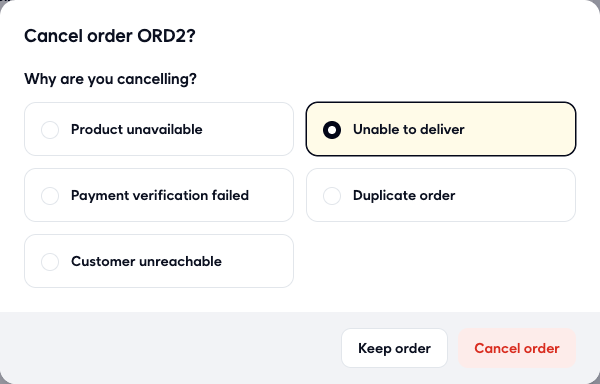
- On the order progress card, click the ... button (More actions) and click Cancel order.
- Under Why are you cancelling?, pick a reason: Product unavailable, Unable to deliver, Payment verification failed, Duplicate order or Customer unreachable.
- Click Cancel order to cancel it, or Keep order to go back without changing anything.
Good to know
- Reassign rider shows only after a rider is assigned and before you mark the order out for delivery. Once the order is out for delivery, use Reschedule delivery to bring it back to Packed and then assign it again.
- Reschedule delivery also shows on the card while the order is Packed and waiting for a rider.
- Before you reschedule or cancel, try to reach the customer. The Customer section on the right of the order has buttons to call them or message them on WhatsApp.
- Every assignment, reassignment and reschedule is saved in the Order history, with the time and the reason.
- If there is any chance to deliver the order later, reschedule it instead of cancelling it.
Related
- Viewing and managing orders
- Assigning orders to riders and delivery partners
- Delivery blocks and time slots
- Cancelling orders and refunds