هذا المقال غير متوفر بالعربية بعد، لذلك نعرضه بالإنجليزية.
دليل استخدام
Hybrid delivery routing
Combine last-mile and long-distance delivery in one branch.
Hybrid delivery lets one branch do two jobs. Your own riders deliver to customers nearby, and a courier ships orders to customers in other cities. You set it up by turning on both Local delivery and Shipping for the same branch, then setting the areas and charges for each.
Before you start
- You need a branch with a full address, including the PIN code. The branch will not save without it.
- Only one branch in your store can offer shipping. If shipping is already on at another branch, turn it off there first.
- The amounts and distances in the screenshots are examples. Use your own areas and charges.
Turn on local delivery and shipping for the branch
- Open nadi.ordrio.com (your Ordrio admin panel) and log in.
- Click the Settings icon at the top right. Under Delivery, click Branches & delivery.
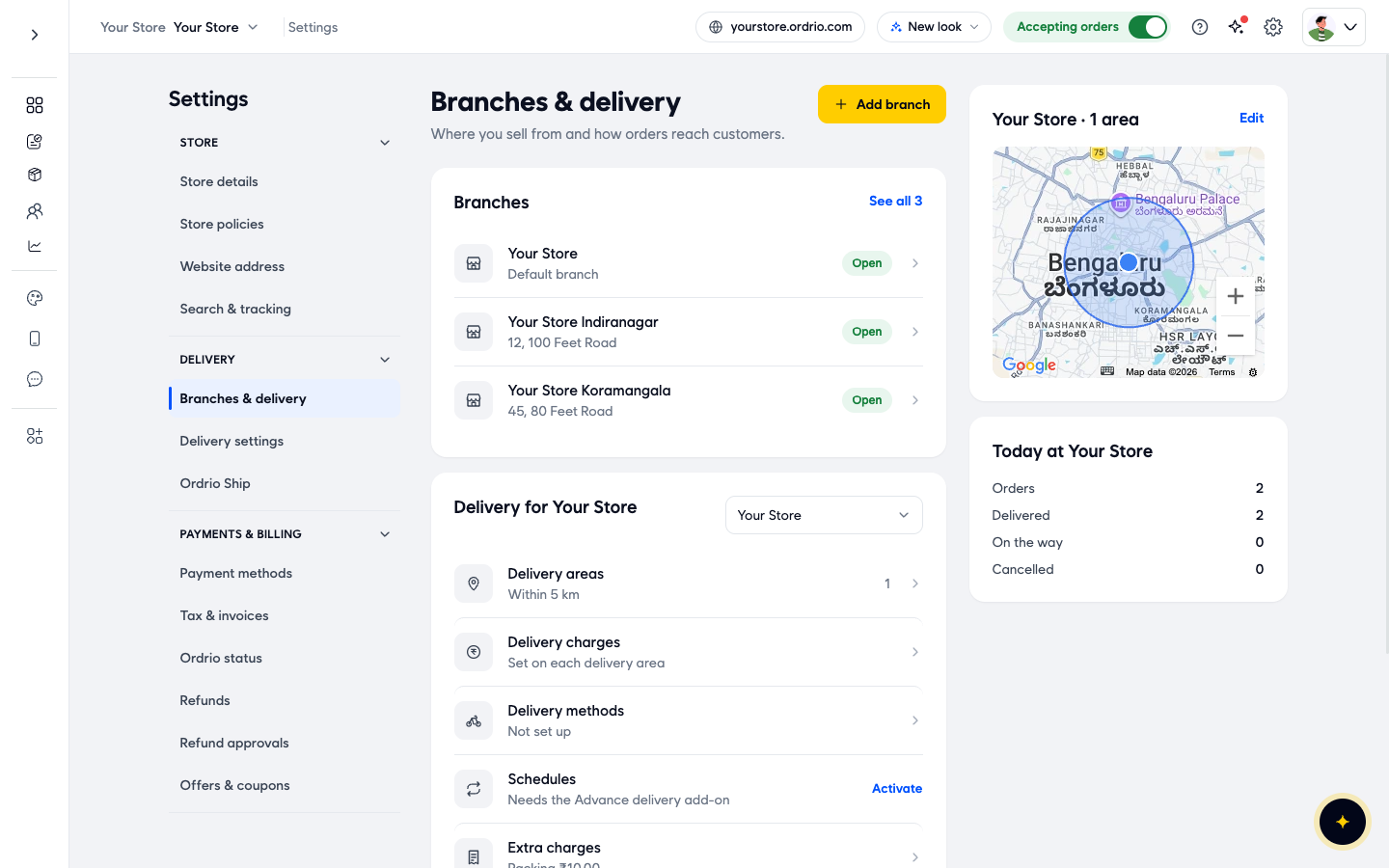
- Under Branches, click the branch that will do both kinds of delivery. The Edit branch screen opens.
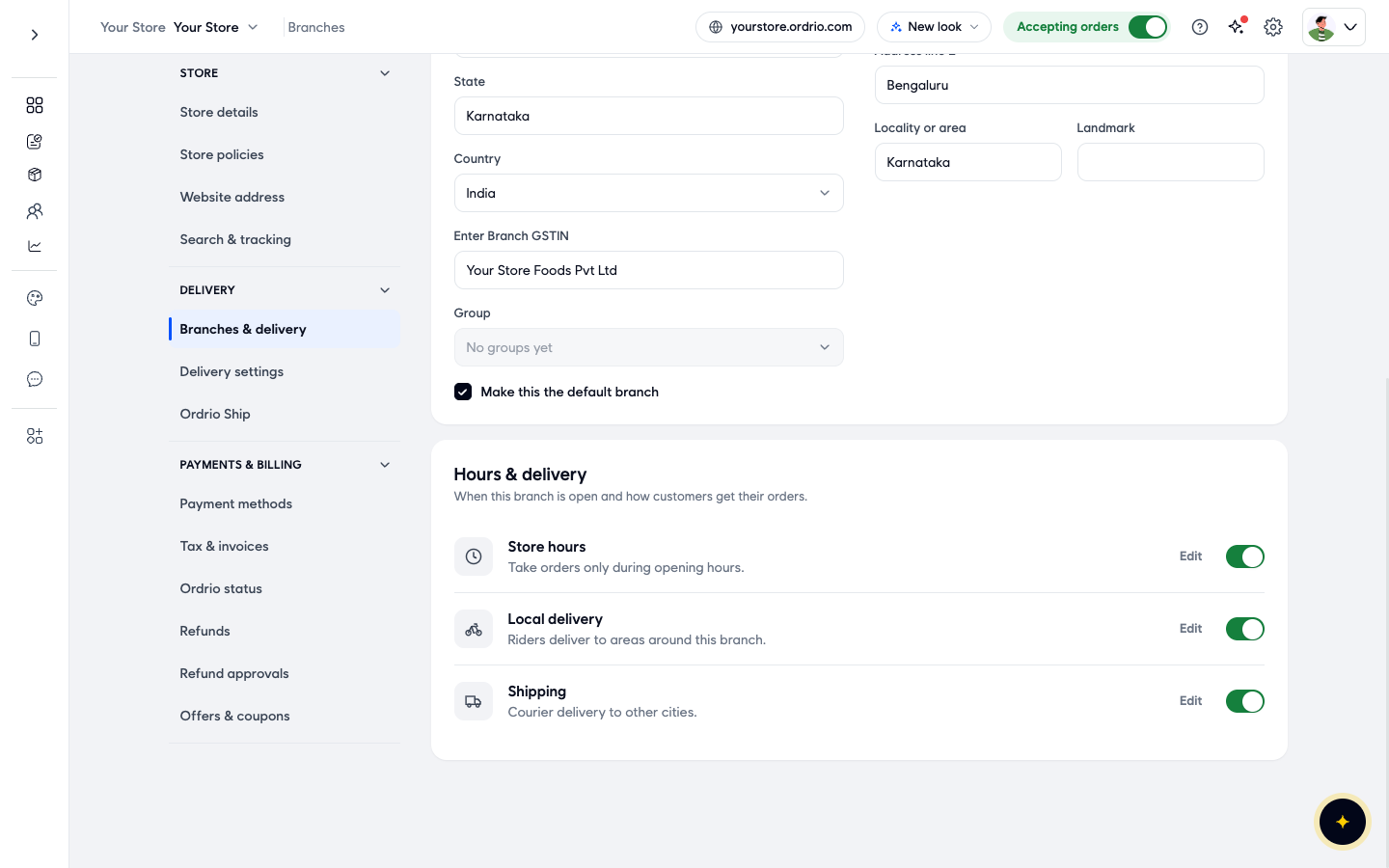
- Scroll down to Hours & delivery. Turn on the switch next to Local delivery ("Riders deliver to areas around this branch").
- Turn on the switch next to Shipping ("Courier delivery to other cities").
- Click Save in the You have unsaved changes bar at the bottom. If you see "PIN code is required", fill in PIN code in the branch address and click Save again.
Set up the local delivery areas
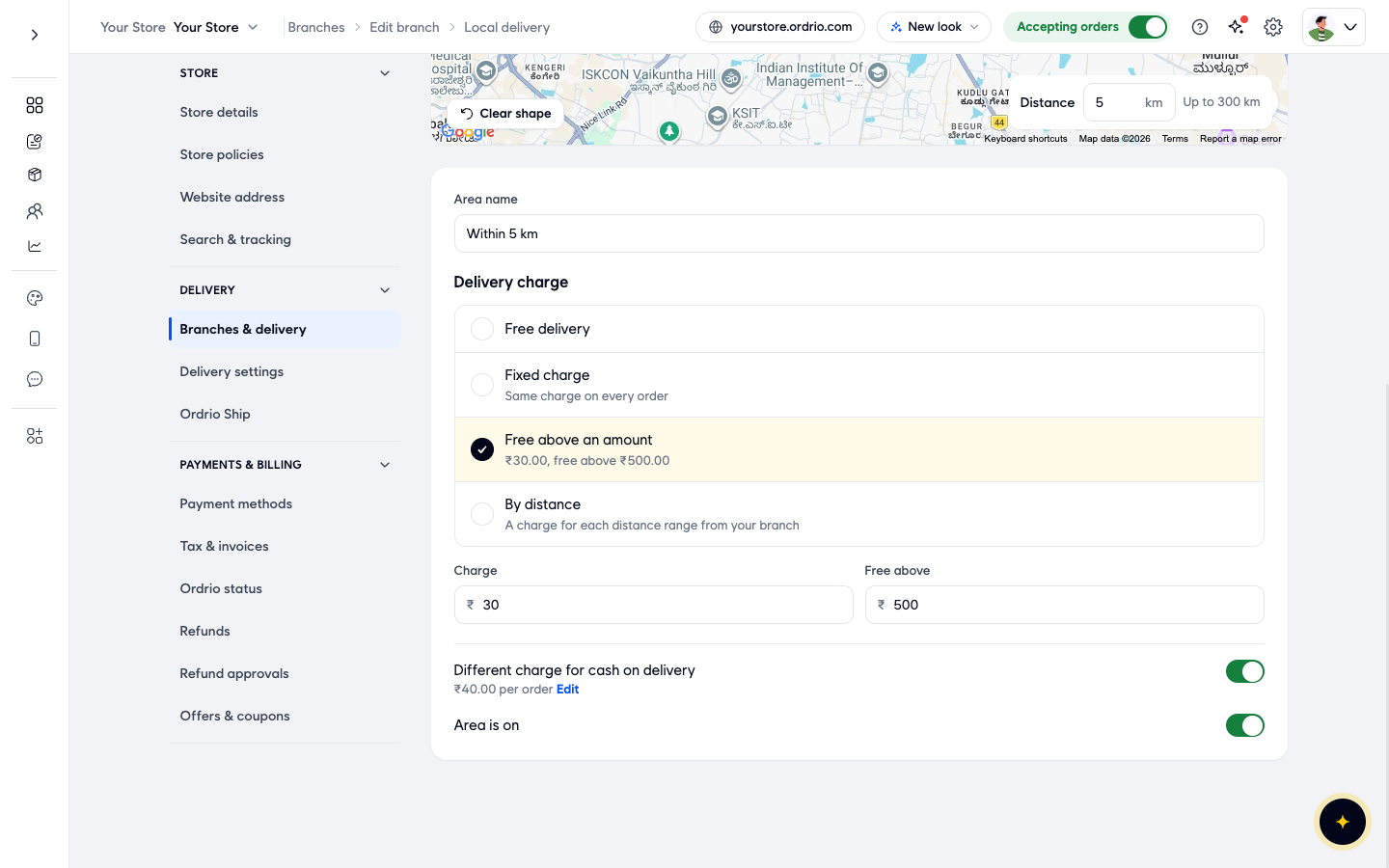
- In Hours & delivery, click Edit next to Local delivery. The Local delivery screen shows a map of the areas this branch delivers to, the Areas list and Extra charges.
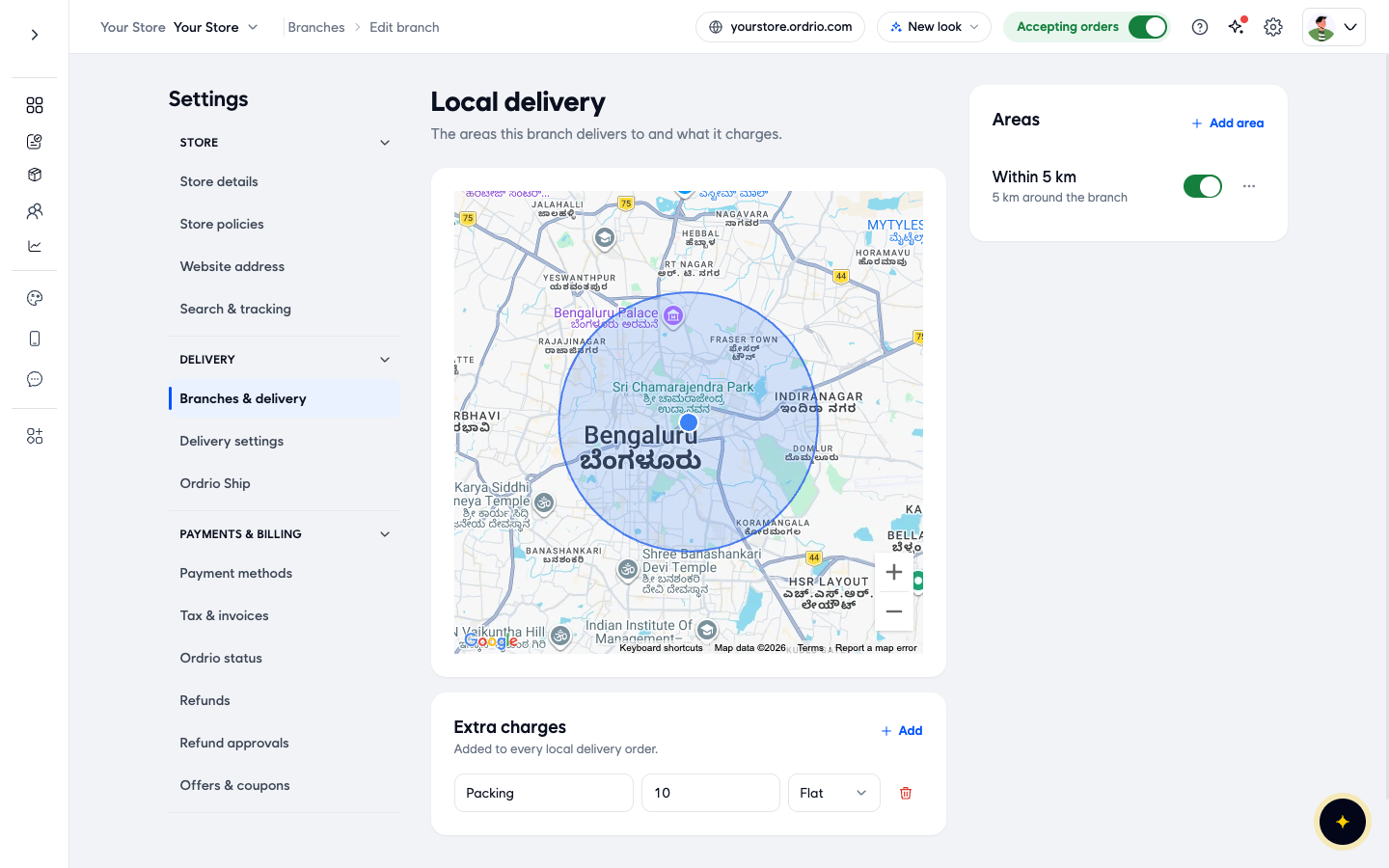
- Click Add area to add a new area. To change an area you already have, click the ... button next to it and choose Edit area.
- Choose how to draw the area at the top of the map:
- Distance: a circle around your branch. Type the size in Distance (in km, up to 300 km).
- Custom shape: draw your own shape on the map. Click Clear shape to start again. You can also use Search a place or the location button to move the map.
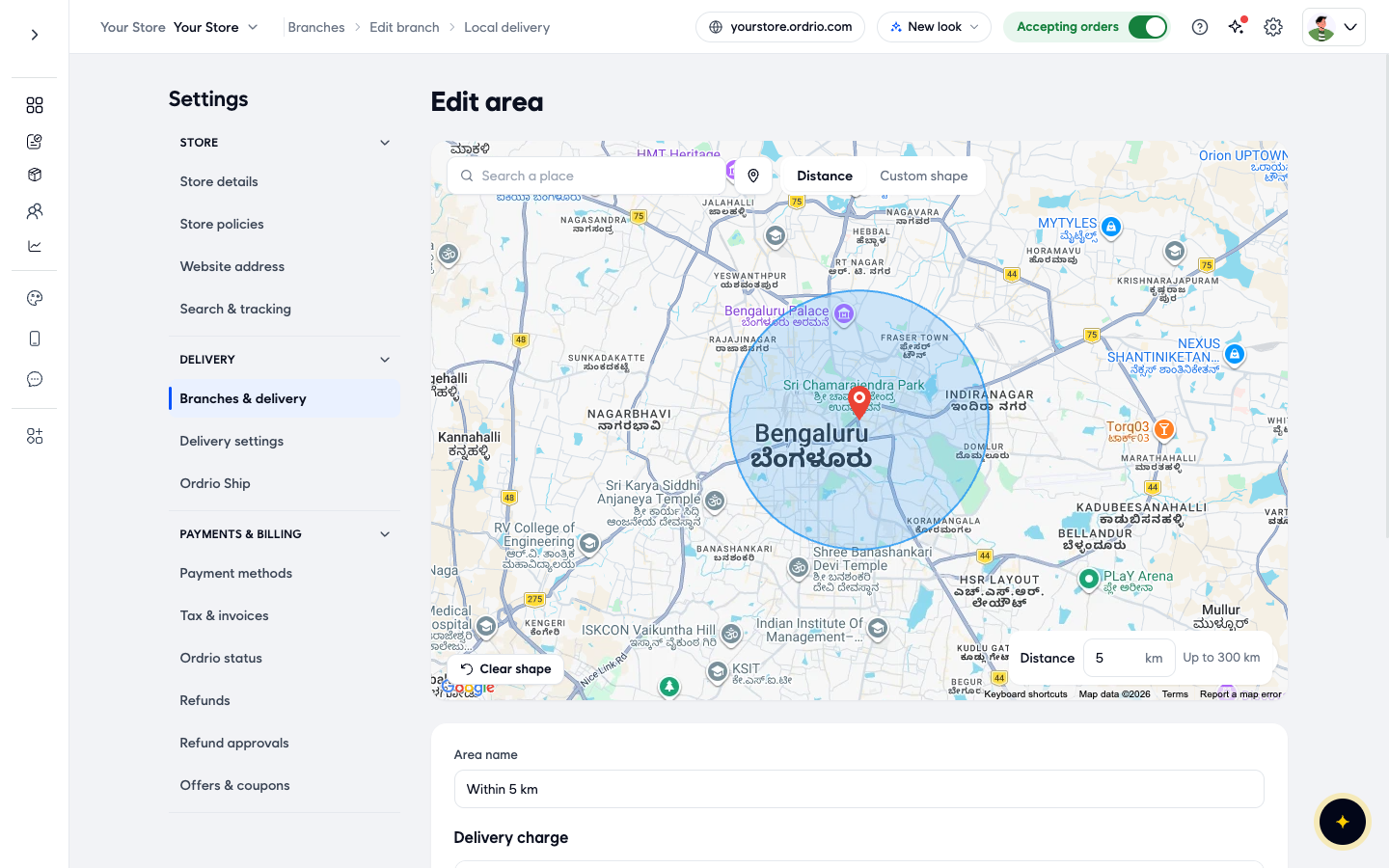
- In Area name, type a name you will recognise, for example "Within 5 km".
- Under Delivery charge, choose what customers in this area pay:
- Free delivery: no delivery charge.
- Fixed charge: the same charge on every order. Type it in Charge.
- Free above an amount: a charge for small orders and free delivery for bigger ones. Type the Charge and the order amount in Free above.
- By distance: a charge for each distance range from your branch.
- Turn on Different charge for cash on delivery if cash orders should pay a different delivery charge, and click Edit to set it.
- Keep Area is on turned on so customers in this area can order. Click Save area at the top of the screen.
- Back on the Local delivery screen, under Extra charges ("Added to every local delivery order"), click Add if you want a charge such as packing. Type the name and the amount, and choose Flat or % of bill.
Set up shipping
- Go back to the Edit branch screen. In Hours & delivery, click Edit next to Shipping. The Shipping screen shows what customers pay for courier delivery.
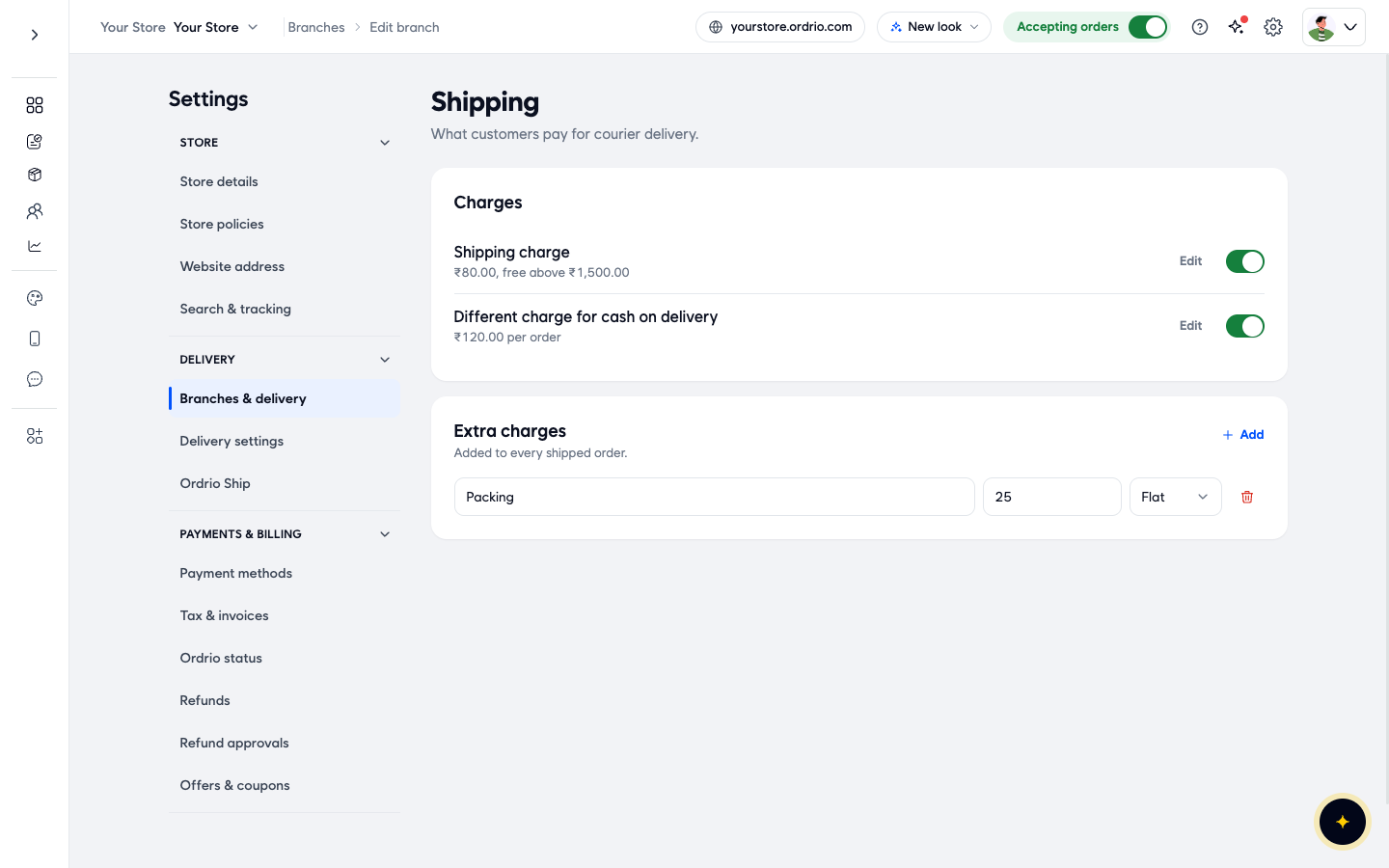
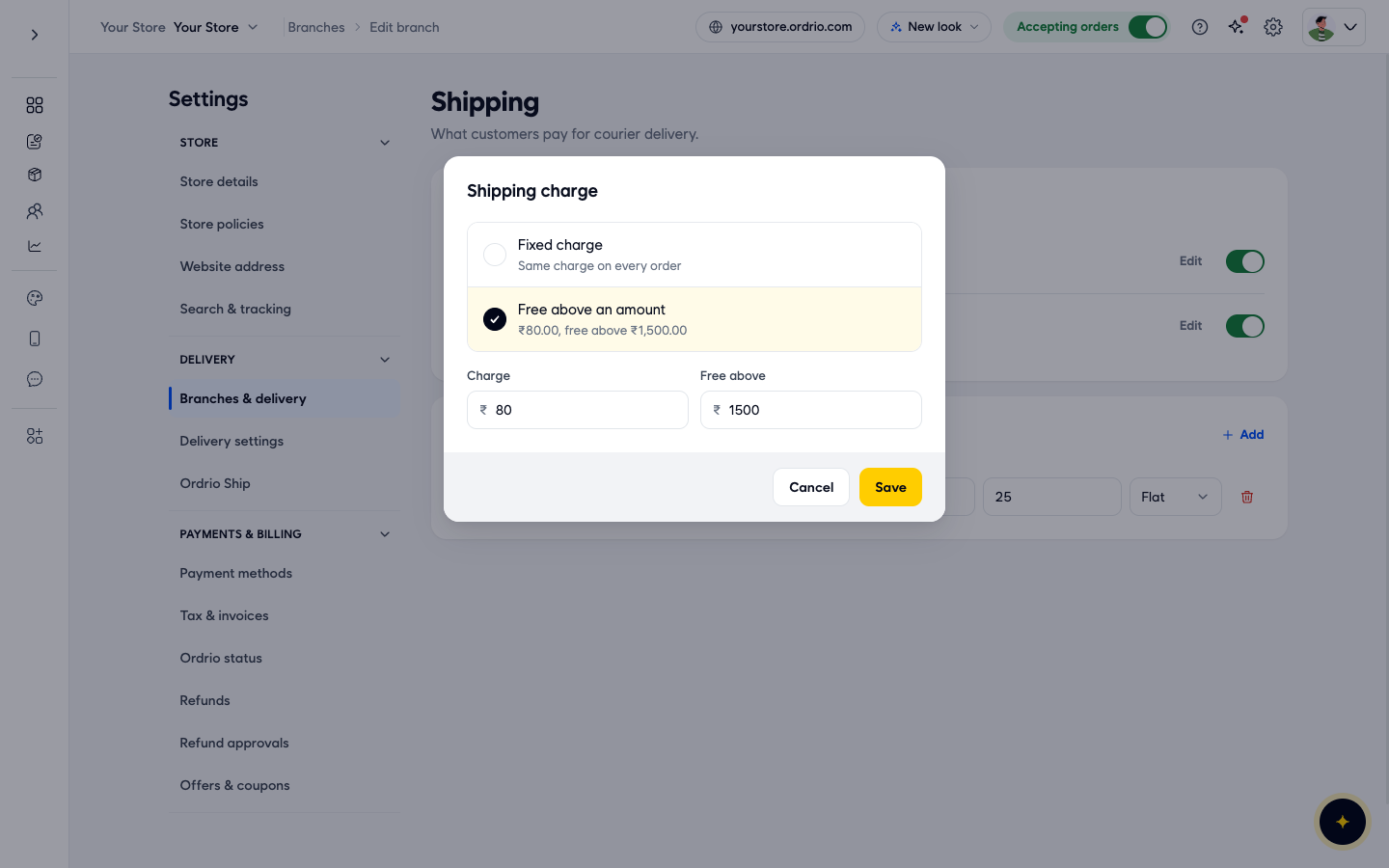
- Under Charges, click Edit next to Shipping charge. Choose Fixed charge (the same charge on every order) or Free above an amount. Type the Charge, and for Free above an amount also the order amount in Free above. Click Save.
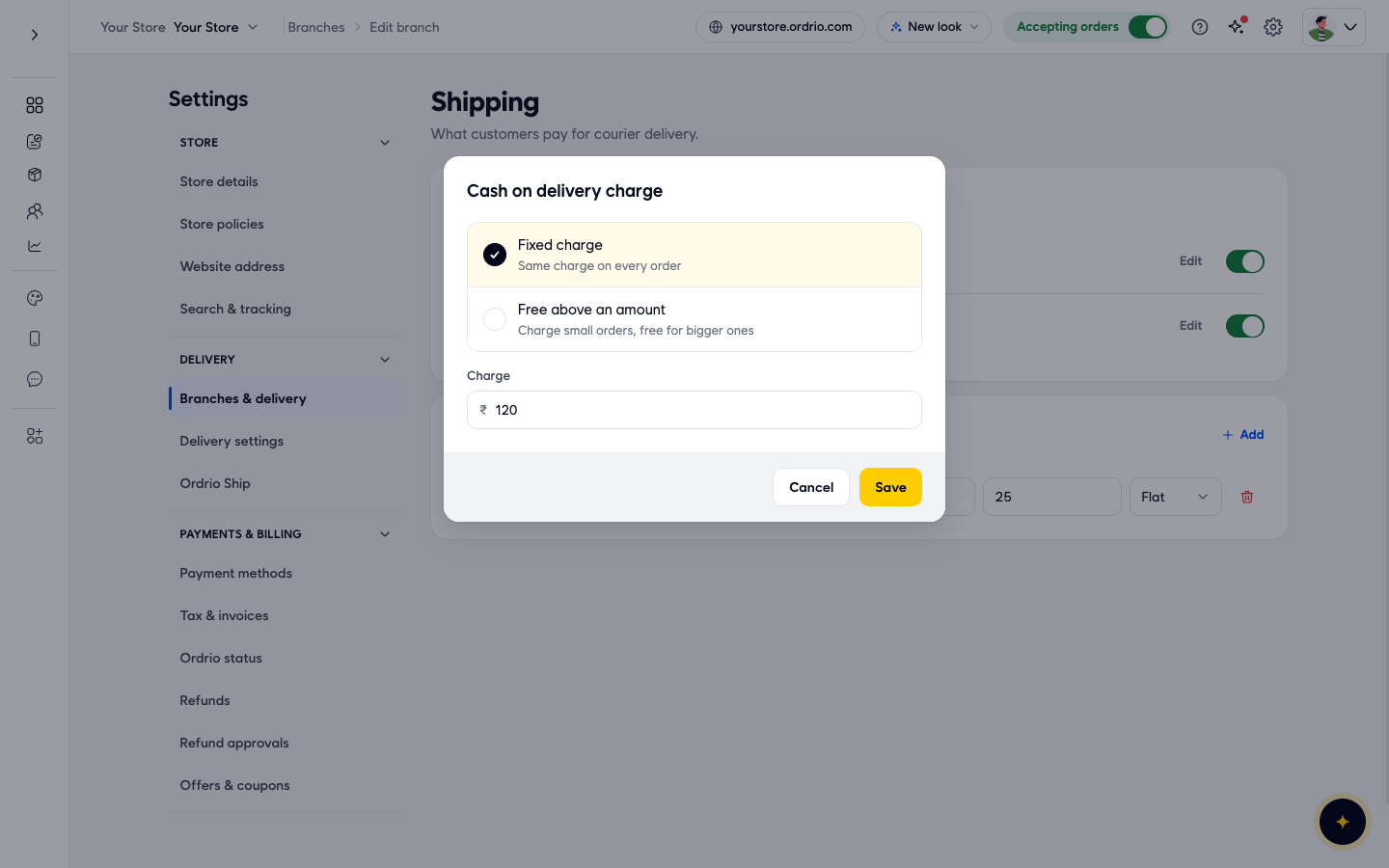
- If cash on delivery orders should pay a different shipping charge, turn on Different charge for cash on delivery and click Edit next to it. In the Cash on delivery charge window, choose Fixed charge or Free above an amount, type the Charge and click Save.
- Under Extra charges ("Added to every shipped order"), click Add if you want a charge such as packing. Type the name and the amount, and choose Flat or % of bill.
Check the result
- Go back to Settings > Branches & delivery. The Delivery for card for your branch now shows your Delivery areas and your Shipping charge, for example "₹80.00, free above ₹1,500.00". Click any line to change it.
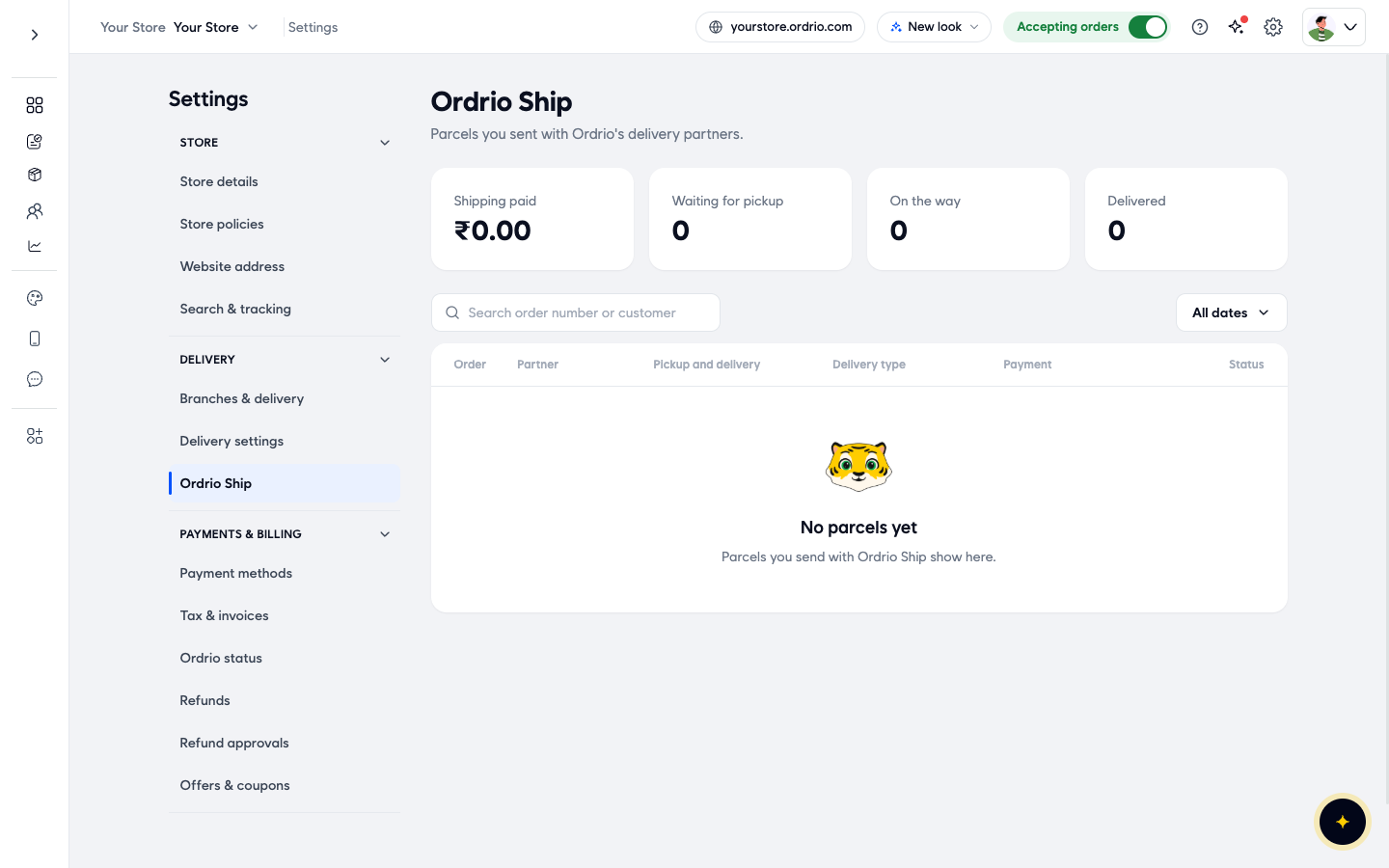
- Parcels you send by courier appear in Settings > Ordrio Ship. There you see Shipping paid, Waiting for pickup, On the way and Delivered, and a list of parcels with the order, partner, pickup and delivery, delivery type, payment and status. You can search by order number or customer, and filter by date.
Good to know
- Local delivery is for customers inside the areas you set. Your own riders take these orders. Shipping is courier delivery to other cities.
- Only one branch can offer shipping. Any branch can offer local delivery.
- Local delivery charges are set on each area. Shipping has one charge for the whole branch.
- Extra charges are separate for local delivery and for shipping. A packing charge on one does not apply to the other.
- If Area is on is turned off, customers in that area cannot get local delivery.
- Settings > Delivery settings has Ways to deliver (Your own delivery and Customer pickup). These apply to every branch.
Related
- Delivery zones and geo mapping
- Creating and managing branches
- Long-distance delivery setup
هل كان هذا المقال مفيداً؟