هذا المقال غير متوفر بالعربية بعد، لذلك نعرضه بالإنجليزية.
دليل استخدام
Proof of delivery
Confirm completion with OTP, signature or photo.
Every delivered order keeps a record of who delivered it and when. Check it when a customer says an order did not arrive, or when you want to see how long a delivery took.
Before you start
- You need an order that has been delivered. Delivered orders are in the Done tab of Orders.
Check how an order was delivered
- Open nadi.ordrio.com (your Ordrio admin panel) and log in.
- In the menu on the left, click Orders, then click Orders again in the list that opens.
- At the top of the list, click the Done tab. It shows your finished orders and how many there are.
- Find the order. You can type the order number or the customer's phone number in the search box (Search orders, customers or phone), or use Any date to pick a date.
- Click the order number to open the order.

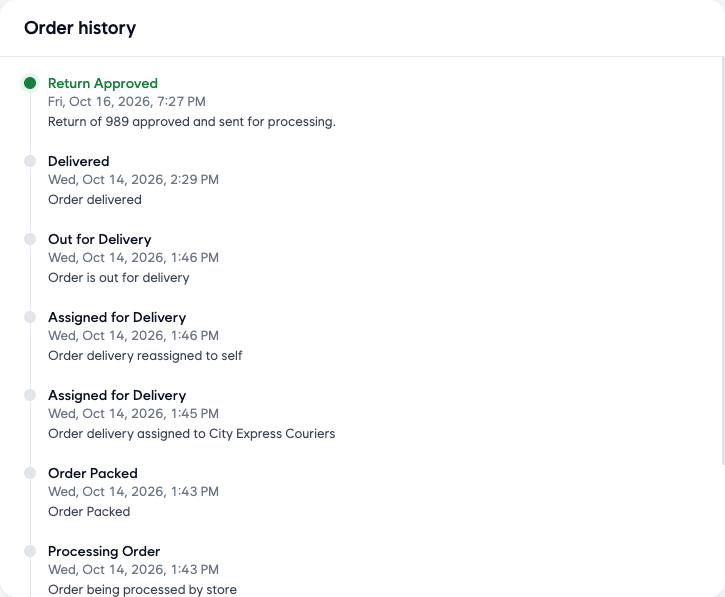
- Scroll down to Order history. Each step of the order is listed with its date and time, newest first:
- Order Received: the order reached your store.
- Order Accepted: your store accepted it.
- Processing Order and Order Packed: your team prepared the order.
- Assigned for Delivery: who the delivery was given to, for example a courier or your own team. If you changed it, you see one line for each change.
- Out for Delivery: the order left your store.
Good to know
- If a customer says the order did not arrive, compare the Out for Delivery and Delivered times in Order history with what the rider or courier tells you.
- Delivery instructions for the rider are kept under Notes on the right side of the order, marked Delivery. Every change to a note is listed under Note changes, with the time and who made it.
- If the order was returned or refunded after delivery, those steps also appear at the top of Order history.
Related
- Viewing and managing orders
- Delivery zones and geo mapping
- Pickup orders
هل كان هذا المقال مفيداً؟