هذا المقال غير متوفر بالعربية بعد، لذلك نعرضه بالإنجليزية.
نظرة عامة
Running online and offline orders together
How your online store and your shop counter share products, stock and orders.
Ordrio keeps your online orders and your shop counter orders in one place. Orders from your website and app, and orders your team takes in the shop or over the phone, all land in the same Orders list and use the same product list. You don't need a second system for walk-in customers.
Where to find it
Open nadi.ordrio.com (your Ordrio admin panel) and log in. Everything in this article is in the menu on the left:
- Orders > Orders: every order, online and in-store.
- Products > Products: the one product list your website, app and counter all use.
- Add-ons: extra tools such as Inventory Management and Swipe POS.
Online orders
When a customer orders on your website or app, the order appears in Orders straight away. You don't need to do anything to bring it in. Until your first order comes in, the list says "Orders from your website and app show up here."
The tabs at the top sort orders by stage:
- All: every order.
- To do: new orders waiting for you.
- In progress: orders you are packing or delivering.
- Done: finished orders.
In-store and phone orders
When a customer buys at your counter or calls you, your team enters the order in the same admin.
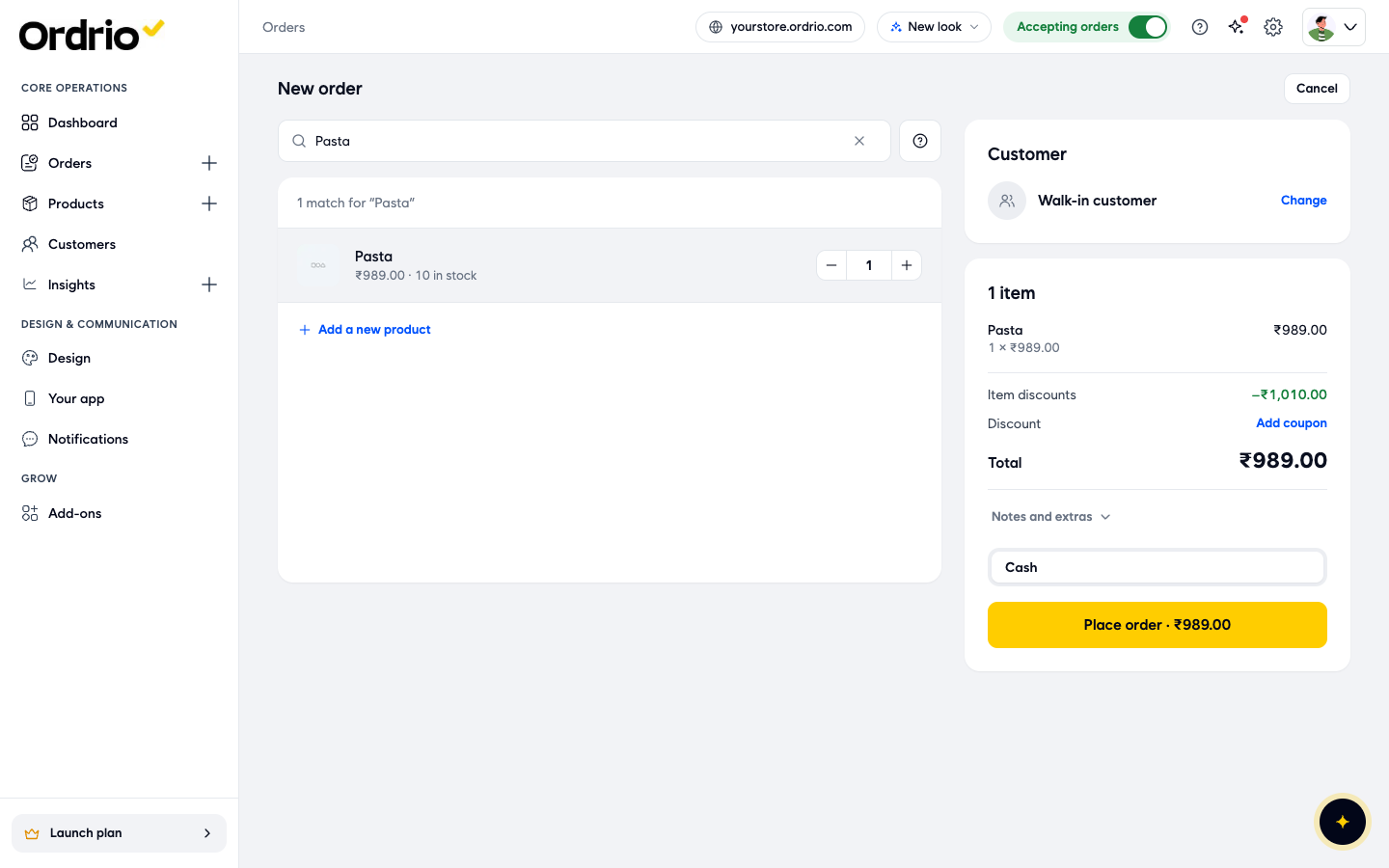
- Go to Orders > Orders and click New order.
- In Search products, type the product name or scan the product. Each result shows the price and how many are in stock.
- Click Add next to the product. If the product comes in more than one size, pick the size and click Select. Use - and + to change the quantity.
- Under Customer, leave it as Walk-in customer for someone you don't need to record, or click Change to pick a saved customer. You can choose the customer any time before you place the order.
- Check the order summary on the right. It shows the items, Item discounts, Discount and the Total. Click Add coupon to apply one of your coupons.
- Open Notes and extras if you need it. Click Add next to Extra discount to take money off this order, or next to Extra charge to add a charge.
- Under the payment choices, pick how the customer pays, for example Cash.
- Click Place order. The button also shows the total.
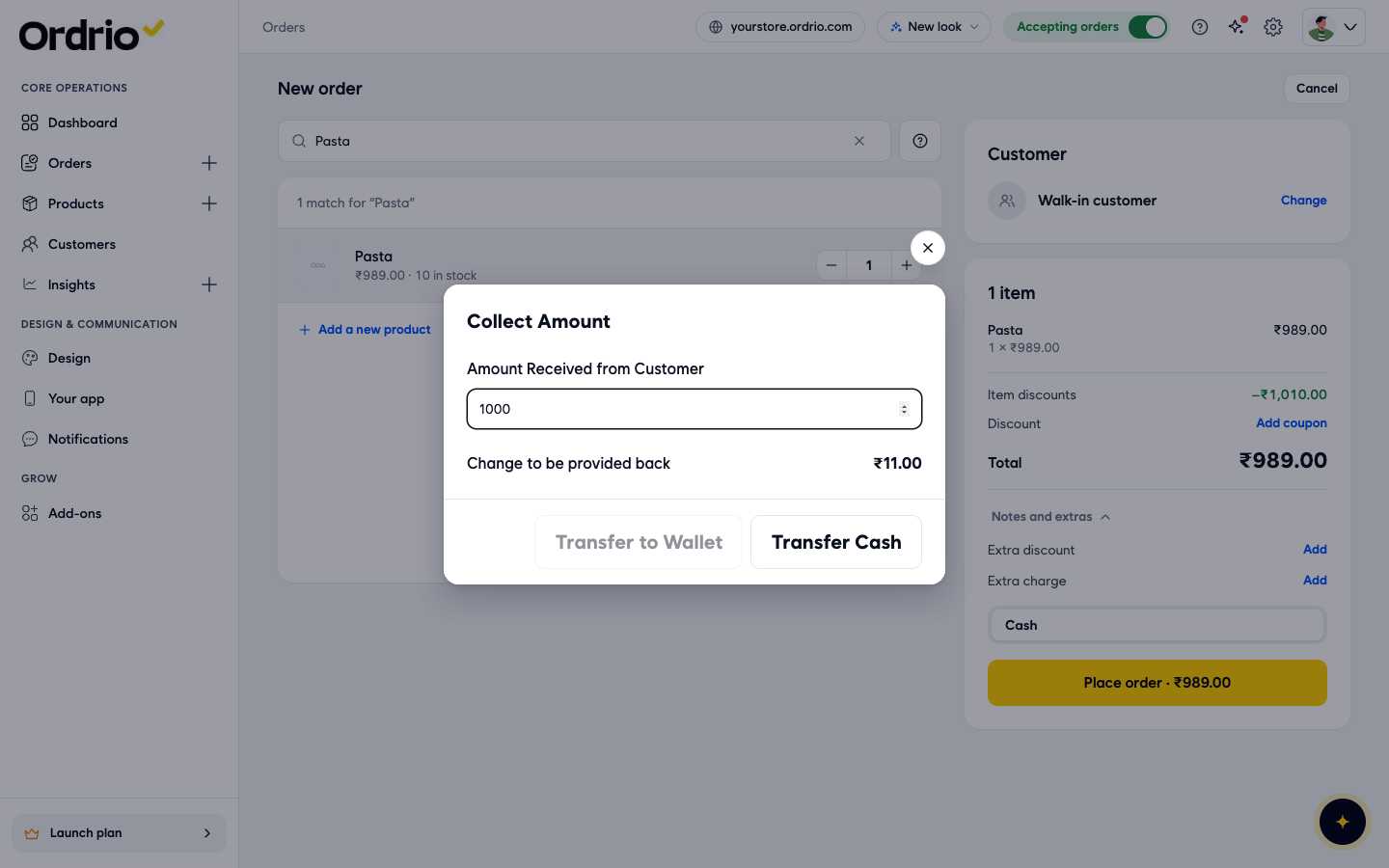
For a cash payment, the Collect Amount box opens:
- Amount Received from Customer: type the cash the customer gave you. It starts at the order total.
- Change to be provided back: Ordrio works out the change for you.
- If there is no change, click Complete Order.
- If there is change, click Transfer Cash when you hand it back in cash. Transfer to Wallet puts the change in the customer's Ordrio wallet instead. It is greyed out for a walk-in customer.
The amounts on screen are only examples. Type the amount your customer actually gave you.
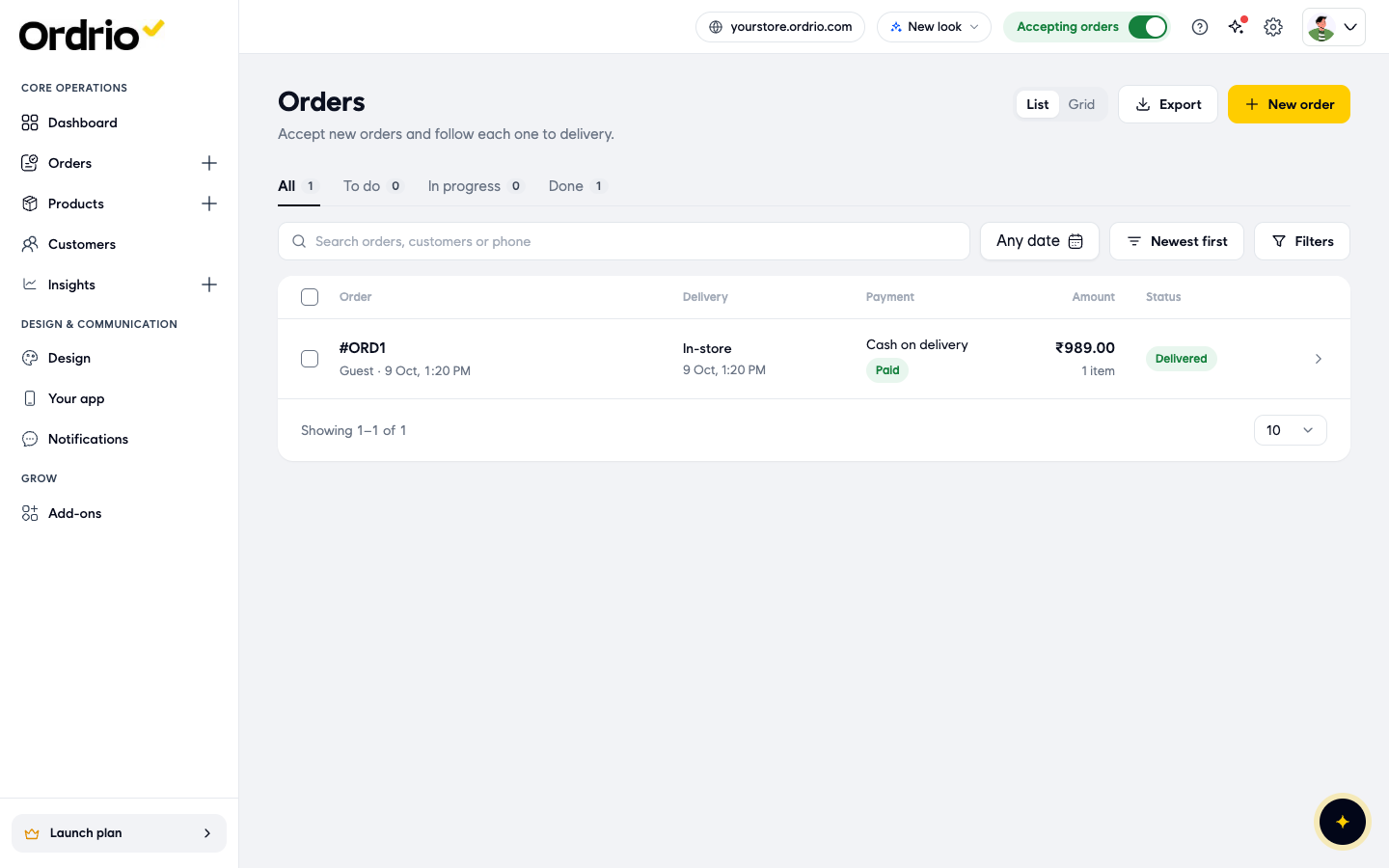
After you finish, Ordrio takes you back to Orders. The new order is in the same list as your online orders. It shows In-store under Delivery, Paid under Payment, and Delivered as its status, so it goes straight to the Done tab.
Telling online and in-store orders apart
All orders share one list, so you can see the whole day in one view. To see one kind at a time, click Filters on the Orders page, turn on what you want, and click Show orders:
- Payment Type: Online orders or COD orders (cash on delivery).
- Delivery Type: Standard delivery, Express delivery, Scheduled delivery or Scheduled pickup.
- Order Type: Web orders (from your website), App orders (from your app) or Self orders (orders your team placed in the admin with New order).
- Order kind: Extra items.
- Delivery areas and staff: click Choose areas or staff to see orders for one area or one staff member.
You can also search by order number, customer name or phone, and pick a date with Any date.
One product list for every channel
You add each product once in Products > Products. The same product, price and sizes then show on your website, in your app and in the New order search at your counter. When you change a price, it changes everywhere.
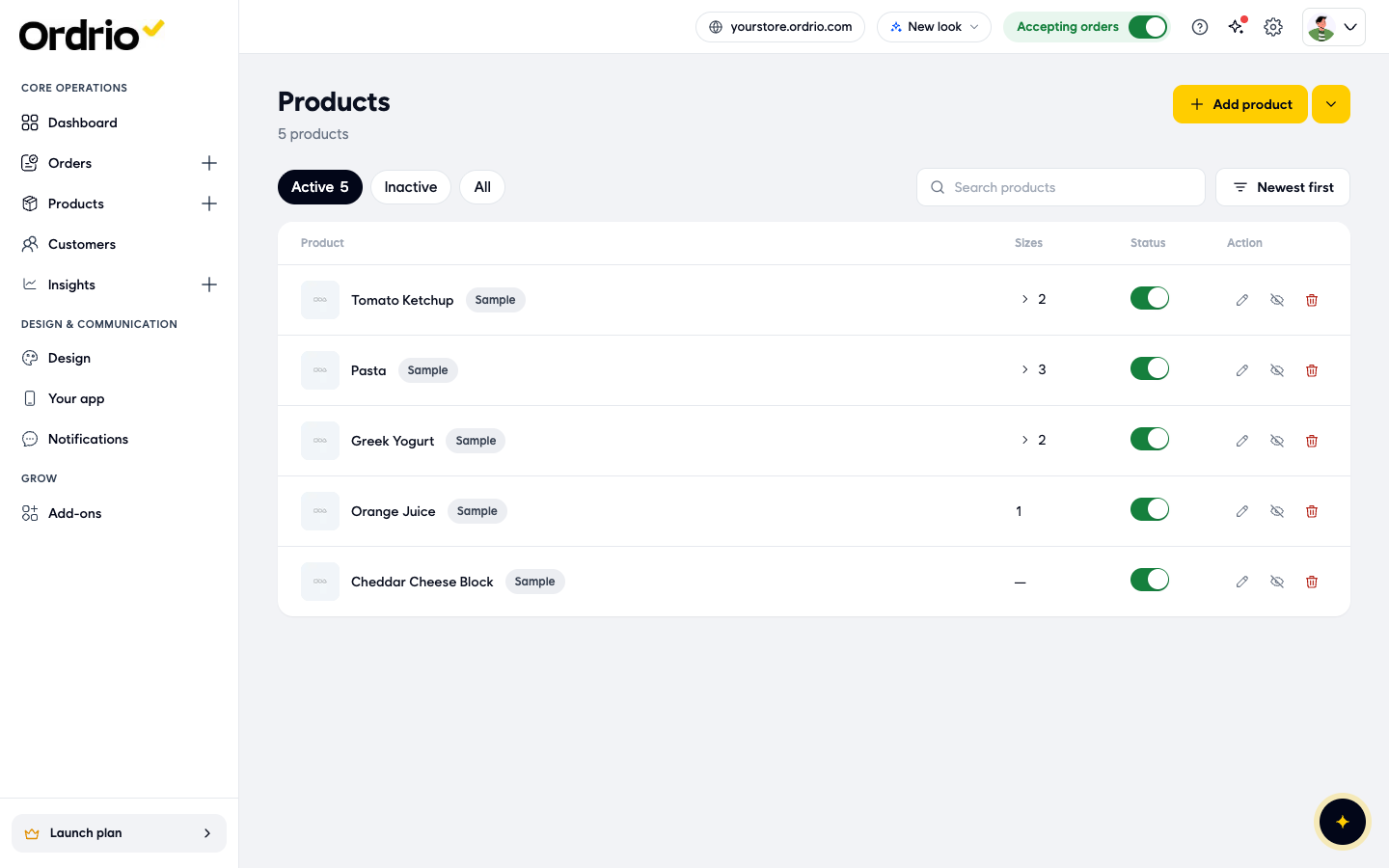
On the Products page:
- Active, Inactive and All filter the list.
- The Sizes column shows how many sizes a product has. Click it to see each size.
- The Status switch shows or hides a product. A hidden product stops showing to customers.
- The icons under Action let you edit, hide or delete a product.
Inside a product, More options > Sell on sets where it sells for regular orders: Website, App or both.
Stock
When your team adds a product to a New order, the search shows how many are in stock, so they don't sell something you don't have.
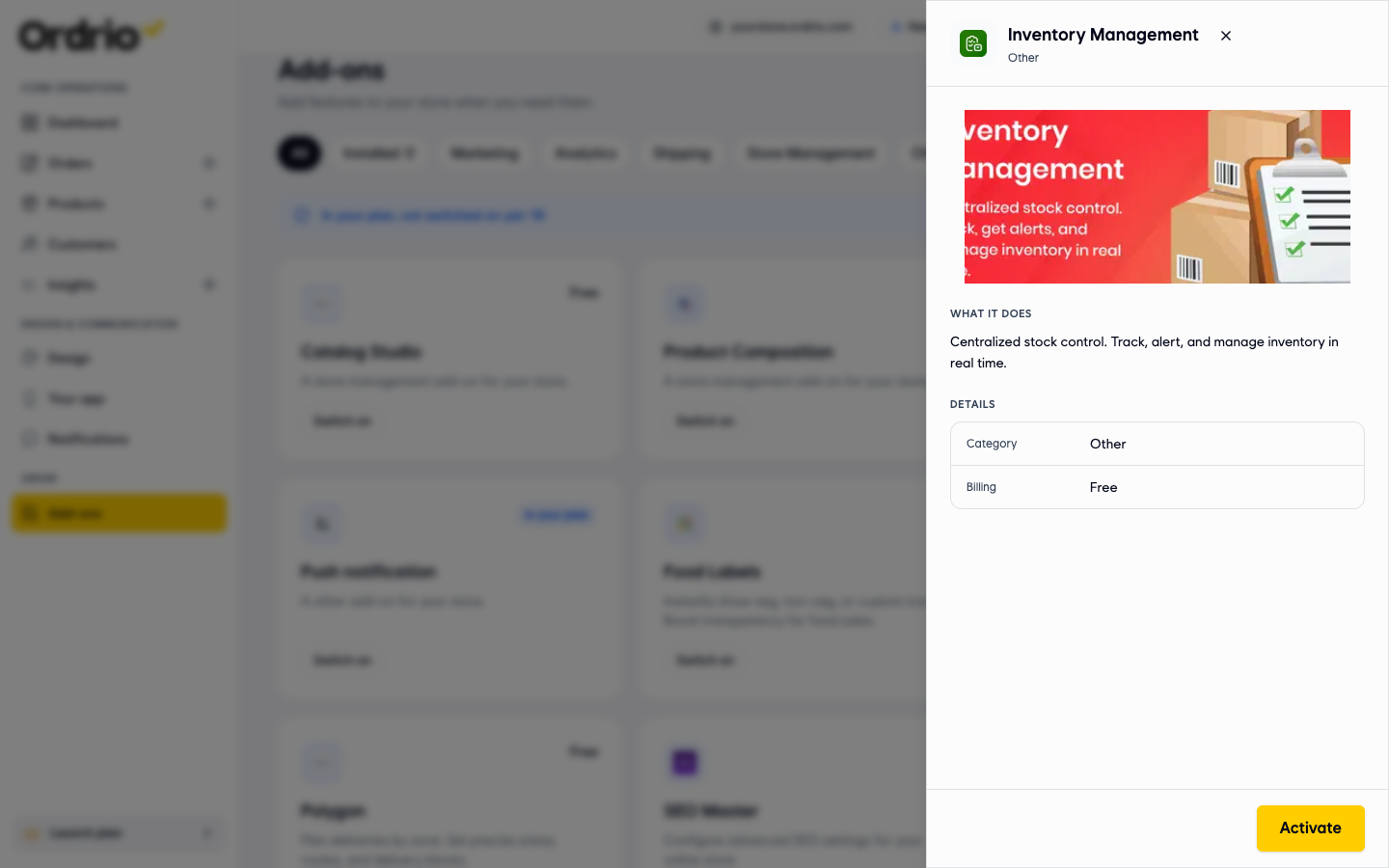
To track and manage stock in one place, switch on the Inventory Management add-on. It lets you track your stock, get alerts and manage it as it changes. It is free:
- Go to Add-ons.
- Click Inventory Management to read about it.
- Click Activate, or click Switch on on its card.
In Settings > Product settings, the Show sold-out products at the end switch keeps sold-out products at the bottom of your store. Customers then see what is in stock first.
Selling from a counter device
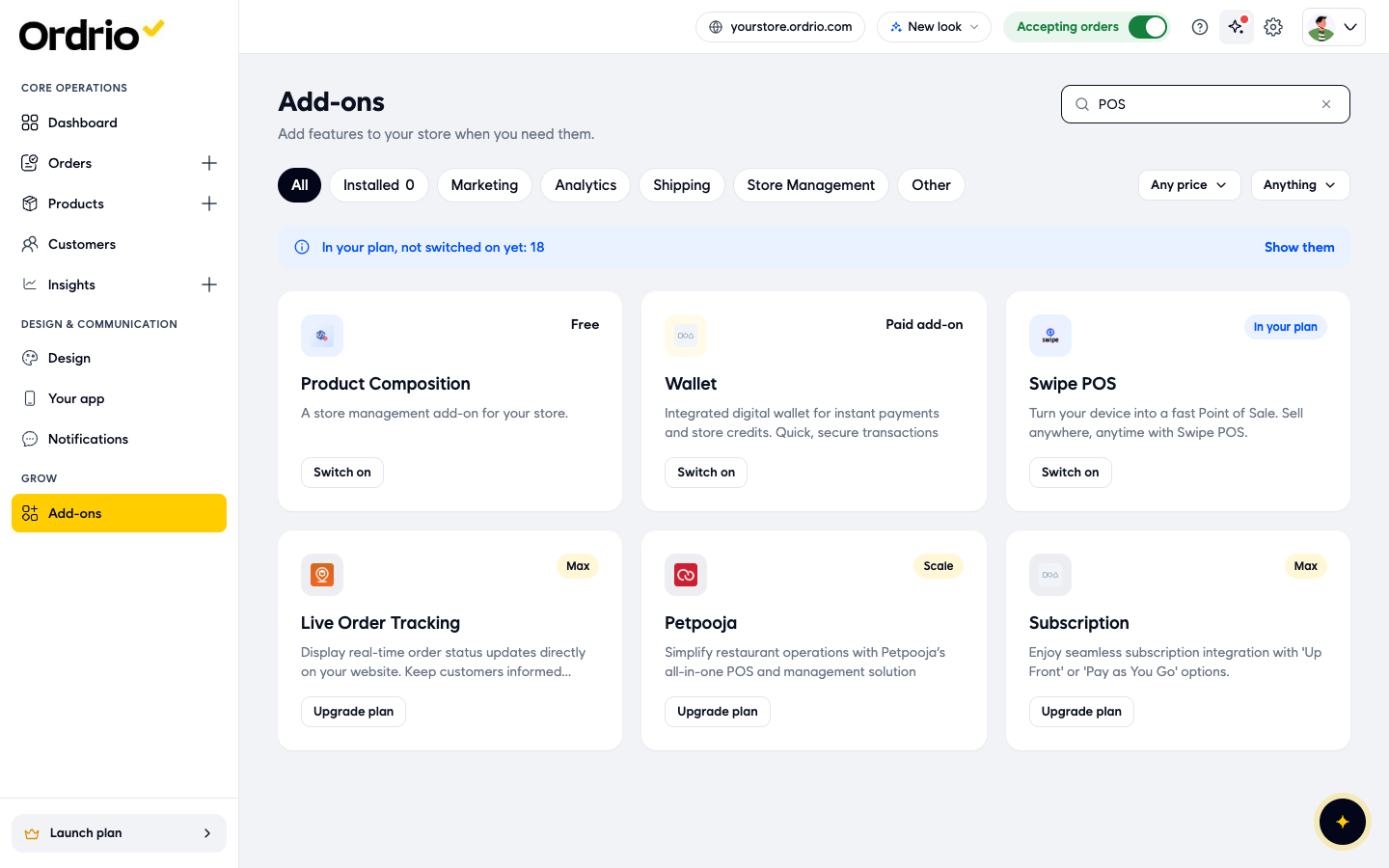
If you want a fast till for your counter, look at these in Add-ons (type "POS" in Search add-ons):
- Swipe POS: turns your device into a point of sale. It is marked In your plan for stores that already have it.
- Petpooja: a POS and management tool for restaurants. It needs a higher plan.
- Multi Branch: for more than one outlet. It tracks sales, inventory and staff per branch, and also needs a higher plan.
Each card shows whether it is Free, In your plan, a Paid add-on or needs an upgrade (Upgrade plan).
Good to know
- Online and in-store orders always share one Orders list. Use Filters > Order Type when you want to see them apart.
- An in-store order paid at the counter is marked Delivered right away. You don't need to move it through the stages.
- If you don't pick a customer, the order is saved for a walk-in customer and shows as "Guest" in the list. Pick a saved customer if you want the order in their history.
- Products and prices are shared, so check a change once and it applies to every channel that sells that product.
- Add-ons that say Upgrade plan are not in your current plan. Your current plan is shown at the bottom of the menu.
Related
- What is Ordrio
- Recommended setup order for new stores
- Adding your first products
- Managing orders day to day