هذا المقال غير متوفر بالعربية بعد، لذلك نعرضه بالإنجليزية.
دليل استخدام
Order notes and internal comments
Leave notes for staff, packers or riders.
Add notes to an order so your staff, packers and the person delivering know exactly what to do. Each order can have an order note, a note from the customer and a delivery note, and every change is logged so you can see who changed what.
Steps
- Open nadi.ordrio.com (your Ordrio admin panel) and log in.
- In the left menu, click Orders, then click Orders in the list that opens. You see all your orders, with the tabs All, To do, In progress and Done.
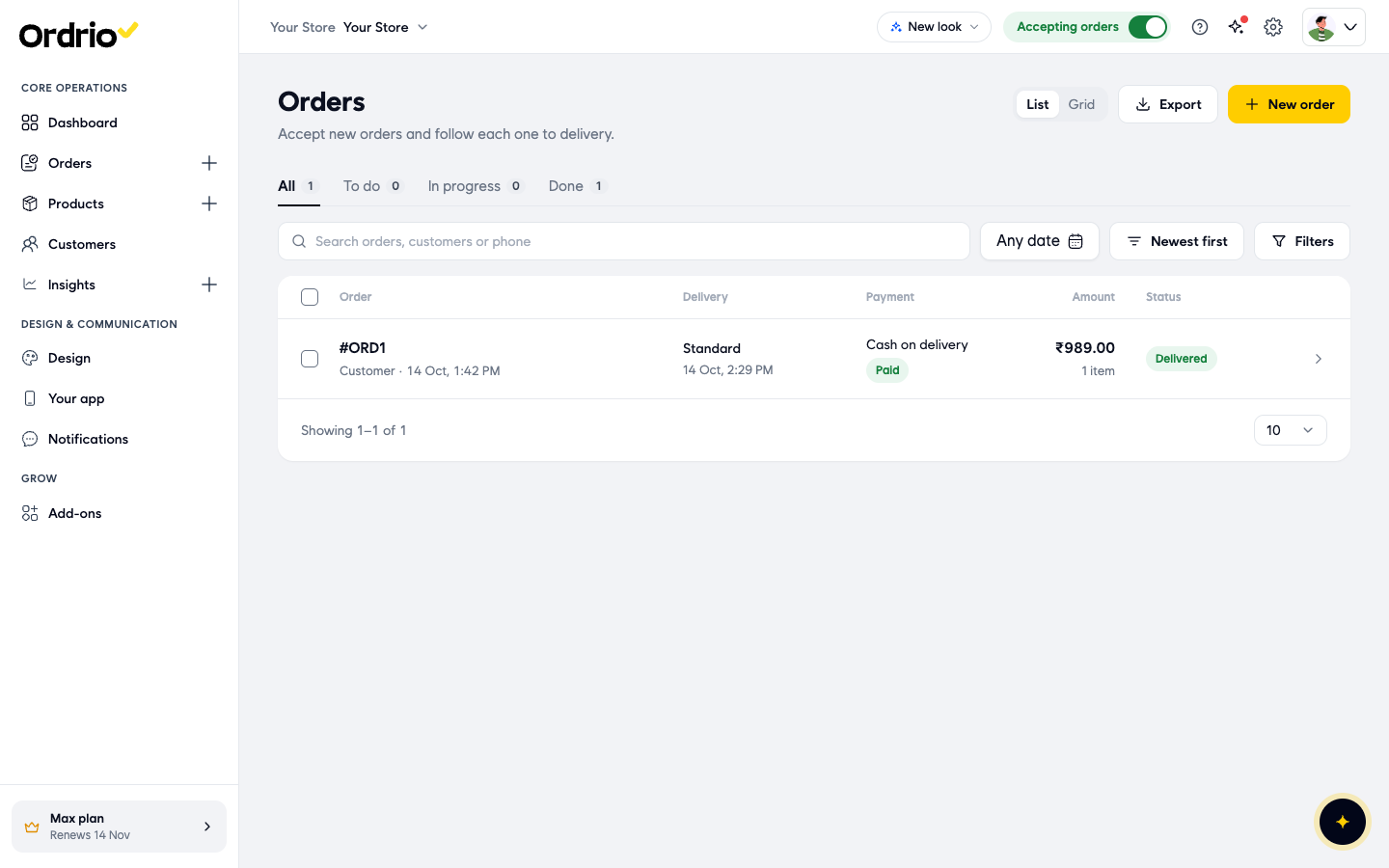
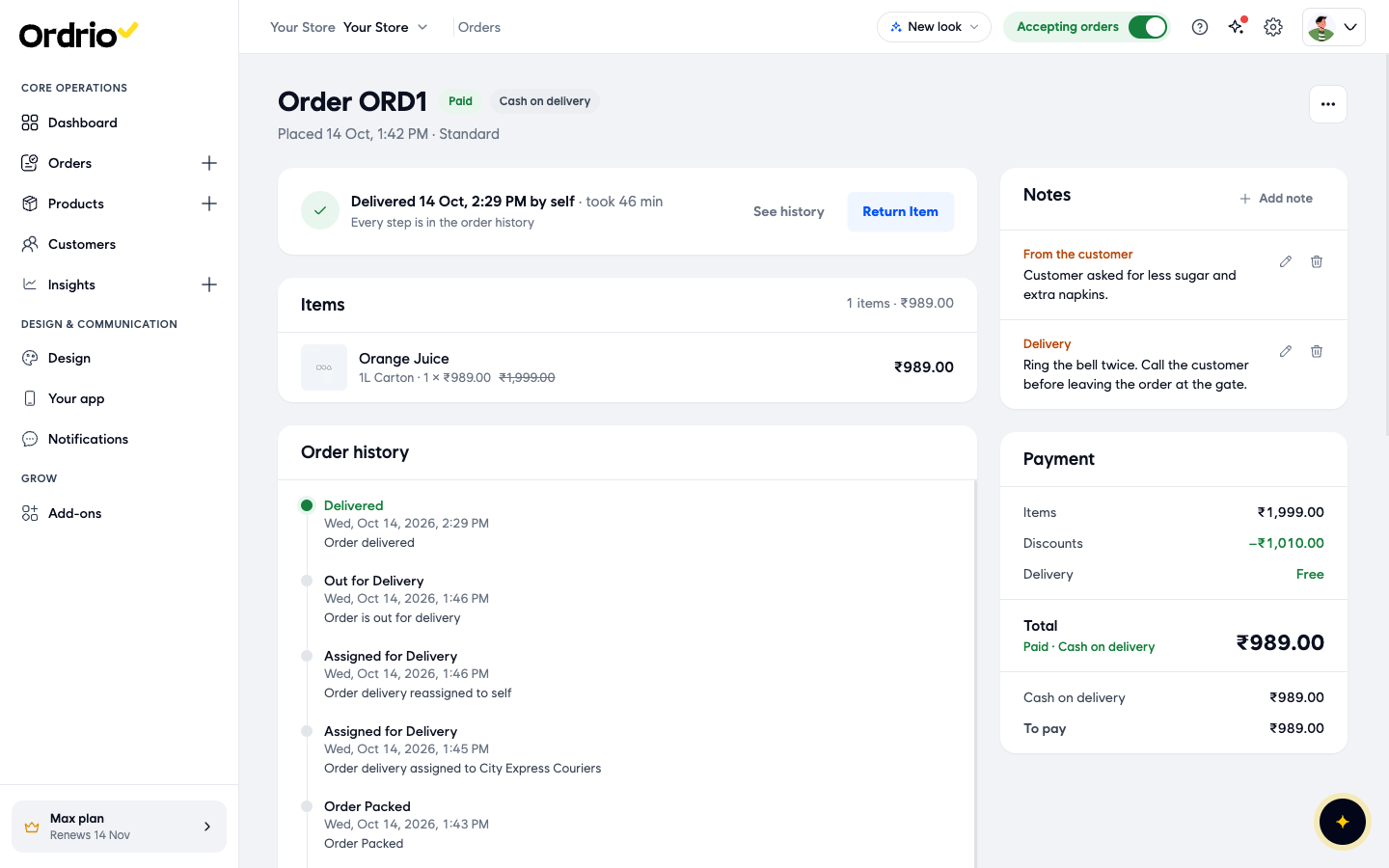
- Click the order you want to add a note to. The order page opens. The Notes box is on the right, above Payment. If the order has no notes yet, it says "No notes on this order".
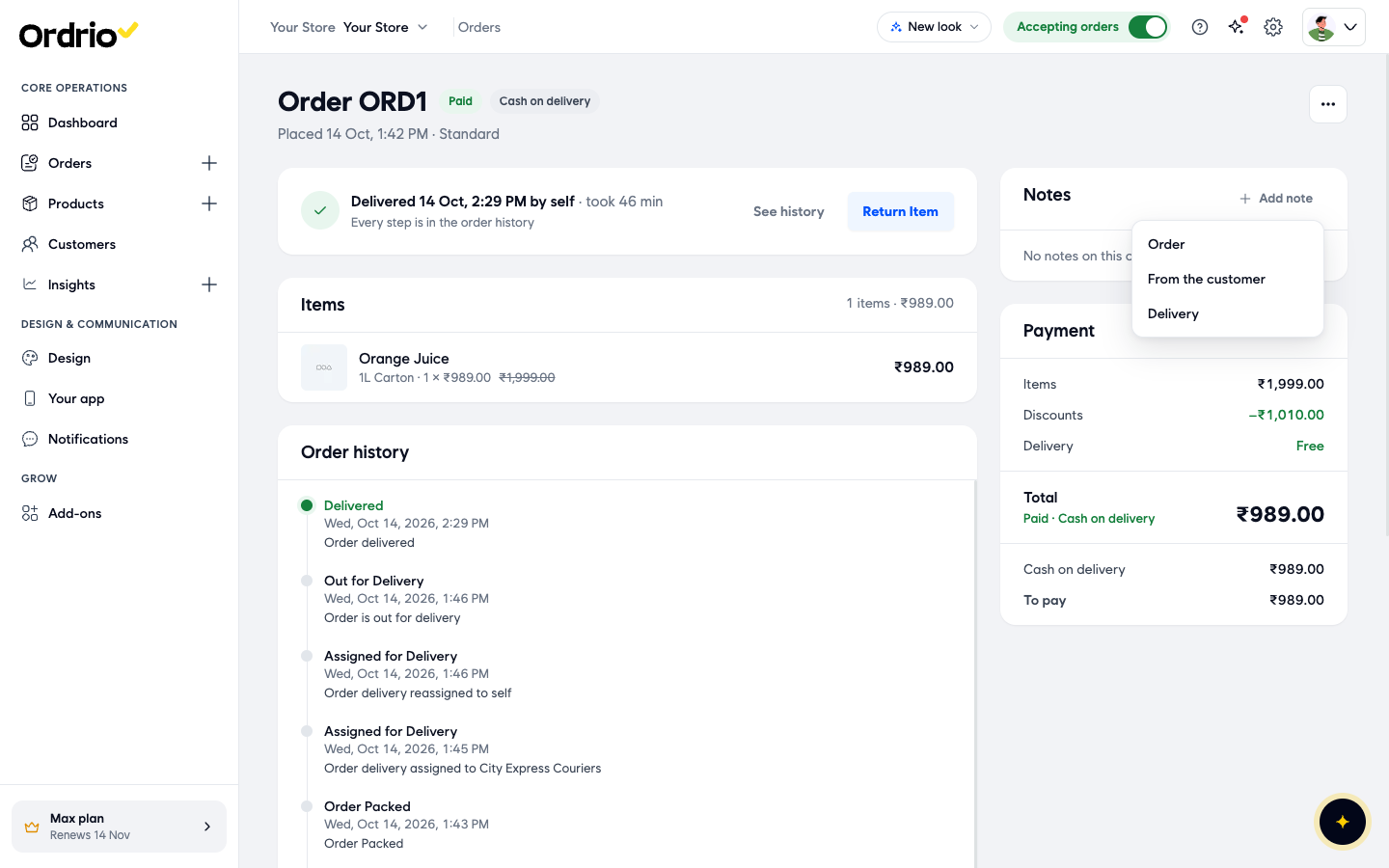
- In the Notes box, click Add note and choose the type of note:
- Order: for your staff and packers, for example how to pack the items.
- From the customer: for something the customer asked for, for example on a phone call.
- Delivery: for the person delivering, for example how to find the house or where to leave the order.
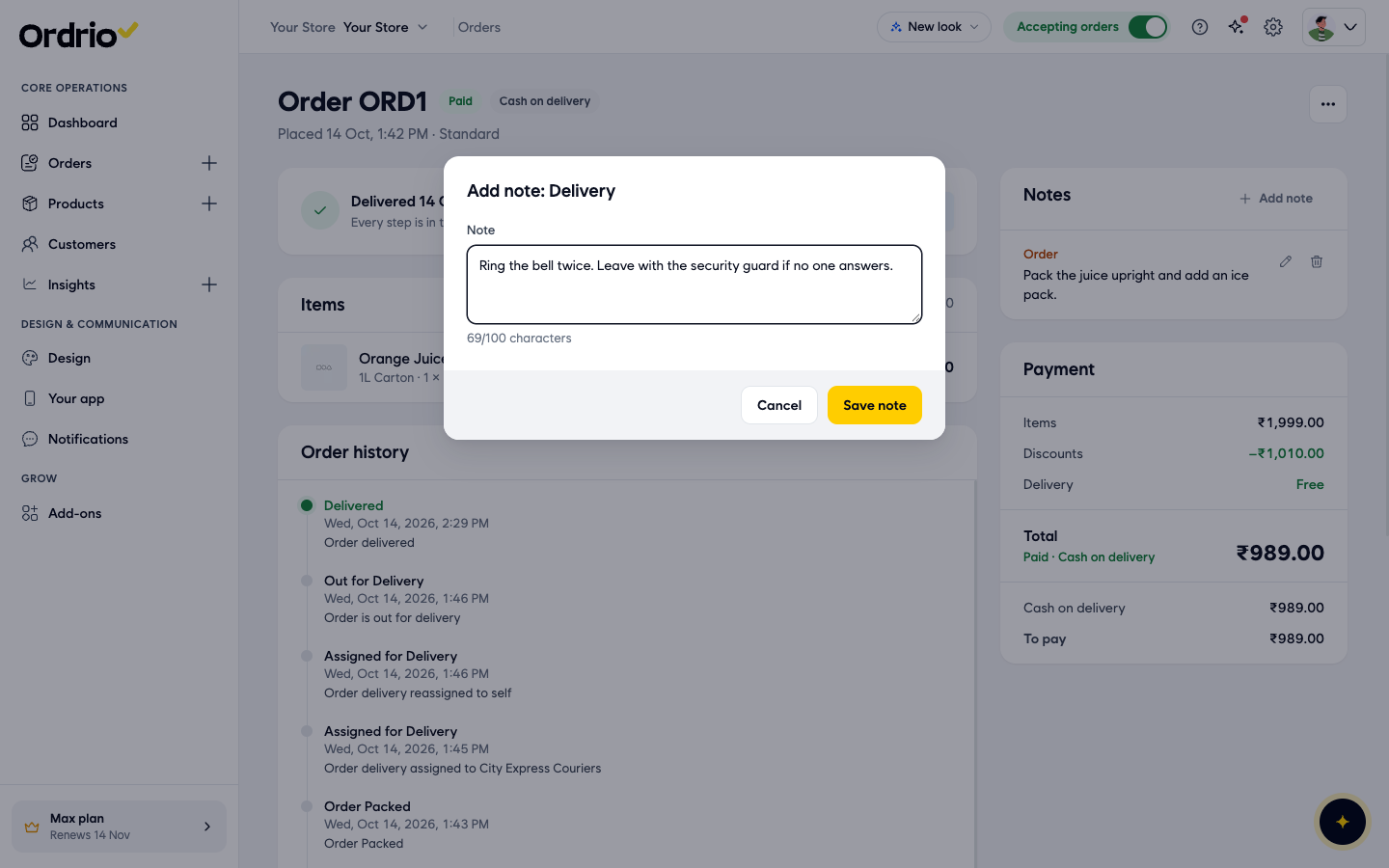
- A box called Add note opens with the type you chose (for example Add note: Order). Type your note in the Note field. You can use up to 100 characters, and the counter under the field shows how many you have used. The notes in these pictures are examples. Write your own.
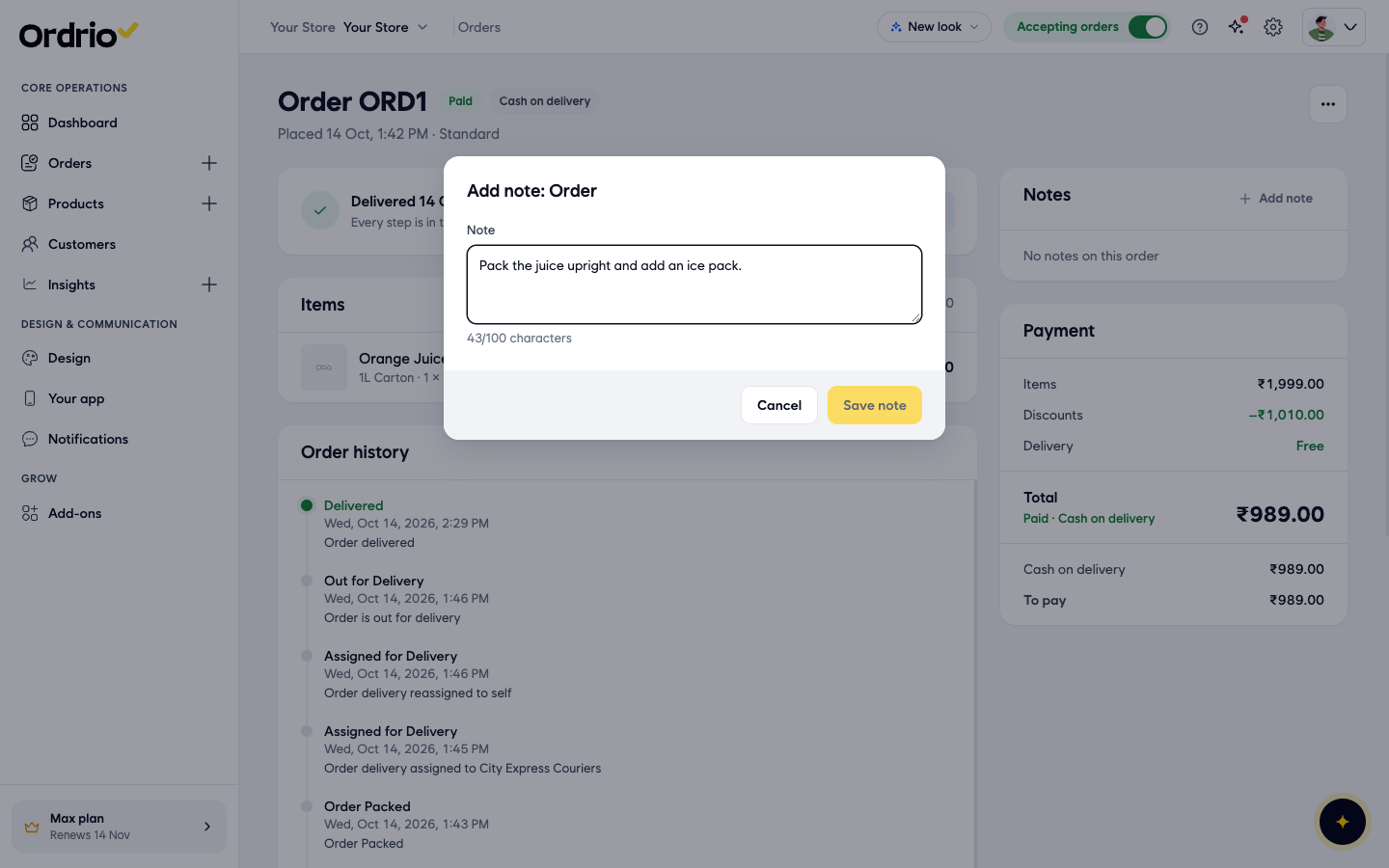
- Click Save note. The note now shows in the Notes box, with its type above the text. To close the box without saving, click Cancel.
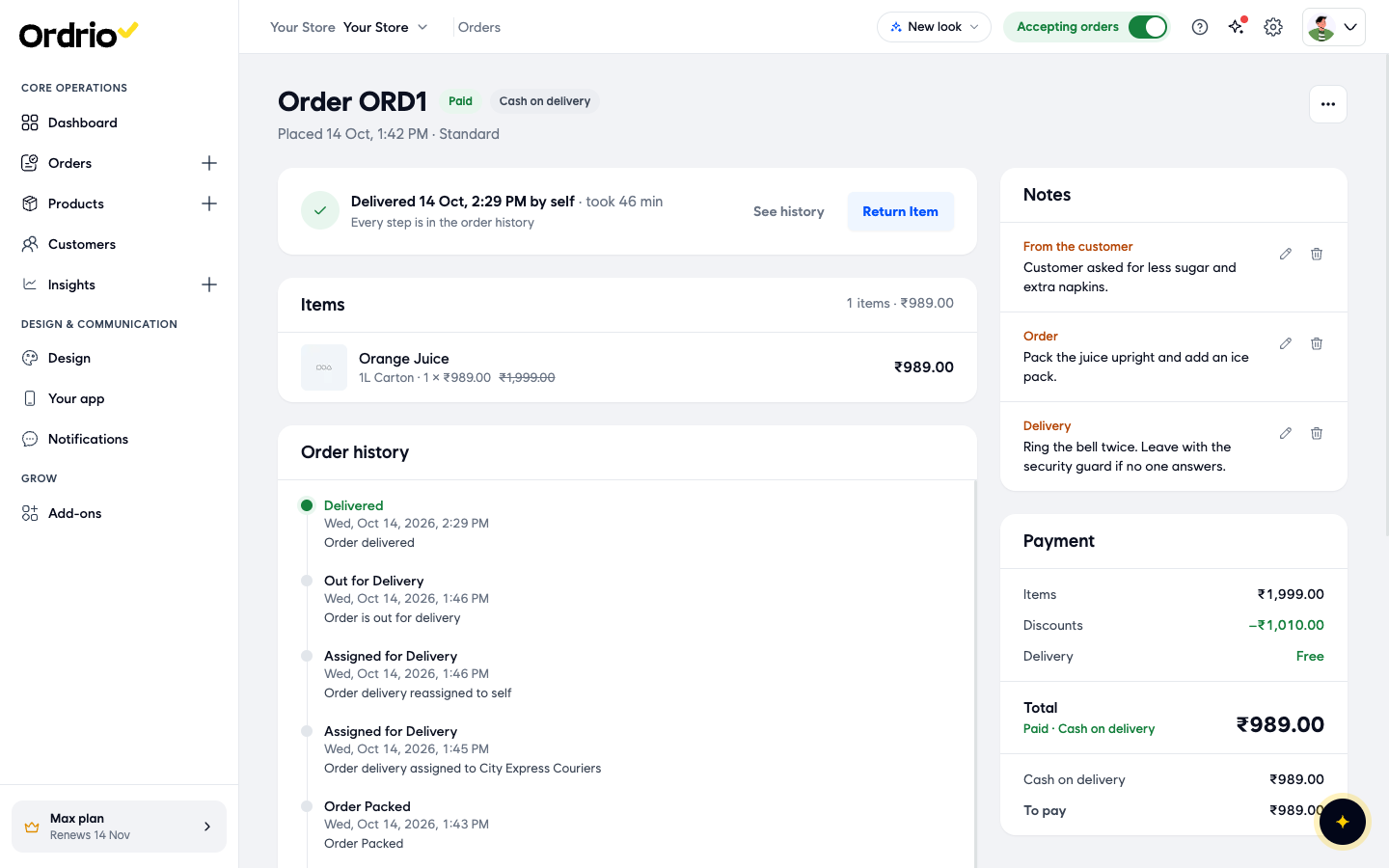
- To change a note, click the pencil icon next to it. The Edit note box opens with the current text. Change the text in the Note field and click Save note.
- To remove a note, click the bin icon next to it. The note is deleted straight away, without a confirmation message, so check you picked the right one.
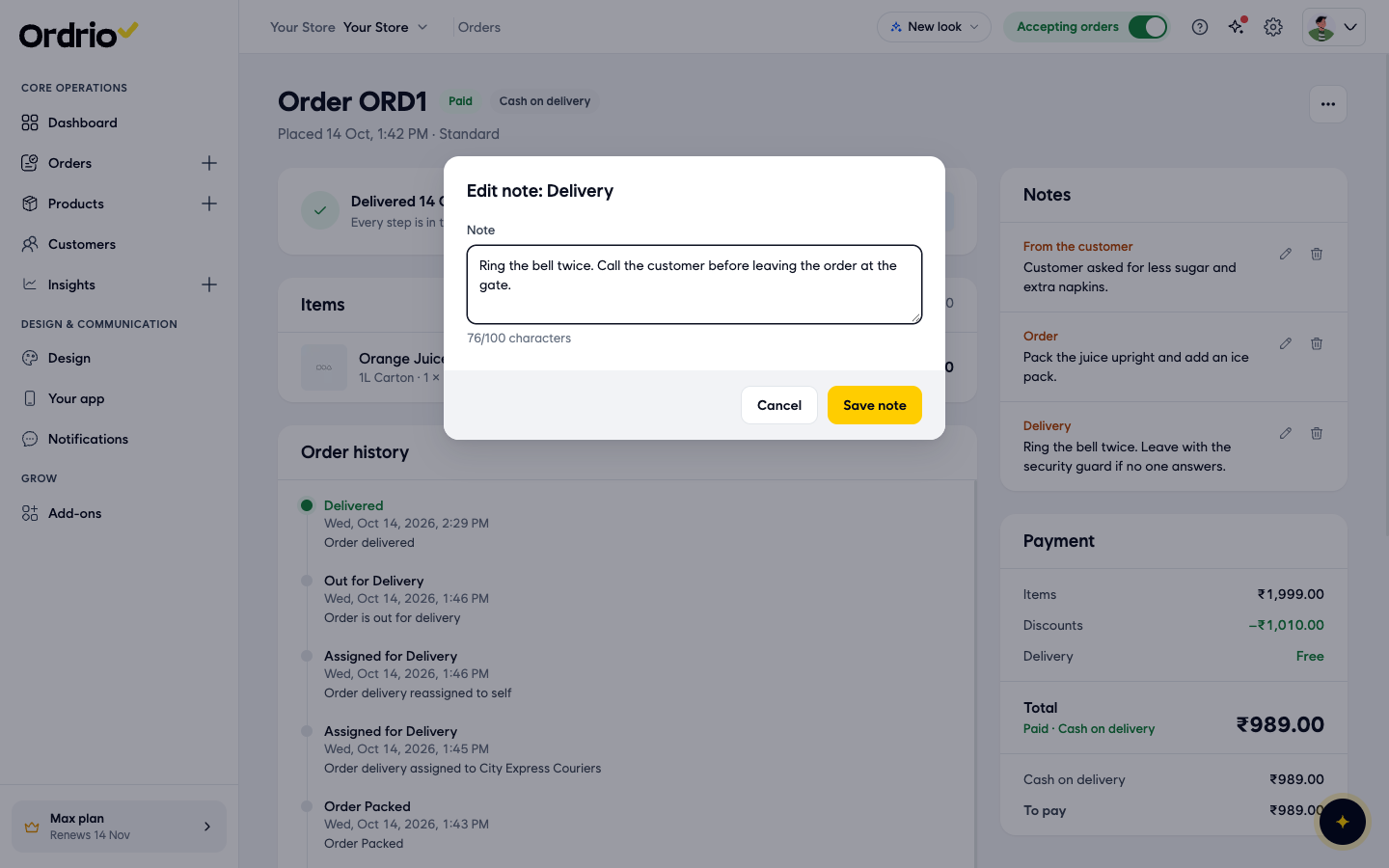
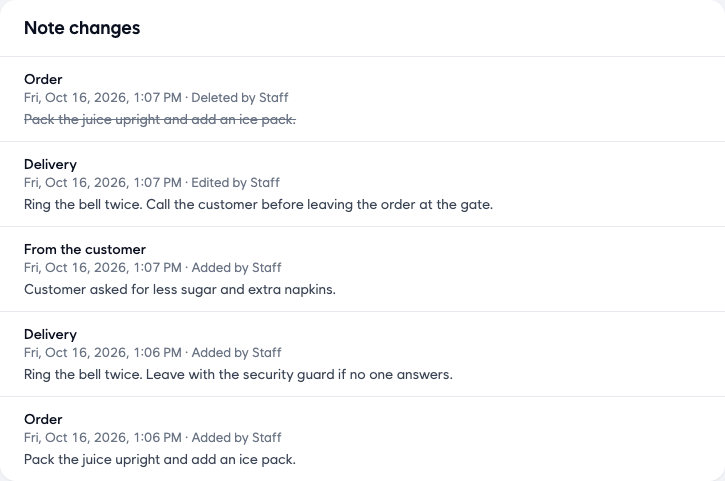
- To see every change to the notes, scroll down the order page to Note changes. Each entry shows the note type, the date and time, whether it was added, edited or deleted, who did it, and the note text. Deleted notes are shown crossed out. You may need to refresh the page to see the latest changes.
The three note types
Each type has its own colour label in the Notes box, so your team can spot them quickly.
- Order: instructions for the people preparing the order, such as "Pack the juice upright and add an ice pack."
- From the customer: what the customer asked for, such as "Customer asked for less sugar and extra napkins."
- Delivery: instructions for the delivery, such as "Ring the bell twice. Call the customer before leaving the order at the gate."
Good to know
- Each order can have one note of each type. Once you add an Order note, Order no longer shows in the Add note menu. To change it, edit the note you already have.
- When an order has all three notes, the Add note button no longer shows.
- A note can be up to 100 characters. Keep it short and clear.
- You can add, edit and delete notes on any order, including orders that are already delivered.
- Notes are added from the order page. The New order screen does not have a notes field, so place the order first and then open it to add a note.
- If you delete a note by mistake, the deleted text stays in Note changes, so you can add it again.
Related
- Viewing and managing orders
- Order statuses explained
- Assigning orders to riders and delivery partners
هل كان هذا المقال مفيداً؟