هذا المقال غير متوفر بالعربية بعد، لذلك نعرضه بالإنجليزية.
مرجع
Order statuses explained
Each order stage and the actions available at every step.
Every order in Ordrio moves through a set of stages, from the moment a customer places it until it reaches them. This article explains each stage, what it means, and the buttons you can use at every step.
Where to see order statuses
Open nadi.ordrio.com (your Ordrio admin panel) and log in. In the menu on the left, click Orders, then Orders again.
The list has four tabs at the top. Each tab shows how many orders are in it:
- All: every order.
- To do: new orders waiting for you to accept them.
- In progress: orders you are working on, for example orders being processed.
- Done: delivered orders and cancelled orders.
Each row shows the order number, the customer and the time it was placed, the delivery type, the payment method and payment state, the amount, and the order's Status. Click a row to open the order.
You can switch between List and Grid views at the top right. Both show the same orders and statuses.
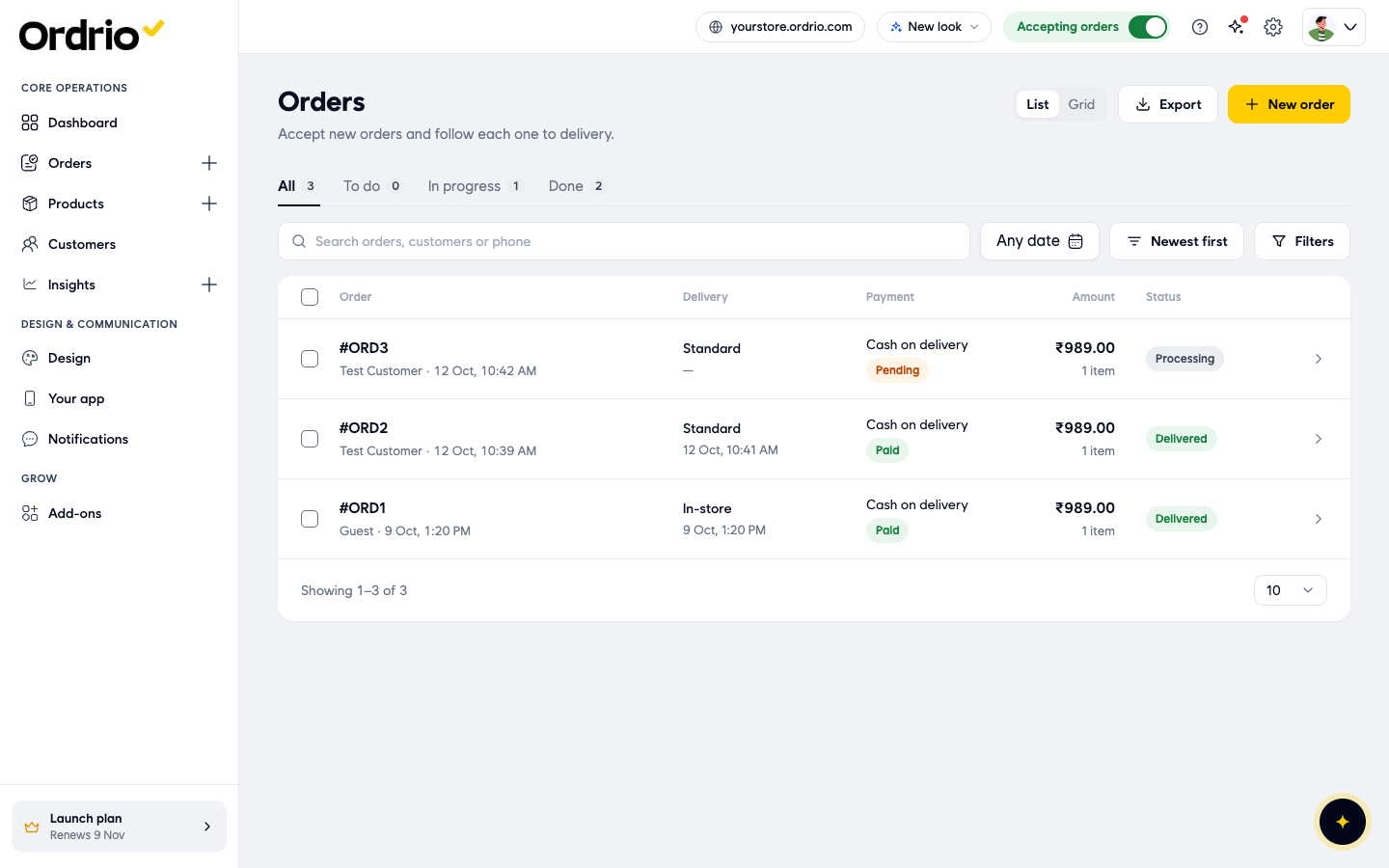
The screenshots in this article use an example order and an example customer. Your own orders show your own customers.
The order stages
When you open an order, the top of the page shows a progress bar with every stage. A dot fills in and the time appears under each stage as the order moves along. Next to it, Ordrio tells you what is happening now and shows the button for the next step.
The stages for a delivery order are:
- New
- Accepted
- Processing
- Packed
- Rider assigned
- Out for delivery
- Delivered
An order can also be Cancelled at any point before it is delivered.
New (shown as Received in the list)
A new order lands in the To do tab with the status Received.
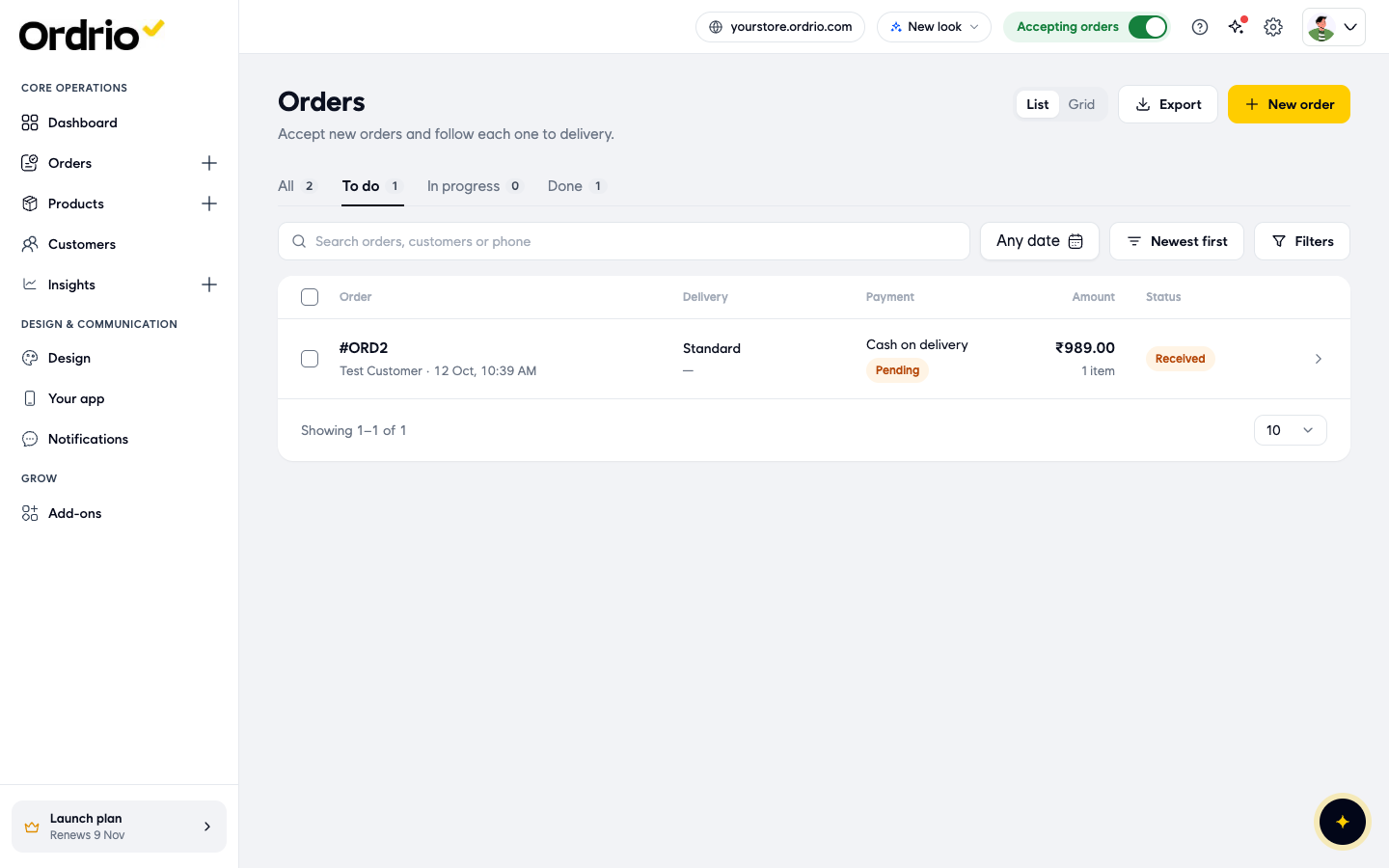
When you open it, the progress bar is on New and the page says Waiting for you to accept. Until you accept, the customer sees "Store is confirming your order".
What you can do:
- Accept: confirms the order. Ordrio asks "Would you like to accept this order?". Click Accept again to confirm.
- Decline: cancels the order (see Cancelled below).
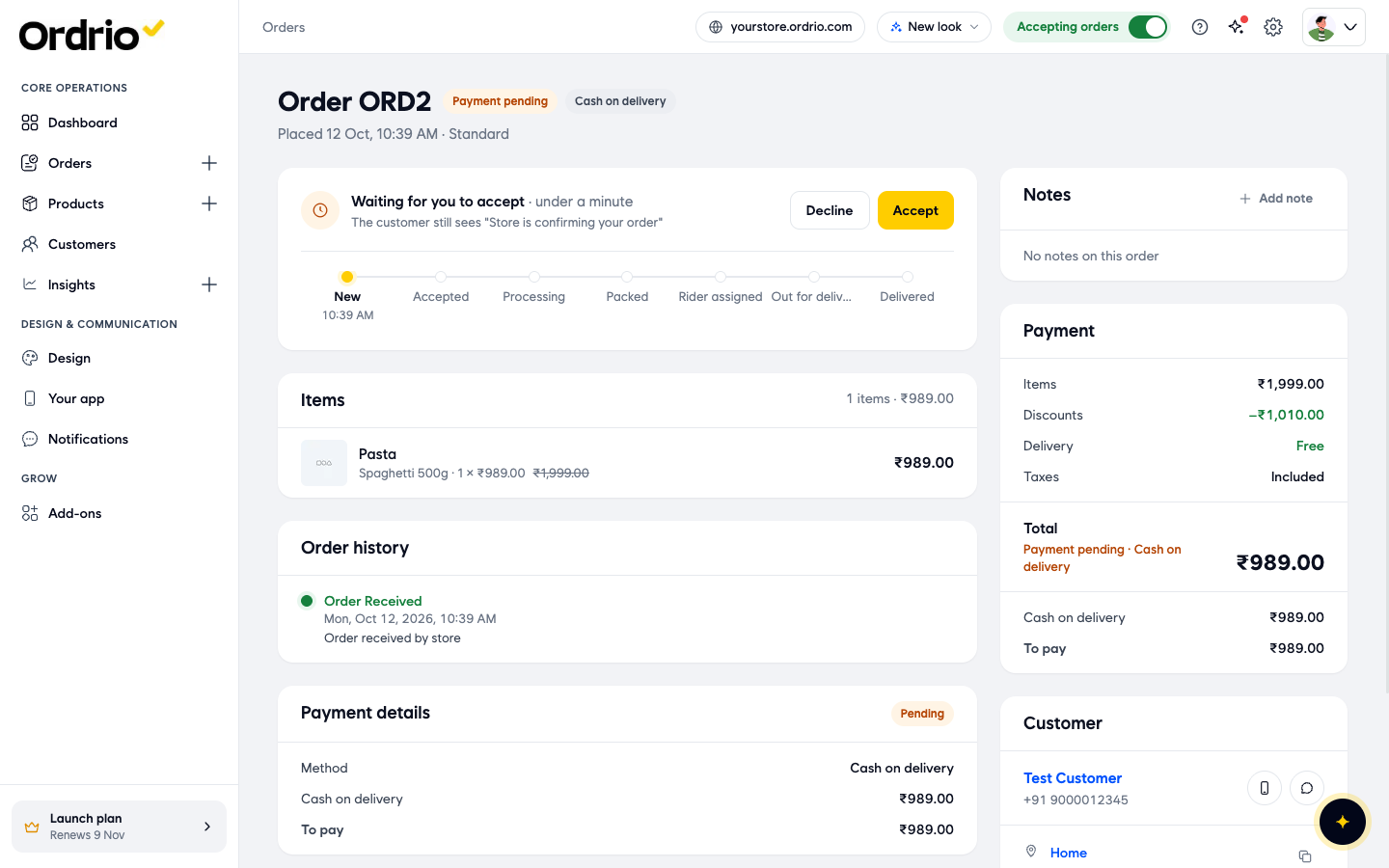
Accepted
The order is confirmed. The page says Accepted and "Start processing when you are ready".
What you can do:
- Start processing: moves the order to Processing.
- The ... (More actions) button next to it has Edit order, to change the order, and Cancel order.
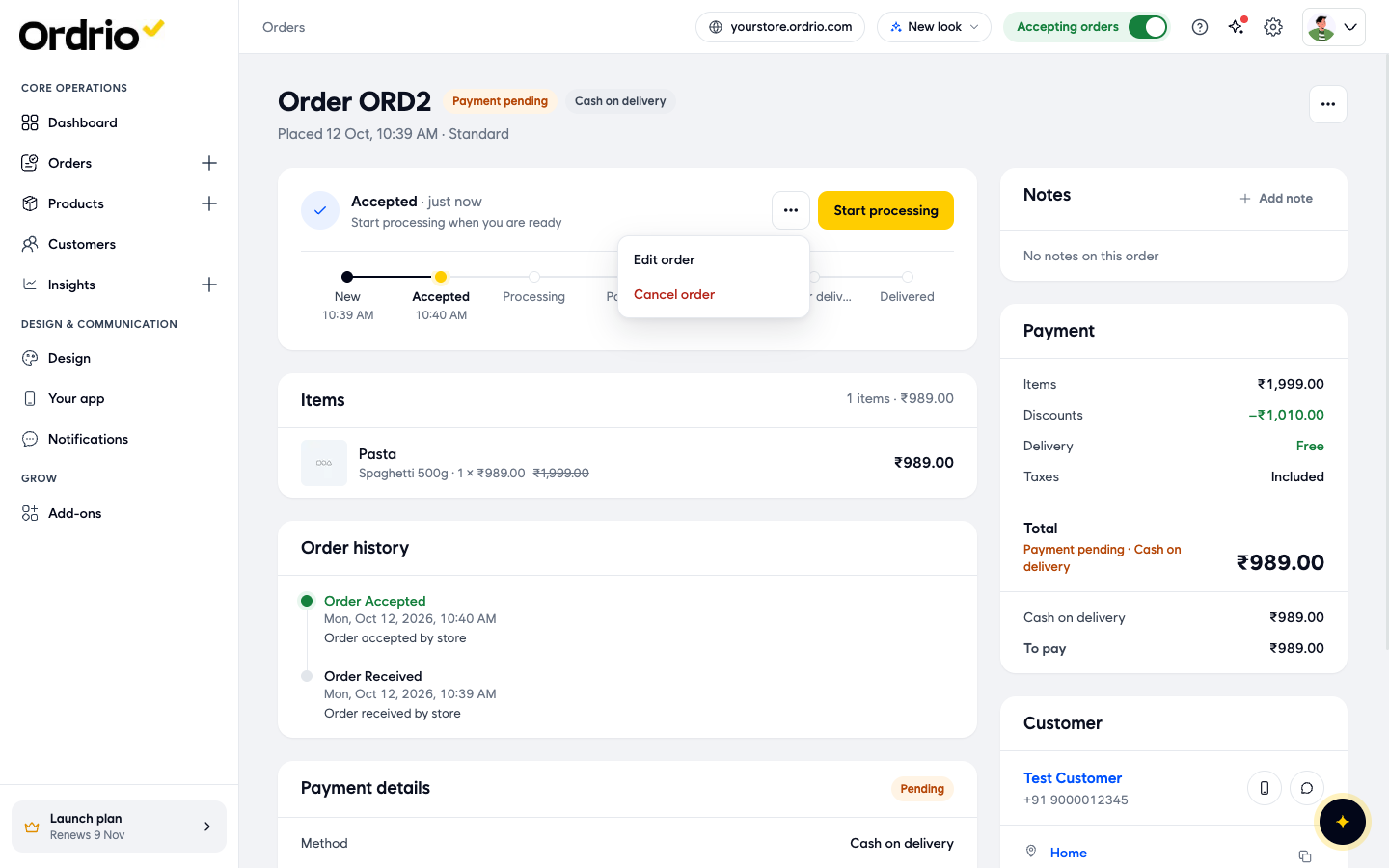
Processing
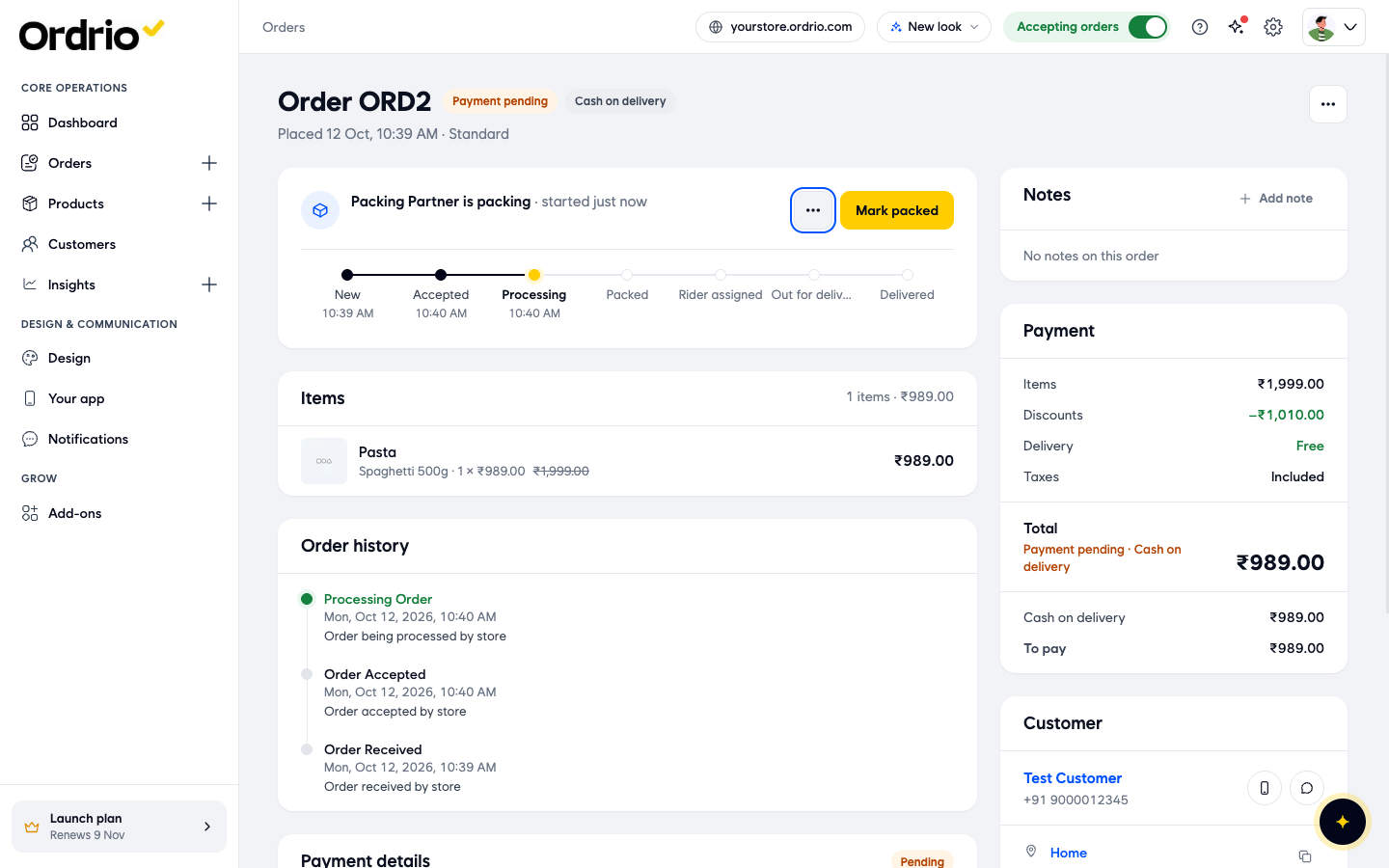
Your team is picking and packing the order. The order is in the In progress tab with the status Processing, and the order page shows who is packing it.
What you can do:
- Mark packed: moves the order to Packed.
- More actions has Cancel order.
Packed
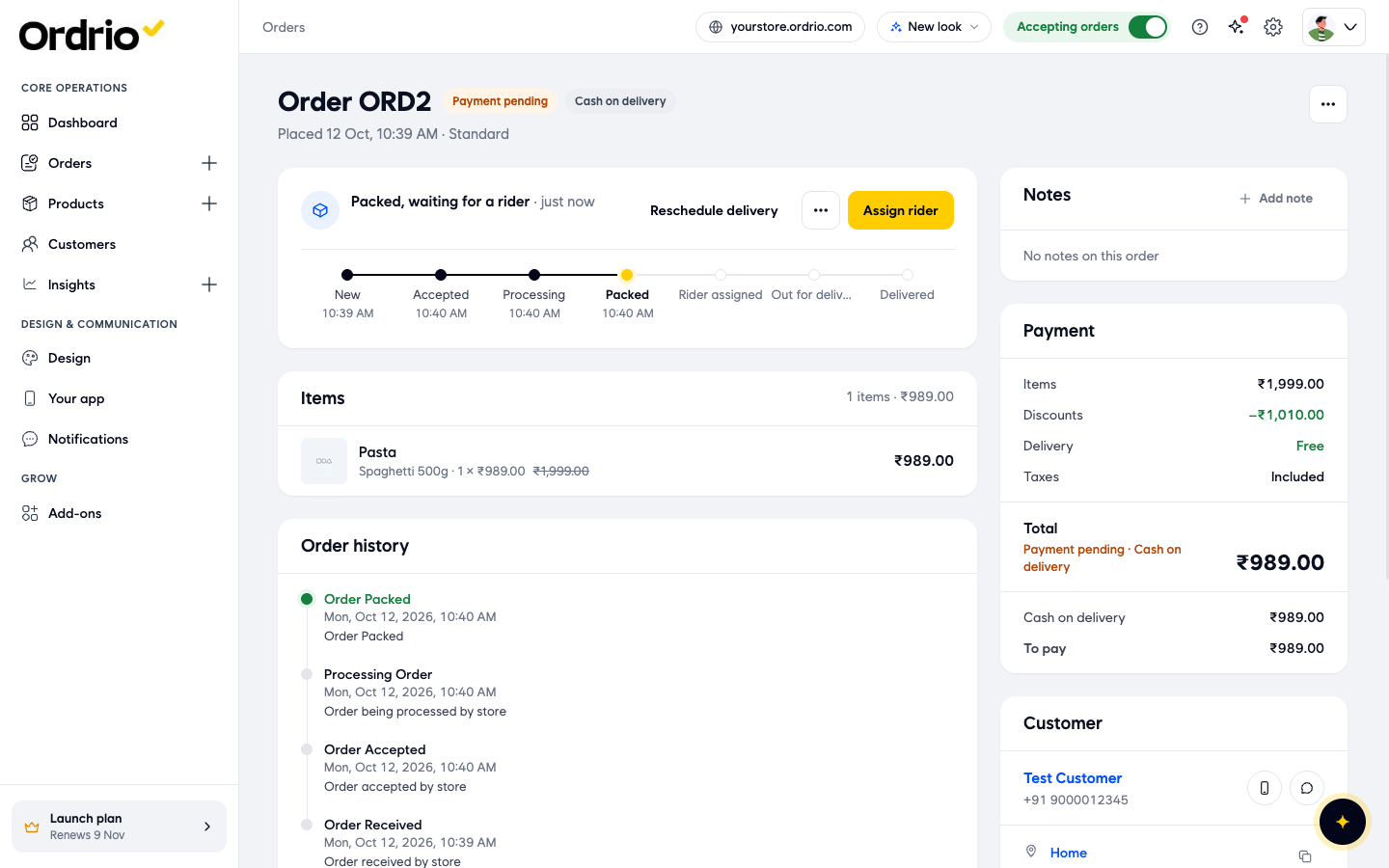
The order is ready and the page says Packed, waiting for a rider.
What you can do:
- Assign rider: opens Choose Delivery Option (see the next section).
- Reschedule delivery: moves the order to a new delivery slot. Pick a reason (Customer unavailable, Customer asked for another day, Could not deliver or Other), pick the new slot and click Reschedule. The order stays packed and ready for the new day. A packed order can only move to a new slot, so if your delivery method has no delivery slots, you cannot reschedule it.
- More actions has Cancel order.
Rider assigned
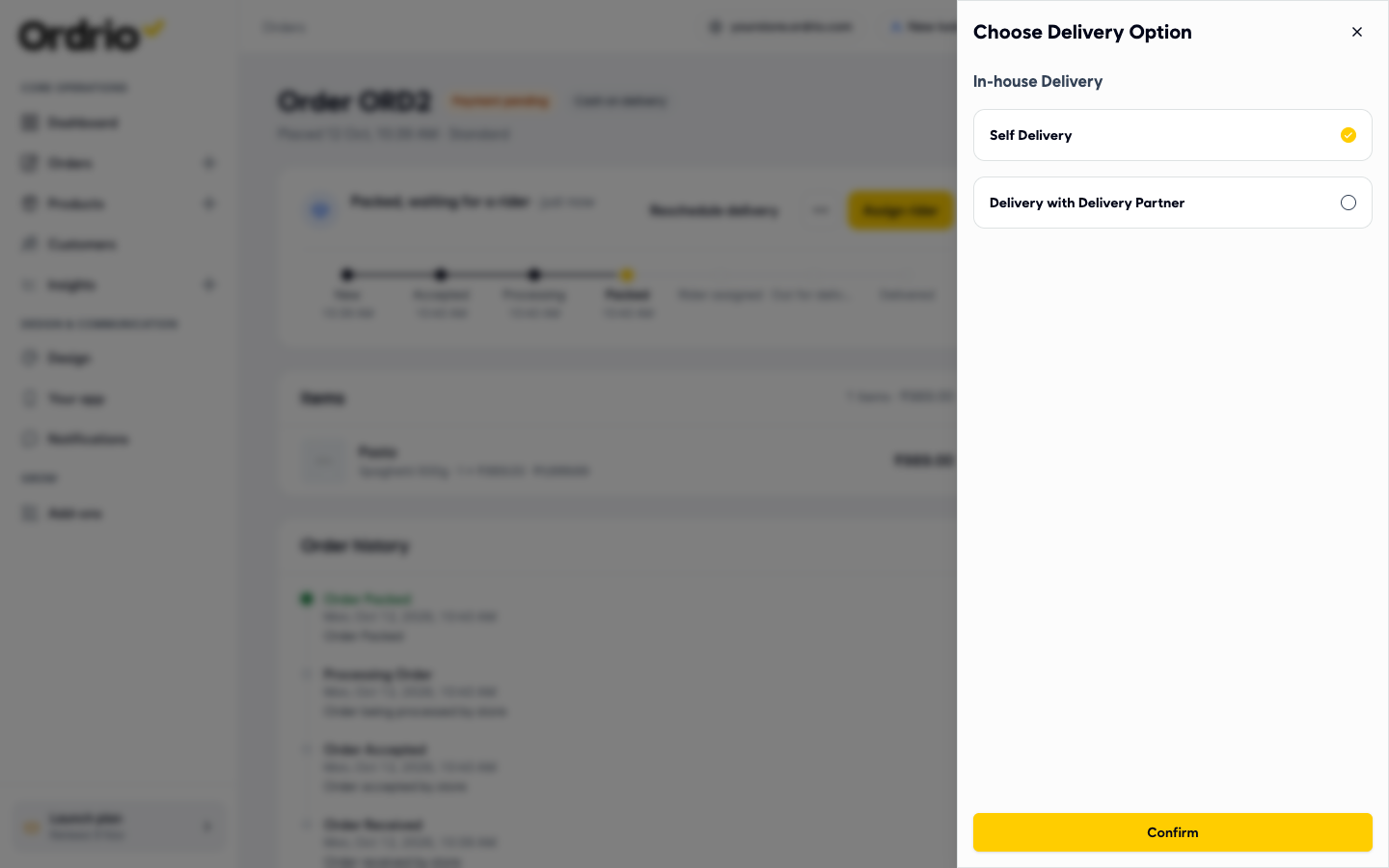
When you click Assign rider, the Choose Delivery Option panel opens. Under In-house Delivery, choose:
- Self Delivery: you or your team deliver the order yourselves.
- Delivery with Delivery Partner: a delivery partner delivers it.
Click Confirm.
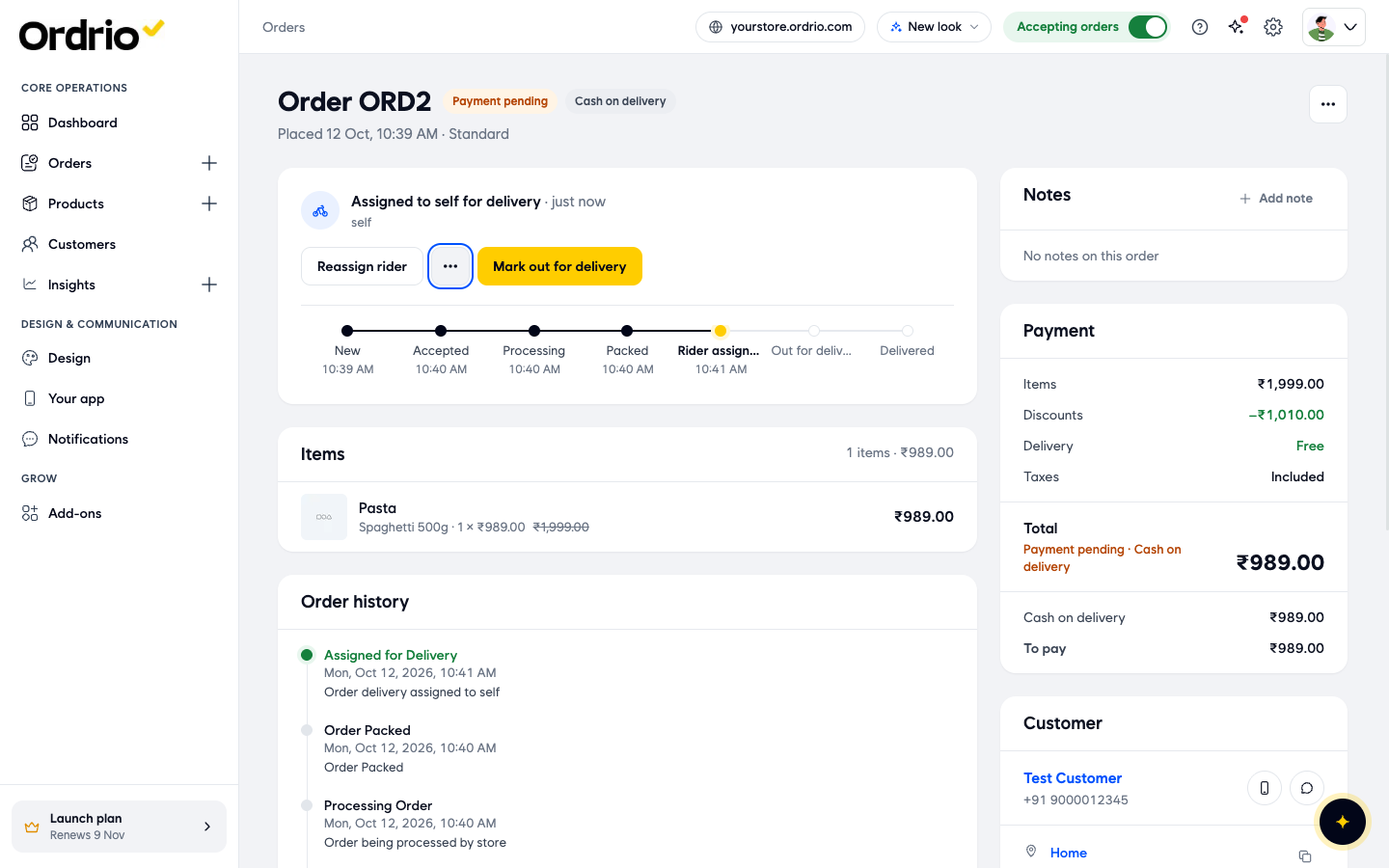
The progress bar moves to Rider assigned and the page shows who will deliver the order.
What you can do:
- Mark out for delivery: use this when the order leaves your store.
- Reassign rider: change who delivers the order.
- More actions has Cancel order.
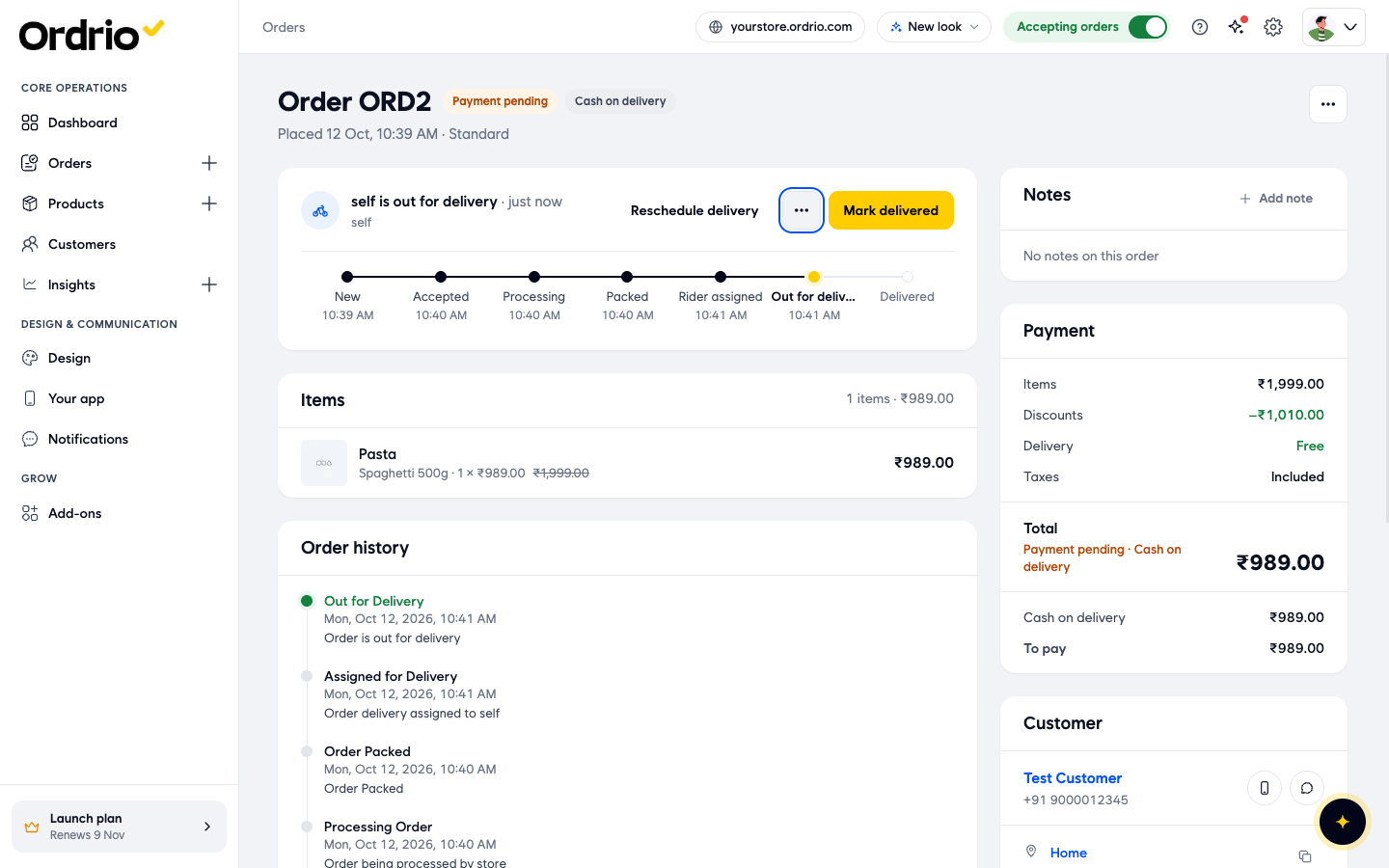
Out for delivery
The order is on its way to the customer.
What you can do:
- Mark delivered: use this when the customer has the order.
- Reschedule delivery: move it to another slot, as in Packed.
- More actions has Cancel order.
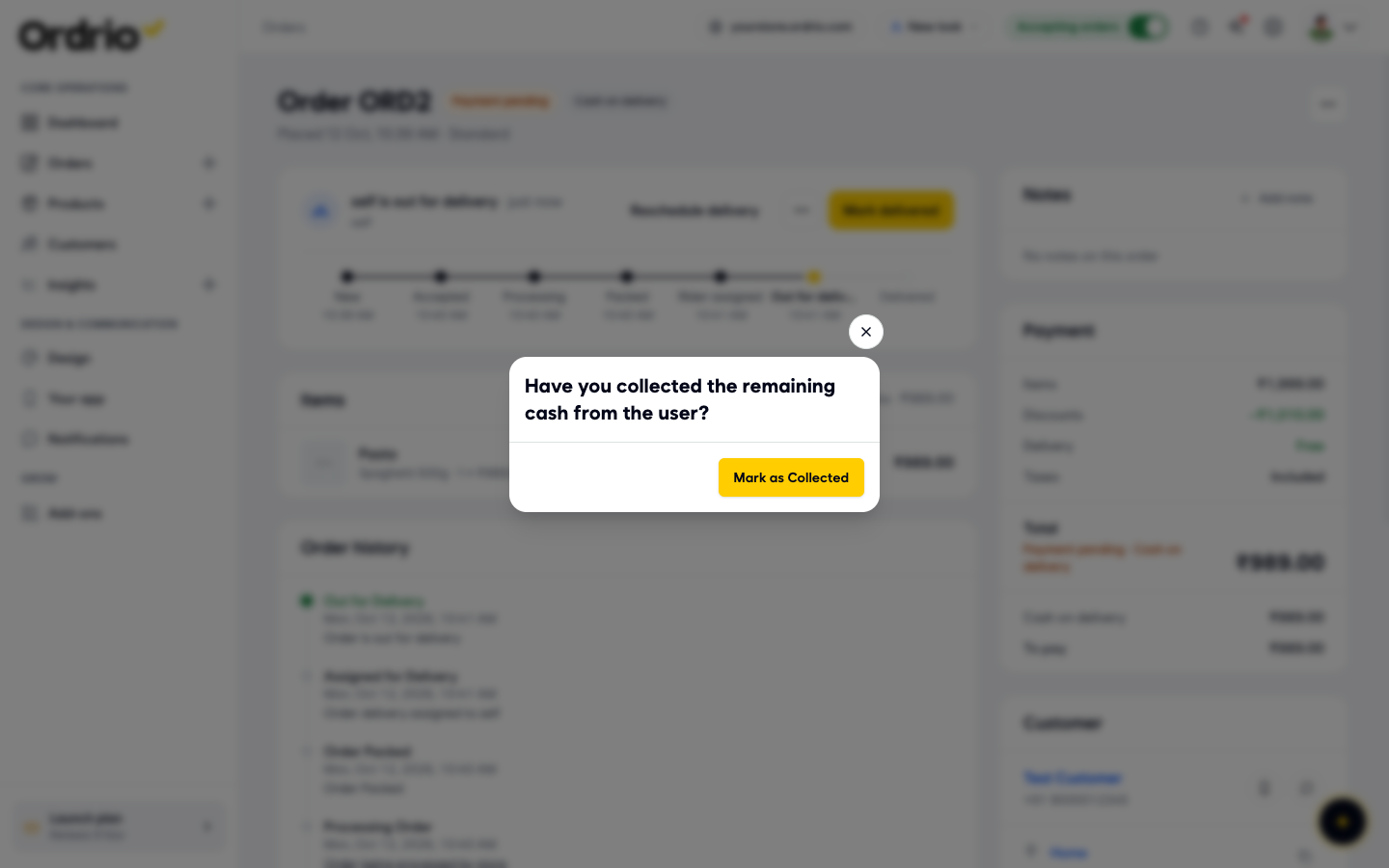
For cash on delivery orders, Ordrio asks "Have you collected the remaining cash from the user?" when you click Mark delivered. Click Mark as Collected once you have the cash. The payment then changes from Payment pending to Paid.
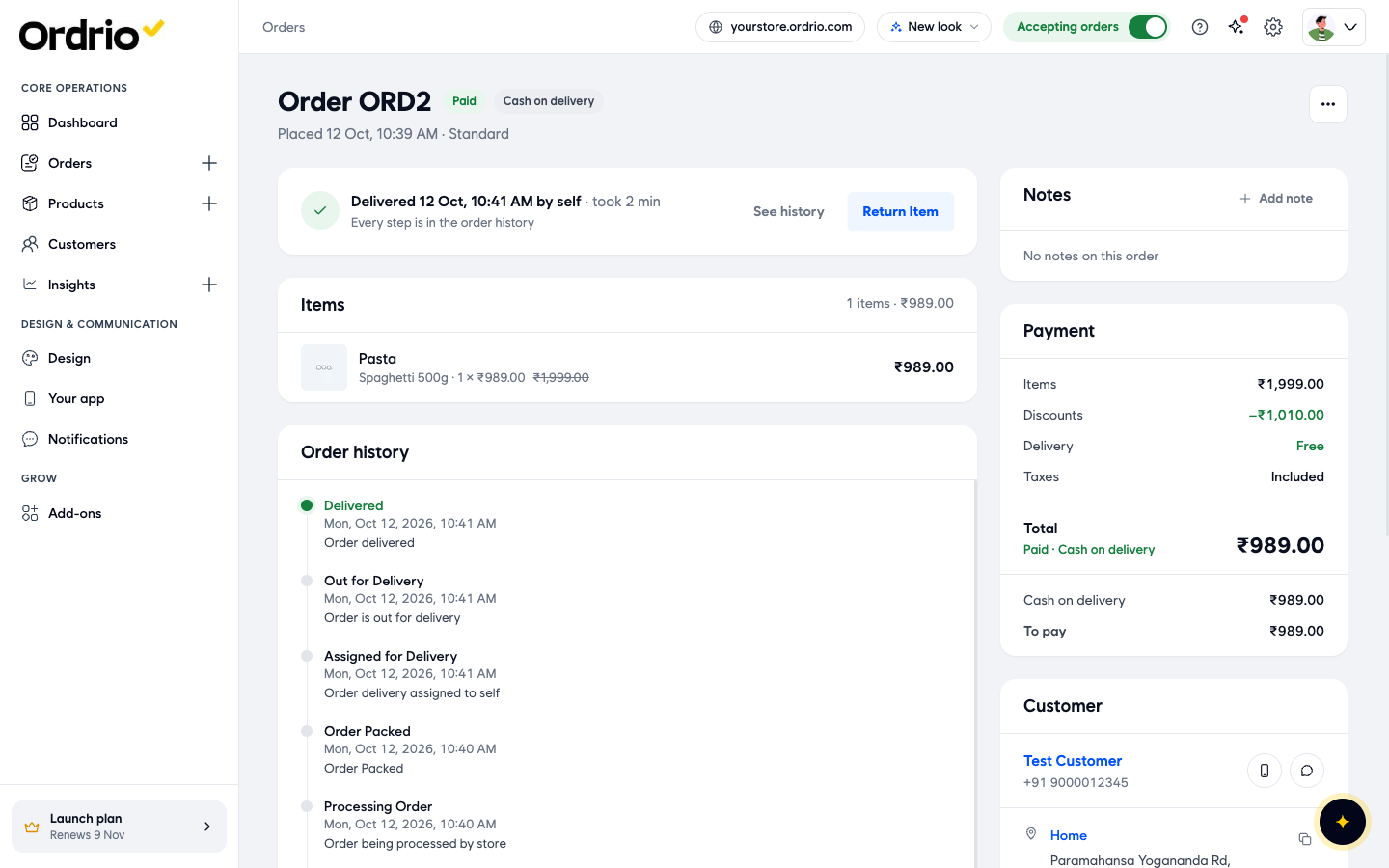
Delivered
The order is complete and moves to the Done tab with the status Delivered. The page shows when it was delivered, who delivered it and how long the order took.
What you can do:
- See history: the Order history on the same page lists every step with its date and time.
- Return Item: starts a return. Tick the items that are coming back, type a Reason for the return (for example "Item arrived damaged") and click Raise return. Your store's refund policy decides where the money goes and whether the return needs approval first. Stock goes back when the items are received at your store.
Cancelled
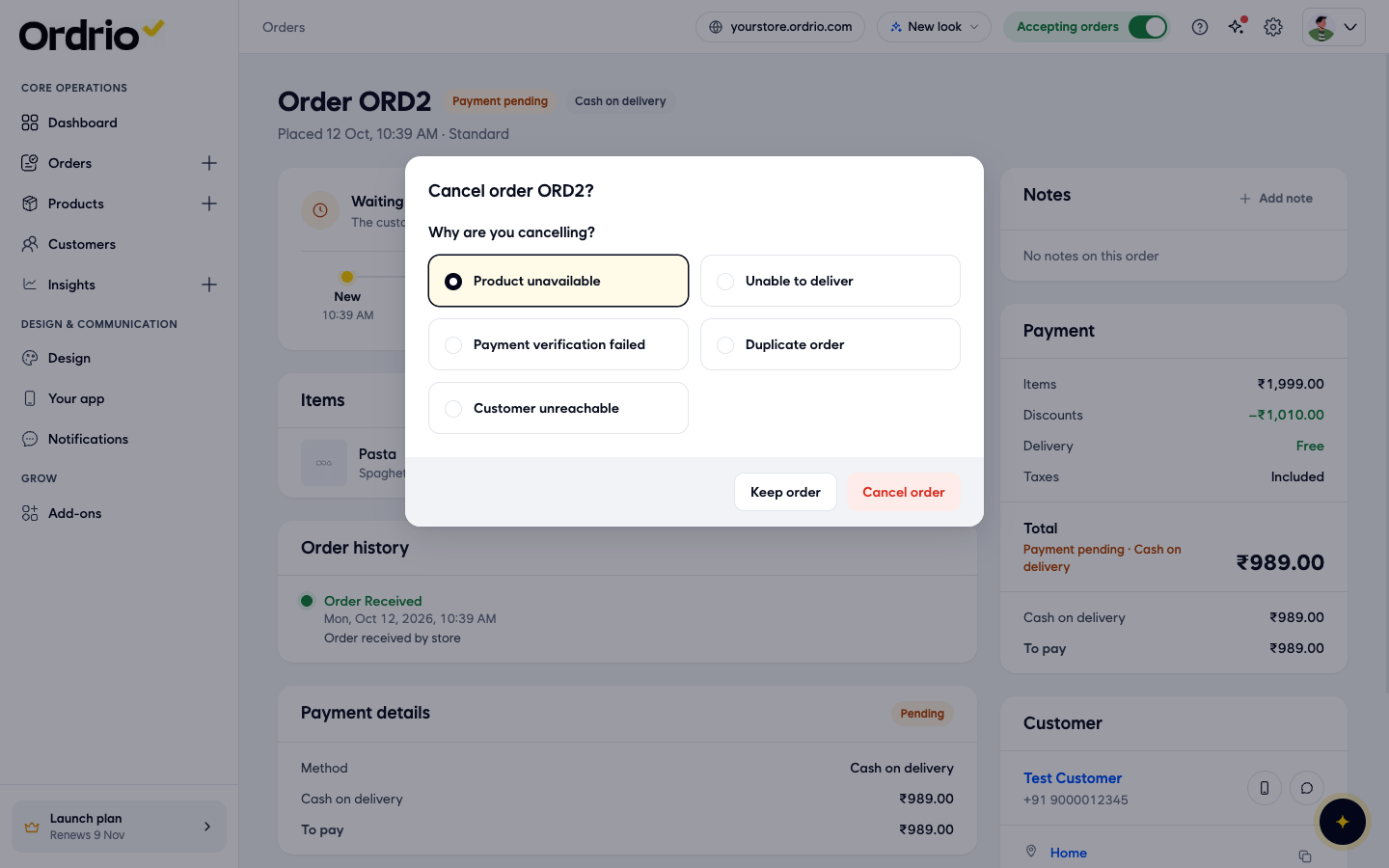
You can cancel an order with Decline on a new order, or with More actions > Cancel order at any later stage before delivery. Ordrio asks Why are you cancelling?. Choose one reason:
- Product unavailable
- Unable to deliver
- Payment verification failed
- Duplicate order
- Customer unreachable
Click Cancel order to confirm, or Keep order to go back.
The order moves to the Done tab with the status Cancelled. The order page shows the reason, and for a cash on delivery order the payment shows Not charged. The Order history also shows what happened to the stock, which depends on your store's settings.
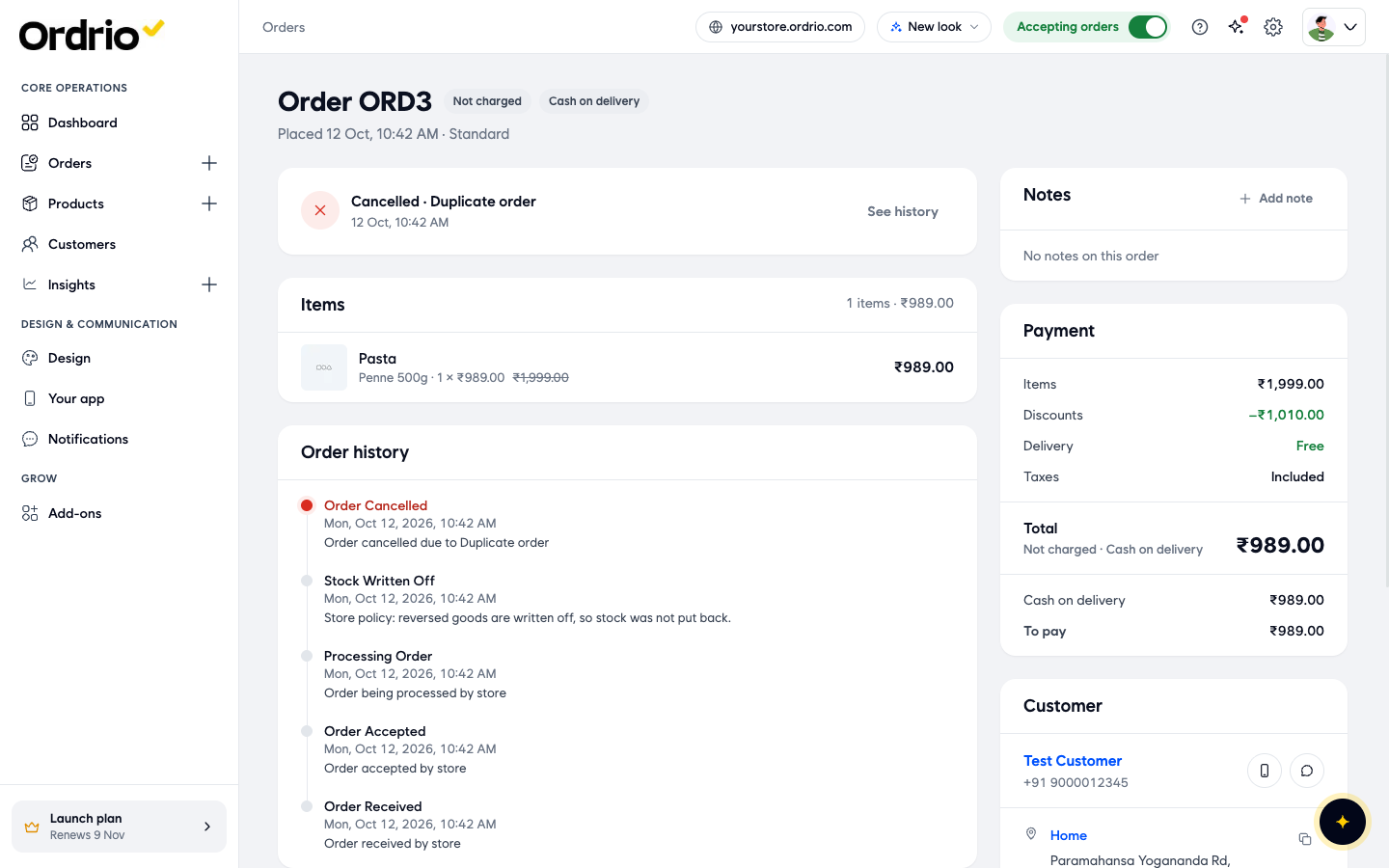
Payment states
Next to the order number you also see the payment state. It is separate from the order stage:
- Payment pending: the customer has not paid yet, for example a cash on delivery order that is not delivered.
- Paid: the payment has been received.
- Not charged: the order was cancelled before the customer paid.
Good to know
- Stages move in order. Each stage shows the button for the next step.
- Order history on every order lists each step with the date and time, so you can always see who did what and when.
- More actions at the top right of an order page has Print KOT, to print a kitchen order ticket.
- Use Notes > Add note on the order page to leave a note for your team. Changes to notes show under Note changes.
- Accept new orders quickly. Until you do, the customer sees "Store is confirming your order".
Related
- Placing an order for a customer
- Assigning orders to riders
- Handling returns and refunds
- Cash on delivery