هذا المقال غير متوفر بالعربية بعد، لذلك نعرضه بالإنجليزية.
مرجع
Creating a payment gateway account and finding your keys
How to create an account with Cashfree, PhonePe, Razorpay or Stripe, find your keys, and enter them in Ordrio to take online payments.
To take UPI, card and netbanking payments on your Ordrio store, you connect your own payment gateway account. This guide shows which gateways Ordrio works with, how to create a gateway account and find your keys, and where to enter your keys in your Ordrio admin panel.
Gateways Ordrio works with
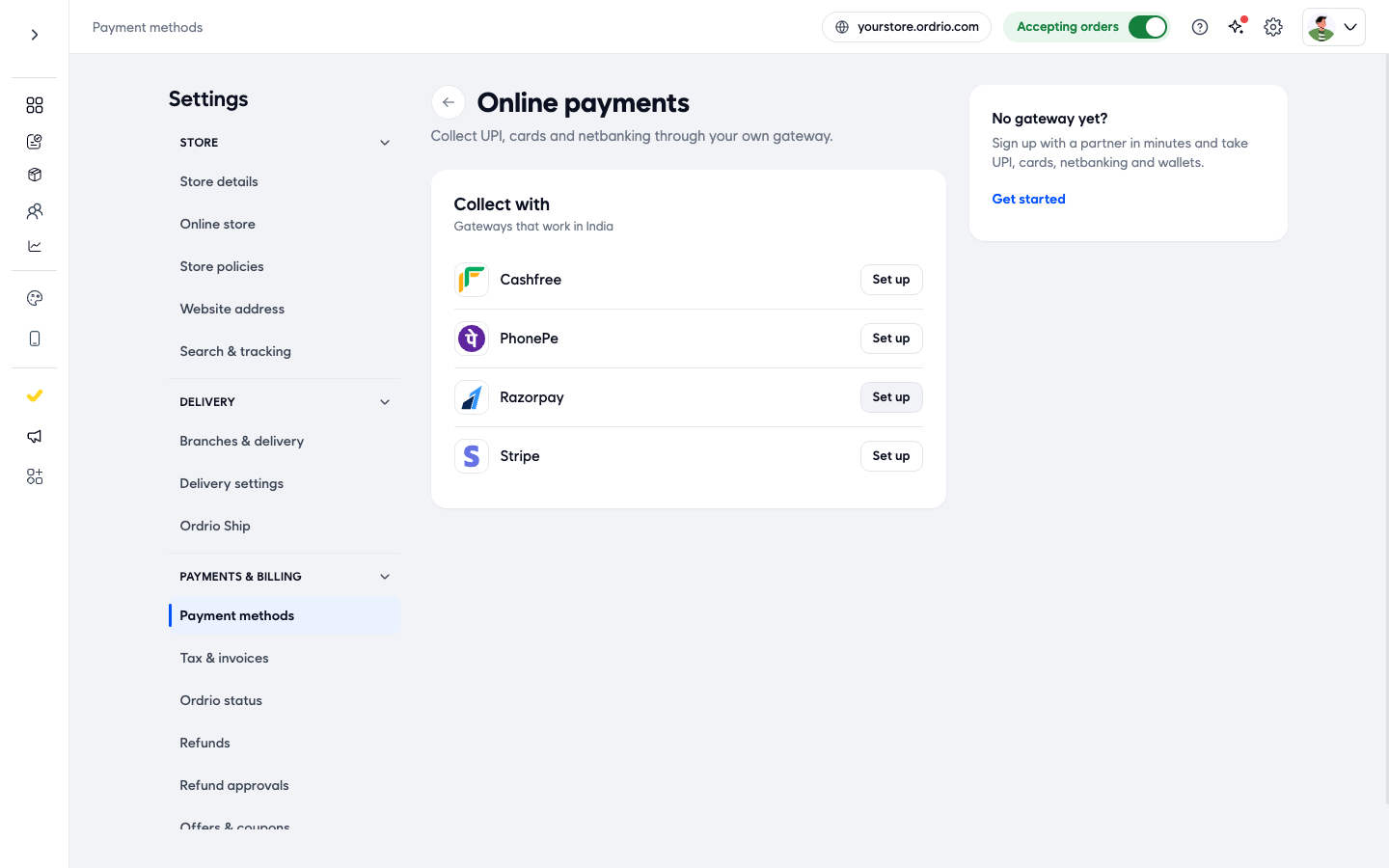
Ordrio lists these gateways under Collect with ("Gateways that work in India"). Each one asks for different keys:
- Cashfree: Merchant App ID, Merchant Secret Key
- PhonePe: Merchant App ID, Merchant Secret Key, Merchant ID, Client Version, Webhook Username, Webhook Password
- Razorpay: Key ID, Key secret
- Stripe: Merchant ID, Merchant Secret Key
You only need one gateway.
Before you start
- You need an account with one of the gateways above. If you do not have one yet, see If you do not have a gateway yet below.
- Have your gateway's dashboard open, so you can copy the keys from it.
- Your secret key works like a password. Do not share it with anyone and do not post it in chats or emails.
If you do not have a gateway yet
Your Ordrio admin panel can take you to a gateway signup:
- Open manage.ordrio.com (your Ordrio admin panel) and log in.
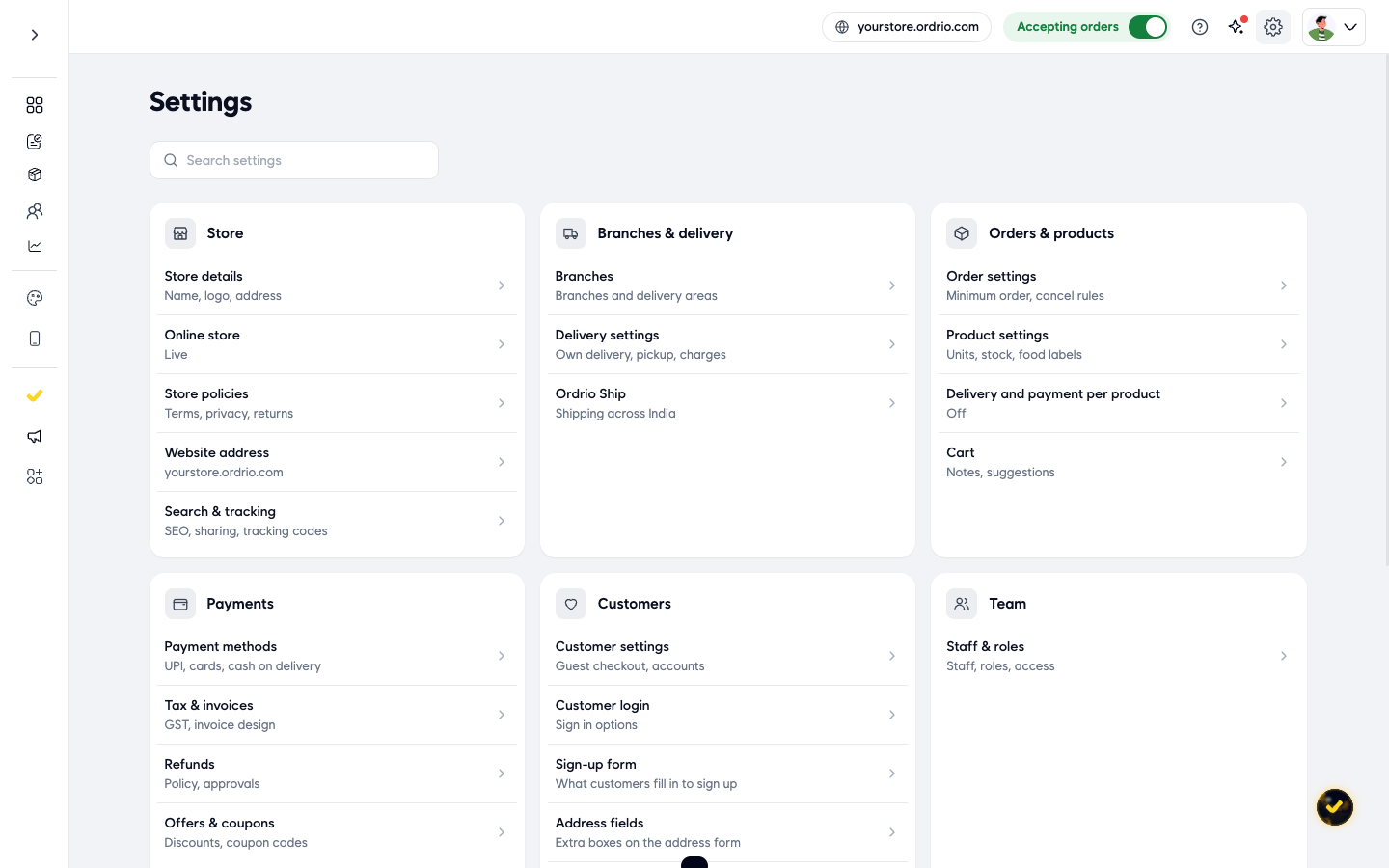
- Click the Settings icon (the gear) at the top right.
- Under Payments, click Payment methods.
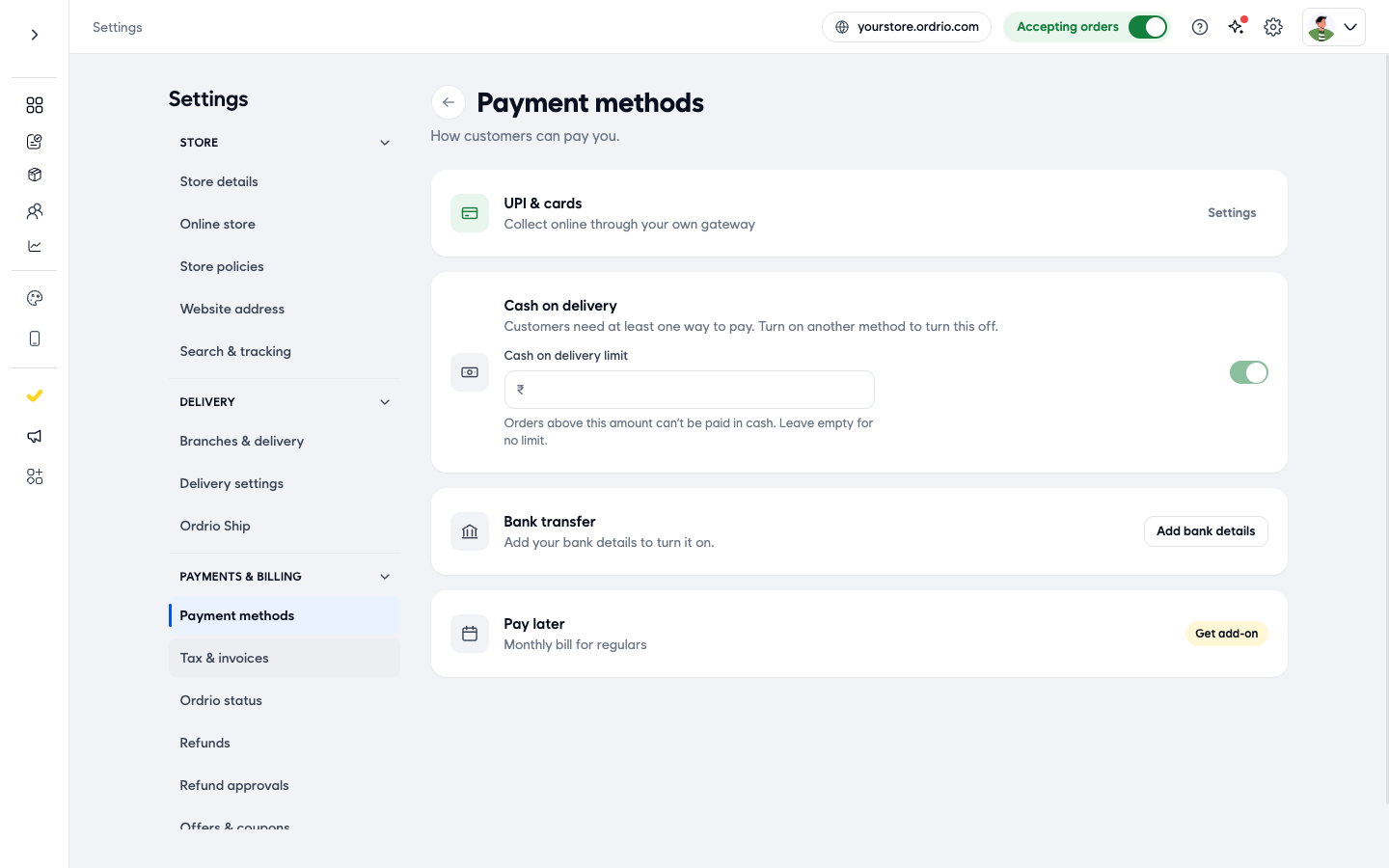
- Next to UPI & cards, click Settings.
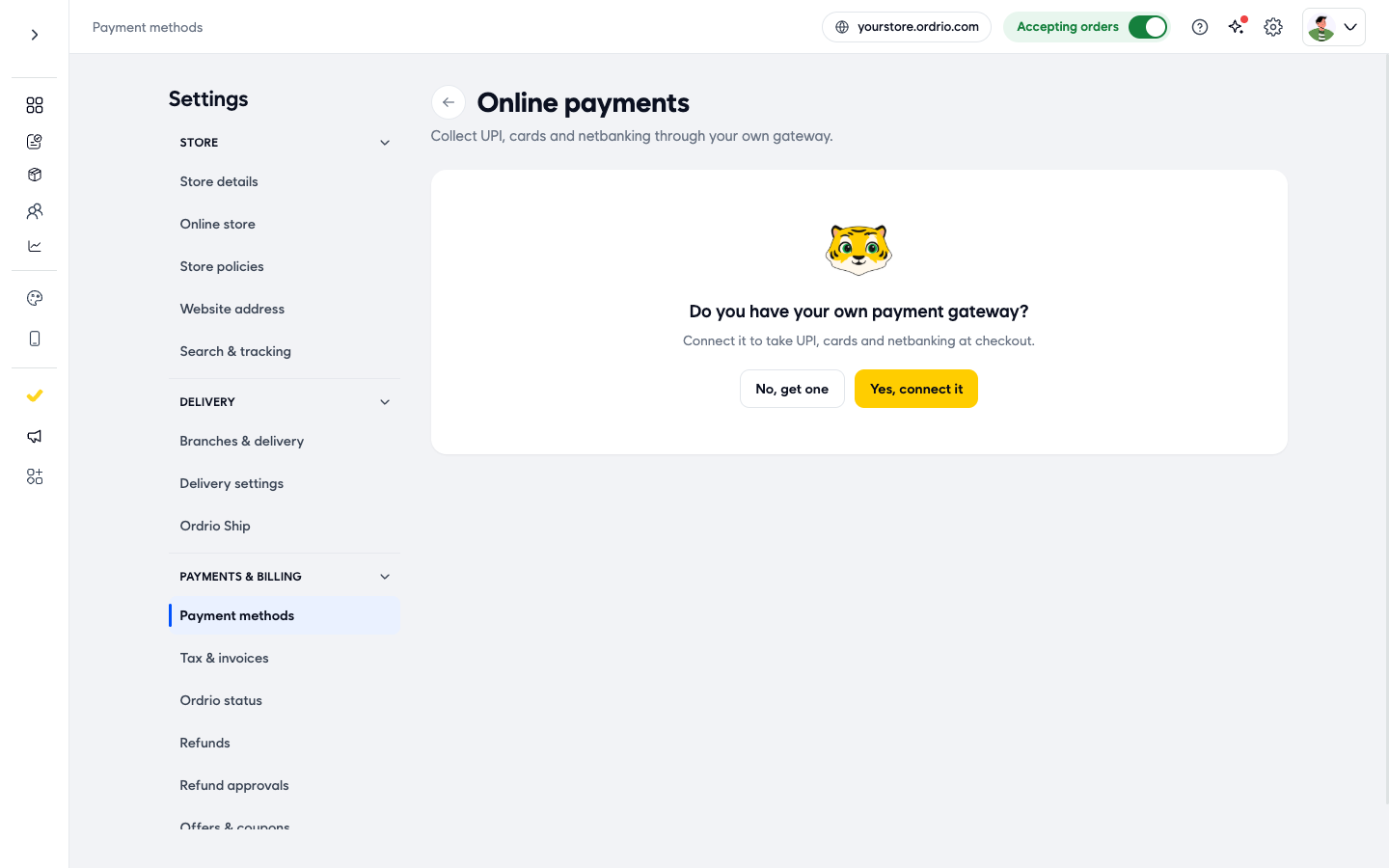
- When you see "Do you have your own payment gateway?", click No, get one. Cashfree's merchant signup opens in a new tab.
You can also click Get started in the No gateway yet? box on the Online payments page. It opens the same signup.
You can also sign up with any other gateway in the list. The sections below show how to create an account with each one and where to find your keys.
Test keys and Live keys
Most gateways give you two sets of keys:
- Test keys (also called sandbox keys) let you try payments without real money. You can usually get them before your account is approved.
- Live keys (called Production keys in Cashfree) take real money from your customers. You get them after the gateway has checked your business.
To take real payments from your customers, enter your Live keys in Ordrio.
Razorpay: create an account and find your keys
Create your account
- Sign up for Razorpay and complete KYC (the identity and business checks).
- Test keys need nothing more.
- For Live keys, Razorpay must approve your website details. Add them in the Razorpay Dashboard under Account & Settings > Business website detail. This takes about 3 working days.
Find your keys
- Log in to the Razorpay Dashboard.
- Pick Test or Live mode.
- Go to Account & Settings > API Keys.
- Click Generate Key.
- Download the keys straight away. The Key ID stays visible later, but the Key secret is shown only once.
In Ordrio, the Razorpay Key ID goes into Key ID and the Razorpay Key secret goes into Key secret.
Good to know:
- Only people with the Owner or Admin role in Razorpay can see the keys.
- If you generate keys again, the new key replaces the old one. Enter the new keys in Ordrio too.
Cashfree: create an account and find your keys
Create your account
- Sign up at merchant.cashfree.com with your business email. Verify your mobile number with the code Cashfree sends you.
- Enter your brand name, business category and turnover.
- Choose Payment Gateway > Collect Payments. Cashfree asks for your website or app URL.
- Enter your business PAN.
- Verify the owner with Aadhaar OTP, CKYC or DigiLocker.
- Add the business documents Cashfree asks for. They depend on your type of business (for example, sole owner or company).
- Add your bank account and verify it.
Activation usually takes about 24 working hours after you have sent all documents. You can use test keys before your account is activated.
Find your keys
- Log in to the Cashfree Merchant Dashboard.
- Go to Payment Gateway.
- Pick Test or Production.
- Go to Developers > API Keys.
- Click Generate API Keys. For Production keys, Cashfree asks you to confirm with two-step verification (2FA).
In Ordrio:
- Merchant App ID is Cashfree's App ID (also called client ID).
- Merchant Secret Key is Cashfree's Secret Key (also called client secret).
Cashfree lets you have one key pair at a time.
PhonePe: create an account and find your keys
Create your account
Sign up at business.phonepe.com/pg/register. PhonePe's documentation does not list the signup steps, the documents you need or how long activation takes. Contact PhonePe to find out what they need from your business.
Find your keys
- Log in to the PhonePe Business Dashboard.
- Use the Test Mode toggle to choose your keys. When it is on, you see test (sandbox) keys. Turn it off for live keys.
- Open Developer Settings. It shows your Client ID and Client Secret.
Ordrio asks PhonePe users for more fields than the Client ID and Client Secret. Use the values PhonePe gives you for the matching fields in Ordrio. If you are not sure which value goes in which field, ask PhonePe support.
Set up your webhook username and password
- In Developer Settings, go to Webhook.
- Click Create Webhook.
- Set Authentication Type to SHA.
- Choose a username and a password. Enter the same ones in Ordrio's Webhook Username and Webhook Password fields.
Stripe: create an account and find your keys
Create your account
- Register at dashboard.stripe.com/register.
- Verify your business in the Stripe Dashboard. You can test in a sandbox before your business is verified.
Find your keys
- Log in to the Stripe Dashboard and open API keys.
- The Publishable key shows by default.
- The Secret key is under Standard keys. Click Create secret key. Stripe sends you a code by email or text message to confirm.
- Copy the secret key straight away. It is shown only once.
Ordrio asks Stripe users for a Merchant ID and a Merchant Secret Key. If you are not sure which Stripe values to use, contact Ordrio support before you enter them.
These steps follow each provider's documentation as of November 2026 and screens may differ.
Enter your keys in Ordrio
- Open manage.ordrio.com (your Ordrio admin panel) and log in.
- Click the Settings icon (the gear) at the top right. Under Payments, click Payment methods.
- The Payment methods page shows how customers can pay you. Next to UPI & cards ("Collect online through your own gateway"), click Settings.
- The Online payments page opens and asks "Do you have your own payment gateway?". Click Yes, connect it.
- Under Collect with, find your gateway and click Set up next to it.
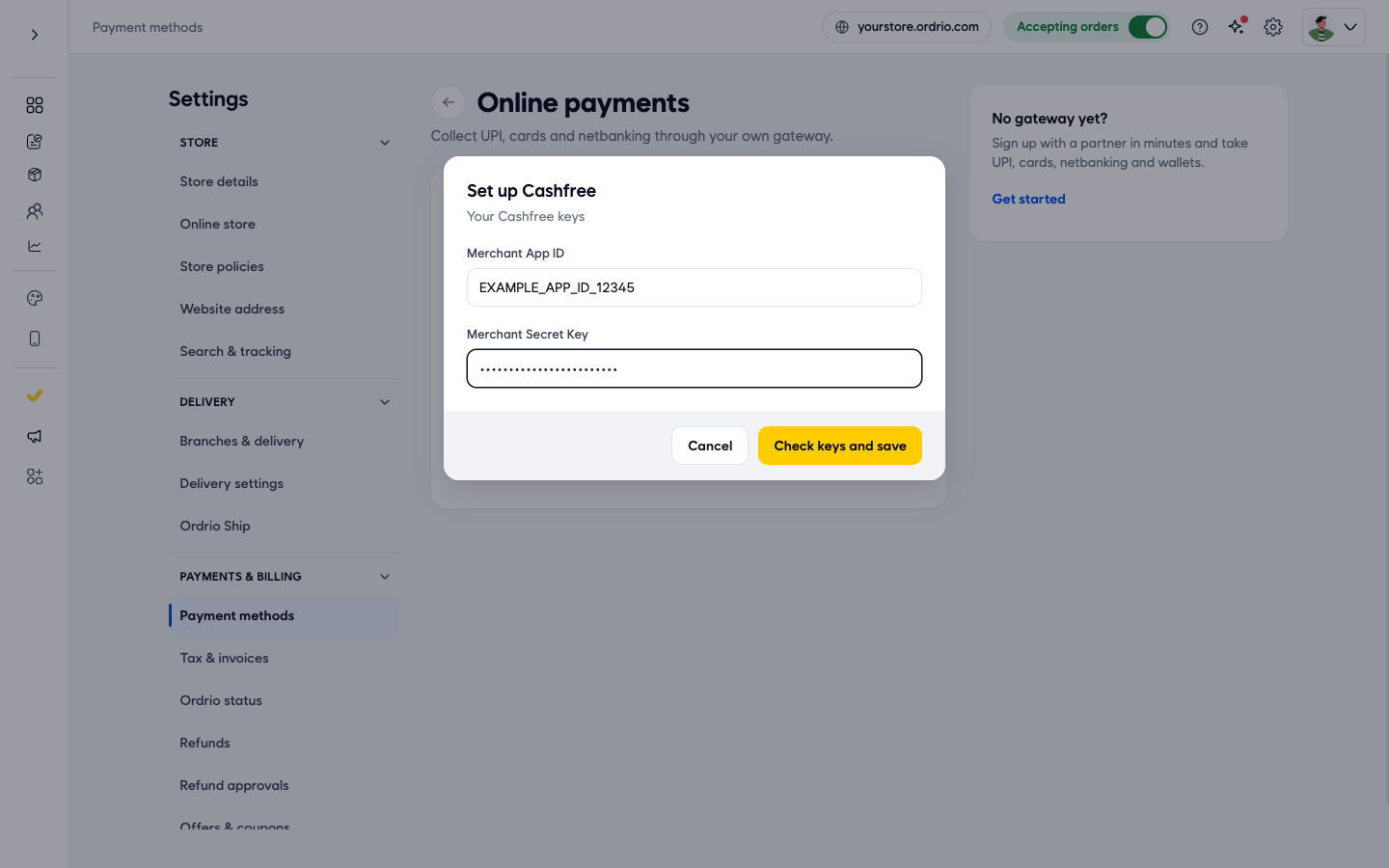
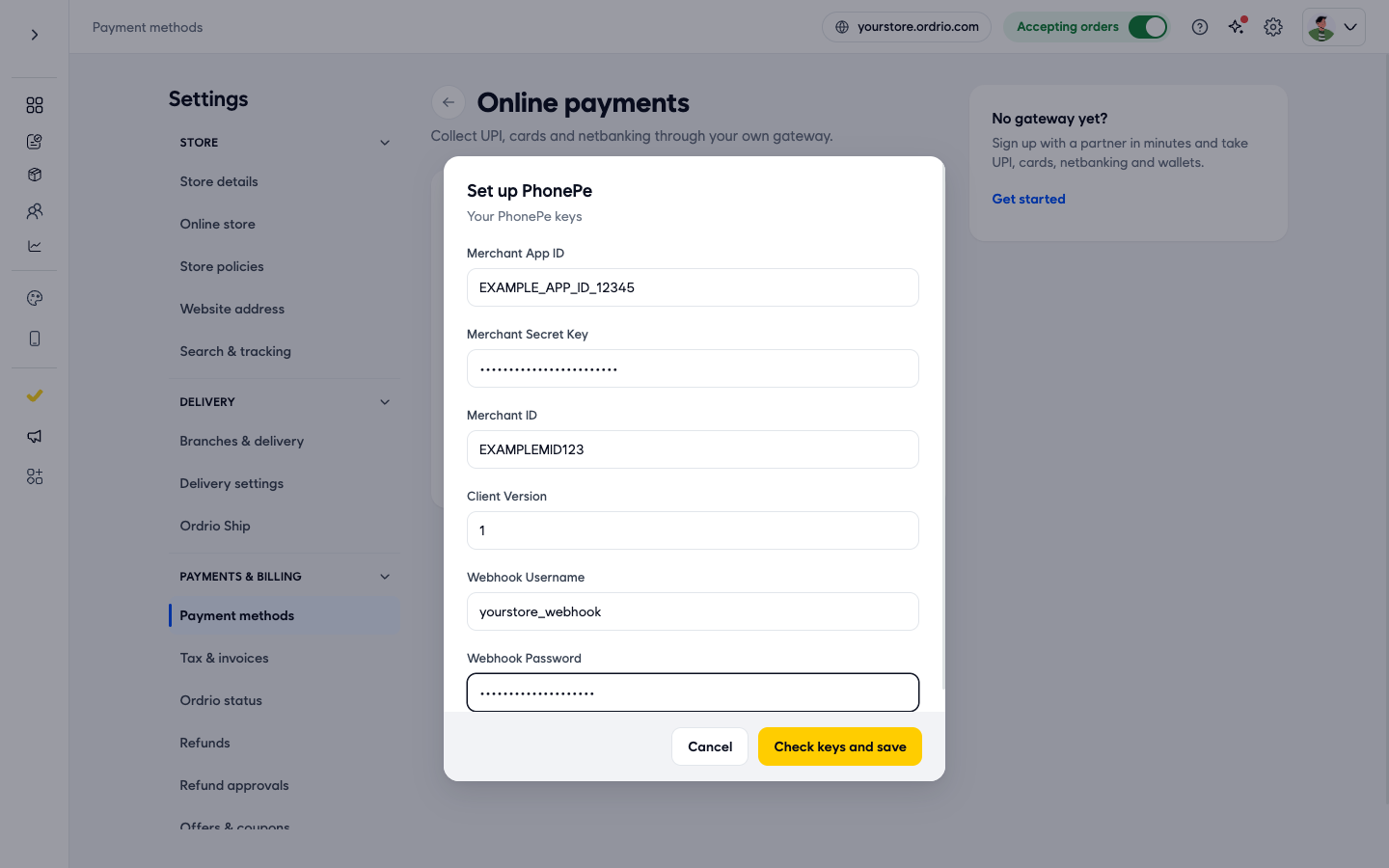
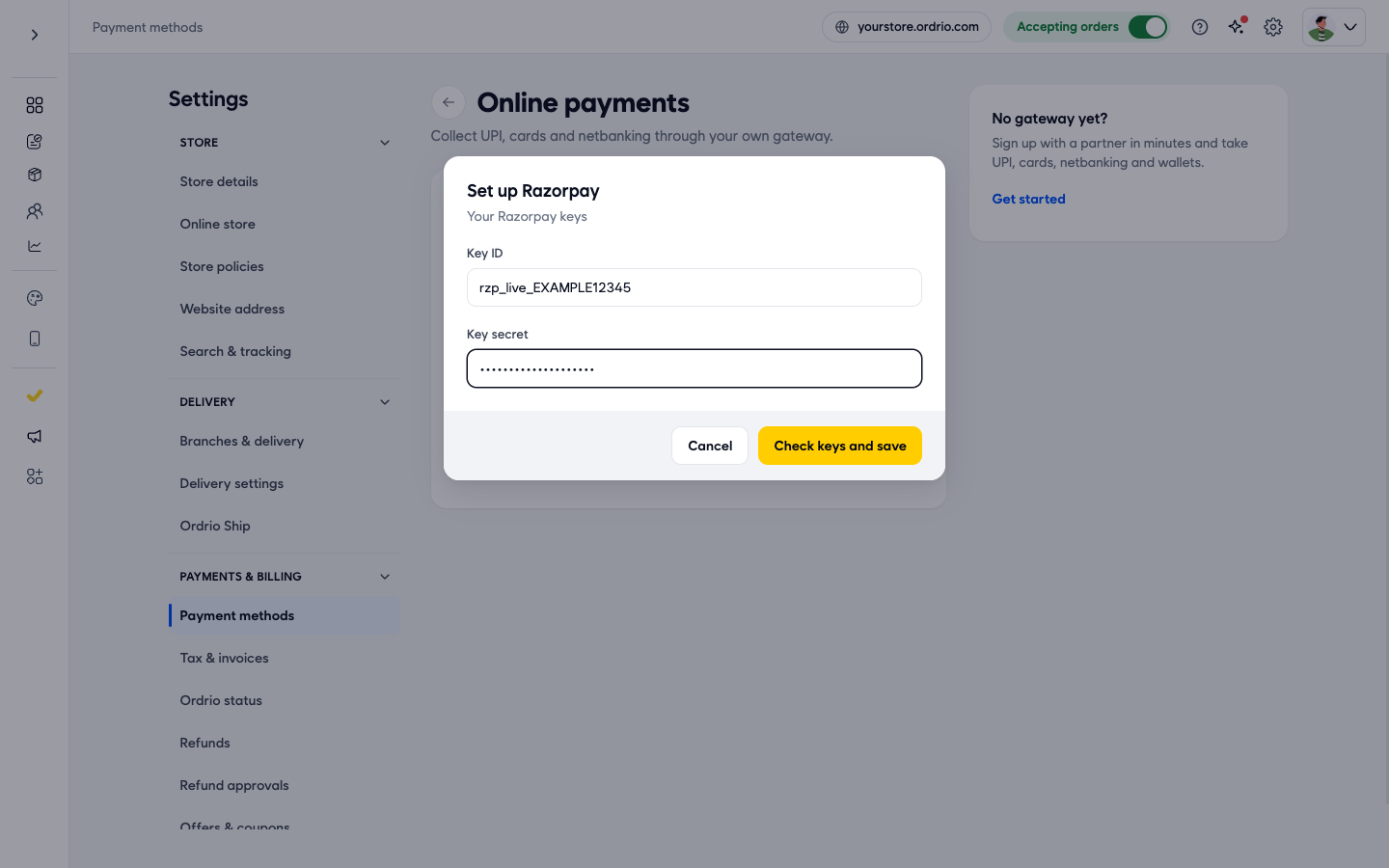
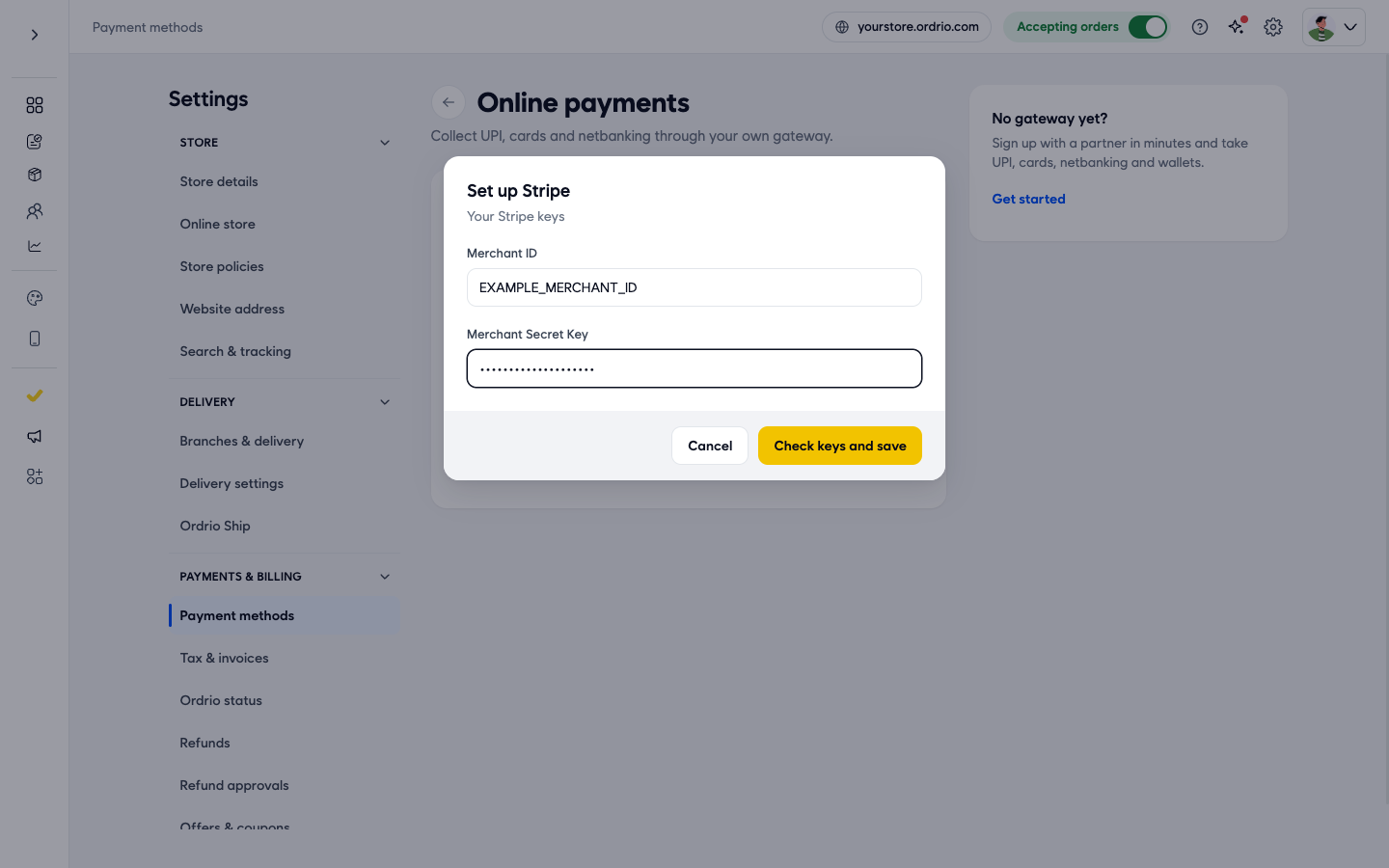
- A Set up window opens for your gateway, with the heading "Your <gateway> keys". Paste your own keys into each field. The screenshots below show example values only. Never type the examples.
Cashfree
- Merchant App ID: your Cashfree App ID (client ID).
- Merchant Secret Key: your Cashfree Secret Key (client secret). It shows as dots while you type.
PhonePe
- Merchant App ID, Merchant Secret Key, Merchant ID: use the values PhonePe gives you for these fields. Ask PhonePe support if you are not sure which is which.
- Client Version: the client version for your PhonePe keys. This field takes a number only.
- Webhook Username: the username you chose when you created the webhook in PhonePe.
- Webhook Password: the password you chose when you created the webhook in PhonePe.
Razorpay
- Key ID: your Razorpay live Key ID (the hint shows rzp_live_...).
- Key secret: your Razorpay Key secret.
Stripe
- Merchant ID and Merchant Secret Key: the values from your Stripe account for these fields. If you are not sure which Stripe values to use, contact Ordrio support.
- Click Check keys and save. The button only works once every field is filled in. Ordrio checks your keys before it saves them.
- If a key is wrong, you see "Provide valid id and key" and the window stays open. Nothing is saved. Copy the keys again from your gateway's dashboard and try again.
To leave without saving, click Cancel.
Good to know
- Use your own keys from your own gateway account. The values in the screenshots are examples and will not work.
- If Ordrio says "Provide valid id and key", check that you copied the full key, with no extra spaces, and that you used the field with the same name in your gateway's dashboard.
- Never send your secret key by email, chat or phone. If you think someone else has it, contact your gateway straight away.
- If you generate new keys in your gateway, enter the new keys in Ordrio too.
Related
- What is Ordrio