هذا المقال غير متوفر بالعربية بعد، لذلك نعرضه بالإنجليزية.
دليل استخدام
Setting up a payment gateway
Connect a supported payment provider.
A payment gateway lets your customers pay online with UPI, cards and netbanking when they order from your website or app. You connect your own gateway account to Ordrio once, in Settings > Payment methods.
Before you start
- You need an account with one of the payment providers Ordrio supports: Cashfree, PhonePe, Razorpay, Stripe, Neo Leap or Easy Payment System(EPS).
- Keep your provider's keys ready. You find them in your provider's own dashboard. Each provider asks for different keys (see the table below).
- If you do not have a gateway yet, you can start one from the same screen (see step 5).
Connect your payment gateway
- Open nadi.ordrio.com (your Ordrio admin panel) and log in.
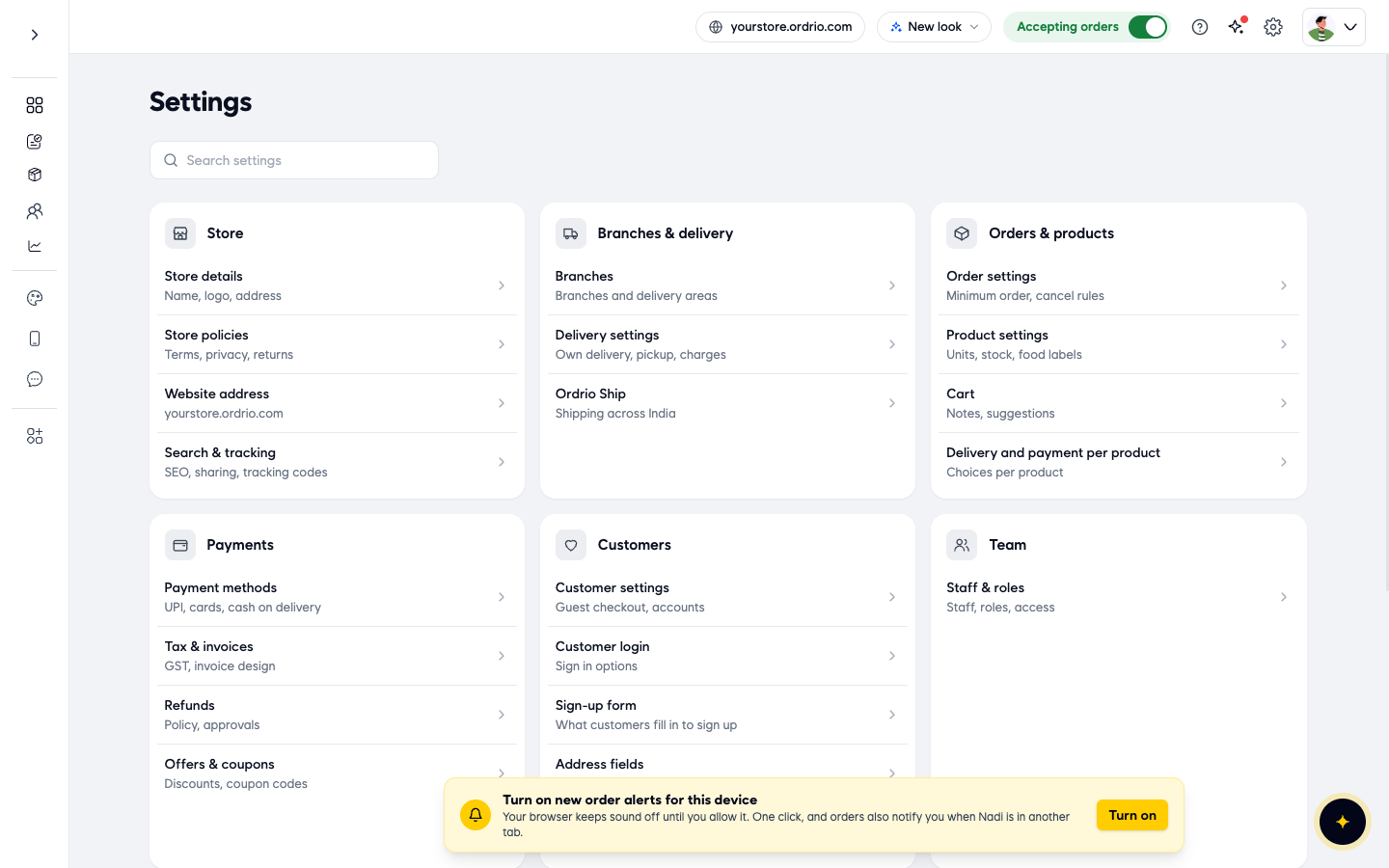
- Click the Settings gear icon at the top right of the screen.
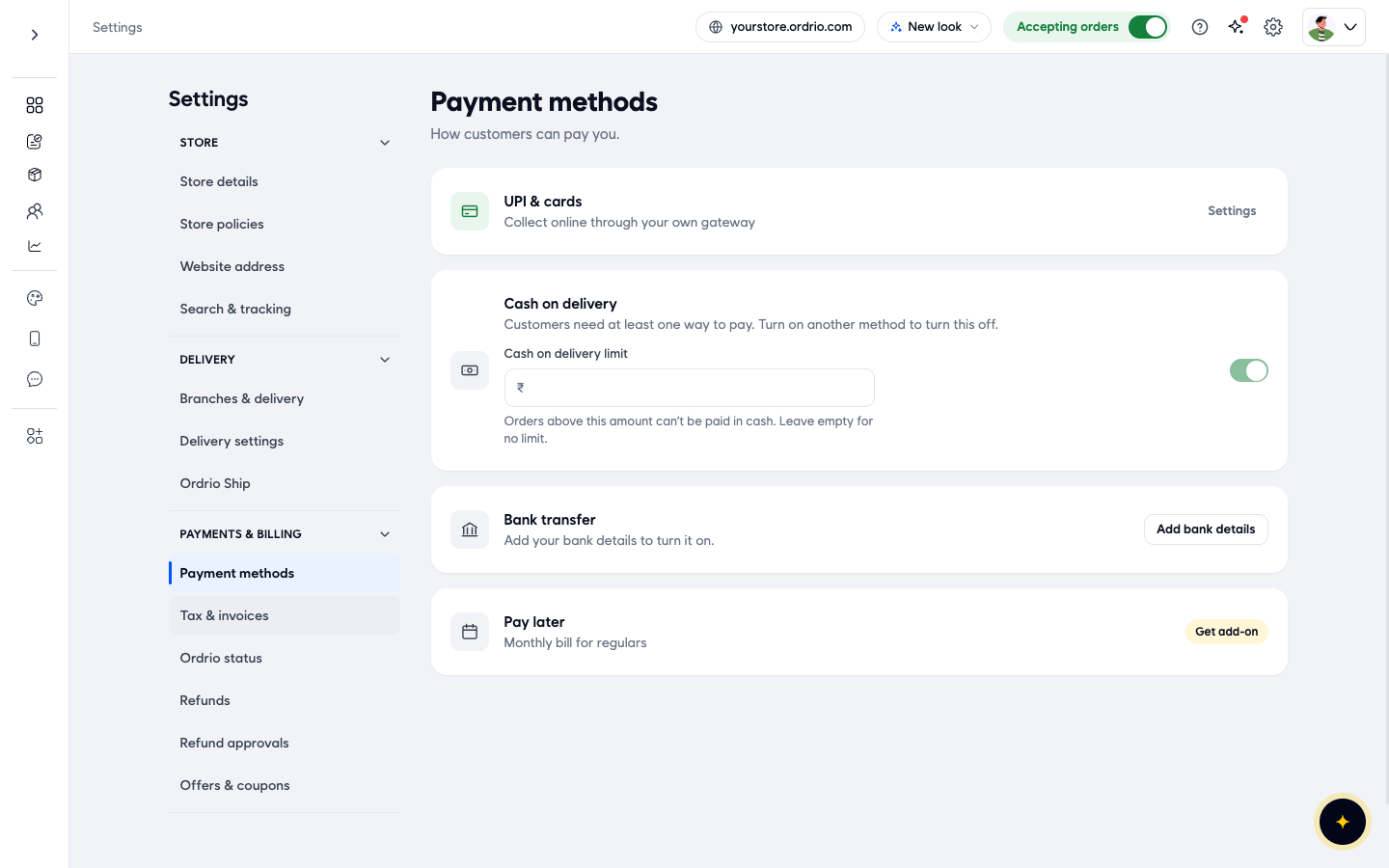
- In the Payments section, click Payment methods. This screen shows every way customers can pay you: UPI & cards, Cash on delivery, Bank transfer and Pay later.
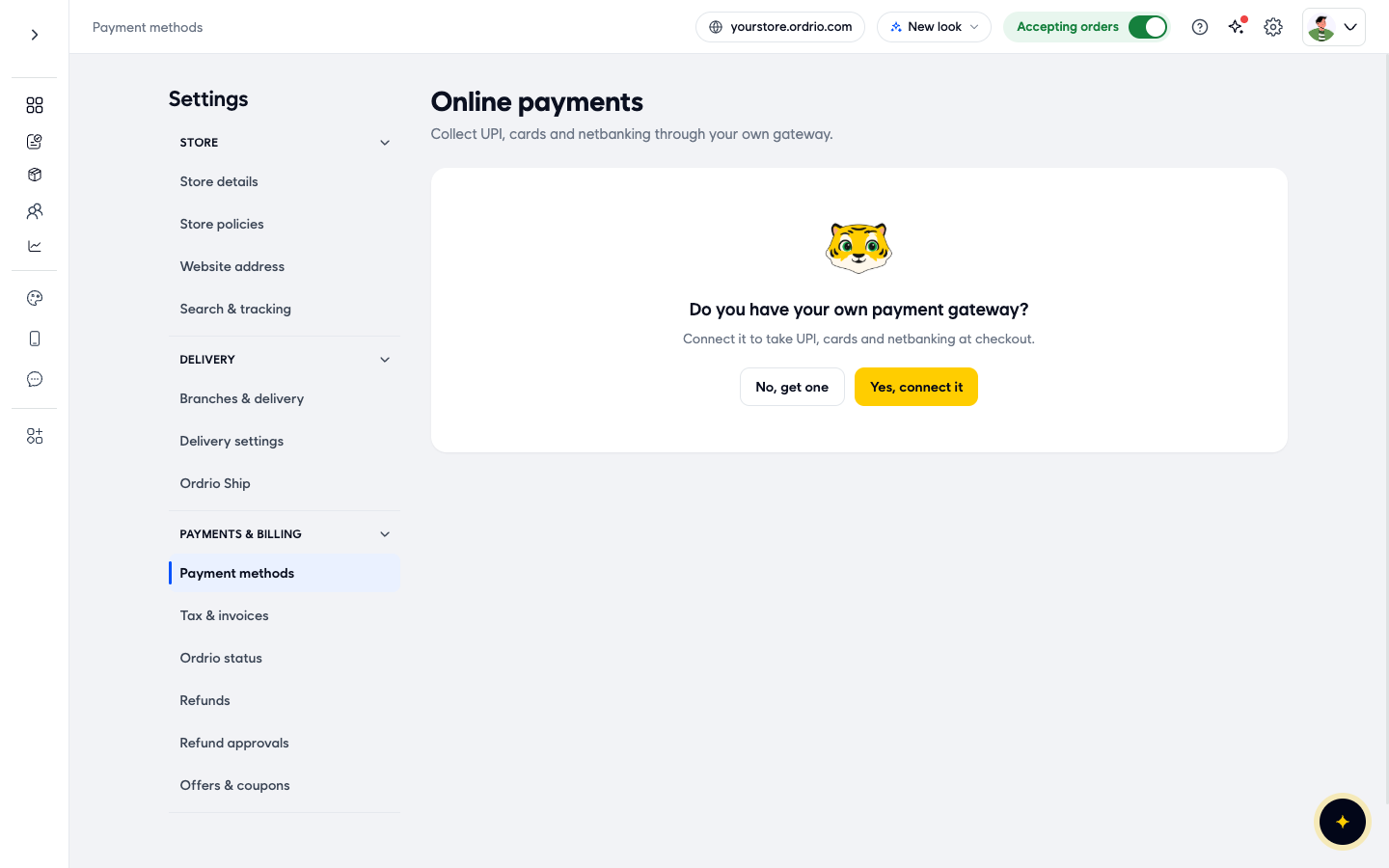
- Next to UPI & cards (Collect online through your own gateway), click Settings. The Online payments screen opens and asks Do you have your own payment gateway?
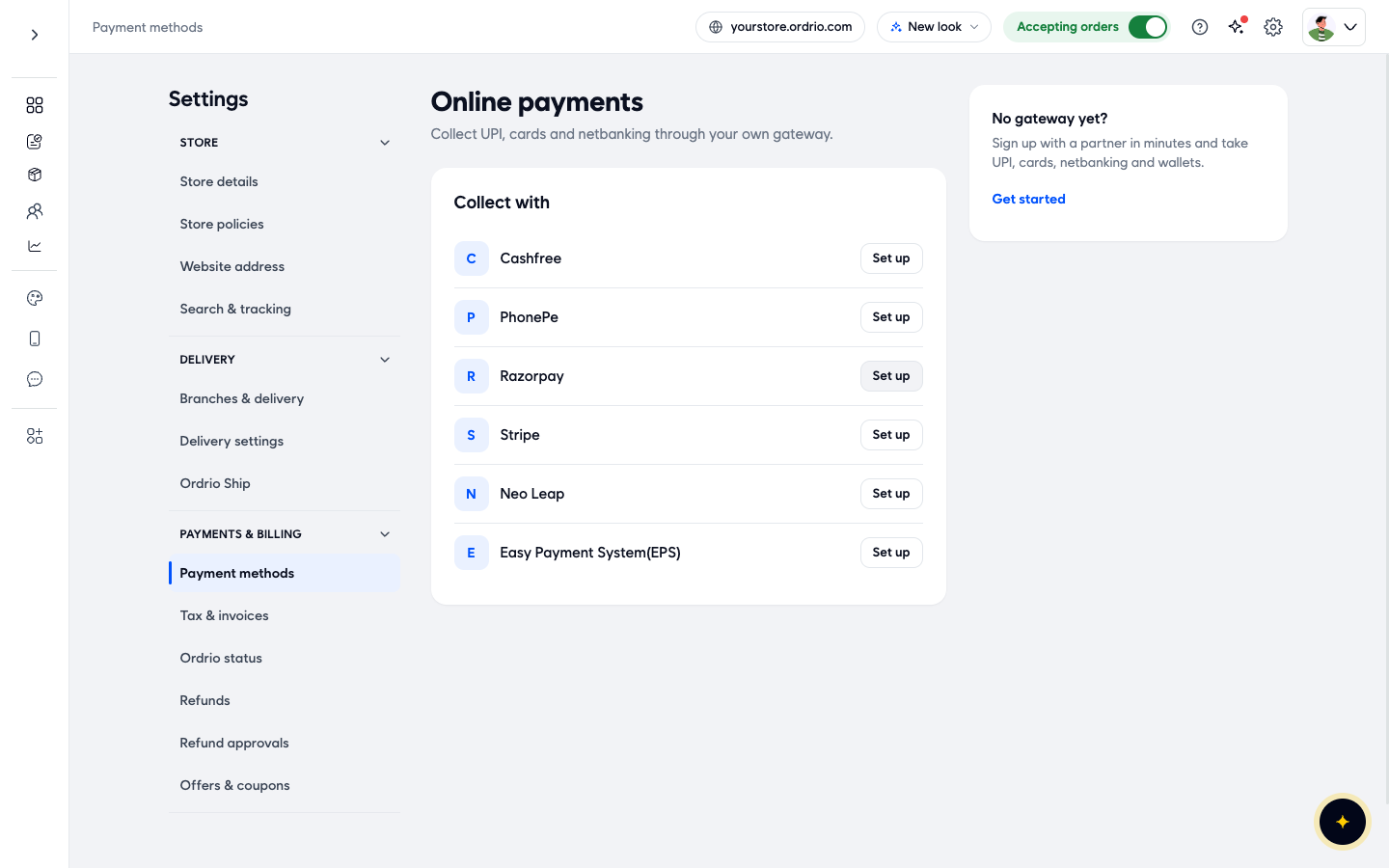
- Click Yes, connect it. If you do not have a gateway yet, click No, get one instead. This opens Cashfree's merchant site in a new tab.
- Under Collect with, find your provider and click Set up next to it.
- A Set up window opens with the key fields for your provider. Copy each key from your provider's dashboard and paste it into the matching field, with no extra spaces. The fields for each provider are listed in the table below.
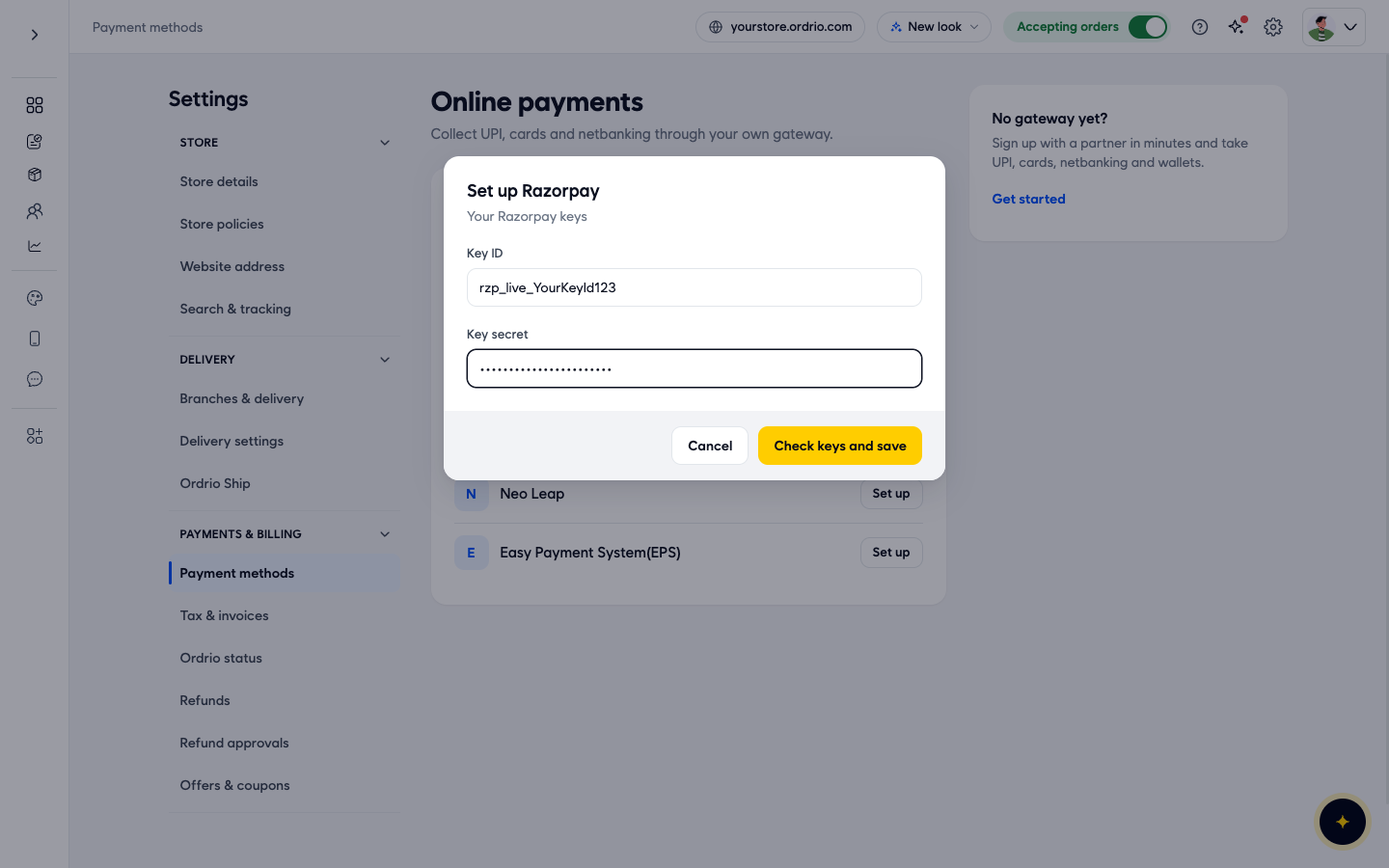
The keys in the screenshot are examples. Use your own keys from your provider's dashboard.
- Click Check keys and save. The button only works once every field is filled in. Ordrio checks your keys before it saves them. If a key is wrong, you see the message Provide valid id and key. Copy the keys again and try once more.
- Place a small test order on your website and pay online to check that the payment goes through.
The key fields for each provider
- Cashfree: Merchant App ID, Merchant Secret Key
- PhonePe: Merchant App ID, Merchant Secret Key, Merchant ID, Client Version, Webhook Username, Webhook Password
- Razorpay: Key ID (looks like rzp_live_...), Key secret
- Stripe: Merchant ID, Merchant Secret Key
- Neo Leap: Tranportal ID, Tranportal Password, Terminal Resource Key
- Easy Payment System(EPS): User Name, Password, Merchant Id, Hash Key, Merchant Store Id
Every value comes from your account with that provider.
Other options on the Payment methods screen
- Cash on delivery. Customers need at least one way to pay, so you can only turn cash on delivery off after you turn on another method. In Cash on delivery limit, type an amount in ₹ if you want to stop cash payments on bigger orders. Orders above this amount can't be paid in cash. Leave it empty for no limit.
- Bank transfer. Click Add bank details to turn it on. In the Setup Bank Details window, fill in:
- Bank Name: the name of your bank.
- Account Holder Name: the name on your bank account, for example your company's legal name.
- Account Number: your bank account number.
- Bank code type: choose IFSC or IBAN.
- IFSC Code (or your IBAN): your bank's code.
- Payment Proof Type: what customers give you as proof of payment, Transaction Reference Number or Payment Receipt.
Then click Save.
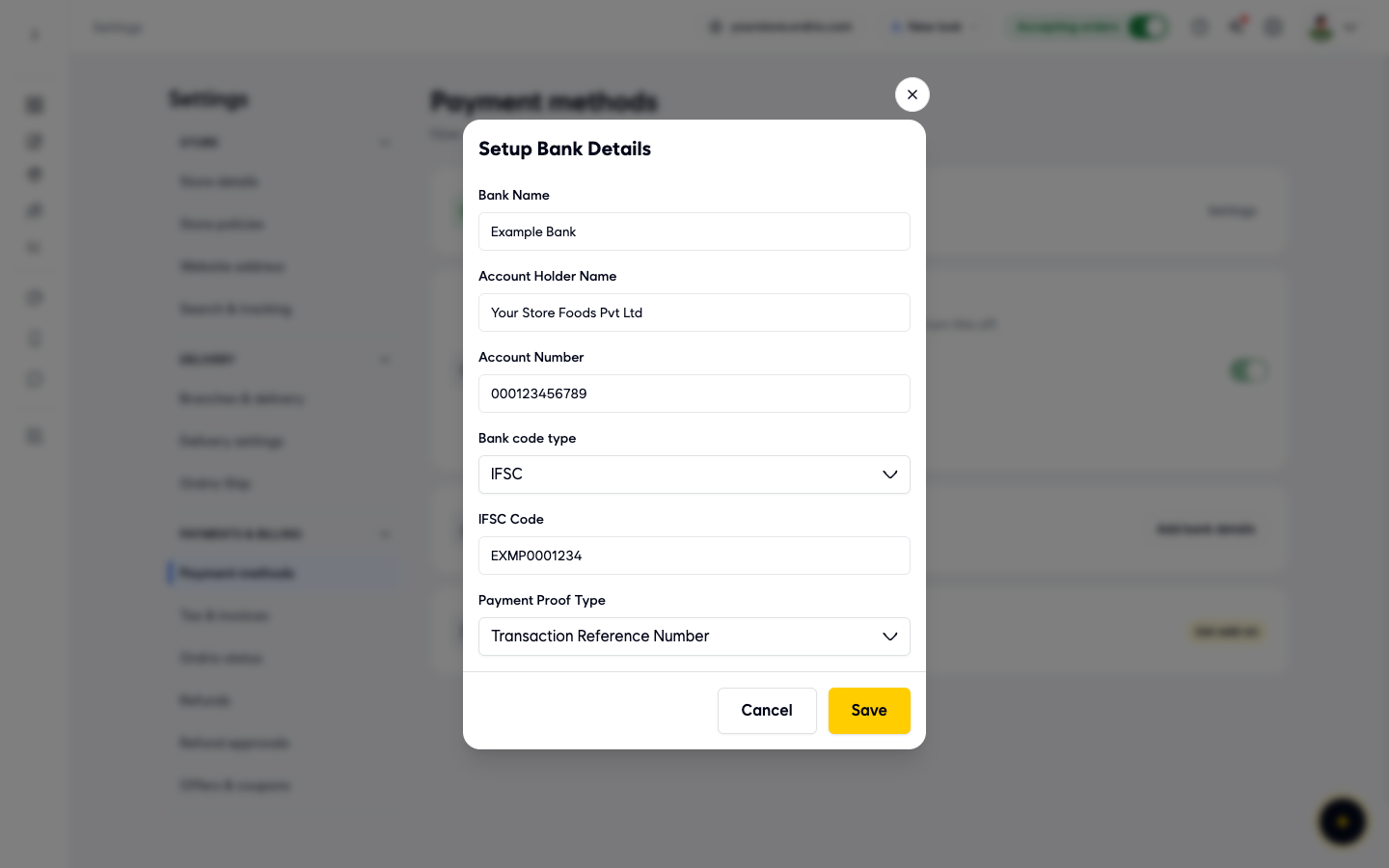
The bank details in the screenshot are examples. Use your own bank details.
- Pay later. A monthly bill for your regular customers. It is an add-on. Click Get add-on to see it.
Good to know
- Your keys are private. Do not share them in chat or email, and only give admin access to staff you trust.
- Until a gateway is connected, your dashboard shows No payment gateway is connected, so orders cannot be paid for online. Click Set up payments there to go straight to Payment methods.
- If a payment fails after you connect, check that you copied the right keys from your provider's dashboard and that your provider account is active.
- You can keep Cash on delivery on alongside online payments.
Related
- Cash on delivery
- Recommended setup order for new stores
هل كان هذا المقال مفيداً؟