هذا المقال غير متوفر بالعربية بعد، لذلك نعرضه بالإنجليزية.
دليل استخدام
Low stock alerts
Get alerts before products run out.
Low stock alerts tell you when a product is about to run out, so you can restock before customers find it sold out. You choose the level for each product, and Ordrio shows an alert on your Dashboard when stock drops below it.
Before you start
- Alerts work only for products with Track stock turned on. You find this switch in the Stock section of each product.
- Enter the real stock you have in In stock. The alert compares this number with the level you set.
Set the alert level for one product
- Open nadi.ordrio.com (your Ordrio admin panel) and log in.
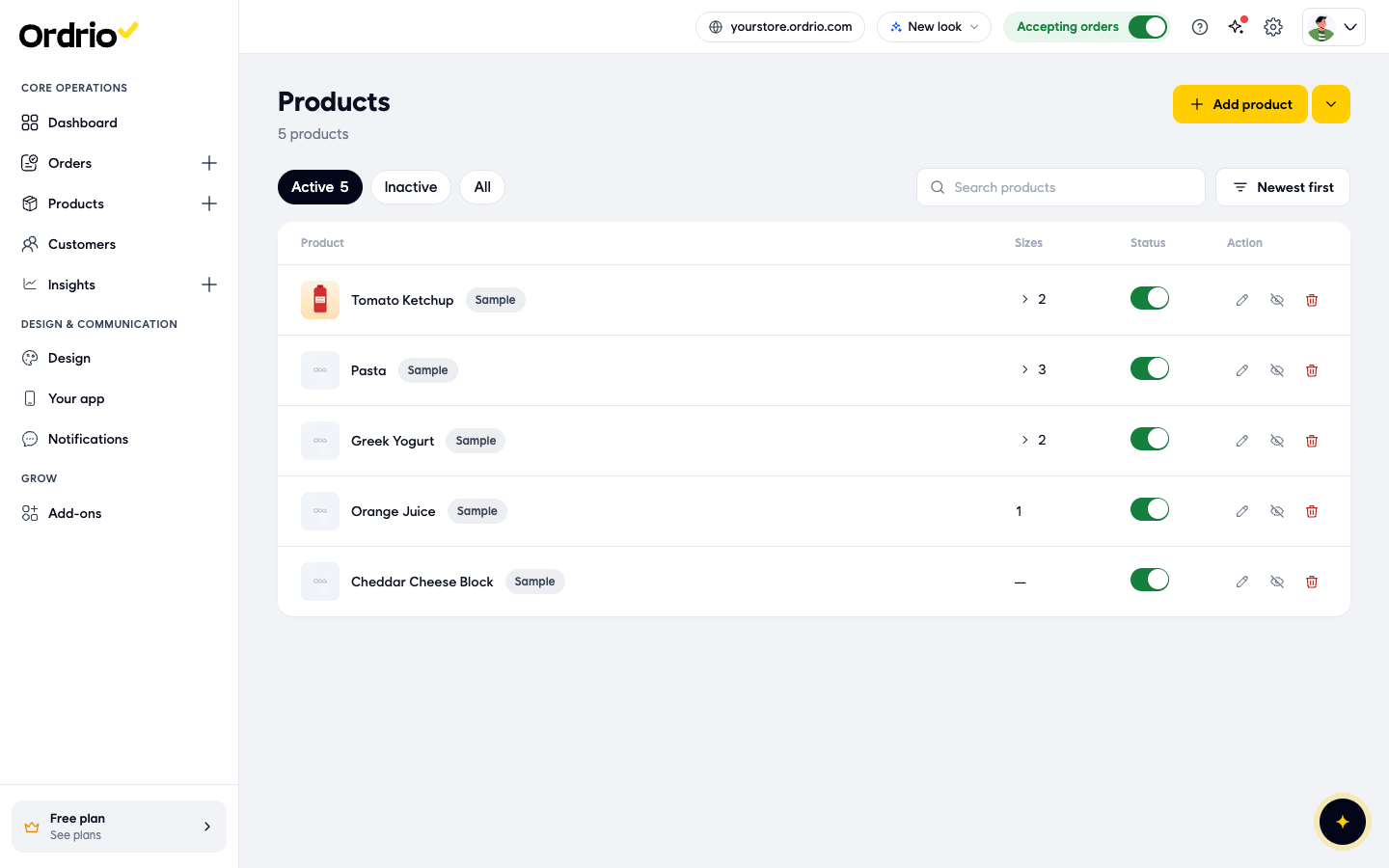
- Click the pencil (edit) button next to the product you want to watch.
- Find the Stock section on the right of the product page. It has three fields:
- Track stock: turn this on so Ordrio counts the stock of this product. When it is off, the stock fields are hidden and no alert is shown.
- In stock: how many units you have right now.
- Notify me when stock falls below: the alert level. When In stock drops below this number, Ordrio shows an alert.
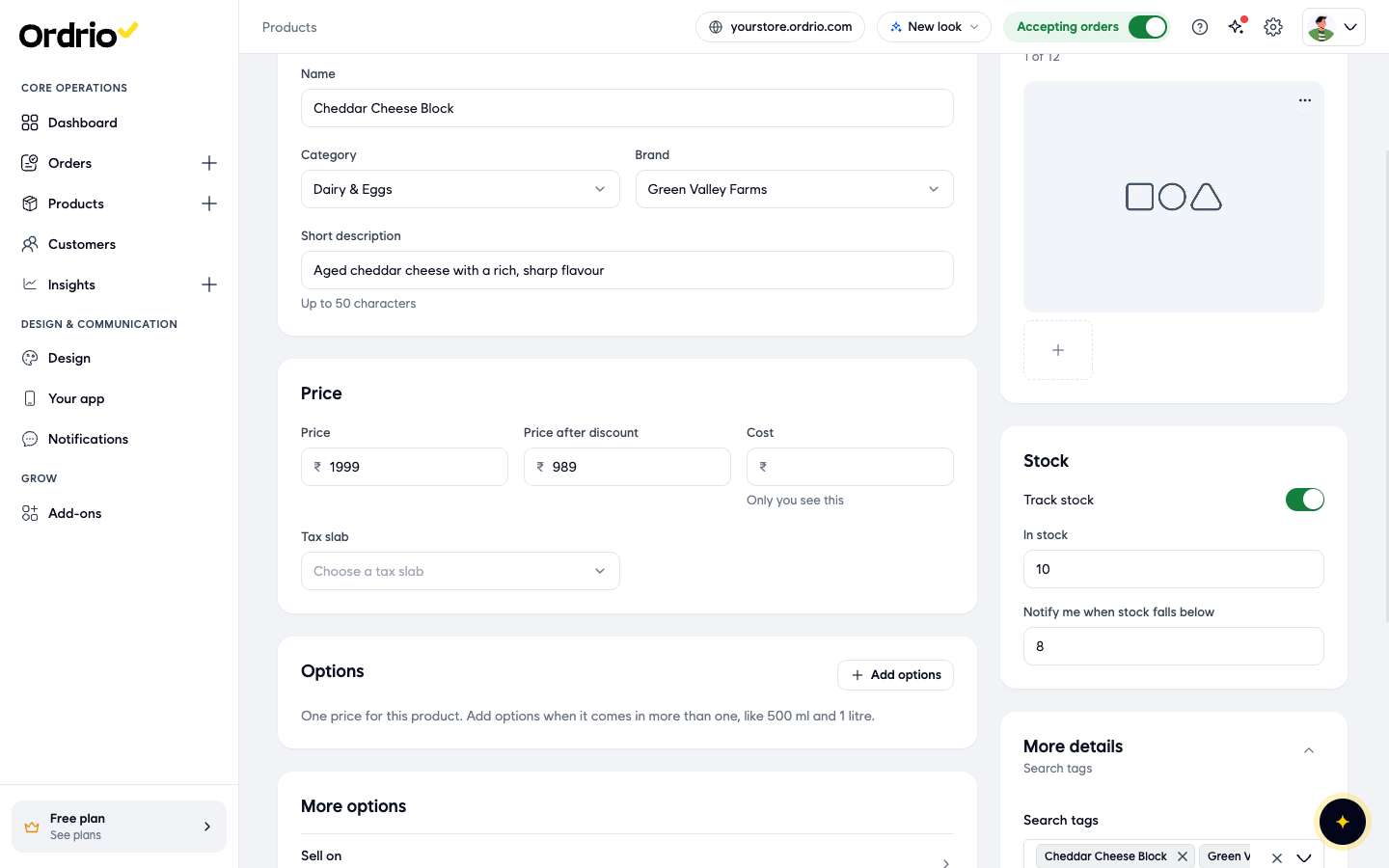
- Click Save at the top of the page. You can also click Save product in the Unsaved changes bar at the bottom. To undo your changes instead, click Reset.
After you save, Ordrio takes you back to the Products list. Open the product again to check the new level.
Set alert levels for many products at once
The Inventory page shows every product, and every size or option of a product, on its own row. This is the quickest way to set levels for many items, and for products that come in more than one size.
- In the menu on the left, click Products, then click Inventory.
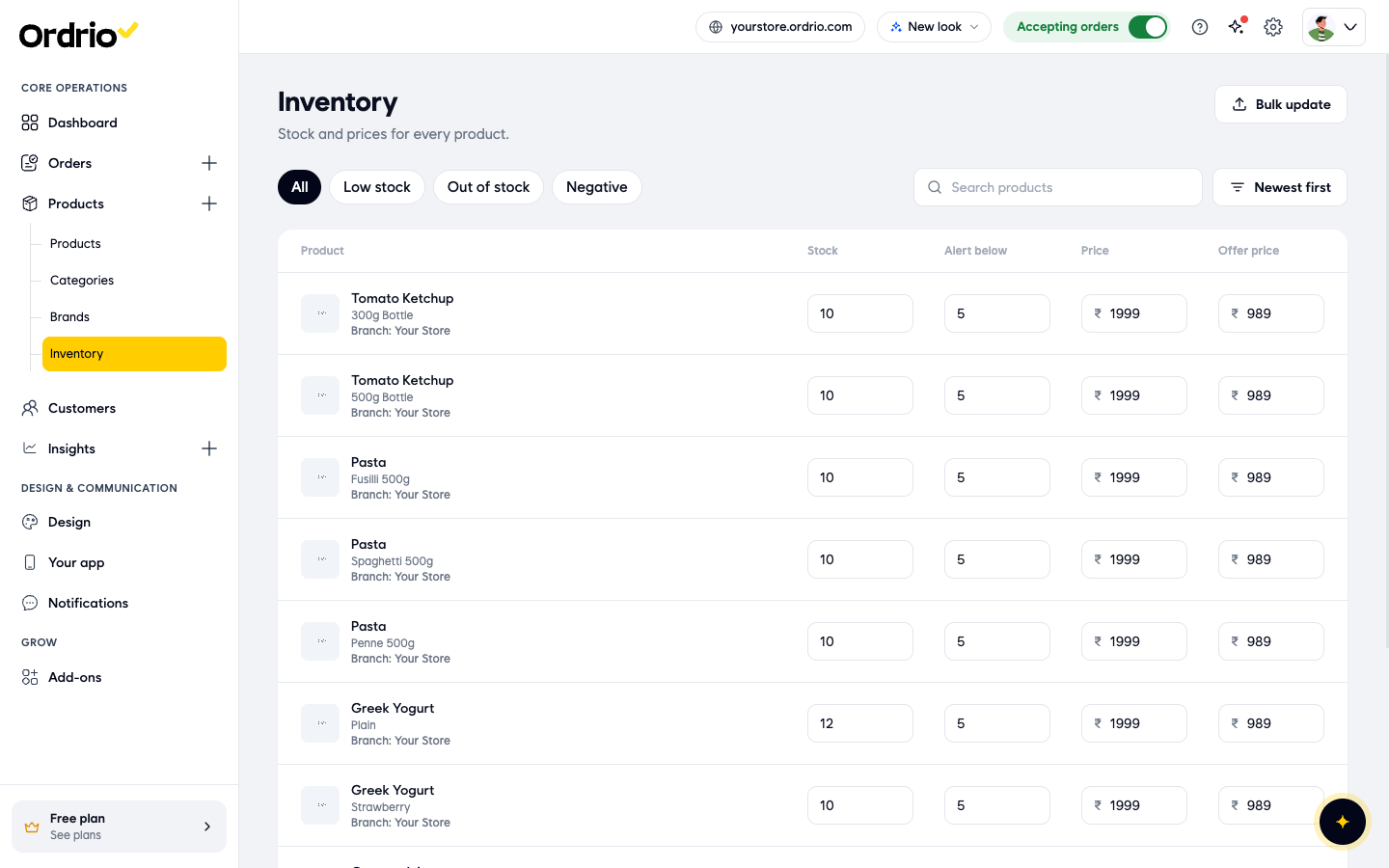
- Each row has these columns:
- Product: the product name, its size or option, and the branch.
- Stock: how many units you have now.
- Alert below: the alert level for that row.
- Price and Offer price: the selling price and the discounted price.
- Click the Alert below box for the row and type the new level.
- Change any other rows you need. A bar at the bottom shows how many unsaved changes you have.
- Click Update in that bar to save all your changes. To cancel them, click Discard.
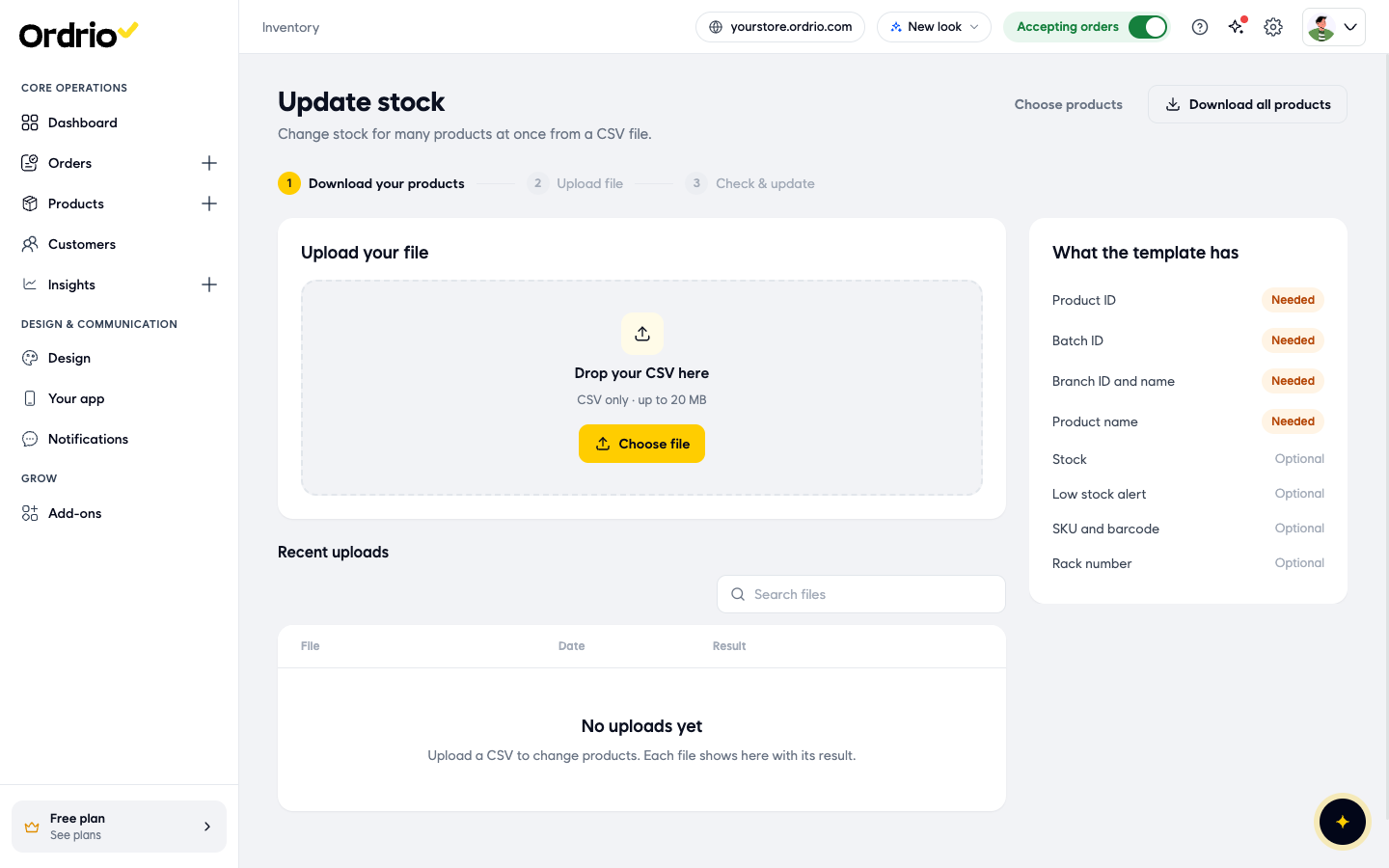
See which products are running low
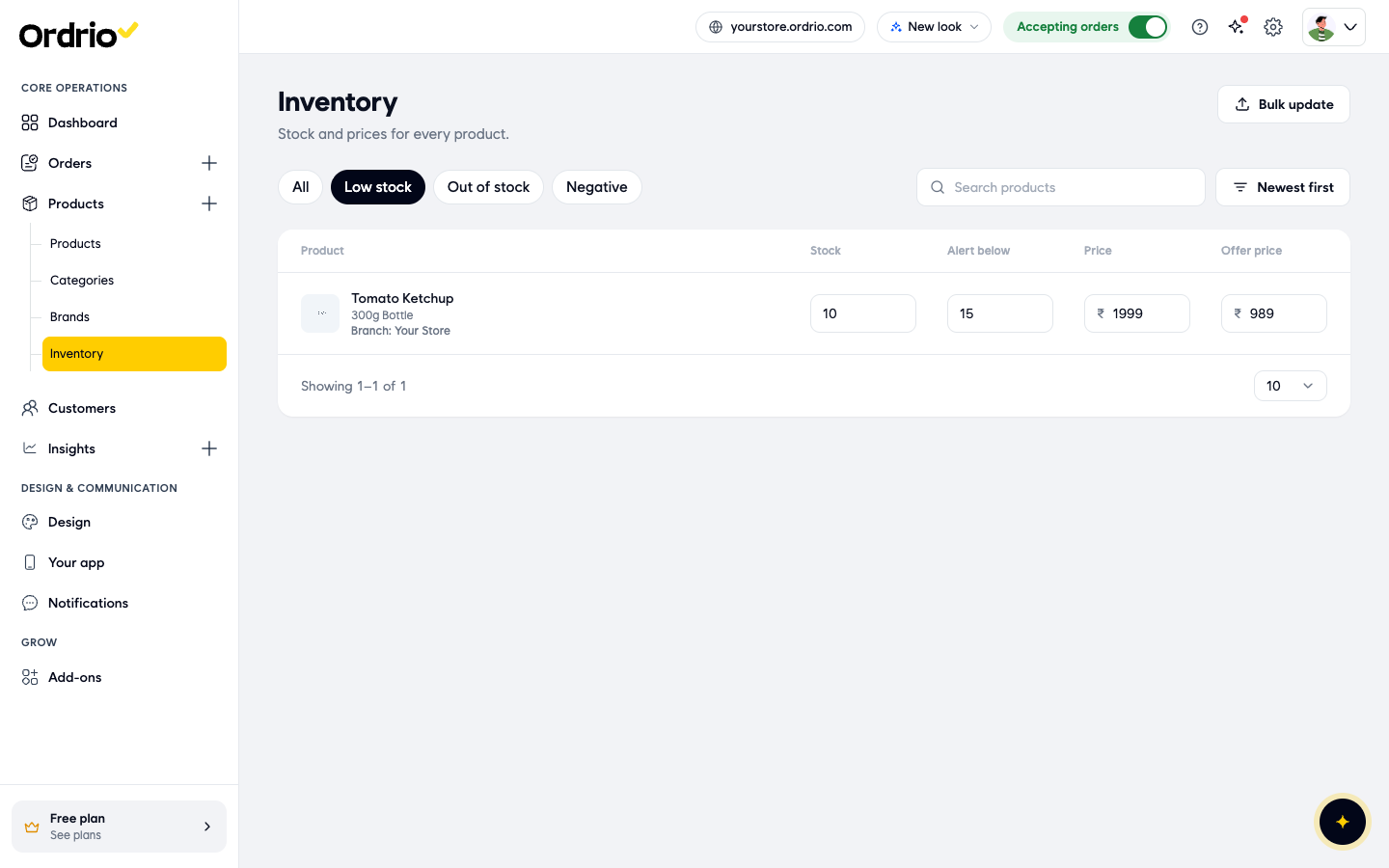
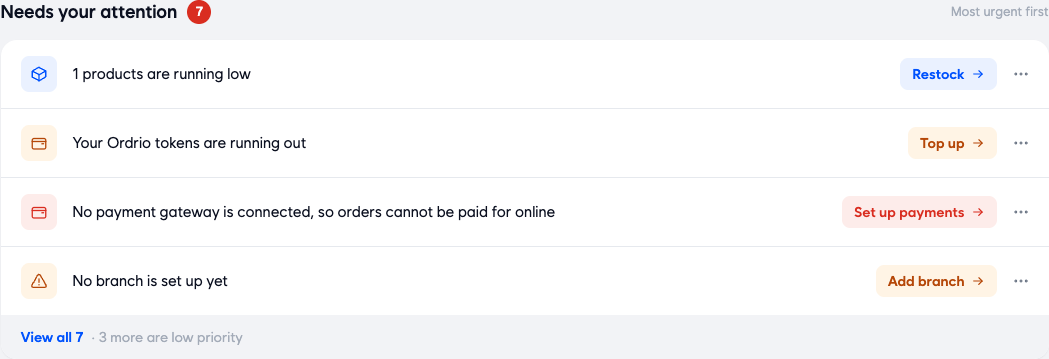
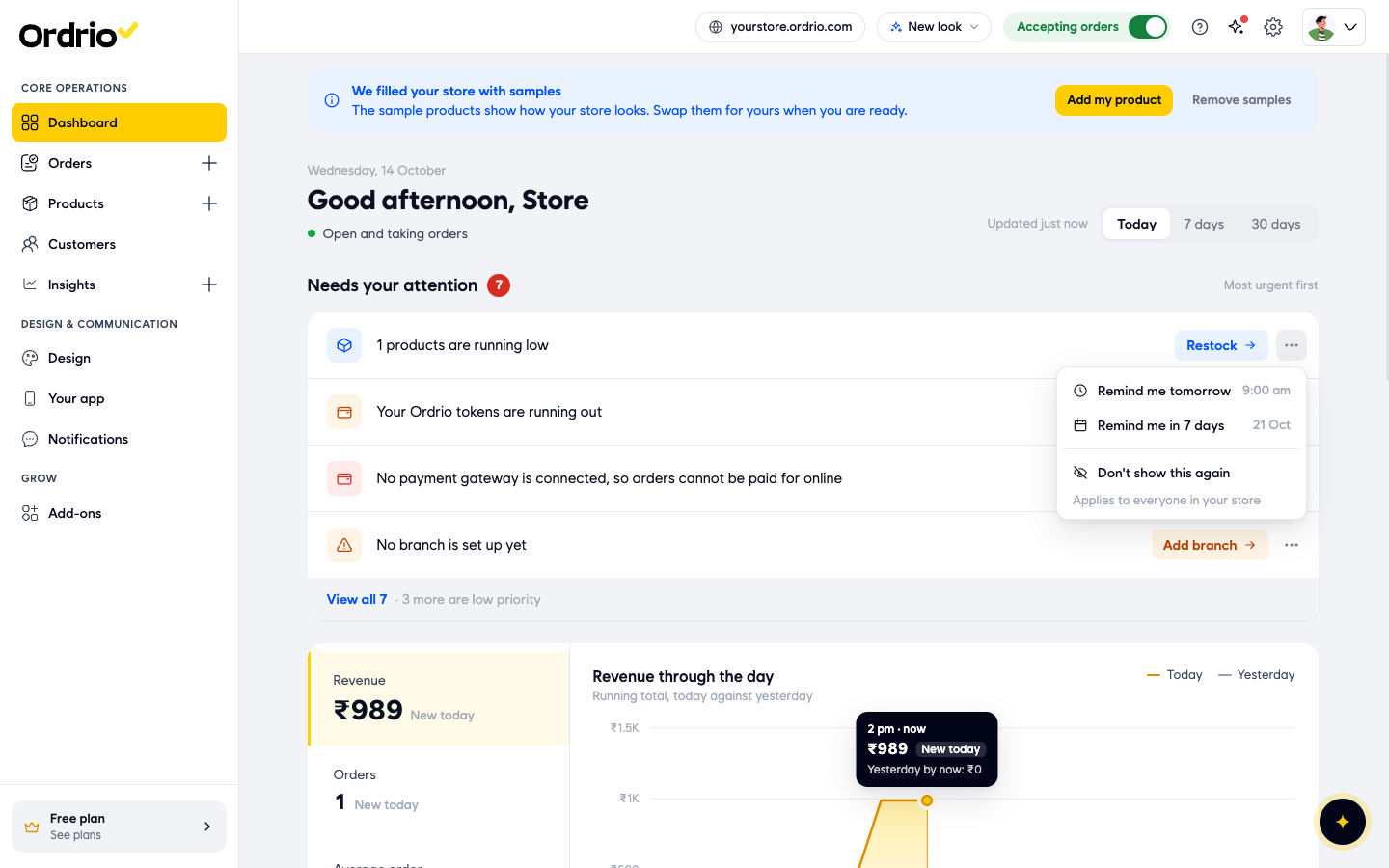
- On the Inventory page, click Low stock to see only the products below their alert level. The same warning shows on your Dashboard under Needs your attention, for example "1 products are running low". Click Restock on that line to go straight to the Inventory page and update the stock.
- To hide the alert for now, click the three dots (More actions for this item) at the end of the line and choose one of these:
- Remind me tomorrow: the alert comes back the next morning at 9:00 am.
- Remind me in 7 days: the alert comes back in a week.
When you restock, type the new number in Stock on the Inventory page (or In stock on the product page) and save. The product leaves the Low stock list once its stock is back above the alert level.
Good to know
- The numbers in the screenshots are examples. Choose your own alert level for each product.
- Products with sizes or options have an alert level for each size. Set them on the Inventory page, where each size has its own row.
- The Inventory page also has Out of stock and Negative filters, so you can find products with no stock or with stock below zero.
- Choosing Don't show this again hides the alert for your whole team. Use Remind me tomorrow if you only want to hide it for now.
Related
- Adding your first product
- Branch-level inventory
- Bulk product upload