هذا المقال غير متوفر بالعربية بعد، لذلك نعرضه بالإنجليزية.
دليل استخدام
Product pricing and taxes
Set selling prices, tax slabs and price visibility.
Every product you sell in Ordrio has a selling price and a tax slab. This article shows you how to set up your GST rates, give each product its price and tax slab, and choose how prices look to your customers.
Before you start
- Add at least one product. See Adding your first product.
- Keep your GSTIN ready if your business is registered for GST.
- Know which GST rate applies to each of your products. The rates in this article (18% standard, 5%, 12% and 0%) are only examples. Use the rates that apply to your own products.
Part 1: Set up your tax rates
- Open nadi.ordrio.com (your Ordrio admin panel) and log in.
- Click the Settings gear at the top right. In the settings menu, under Payments & billing, click Tax & invoices.
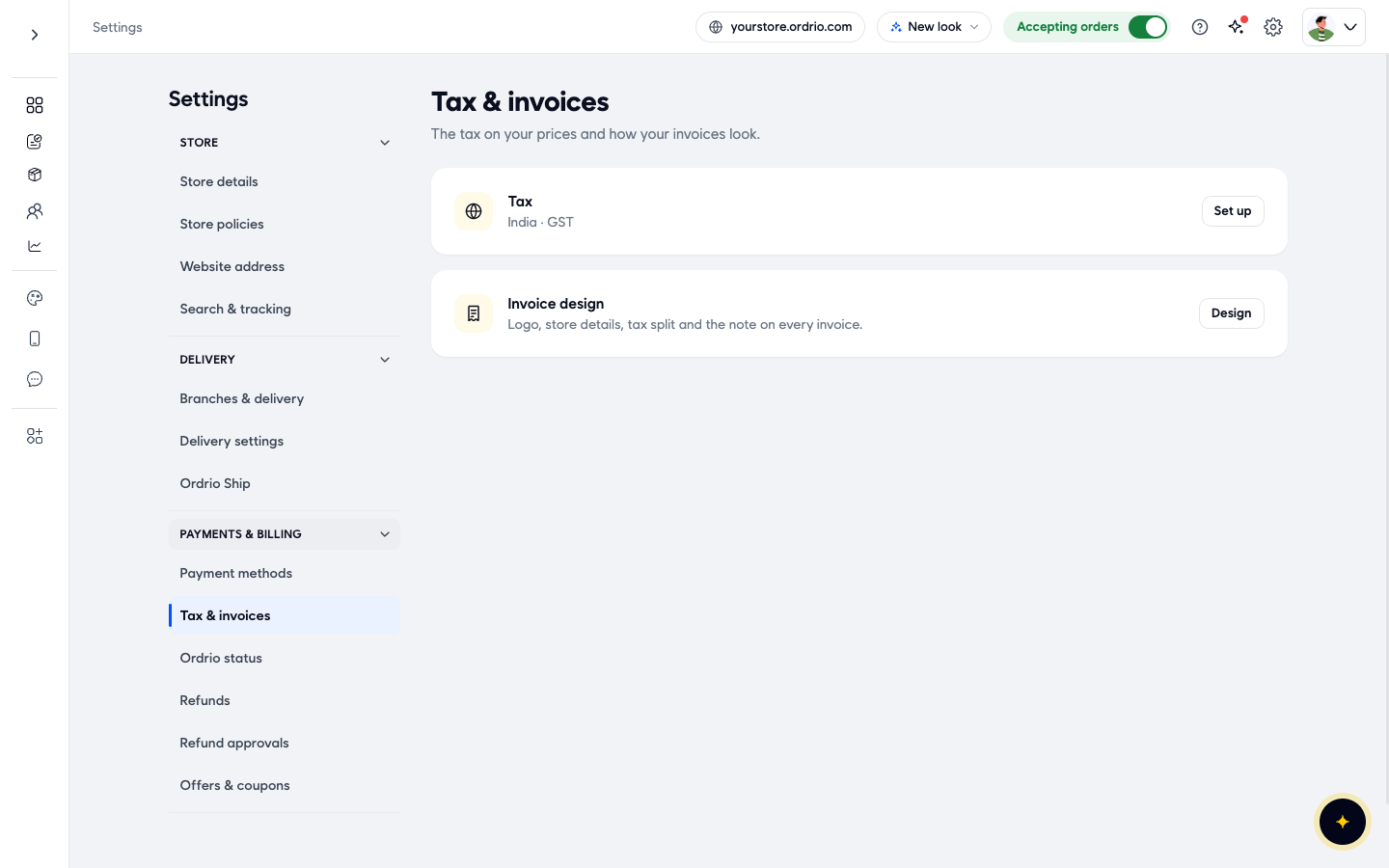
- On the Tax card (India · GST), click Set up. The Set up GST screen opens.
- In GSTIN, type your own GST number. The number in the picture is only an example.
- Leave Prices already include tax ticked if the prices you type for your products already include GST. Customers then see the final price. Untick it if the prices you type do not include tax.
- Leave Work out tax on the final order value ticked if you want tax worked out after discounts and delivery charges. Untick it if you do not.
- In Standard rate, type the GST % for most of your products, for example 18. This rate is used for every product that is not in one of your other rates.
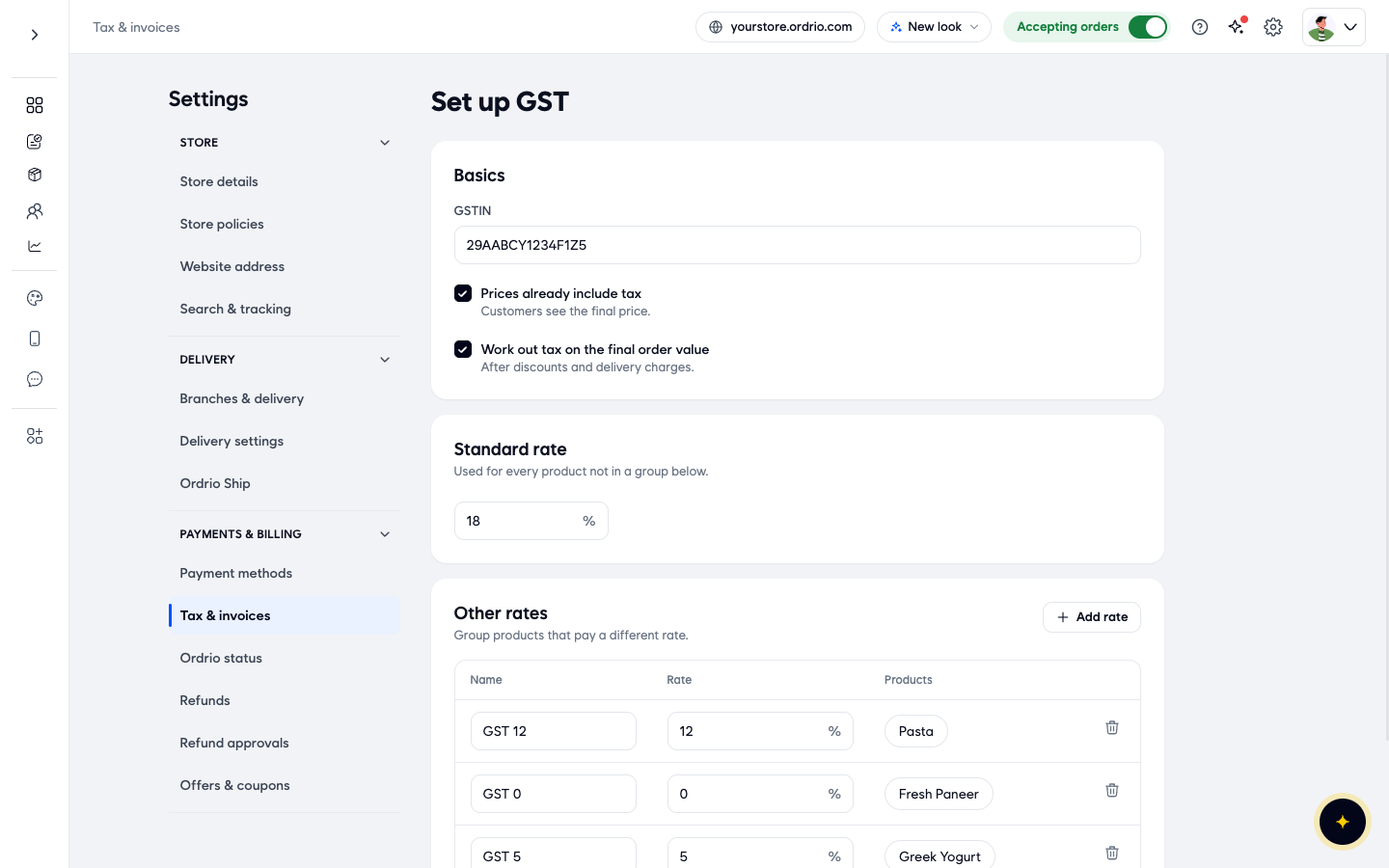
- If some products pay a different rate, click Add rate under Other rates. A new row appears.
- In the new row, type a Name for the rate (for example "GST 5"). Use letters, numbers, spaces and hyphens only, with at least one letter.
- In Rate, type the percentage (for example 5 for packaged food).
- Click Choose products. Tick every product that pays this rate (you can search by name), then click Done.
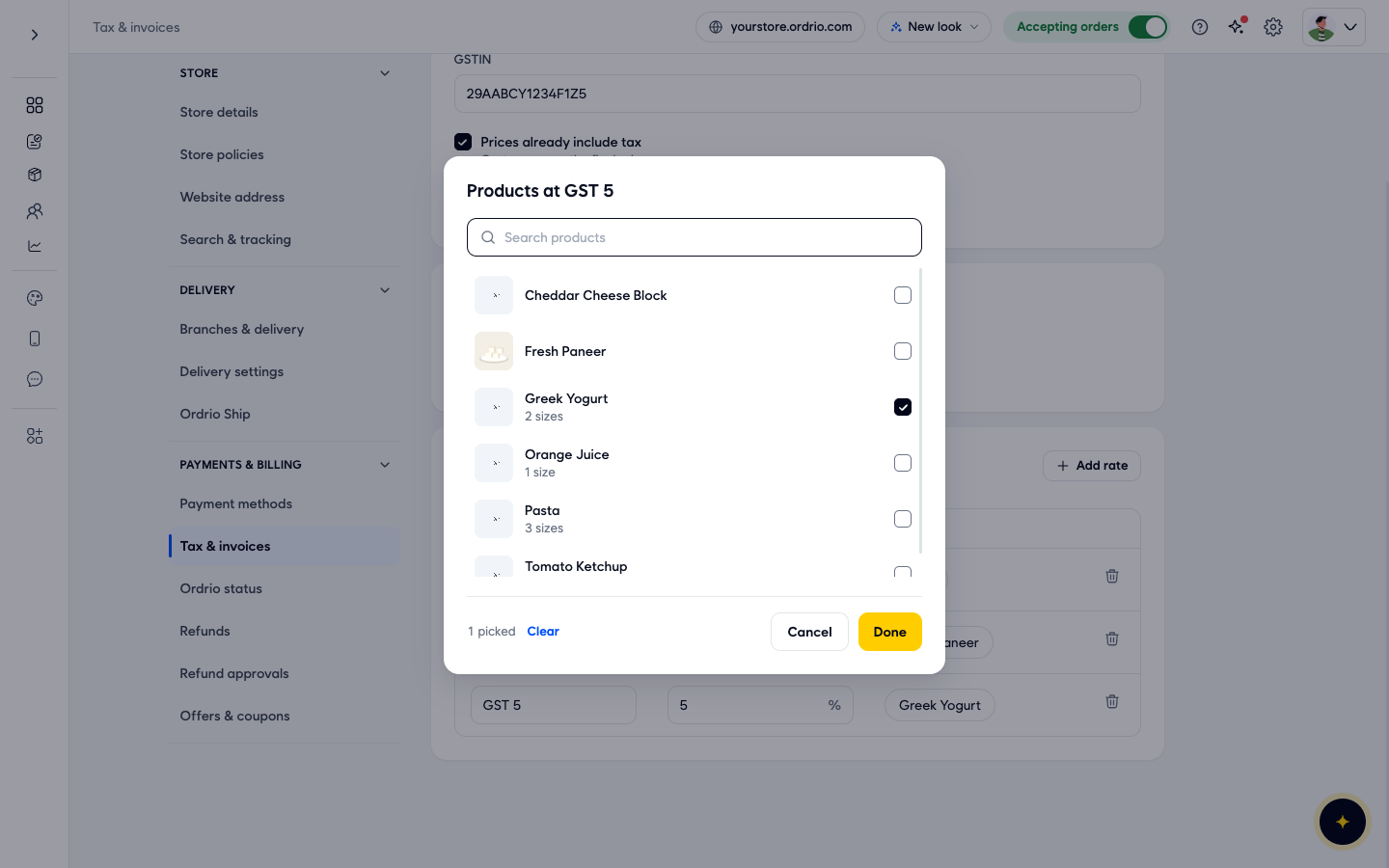
- Repeat steps 8 to 11 for each rate you need, for example "GST 12" at 12% and "GST 0" at 0%. To remove a rate, click the bin icon at the end of its row.
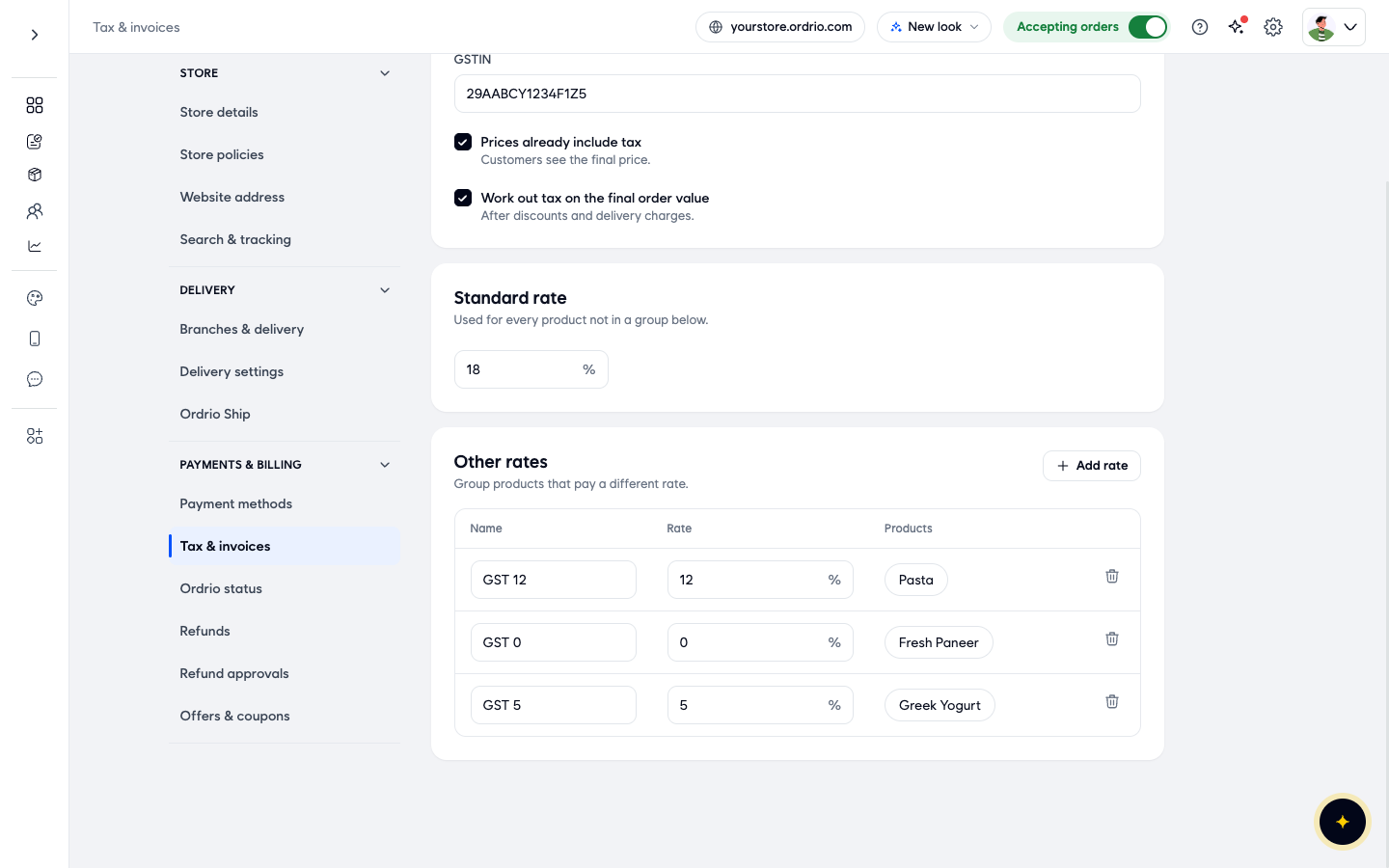
- Click Save in the You have unsaved changes bar at the bottom. The bar goes away once your tax setup is saved.
Part 2: Set a product's price and tax slab
- In the left menu, click Products, then Products. You see the list of all your products.
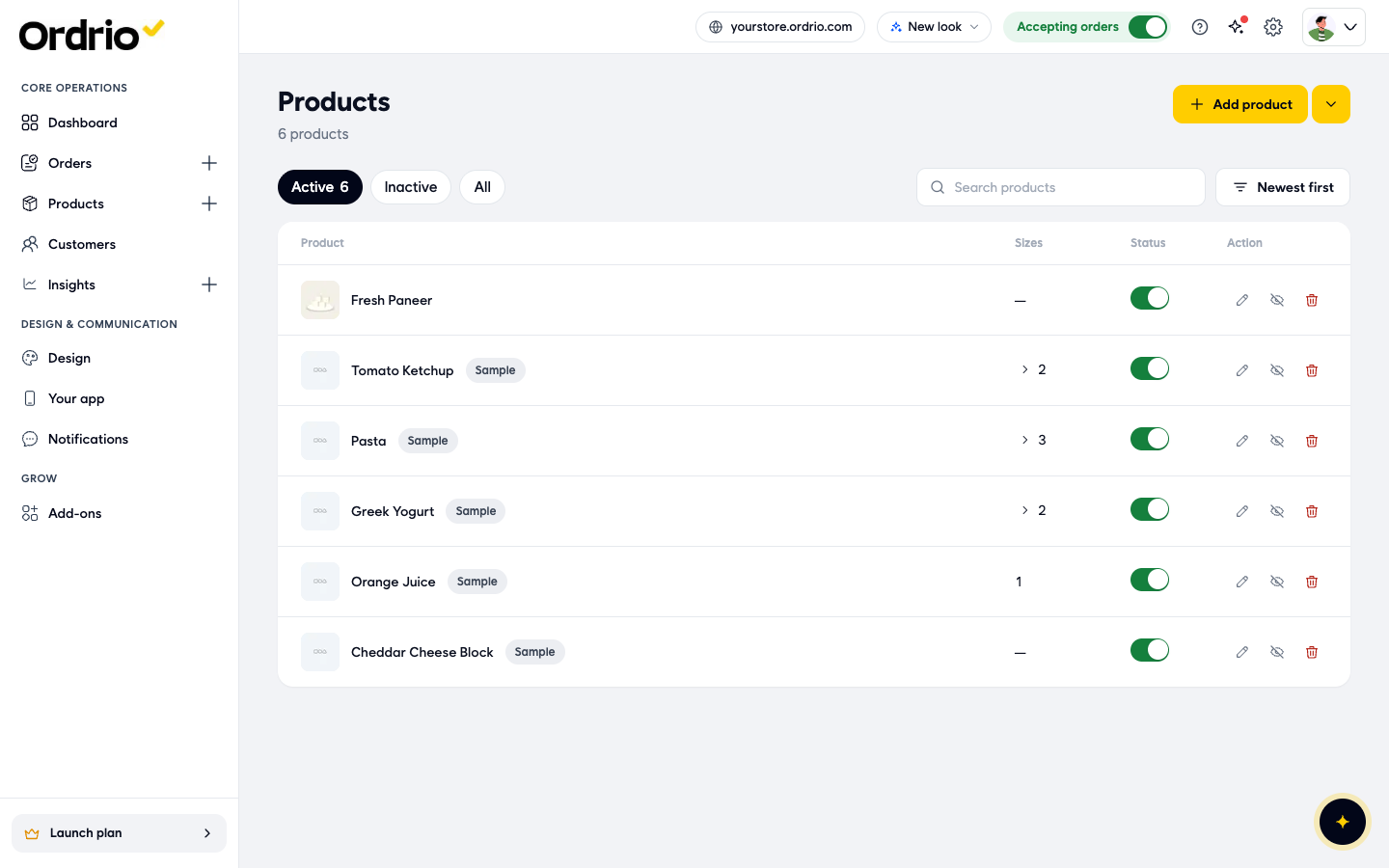
- Click the pencil icon next to the product you want to price. To price a new product, click Add product instead.
- Scroll to the Price section. In Price, type the selling price.
- If the product is on offer, type the lower price in Price after discount. Leave it empty if there is no discount.
- In Cost, type what the product costs you. This is optional and only you see this. Customers never see it.
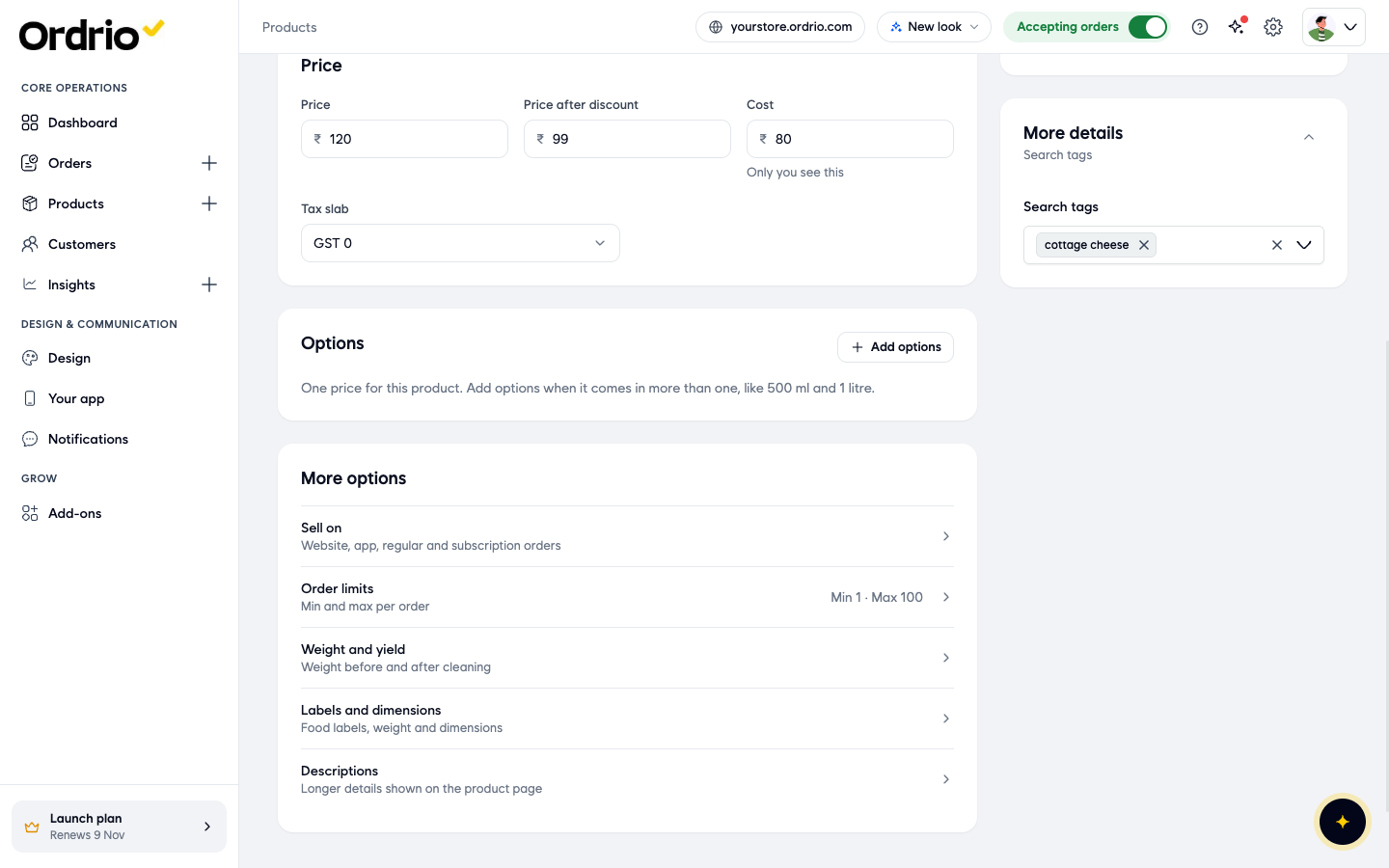
- Click Tax slab and pick the right rate from the list, for example GST 5 for a packaged food. You can type in Find a tax slab to search. The list shows the Other rates you set up in Part 1. In the picture, fresh paneer is on GST 0.
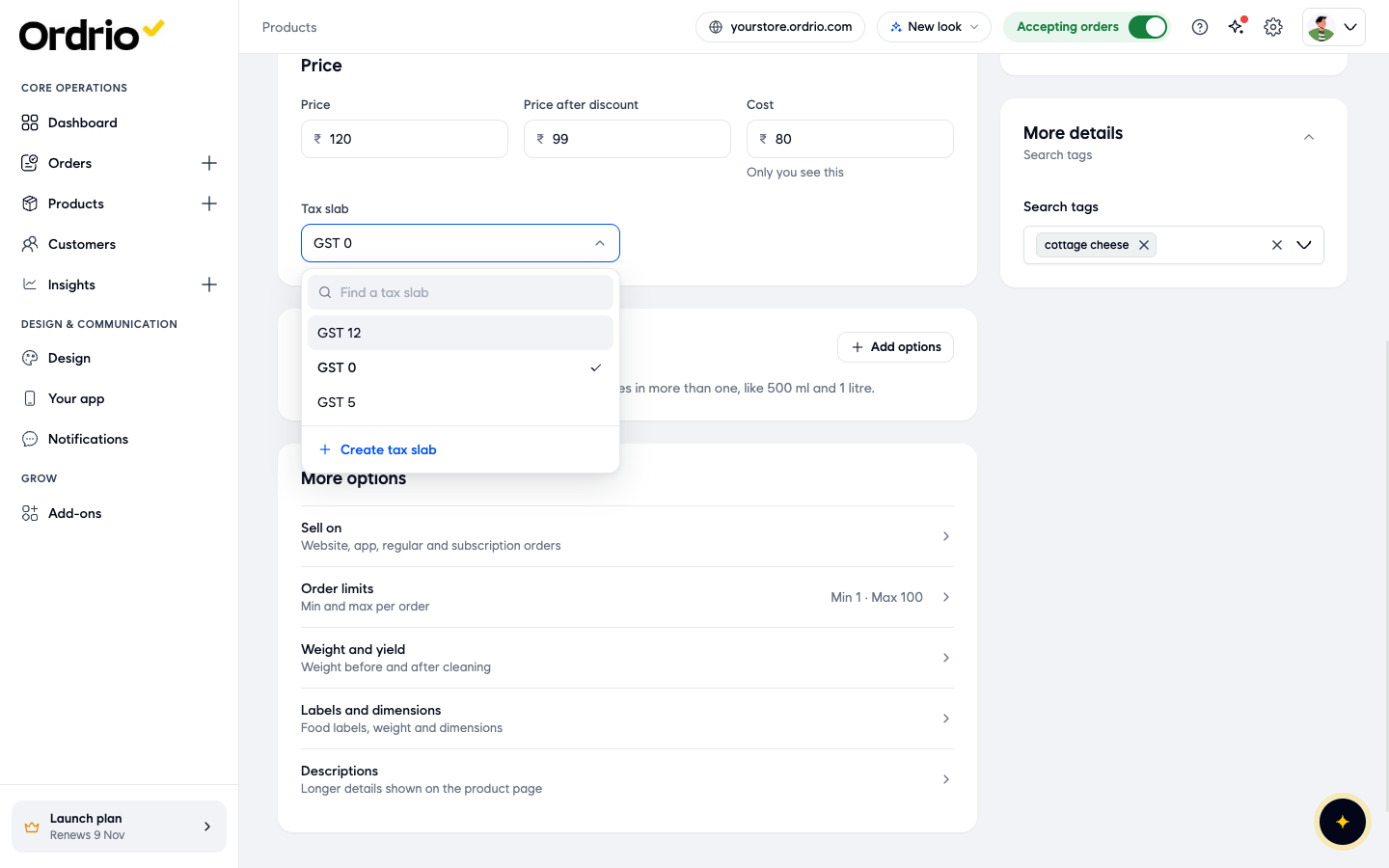
- If the rate you need is not in the list, click Create tax slab. Type a Name (optional) and the Rate in %, then click Create and use. The new slab is chosen for this product and also appears under Other rates on the Set up GST screen.
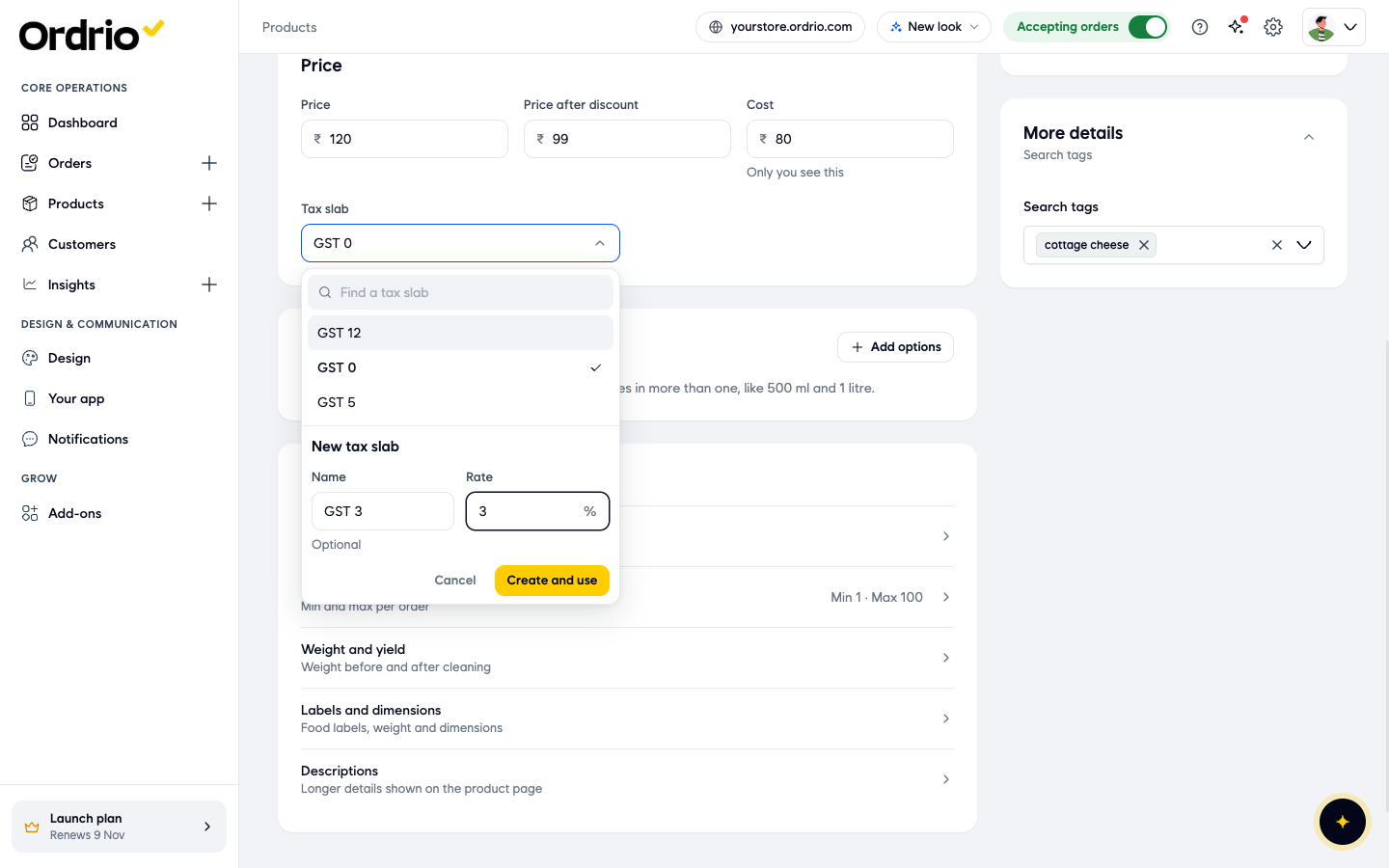
- Click Save at the top right. You go back to the Products list, and the price and tax slab are saved on the product.
Products that come in sizes
If a product has options, like 300g and 500g, the Price section says Prices are set on each size. You still choose the Tax slab there, and you set the price on each size.
- Open the product and, in the Options section, click Edit options.
- In the Options table, type the Price for each size.
- Keep the Selling switch on for each size you sell. Turn it off to stop selling that size.
- Click the small arrow next to a size to see more fields. Type After discount (the offer price, which must be lower than the price), Cost (only for you) and, if you use them, an SKU code.
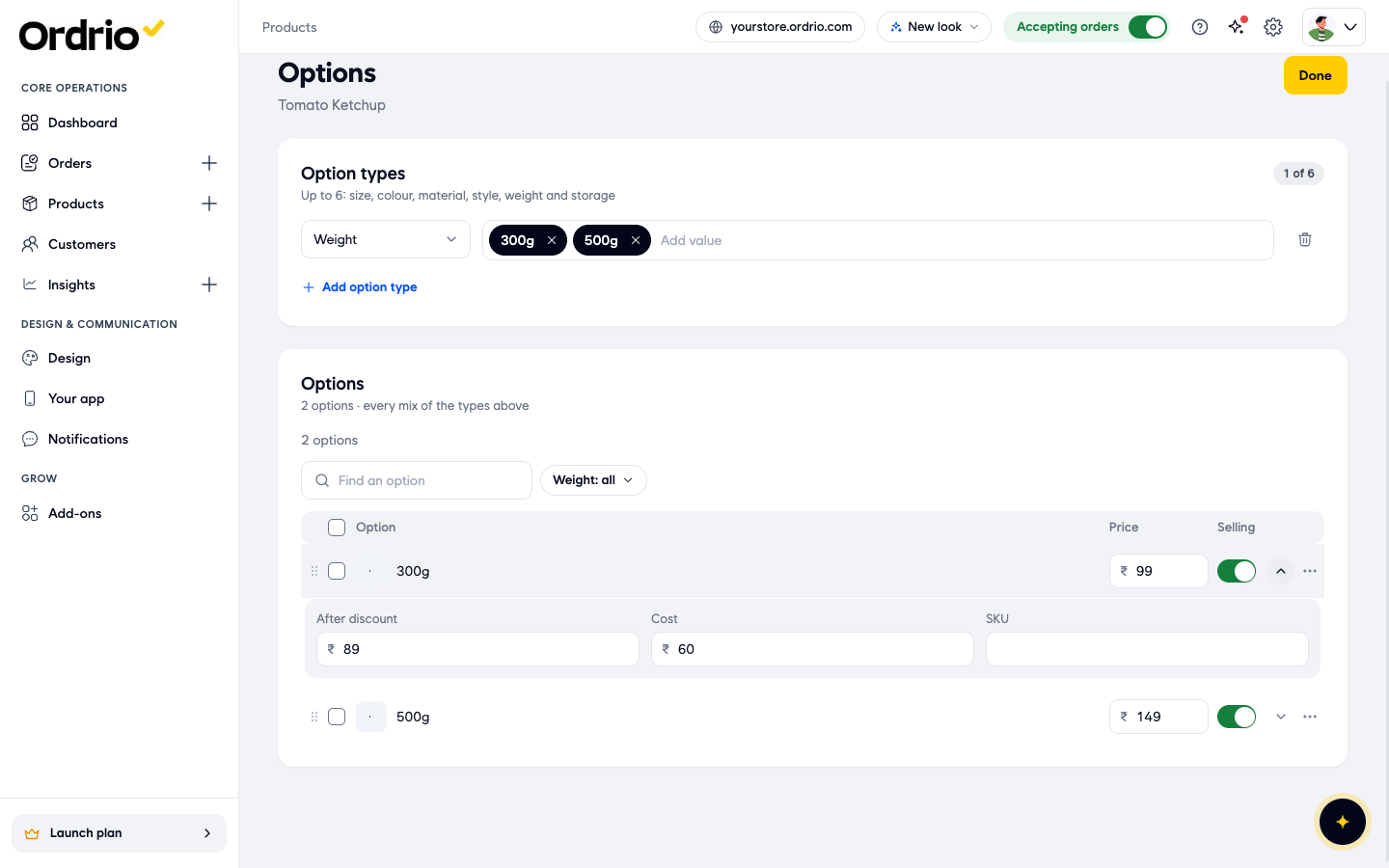
- Click Done, then click Save.
Part 3: Choose how prices show to customers
- Click the Settings gear at the top right. Under Orders & products, click Product settings.
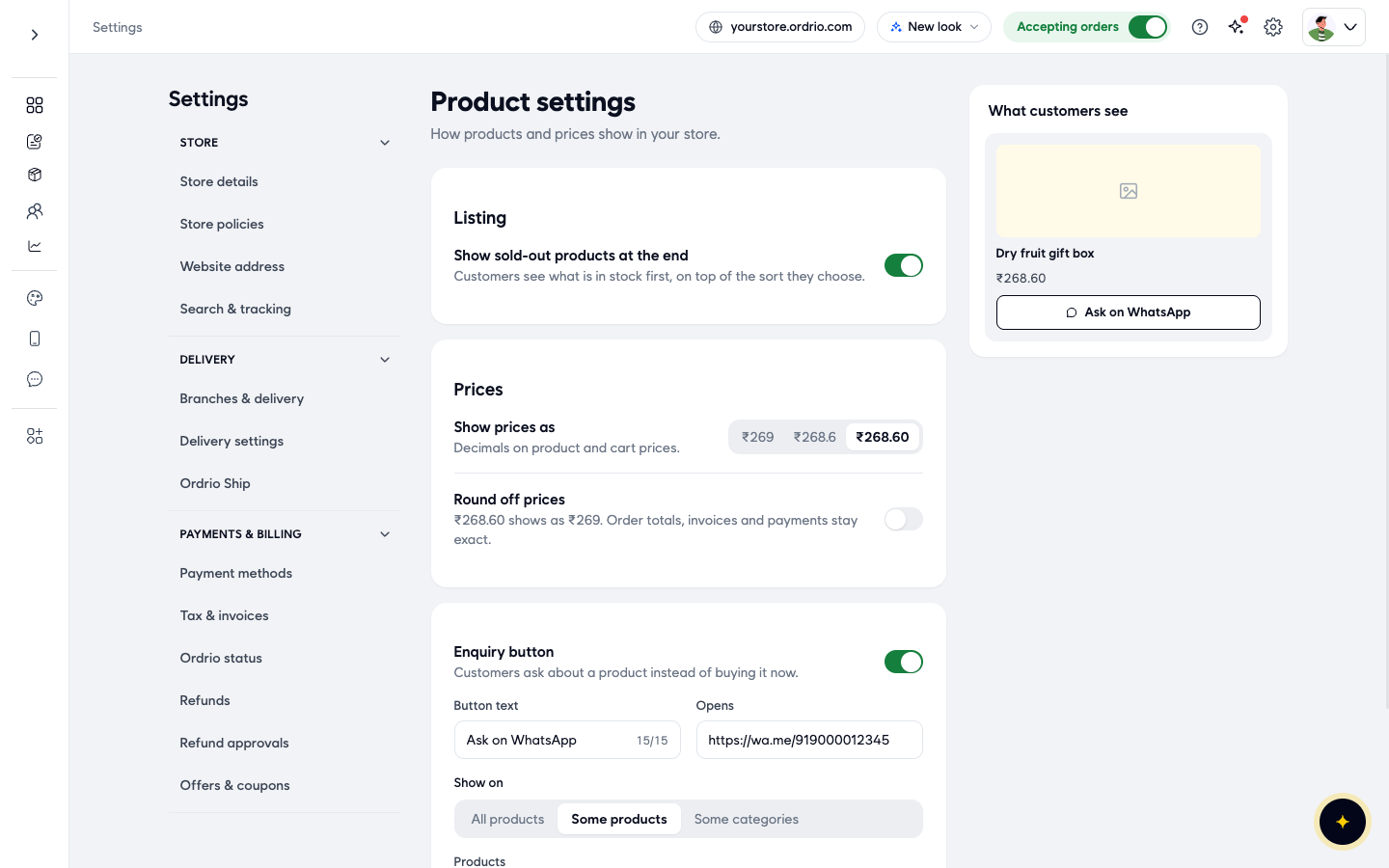
- Under Prices, pick how prices look in Show prices as: ₹269 (no decimals), ₹268.6 (one decimal) or ₹268.60 (two decimals). This is used on product and cart prices.
- Turn on Round off prices if you want prices like ₹268.60 to show as ₹269. Order totals, invoices and payments stay exact.
- If you want customers to ask about some products instead of buying them straight away, turn on Enquiry button. Then fill in:
- Button text: the words on the button, up to 15 characters, for example "Ask on WhatsApp".
- Opens: the link the button opens, for example your WhatsApp link (https://wa.me/ followed by your number with country code). Use your own number, not the example in the picture.
- Show on: choose All products, Some products or Some categories. For Some products, pick the products in Products.
- Check the What customers see preview on the right. It shows a sample product with your price format and button.
- Click Save in the bar at the bottom.
Good to know
- One list of rates. The tax slabs you pick on a product and the rates under Other rates on the Set up GST screen are the same list. Change a product's slab in either place and the other place shows the change.
- Standard rate. The Standard rate is not in the Tax slab list on a product. Any product that is not in one of your Other rates uses the Standard rate.
- Rate names. Do not put a % sign in a rate name. The Create tax slab box on a product accepts it, but the Set up GST screen will not save until you take it out.
- Every rate needs a product. On the Set up GST screen, each row under Other rates must have at least one product, or you see "Choose at least one product" and cannot save. Remove rates you do not use.
- Discount prices. The price after discount must be lower than the price. If not, you see "Keep it below the price".
- Cost stays private. Cost is only for you and is never shown to customers.
- Enquiry button and price. In the preview, the price still shows, with your enquiry button under it.
- Hide a product. To stop showing a whole product, turn off its switch in the Status column of the Products list.
- Tax on invoices. To change how tax is split on your invoices, go to Tax & invoices and click Design on the Invoice design card.
Related
- Adding your first product
- Product options and sizes
- Designing your invoices
هل كان هذا المقال مفيداً؟