هذا المقال غير متوفر بالعربية بعد، لذلك نعرضه بالإنجليزية.
نظرة عامة
What is a Flexi Box
Learn what a Flexi Box is, how customers pick items from its sections in your store, when to use one and where it lives in your Ordrio admin panel.
A Flexi Box is a product where the customer builds their own box. You make groups of items, called sections, and set how many the customer can pick from each one. Use it for a tiffin, a breakfast box, a party box or a hamper, so customers get choice and you still control what goes in.
How customers see a Flexi Box
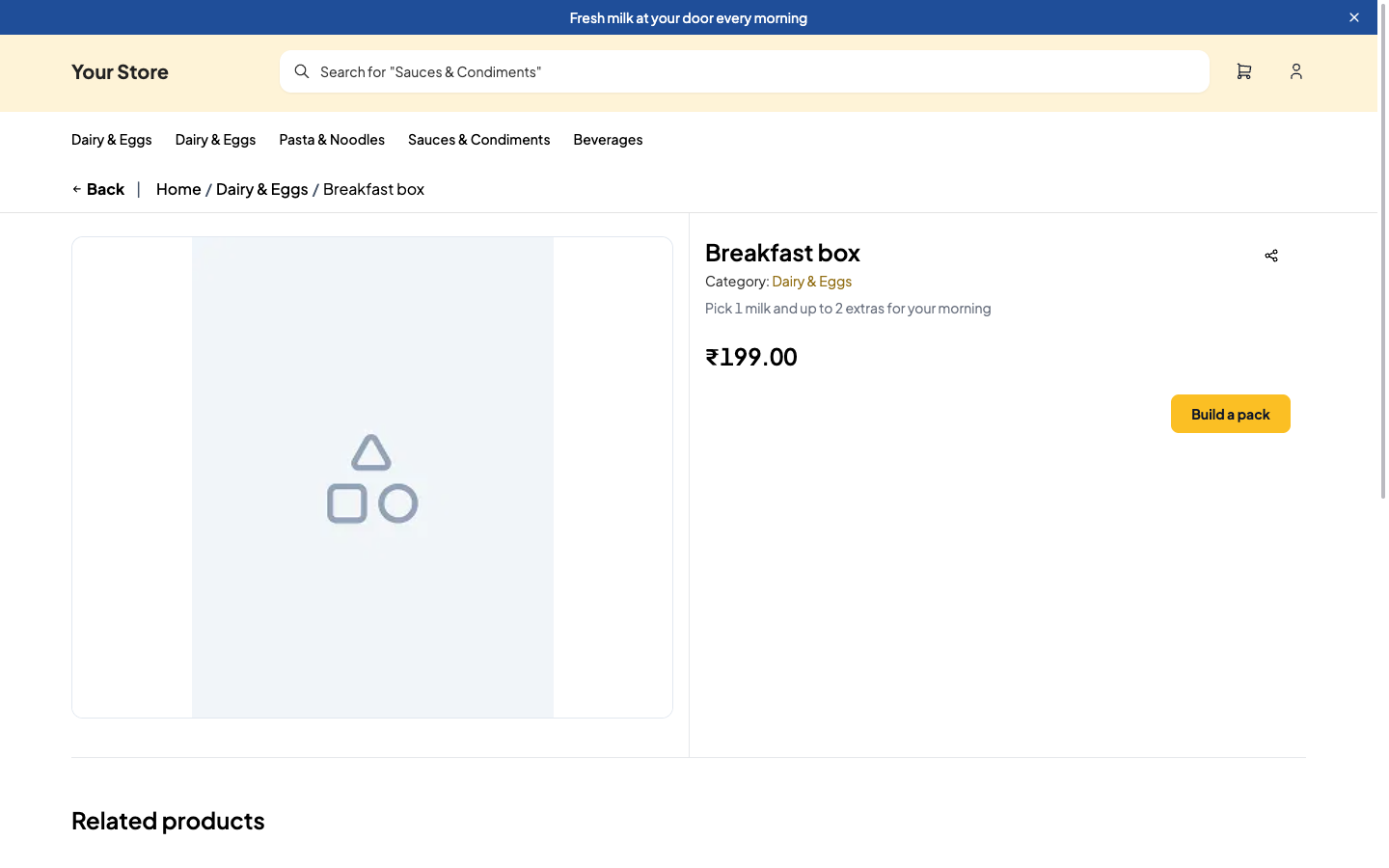
The pictures below show an example breakfast box on a store website. It has two sections: "Milk", where the customer picks 1, and "Extras", where they pick up to 2. The box costs ₹199 whatever they pick.
- In your store, the box shows with your other products, with its price and a Build button. When the customer opens it, the product page shows the name, category, short description and price, and a Build a pack button.
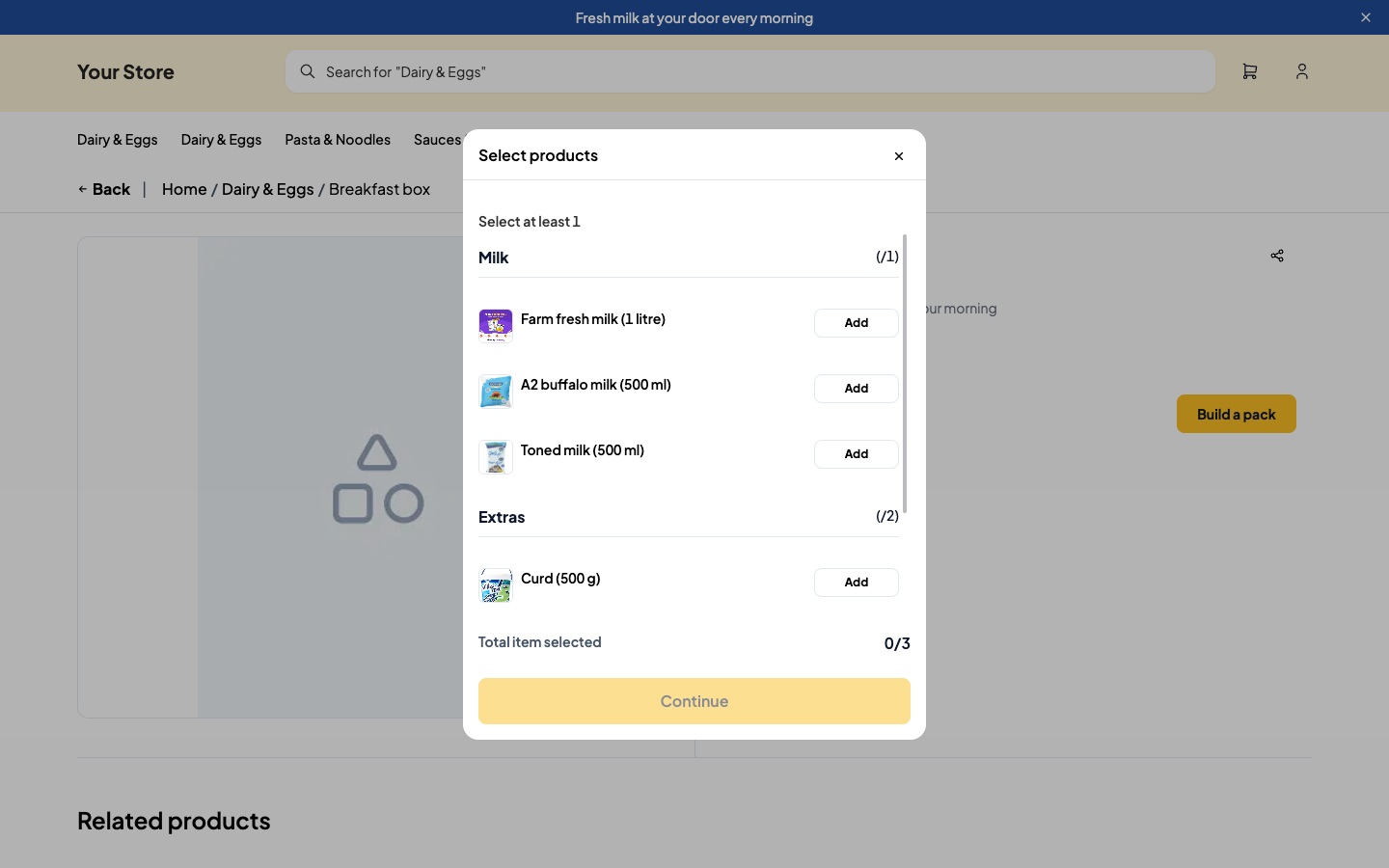
- When the customer taps Build a pack, a Select products window opens. Each section has its own heading with the items under it. Next to the section name, a counter shows how many items the customer can pick there, for example (/1) for Milk and (/2) for Extras. A short line at the top, like Select at least 1, tells them what to do. At the bottom, Total items selected shows how many they have picked out of the most they can pick, for example 0/3.
- The customer taps Add next to an item to pick it. The button changes to a bin icon, the number picked and a + button. They tap + to add one more of the same item (if you allow it), or the bin icon to take the item out again. The section counter fills up, for example (2/2) for Extras, and when a section is full, no more items from it are added. Total items selected goes up with each pick, for example 3/3.
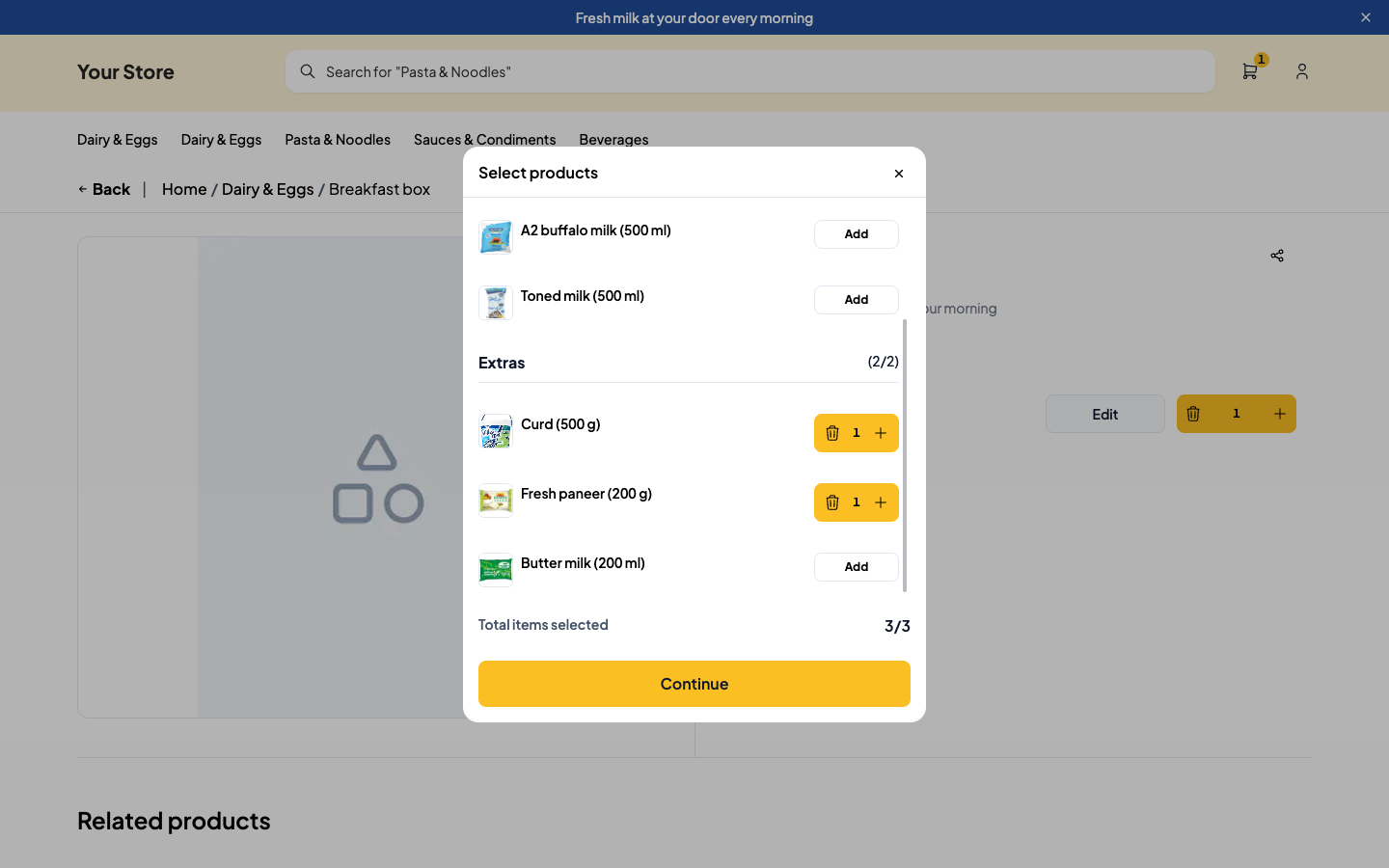
- When they are happy with their picks, they tap Continue. The box goes into their cart at the box price. On the product page, an Edit button lets them change their picks, and the + and bin buttons change how many boxes they want. In the cart, the box shows with its price and Tap to customize.
The picks the customer can make, and the counters they see, come from the sections and rules you set for the box.
When to use a Flexi Box
A Flexi Box works well when the same box can be filled in different ways. For example:
- Tiffin or thali: 1 dal, 1 sabzi and 2 rotis, with a choice of sweet.
- Breakfast box: 1 milk and up to 2 extras like curd or paneer.
- Party or snack box: any mix of snacks from one list.
- Gift hamper: a few fixed items plus some the customer chooses.
If your product always comes the same way, with only a size to choose, add it as a Regular product instead.
How a Flexi Box is set up
You create a Flexi Box in Products, like any other product. The items that go in the box must already be in Products as regular products, because a Flexi Box picks its items from your catalogue. The full steps are in Setting up a Flexi Box. In short:
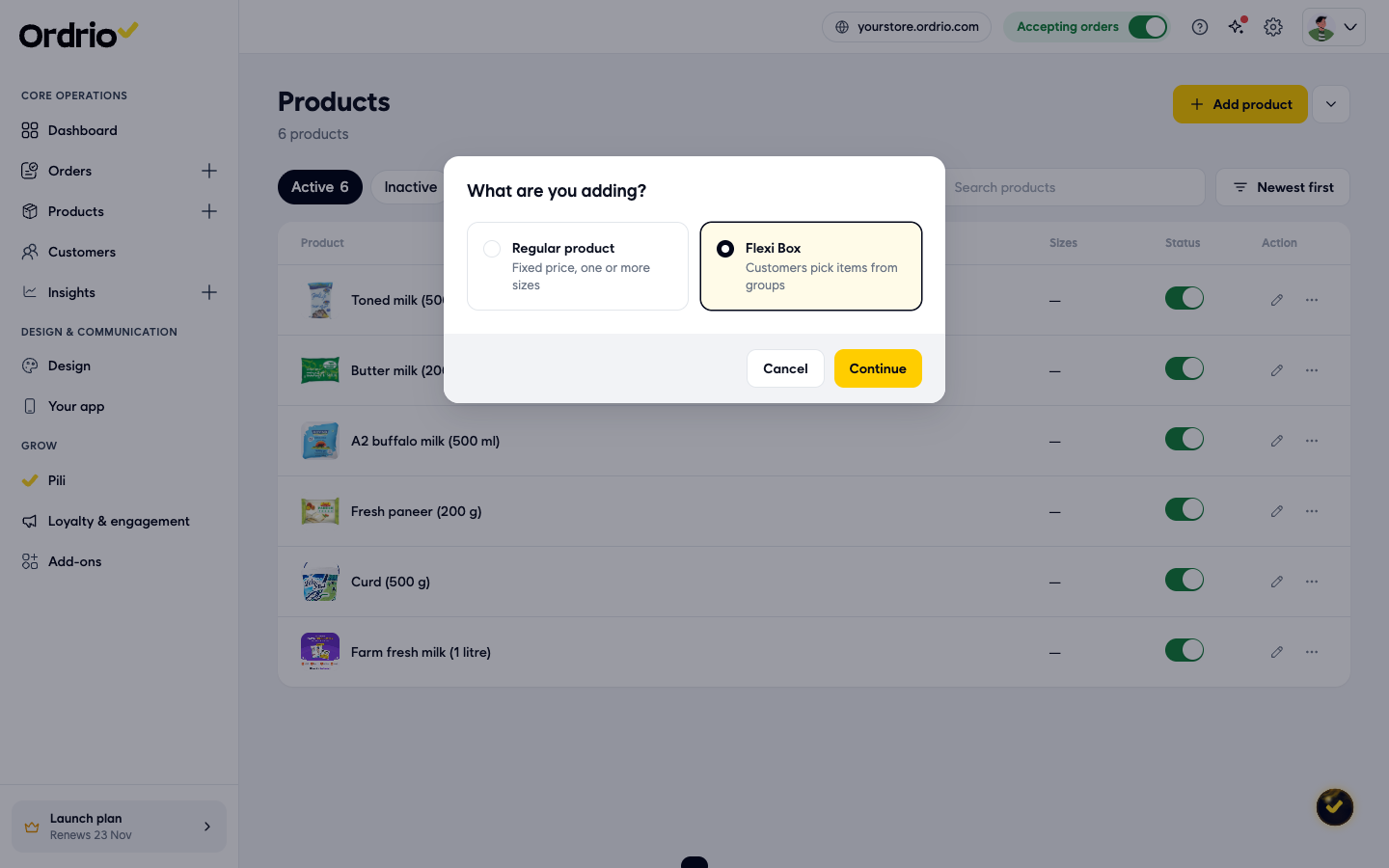
- Open manage.ordrio.com (your Ordrio admin panel) and log in. Click Products, then Products, then Add product. Choose Flexi Box ("Customers pick items from groups") and click Continue. Fill in the basics, such as the name, category and photos.
- Under More options, click Box contents, then Set up step by step. Create a Flexi Box takes you through four parts:
- Type: give the box a name and choose how customers build it: Pick from sections, Fixed box with swaps or Pick any items.
- Sections: name each group of items, for example "Milk" and "Extras", and click Add items to choose the products in it.
- Rules: for each section, set How many can the customer pick? (for example Exactly 1 or Up to 2), items Included in every box, and whether the same item can be picked more than once.
- Price and preview: choose One price for the box or Add up the item prices, then check Preview as the customer sees it and click Done.
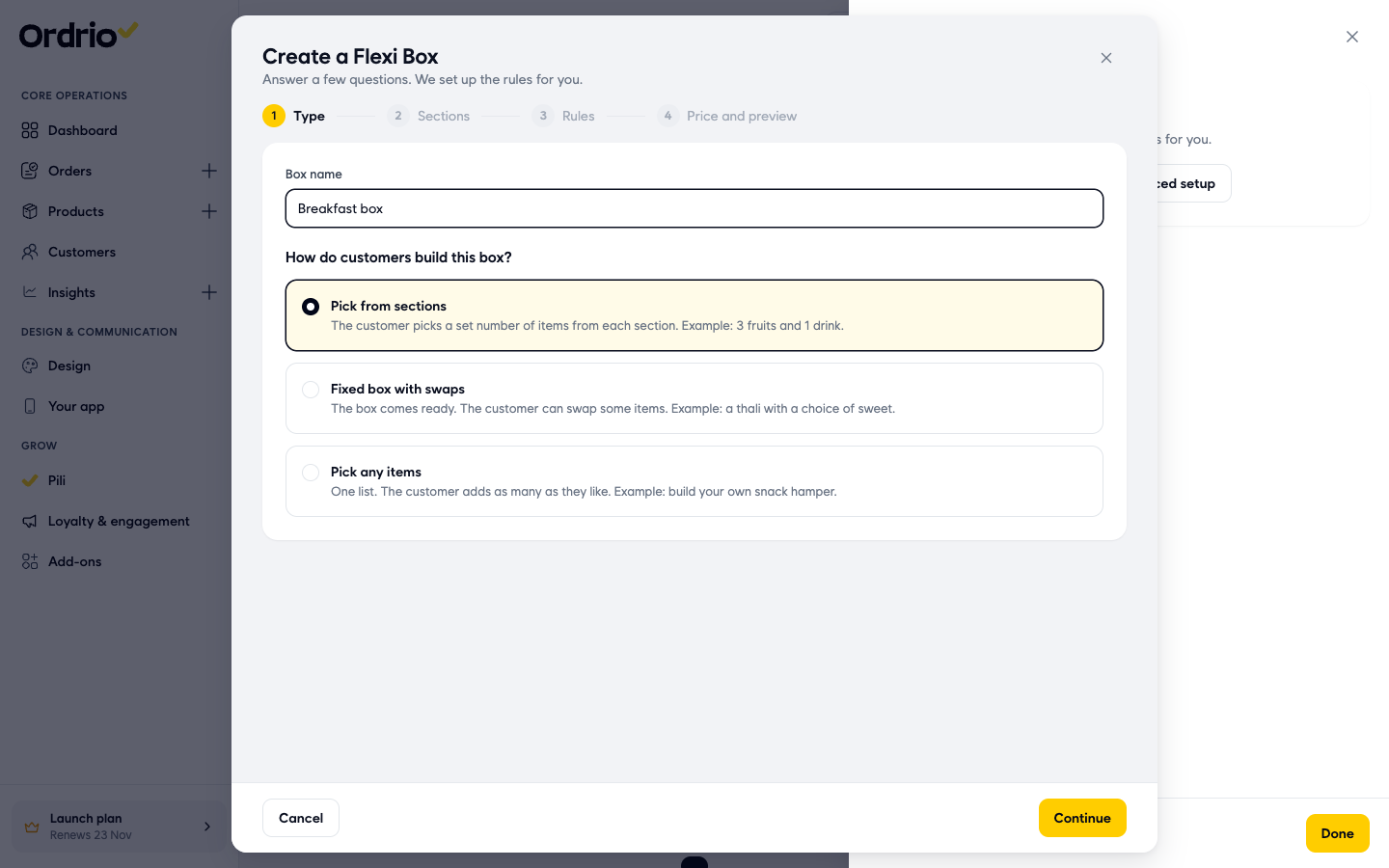
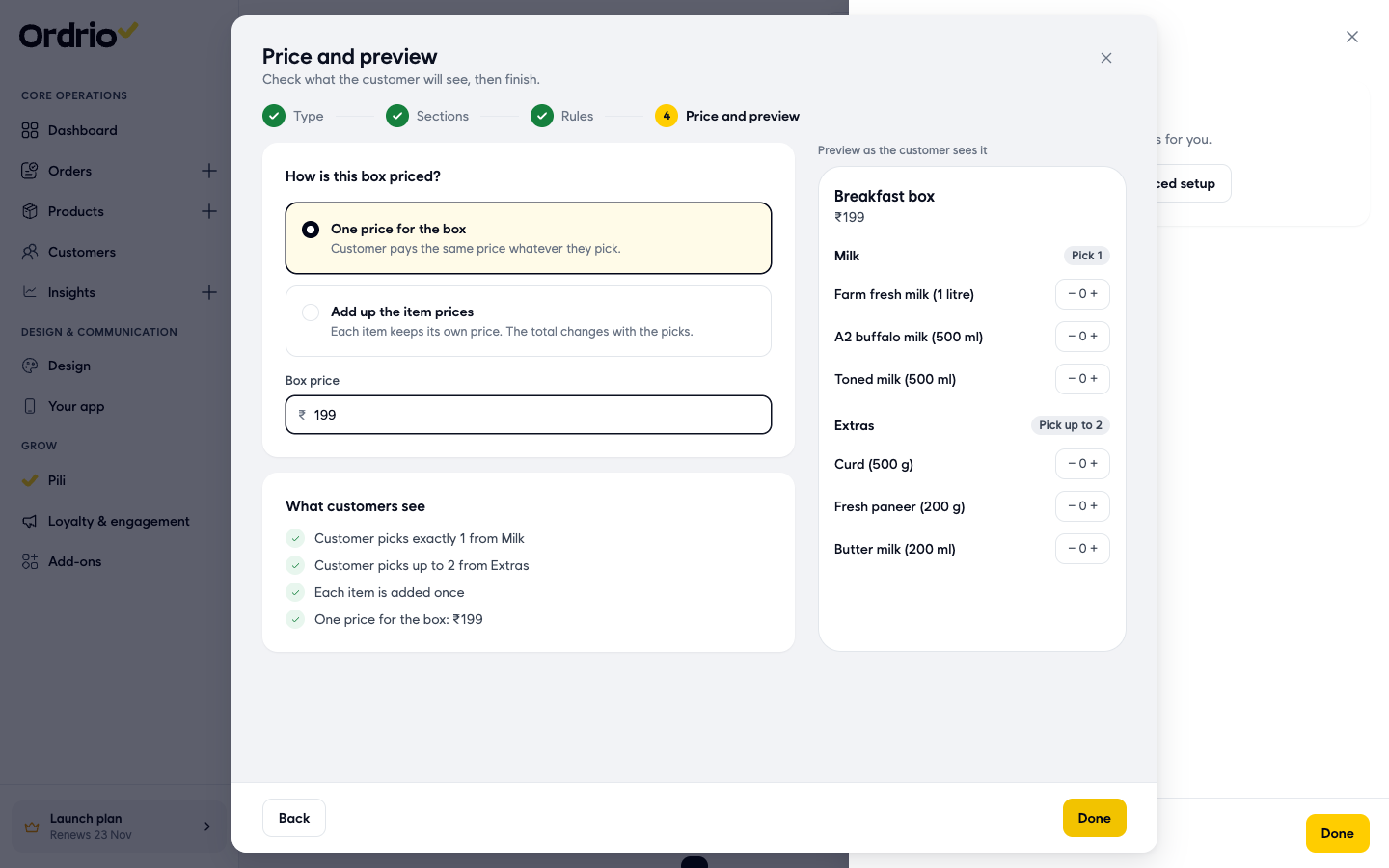
- Click Create product to save the box.
Where your Flexi Box lives
Your Flexi Box sits in Products > Products with your other products. The list shows its rules in plain words under the name, for example "Customer picks exactly 1 from Milk · Customer picks up to 2 from Extras · Each item is added once". The Status switch next to it shows or hides the box in your store.
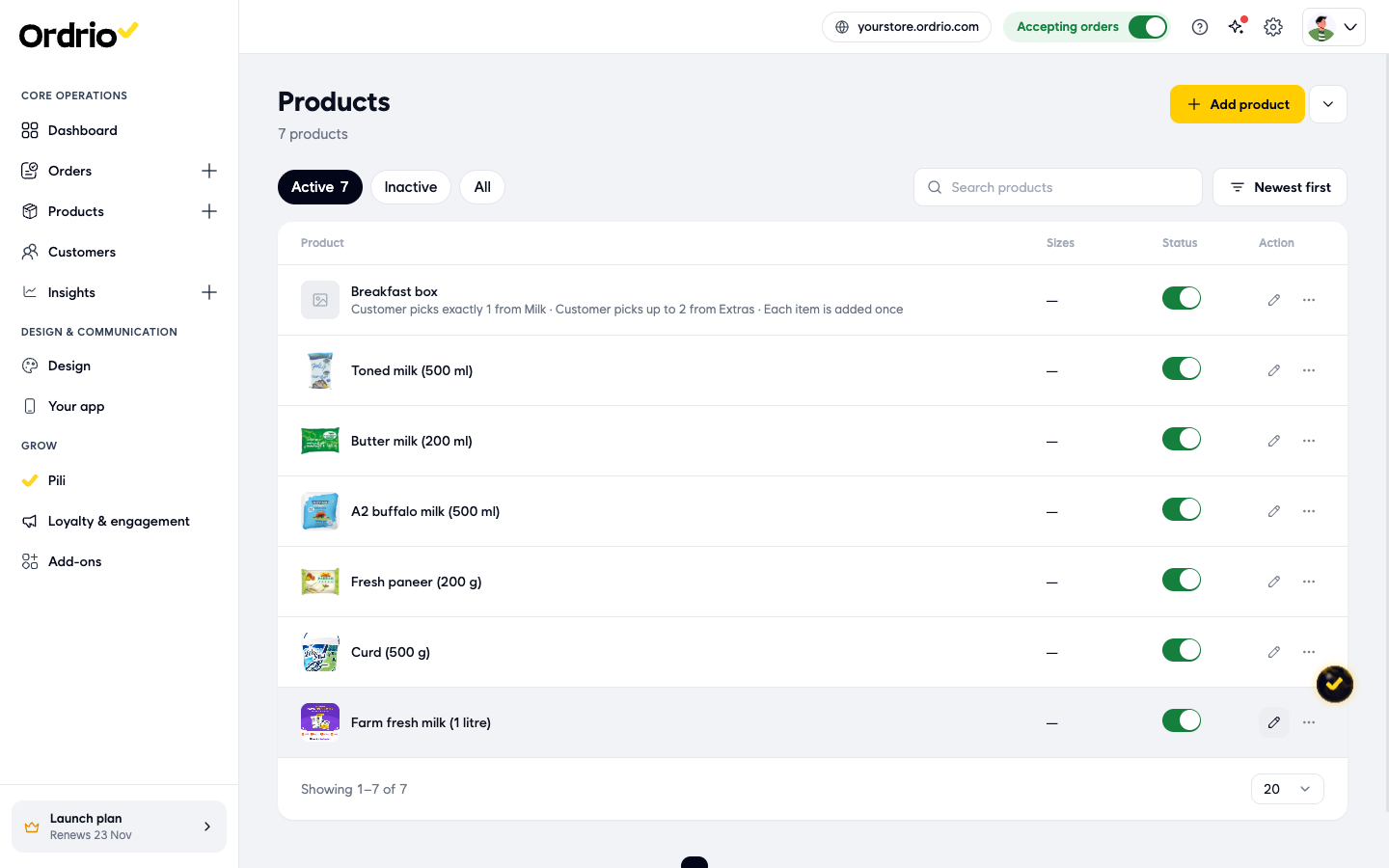
To change the box, click its name to open it, then click Box contents. Choose Edit step by step to go through the same four parts again. Then save the product.
Good to know
- Items in a Flexi Box come from your catalogue. To offer a new item in a box, add it as a regular product first.
- The same product can be in more than one section, for example toned milk in both "Milk" and "Extras".
- With One price for the box, the customer pays the box price whatever they pick. With Add up the item prices, the total changes with each pick.
- To hide a box from your store for a while, turn off its Status switch in Products. Turn it on again to show it.
Related
- Setting up a Flexi Box
- Add your first product
- Organise products into categories