هذا المقال غير متوفر بالعربية بعد، لذلك نعرضه بالإنجليزية.
دليل استخدام
Branch performance comparison
Compare branches side by side.
If you run more than one branch, you can compare how each one is selling. Your Ordrio admin panel shows the Sales report for one branch at a time. To compare branches, open the same report and the same time period for each branch, one after the other, and put the numbers side by side.
Before you start
- You need more than one branch. Branches come with the Multi Branch add-on. You can see your branches in Settings > Branches & delivery.
- Decide which time period you want to compare, for example This month. Use the same period for every branch, or the numbers will not match up.
Compare your branches
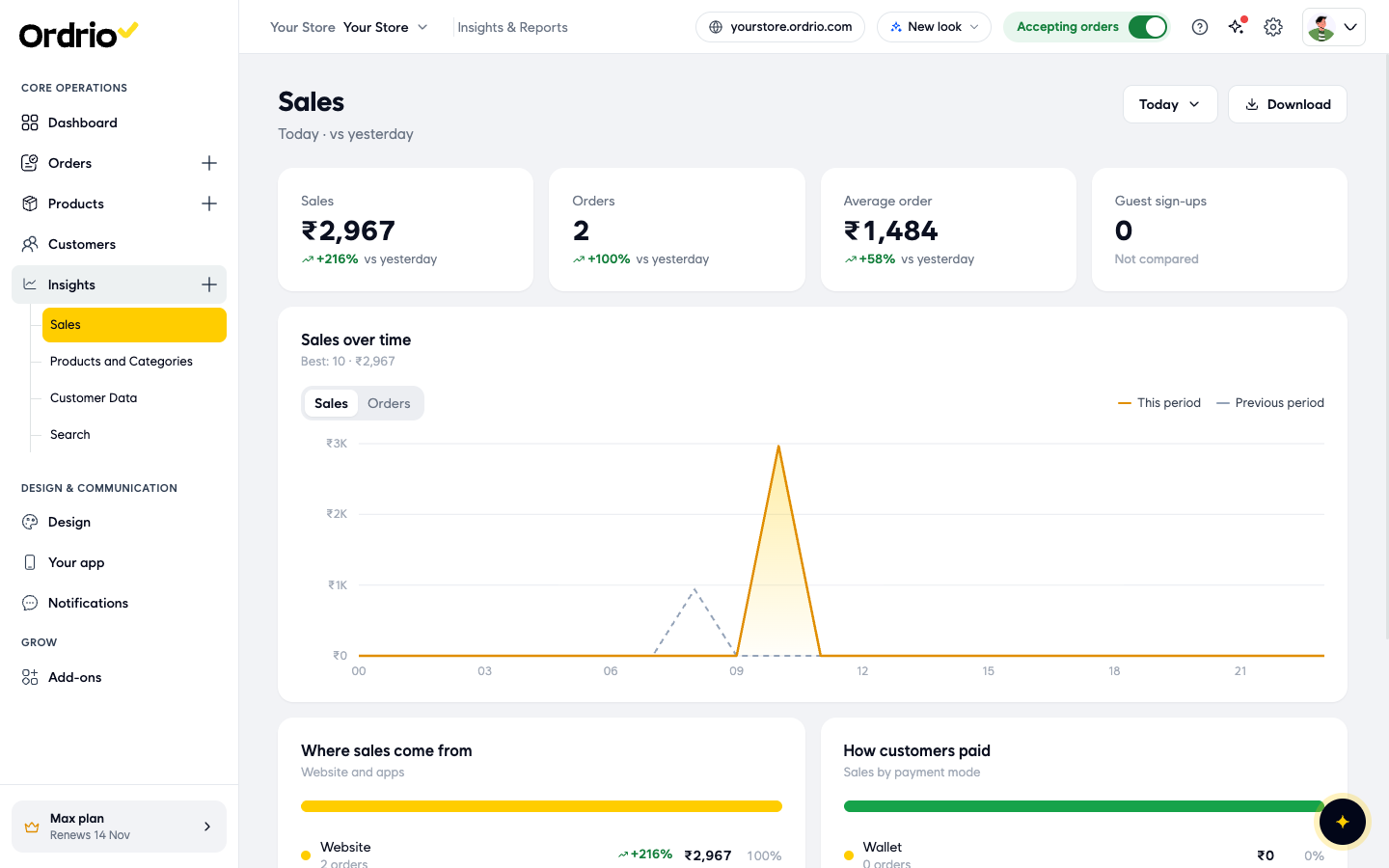
- Open nadi.ordrio.com (your Ordrio admin panel) and log in. In the menu on the left, click Insights, then click Sales.
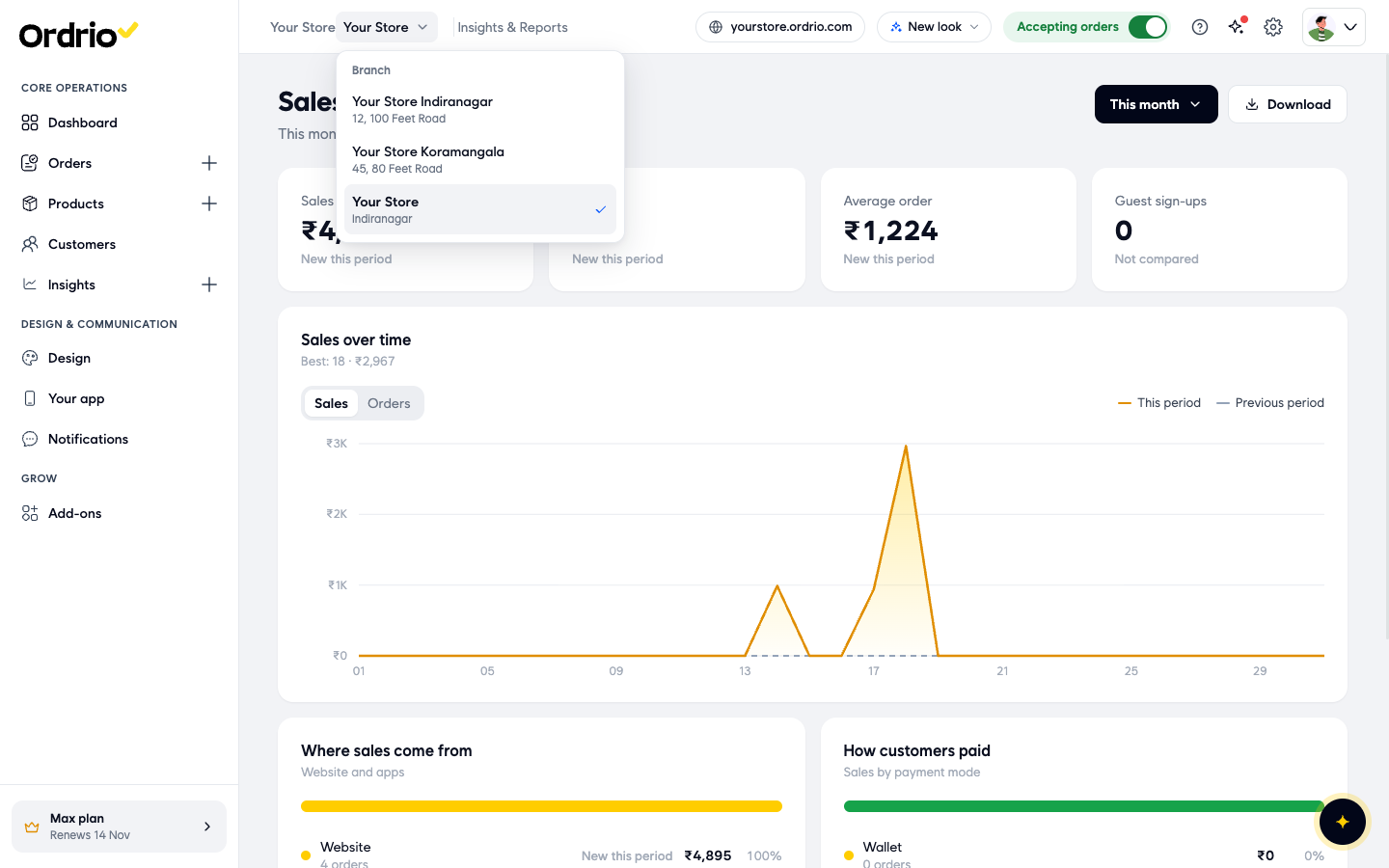
- At the top of the page, click the branch name next to your store name. A Branch list opens with all your branches and their addresses. Click the first branch you want to look at.
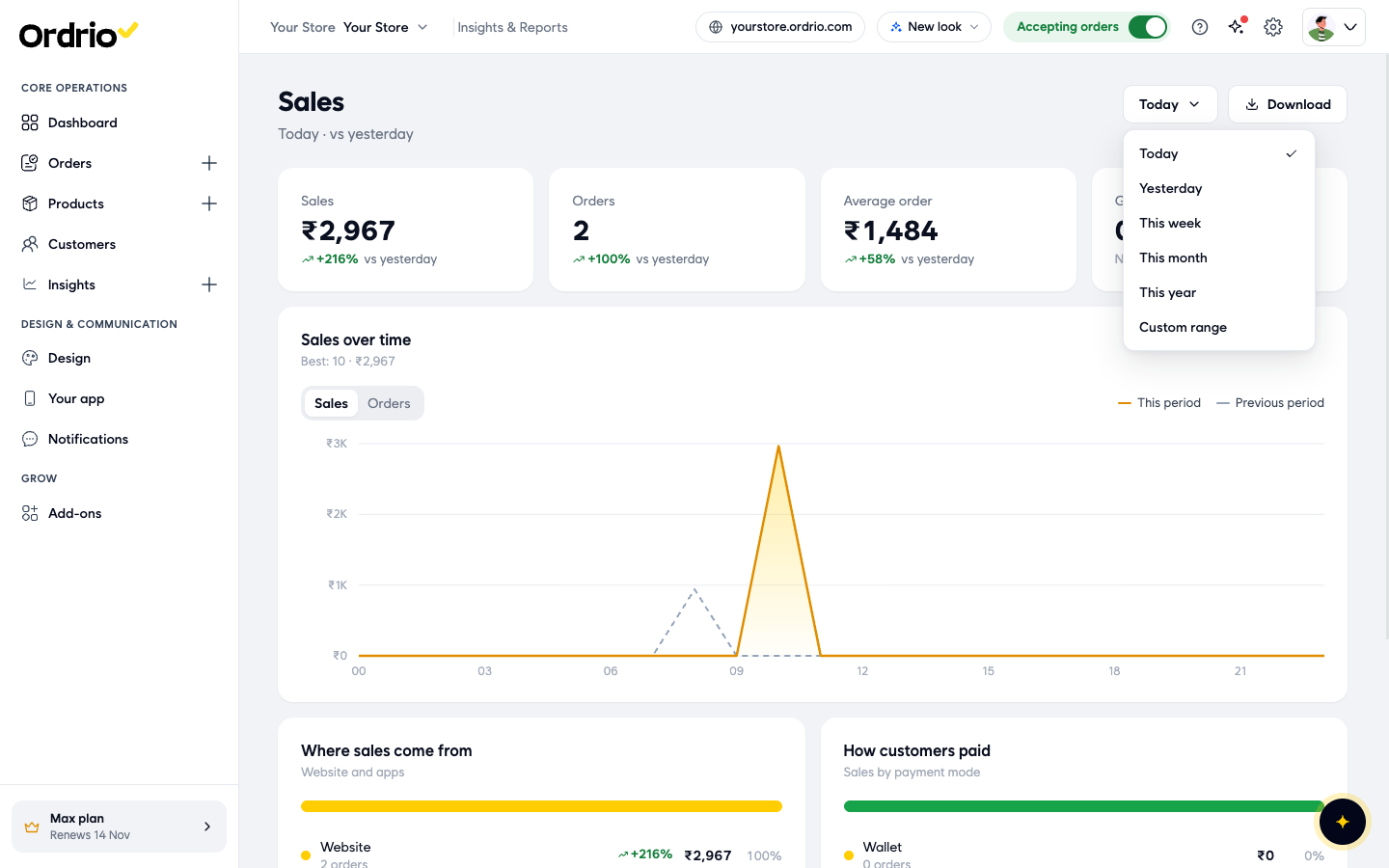
- Click the time period button at the top right (it shows Today at first) and choose the period to compare. You can pick Today, Yesterday, This week, This month, This year or Custom range.
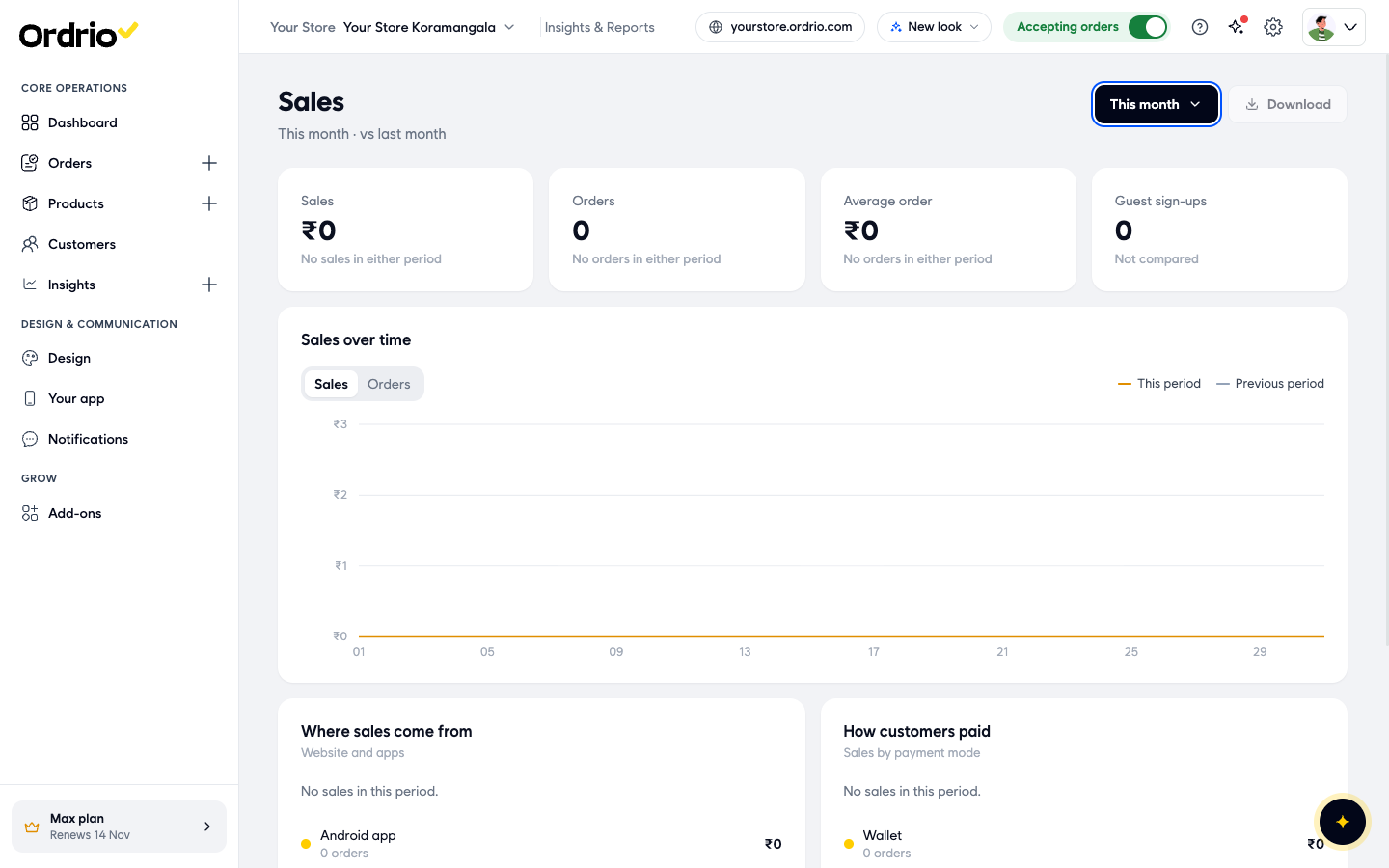
- Note down this branch's numbers. The report shows:
- Sales: the total value of orders in the period.
- Orders: how many orders the branch received.
- Average order: the average value of one order.
- Guest sign-ups: new guest sign-ups in the period.
- Sales over time: a chart of the period. Switch between Sales and Orders. The This period line is compared with the Previous period line.
- Where sales come from: sales split between your website and your apps.
- How customers paid: sales split by Wallet, Online, Cash on delivery and other.
Under each number you see the change against the previous period, for example "vs last month".
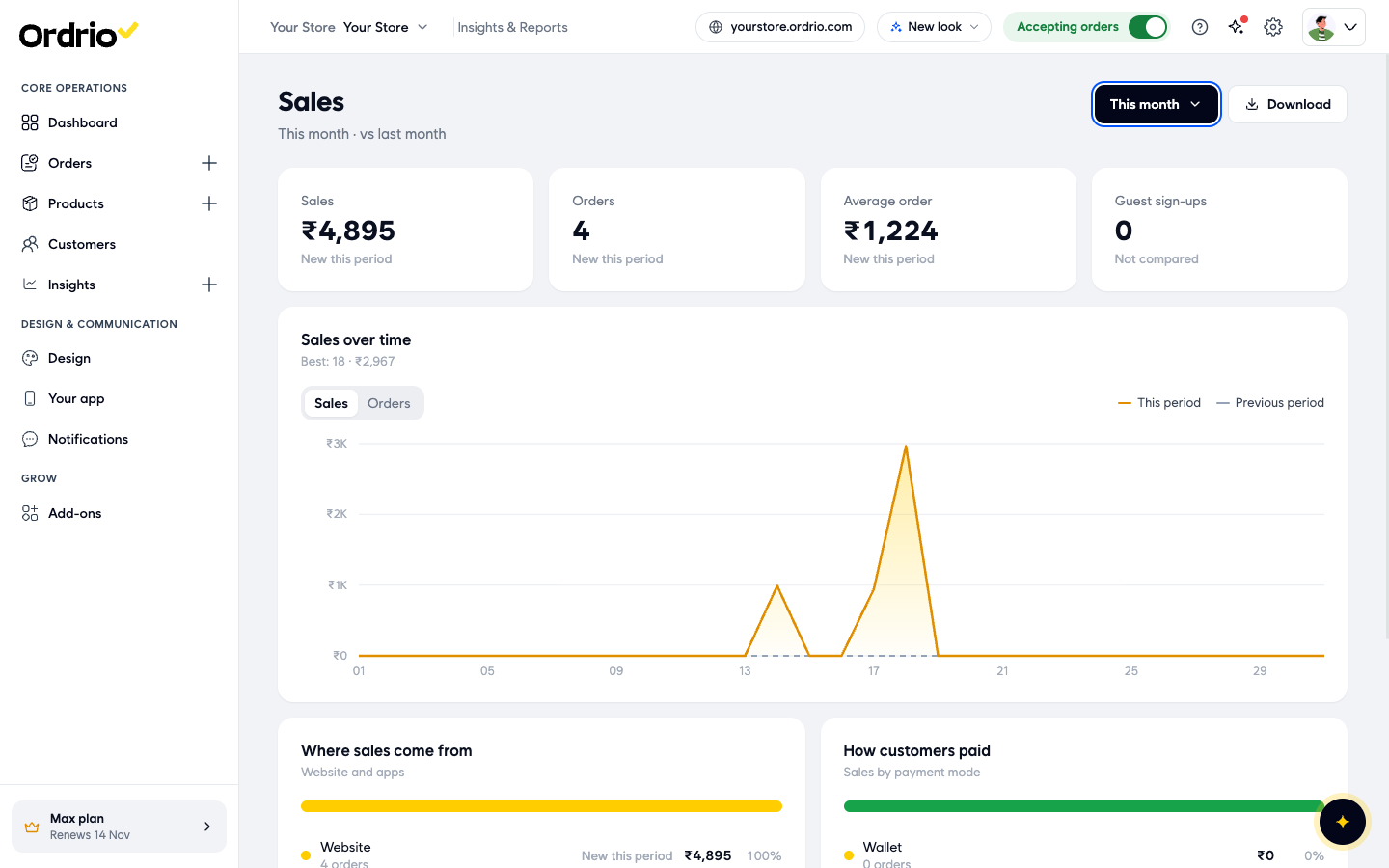
- Click the branch name at the top again and choose the next branch. The report reloads for that branch.
- Check the time period again. After you switch branch, the period goes back to Today, so choose the same period as before (for example This month). Then note down this branch's numbers.
- Repeat these two steps (switch branch, then choose the same period) for every other branch. You now have the same numbers for each branch and can compare them side by side.
Keep a copy of each branch's report
To compare branches in a spreadsheet, download the report for each one.
- With a branch and period chosen on the Sales report, click Download. A message says the CSV file is being generated and will be ready shortly.
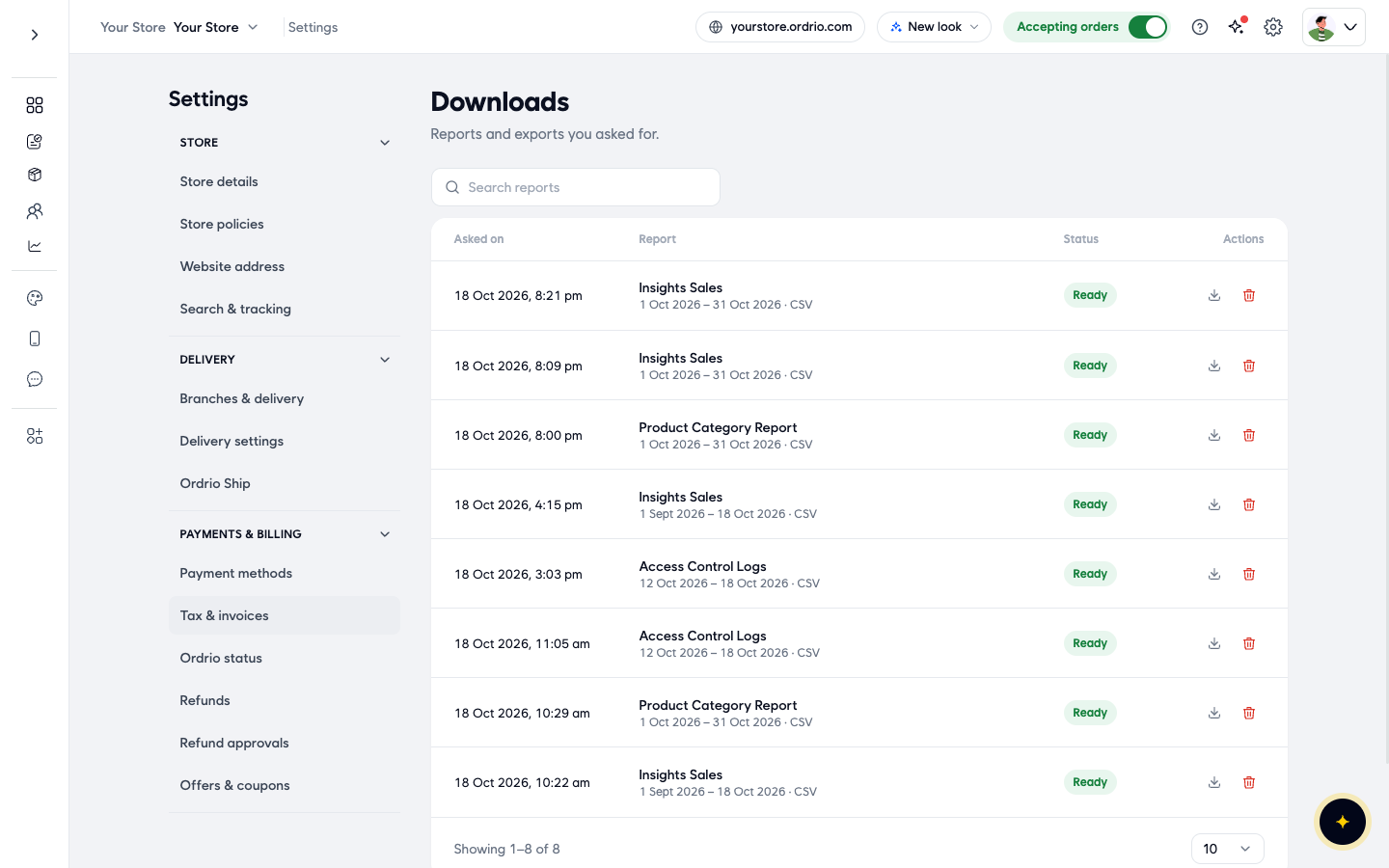
- Click the Settings icon (the gear) at the top right, then click Downloads (under Files & data).
- Find your report in the list. Each row shows Asked on (when you asked for it), Report (for example Insights Sales, with the dates and "CSV"), Status and Actions. When the status says Ready, click the download icon to save the file. The bin icon deletes it.
- Go back to the Sales report, switch to the next branch, choose the same period and click Download again.
Good to know
- There is no single screen that shows all branches next to each other. You compare them by switching branch on the report.
- When you have finished comparing, switch back to your main branch at the top of the page.
- Download is greyed out when the branch has no sales in the chosen period.
- The Downloads list does not show the branch name. Download each file straight after you ask for it and rename it with the branch name, so you do not mix them up.
- Your numbers will be different from the ones in the screenshots. They are example values from a sample store.
- The busiest branch is not always the best one. Compare Average order as well as Sales, and use Sales over time to see which days each branch is busy.
Related
- Sales and revenue reports
- Creating and managing branches
- Exporting and scheduling reports
- Branches overview
هل كان هذا المقال مفيداً؟