هذا المقال غير متوفر بالعربية بعد، لذلك نعرضه بالإنجليزية.
دليل استخدام
Delivery and fulfilment reports
Delivery times, completion rates and efficiency.
The Stage Reports screen shows every time an order moved from one stage to the next, such as packed, out for delivery and delivered, with the exact time. Use it to see how long your deliveries take, how many orders were delivered or failed, and how each zone, branch and rider is doing.
Before you start
The report only has rows for orders that have moved through stages. Mark your orders as packed, assign them for delivery and mark them delivered in Orders, and the report fills up as you go.
Open the report
- Open nadi.ordrio.com (your Ordrio admin panel) and log in with your own registered email or mobile number.
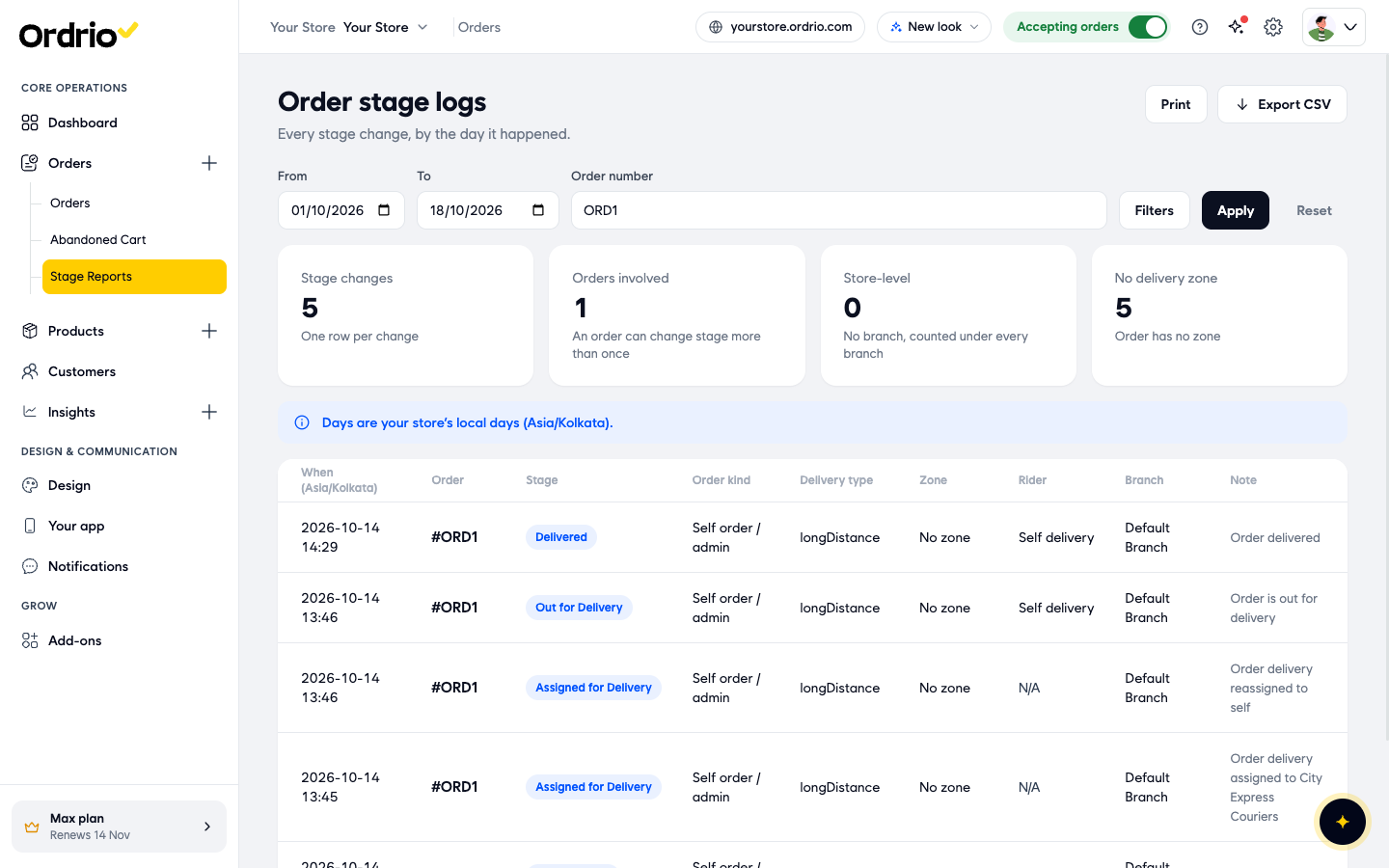
- In the left menu, click Orders, then click Stage Reports. The Order stage logs page opens and shows today's stage changes.
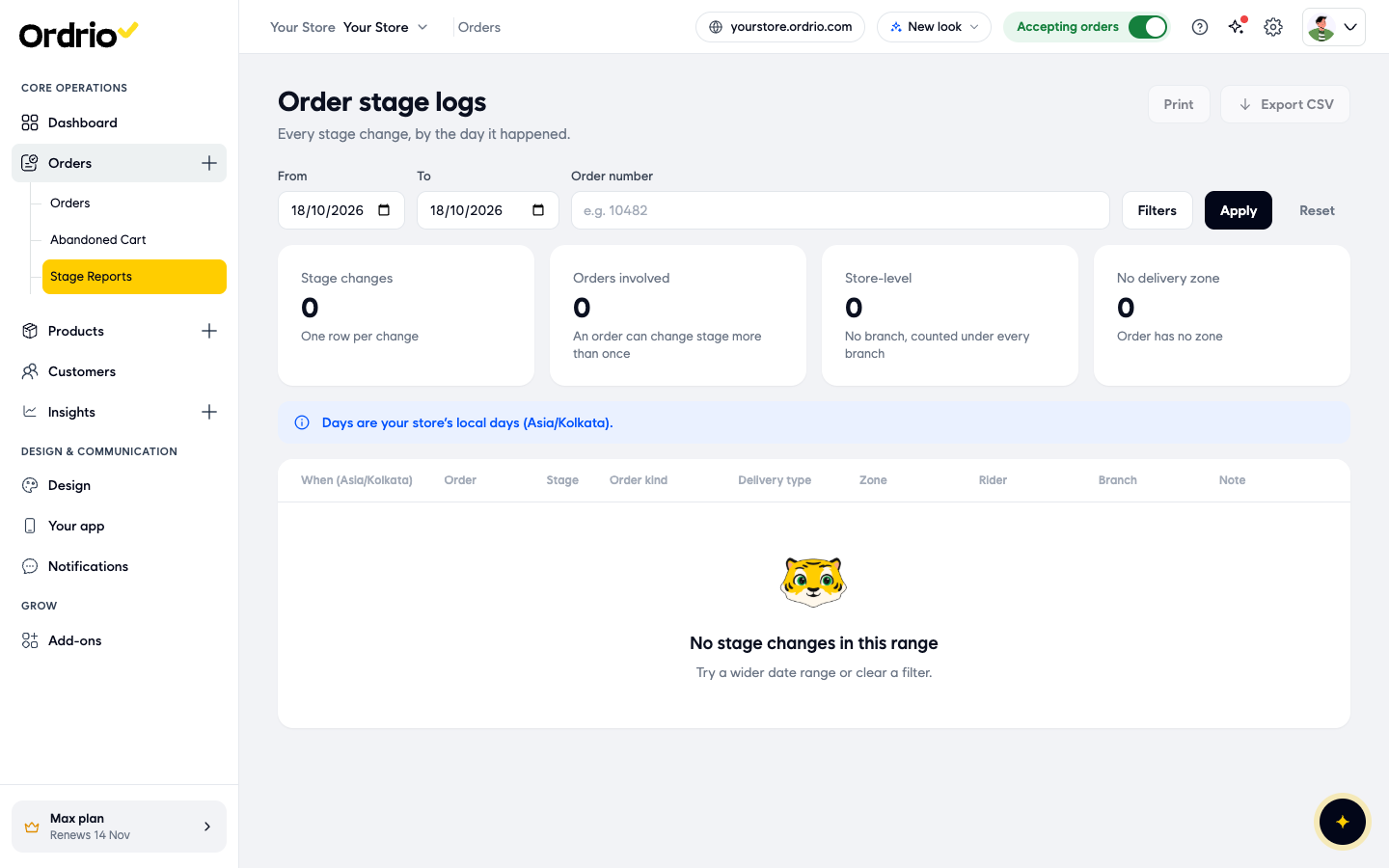
- In From, pick the first day you want to see.
- In To, pick the last day you want to see.
- Click Apply. The summary cards and the list update for the days you picked. The dates in the screenshot are examples, so use your own.
Read the summary cards
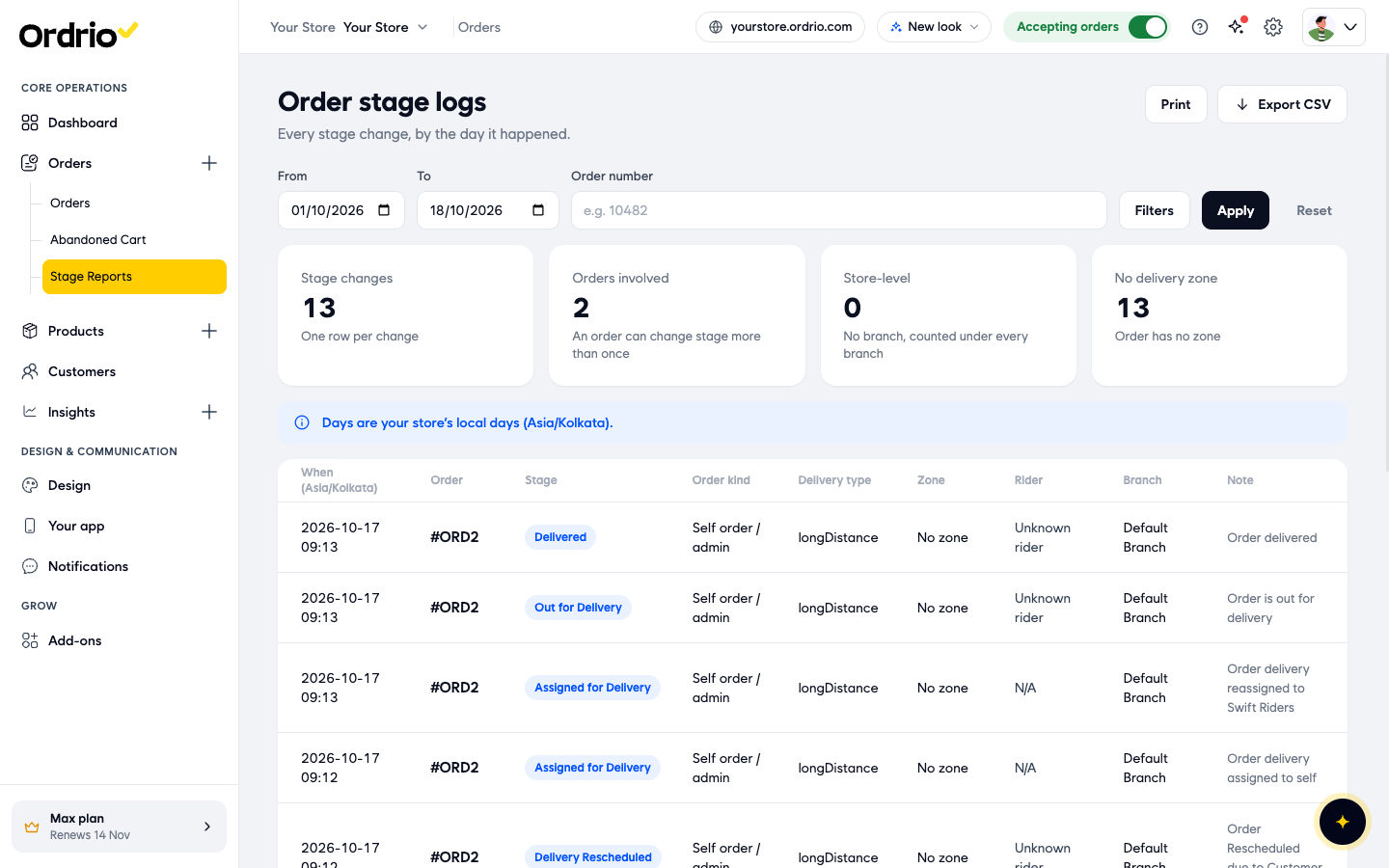
The four cards at the top count the stage changes in your date range and filters:
- Stage changes: the number of rows in the list. Each change of stage is one row.
- Orders involved: how many different orders those rows belong to. One order usually has several rows, because it moves through several stages.
- Store-level: rows for orders with no branch. These are counted under every branch.
- No delivery zone: rows for orders that are not in any of your delivery zones.
Days follow your store's local time, shown in the blue note under the cards (for example Asia/Kolkata).
Read the list
Each row is one stage change. The columns are:
- When: the date and time the order reached this stage, in your store's time zone.
- Order: the order number.
- Stage: the stage the order moved to, for example Order Packed, Assigned for Delivery, Out for Delivery or Delivered.
- Order kind: where the order came from, for example Self order / admin for orders you added yourself.
- Delivery type: how the order is fulfilled, for example longDistance for a long distance delivery.
- Zone: the delivery zone of the order, or No zone.
- Rider: who is delivering, for example Self delivery. Rows where no rider is set yet show N/A.
- Branch: the branch the order belongs to.
- Note: what happened, for example "Order delivery assigned to self" or "Order Rescheduled due to Customer unavailable".
Filter the report
- Click Filters. A panel opens on the right. Click one or more options in each group to choose them. Chosen options turn dark.
- Stages: Packed, Assigned for Delivery, Out for Delivery, Delivered, Partially Delivered, Delivery Rescheduled, Delivery Failed and Cancelled.
- Delivery type: Last Mile, Long Distance, Store Pickup and In Store.
- Delivery zone: each of your delivery zones, and No zone.
- Branch: each of your branches, and Store-level (no branch).
- Order kind: Website, Customer app, Website or app, POS, Self order / admin, Vendor and Imported.
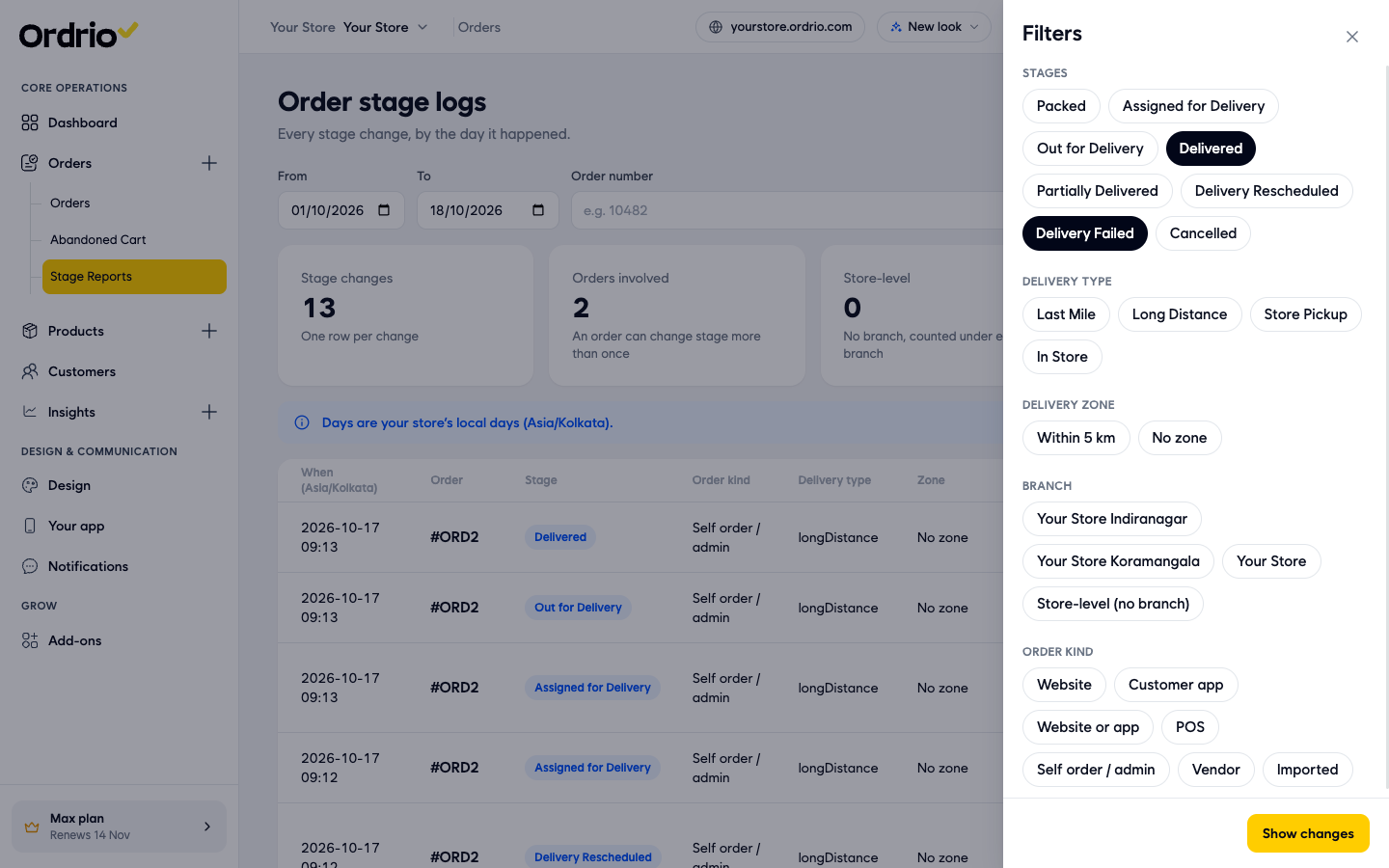
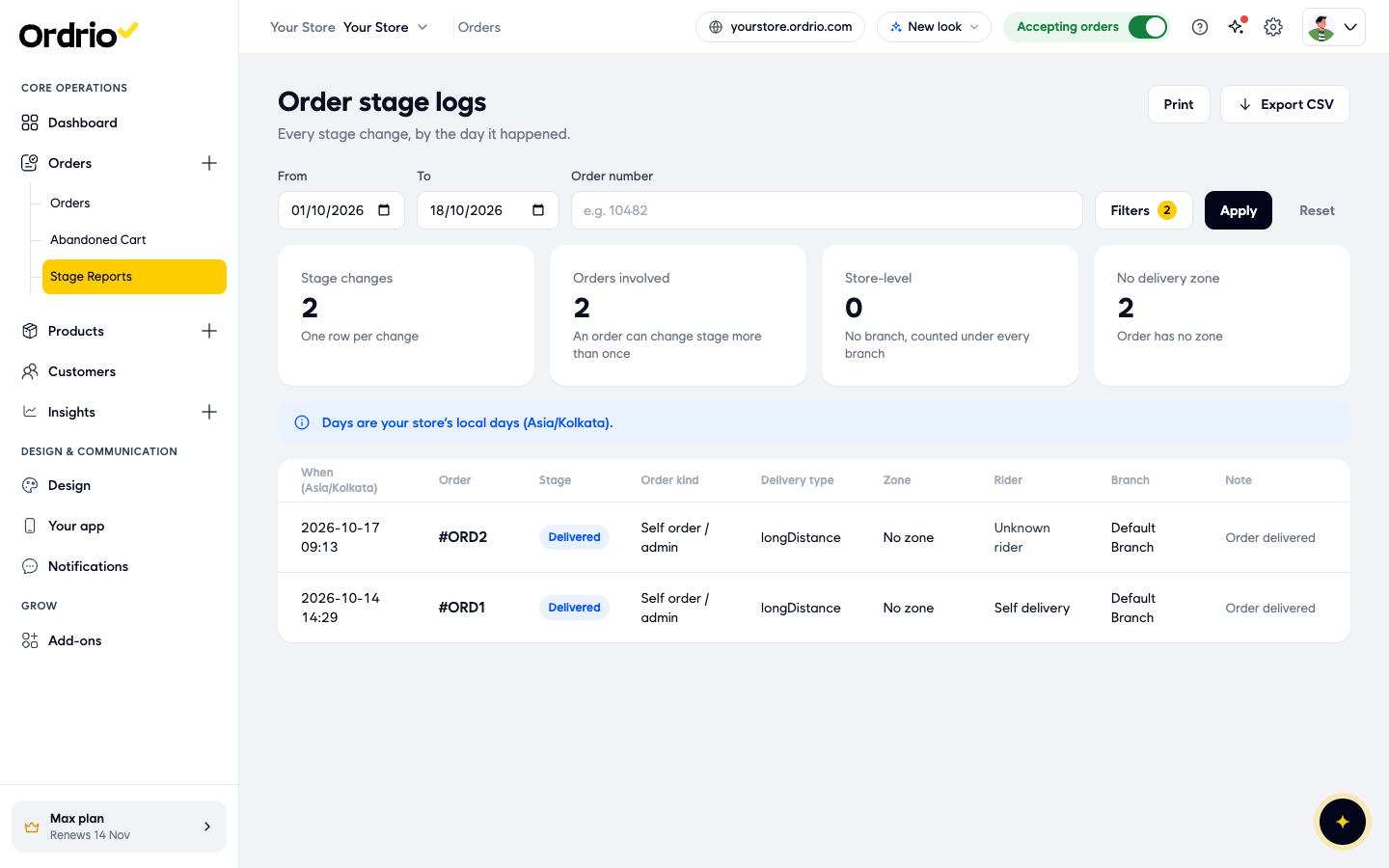
- Click Show changes. The panel closes, the list shows only matching rows, and the Filters button shows how many filters are on.
Follow one order
- In Order number, type the order number as it appears in Orders, then click Apply. The list shows every stage that order went through, newest first, so you can see each step of its delivery and when it happened.
Download, print or start again
- Click Export CSV to download the rows you are looking at as a spreadsheet file. The file follows your dates, filters and order number, and its name includes the date range.
- Click Print to print the report.
- Click Reset to clear the filters and the order number and go back to today's date.
Delivery times
The report does not show an average delivery time as a single number. You can work it out from the When column:
- Search for one order and compare the time of Order Packed or Out for Delivery with the time of Delivered. For example, an order packed at 13:43 and delivered at 14:29 took 46 minutes from packing to the door.
- To do this for many orders, click Export CSV and work out the gaps in a spreadsheet. The Occurred at column in the file has the full time of each stage.
Completion rates
To see how many orders you complete, compare the counts in Orders involved for different stages over the same dates:
- Filter by Out for Delivery and note the Orders involved number. These are the orders you sent out.
- Filter by Delivered and note the number. These are the orders that reached the customer.
- Filter by Partially Delivered, Delivery Failed, Delivery Rescheduled or Cancelled to see the orders that did not go to plan. The Note column often says why, for example "Customer unavailable".
Delivery efficiency
Use the filters to compare parts of your delivery:
- By zone: filter one Delivery zone at a time to see which areas have more failed or rescheduled deliveries.
- By branch: filter one Branch at a time to compare your branches.
- By rider or delivery partner: look at the Rider column and the Note column, which shows who an order was assigned or reassigned to.
- By delivery type: compare Last Mile, Long Distance and Store Pickup orders.
Good to know
- An order shows up once for every stage change, so the same order can appear many times. Use Orders involved when you want to count orders, not rows.
- Days follow your store's local time zone, not the time on your computer.
- If you see "No stage changes in this range", pick a wider date range or clear a filter.
- If an order is assigned, reassigned or rescheduled, each of those changes gets its own row, so you can see every hand-over.
- The report counts stage changes only. For money and order totals, use Insights > Sales.
Related
- Viewing and managing orders
- Assigning orders to riders and delivery partners
- Delivery zones and geo mapping
- Sales and revenue reports