هذا المقال غير متوفر بالعربية بعد، لذلك نعرضه بالإنجليزية.
دليل استخدام
Payment and refund reports
Successful, failed and refunded payments.
Your Ordrio admin panel shows how your customers paid, which orders are paid, and which orders have a refund. Use these reports to match your money with your orders and to follow up on refunds.
Before you start
- To take online payments, you need a payment gateway connected. If none is connected, your dashboard shows a message with a Set up payments link.
See how customers paid
- Open nadi.ordrio.com (your Ordrio admin panel) and log in with your registered email or mobile number.
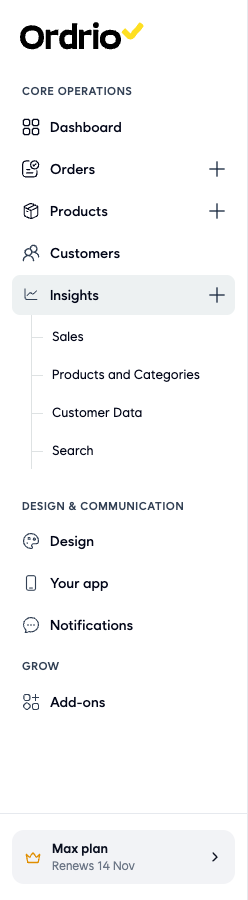
- In the left menu, click Insights, then click Sales.
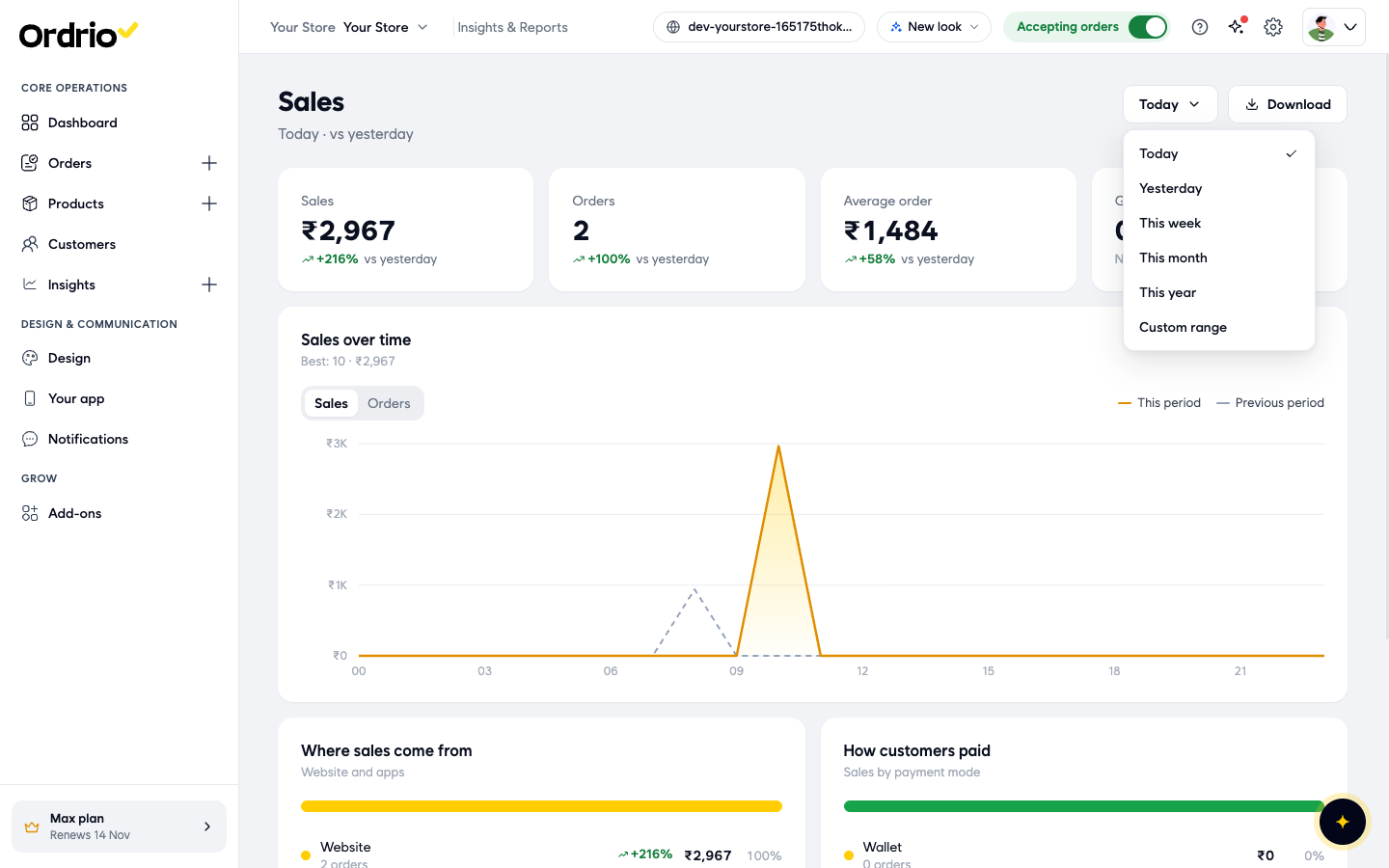
- At the top right, click the time period button (it shows Today at first) and choose the period you want: Today, Yesterday, This week, This month, This year or Custom range.
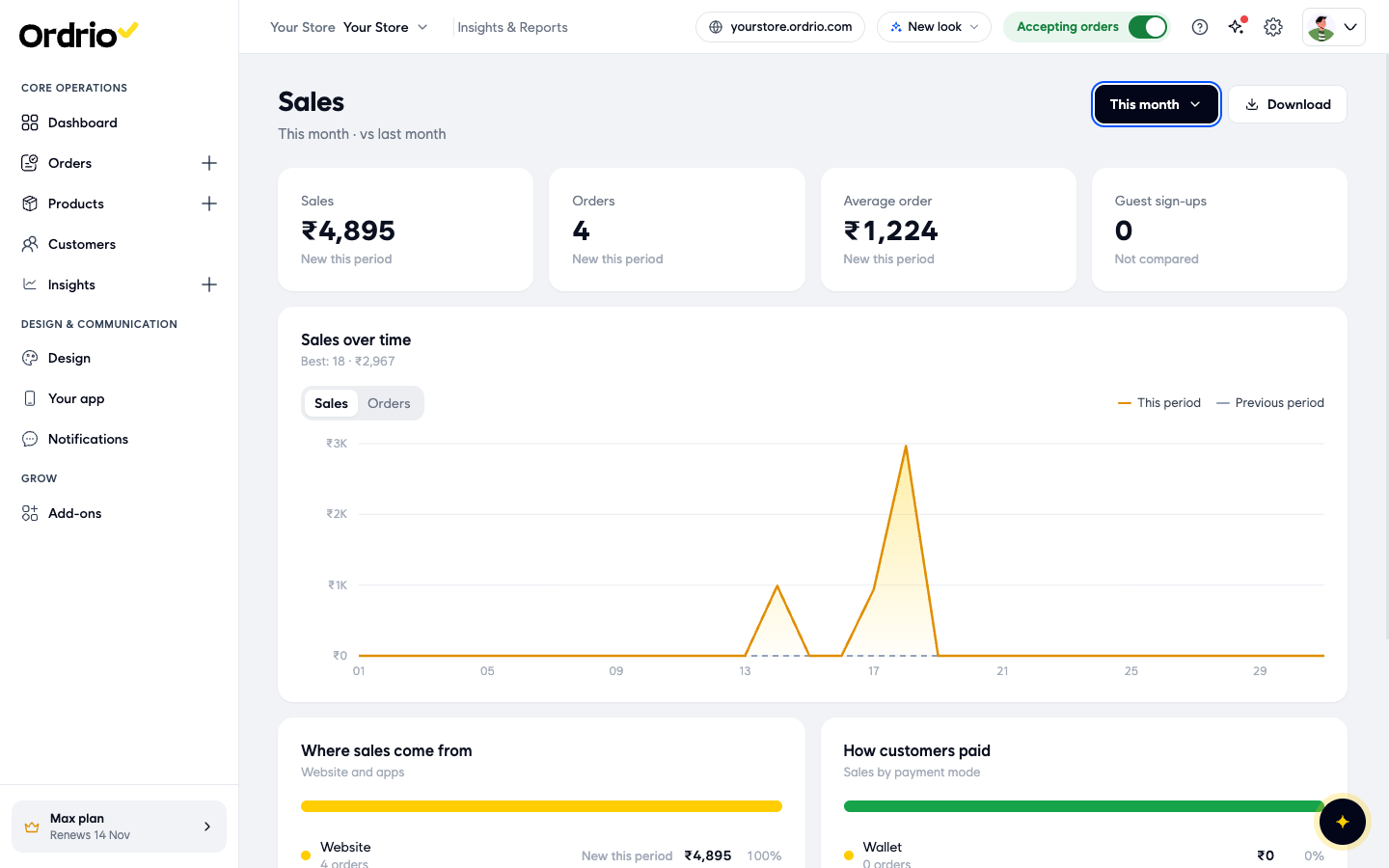
- Read the summary cards at the top. They update for the period you chose:
- Sales: the total value of your orders.
- Orders: how many orders you received.
- Average order: the average value of one order.
- Guest sign-ups: the number of guest sign-ups in this period.
Under each number, you see how it compares with the previous period (for example "vs yesterday" or "vs last month").
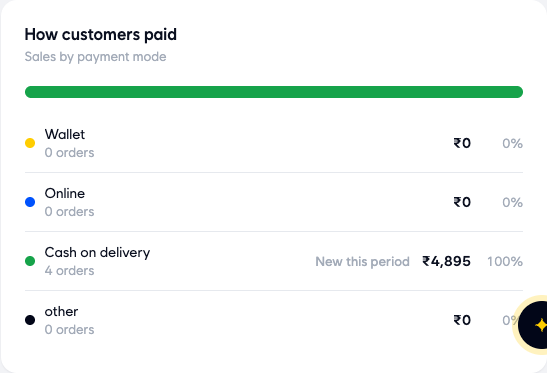
- Scroll down to How customers paid. It splits your sales by payment mode:
- Wallet: orders paid from the customer's wallet.
- Online: orders paid online through your payment gateway.
- Cash on delivery: orders paid in cash when they were delivered.
- other: orders paid in any other way.
For each mode you see the number of orders, the amount, and its share of your total sales.
- To keep a copy, click Download at the top right. A message tells you that the CSV file is being generated and will be ready shortly.
Check the payment status of each order
- In the left menu, click Orders, then click Orders. The Payment column shows how each order was paid (for example Cash on delivery or Pay on pickup) and its payment status, such as Paid or Refund pending.
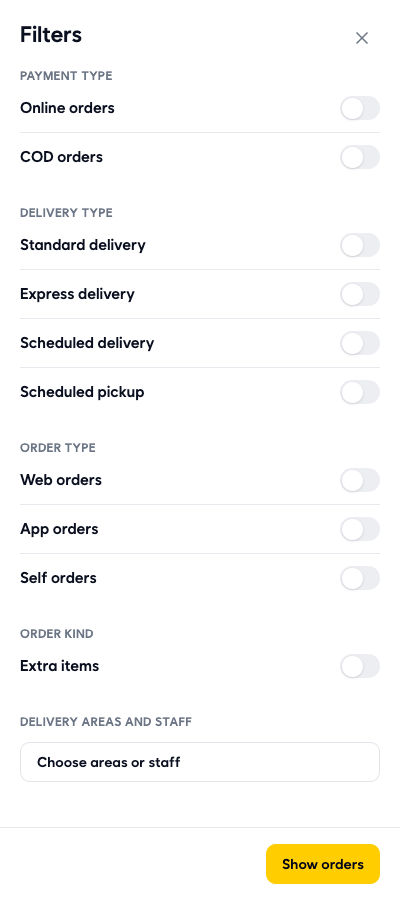
- To see only one kind of payment, click Filters. Under Payment Type, turn on Online orders or COD orders, then click Show orders.
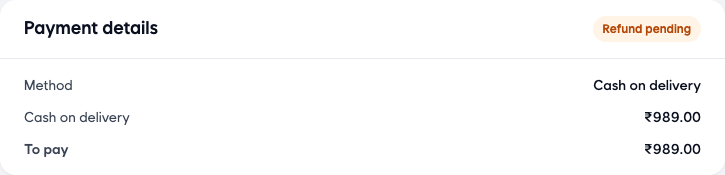
- Click an order to open it. The Payment details card shows the payment status at the top right, the Method, the amount paid by that method, and To pay.
See refunded payments
- Orders with a refund show Refund pending in the Payment column of the order list. Open one of these orders.
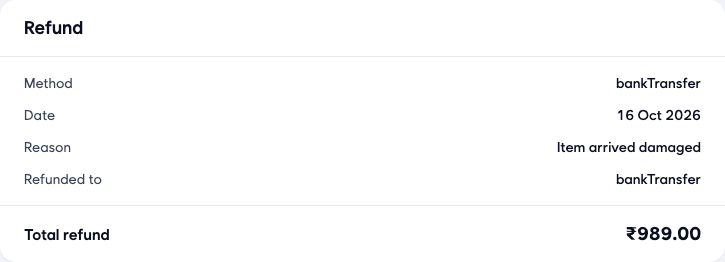
- Click View refund. The page jumps to the Refund card, which shows:
- Method: how the refund is paid.
- Date: the day the refund was started.
- Reason: why the order was refunded.
- Refunded to: where the money goes back.
- Total refund: the amount refunded.
The order's history also lists each refund step, for example when a return was approved.
Export your payments and refunds
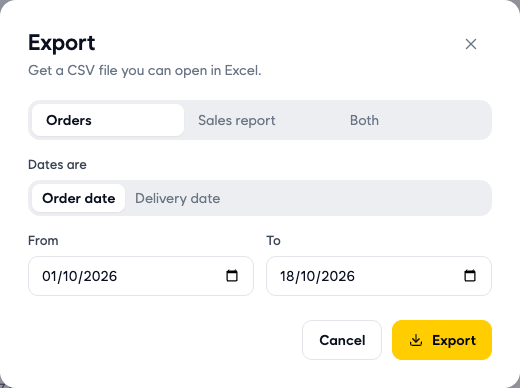
- On the Orders page, click Export.
- Choose the report: Orders, Sales report or Both.
- Under Dates are, choose Order date or Delivery date. This decides which date is used to pick the orders.
- Set the From and To dates.
- Click Export. You get a CSV file that you can open in Excel.
Good to know
- How customers paid counts orders by the payment mode the customer chose. To see if a single payment went through, open the order and check the status in Payment details.
- If a customer says their online payment did not go through, search for their order in Orders and check its payment status before you take any action.
- While a refund is in progress, the order shows Refund pending. Check the Refund card on the order to see how and where the money goes back.
- The order list and the order page show customer names and details. Keep exported files safe and share them only with your team.
Related
- Sales and revenue reports
- Setting up a payment gateway
- Viewing and managing orders
هل كان هذا المقال مفيداً؟