هذا المقال غير متوفر بالعربية بعد، لذلك نعرضه بالإنجليزية.
دليل استخدام
Image and text banners: text, buttons and picture-and-text sections
Add text and up to two buttons to a home page banner, and add a Picture and text section, in Design.
You can put text and up to two buttons on top of a home page banner, so you don't have to paint words into the picture. You can also add a Picture and text section: a picture beside a heading, a few lines and a button, good for a subscription offer or your story.
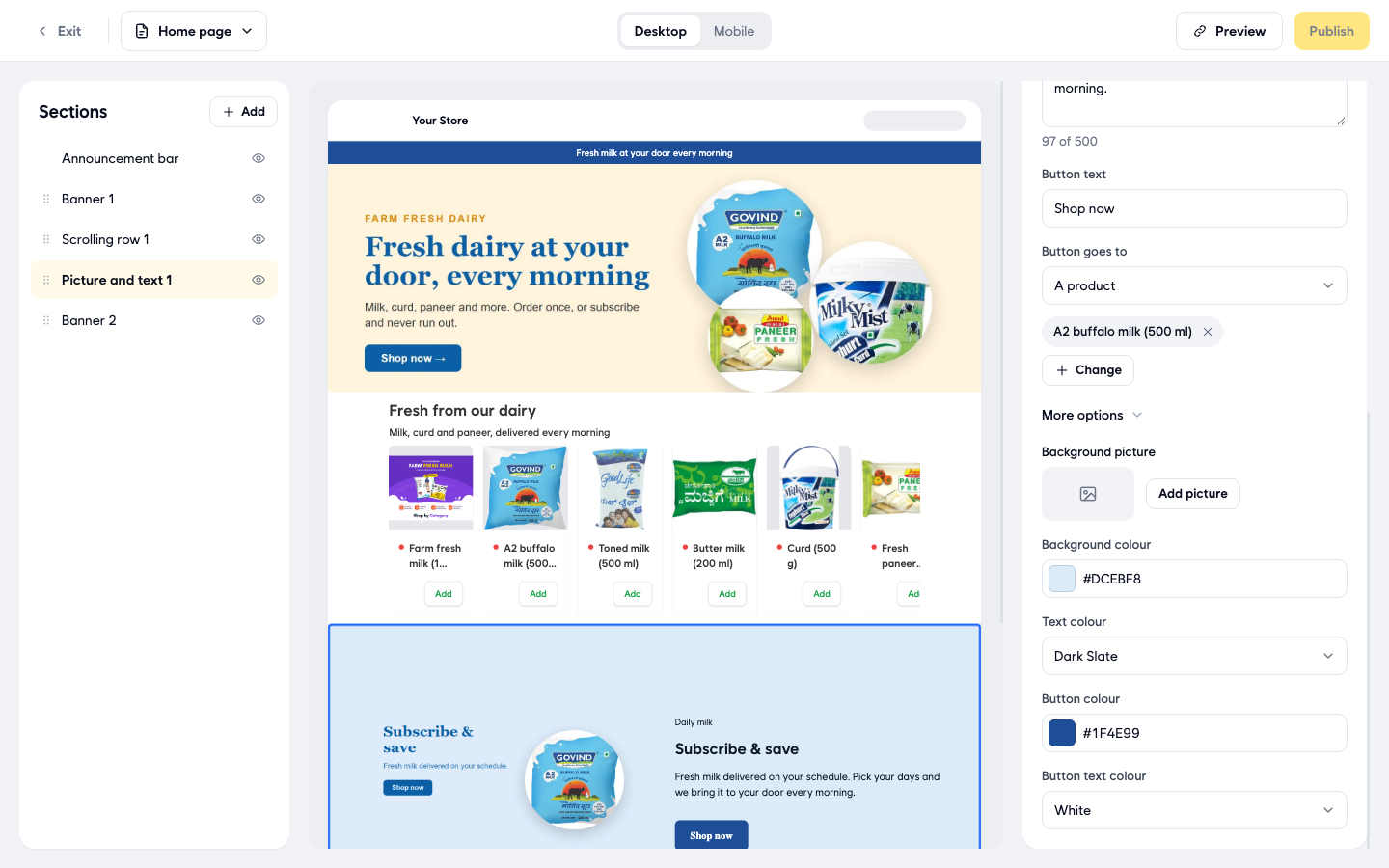
On your home page, a banner with text shows a short line, a big heading, a sentence and your buttons on top of the picture. A Picture and text section shows your picture on one side and your heading, text and button on the other.
The texts in the pictures below are examples. Type your own.
Before you start
- You need a banner on your home page with at least one picture.
- Pick a banner picture with no words painted on it. Text you add here sits on top of the picture, and painted words would show under it.
Add text to a banner
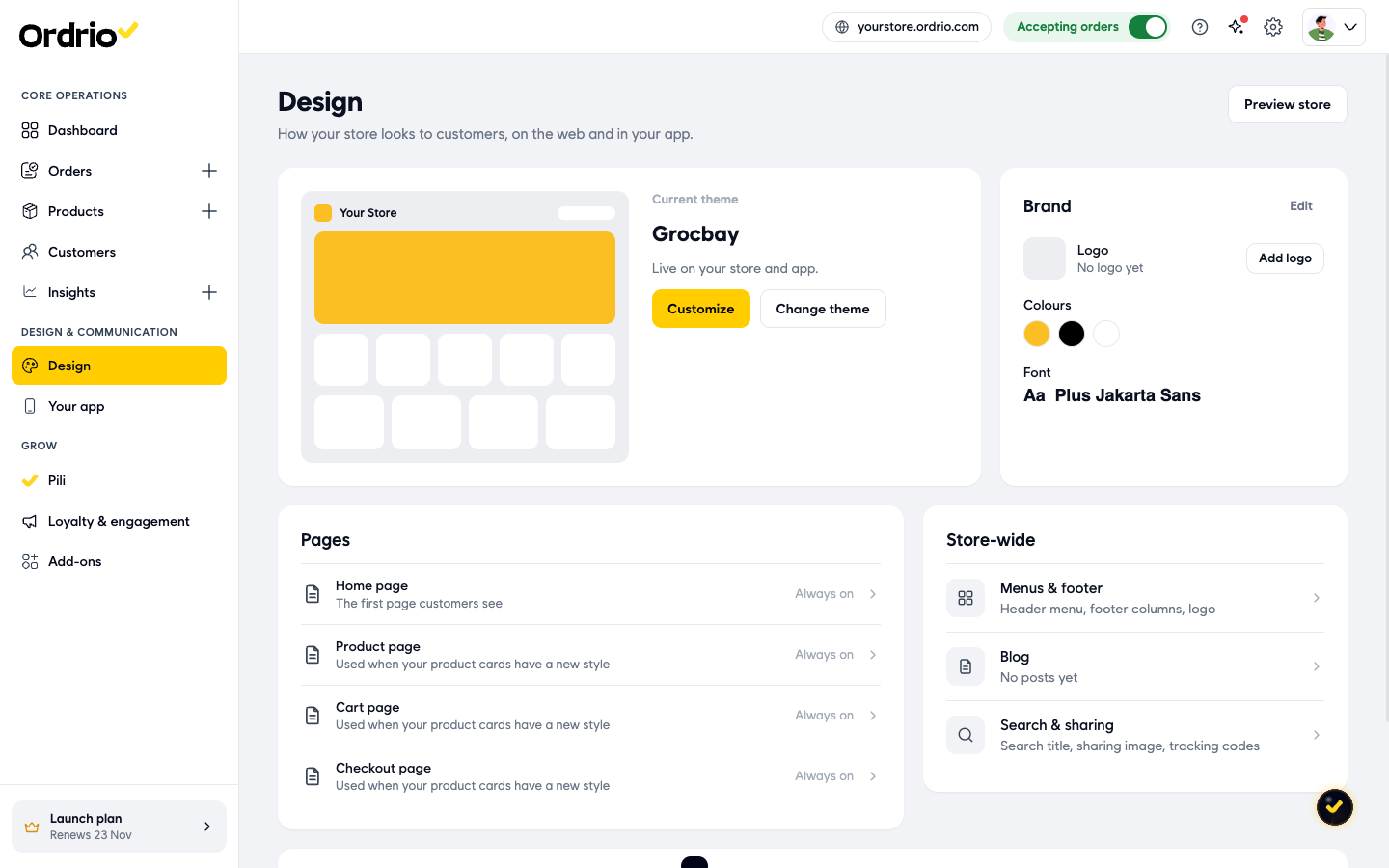
- Under Pages, click Home page. The editor opens with your sections on the left, a preview in the middle and the settings on the right.
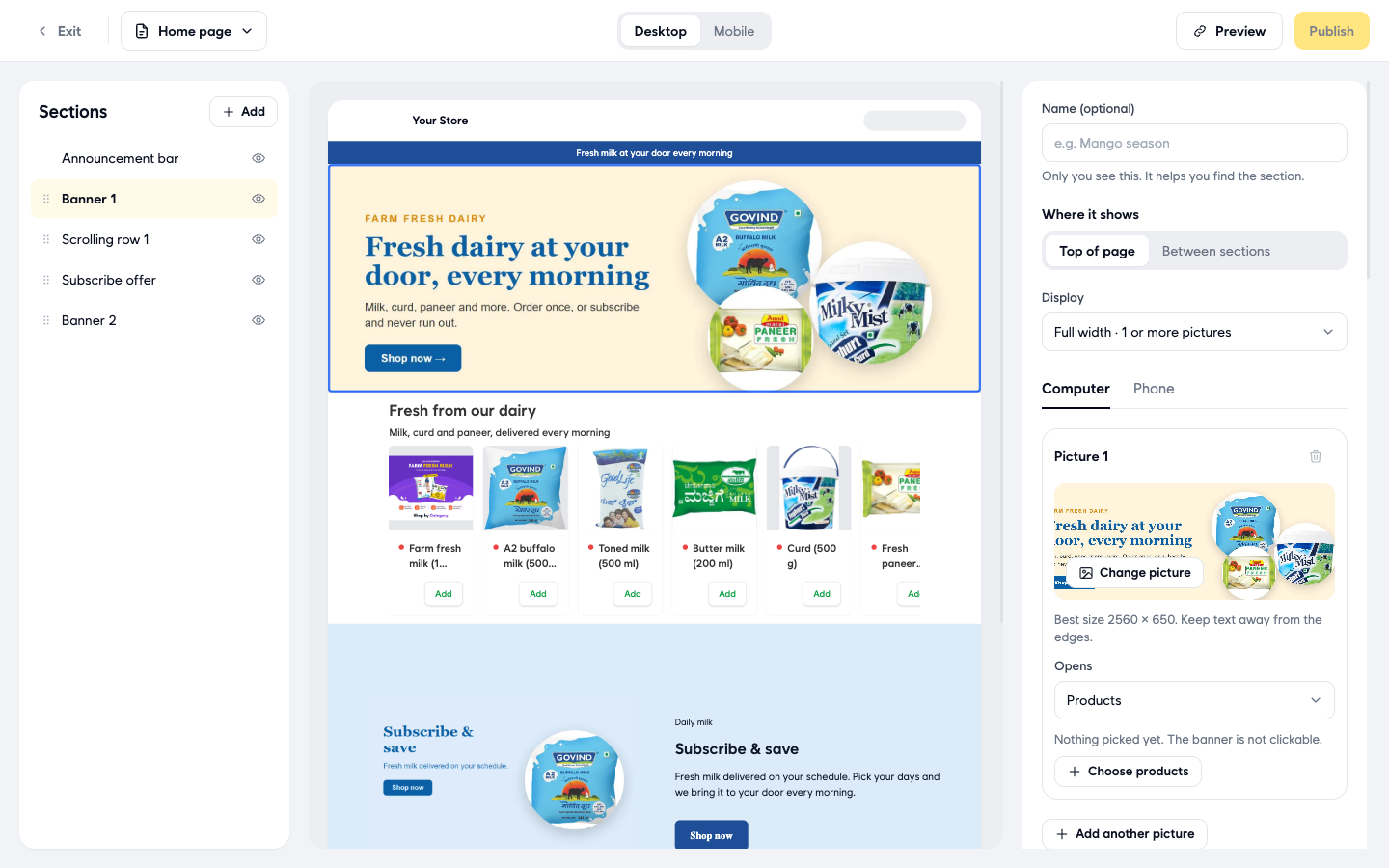
- Scroll down and turn on Add text to this banner. Then fill in the text:
- Eyebrow: a short line above the heading, up to 40 characters. For example "Fresh every morning".
- Heading: the big line, up to 120 characters. For example "Farm fresh milk at your door".
- Text: one or two sentences under the heading, up to 240 characters.
- Choose the look of the text:
- Text colour: Light, Dark or Custom colour. Use light text on dark pictures and dark text on light pictures.
Add buttons to a banner
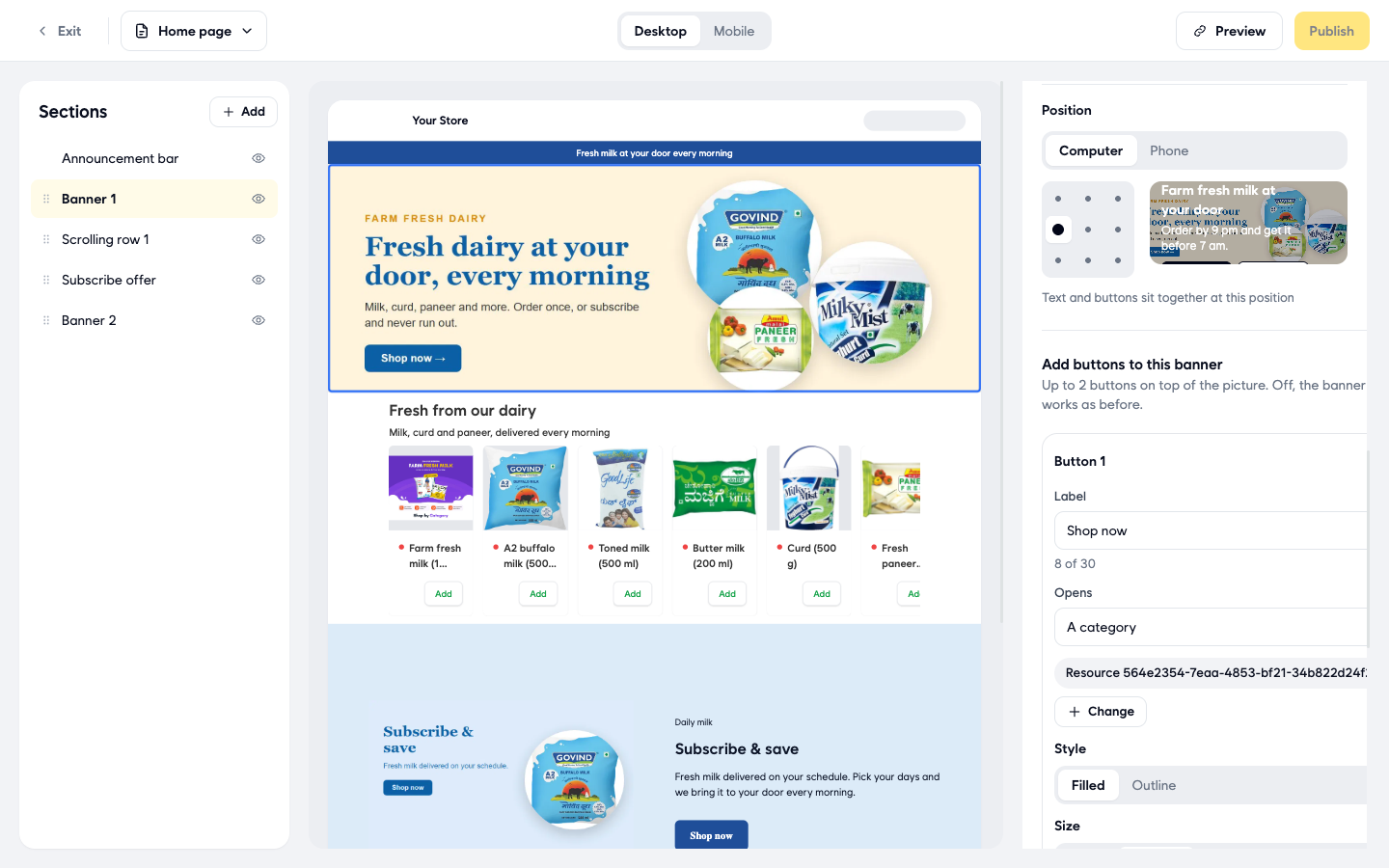
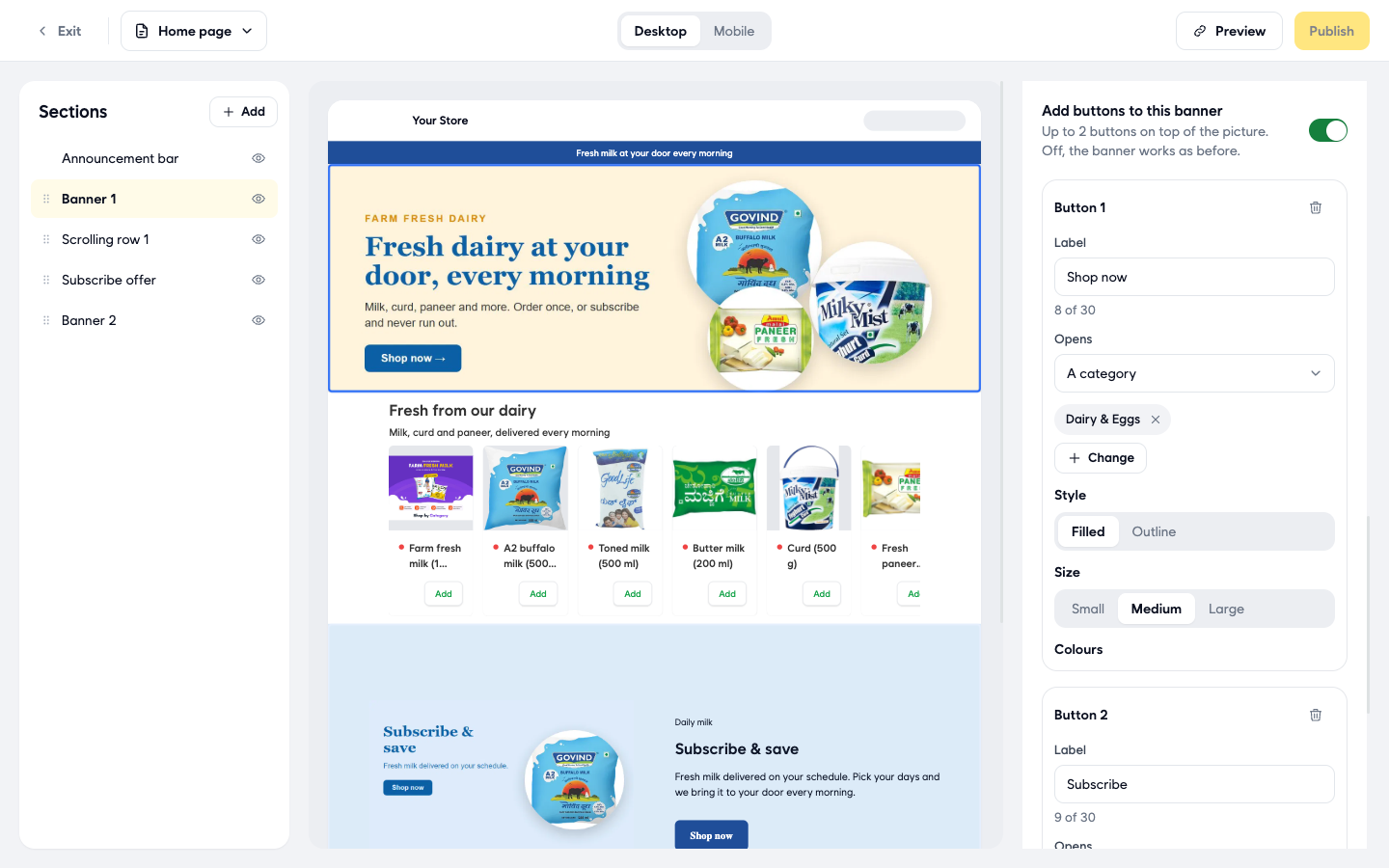
- Turn on Add buttons to this banner. Button 1 appears. Fill it in:
- Label: the words on the button, up to 30 characters. For example "Shop now".
- Opens: where the button takes the customer. Pick A web link and type the Web address, or pick Products, A category or A brand and click the choose button to pick one. For example, A category and then Dairy & Eggs.
- Style: Filled or Outline.
- Size: Small, Medium or Large.
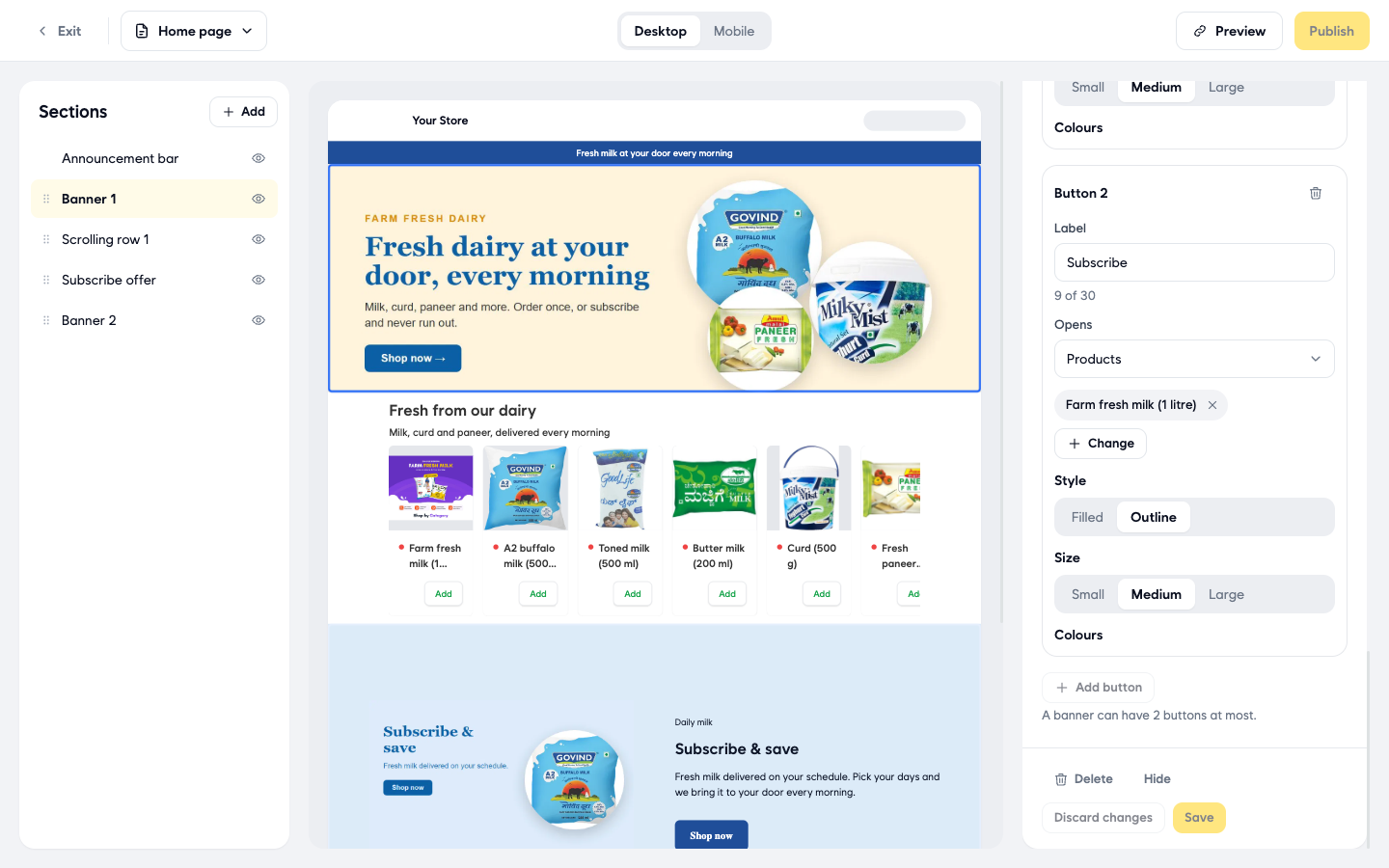
- To add a second button, click Add button and fill in Button 2 the same way. For example, "Subscribe" with Outline style. A banner can have 2 buttons at most.
Add a Picture and text section
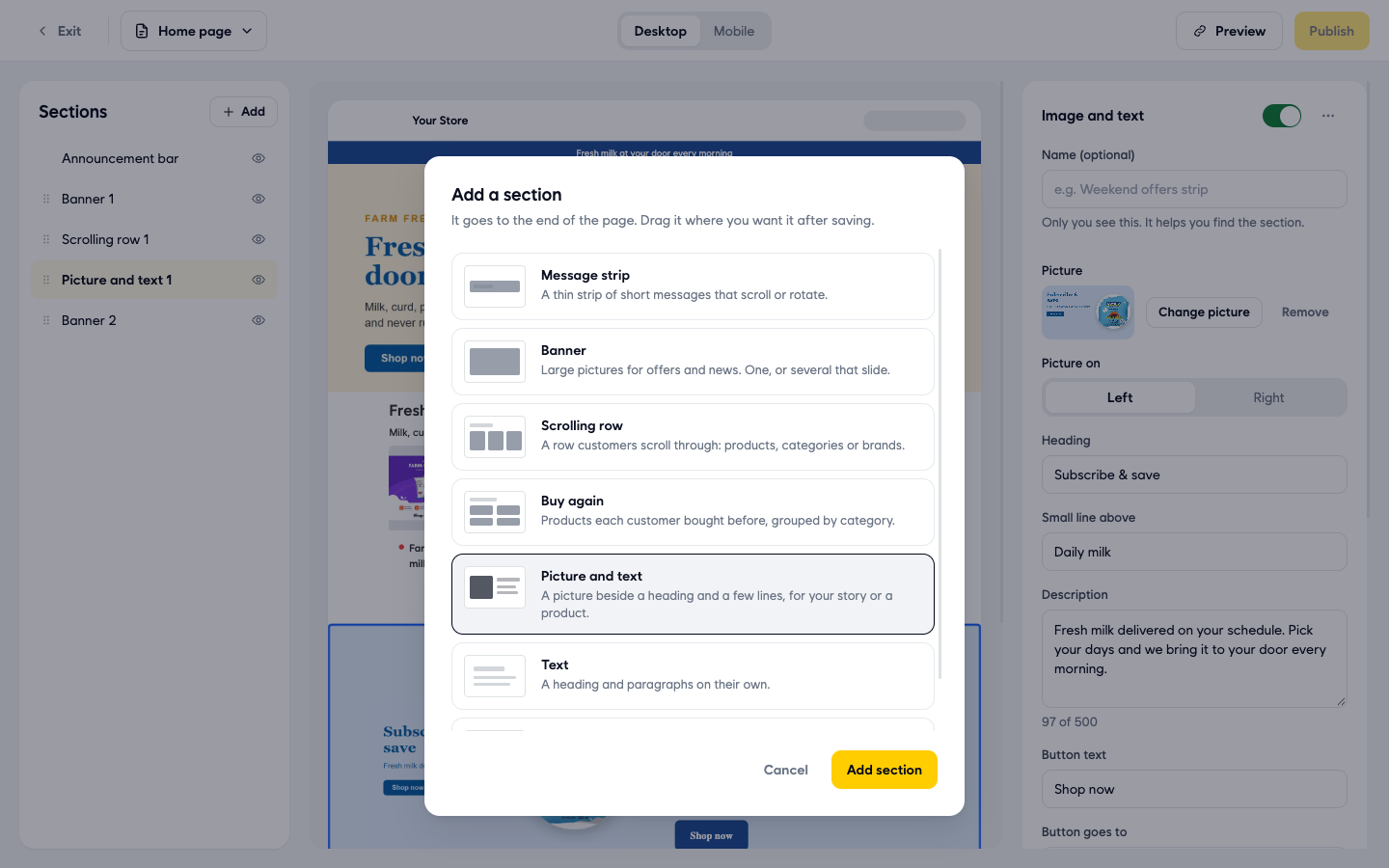
- Fill in the section:
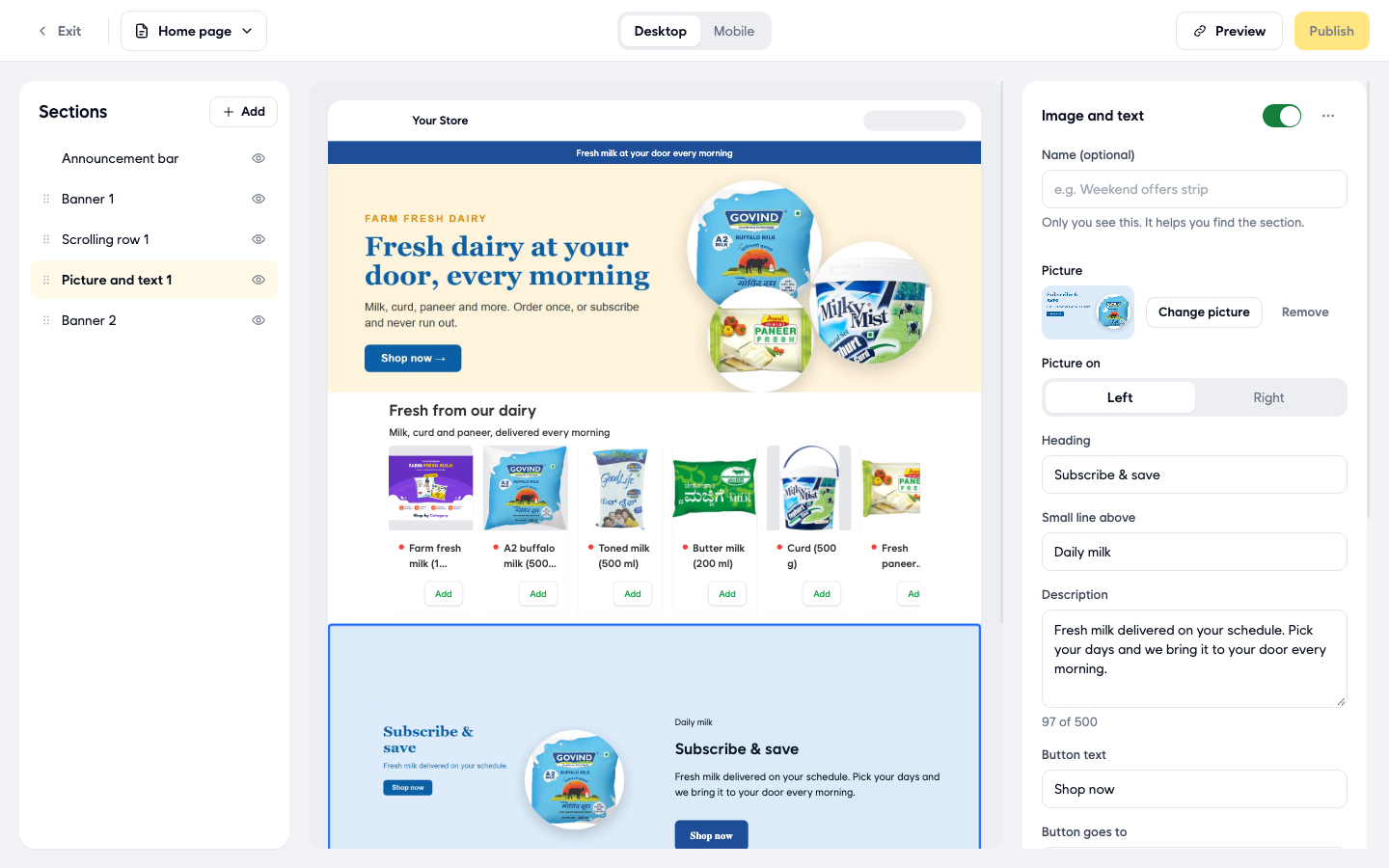
- Name (optional): only you see this. It helps you find the section in the list.
- Picture: click Change picture to pick one from your media library, or click Upload. Files can be up to 5 MB. Remove takes the picture away.
- Picture on: Left or Right.
- Heading: the main line, for example "Subscribe & save".
- Small line above: a short line over the heading, for example "Daily milk".
- Description: a few lines about your offer or story, up to 500 characters.
- Button text: the words on the button, for example "Shop now".
- Click More options to change the colours:
- Background picture: click Add picture to put a picture behind the whole section.
- Background colour: pick a colour or type its code.
- Text colour: pick a colour from the list.
- Button colour: pick a colour or type its code.
- Click Publish at the top right. Unsaved changes next to it goes away when your changes are saved.
Good to know
- With Add text to this banner or Add buttons to this banner off, the banner works as before.
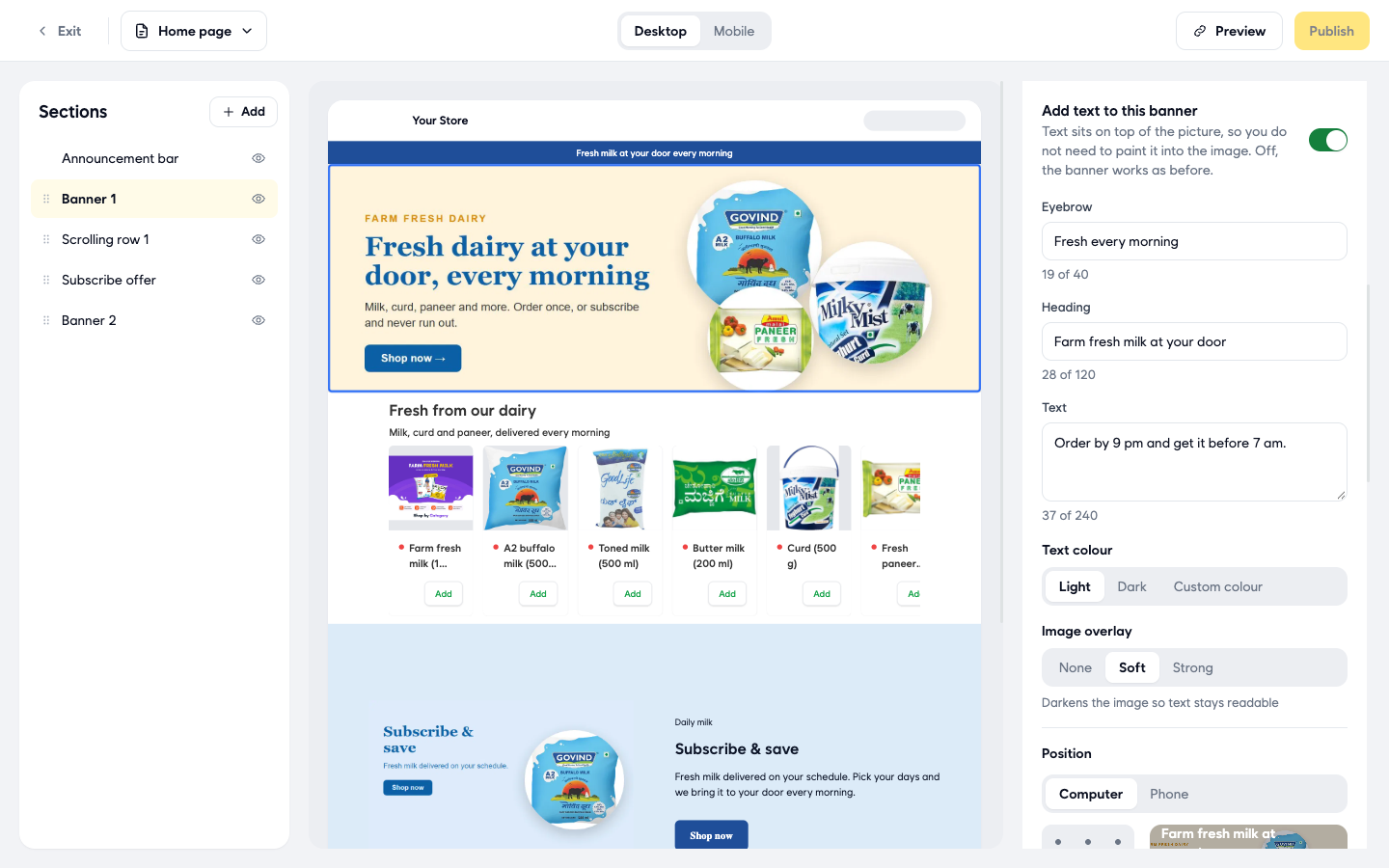
- Text and buttons always sit together, at the spot you picked under Position.
- Set the position for Computer and Phone separately, so the text looks right on both.
- To check your home page as customers see it, click Preview at the top of the editor.
- The switch at the top of a Picture and text section's settings shows or hides it on your store. You can also click the eye icon next to any section in Sections.
Related
- Add a banner to your home page
- Change your store's colours and logo
- Rearrange your home page sections
هل كان هذا المقال مفيداً؟