هذا المقال غير متوفر بالعربية بعد، لذلك نعرضه بالإنجليزية.
دليل استخدام
Multi-currency and currency display
Show prices in other currencies and control how they display.
Your store shows every price in one currency, the one you choose in your Ordrio admin panel. You can also choose how many decimals prices show and whether they are rounded off, so prices on your website and app look clean and easy to read.
Before you start
- Decide which currency you sell in. Your products, delivery charges and order totals all use it.
- Add a few products first if you want to see the effect on real prices. The settings screen also shows a preview.
Choose your store's currency
- Open nadi.ordrio.com (your Ordrio admin panel) and log in.
- Click the Settings icon (the gear) at the top right. The Settings page opens.
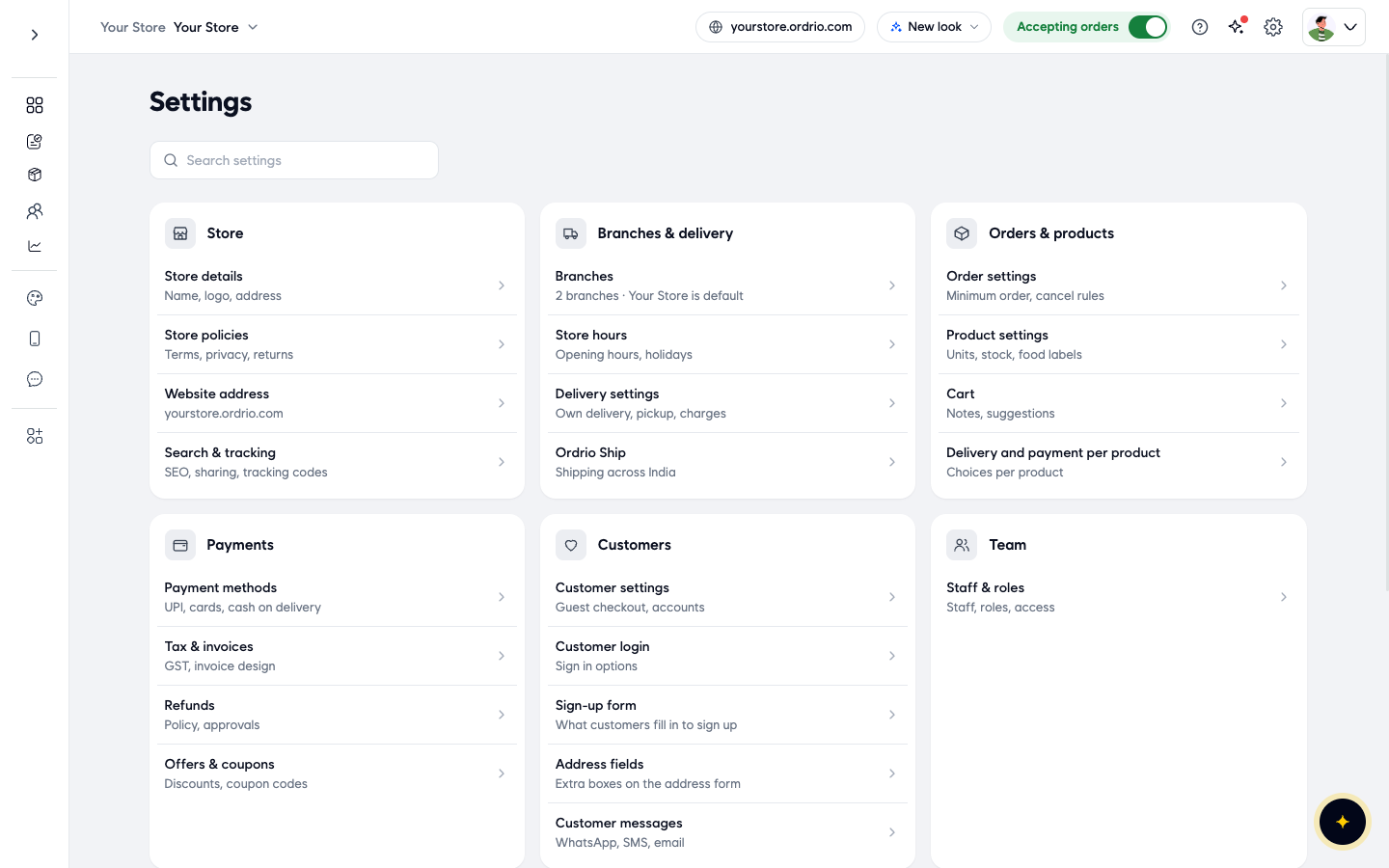
- Under Store, click Store details. This page holds what customers see about your store: your Logo, Store name, Phone, Email and Address.
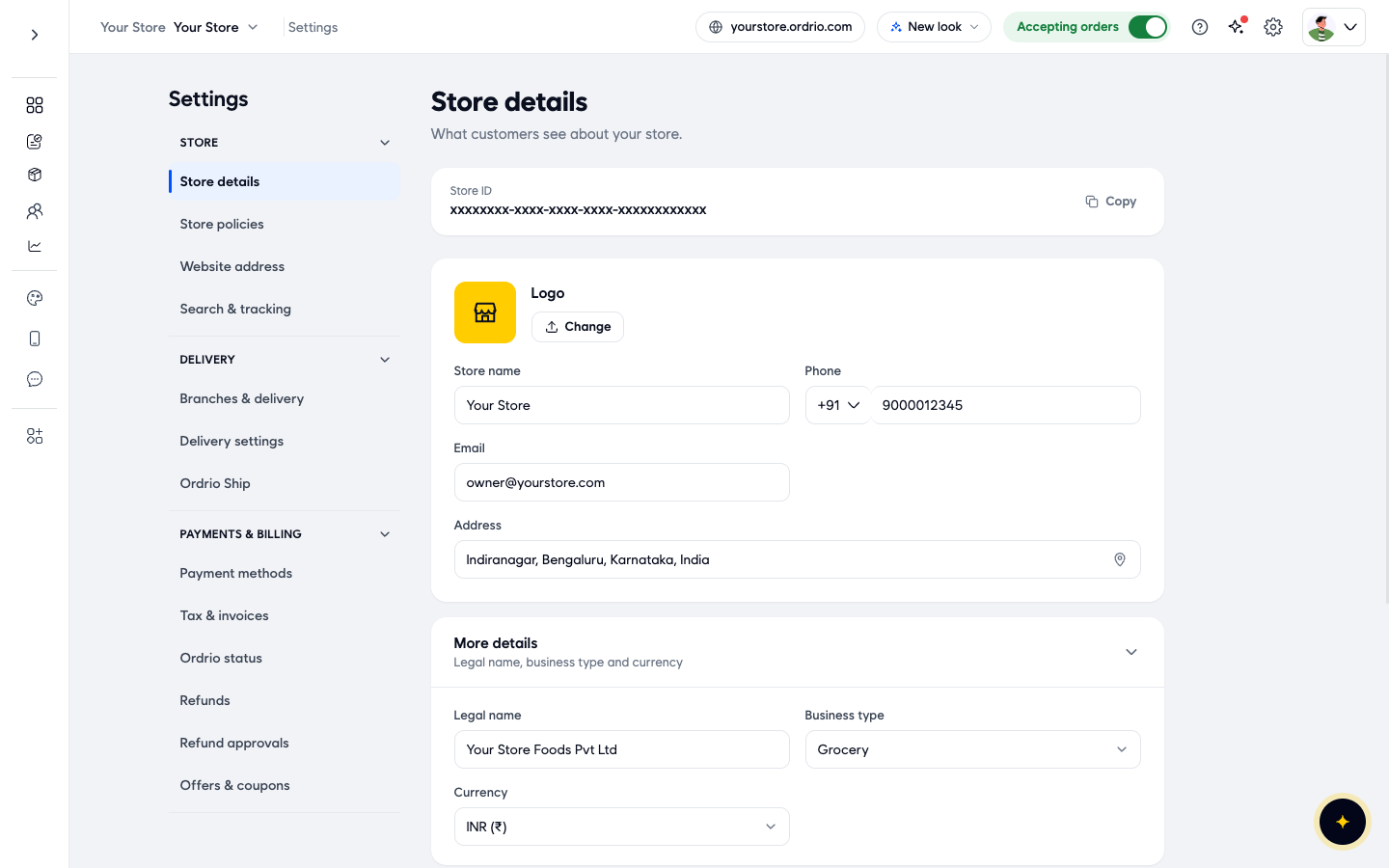
- Scroll down to More details (it says "Legal name, business type and currency"). If the section is closed, click it to open it. It has three fields:
- Legal name: your registered business name, for example "Your Store Foods Pvt Ltd".
- Business type: the kind of business you run, for example Grocery or Restaurant.
- Currency: the currency all your prices are shown in.
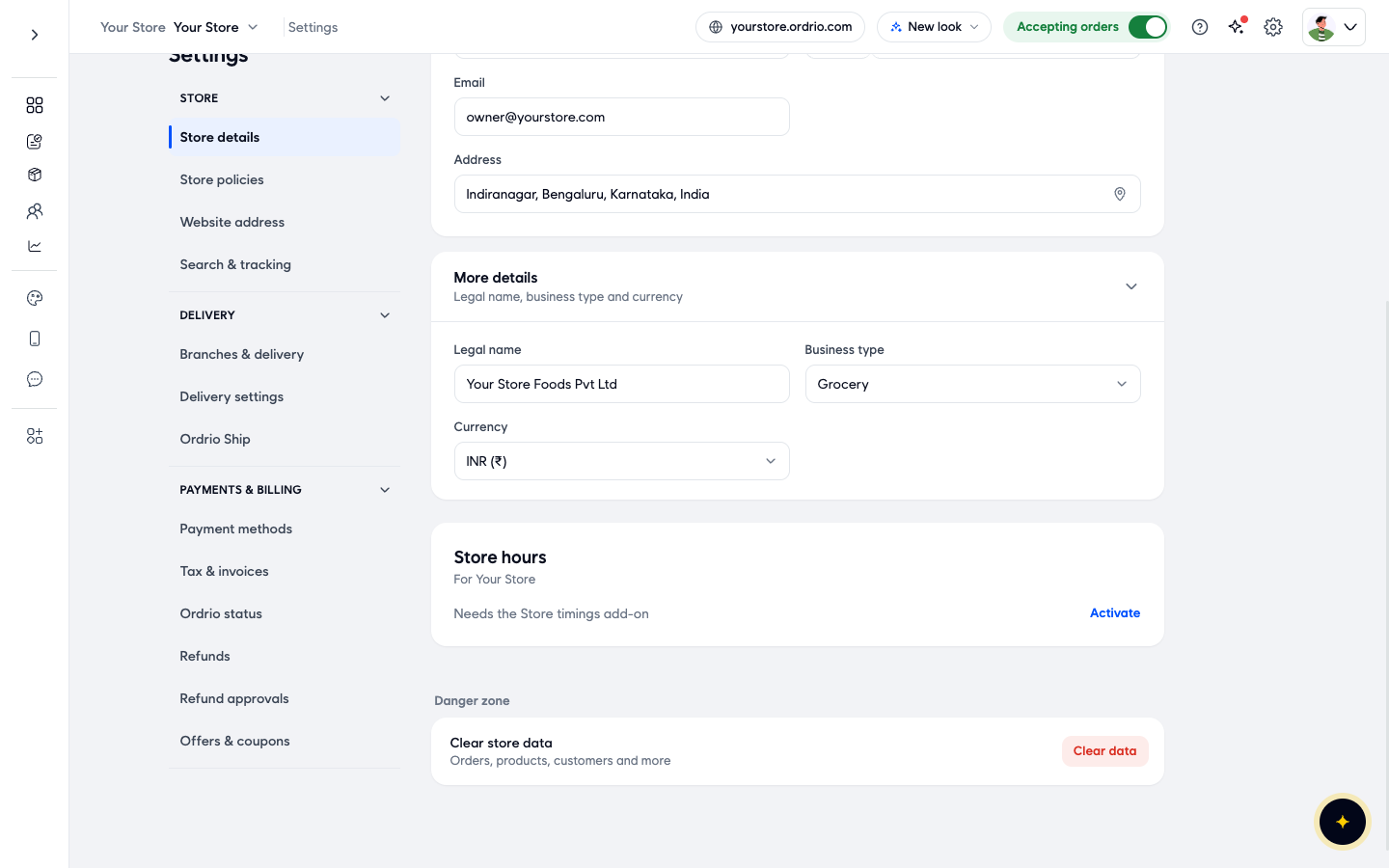
- Click the Currency list and choose your currency. The list is in A to Z order by currency code, and each one shows its code and symbol, for example INR (₹), USD ($), AED (د.إ) or GBP (£). The values shown in the screenshots are examples. Use your own store's details.
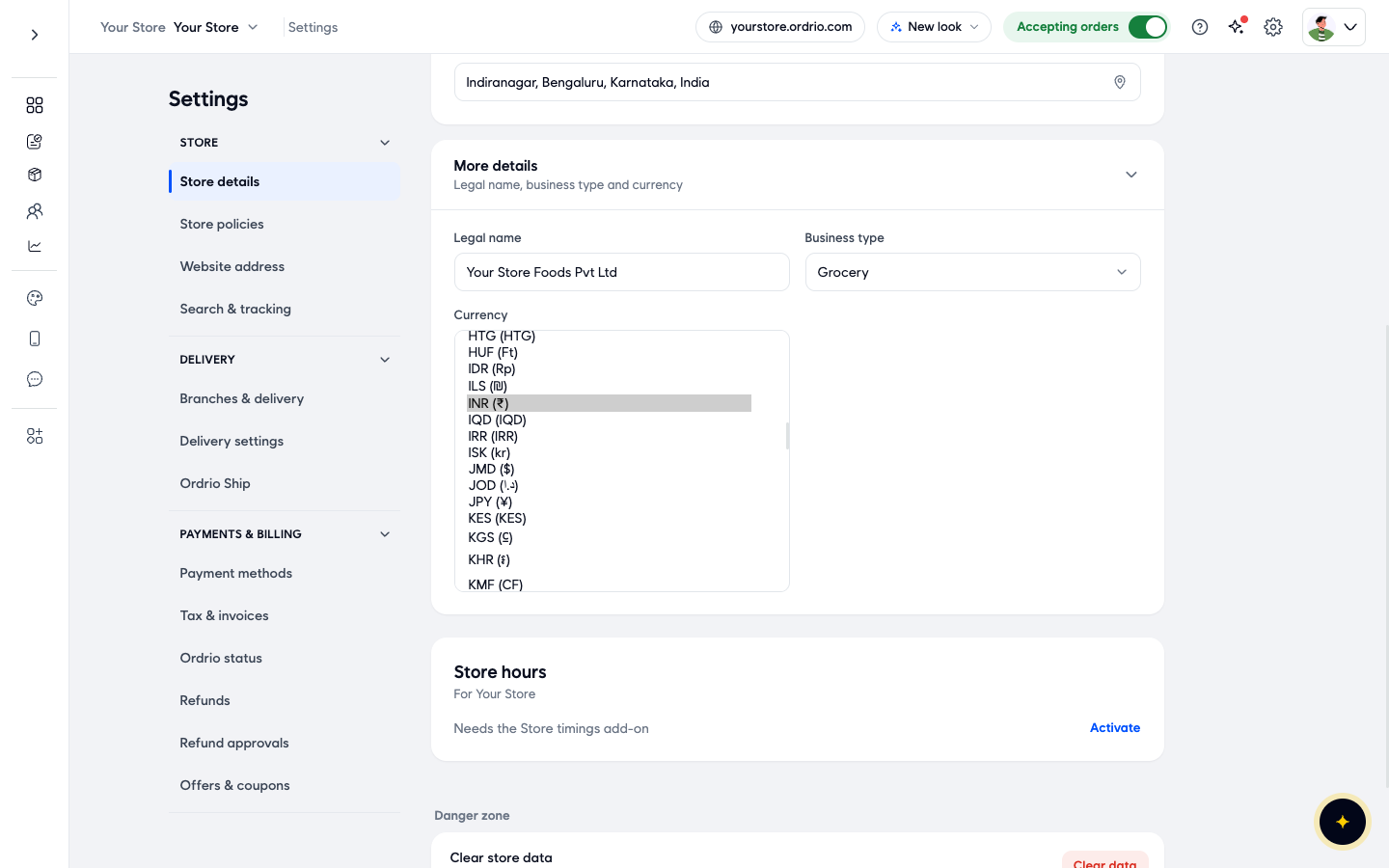
- A bar appears at the bottom of the screen saying You have unsaved changes. Click Save to keep the new currency, or Discard to go back to the old one.
After you save, the bar goes away and your prices use the symbol of the new currency. For example, after switching from INR to USD, a price of ₹268.60 shows as $268.60. The number itself does not change. The price styles under Show prices as and the preview under What customers see also show the new symbol.
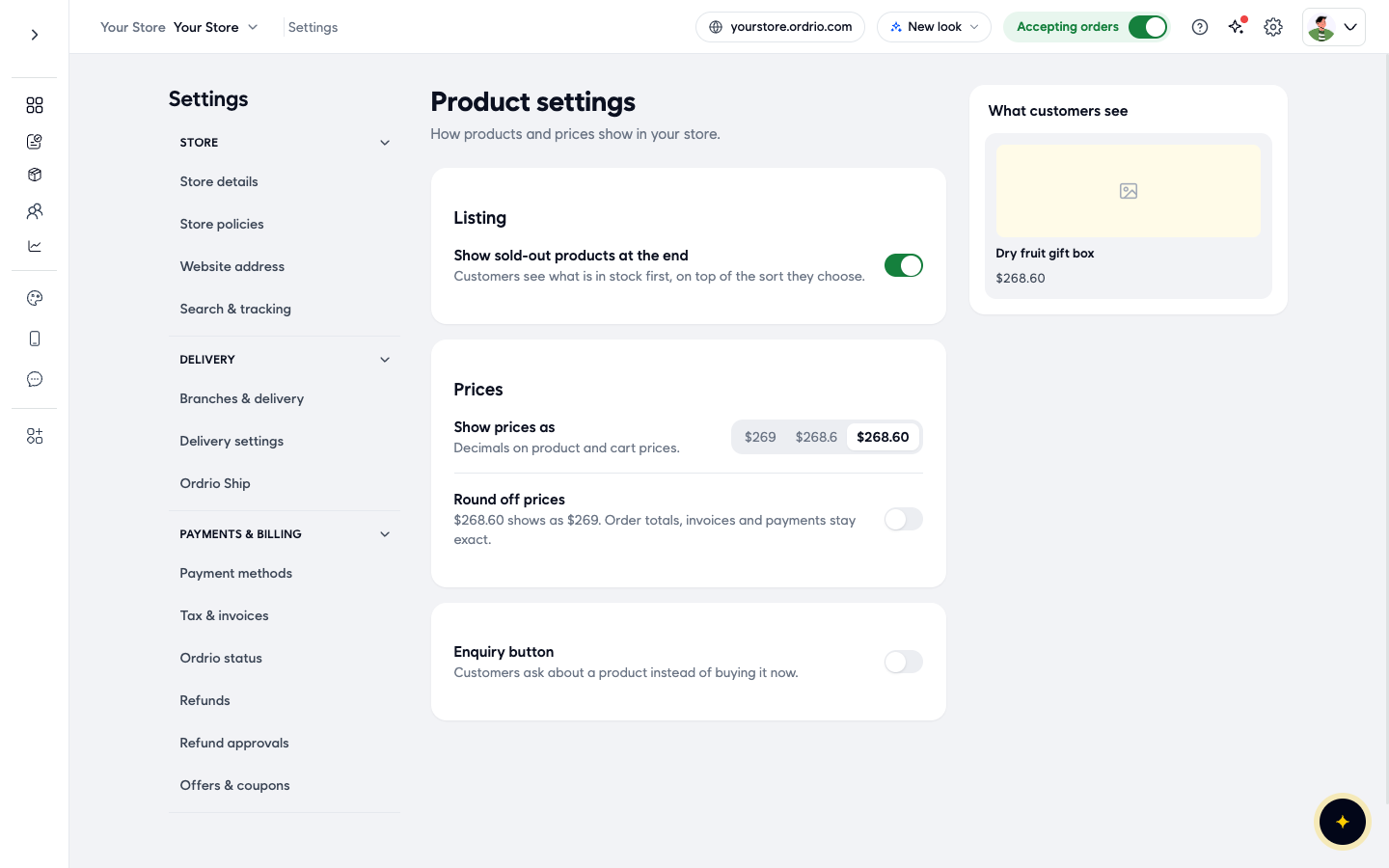
To go back, choose your old currency in the Currency list again and click Save. Your prices show the old symbol again.
Choose how prices are shown
- Go back to Settings. Under Orders & products, click Product settings. This page sets how products and prices show in your store. On the right, What customers see shows a sample product with its price, so you can check each change.
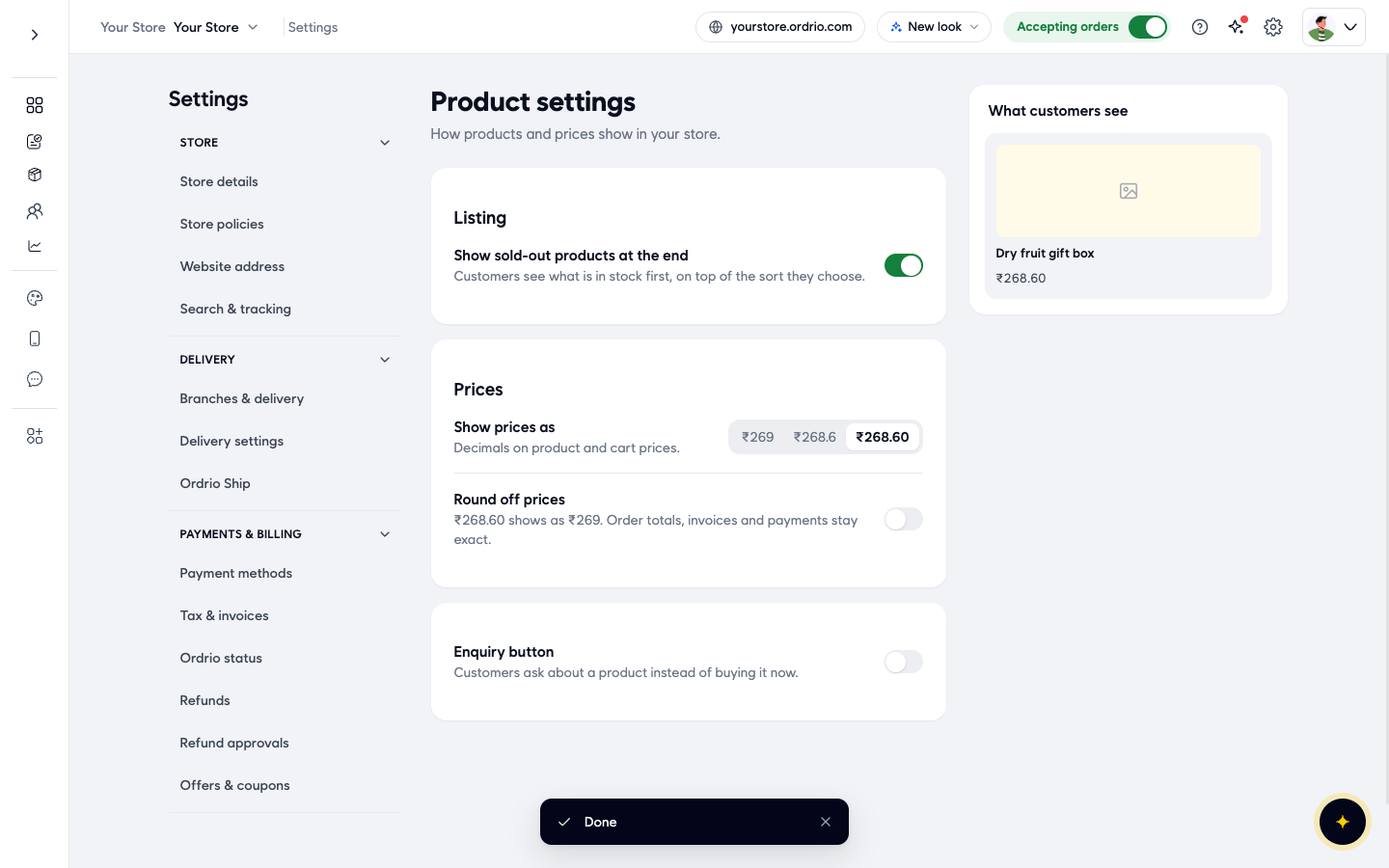
- Under Prices, find Show prices as ("Decimals on product and cart prices"). Click the style you want:
- ₹269: no decimals.
- ₹268.6: one decimal.
- ₹268.60: two decimals.
The change saves straight away. A Done message appears at the bottom and the preview updates. There is no separate save button on this page.
- Turn on Round off prices if you want prices rounded to the nearest whole amount. For example, ₹268.60 shows as ₹269. Done appears again and the preview shows the rounded price.
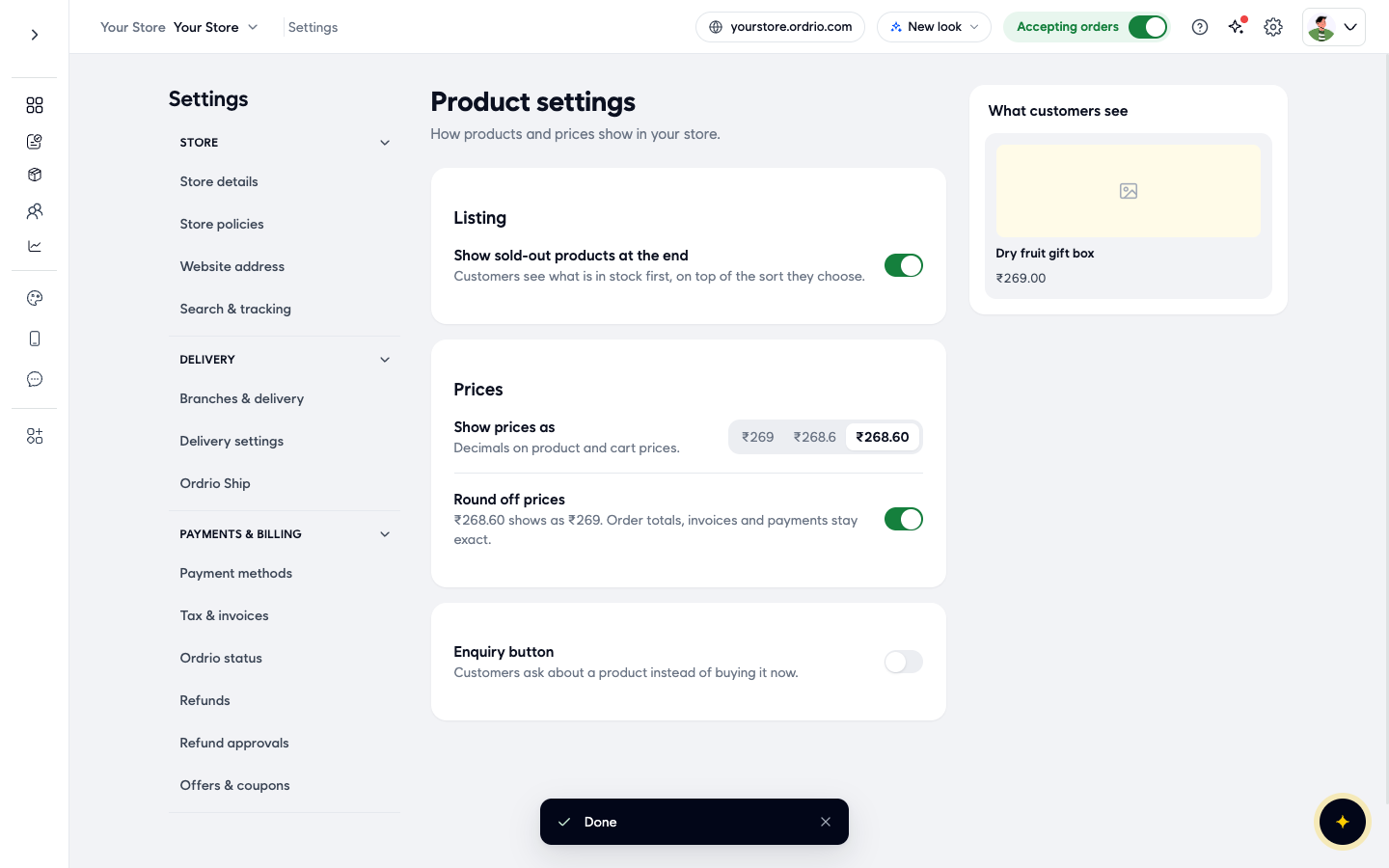
- Check the price under What customers see. This is how prices look on your website and app.
Good to know
- Your store has one currency. It is set in Store details and applies to the whole store, including all branches. Ordrio shows prices in one currency at a time, so there is no setting to show the same price in more than one currency.
- Changing the currency changes only the symbol. It does not convert your prices. If you switch currency, update your product prices yourself.
- Show prices as and Round off prices change only how prices look on product and cart screens. Order totals, invoices and payments always stay exact.
- Changes in Store details are kept only after you click Save. Changes in Product settings save as soon as you click them.
Related
- Setting up your store profile
- Adding your first product
- Invoices, KOTs and billing documents
- Setting up a payment gateway