هذا المقال غير متوفر بالعربية بعد، لذلك نعرضه بالإنجليزية.
دليل استخدام
Changing or removing access
Update roles or remove staff when responsibilities change.
When someone in your team takes on new work or leaves, update what they can do in your Ordrio admin panel. You can change a person's role and branches, block them for a while, or remove them from your store. You can also change what a role allows, which updates everyone who has that role.
Before you start
- Log in as the store owner, or as a staff member whose role has Invite and manage people (to change people) or Create and manage roles (to change roles) ticked.
- The person must already be on your team. To add someone new, see Adding staff members.
Open Staff & roles
- Open nadi.ordrio.com (your Ordrio admin panel) and log in.
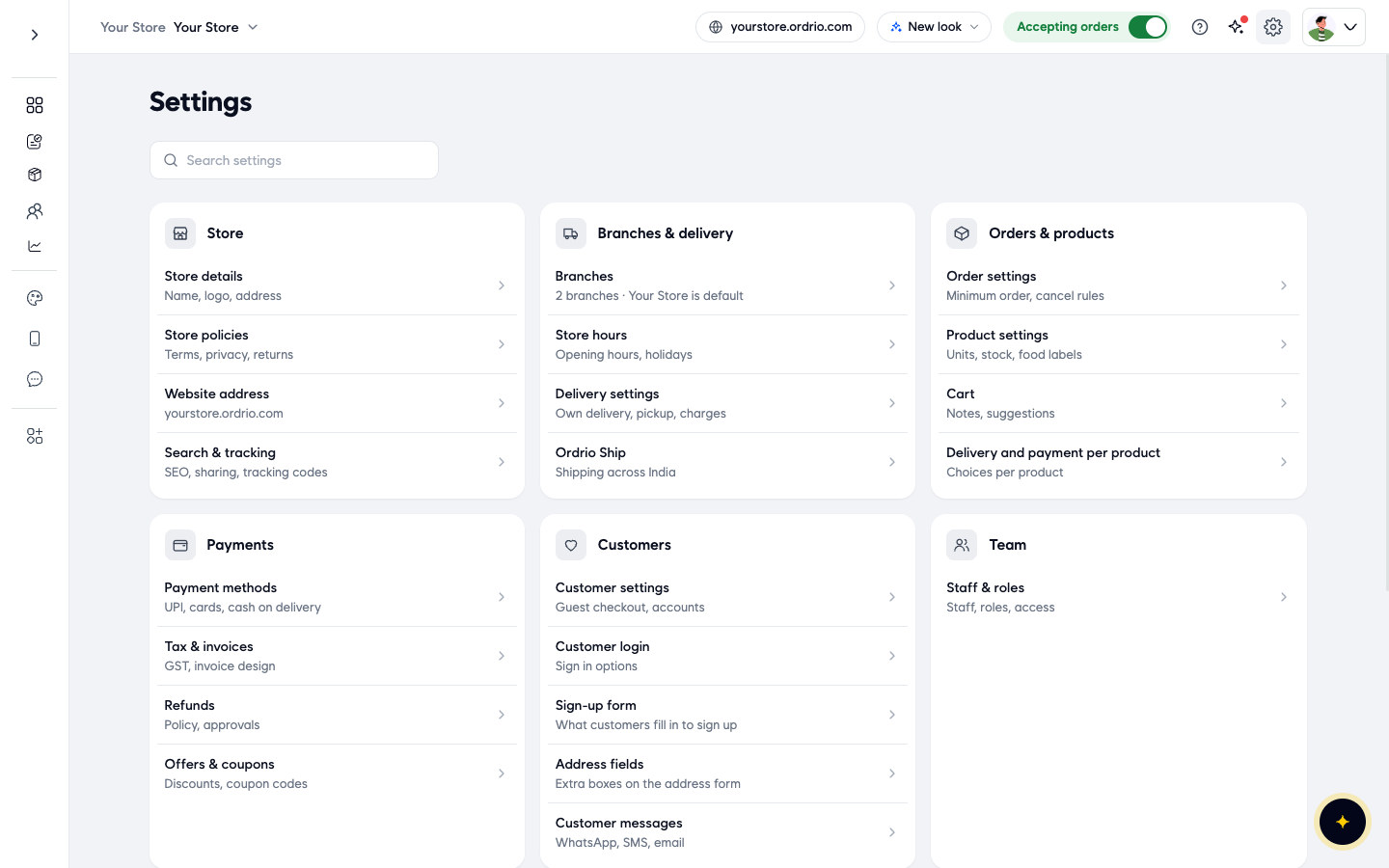
- Click the gear icon (Settings) at the top right.
- Under Team, click Staff & roles.
- The People tab opens. It lists everyone who can use your admin panel, with these columns:
- Person: name and phone number.
- Role: the role they have, and a status such as Pending (they have not accepted the invite yet) or Blocked.
- Branches: the branches they can work in.
- Last active: when they last used the admin panel.
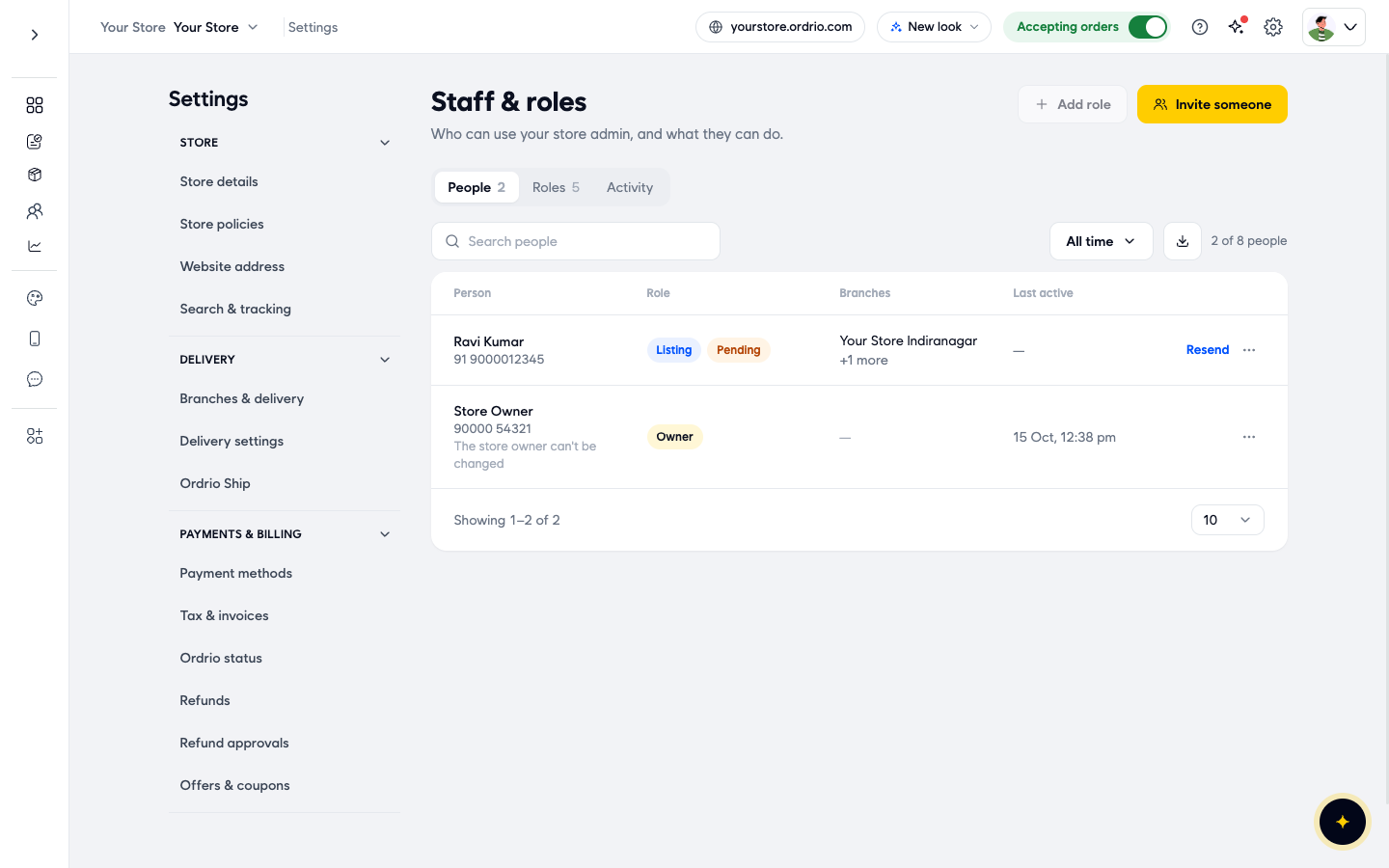
You can find a person quickly with Search people. The store owner always has the Owner role and can't be changed.
Change a person's role or branches
- On the People tab, click ... next to the person.
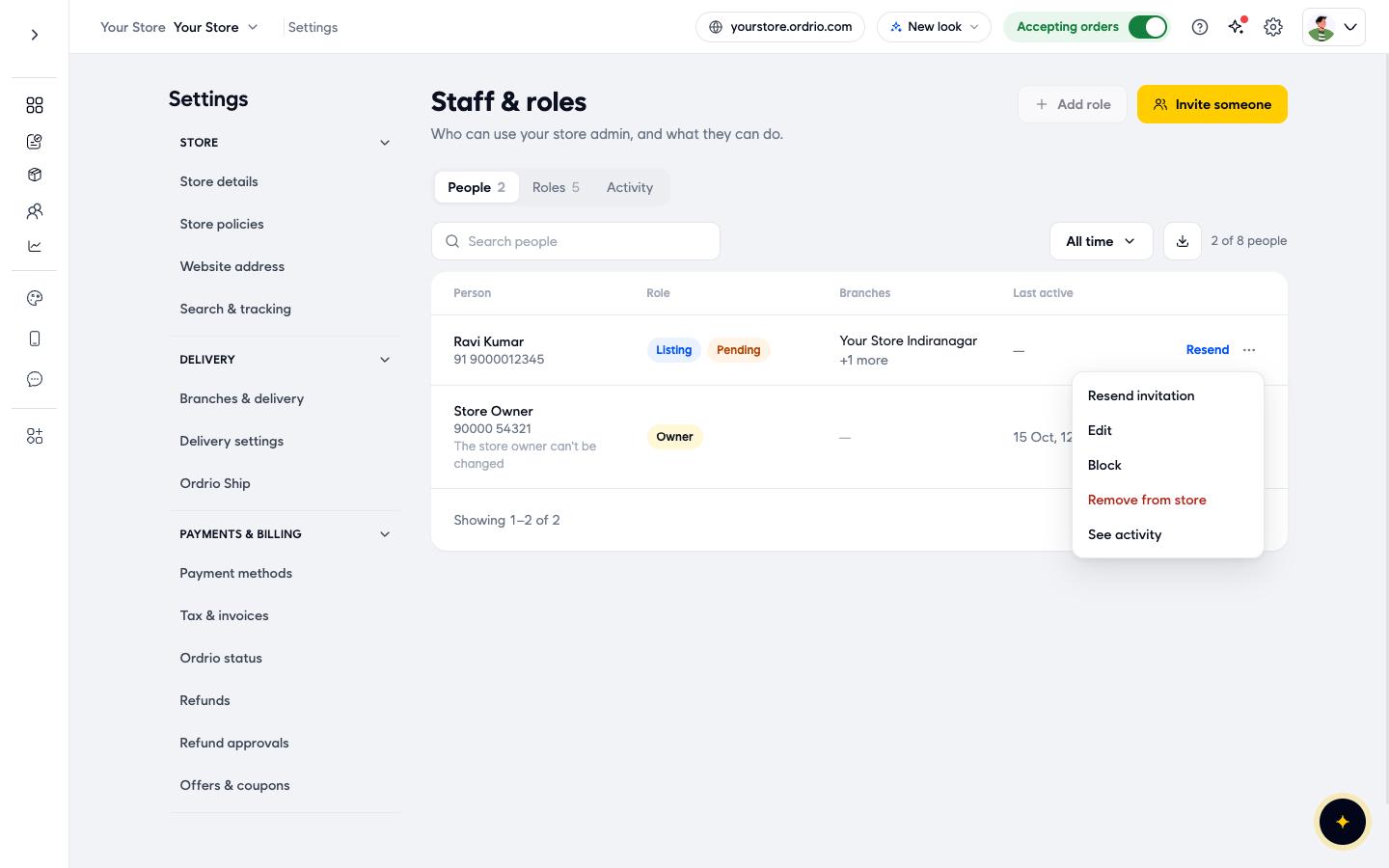
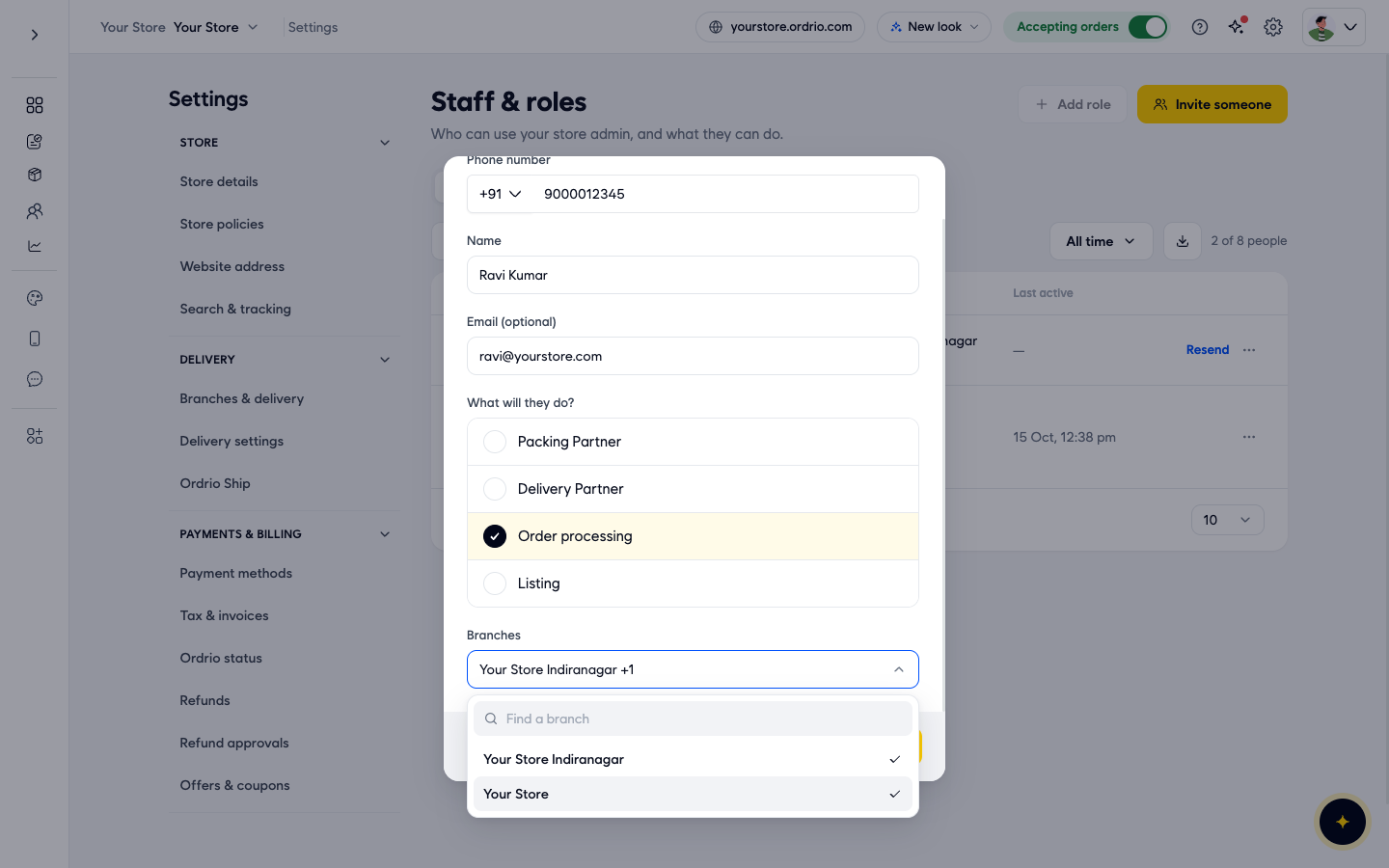
- Click Edit. The Edit person window opens with these fields:
- Phone number: the number they log in with.
- Name: their name as your team sees it.
- Email (optional): their email, if you want to add one.
- What will they do?: the role they have. Only one role can be picked.
- Branches: the branches where they can work.
- Under What will they do?, click the new role.
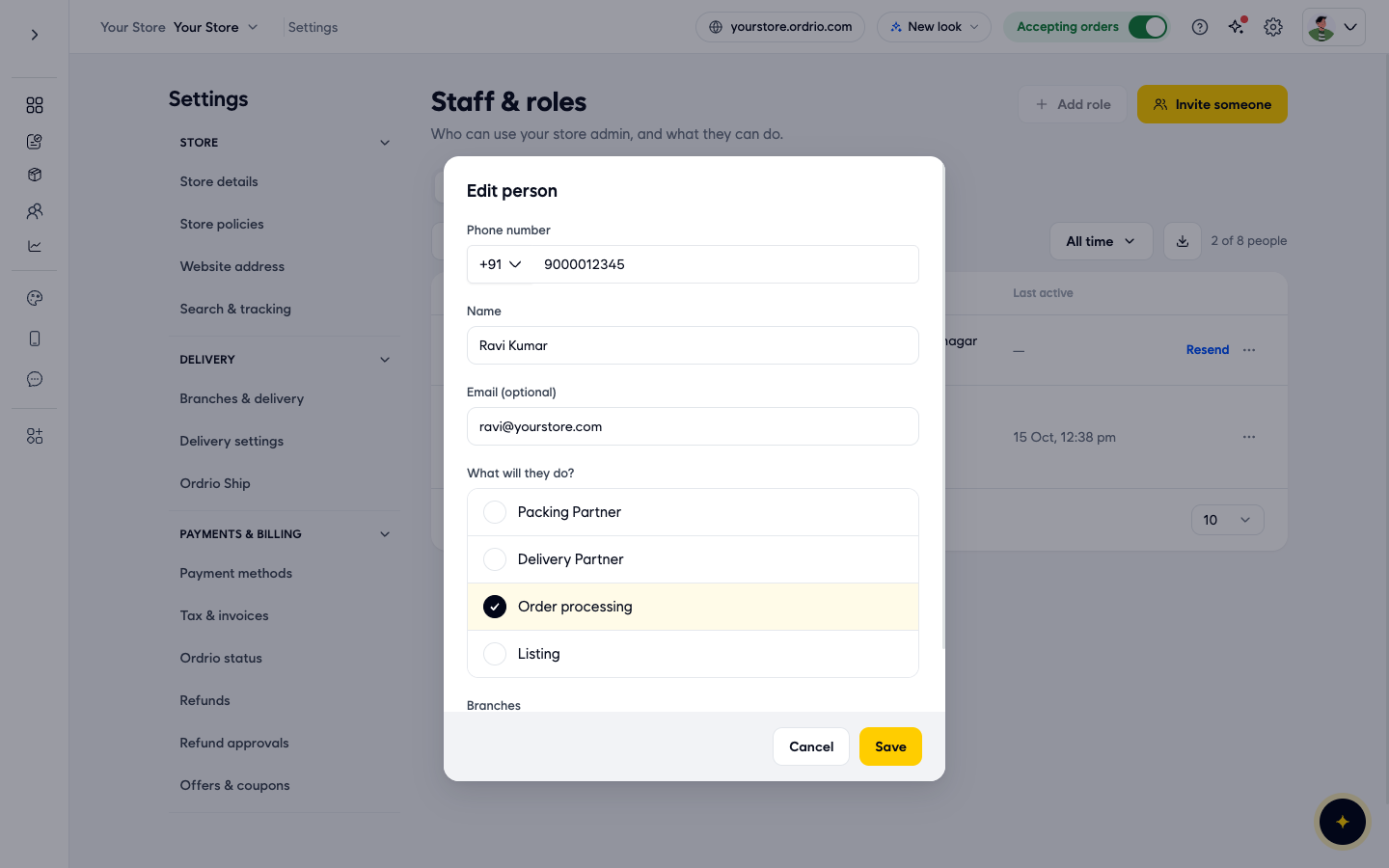
- To change where they work, click the Branches box. A list of your branches opens, with Find a branch at the top to search. Click a branch to add it, or click a ticked branch to take it away.
- Click Save. The window closes and the Role and Branches columns show the new details.
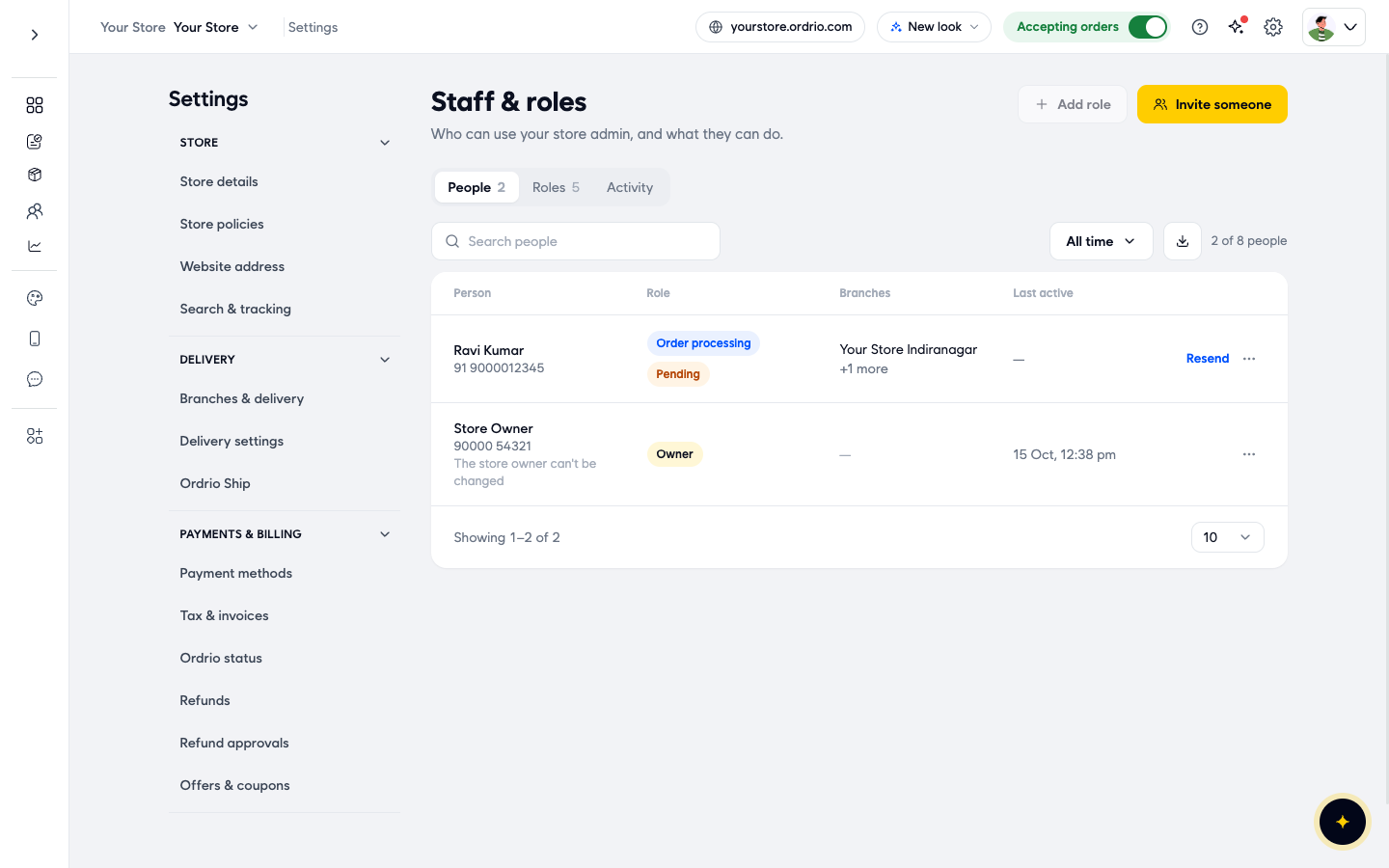
The names, number and email in the screenshots are examples. Use your staff member's own details.
Block someone for a while
Block a person when they should not log in for now, for example while they are on leave.
- On the People tab, click ... next to the person.
- Click Block. A window asks you to confirm, and explains that they can't log in until you unblock them.
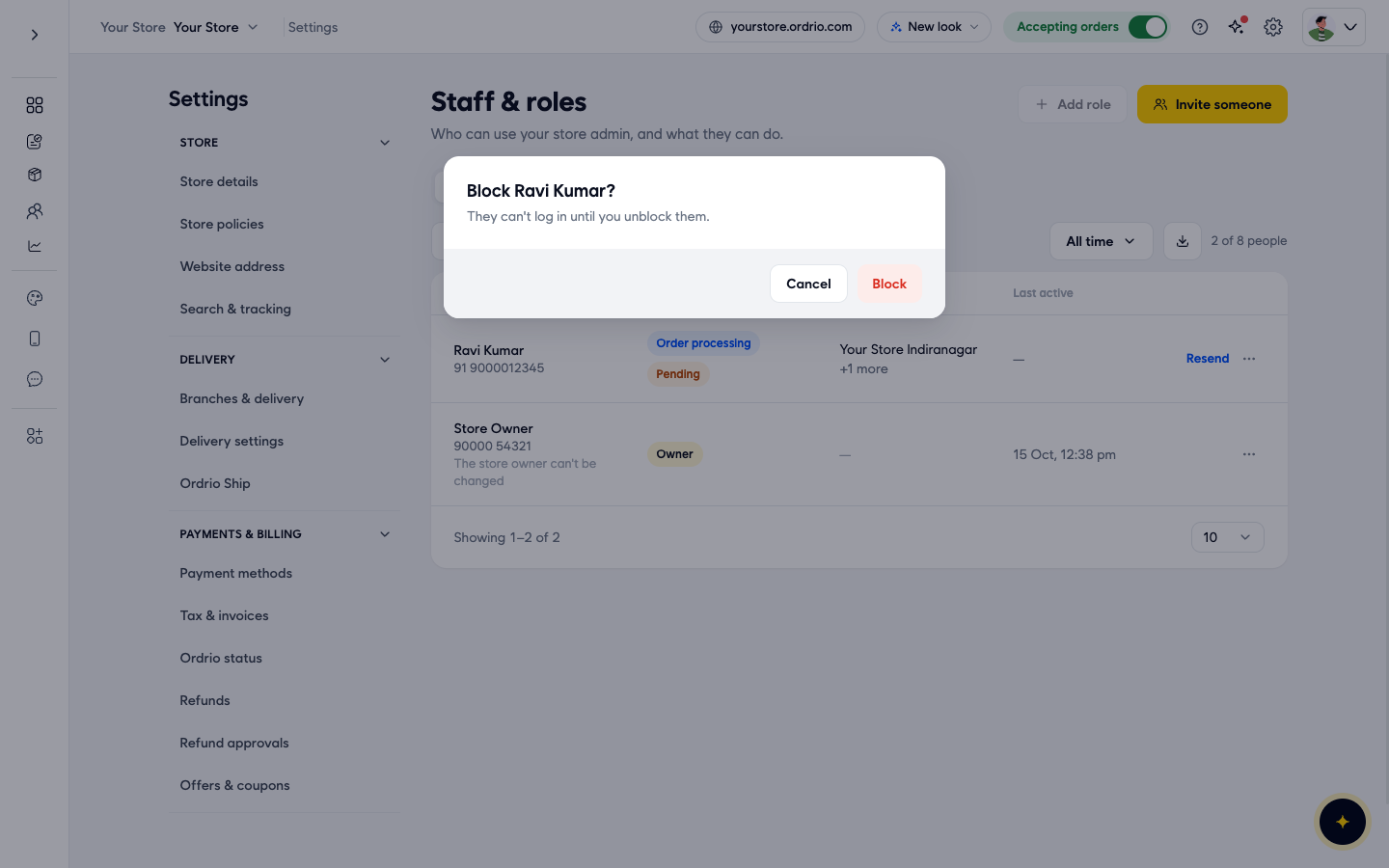
- Click Block in the window to confirm, or Cancel to keep their access.
- The person stays on the list, and their Role column now shows Blocked.
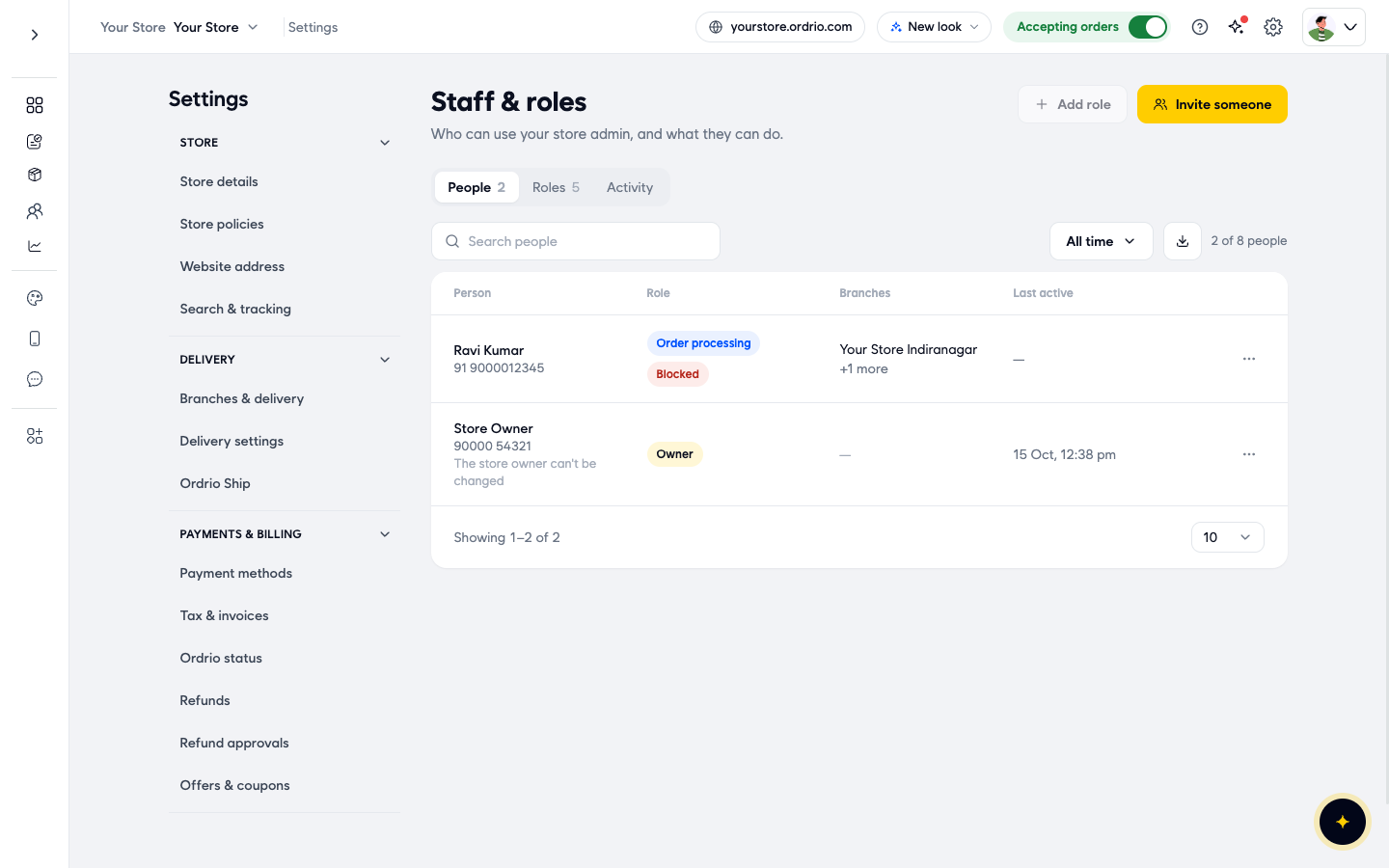
To let them back in:
- Click ... next to the person.
- Click Unblock.
Remove someone from your store
Remove a person when they leave your business.
- On the People tab, click ... next to the person.
- Click Remove from store. A window asks you to confirm, and explains that they lose access to your store.
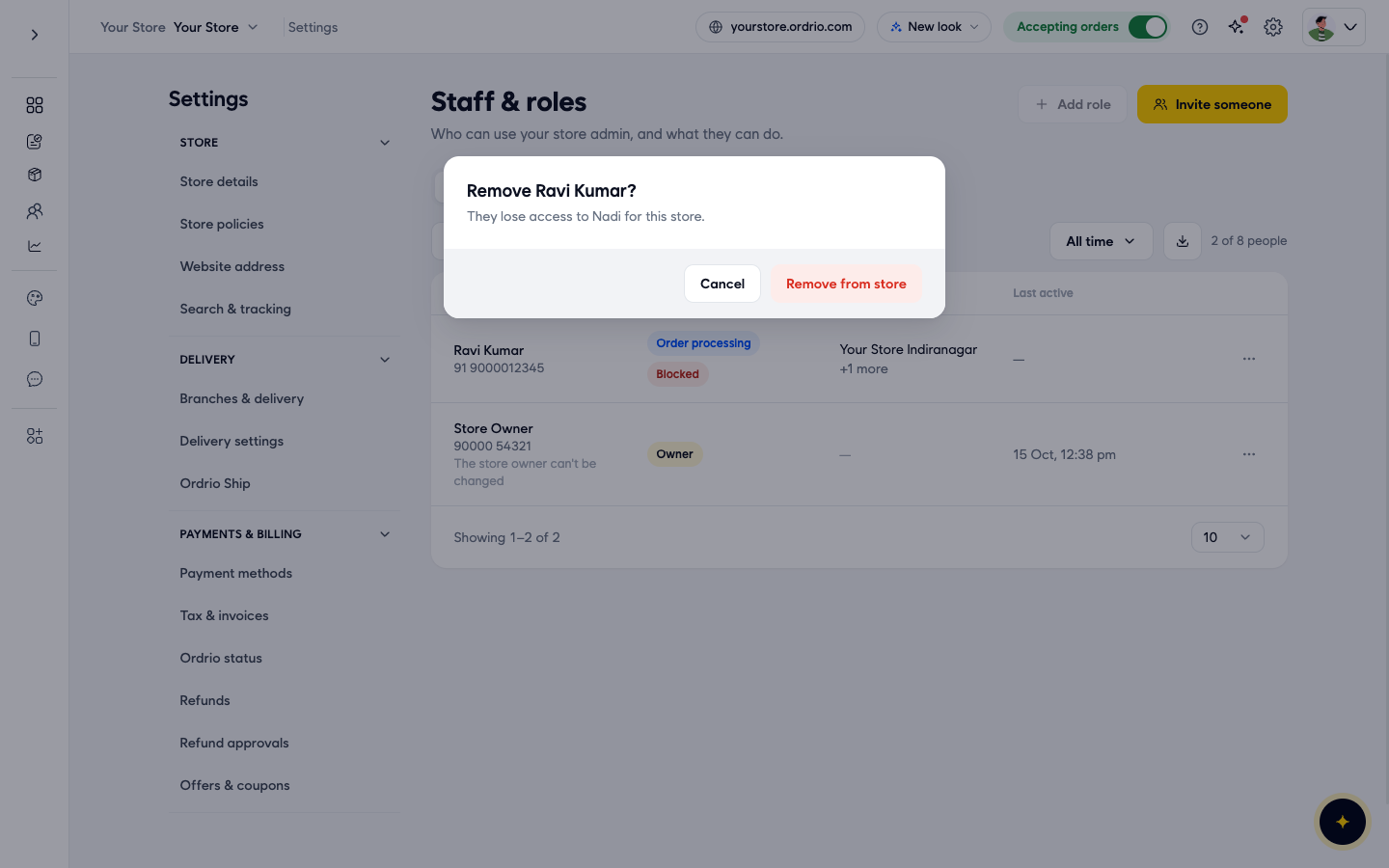
- Click Remove from store in the window to confirm, or Cancel to keep them.
- The person leaves the People list. They also no longer count in the people total above the list (for example, 2 of 8 people becomes 1 of 8 people).
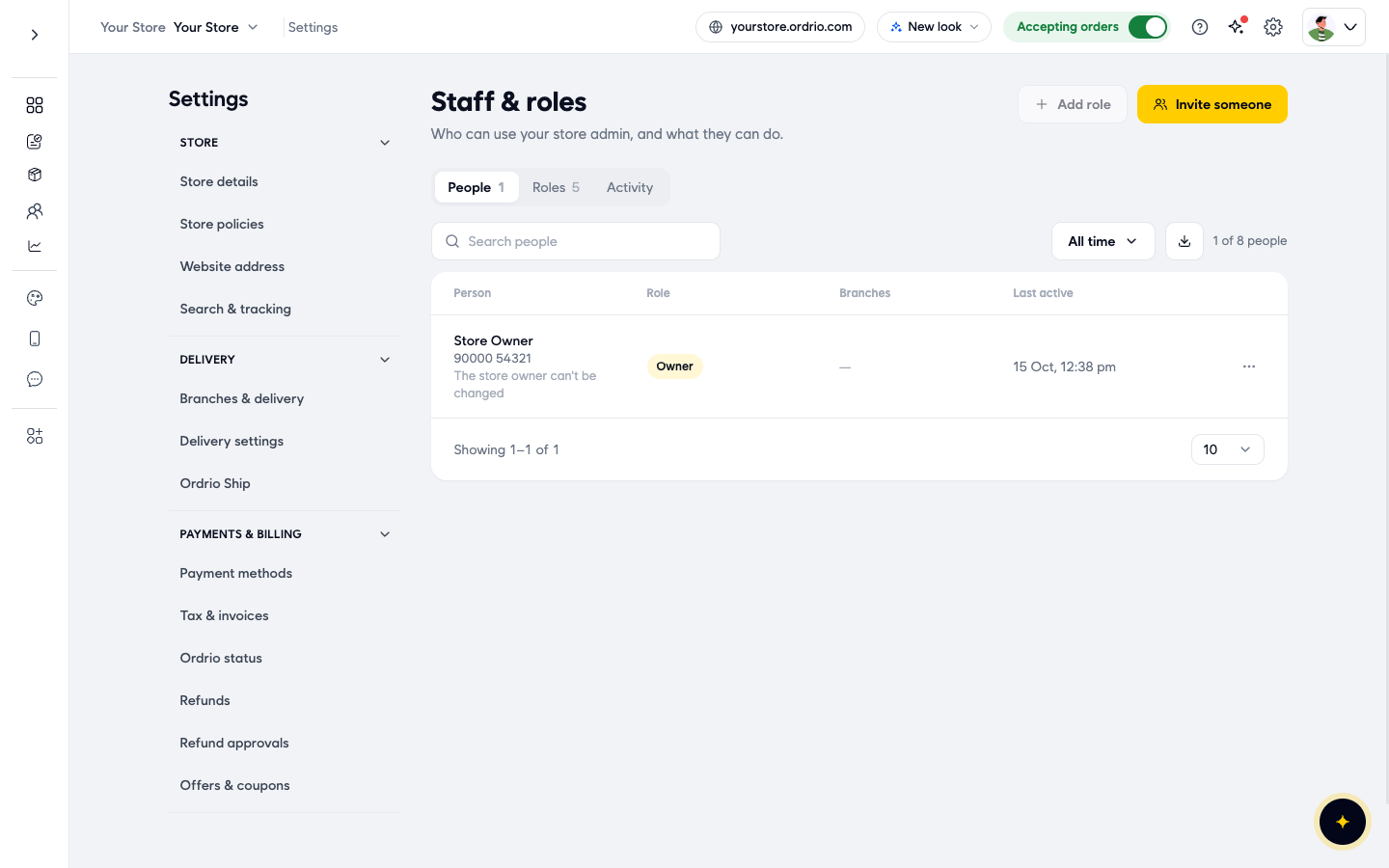
If they come back later, invite them again with Invite someone.
Change what a role can do
Changing a role changes access for everyone who has that role.
- On the Staff & roles page, click the Roles tab. It lists each role with the People who have it, what it Can do, and its Status.
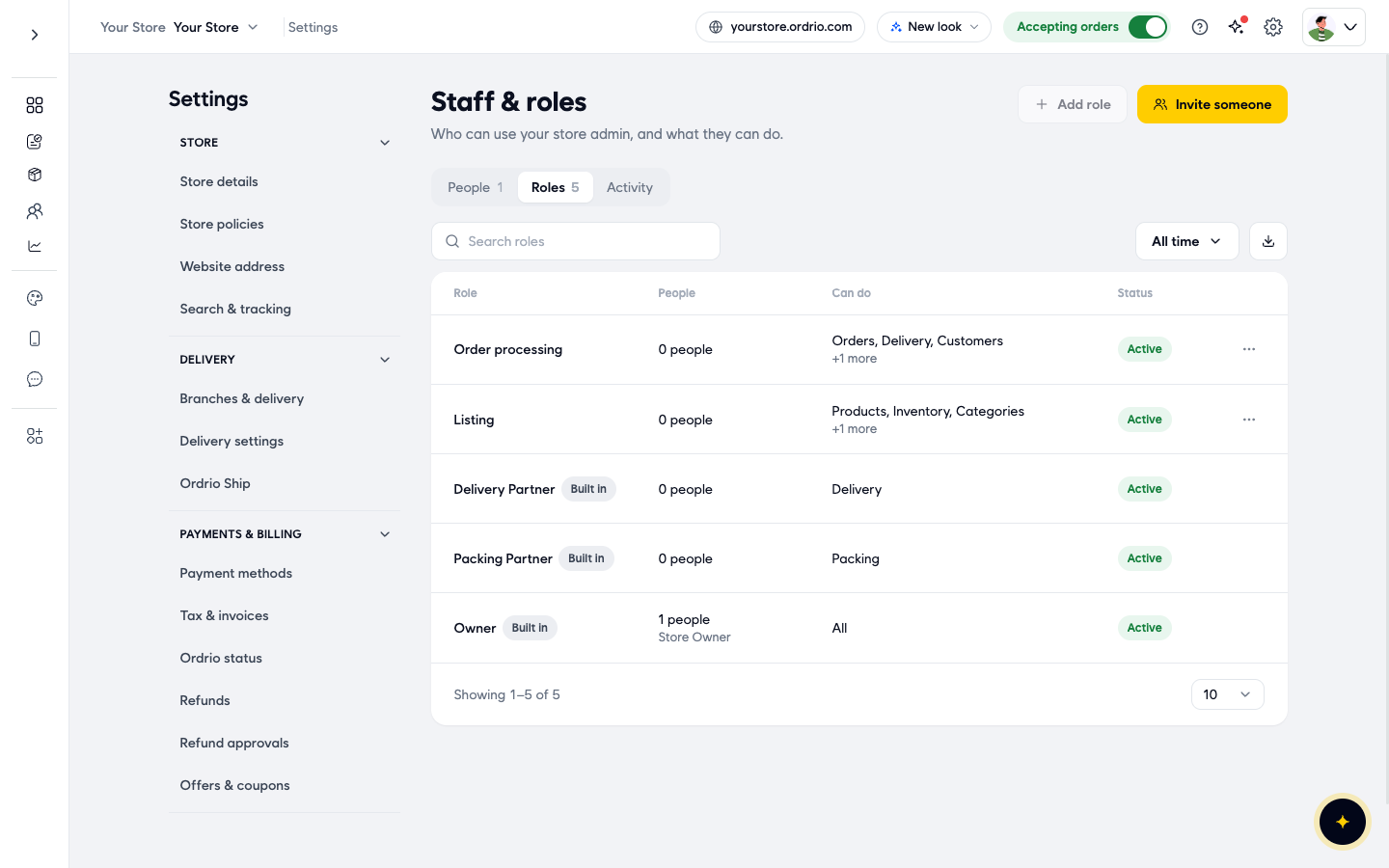
- Click ... next to the role.
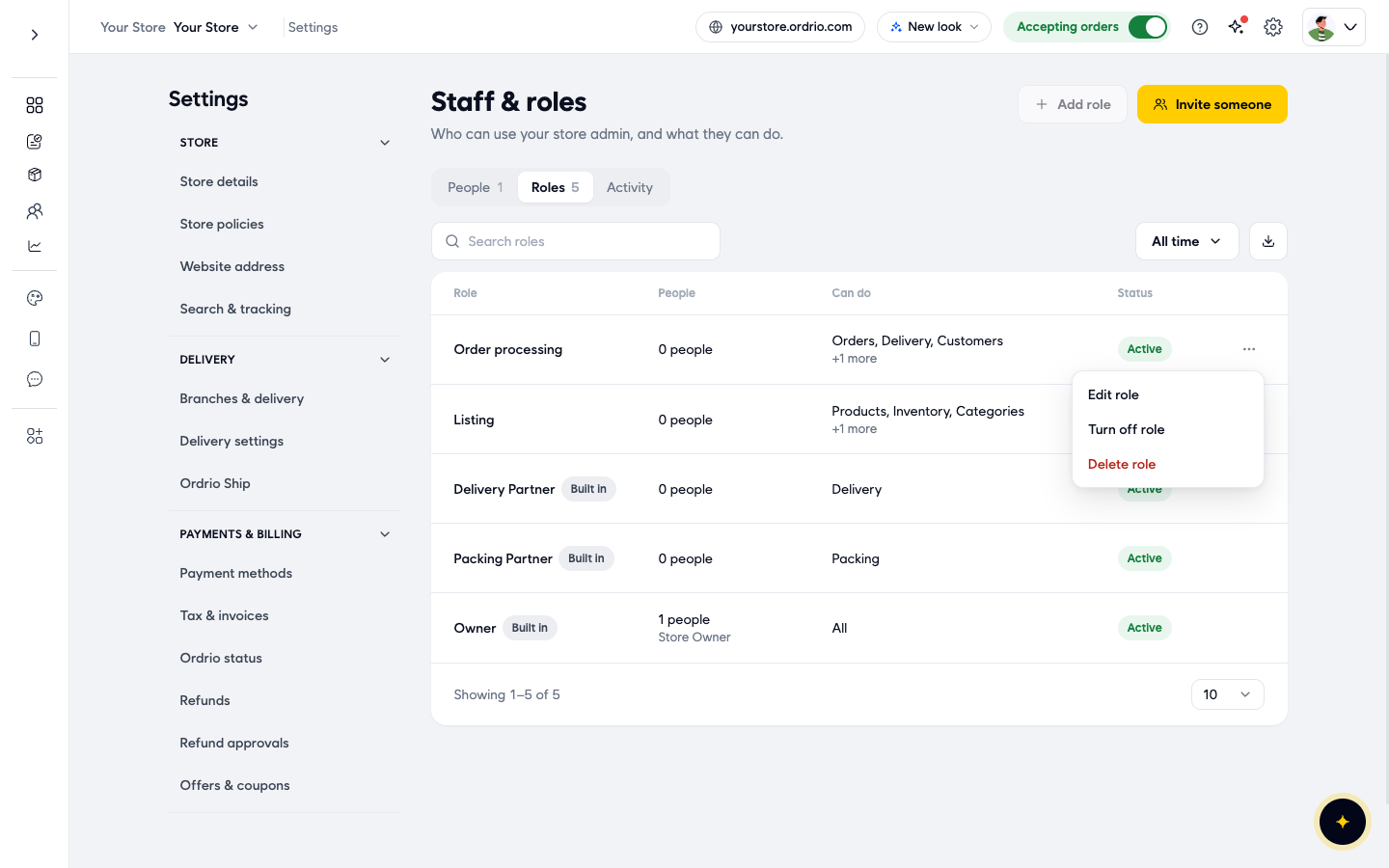
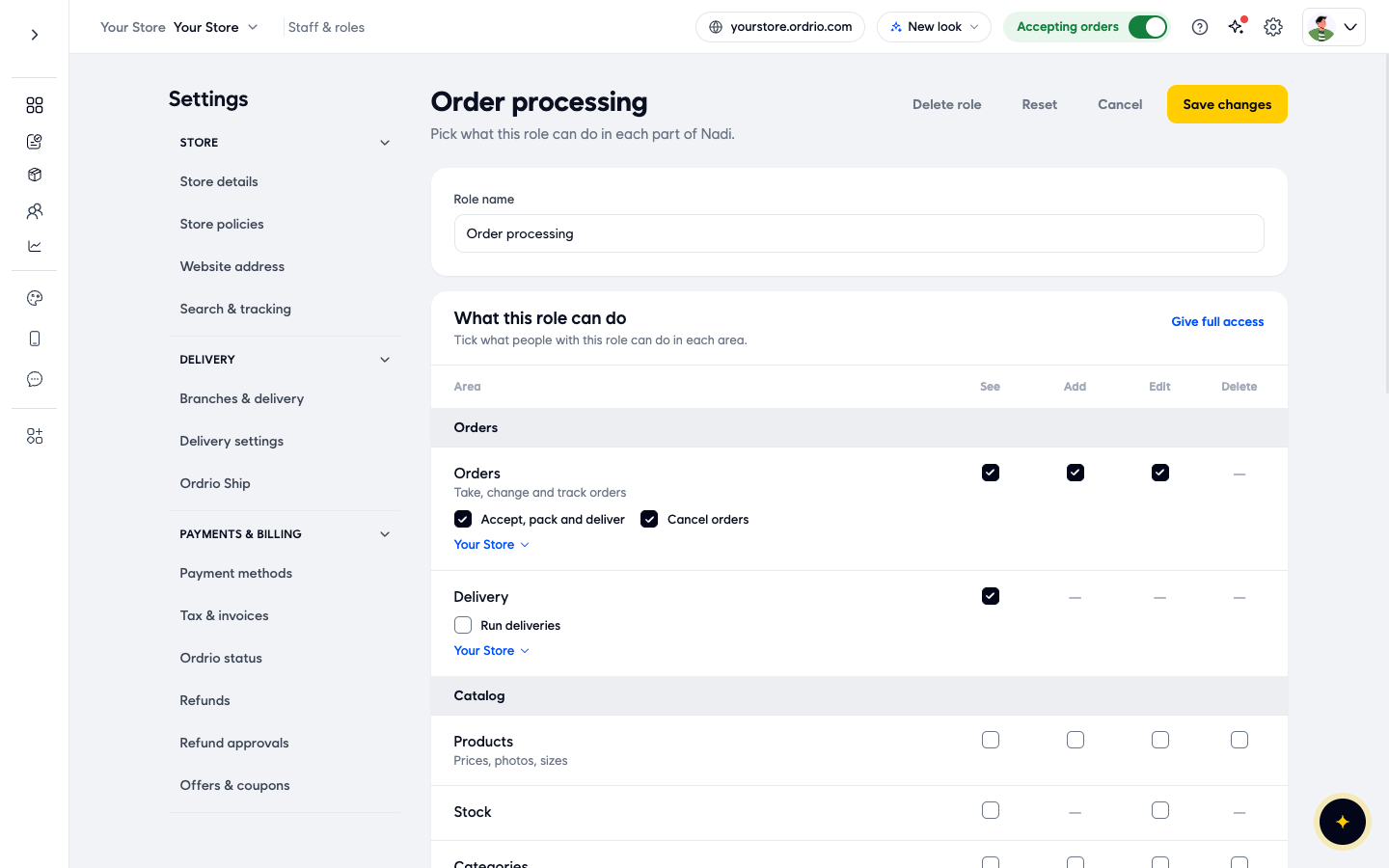
- Click Edit role. The Edit role page opens with:
- Role name: the name your team sees, for example "Cashier".
- What this role can do: a list of areas (such as Orders, Delivery, Products, Stock, Customer list, Offers and coupons, Settings and Billing and plan) with See, Add, Edit and Delete boxes. A dash means that action is not available for that area.
- Extra boxes under some areas, for example Accept, pack and deliver and Cancel orders under Orders, or Invite and manage people and Create and manage roles under Settings.
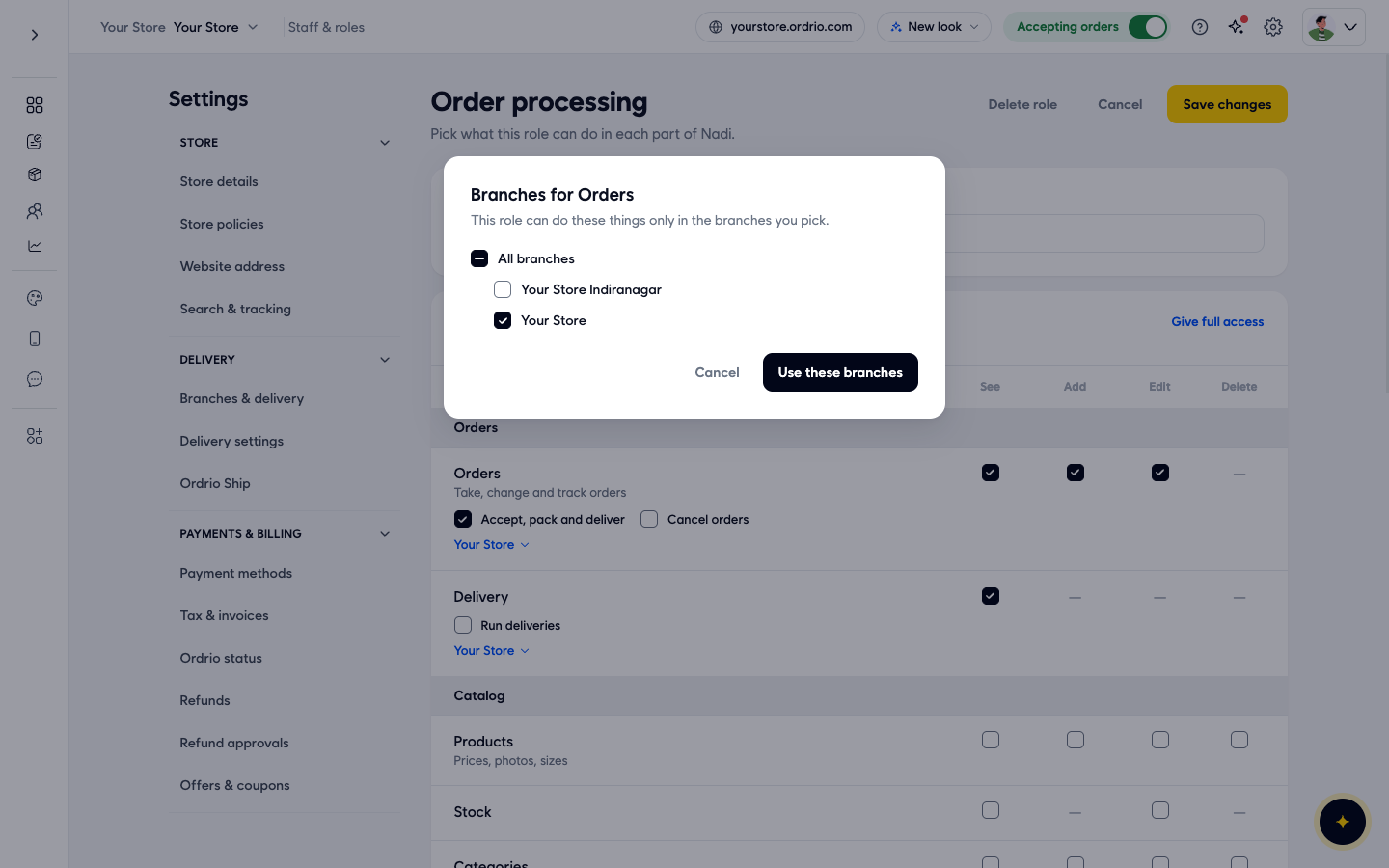
- A branch button under each area, showing the branches where the role can do that work.
- Give full access: ticks everything in one click.
- Tick the boxes for what the role should be able to do, and untick what it should no longer do. For example, tick Cancel orders under Orders.
- To change the branches for an area, click the branch button under that area (for example under Orders). Pick the branches in the window that opens.
- Click Save changes at the top right. You return to the Roles tab, and everyone with this role gets the new access.
To leave without changing anything, click Cancel instead.
Turn off a role
Turn off a role when you want to stop using it for now, but keep it for later.
- On the Roles tab, click ... next to the role.
- Click Turn off role. There is no confirmation window. The role's Status changes from Active to Inactive.
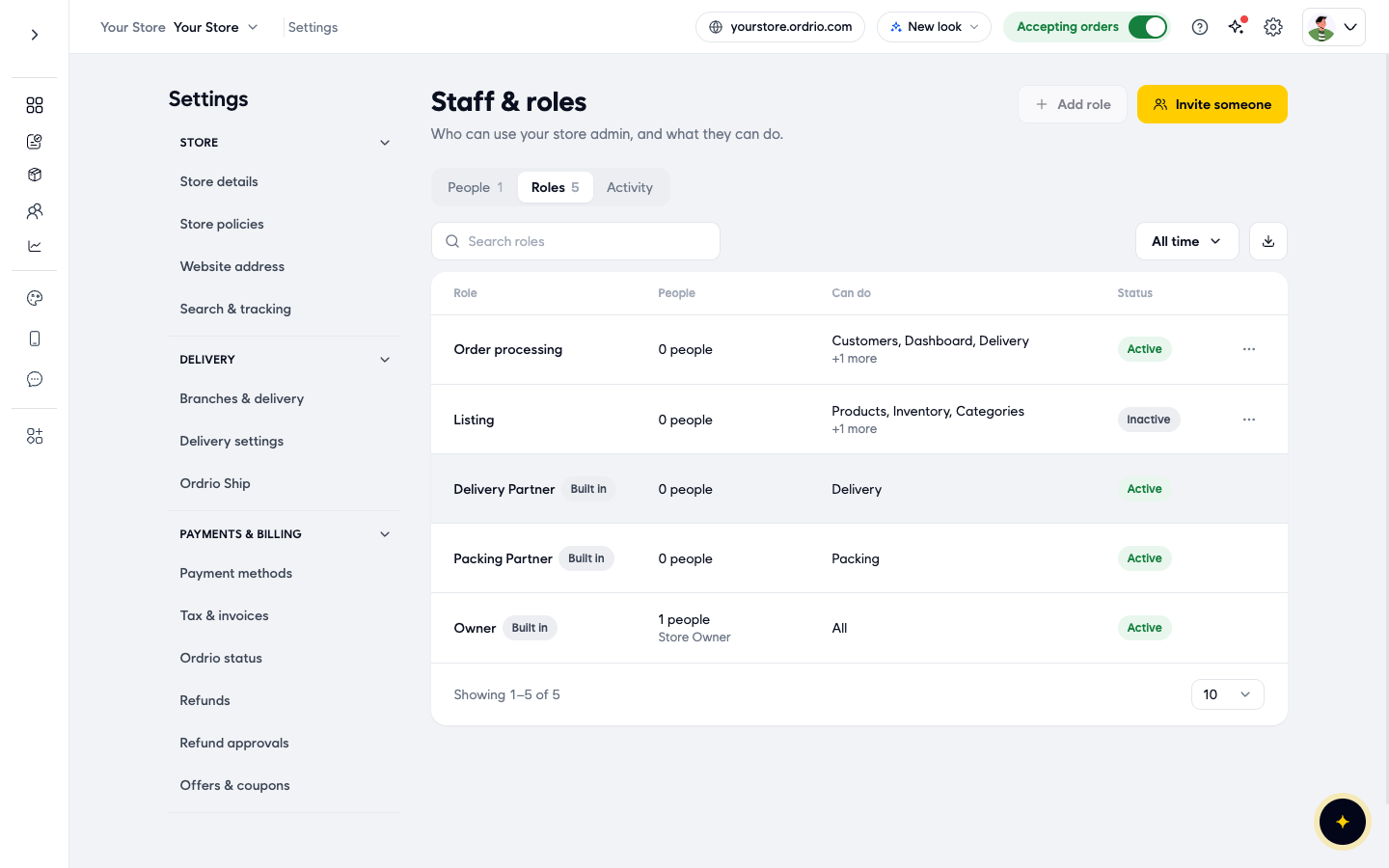
To use it again:
- Click ... next to the role.
- Click Turn on role. The Status shows Active again.
Delete a role
Delete a role when you no longer need it at all.
- On the Roles tab, click ... next to the role.
- Click Delete role. A window asks you to confirm, and explains that people with this role lose what it lets them do.
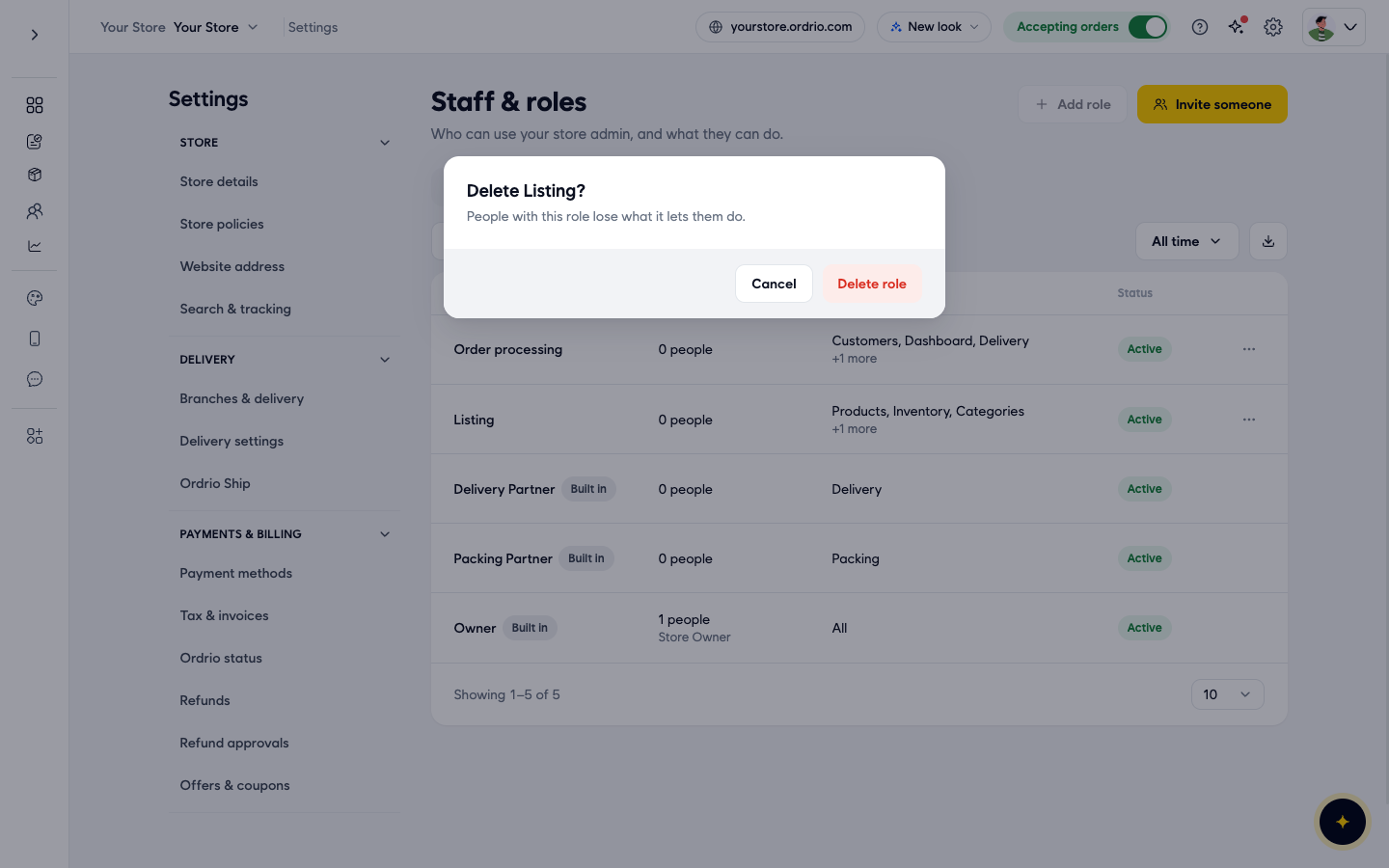
- Click Delete role in the window to confirm, or Cancel to keep it.
Check what changed
- On the Staff & roles page, click the Activity tab. It shows recent changes to people and roles, so you can check who changed what.
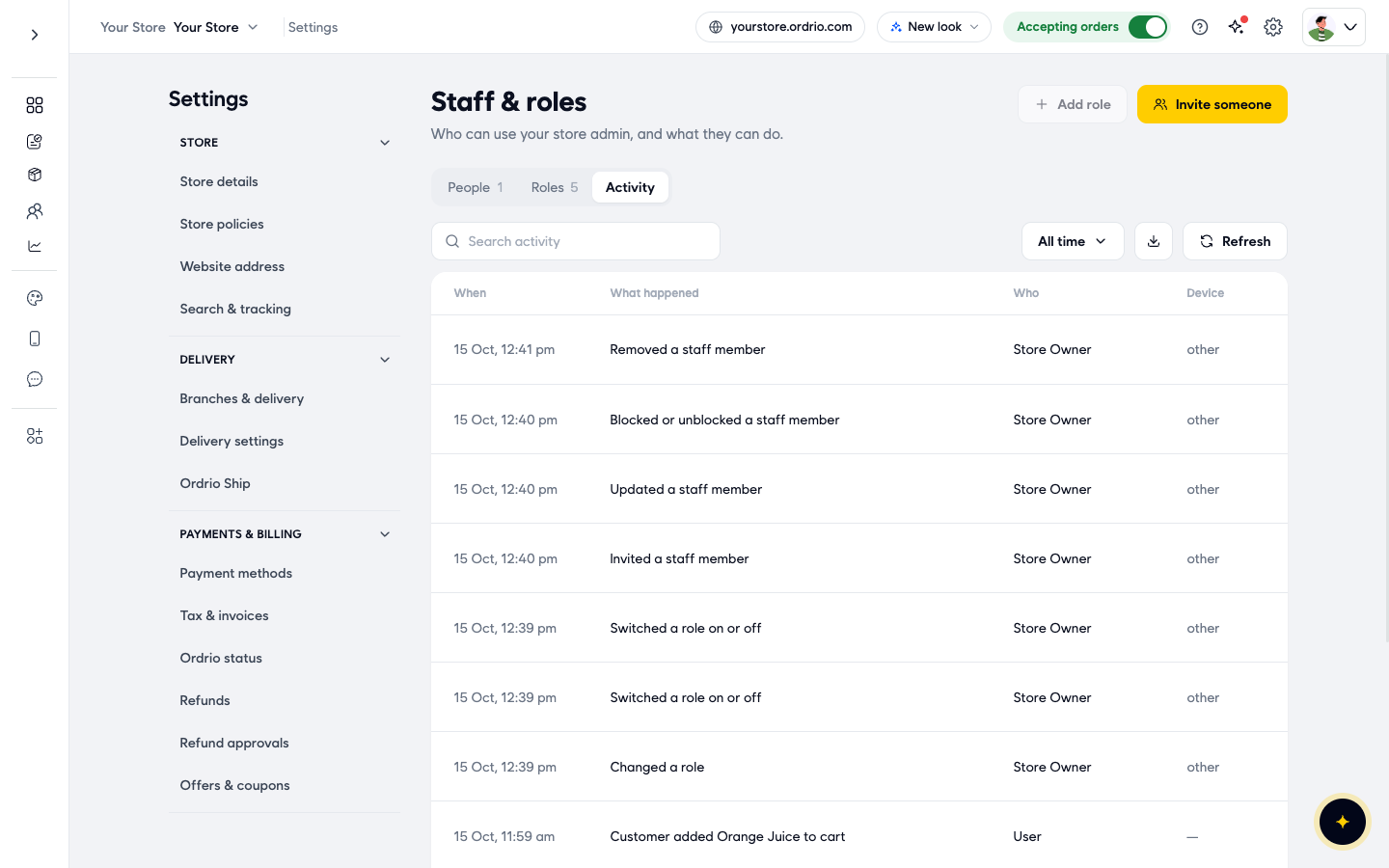
You can also click ... next to a person on the People tab and click See activity to see that person's activity.
Good to know
- The store owner can't be changed, blocked or removed.
- Built-in roles (Owner, Delivery Partner and Packing Partner) have no ... menu, so you can't edit, turn off or delete them.
- Some roles need an add-on. For example, the Packing Partner role works only when packing staff is turned on in Add-ons.
- Blocking is temporary and can be undone with Unblock. Removing takes the person off your team, and you need to invite them again to bring them back.
- If a person still shows Pending, they have not accepted their invite yet. You can still edit, block or remove them, or click Resend to send the invite again.
- When you edit, turn off or delete a role, the change applies to everyone who has that role.
Related
- Adding staff members
- Roles and permissions
- Delivery zones and geo mapping