هذا المقال غير متوفر بالعربية بعد، لذلك نعرضه بالإنجليزية.
دليل استخدام
Limiting staff to branches
Give staff access to specific branches only.
If you run more than one branch, you can choose which branches each staff member works in. For example, a packer at one shop does not need to see orders from your other shops. You pick the branches when you invite someone, and you can change them later.
Before you start
- Set up your branches first. You can see them in Settings > Branches. If you only have one branch, everyone you invite works in that branch.
- Have the staff member's mobile number ready.
Give a new staff member access to some branches
- Open nadi.ordrio.com (your Ordrio admin panel) and log in.
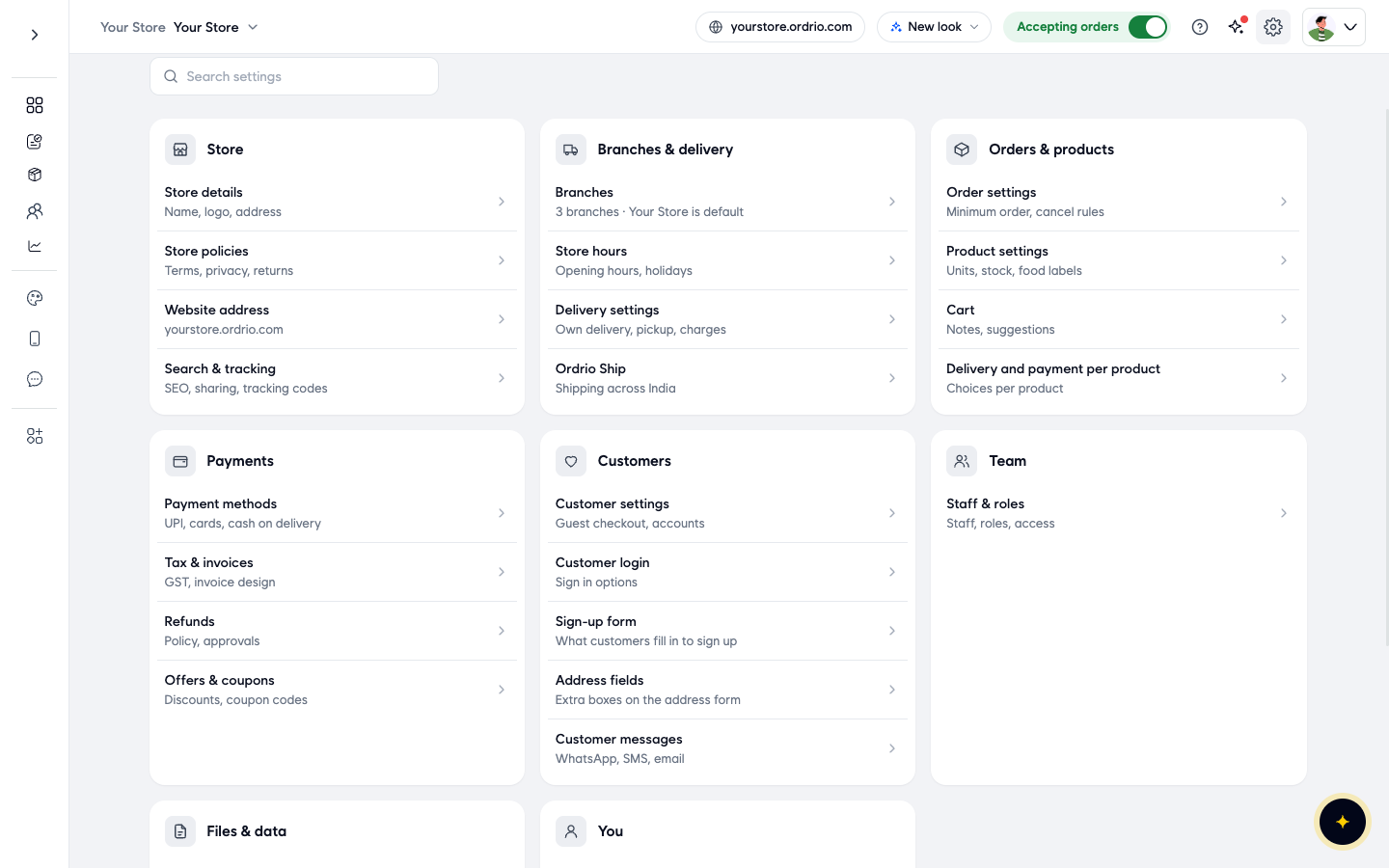
- Click the Settings icon (the gear) at the top right. Under Team, click Staff & roles.
- On the Staff & roles page, click Invite someone at the top right.
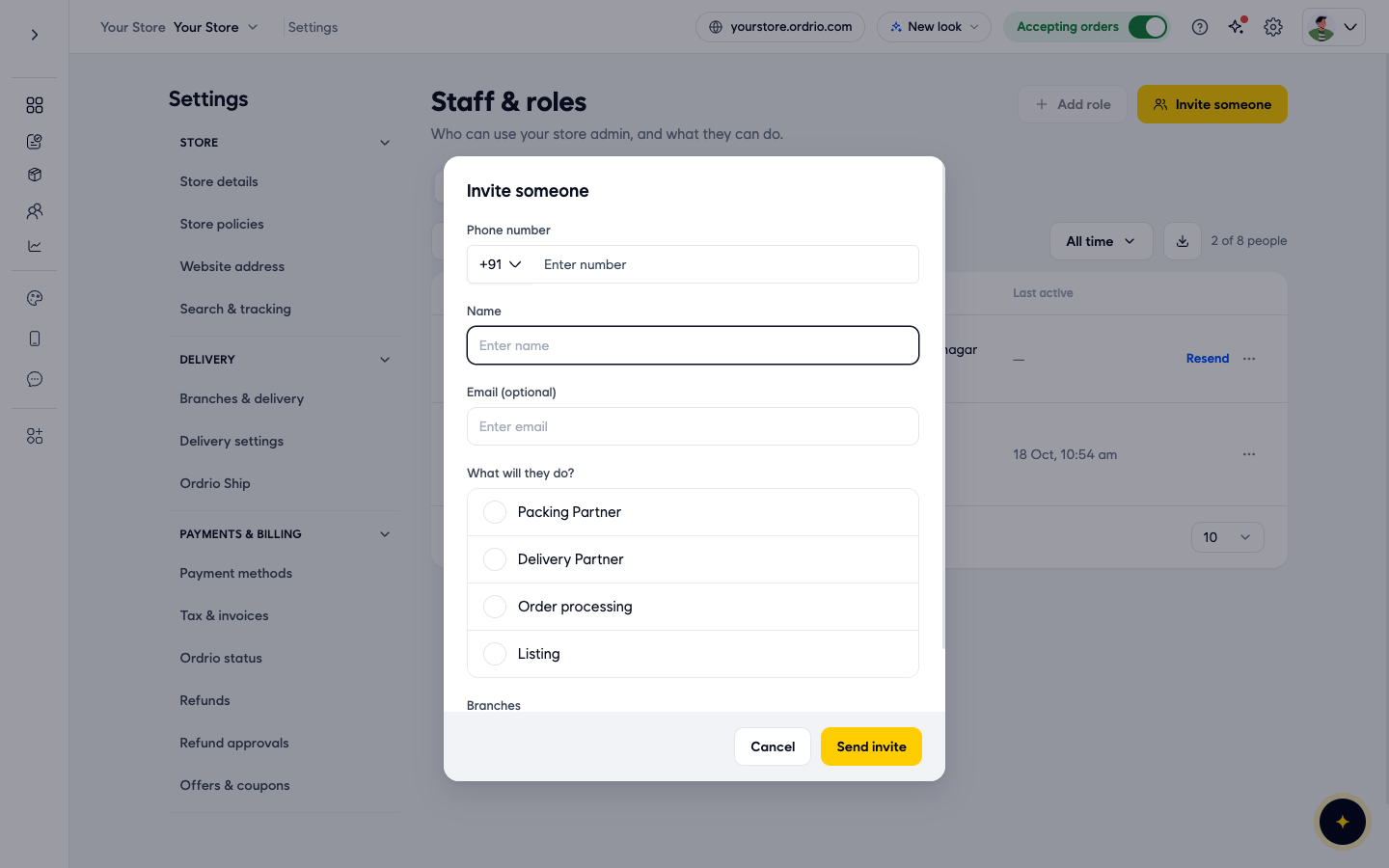
- The Invite someone form opens. Fill in the details of the person:
- Phone number: choose the country code and type their mobile number. Type your staff member's own number, not the example shown in the screenshots.
- Name: their name, as you want it to show in your team list.
- Email (optional): their email address, if you want to add it.
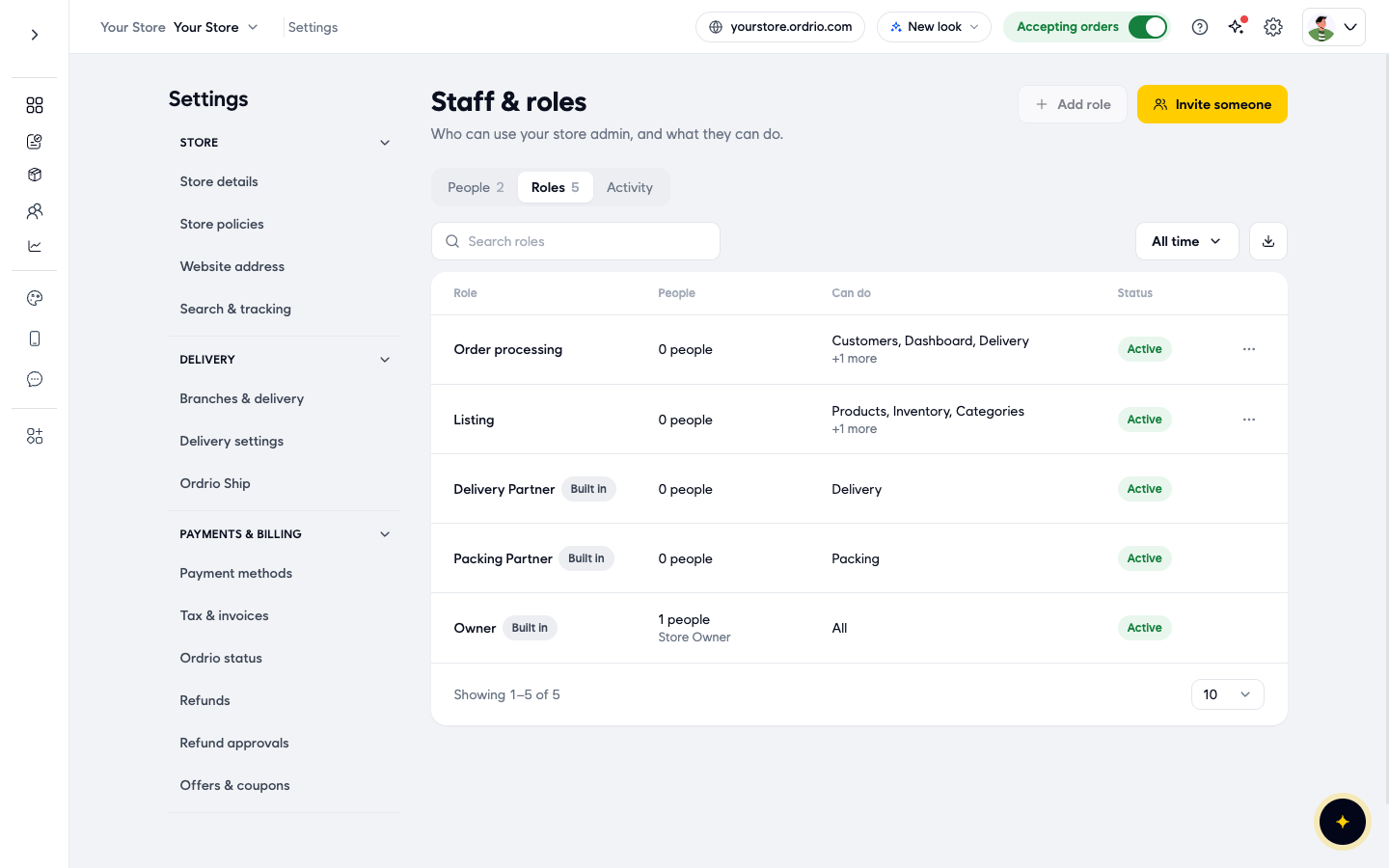
- What will they do?: pick one role. Packing Partner works on packing. Delivery Partner works on delivery. Order processing works with customers, the dashboard, delivery and more. Listing works with products, inventory, categories and more. The Roles tab shows the full list for each role.
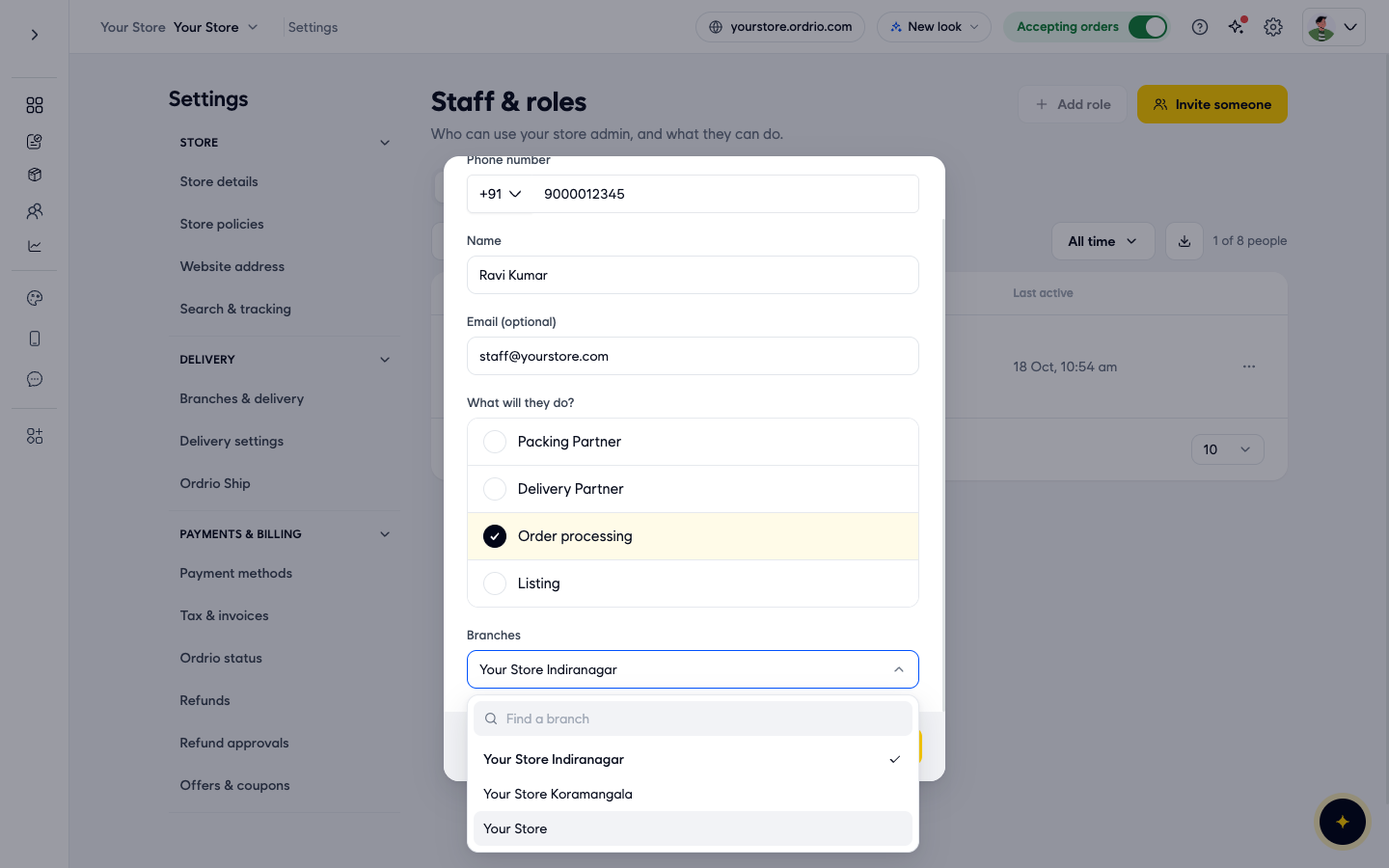
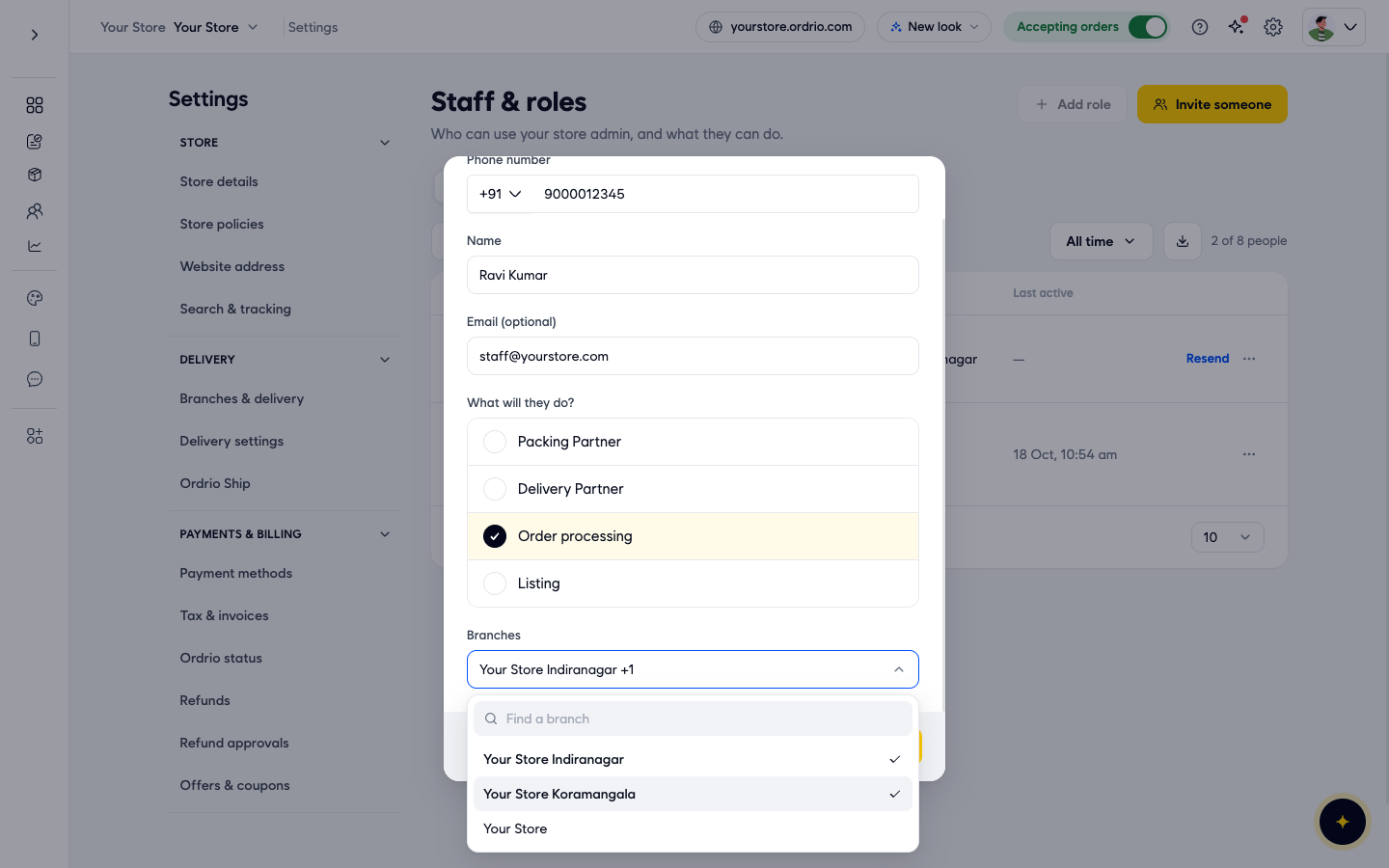
- Click the Branches box. A list of all your branches opens, with a search box called Find a branch at the top. All branches are ticked at first.
- Click a branch to untick it. Leave a tick only next to the branches this person should work in. The box then shows the first branch you picked and "+1", "+2" and so on for any others.
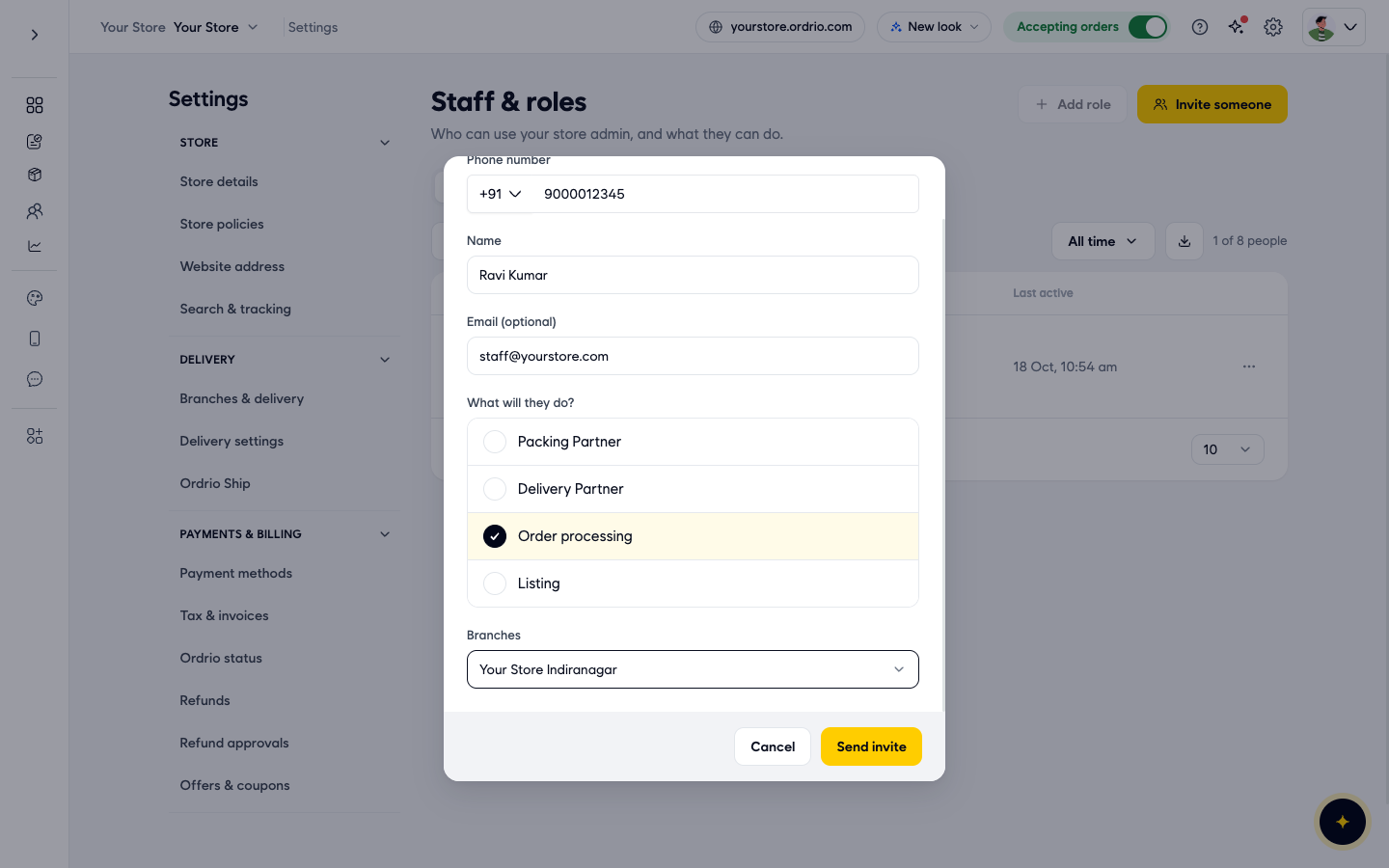
- Check the form, then click Send invite.
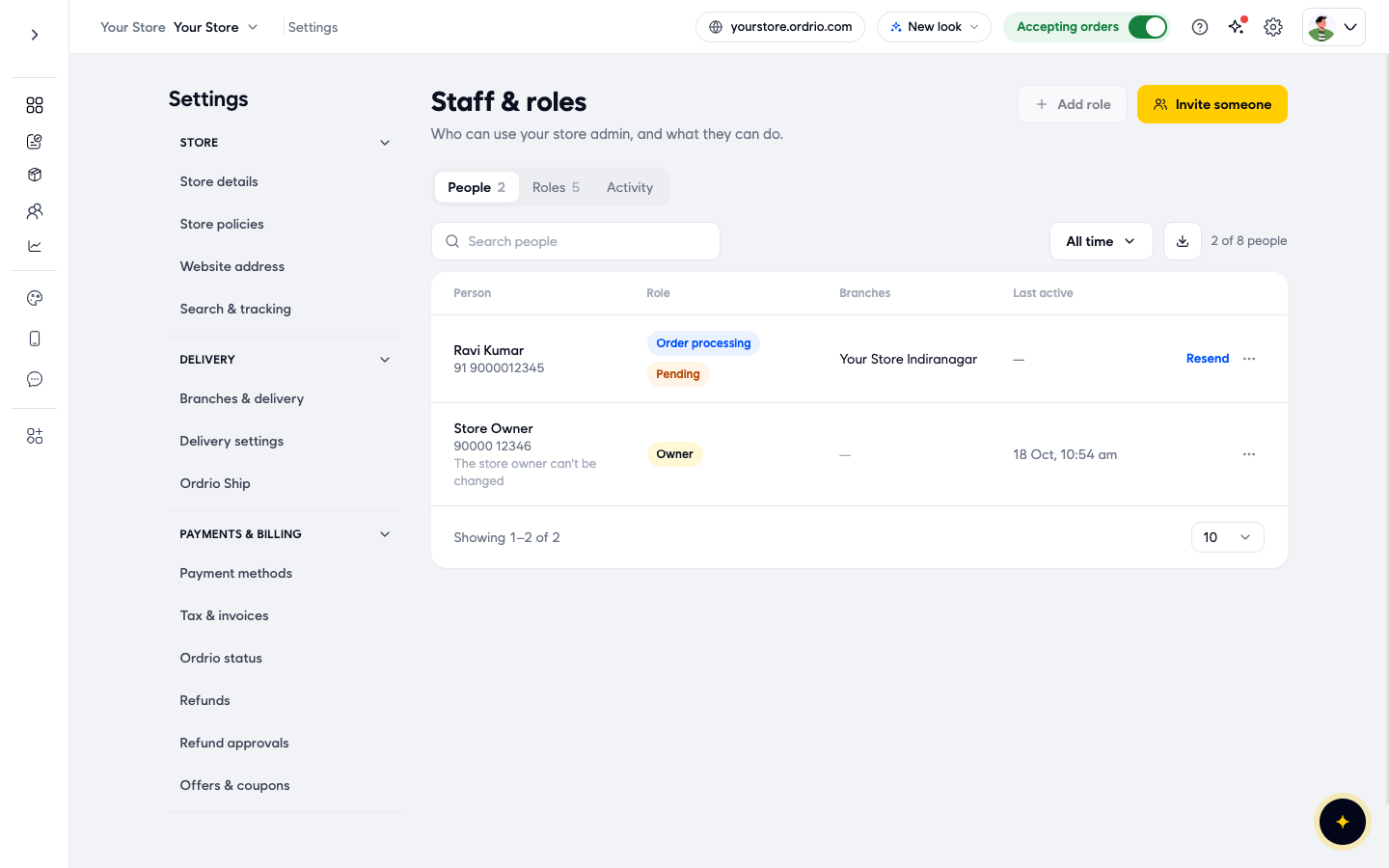
- The person now appears in the People list. The Branches column shows the branches you picked. Their role shows Pending until they accept the invite. To send it again, click Resend on their row.
Change the branches of an existing staff member
- Go to Settings > Staff & roles and stay on the People tab.
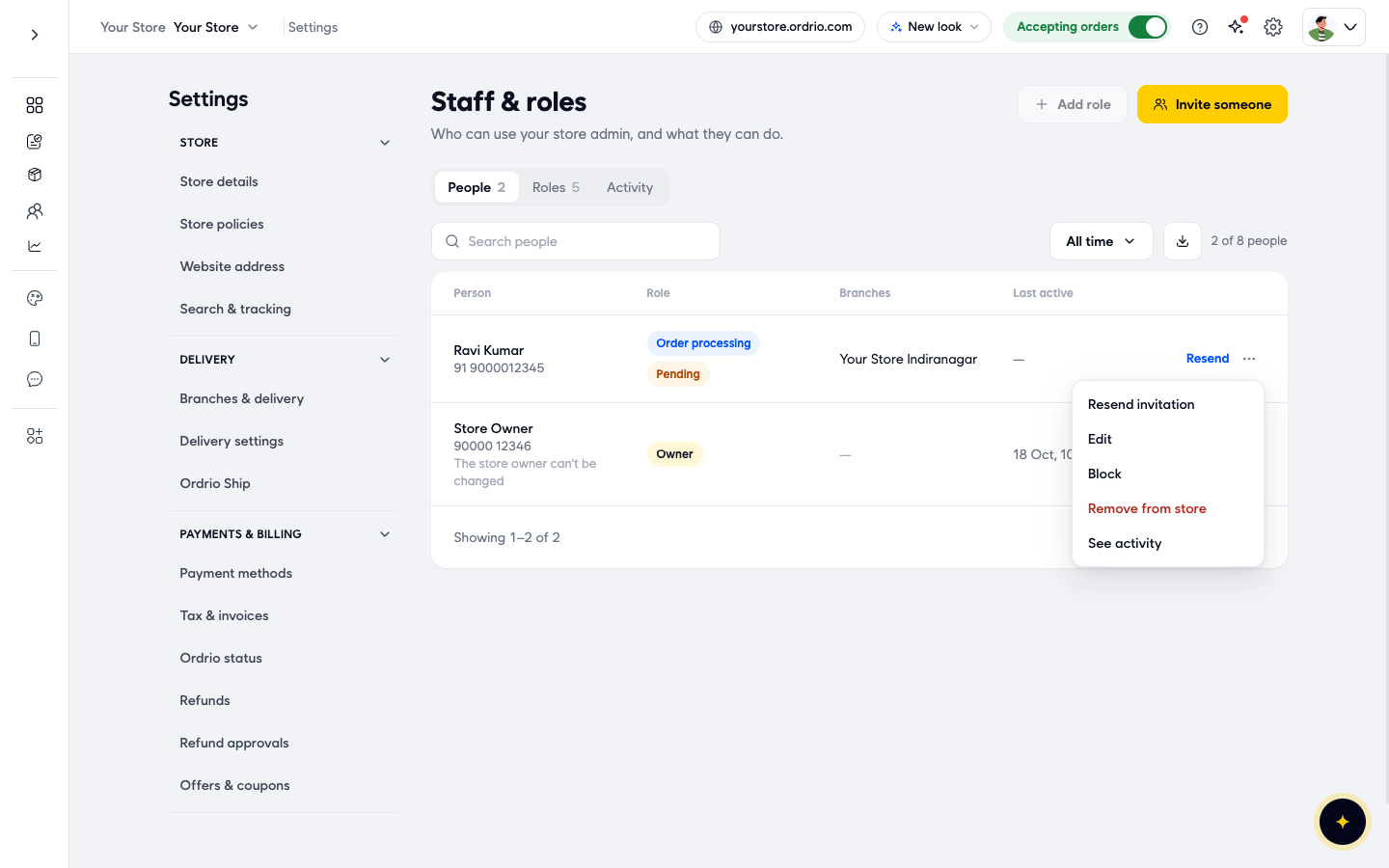
- On the person's row, click the ... button at the right. A menu opens with Resend invitation, Edit, Block, Remove from store and See activity.
- Click Edit. The Edit person form opens with the same fields as the invite form.
- Click the Branches box. Tick the branches you want to add and untick the ones you want to take away.
- Click Save.
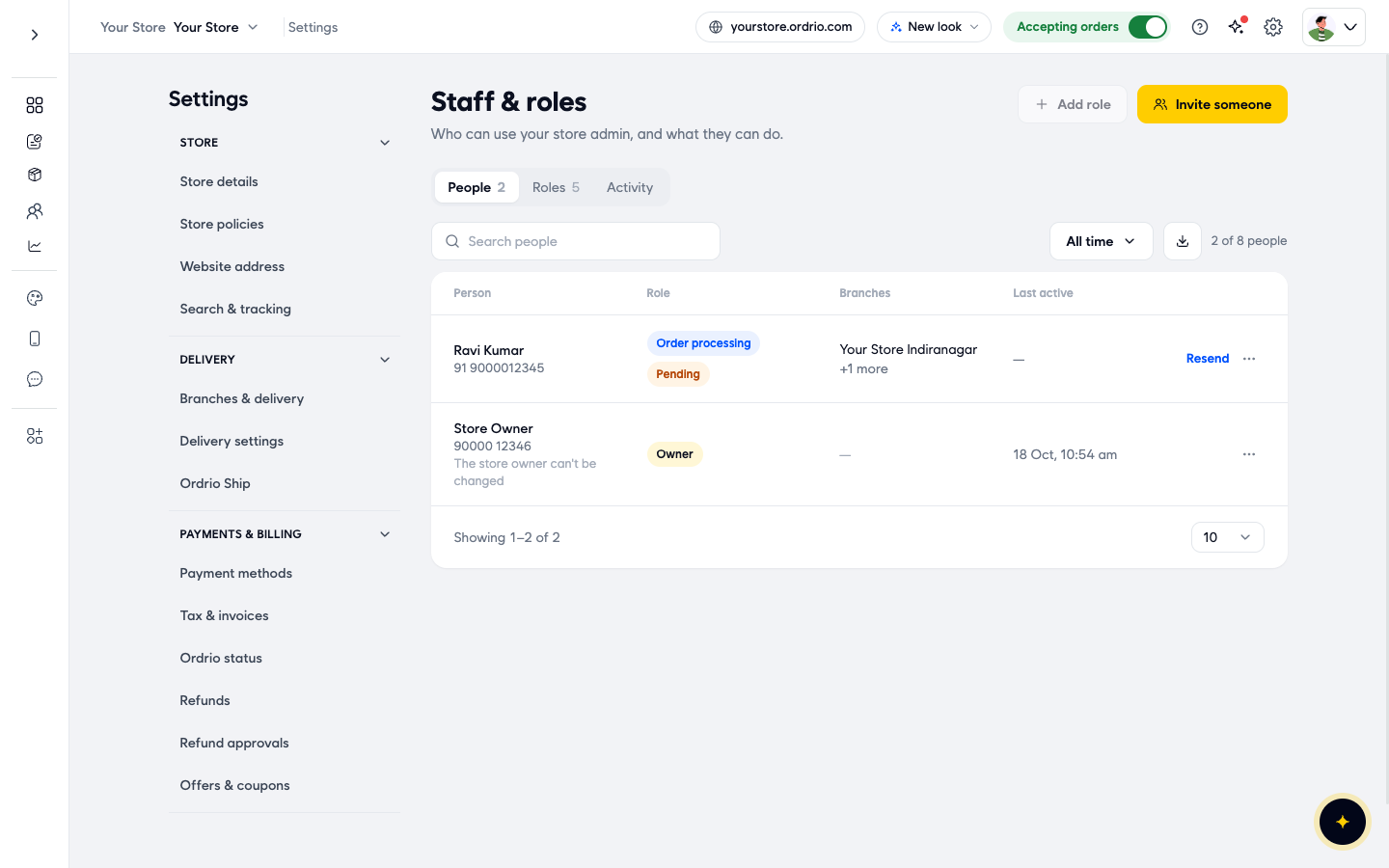
- The Branches column in the People list updates. If the person has more than one branch, it shows the first one and "+1 more", "+2 more" and so on.
Good to know
- Every staff member needs at least one branch. If you untick every branch and click Save, you see the message "At least one branch must be selected".
- All branches are ticked by default. If you skip the Branches box when you invite someone, they get every branch. Check it each time.
- Branches and roles work together. The branches decide where a person works. The role decides what they can do there. You can see each role and what it can do on the Roles tab.
- The store owner always has every branch. The owner's row shows "The store owner can't be changed".
- To stop someone working in your store, open the ... menu on their row and click Remove from store, then confirm. They lose access to your admin panel for this store. You can also click Block.
Related
- Adding staff members
- Roles and permissions
- Creating and managing branches
هل كان هذا المقال مفيداً؟