How-to guide
Abandoned cart recovery
Bring back customers who leave before checkout.
Some customers add products to their cart and leave before they check out. Abandoned cart recovery sends them a reminder by SMS, email or app push, with a link back to their cart, so more of those carts turn into orders.
Before you start
- App push reminders only reach customers who use your app. To send them, connect Firebase first. Until then, Sent through shows Firebase not set up for App push.
Turn on abandoned cart reminders
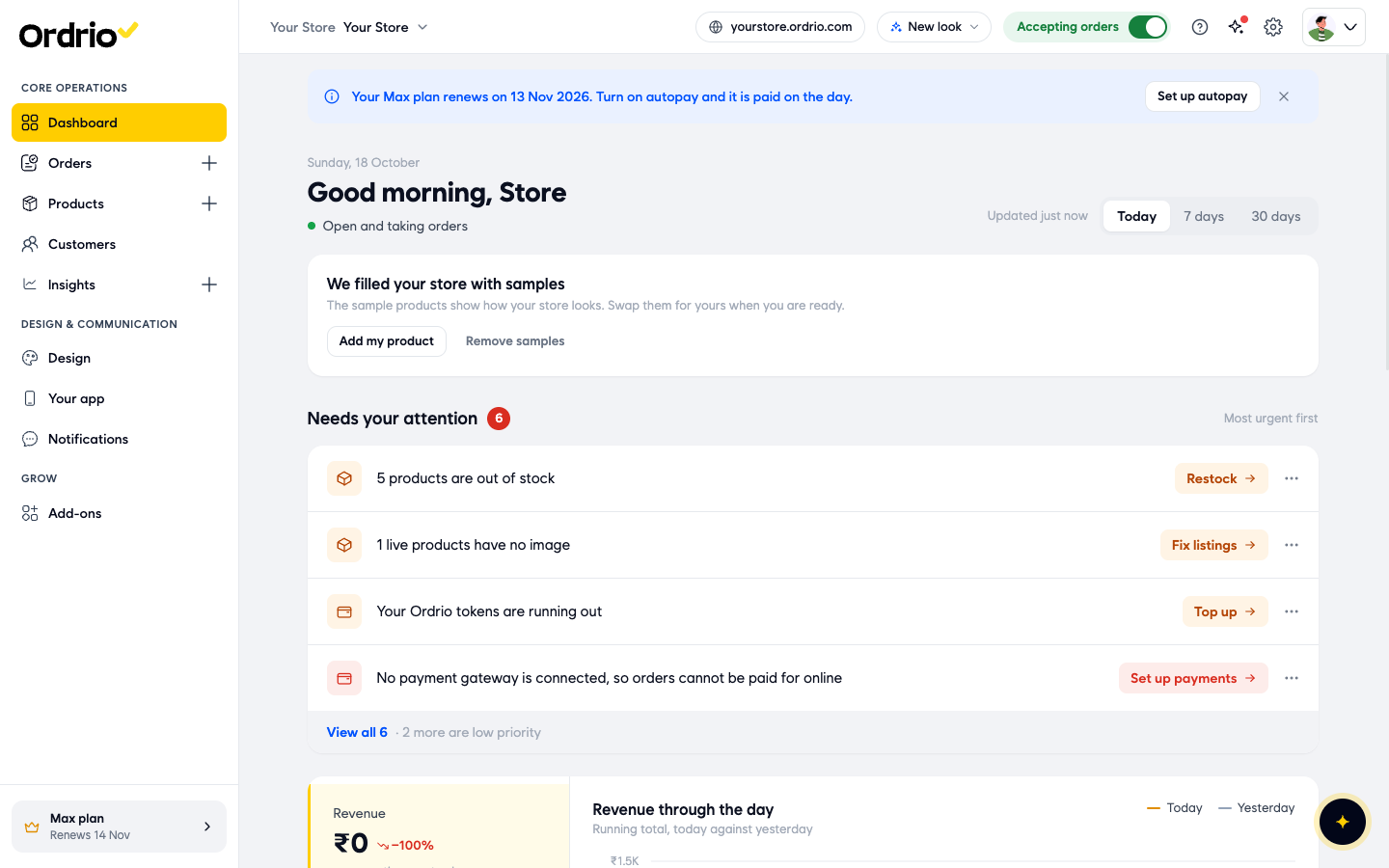
- Open nadi.ordrio.com (your Ordrio admin panel) and log in. Click the Settings icon (the gear) at the top right. Under Customers, click Customer messages.
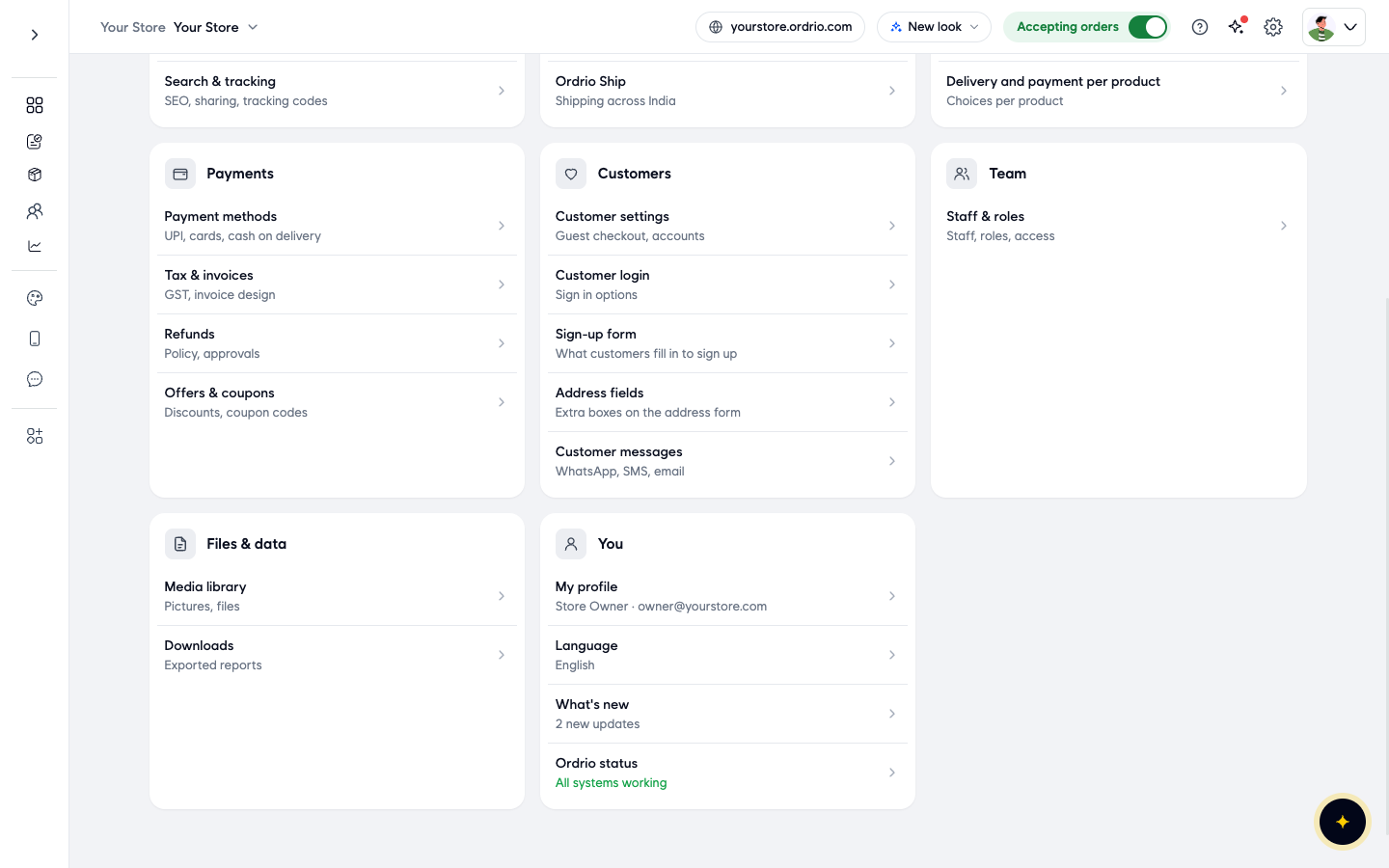
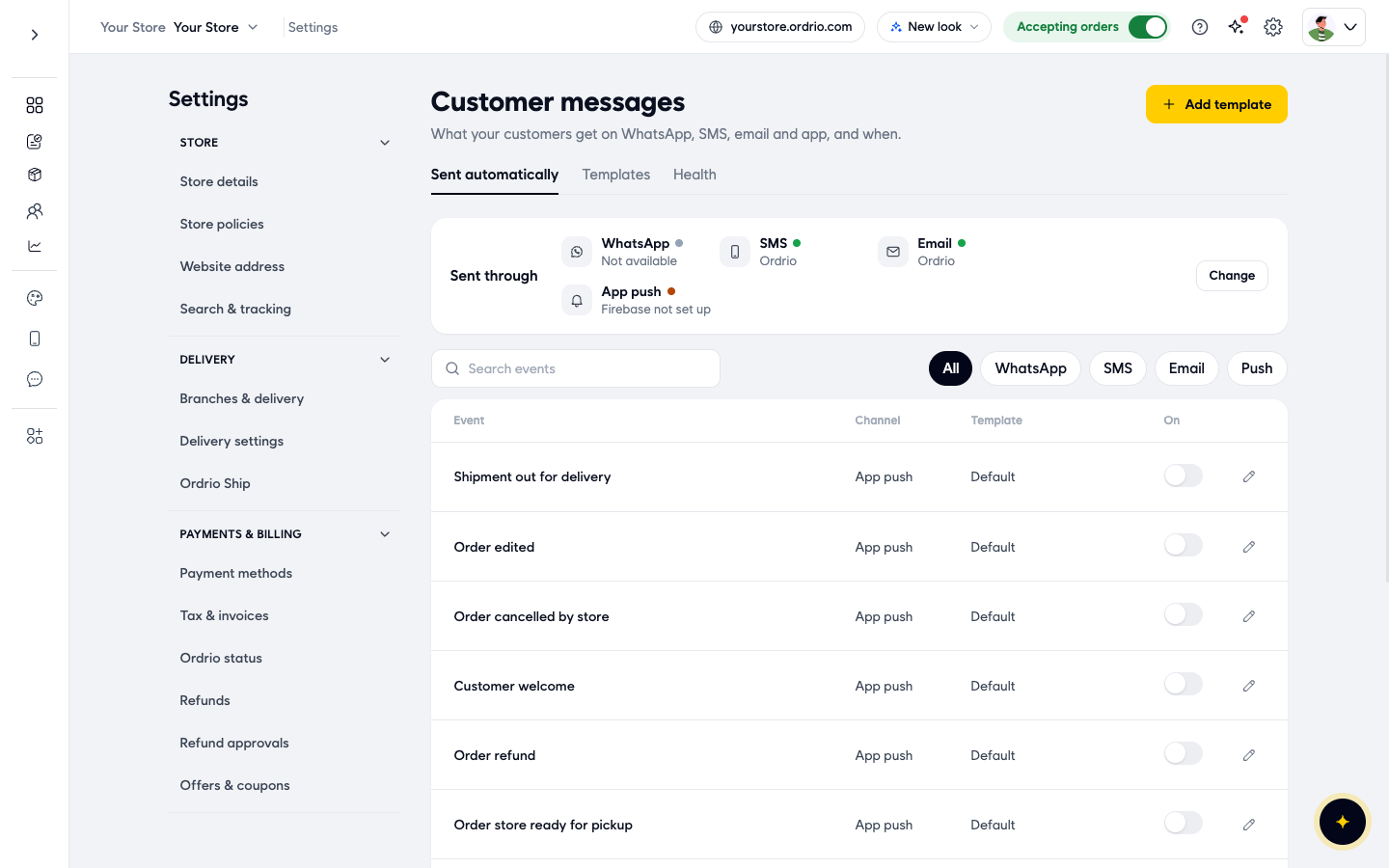
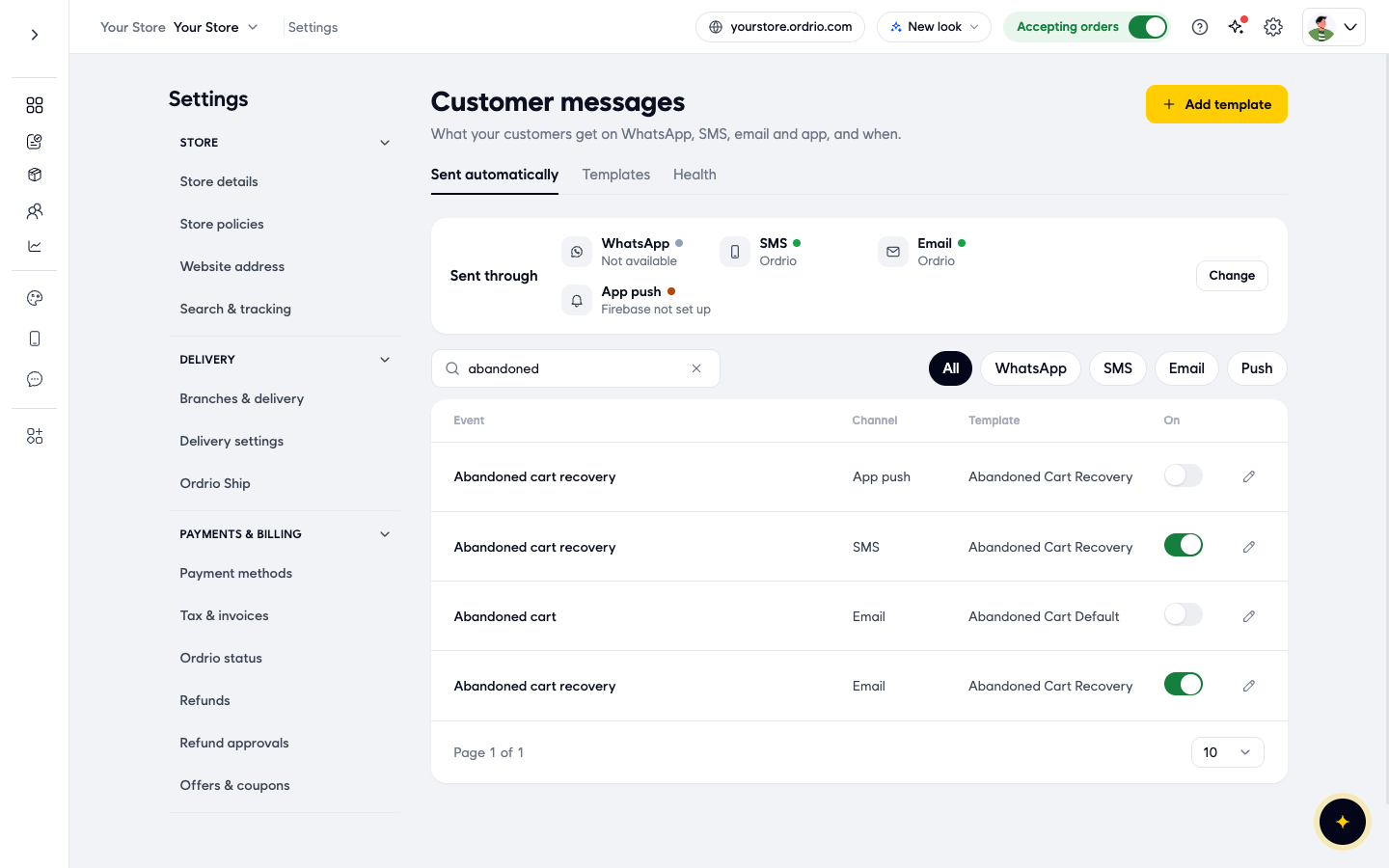
- You are now on the Sent automatically tab. Look at the Sent through box first. It shows how each channel is sent:
- SMS and Email show Ordrio when Ordrio sends them for you.
- App push shows Firebase not set up until you connect Firebase.
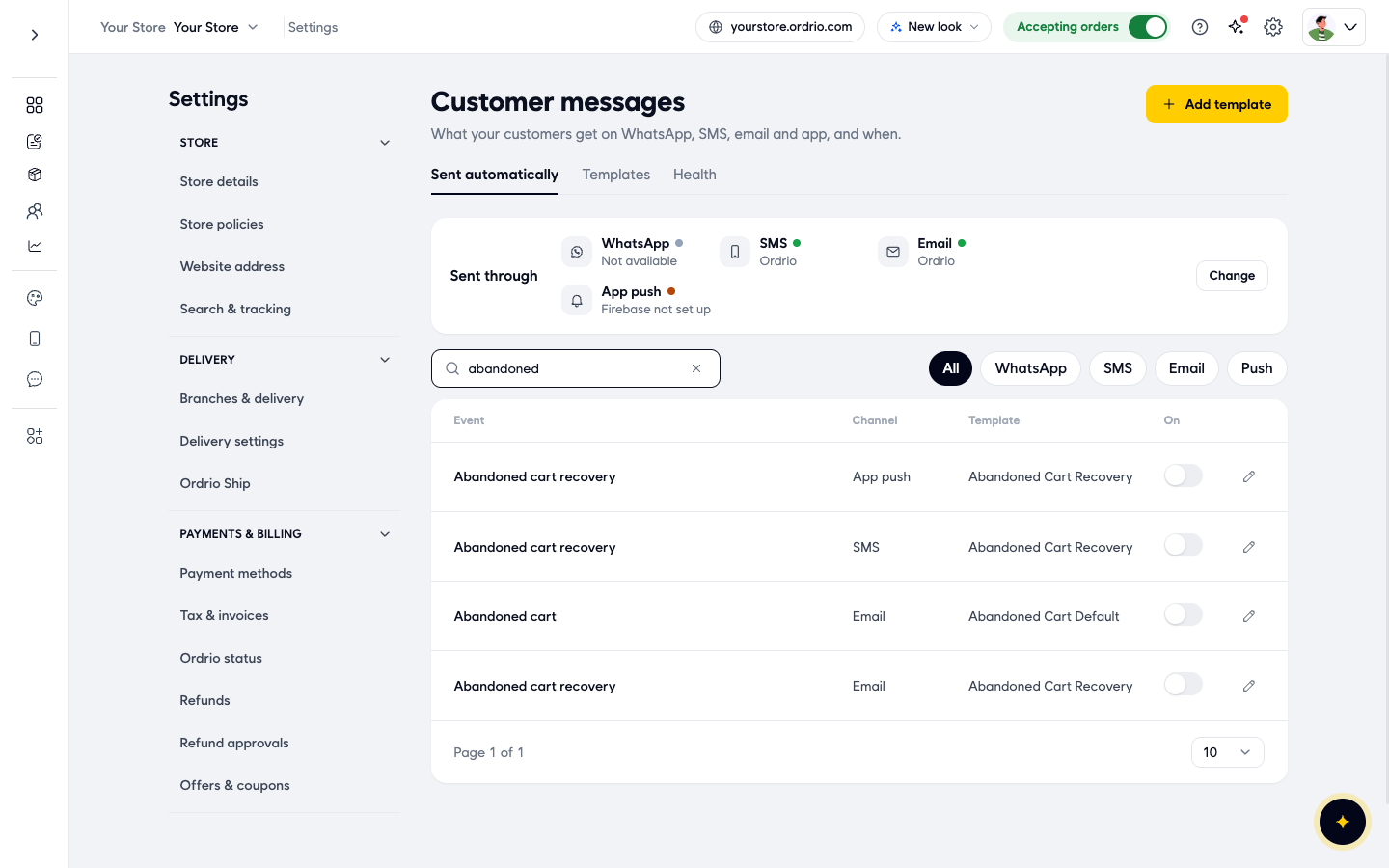
- Type abandoned in Search events. The list shows only the abandoned cart messages. Turn on the On switch for the channels you want to use, for example SMS and Email. Each row shows:
- Event: when the message goes out. Abandoned cart recovery is the reminder for customers who left items in their cart.
- Channel: how it is sent (App push, SMS or Email). There is one row per channel.
- Template: the words the customer gets.
- On: the switch that turns this message on or off.
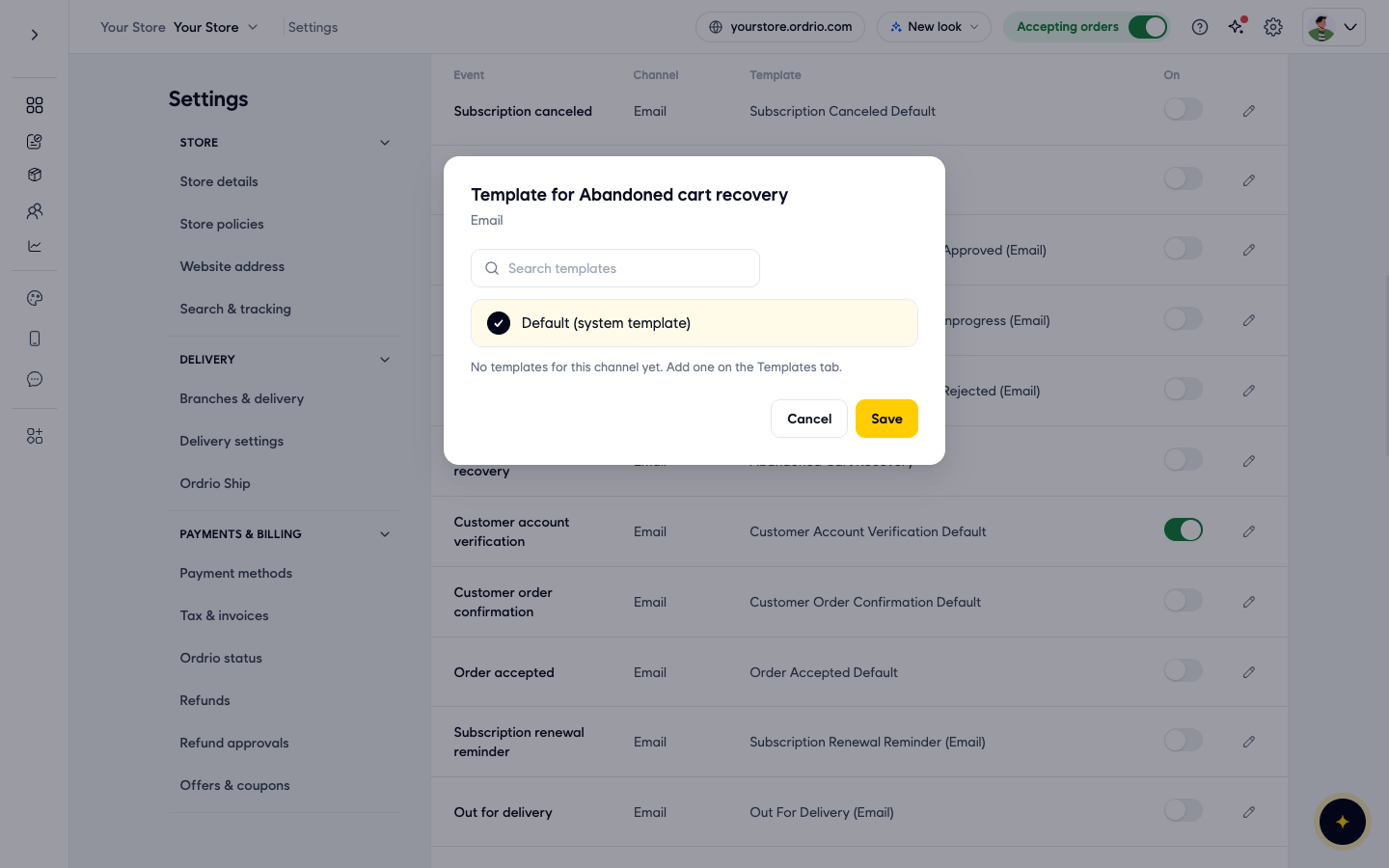
- To check which words are sent, click the pencil icon on that row. The Template for Abandoned cart recovery window opens and shows the channel under the title.
- Choose a template. Default (system template) is the ready-made message from Ordrio. Any templates you added for this channel are listed below it, and you can find them with Search templates.
That's it. From now on, Ordrio sends the reminder on the channels you switched on.
Write your own reminder message
If you want the reminder in your own words, add a template and then choose it on the event.
- On the Customer messages page, click Add template.
- Under Template details, choose the Channel: WhatsApp, SMS, Email or App push. Pick the same channel as the reminder you want to change.
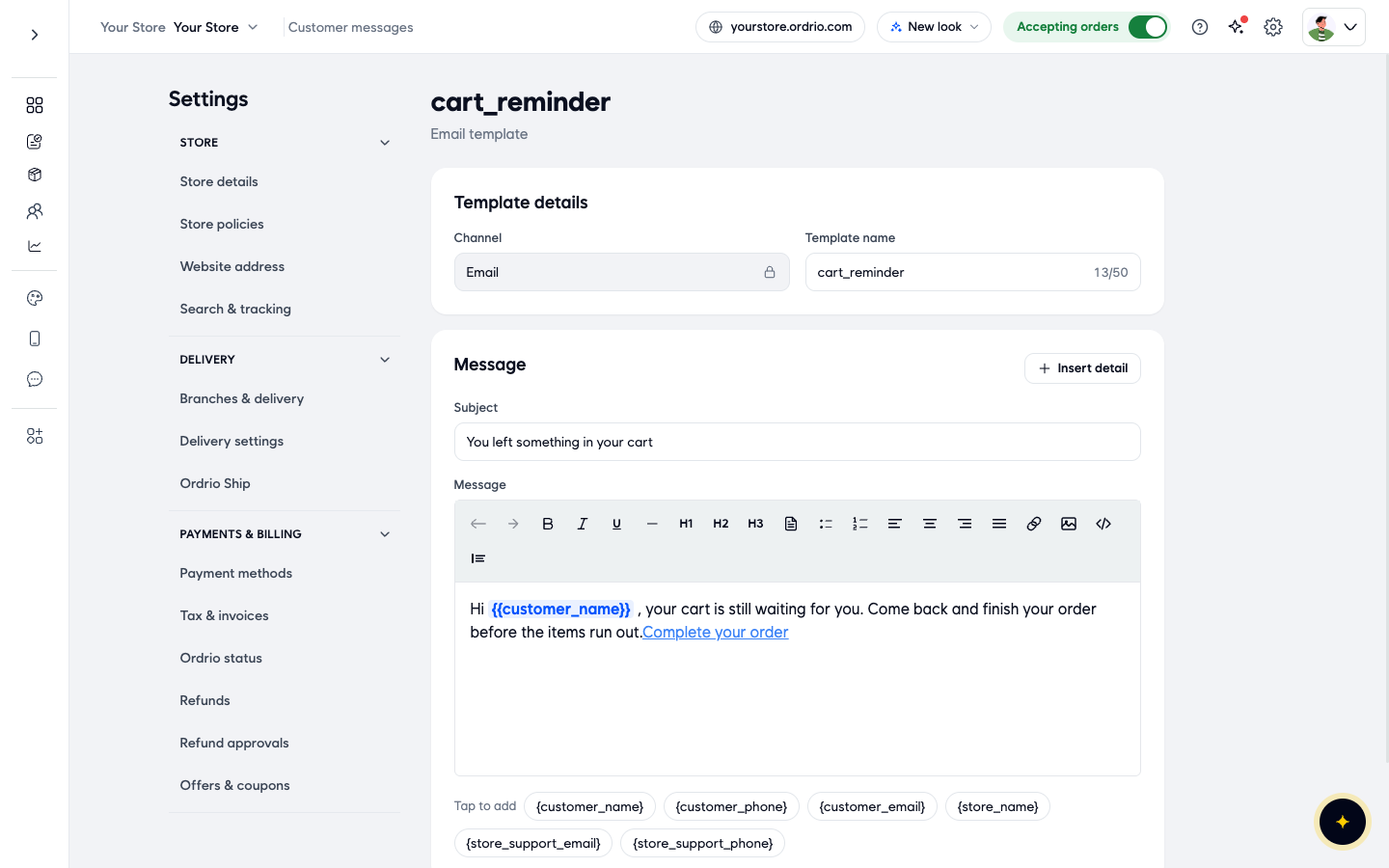
- Type a Template name. Customers don't see it. It helps you find the template later, for example cart_reminder. You can use up to 50 characters.
- If the channel is Email, type a Subject, for example "You left something in your cart".
- Type your text in Message. For email, the toolbar above the box lets you add bold, headings, lists, links and pictures.
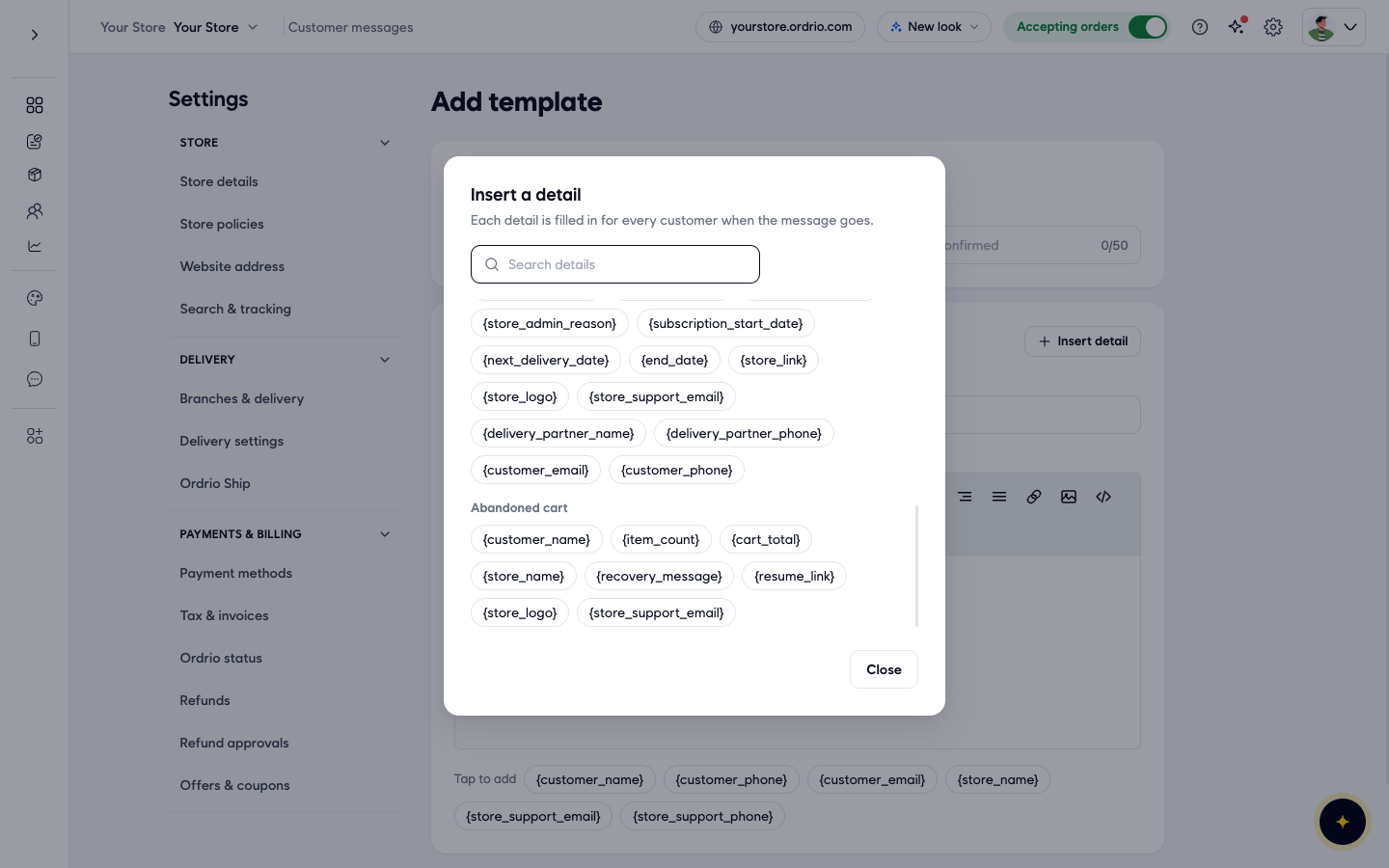
- Add details that Ordrio fills in for each customer. Click a detail under Tap to add, or click Insert detail to see them all. The Abandoned cart group has the details made for this message:
- {customer_name}: the customer's name
- {item_count}: how many items are in the cart
- {cart_total}: the cart value
- {resume_link}: a link that takes the customer back to their cart
- Go back to the Sent automatically tab, search for abandoned, click the pencil icon on the Abandoned cart recovery row for that channel, choose your template and click Save.
The template name, subject and message above are only examples. Use your own words.
Good to know
- Each channel has its own switch and its own template. Turning on SMS does not turn on Email or App push.
- You may also see an event called Abandoned cart for Email. It is a separate message with its own switch.
- App push only reaches customers who have your app.
- After you save a template, you can't change its Channel. To use the same words on another channel, add a new template.
- The Health tab shows problems with messages sent through your own provider accounts. If you send through Ordrio, it shows Nothing to check.
- To stop the reminders, turn the On switch off again.
Related
- Marketing notifications
- Order notifications to customers
- Creating and managing coupons
- New order alerts
Was this article helpful?