How-to guide
Assigning orders to riders and delivery partners
Send orders to your riders, Vayu, Ordrio Ship or a manual carrier.
Once an order is packed, you choose who takes it to the customer. You can deliver it yourself or hand it to a delivery company. Every assignment is saved in the order's history, so you always know who has the order.
Before you start
- Your own delivery must be switched on. Go to Settings > Delivery settings and check the switch under Ways to deliver.
- The order must be a delivery order (not At counter), and it must be packed. The Assign rider button shows up when the order reaches Packed. To get there, open the order and click Accept, then Start processing, then Mark packed.
Assign an order
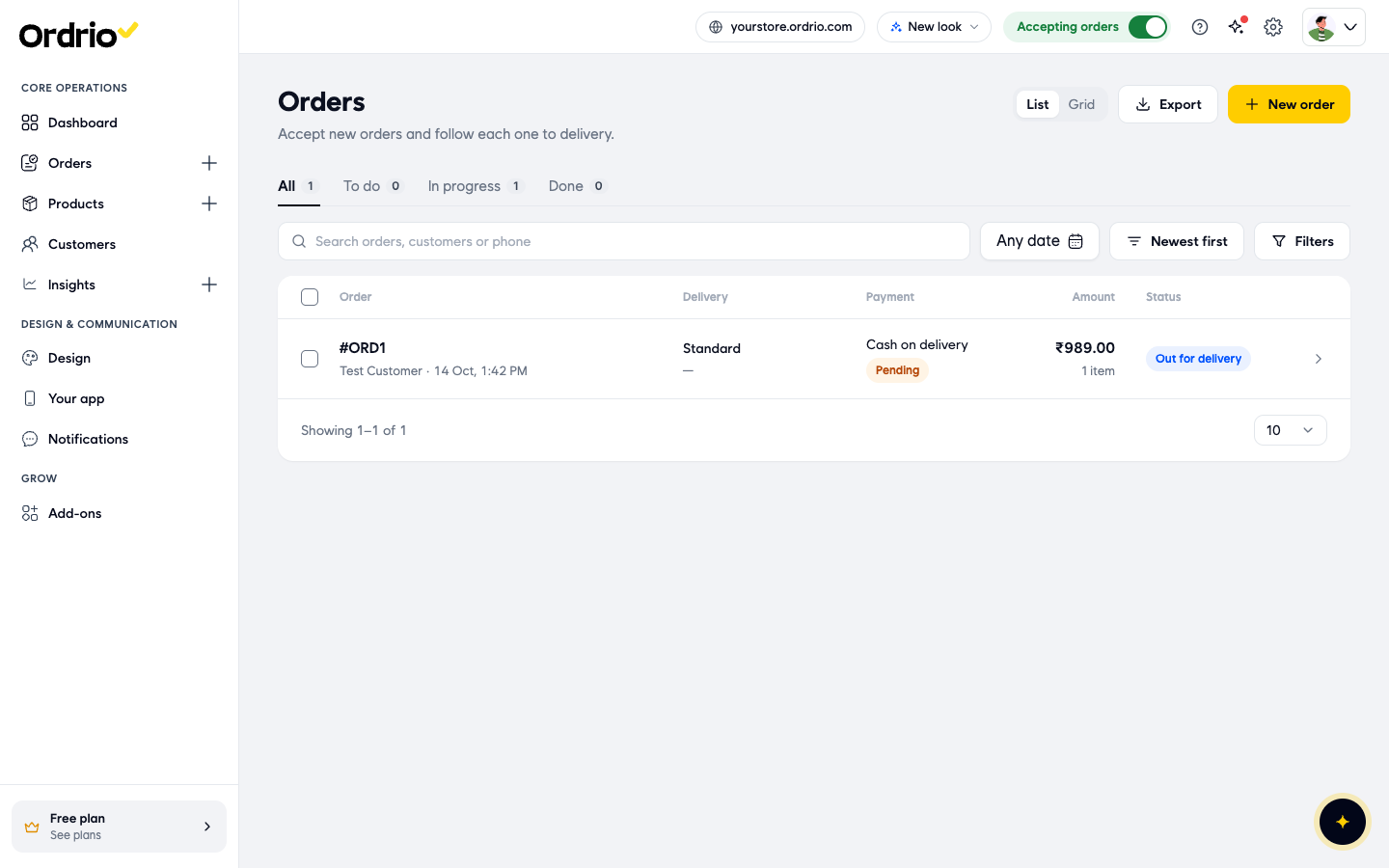
- Open nadi.ordrio.com (your Ordrio admin panel) and log in. In the menu on the left, click Orders, then Orders. Orders that are being prepared or delivered are in the In progress tab.
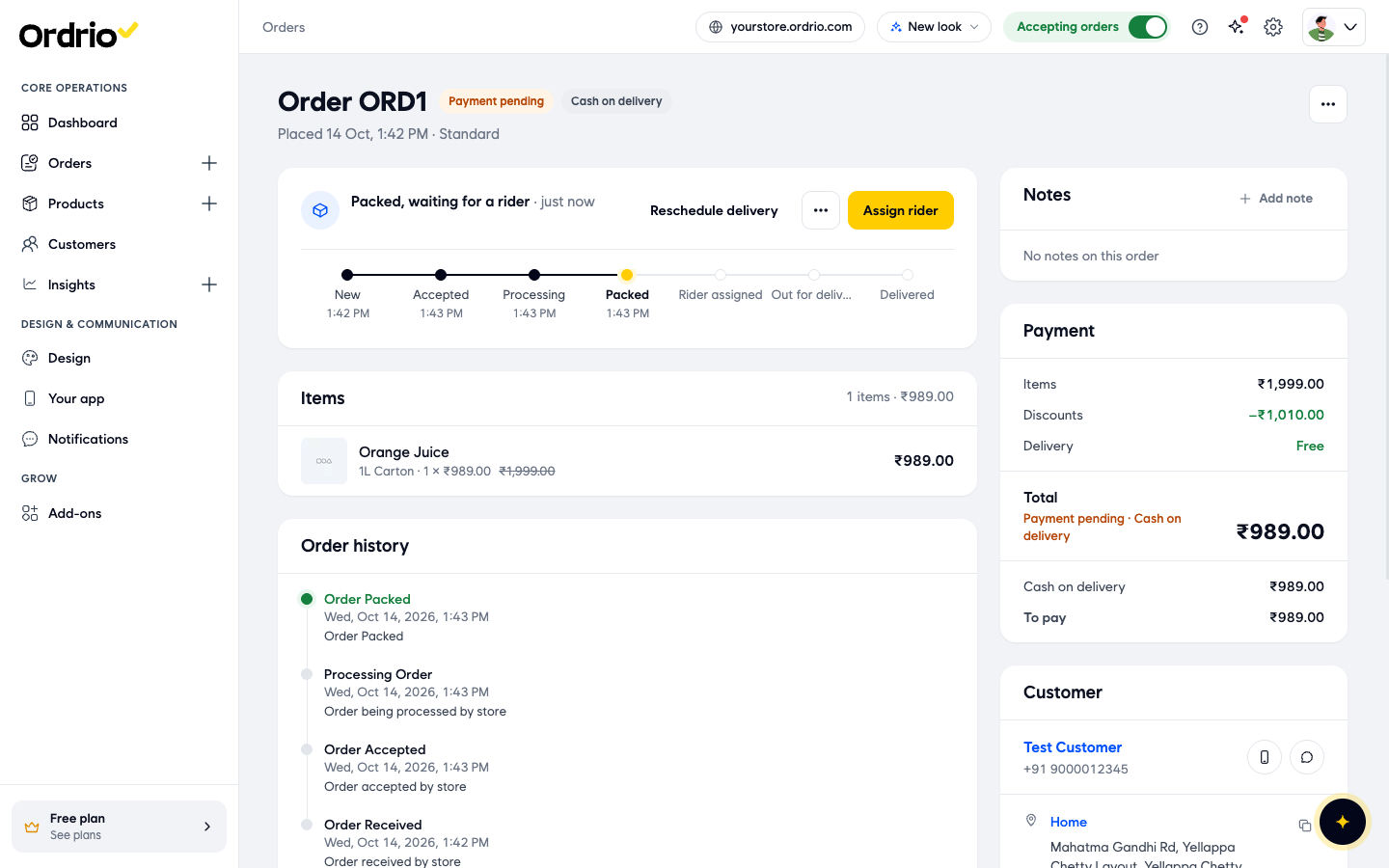
- Click the order to open it. At the top, the order shows Packed, waiting for a rider, with an Assign rider button. The progress bar under it shows each stage: New, Accepted, Processing, Packed, Rider assigned, Out for delivery and Delivered.
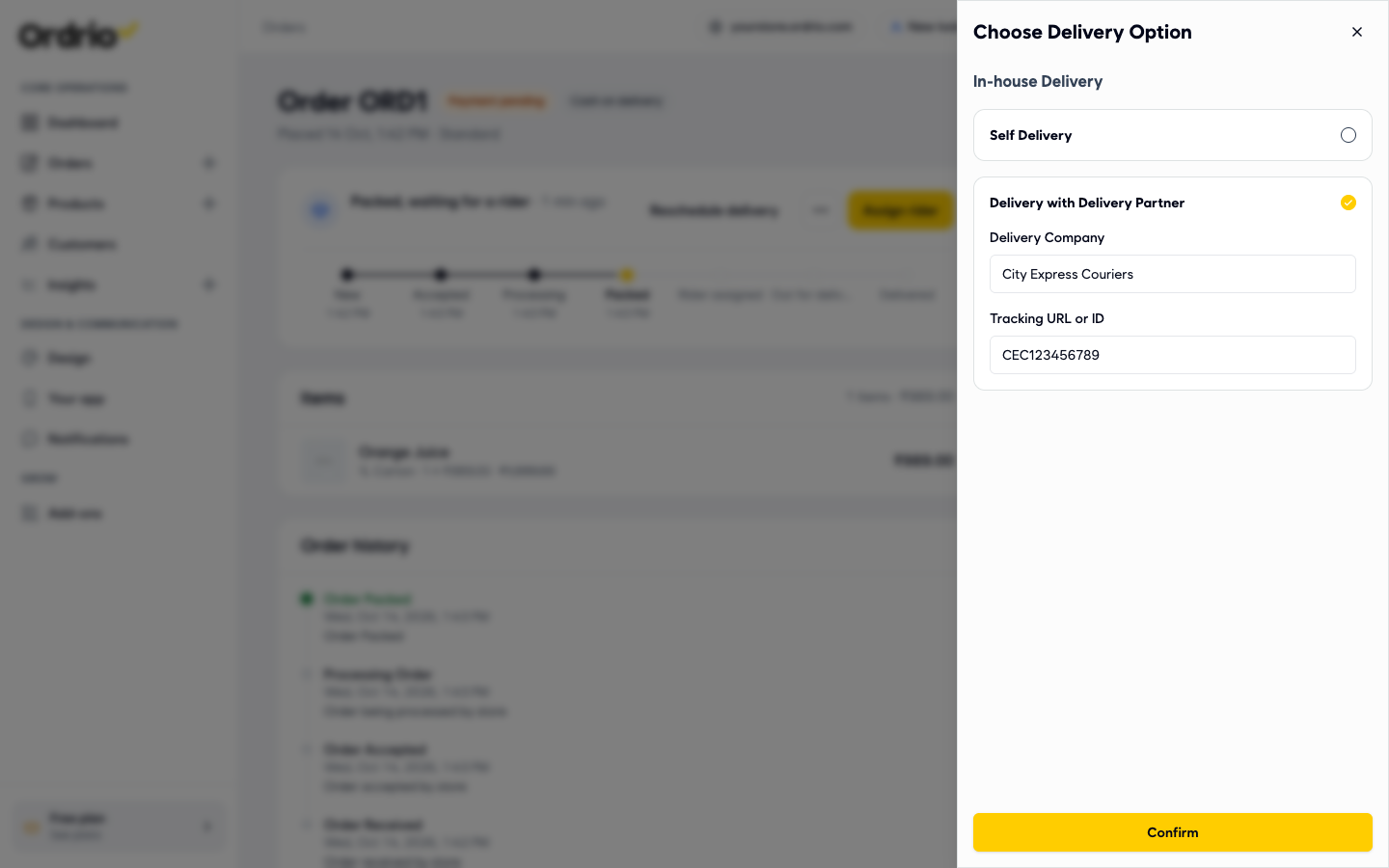
- Click Assign rider. The Choose Delivery Option panel opens on the right. Under In-house Delivery you see two choices:
- Self Delivery: you or your own staff take the order to the customer.
- Delivery with Delivery Partner: a courier or delivery company takes it.
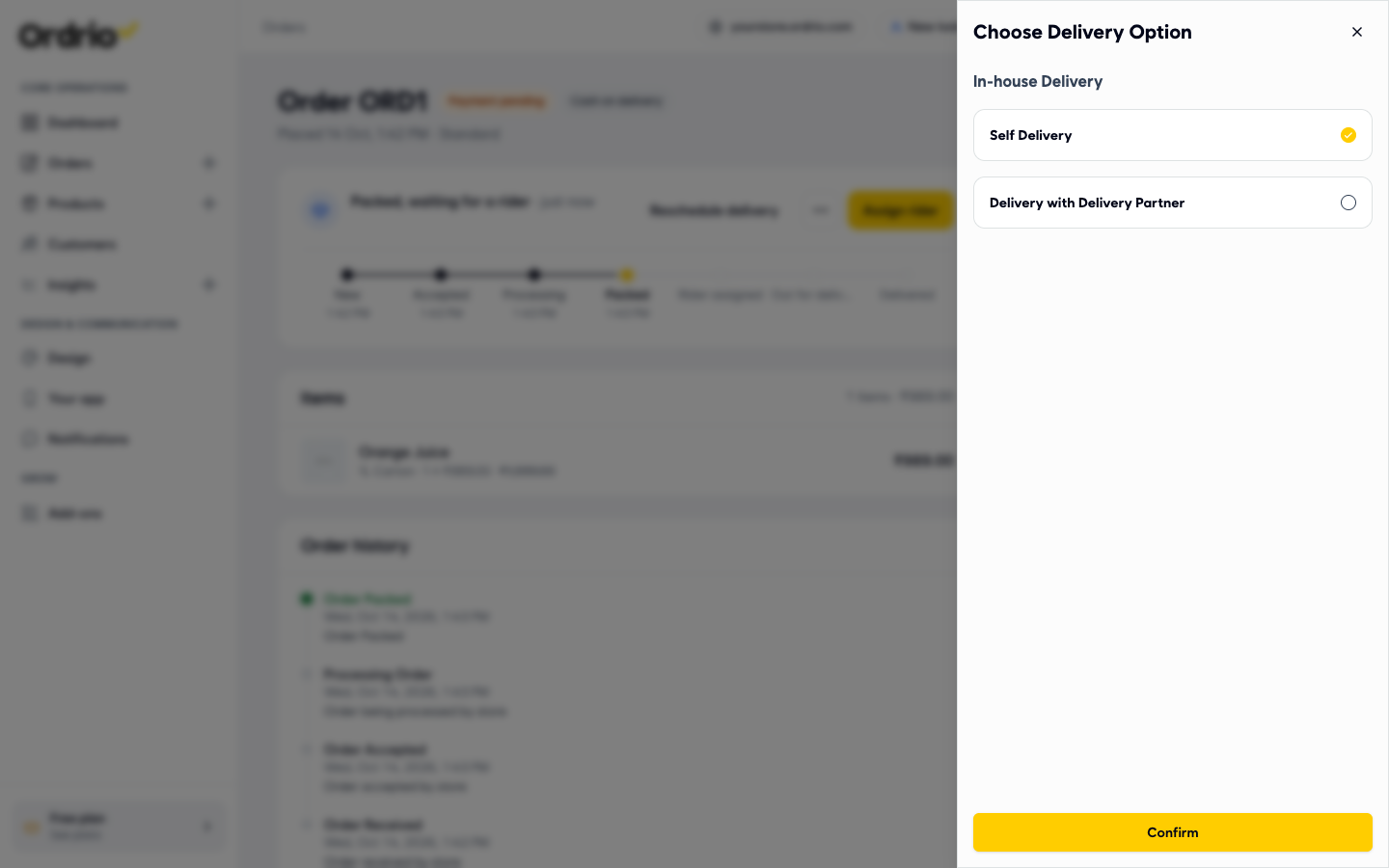
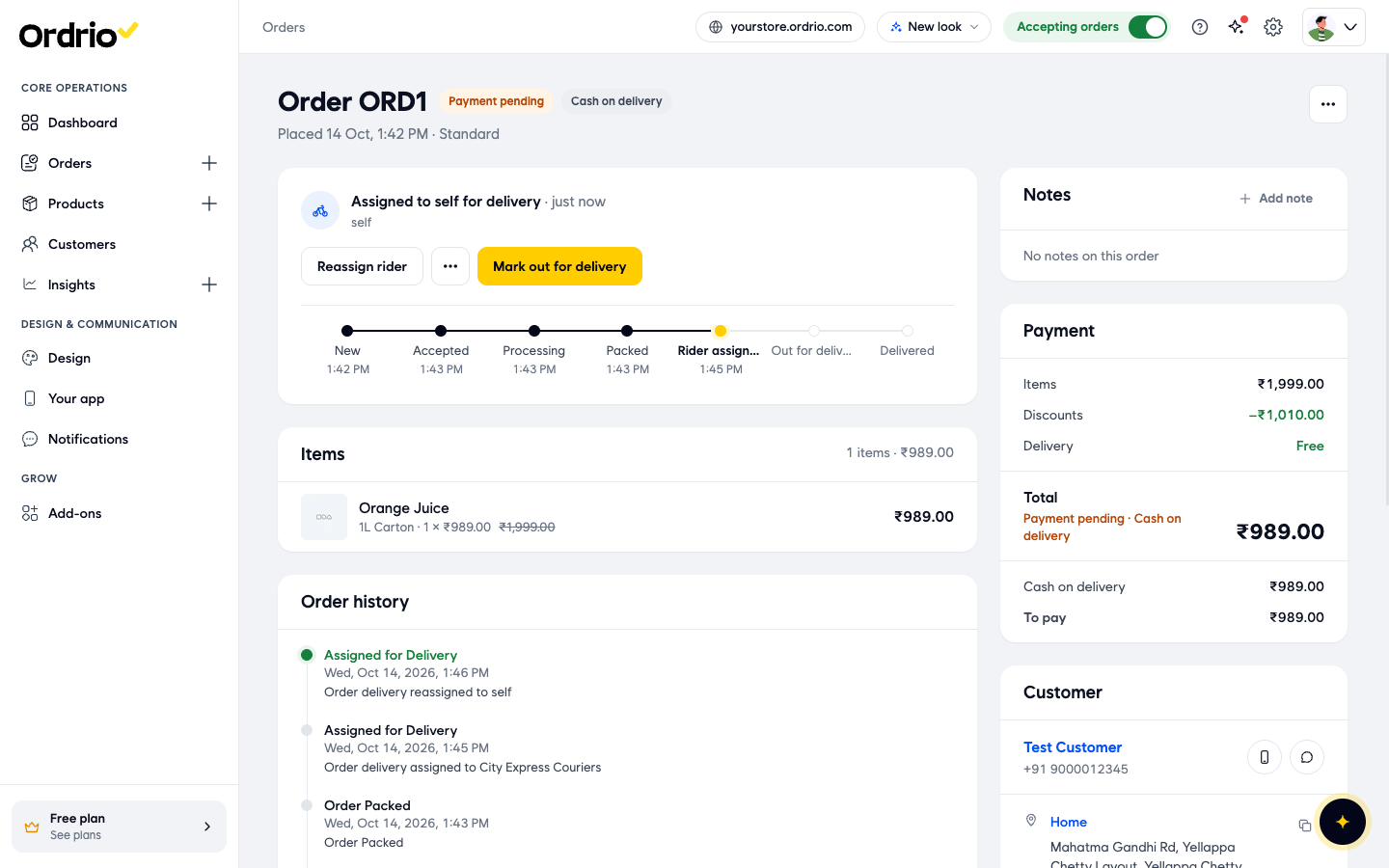
- To deliver it yourself, select Self Delivery and click Confirm. The order now shows Assigned to self for delivery and moves to Rider assigned.
- To send it with a delivery company, select Delivery with Delivery Partner instead. Two fields appear:
- Delivery Company: the name of the courier or delivery company, for example "City Express Couriers".
- Tracking URL or ID: the tracking link or tracking number the company gave you for this parcel.
Type your own company name and tracking details. The values in the picture are only examples. Confirm stays greyed out until you fill these in.
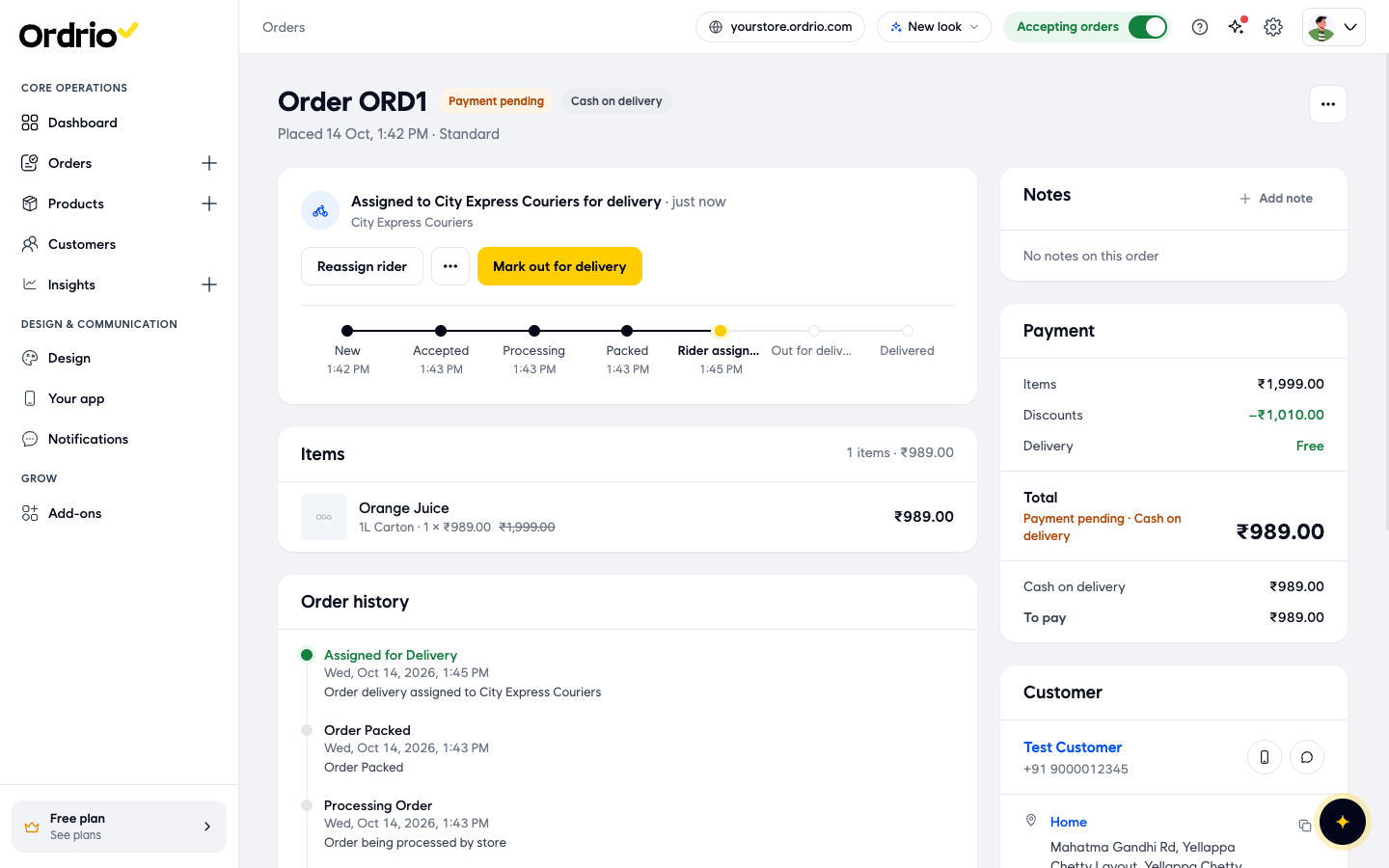
- Click Confirm. The order shows Assigned to City Express Couriers for delivery (with your company's name), and Order history adds a line: Assigned for Delivery.
- When the order leaves your store, click Mark out for delivery. The order moves to Out for delivery and Order history adds Out for Delivery.
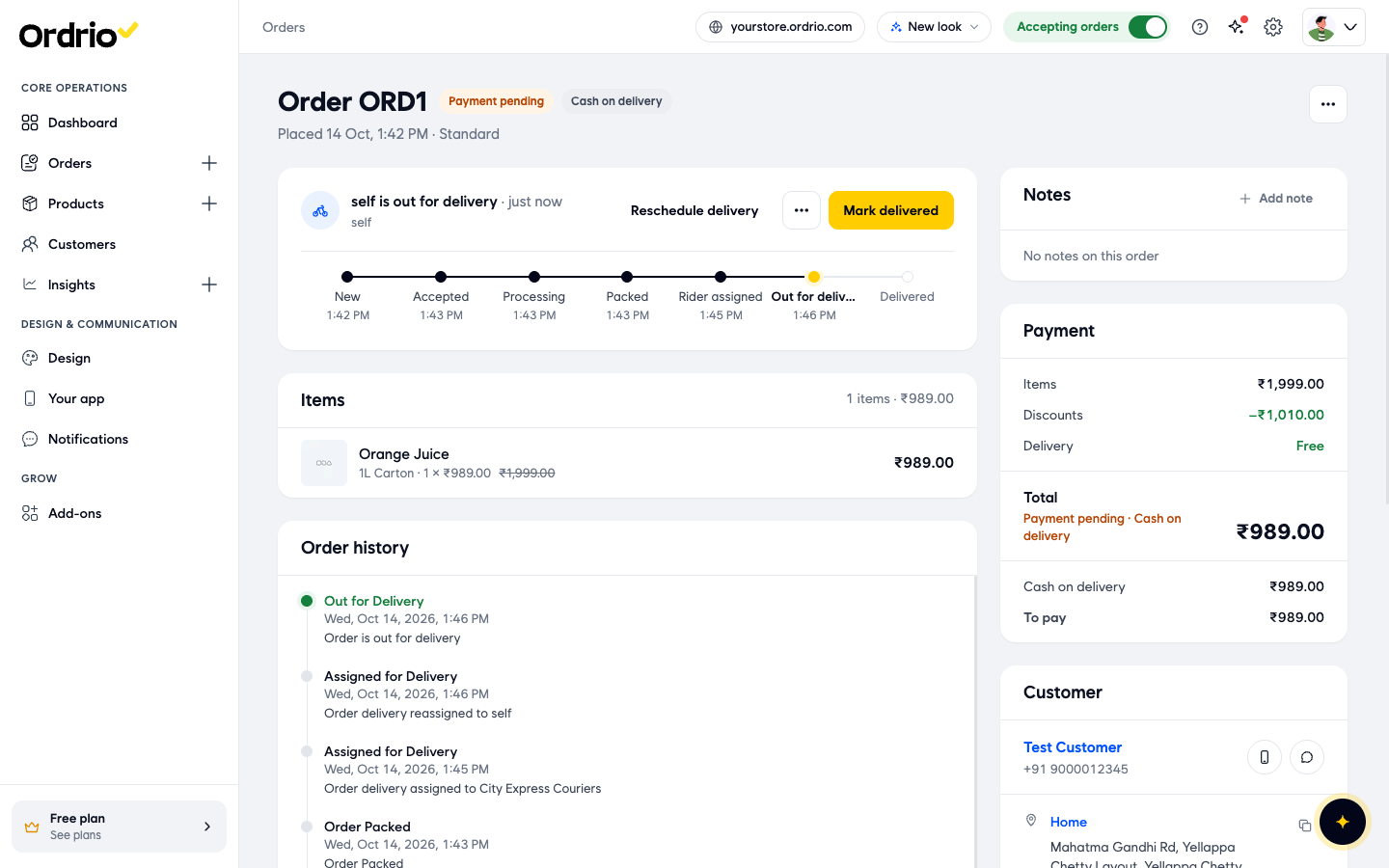
- When the customer has the order, click Mark delivered.
Change who delivers an order
If plans change before the order leaves, click Reassign rider on the order. The same Choose Delivery Option panel opens. Pick the new option and click Confirm. Order history keeps both lines, for example "Order delivery assigned to City Express Couriers" and then "Order delivery reassigned to self".
Your own riders
Riders who use your admin are staff with the built-in Delivery Partner role. You can see this role in Settings > Staff & roles, on the Roles tab. Its Can do column shows Delivery.
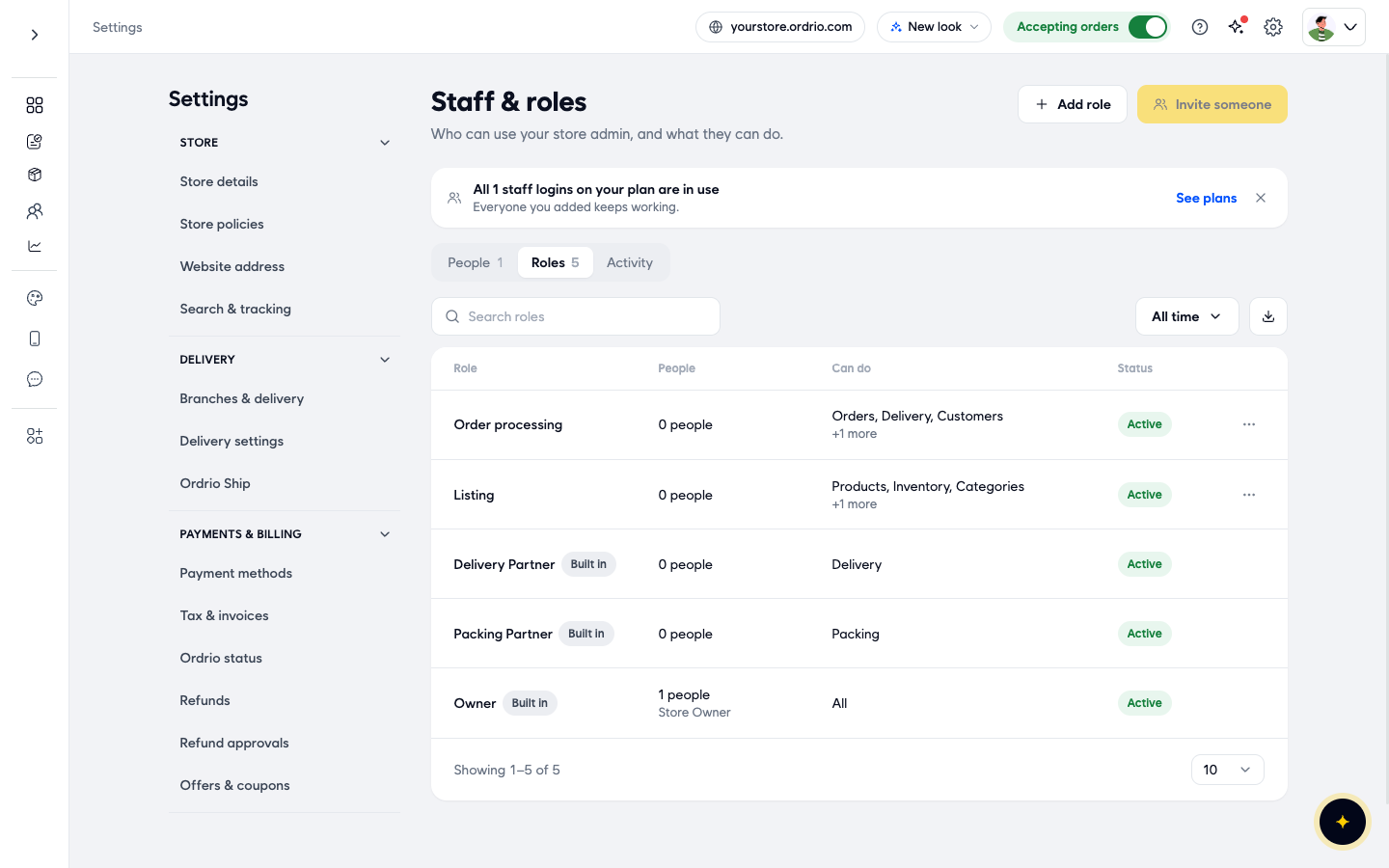
To add a rider, click Invite someone on the same page. The number of staff logins depends on your plan. When all of them are in use, Invite someone is greyed out and the page shows See plans.
To assign orders to each of your riders, track them and collect the cash they hold, use the In-House Delivery Fleet add-on in Add-ons. Its card is marked Launch. If your plan doesn't include it, the card shows Upgrade plan instead of Switch on.
Ordrio Ship
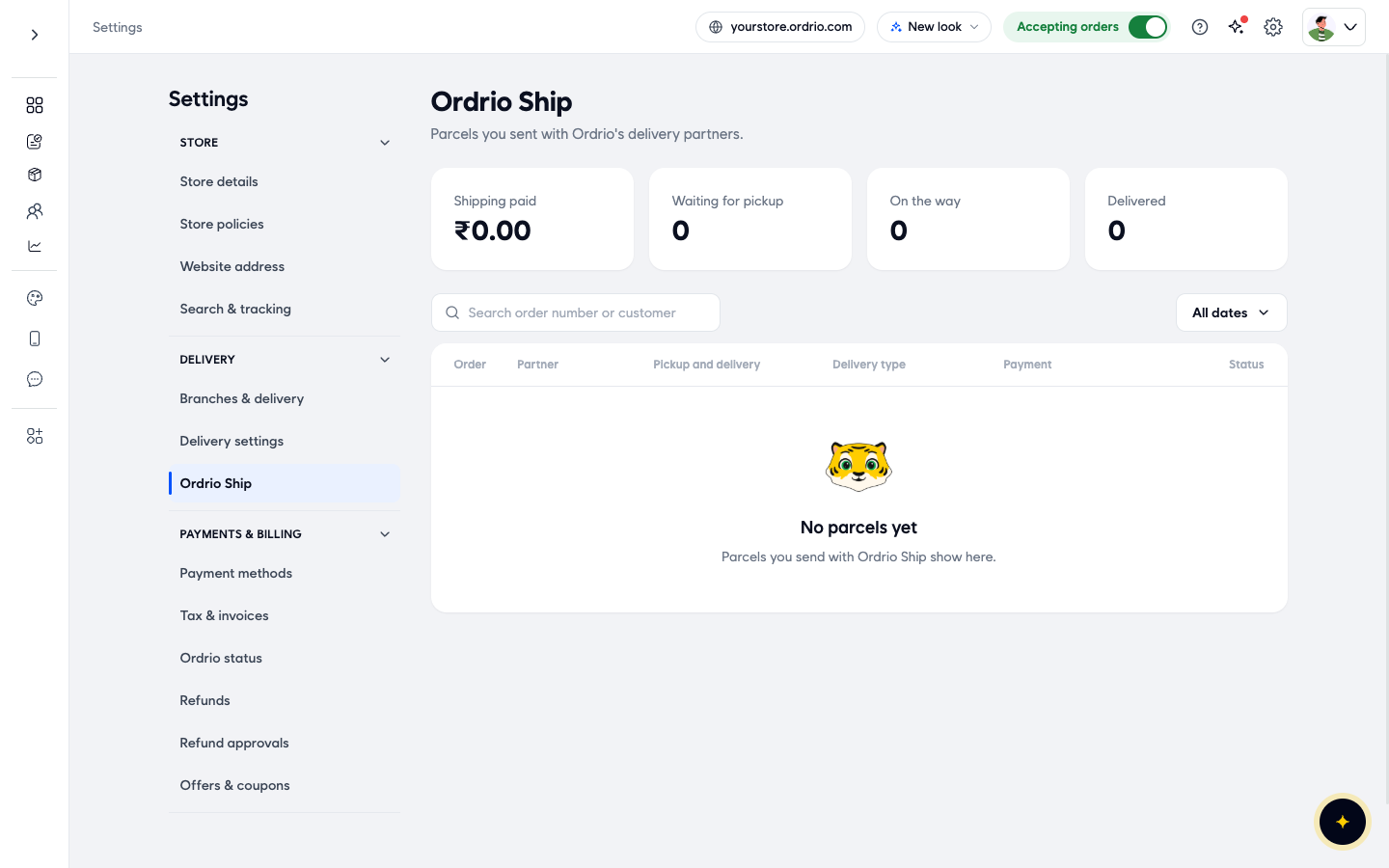
Ordrio Ship is for parcels you send with Ordrio's delivery partners, for shipping across India. To see them, go to Settings > Ordrio Ship. The page shows:
- Shipping paid: what you have paid for shipping so far.
- Waiting for pickup, On the way and Delivered: how many parcels are at each stage.
- A list of parcels with Order, Partner, Pickup and delivery, Delivery type, Payment and Status. You can search by order number or customer and filter by date.
Good to know
- Assign rider only appears once the order is Packed. If you don't see it, check the order's stage in the progress bar.
- Confirm stays greyed out for Delivery with Delivery Partner until you fill in Delivery Company and Tracking URL or ID.
- You can reassign an order until it is out for delivery. After that, the order shows Mark delivered and Reschedule delivery instead of Reassign rider.
- To cancel an order instead, click the ... button next to the main button and choose Cancel order.
Related
- Delivery zones and geo mapping
- Roles and permissions
- Viewing and managing orders