How-to guide
Long-distance delivery setup
Ship orders outside your local delivery zones.
Long-distance delivery lets you send orders by courier to customers who live outside your local delivery areas. You set what customers pay for this courier delivery on the Shipping page of each branch, and you follow the parcels you send on the Ordrio Ship page.
Before you start
- Add your branch first. Shipping charges are set for each branch.
- Set up your local delivery areas in Delivery settings. Shipping is for orders you send beyond them.
Open the Shipping page
- Open nadi.ordrio.com (your Ordrio admin panel) and log in.
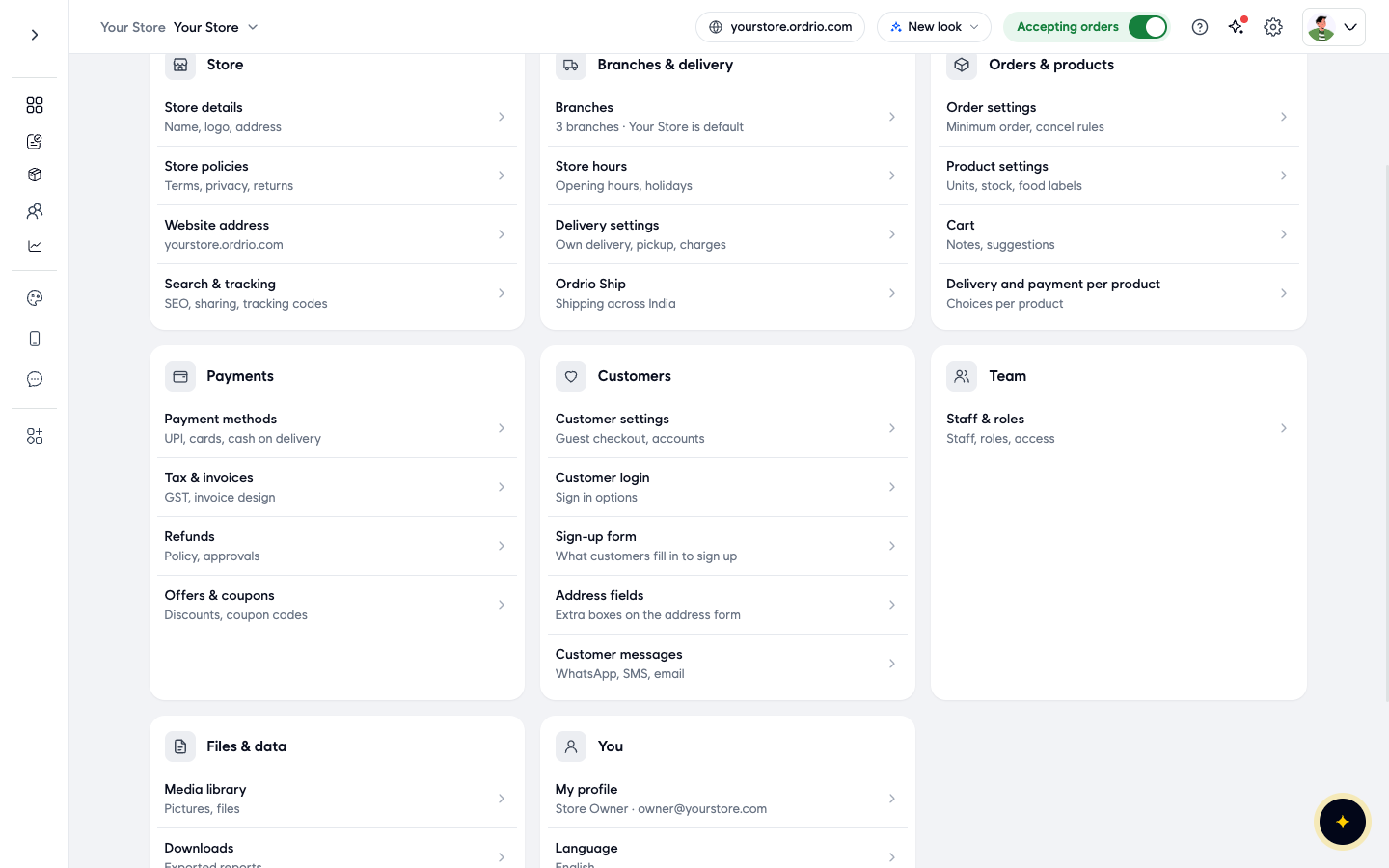
- Click the Settings icon (the gear) at the top right.
- Under Branches & delivery, click Branches.
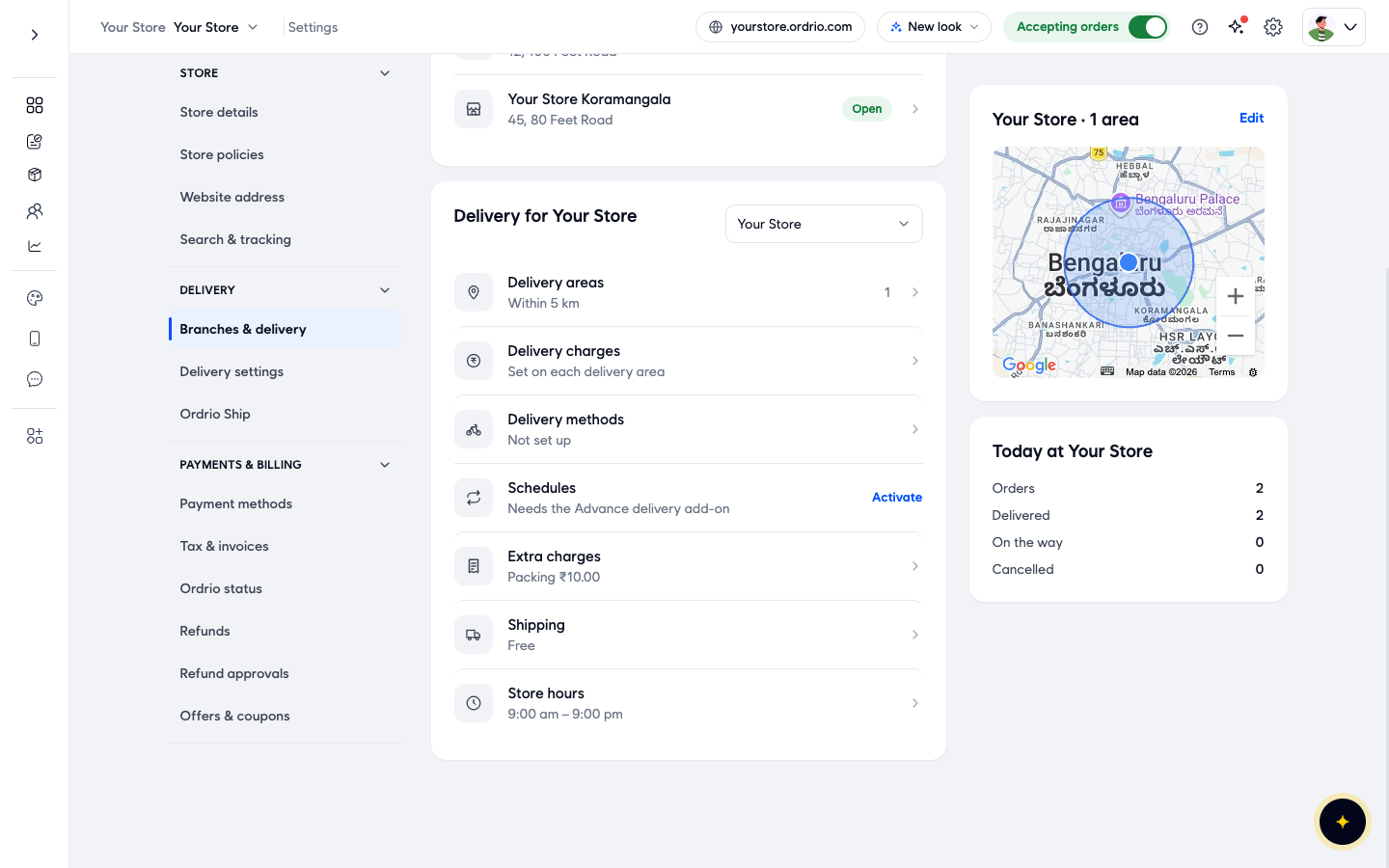
- The Branches & delivery page opens. In the Delivery for box, pick the branch you want to set up from the drop-down.
- Click Shipping. Under the name you see a short summary of your current charge, for example Free.
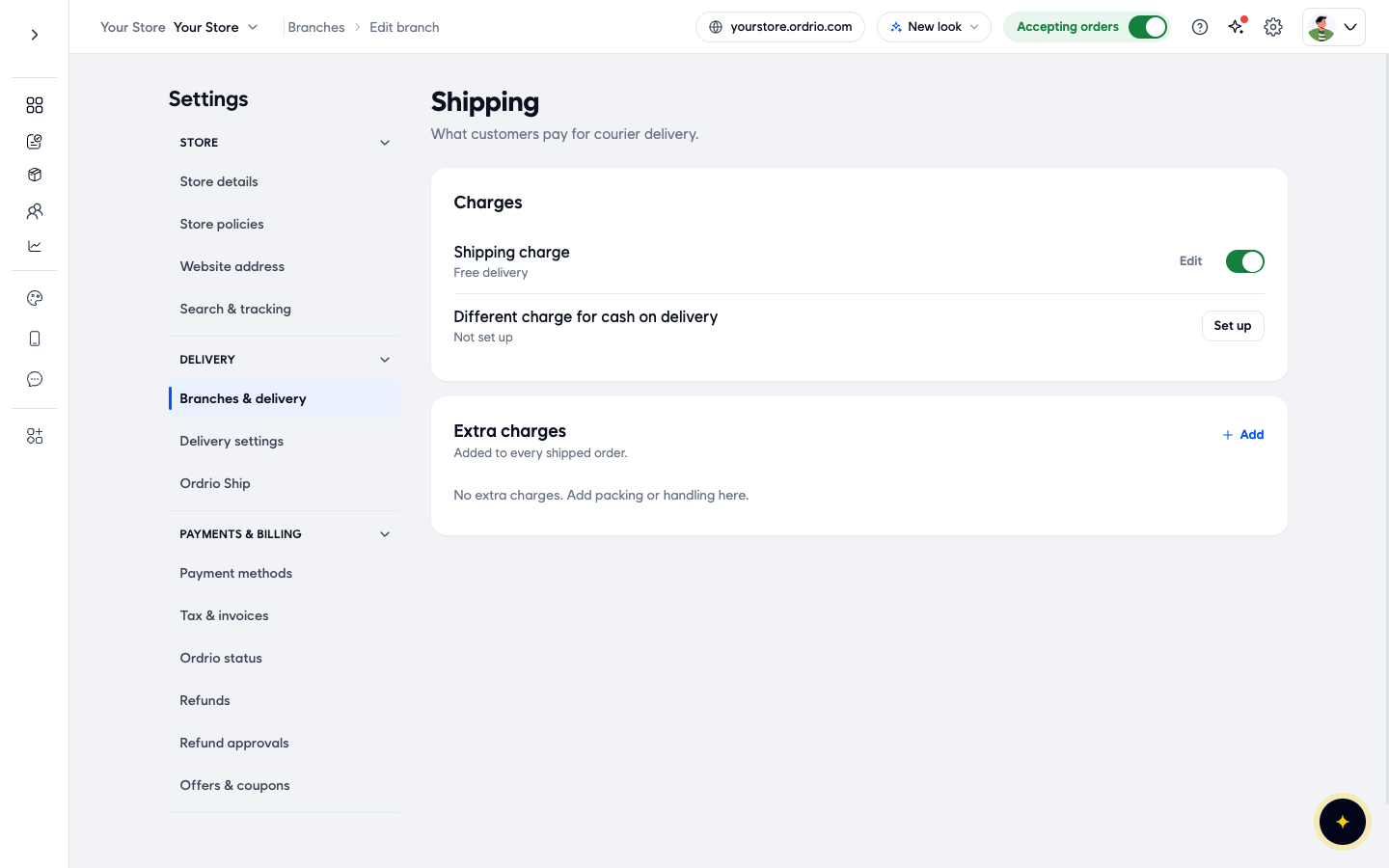
The Shipping page opens. It says "What customers pay for courier delivery." and has two parts: Charges and Extra charges.
Set the shipping charge
- Under Charges, click Edit next to Shipping charge.
- In the Shipping charge window, choose how you want to charge:
- Fixed charge: the same charge on every order. Type the amount in Charge.
- Free above an amount: you charge small orders and ship bigger ones for free. Type the amount in Charge, and the order value above which shipping is free in Free above.
- Click Save in the window.
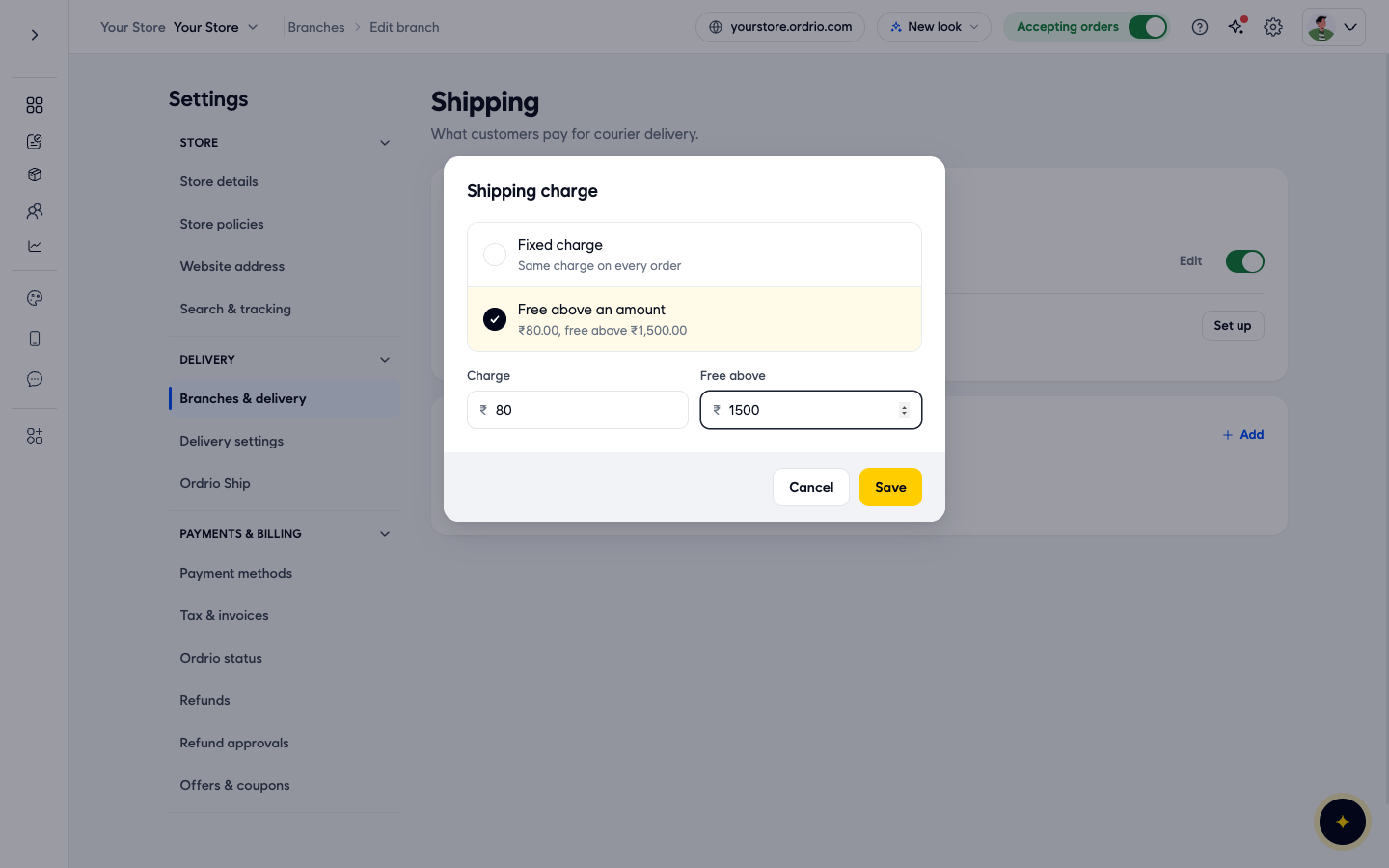
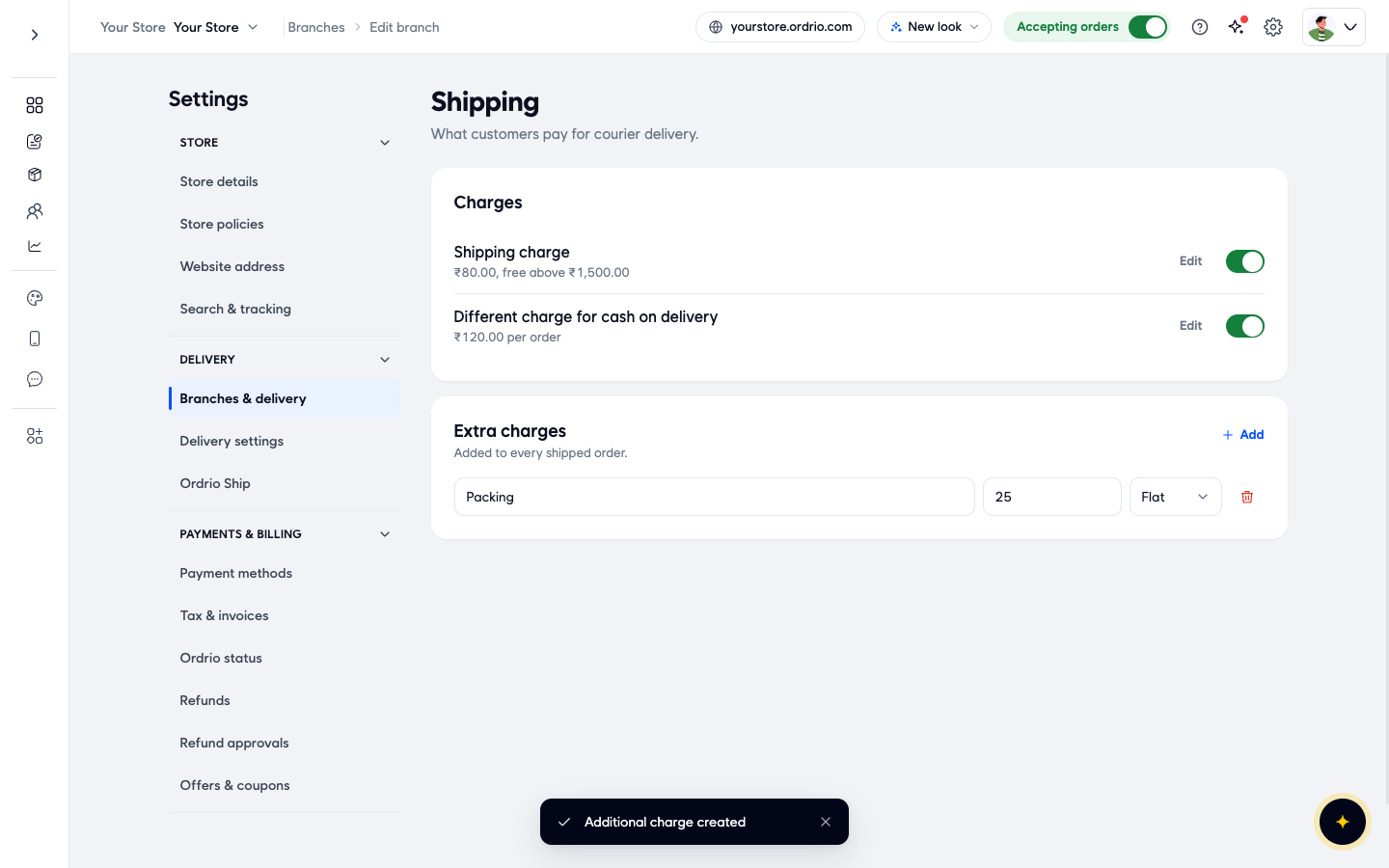
The example shows ₹80 for shipping, free above ₹1,500. Use your own amounts. The Shipping charge row now shows your charge, for example "₹80.00, free above ₹1,500.00".
Set a different charge for cash on delivery (optional)
If you want orders paid by cash on delivery to pay a different shipping charge, set it here.
- Next to Different charge for cash on delivery, click Set up.
- In the Cash on delivery charge window, choose Fixed charge or Free above an amount, and type the amount in Charge (and in Free above, if you chose it).
- Click Save in the window.
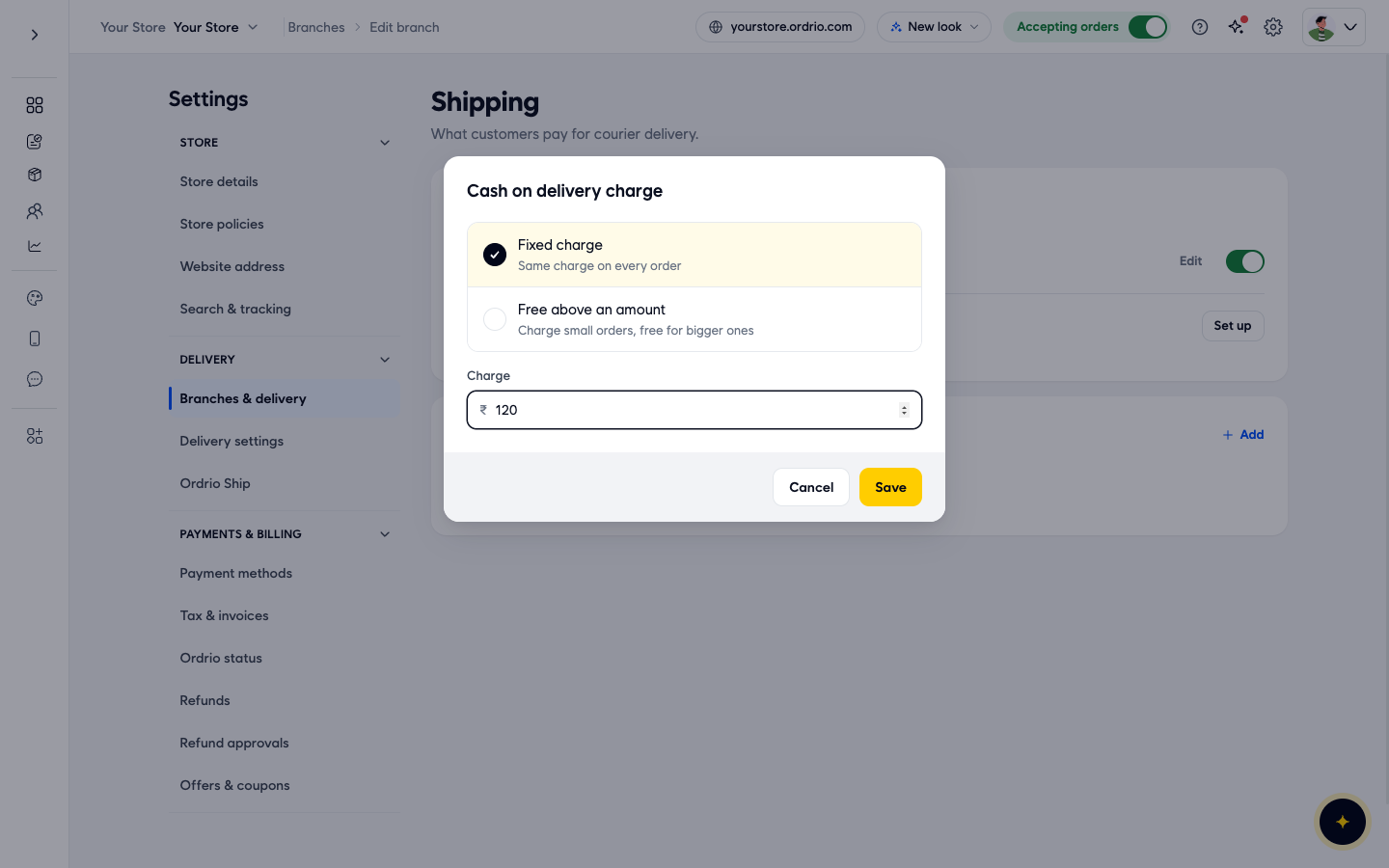
The row now shows the charge, for example "₹120.00 per order", and an Edit button so you can change it later.
Add extra charges (optional)
Extra charges are added to every shipped order, for example packing or handling.
- Under Extra charges, click Add.
- Type a name in the first box, for example Packing.
- Type the amount in the next box.
- In the last box, choose Flat for a fixed amount or % of bill for a share of the order value.
- Click Save in the You have unsaved changes bar at the bottom of the page.
Ordrio shows "Additional charge created" and the charge stays in the list. To remove a charge, click the red bin icon next to it.
- To set shipping for another branch, go back to Branches & delivery, pick that branch in the Delivery for box and repeat these steps.
Follow your parcels in Ordrio Ship
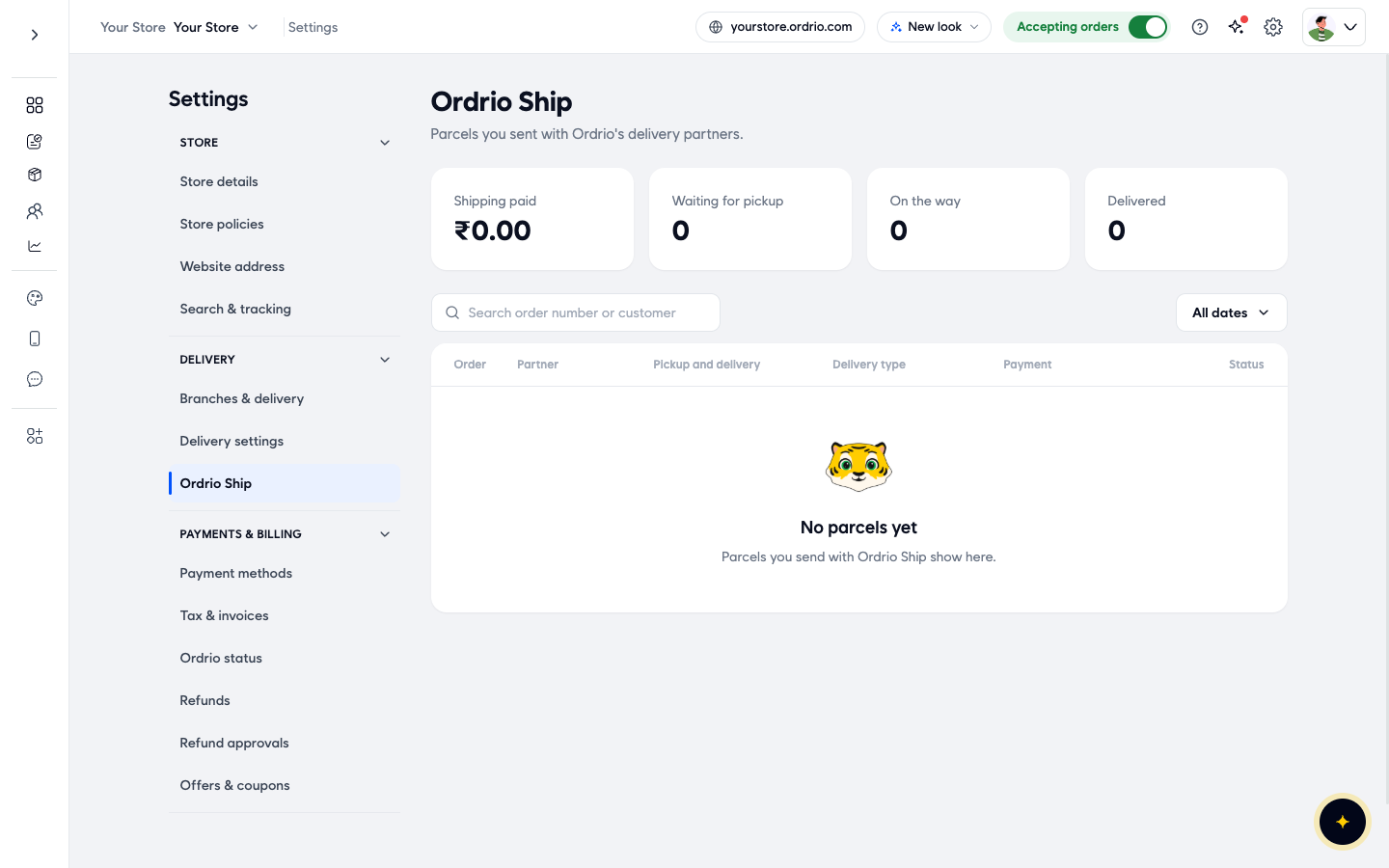
Ordrio Ship lists the parcels you sent with Ordrio's delivery partners. To open it, go to Settings and click Ordrio Ship under Branches & delivery.
- At the top you see Shipping paid, Waiting for pickup, On the way and Delivered.
- Use Search order number or customer to find a parcel, and All dates to pick a date range.
- The list shows the Order, Partner, Pickup and delivery, Delivery type, Payment and Status of each parcel.
- Until you send your first parcel, the page shows No parcels yet.
Good to know
- Shipping charges belong to one branch. Each branch has its own Shipping page.
- The switch next to Shipping charge and Different charge for cash on delivery turns that charge on or off.
- Extra charges on the Shipping page are added only to shipped orders. Extra charges for local delivery are set separately in Delivery settings.
- A local delivery area can reach up to 300 km from your branch. Use shipping for customers further away.
- The amounts in the screenshots are examples. Use your own charges.
Related
- Delivery zones and geo mapping
- Creating and managing branches
- Cash on delivery