Reference
What you need before getting started
Documents, details and accounts to keep ready.
Setting up your store goes faster when you have everything at hand. This page lists the details, documents and accounts to keep ready before you start, and shows where each one goes in your Ordrio admin panel.
You do not need everything on day one. You can create your store with just a mobile number or email, and add the rest later.
To create your store
You sign up at nadi.ordrio.com (your Ordrio admin panel). New owners click Create a store. Keep ready:
- A mobile number or an email address. You can sign up with either one. Ordrio sends a 6-digit code to it, by SMS or by email, so use a number or email you can open right away.
- A password, if you sign up with email.
- Access to that phone or inbox, to type in the code on the Enter the 6-digit code screen.
You also tick I accept the Terms & Conditions before you click Register Now.
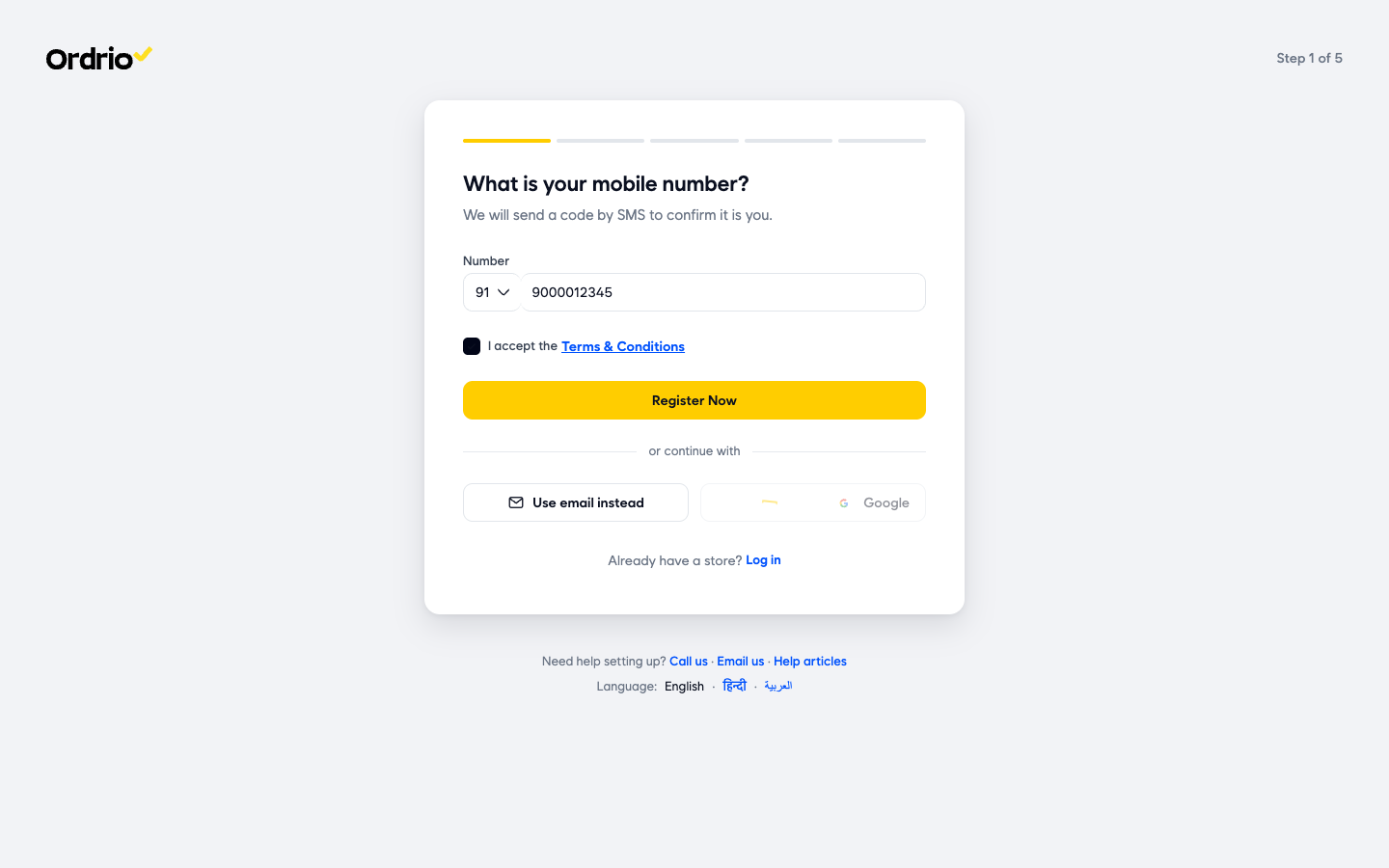
The number on screen is only an example. Use your own mobile number or email.
Store details
After signup, your dashboard shows a checklist called Get ready for your first order. The first step is your store details, in Settings > Store details. Keep ready:
- Store name. The name customers see on your website and app.
- Store phone number. The number customers can call you on.
- Store email. The email customers can write to.
- Store address. Keep your full shop address handy.
- Logo. A clear image of your logo. You can add it later too.
- Legal name. The registered name of your business, for example "Your Store Foods Pvt Ltd". Find it under More details.
- Business type. For example Grocery, Restaurant or Pharmacy.
- Currency. The currency your prices are in, for example INR (₹).
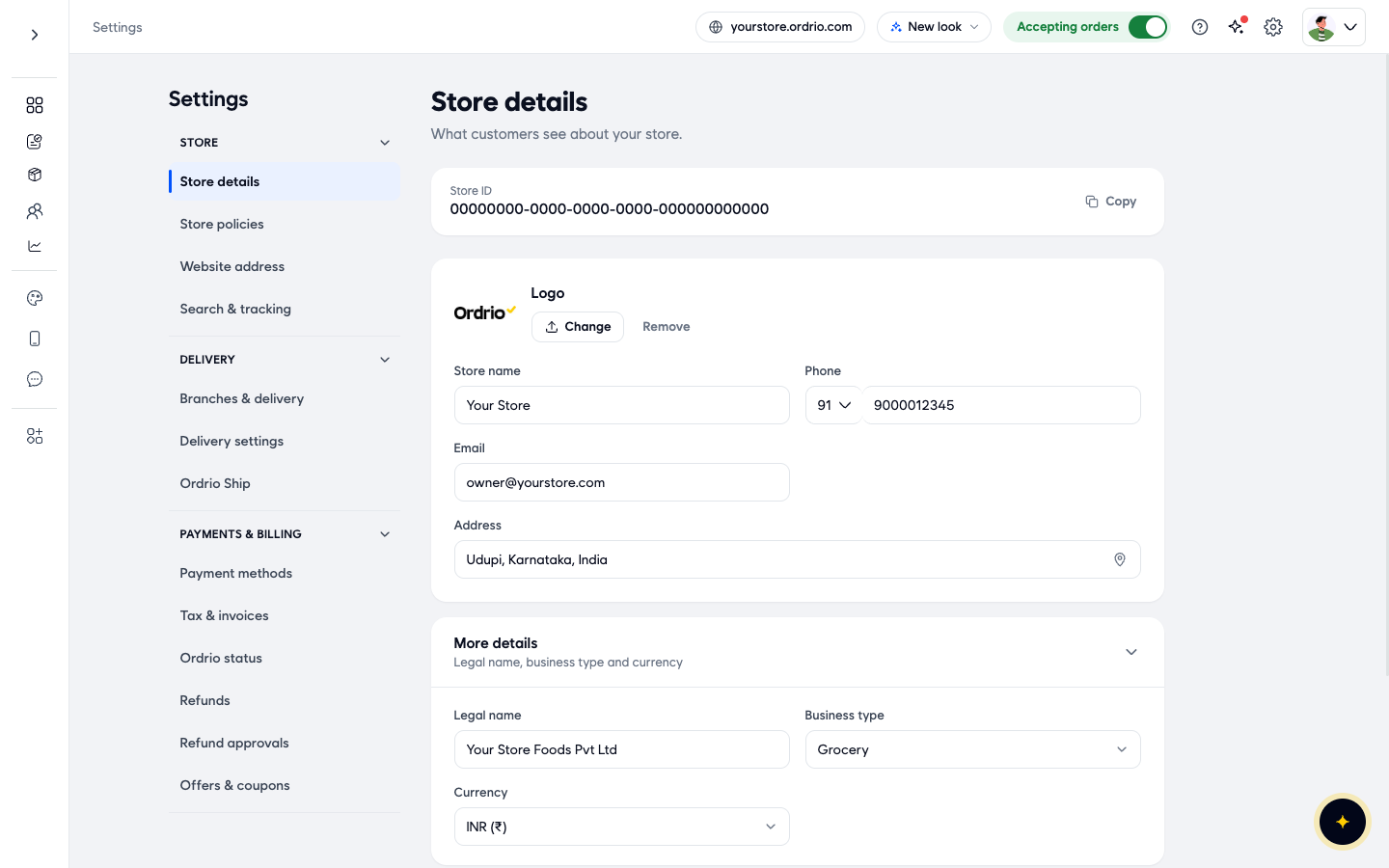
The values on screen are examples. Use your own business details.
Products
To add products in Products > Add product, keep a list of what you sell with:
- Name and Category of each product. A Brand is optional.
- A Short description of up to 50 characters.
- Photos. JPG, PNG, GIF or an MP4 video, up to 5 MB each.
- Price, and a Price after discount if you sell it for less.
- Cost, if you want to track your margin. Only you see this.
- Tax slab, if you charge GST on it.
- Options, if the product comes in more than one size, like 500 ml and 1 litre. Each option has its own price.
A simple spreadsheet with these columns makes adding products much quicker.
Payments
Your store takes Cash on delivery from the start. To take money online or by bank transfer, go to Settings > Payment methods.
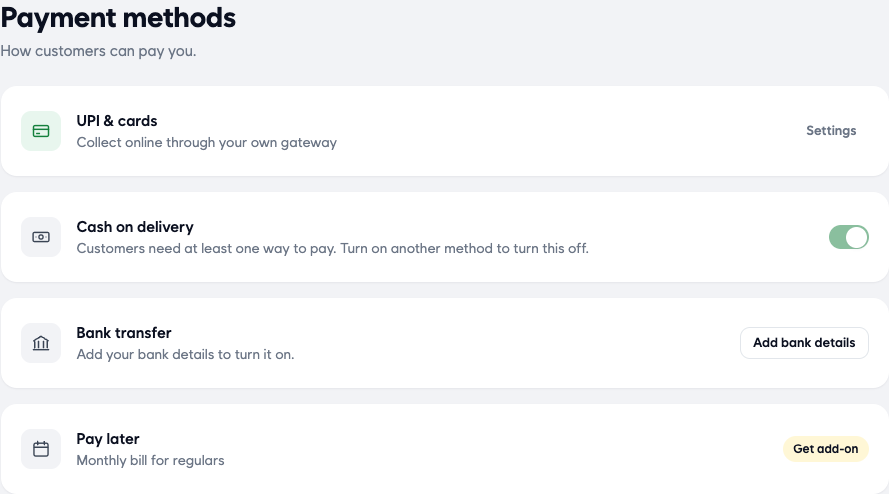
UPI and cards (online payments)
Online payments go through your own payment gateway. Ordrio works with Cashfree, PhonePe, Razorpay, Stripe, Neo Leap and Easy Payment System(EPS).
- If you already have a gateway account, keep its keys ready. For Razorpay, that is your Key ID and Key secret, from your Razorpay dashboard.
- If you do not have one yet, click Get started under No gateway yet? to sign up with a partner.
Bank transfer
To let customers pay you by bank transfer, click Add bank details and keep ready:
- Bank Name
- Account Holder Name
- Account Number
- IFSC Code
- A Payment Proof Type to choose from the list
Tax (GST)
If you charge GST, go to Settings > Tax & invoices and click Set up next to India · GST. Keep ready:
- Your GSTIN (GST number).
- Whether your prices already include tax.
- Your Standard rate, the GST % used for most of your products.
- Other rates, if some products pay a different GST %, and which products they are.
Delivery
To start taking delivery orders, go to Settings > Branches & delivery. Think about:
- Delivery areas. The areas you deliver to.
- Delivery charges. What you charge for delivery.
- Delivery methods. How orders reach your customers. If you do not deliver, you can choose pickup only.
Store policies
Your website shows policy pages in the footer and at checkout: About Us, Contact Us, Privacy Policy, Refund Policy, Return Policy and Terms and Conditions. Keep your own refund and return rules ready, so you can update these pages in Settings > Store policies.
Good to know
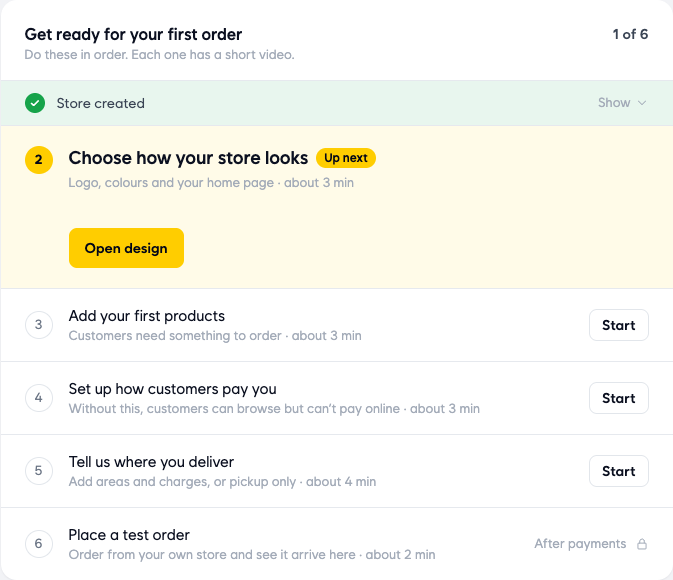
- You can create your store and fill in the rest step by step. The Get ready for your first order checklist on your dashboard shows what is left.
- Without an online payment gateway, customers can browse your store but cannot pay online.
- Use a mobile number or email you will keep. It is how you log in to your Ordrio admin panel.
- The examples on this page (store name, phone, email) are only examples. Always enter your own details.
Related
- What is Ordrio
- Accessing Ordrio for the first time
- Recommended setup order for new stores