How-to guide
Live chat tools
Add a live chat widget to your store.
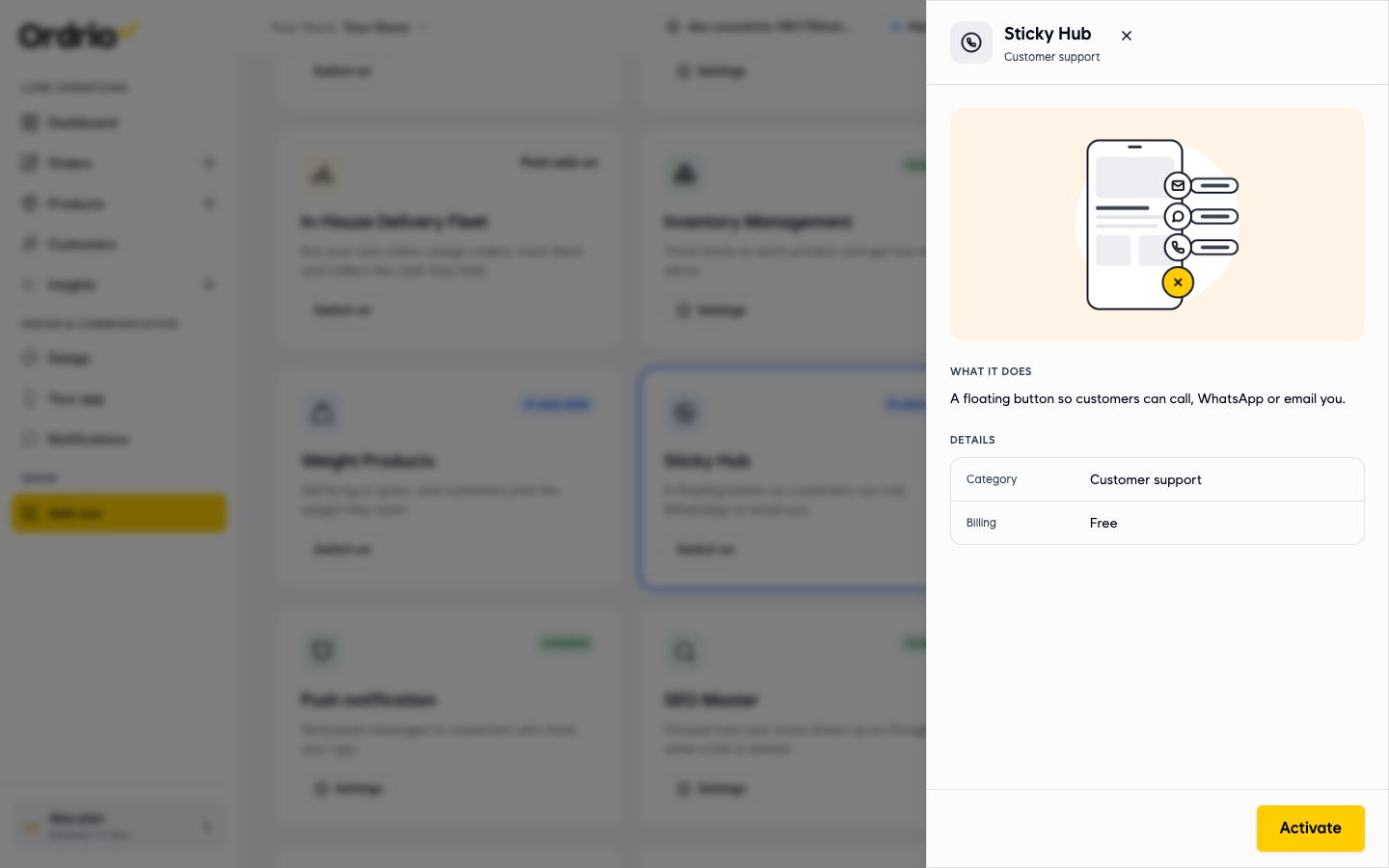
Let customers chat with you straight from your store. In Ordrio you do this with the Sticky Hub add-on: a floating button on your website or app that opens a WhatsApp chat, a phone call or an email to you.
Before you start
- Keep ready the WhatsApp number, phone number and email address you want customers to use.
- If you add more than one option, you need a square PNG icon for the button and one for each option. The screen asks for PNG, 1080 × 1080.
Switch on Sticky Hub
- Open nadi.ordrio.com (your Ordrio admin panel) and log in.
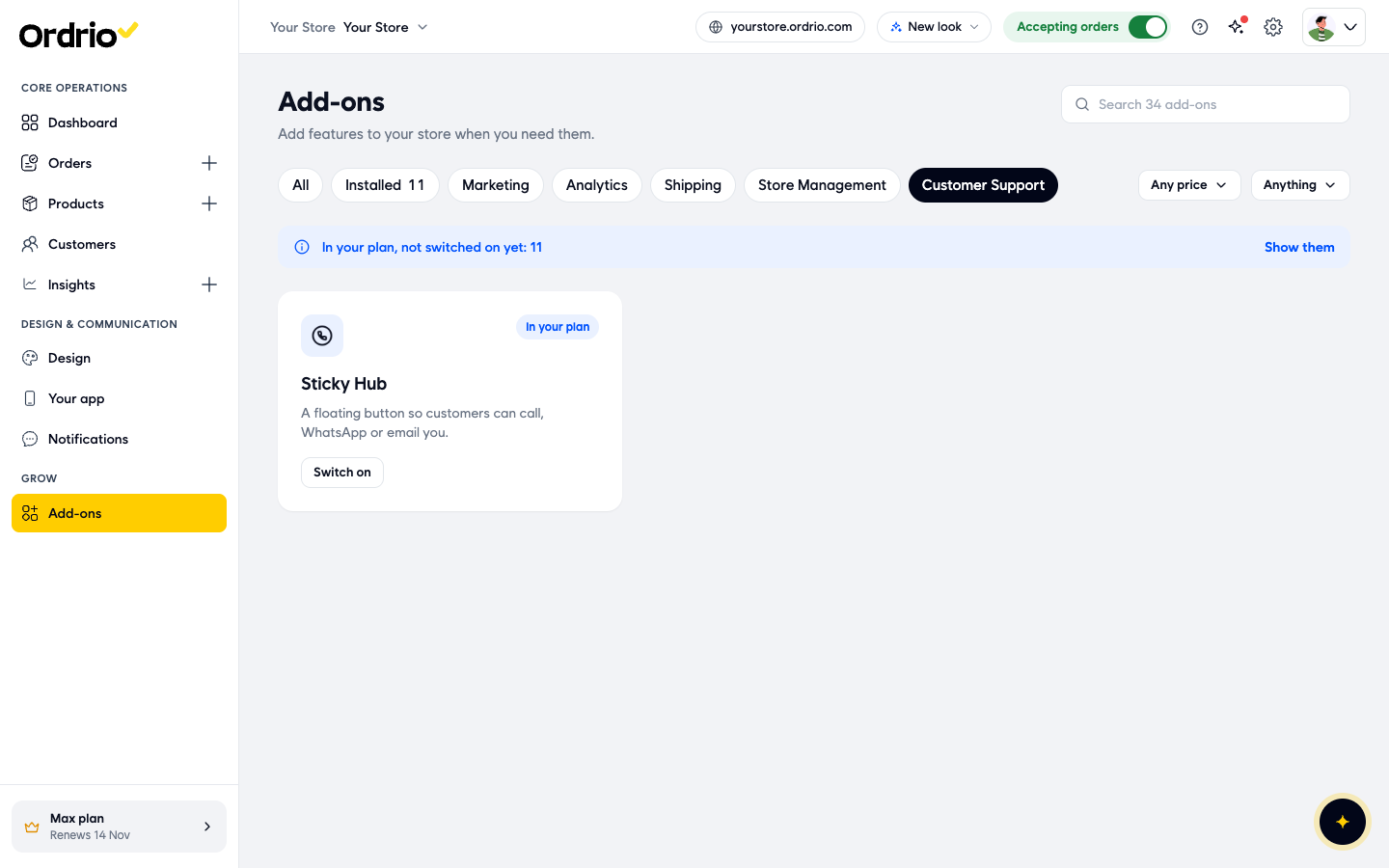
- In the left menu, under Grow, click Add-ons.
Choose how the button looks
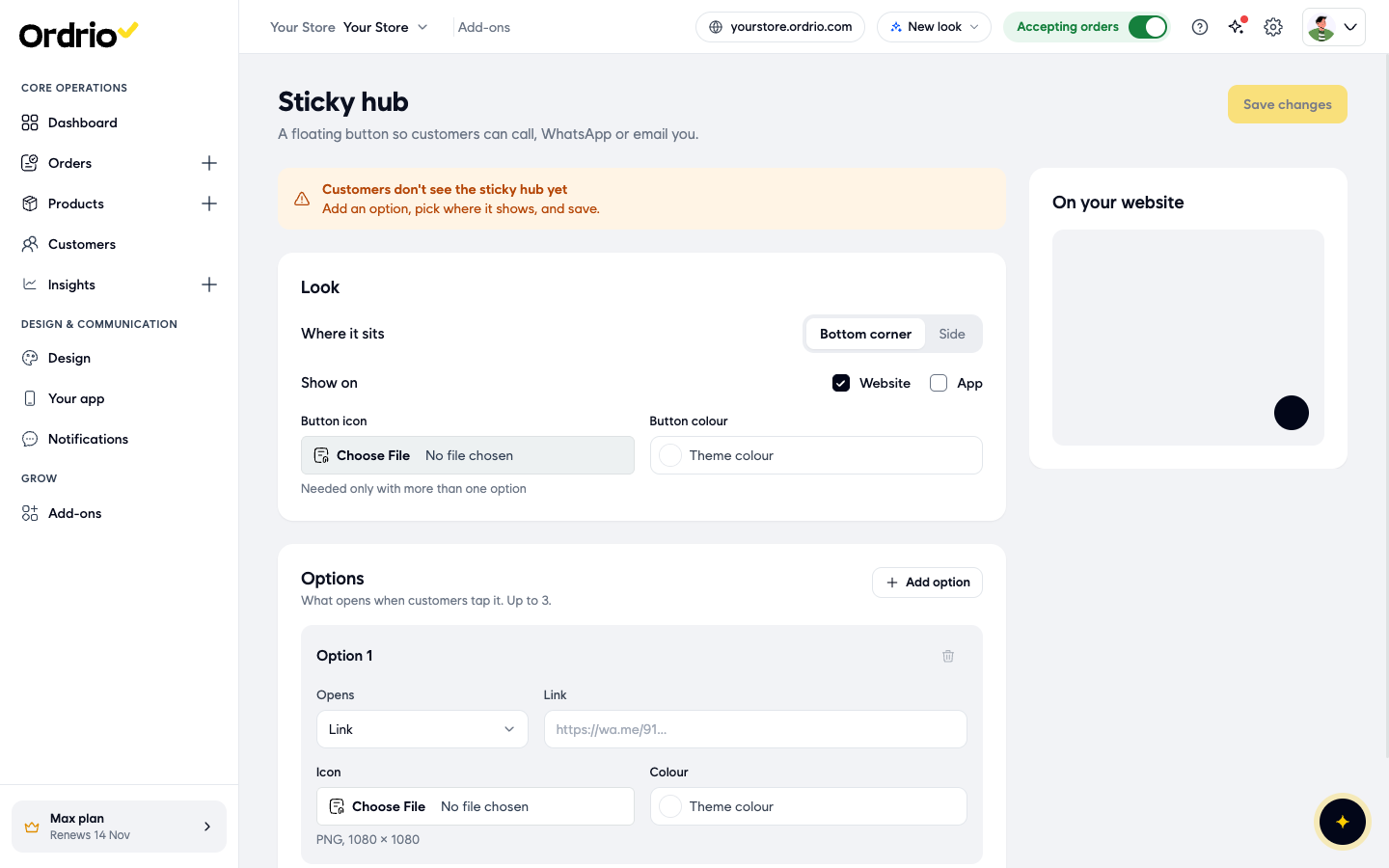
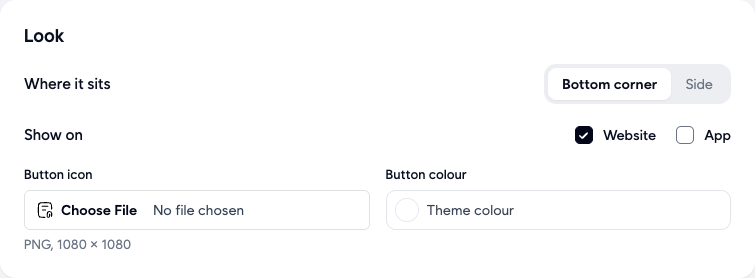
The Look section sets the main floating button.
- Under Where it sits, choose Bottom corner or Side.
- Under Show on, tick Website, App or both. Website is ticked to start with.
- Under Button icon, click Choose File. In Upload Media File, click Add Media to upload a PNG, or pick one you uploaded before, and click Select. You need this only when you have more than one option.
Add a WhatsApp chat option
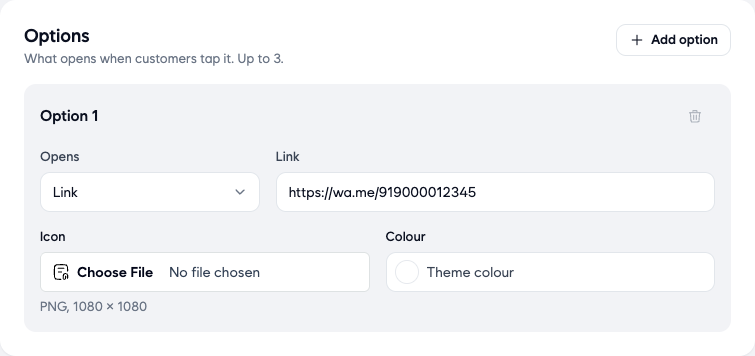
The Options section lists what opens when customers tap the button. You can add up to 3.
- In Option 1, leave Opens set to Link.
- In Link, type your WhatsApp chat link:
https://wa.me/followed by 91 and your 10-digit number, with no spaces. The screen shows the examplehttps://wa.me/919000012345. Use your own WhatsApp business number, not the example. - Under Icon, click Choose File and upload or pick a PNG icon for this option, the same way as the button icon.
Add a phone or email option (optional)
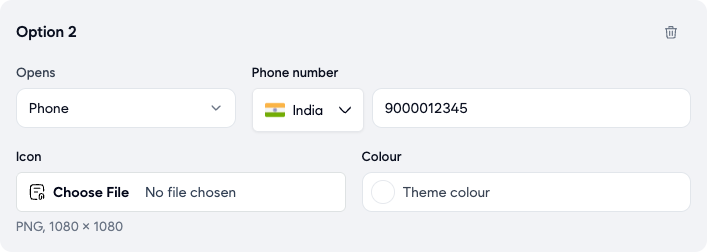
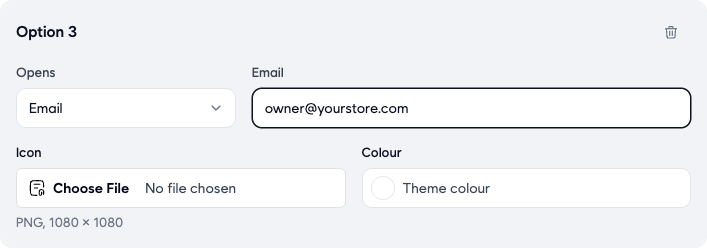
- Click Add option. Option 2 appears. For a phone call, set Opens to Phone, pick the country code and type your phone number in Phone number, then add an icon. To add Option 3, click Add option again, set Opens to Email, type your email address in Email, and add an icon. The numbers and email in the screenshots are examples. Use your own.
- Click Save changes at the top right. You can also use Save changes in the Unsaved changes bar at the bottom of the screen. Reset in that bar undoes your changes.
Turn Sticky Hub off or change it later
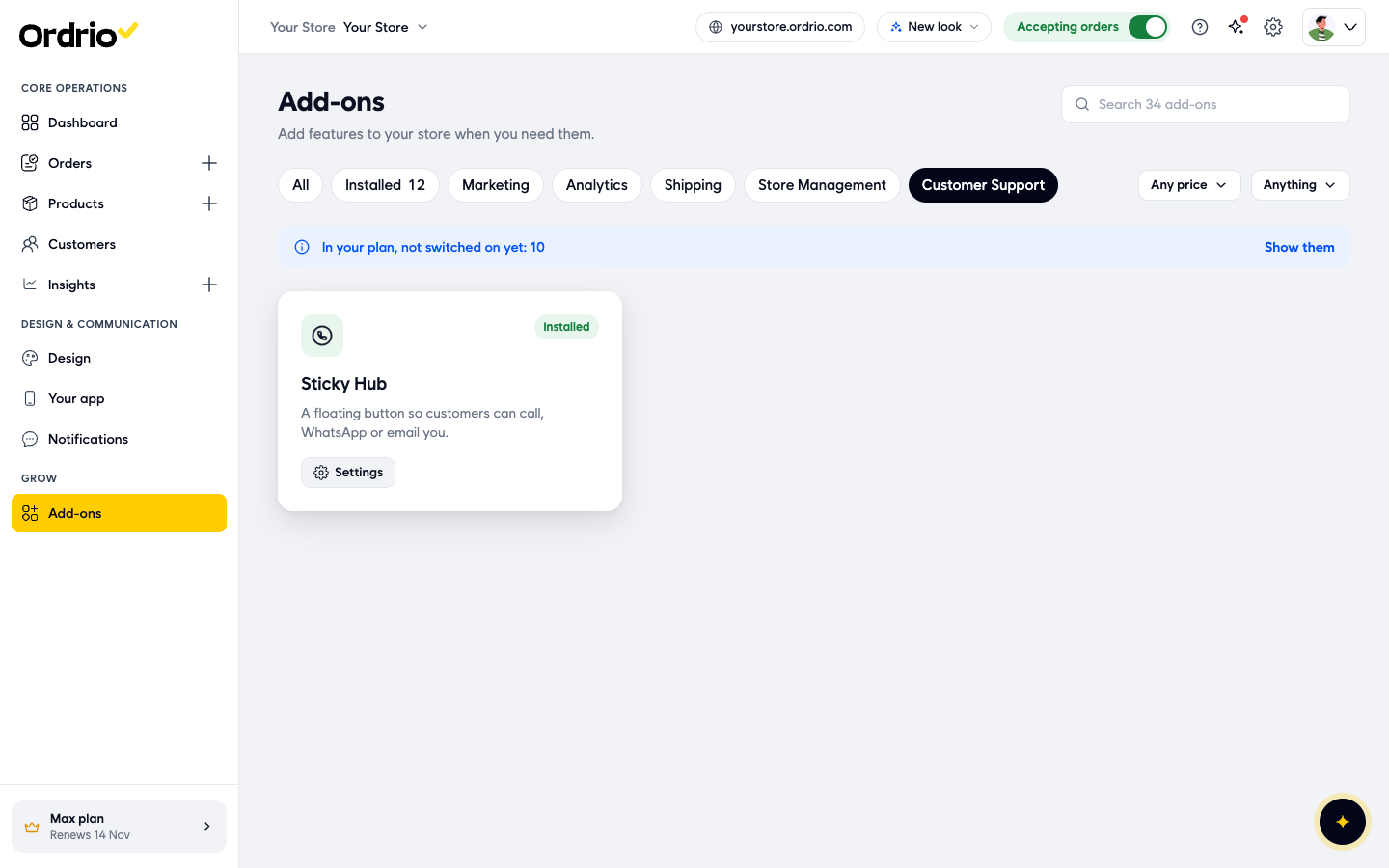
- To change your options, go to Add-ons, click Sticky Hub and click Configure, or click Settings on the card.
- To turn it off, click Sticky Hub, then Deactivate. Ordrio asks "Are you sure?". Click Yes.
Good to know
- Opens has three choices: Link (any web link, such as a WhatsApp chat link), Phone and Email.
- You can add up to 3 options. With 3 options, Add option is greyed out. To remove one, click the bin icon next to its name.
- Every option needs an icon. If one is missing, the screen shows "Add an icon for this option" when you save.
- With more than one option, the main button needs its own icon. If it is missing, the screen shows "Add a button icon when there is more than one option".
- The button shows only where you ticked it under Show on: your website, your app, or both.
Related
- Enabling and managing add-ons
- Abandoned cart recovery
- Analytics and tracking pixels
Was this article helpful?