How-to guide
Bulk order processing and packing
Batch orders for packing, printing or status updates at peak hours.
At busy times you can handle many orders together instead of one by one. In Orders you narrow the list to the orders you want, then print their KOTs or move them all to the next status in one go.
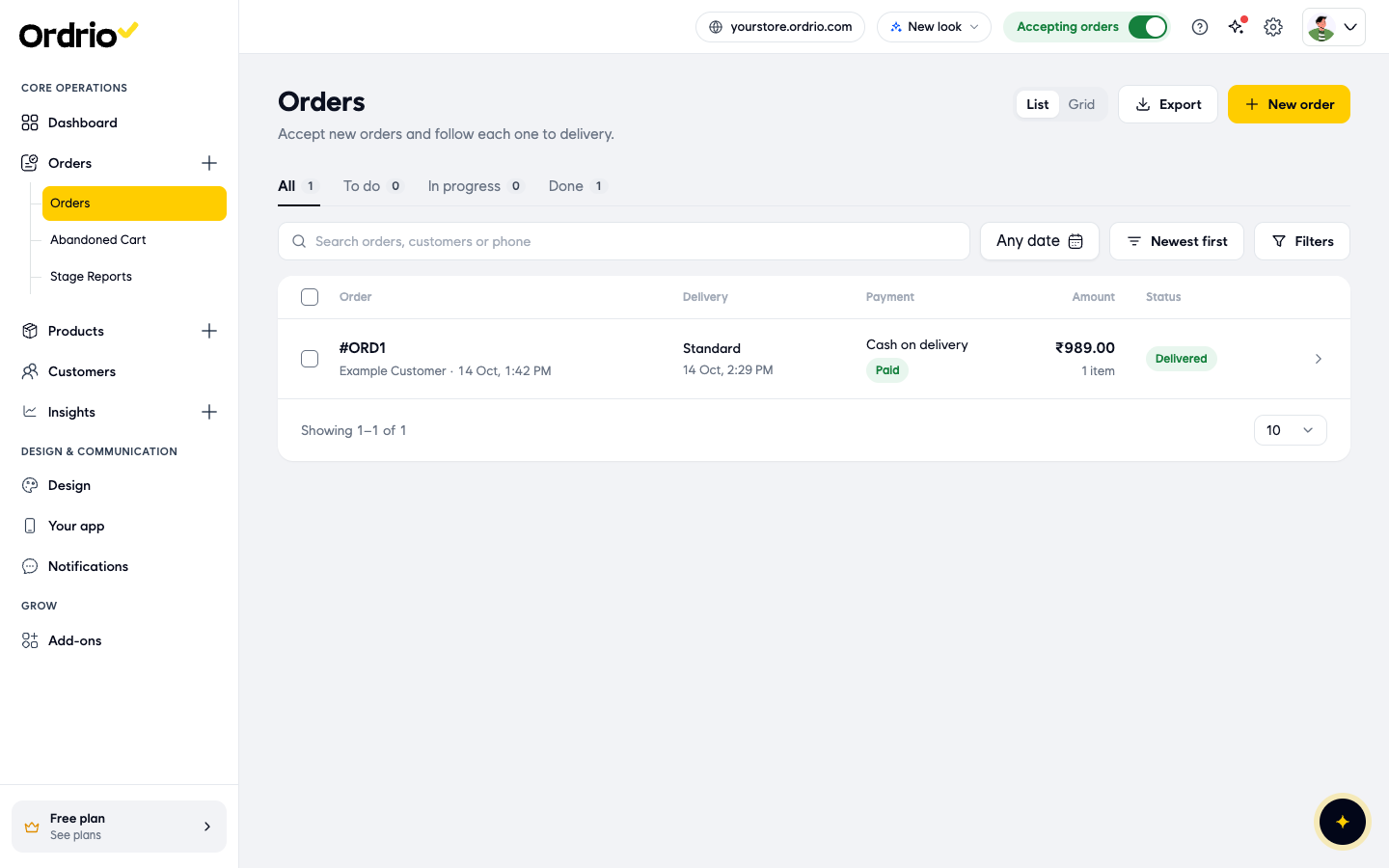
- Open nadi.ordrio.com (your Ordrio admin panel) and log in. In the menu on the left, click Orders, then Orders. You see every order in a list, with the columns Order, Delivery, Payment, Amount and Status. The tabs above the list (All, To do, In progress and Done) show how many orders are at each stage. Click a tab to see only those orders.
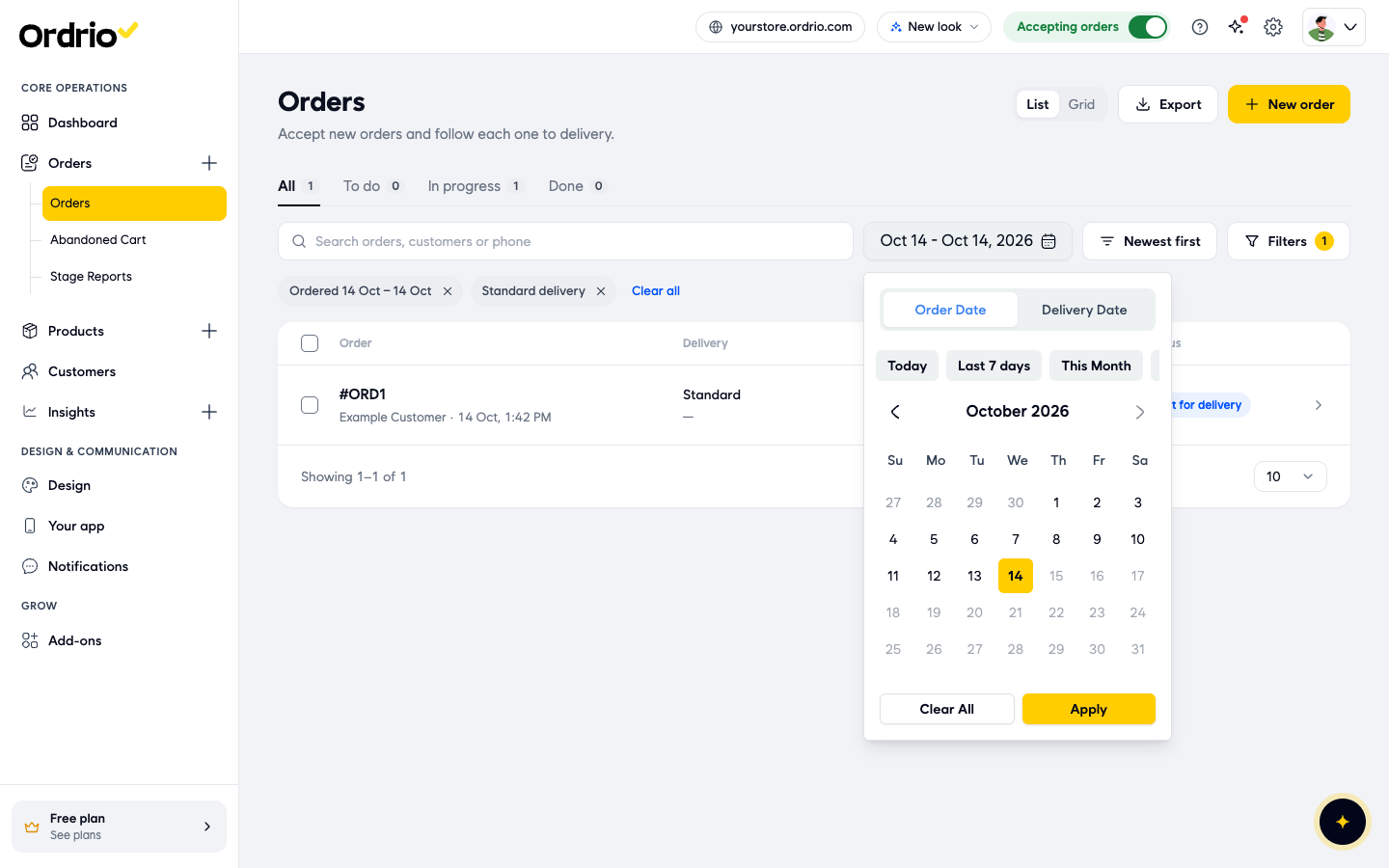
- Click Any date to choose which day's orders you want. At the top, choose Order Date (when the customer placed the order) or Delivery Date (when it should reach the customer). Then click Today, Last 7 days, This Month or Last Month, or click a start day and an end day on the calendar and click Apply. Clear All removes the dates.
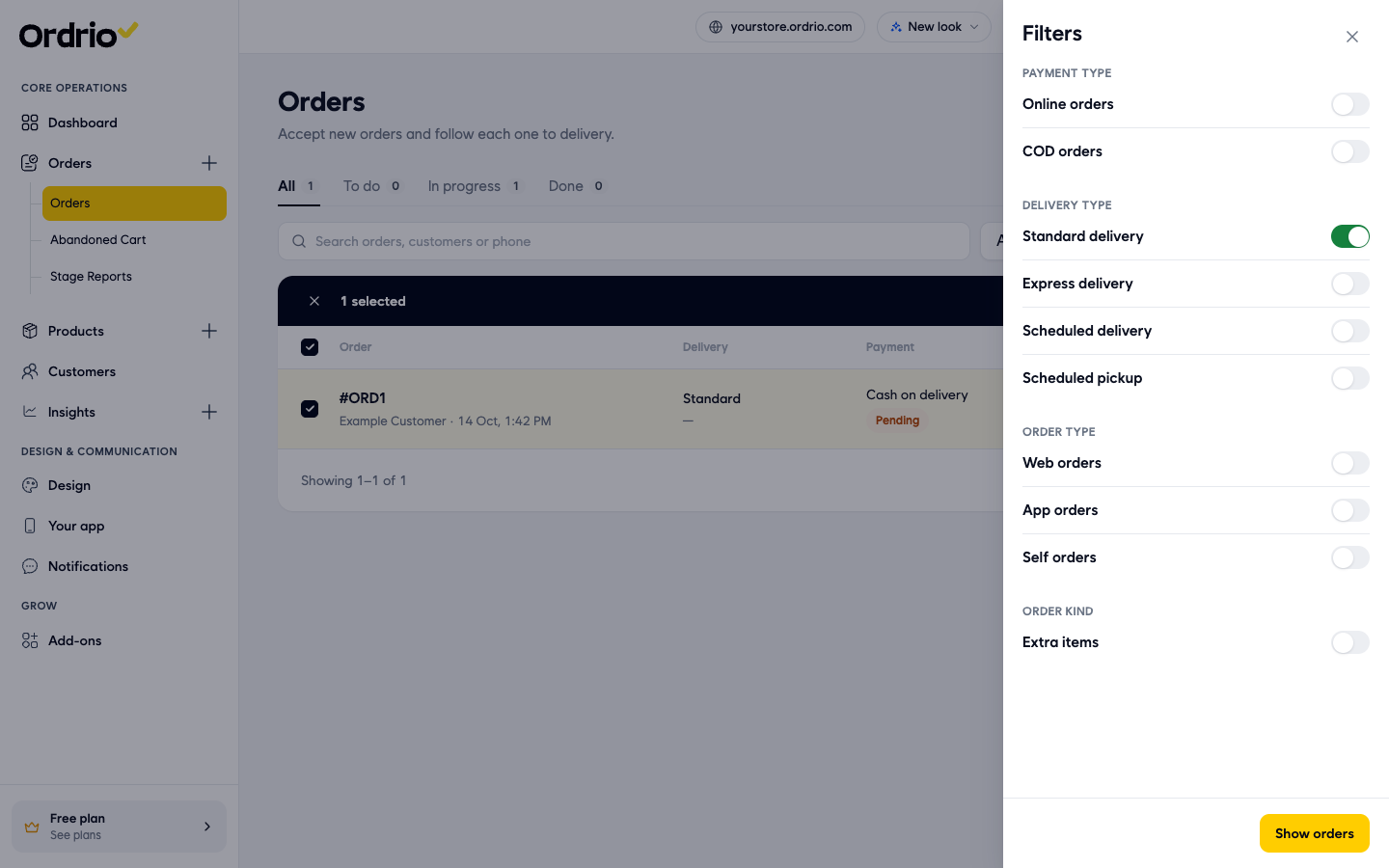
- Click Filters to narrow the list further. Turn on the switches you need, then click Show orders:
- Payment Type: Online orders or COD orders (cash on delivery).
- Delivery Type: Standard delivery, Express delivery, Scheduled delivery or Scheduled pickup.
- Order Type: Web orders, App orders or Self orders.
- Order kind: Extra items.
Each filter you use appears as a chip above the list. Click the x on a chip to remove it, or Clear all to remove every filter. Use Newest first to change the order of the list to Oldest first, so the oldest orders are packed first.
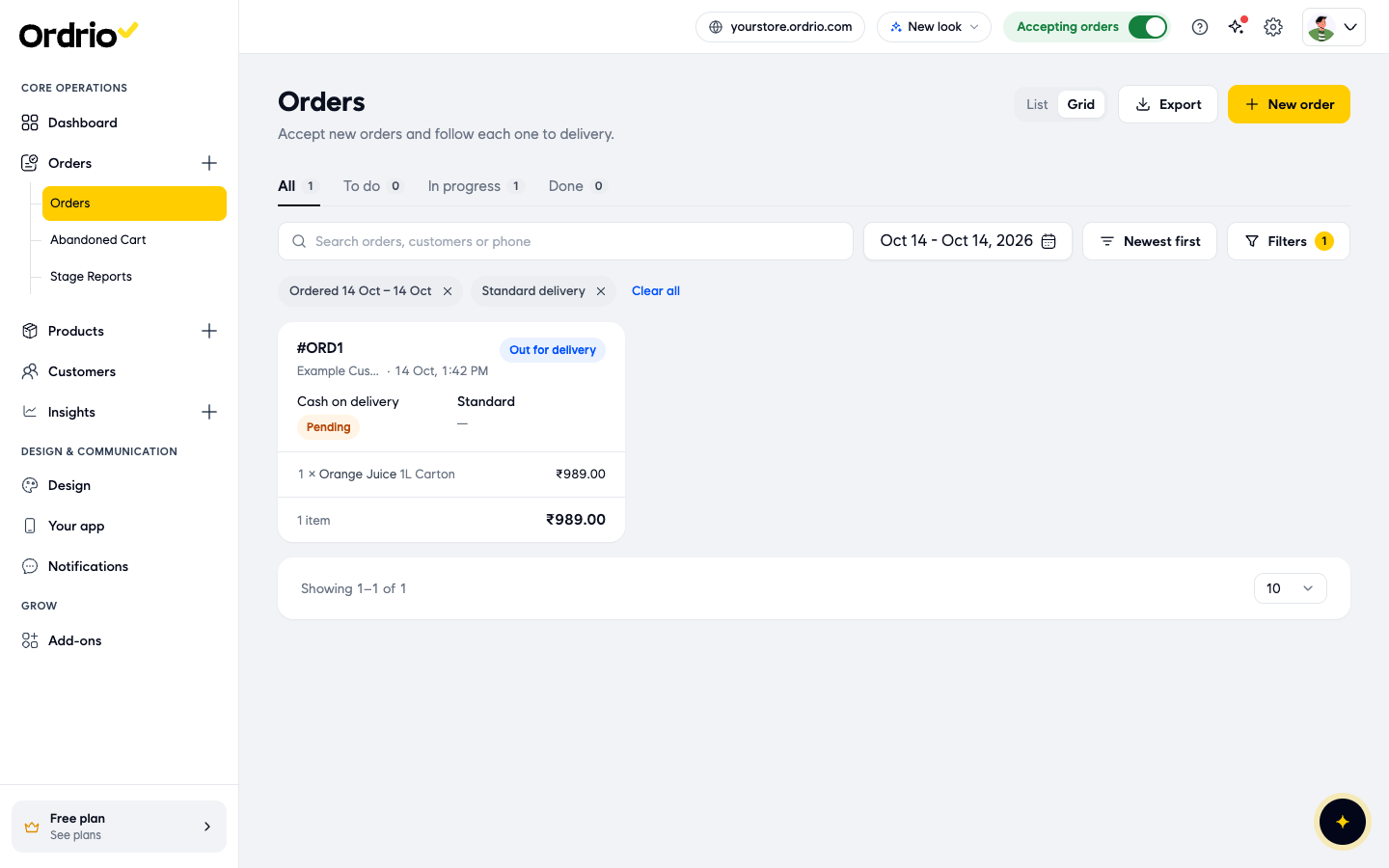
- To pack, click Grid at the top right. Each order shows as a card with its items and quantities, its payment and its delivery type, so your team can pick and pack from the screen. Click List to go back to the list.
- In List view, tick the box next to each order you want to handle together. To pick every order in the list, tick the box at the top of the list. A dark bar appears above the list showing how many orders you selected, with Change status and Print KOT.
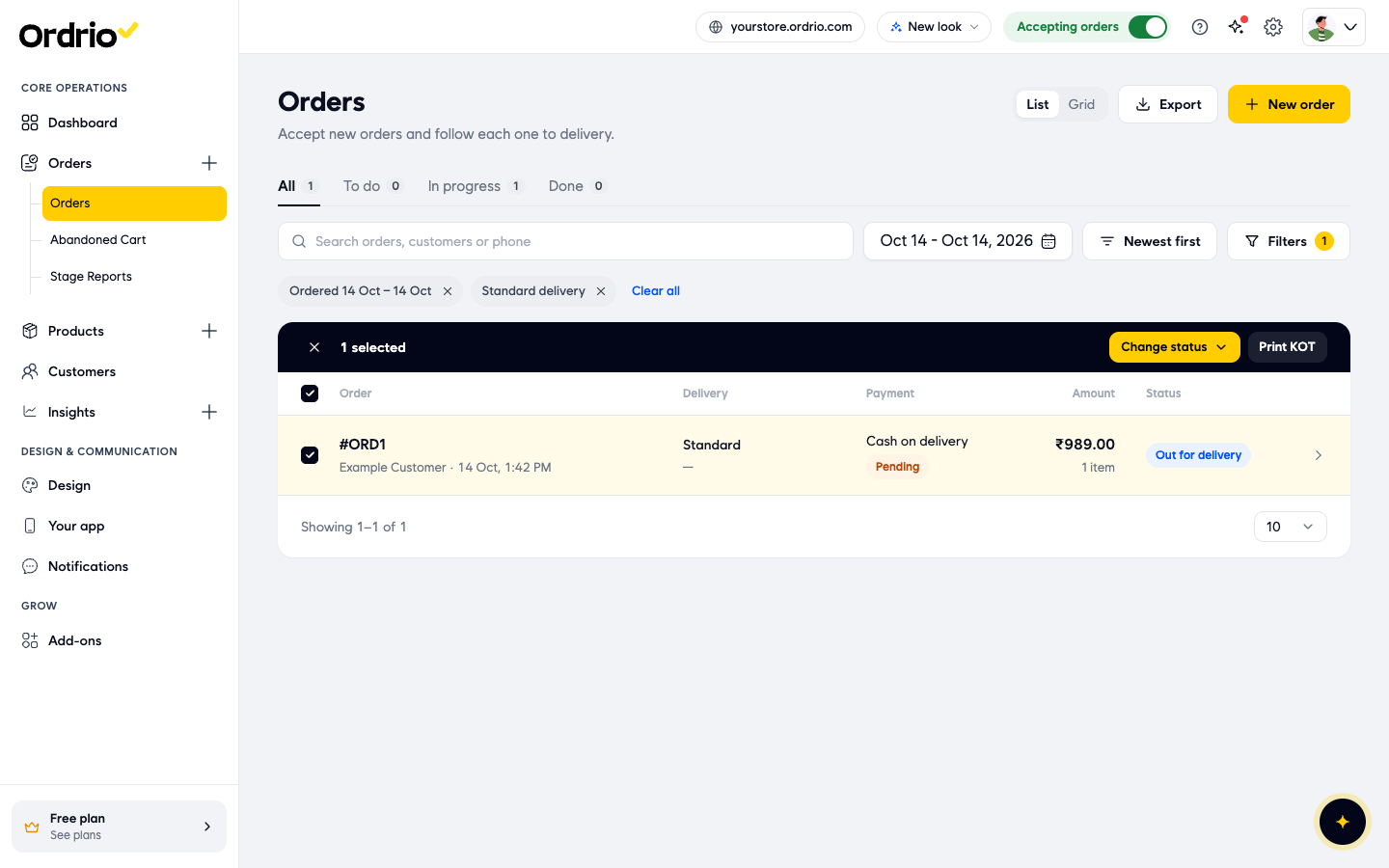
- To print, click Print KOT. Ordrio opens the KOT (kitchen order ticket) as a PDF in a new browser tab. Print it from there and give it to your packing or kitchen team.
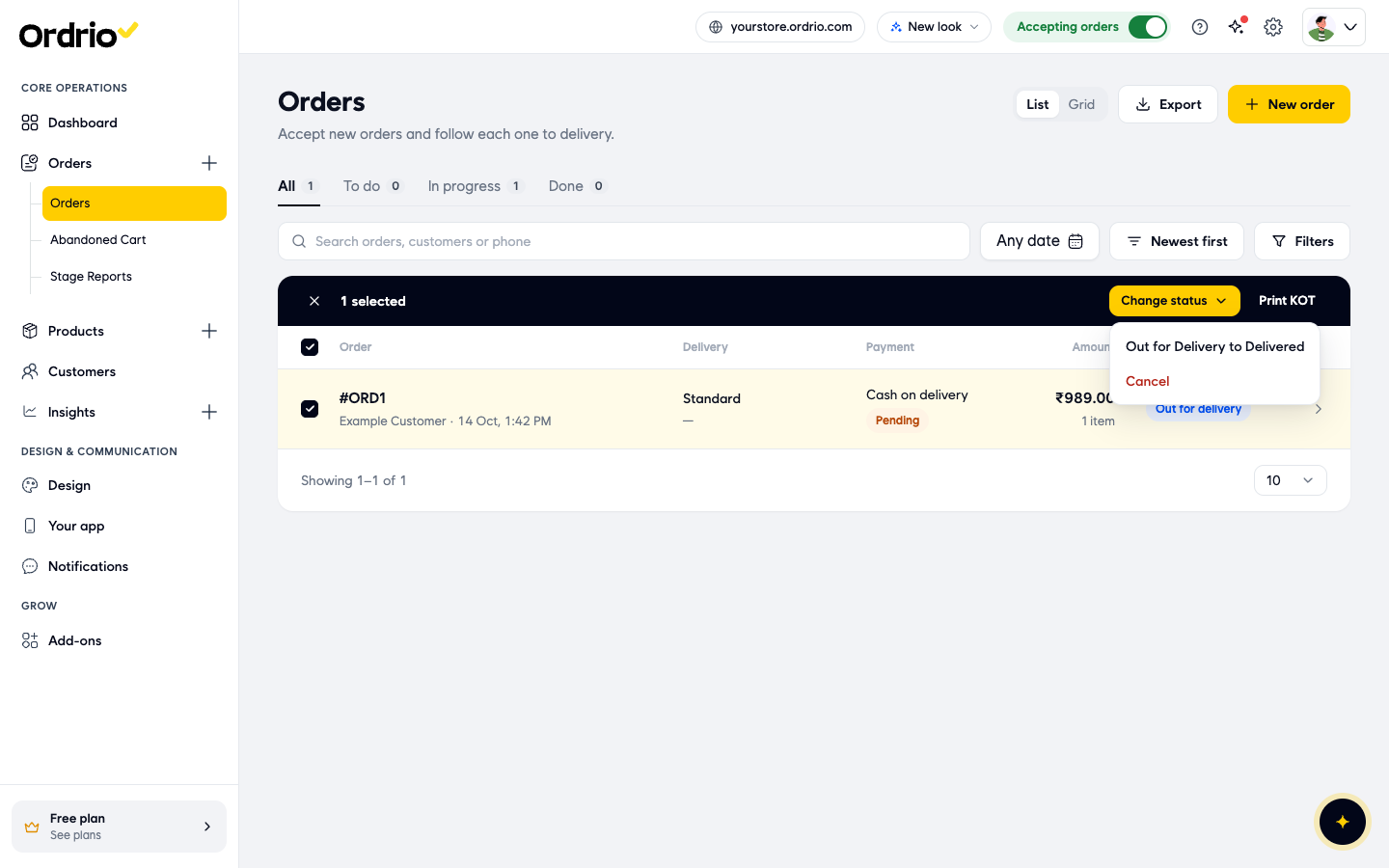
- To move the selected orders to their next stage, click Change status. The menu shows the next stage for the selected orders, for example Out for Delivery to Delivered. It also has Cancel, which cancels the selected orders.
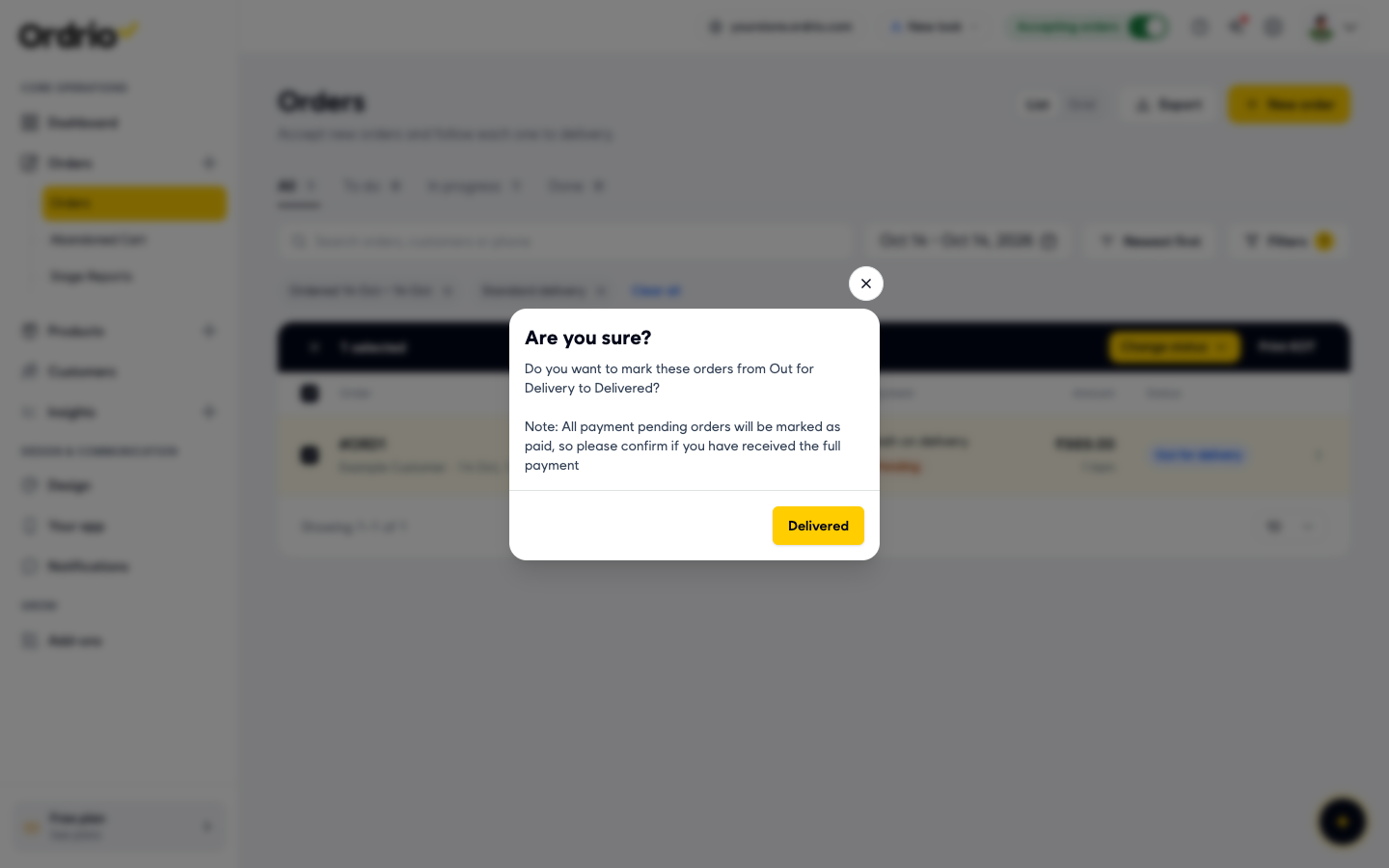
- Ordrio asks Are you sure? and shows which change you are about to make. Read the note, then click the button to confirm, for example Delivered. To stop, close the box with the x.
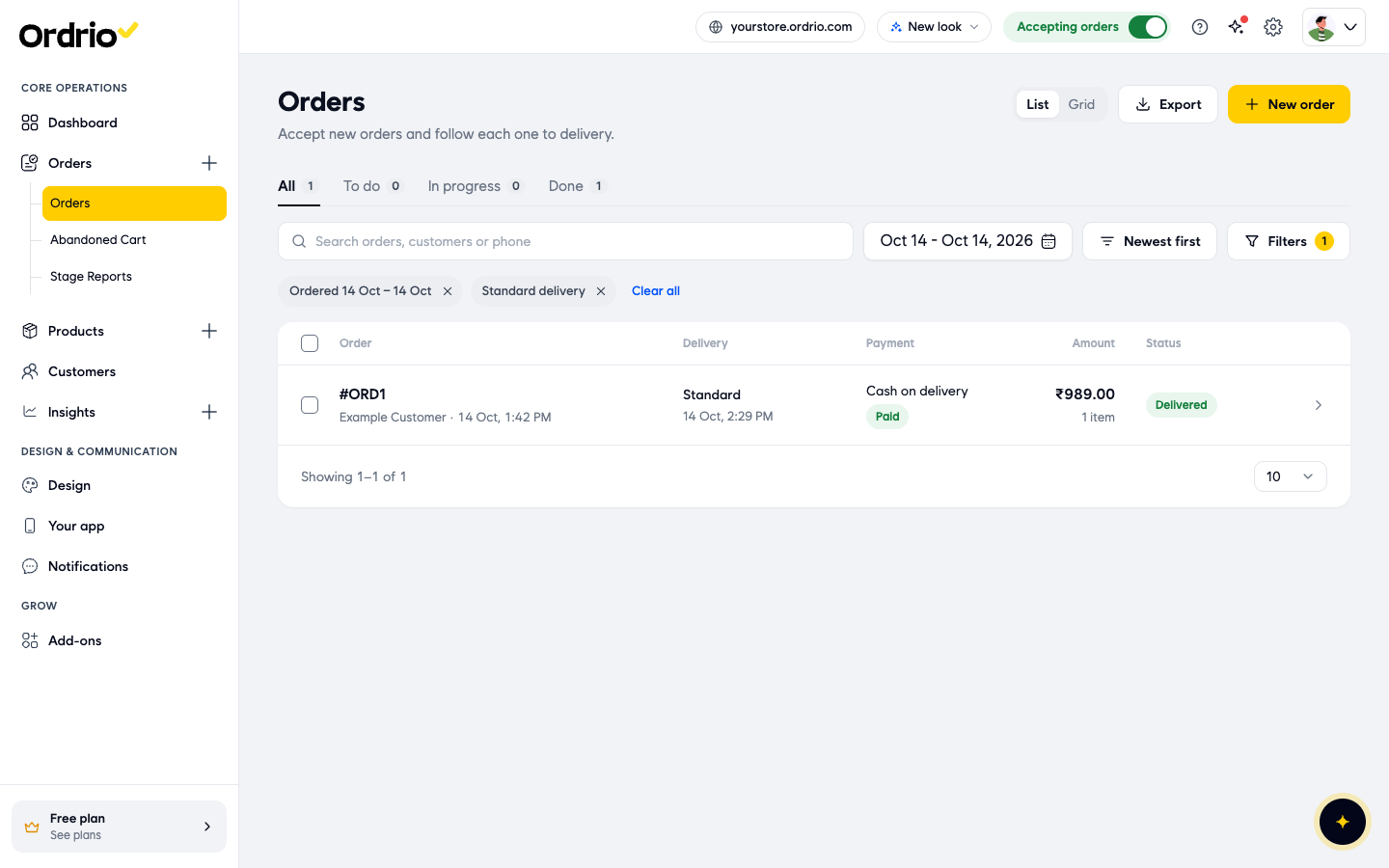
- The list updates straight away. Each order shows its new status, and the counts on the To do, In progress and Done tabs change. When you mark orders as Delivered, their payment also changes from Pending to Paid. To unselect orders without changing them, click the x at the left of the dark bar.
- To give your team a list of the day's orders, click Export. Choose Orders, Sales report or Both. Under Dates are, choose Order date or Delivery date, then set the From and To dates. Click Export to download a CSV file you can open in Excel, or Cancel to close the box.
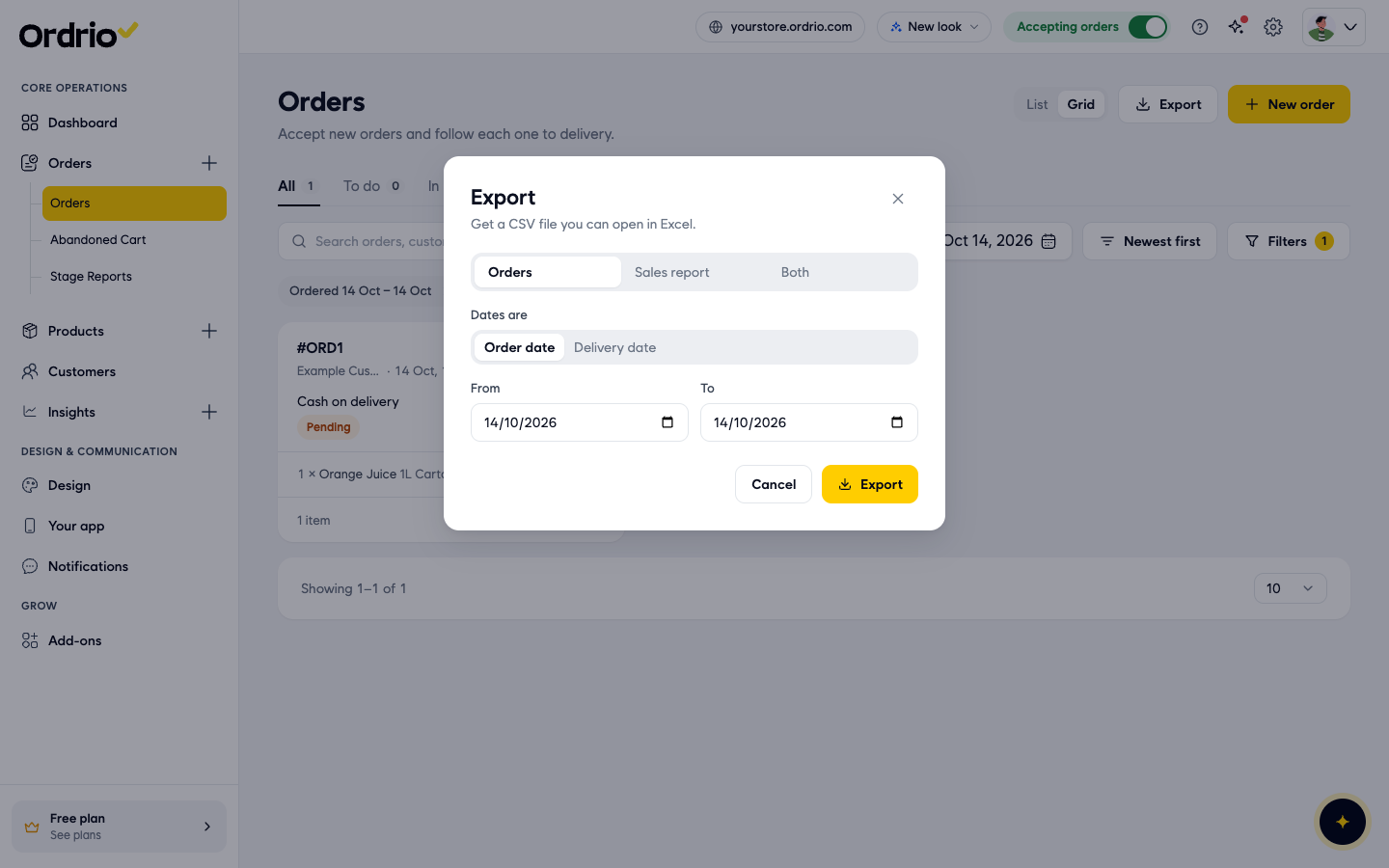
The screenshots show an example order. Your list shows your own orders and customers.
Good to know
- Marking orders Delivered marks them paid. Payment pending orders, including cash on delivery, are marked as paid when you move them to Delivered. Do this only after you have received the full payment.
- Delivery Date only shows orders with a delivery date. If an order has no delivery date, it does not appear when you choose Delivery Date. Switch to Order Date to see it.
- Handle one stage at a time. Click a stage tab such as In progress before you select orders, so the orders you select are at the same stage and move to the same next status.
- More orders on one page. The list shows 10 orders per page. Change the number at the bottom right of the list to 20, 50 or 100 to select more orders at once.
- Search. Use Search orders, customers or phone to find one order quickly before you print or update it.
Related
- Viewing and managing orders
- Order statuses explained
- Cancelling orders and refunds
- Order statuses explained
Was this article helpful?