How-to guide
Editing orders after placement
Change items, quantities, discounts and charges, and add notes after an order is placed.
Sometimes an order needs to change after the customer places it. They call to add something, want a different quantity, or have an instruction for the rider. In your Ordrio admin panel you can edit an accepted order's items, quantities, discounts and charges, and add notes to any order.
Before you start
- You can edit items only after you accept the order and before you start processing it. The Edit order option is not there while the order is New, and it goes away once you click Start processing.
- Notes can be added to an order at any stage, even after it is delivered or cancelled.
Open the order
- Open nadi.ordrio.com (your Ordrio admin panel) and log in.
- In the left menu, click Orders, then Orders. You see the list of all your orders, with tabs for All, To do, In progress and Done.
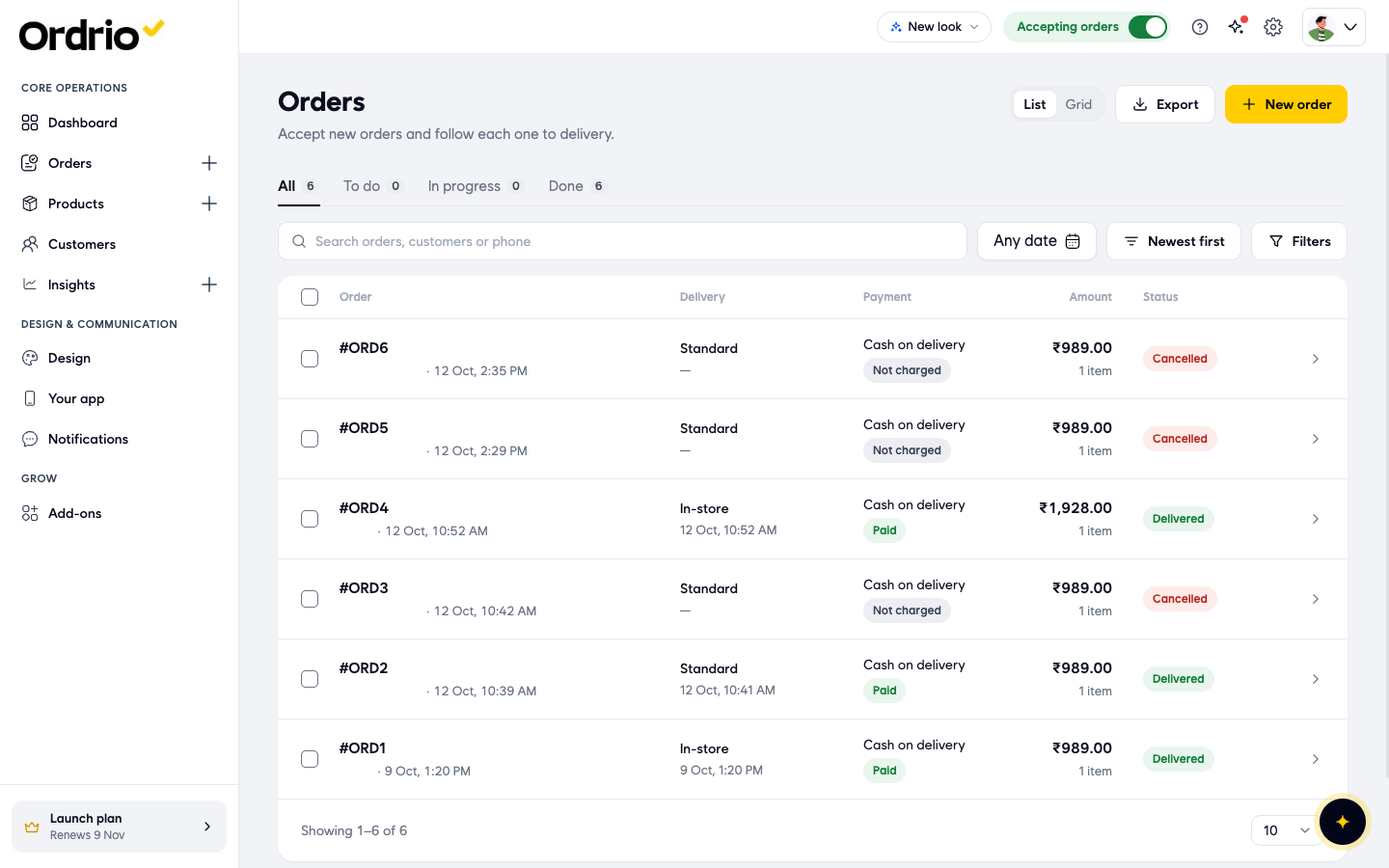
- Click the order you want to change. The order page opens with the order progress, Items, Order history, Payment details, Notes and Payment.
- If the order is still New, click Accept and then Accept again in the box that asks "Would you like to accept this order?".
Change items, quantities, discounts and charges
- On the order page, click the ... (More actions) button next to Start processing, then click Edit order.
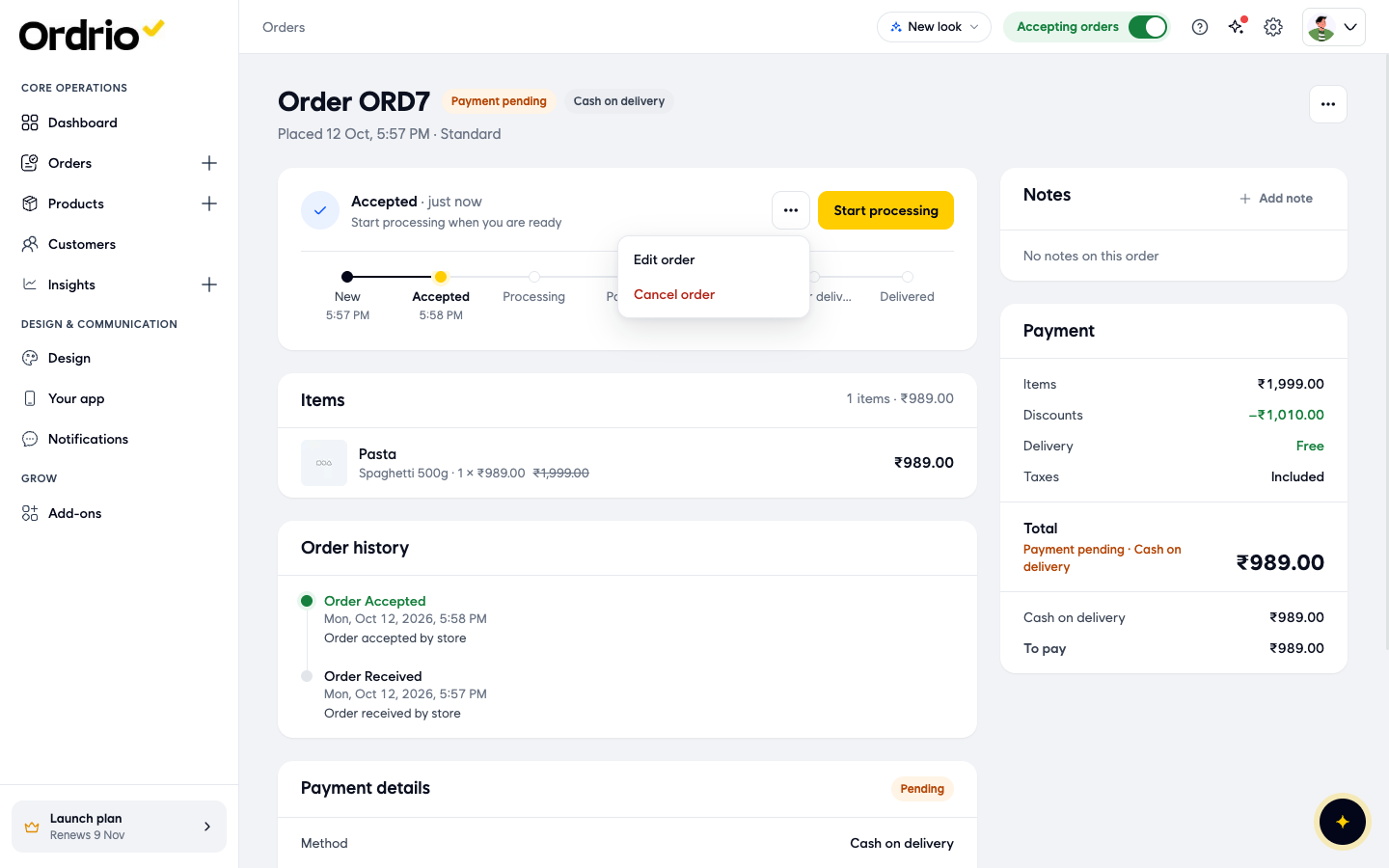
- The Edit order screen opens. It says "Change items, quantities or discounts. You see every refund or extra payment before saving." Here is what each part does:
- Items: one row per product, with Product, Selling Price, Quantity, Discount and Item Total.
- Add products: search box to add another product to the order.
- Delivery Details: the customer's name, mobile number and the Shipping and Billing address. This is for reference only and cannot be changed here.
- Order Summary: Item Total, Discount on Item Total, Subtotal, Delivery Charges, Additional Discount and Additional Charges, and the Total Amount.
- Reset: at the top right, to clear the changes you made on this screen.
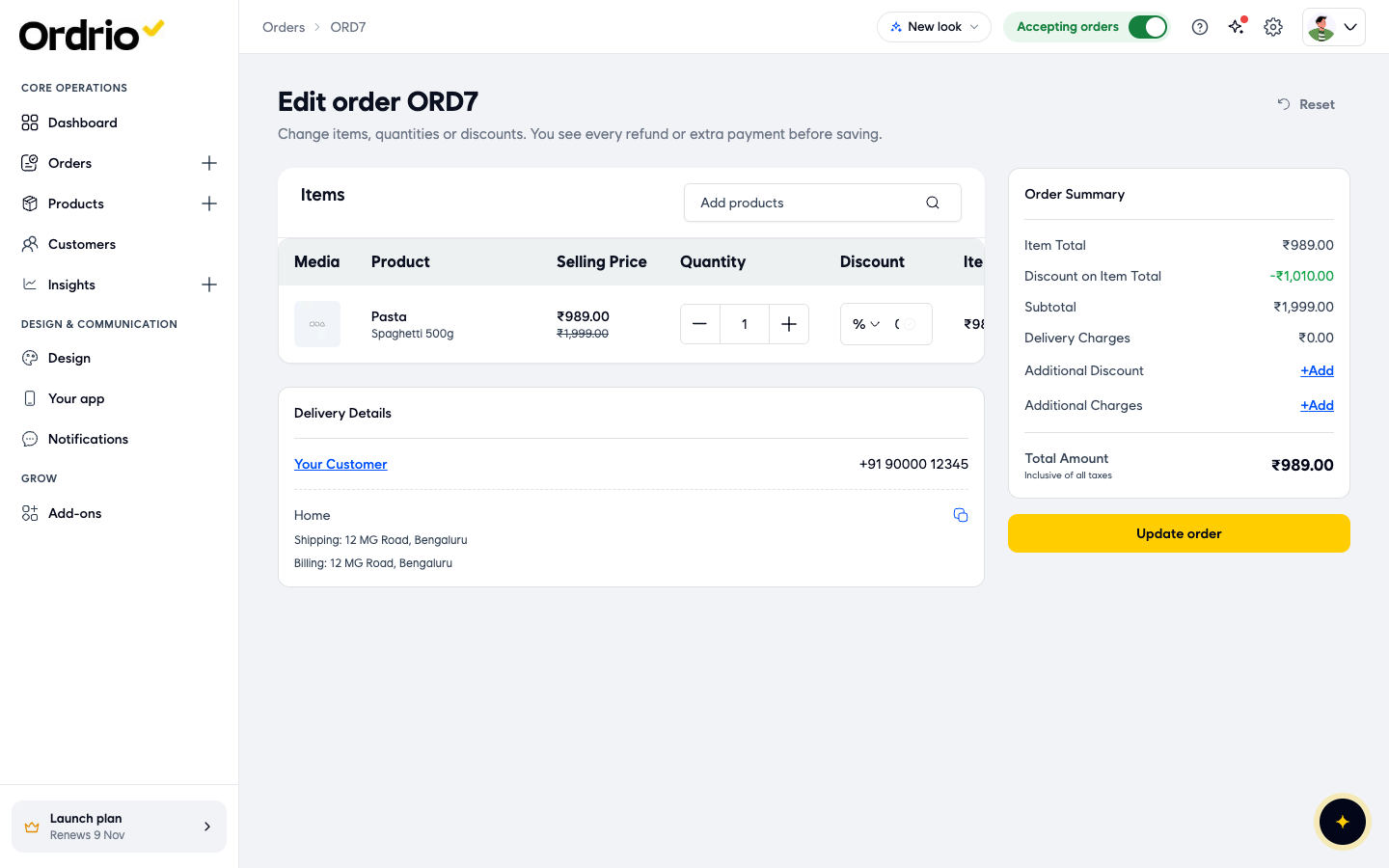
- To change a quantity, use - and + in the Quantity column, or type the new number in the box. The Item Total for that row updates.
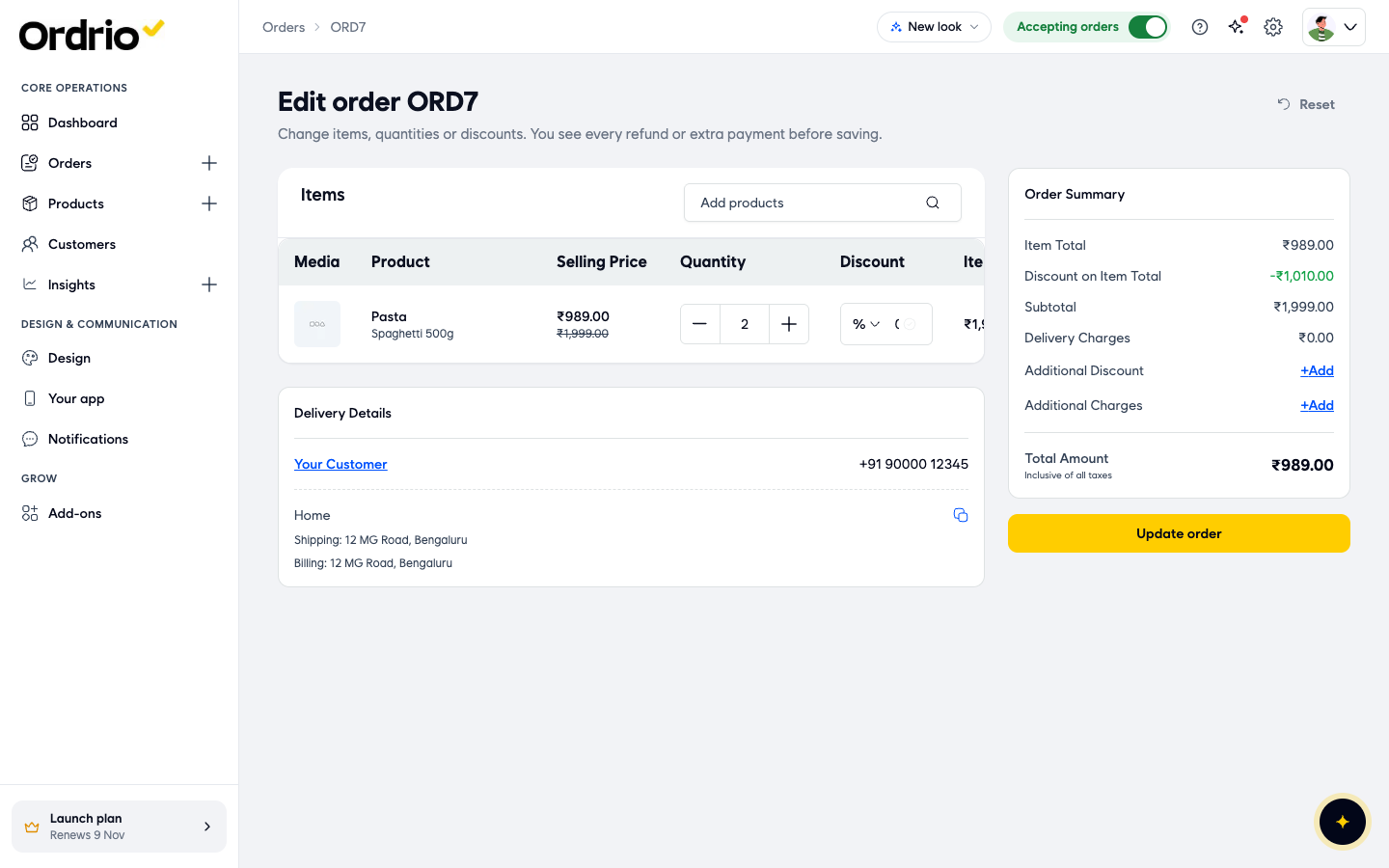
- To add a product, click Add products and type part of the product name. Click the product in the list. If the product has options (for example sizes), a Select Option box opens: click the option and then Confirm. The product is added as a new row with quantity 1.
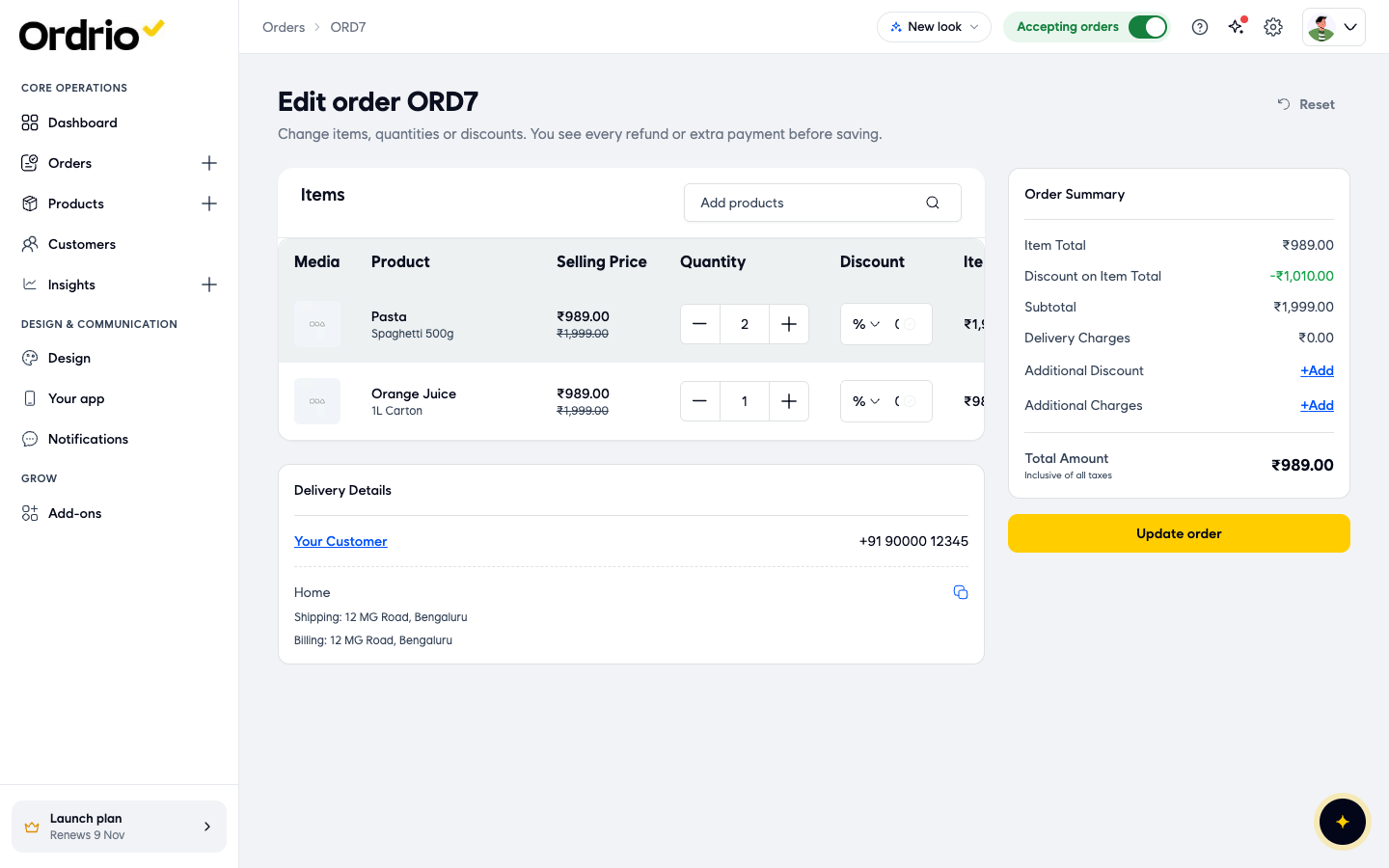
- To give a discount on one item, use the Discount box in that row. Click the small arrow to choose % (a percentage) or ₹ (an amount), then type the number.
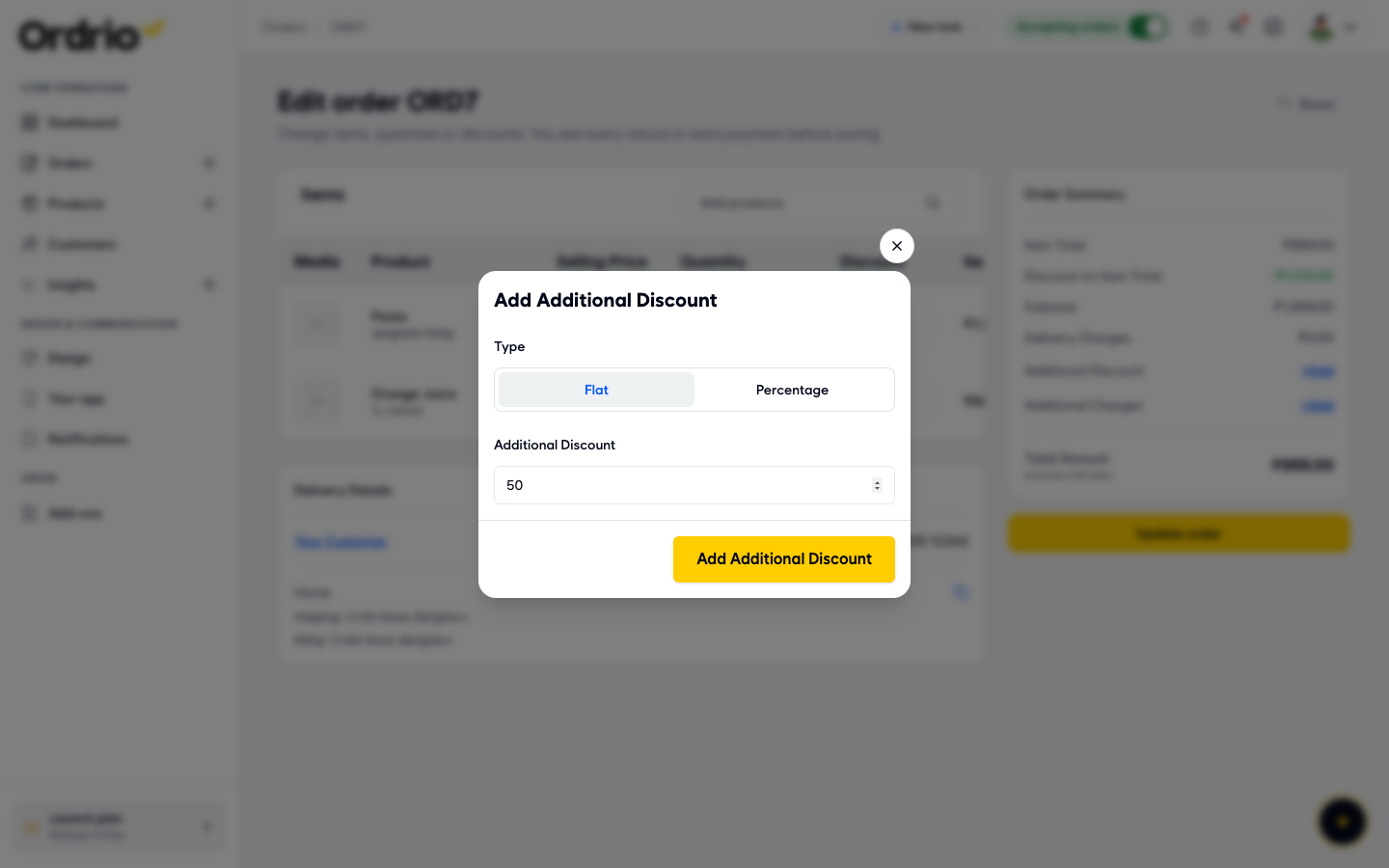
- To give a discount on the whole order, click +Add next to Additional Discount. In the Add Additional Discount box, choose the Type: Flat (an amount in ₹) or Percentage. Type the value in Additional Discount and click Add Additional Discount.
- To add an extra charge (for example for packing), click +Add next to Additional Charges. In the Add Additional Charge box, choose Flat or Percentage, type the value in Additional Charge and click Add Additional Charge.
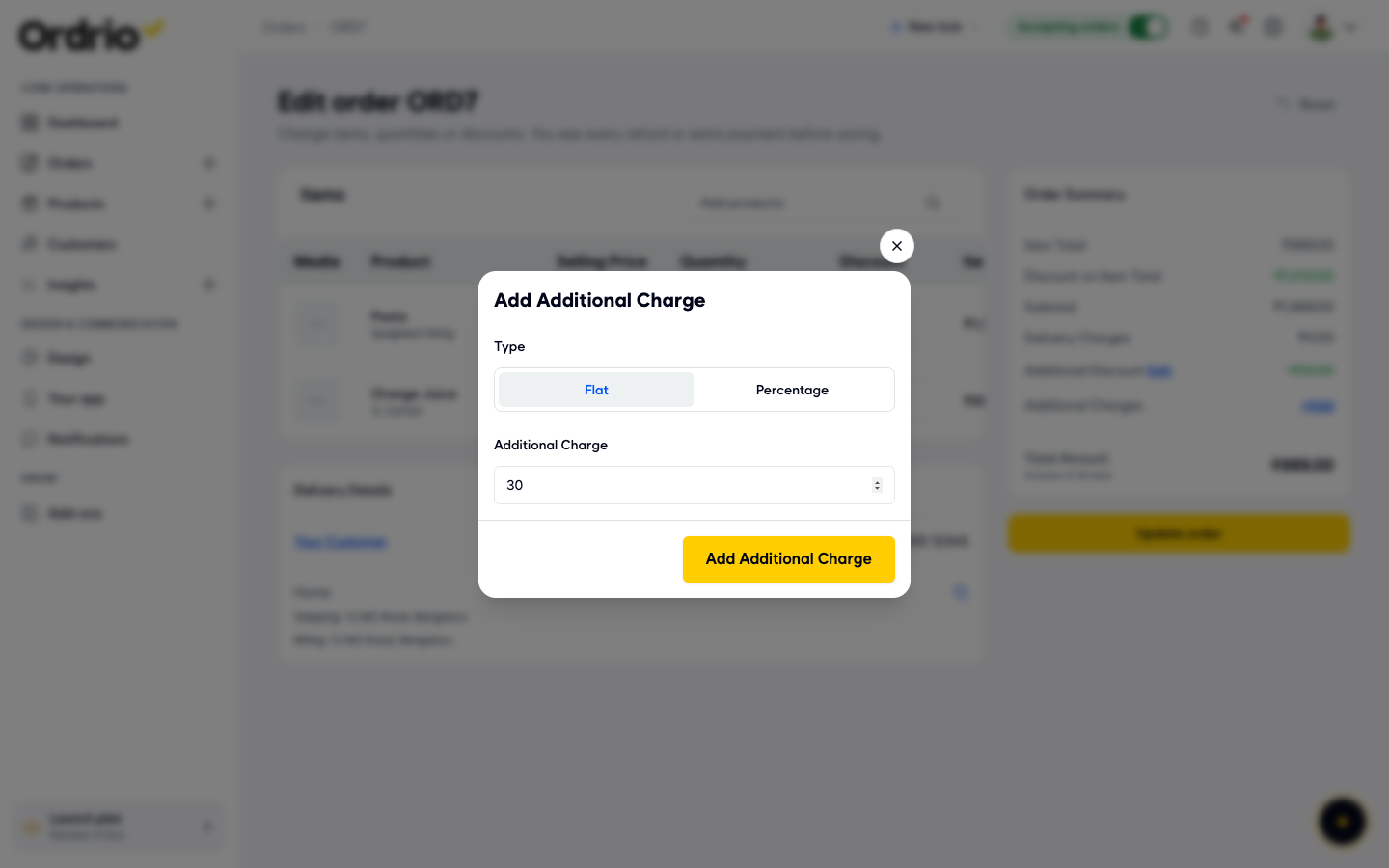
After you add them, the discount and the charge show in Order Summary with an Edit link, so you can change them before you save.
- Click Update order. The Updated Order box opens so you can check everything before it is saved:
- The table lists each changed product with its Original and Updated quantity and price, and the Net Difference.
- Original Order shows the Payment Mode, the totals and the Original Order Value.
- Updated Order shows the new totals and the Updated Order Value.
- Refund Amount shows any money to give back to the customer.
- A note at the bottom tells you what happens to the payment. For example, on a cash on delivery order with a higher total it says "Payment will be marked as partially paid."
- For each product, choose a Reason for the change: Out of Stock, Poor Quality, Request from Customer or Other Reason.
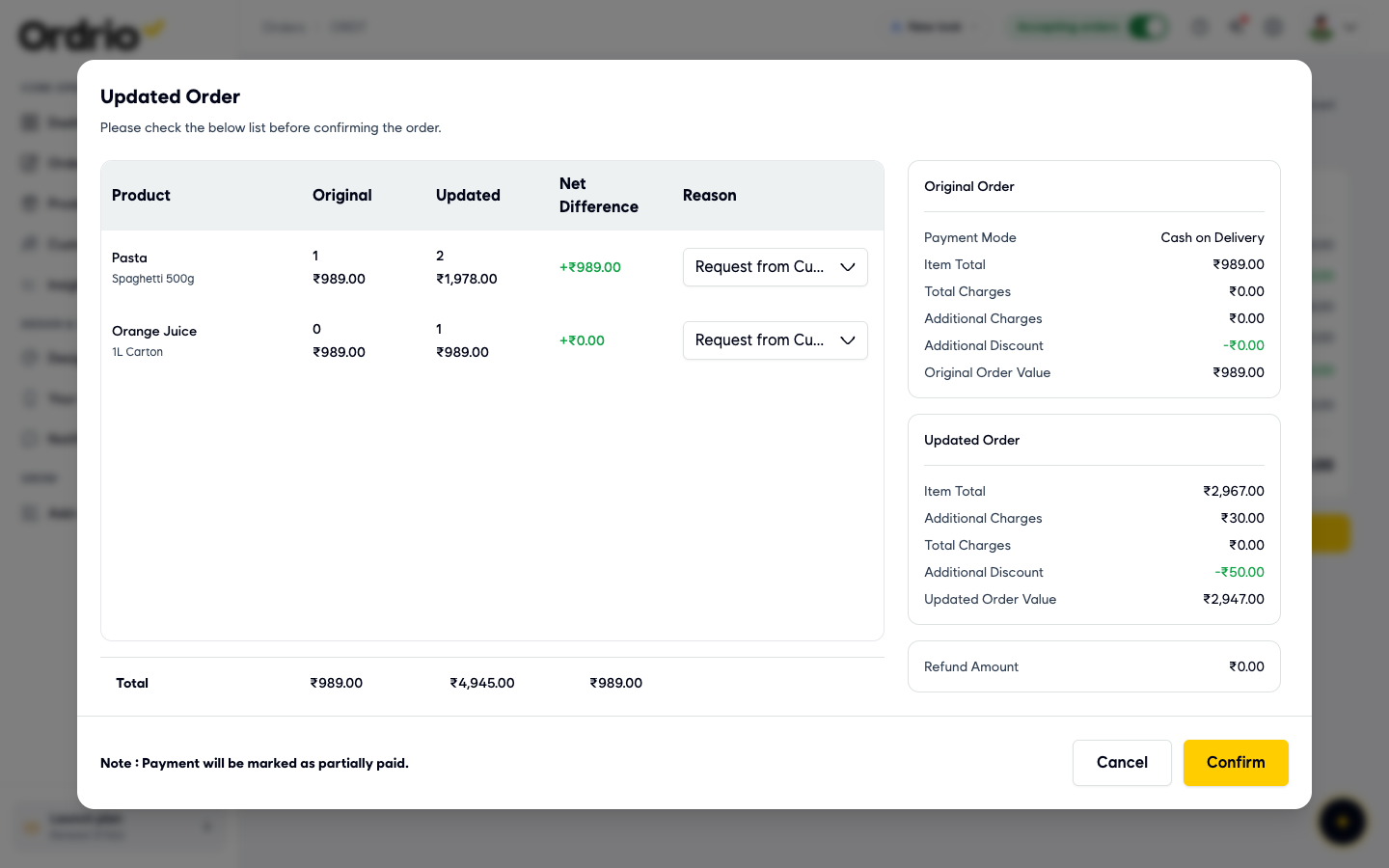
- Click Confirm. To go back to the edit screen without saving, click Cancel instead.
You are taken back to the order page. Items shows the new products and quantities, Payment and To pay show the new total, and Order history adds a line such as "Order Updated by store and total value increased by ₹1958.00".
Add or change a note
Notes are short messages saved on the order, for your team to read. Use them for packing instructions, something the customer told you on the phone, or delivery directions.
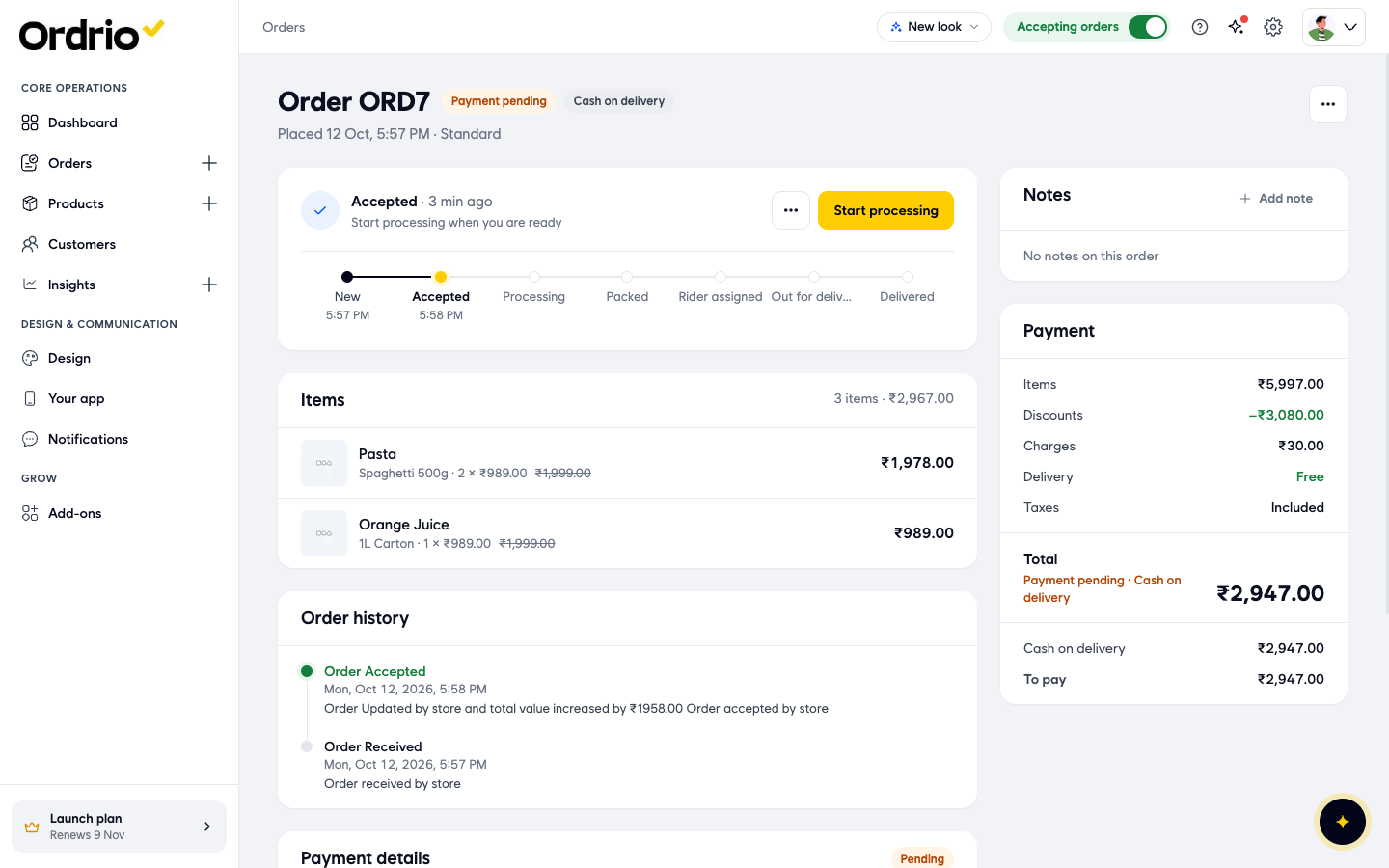
- On the order page, find Notes on the right and click Add note.
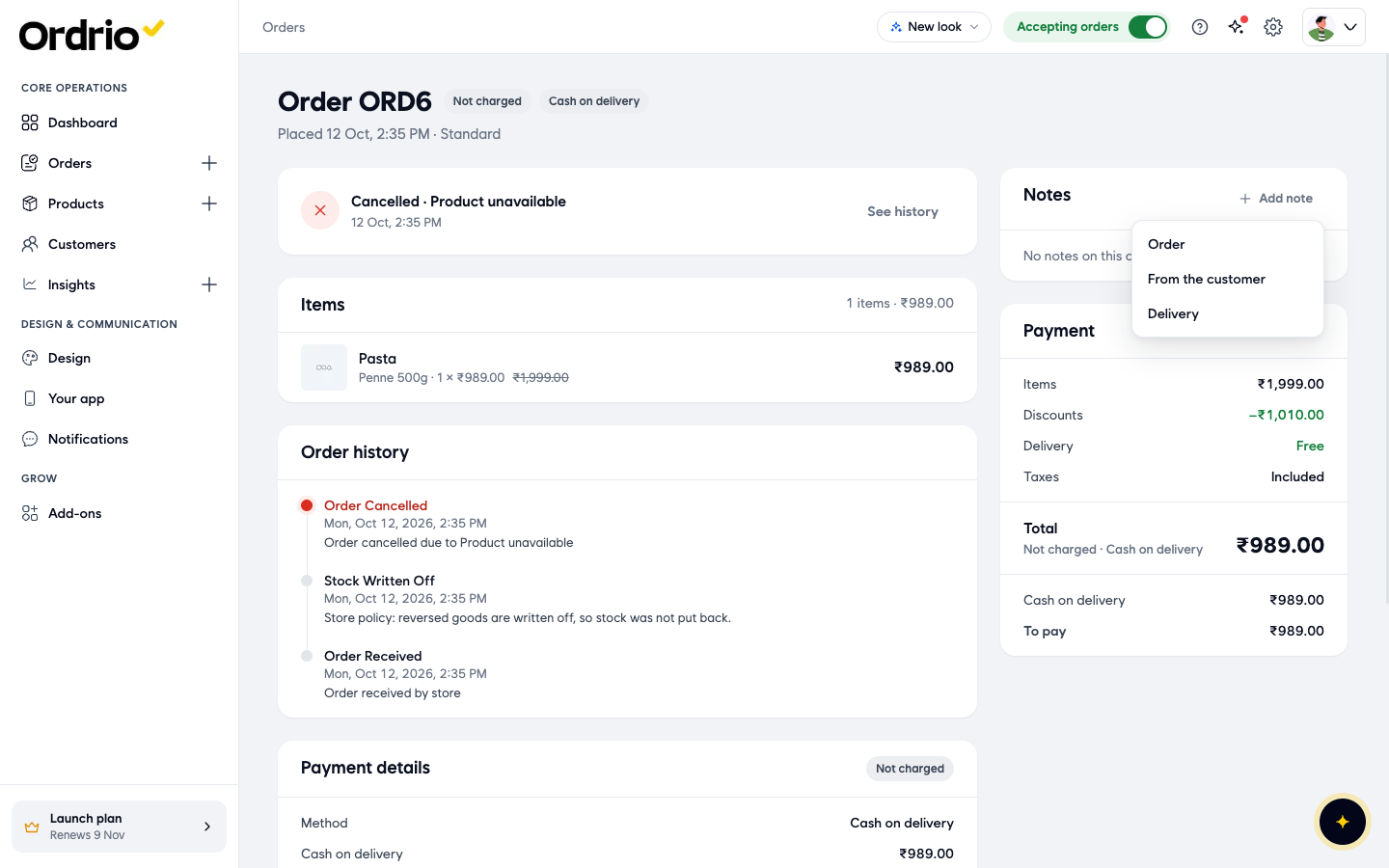
- Choose the type of note: Order, From the customer or Delivery.
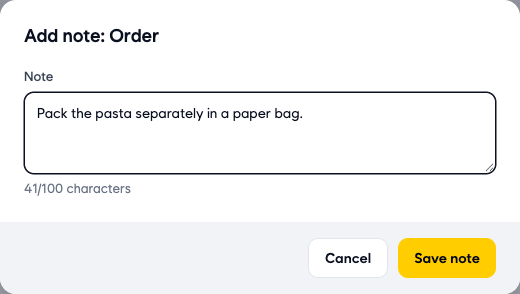
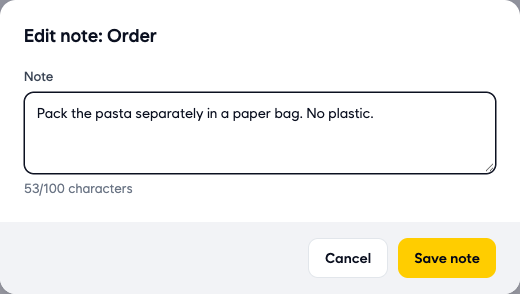
- Type your message in the Note box. A note can be up to 100 characters, and the counter under the box shows how many you have used.
- Click Save note. The note shows under Notes with its type above it.
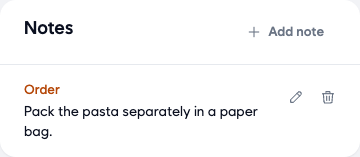
- To change a note, click the pencil icon next to it. The Edit note box opens with the current text. Change it and click Save note.
- To remove a note, click the bin icon next to it. The note is deleted straight away, without asking you to confirm.
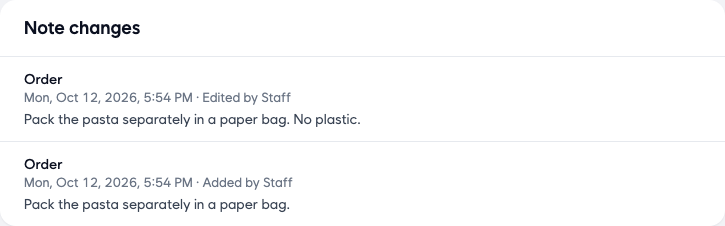
Every note you add, edit or delete is logged under Note changes on the order page, with the date, time and who made the change (for example "Added by Staff" or "Edited by Staff").
Good to know
- Edit order is only there while the order is Accepted. Once you click Start processing, the menu only shows Cancel order. If you need to change the items after that, talk to the customer and decide whether to cancel the order and place a new one.
- You cannot add the same product twice. If you pick another option of a product that is already in the order, Ordrio shows "This product is already in the order". Change the quantity of that row instead.
- The delivery address cannot be changed on a placed order. You can see it under Delivery Details on the edit screen and under Customer on the order page. To pass on extra directions to your rider, add a Delivery note.
- The Total Amount on the edit screen may not change while you edit. Check the Updated Order box before you click Confirm: it shows the real new total.
- Always choose a Reason that matches what happened. It helps your team understand later why the order changed.
- The order and note values in the screenshots are examples. Use your own products, amounts and notes.
Related
- Viewing and managing orders
- Order statuses explained
- Cancelling orders and refunds
- Creating manual orders (walk-in or phone)