Overview
How orders work
How an order flows through Ordrio from placement to completion.
Every order in Ordrio follows the same path, from the moment it is placed to the moment it is delivered or collected. This article shows where your orders appear, what each part of an order means, and the stages an order moves through.
Where orders come from
Ordrio records where each order came from:
- Website and Customer app. Customers order from your own website or app.
- POS and Self order / admin. Your team places orders in the admin for customers who walk in or call.
- Vendor and Imported. Orders that come from a vendor or are imported into Ordrio.
Where you see them
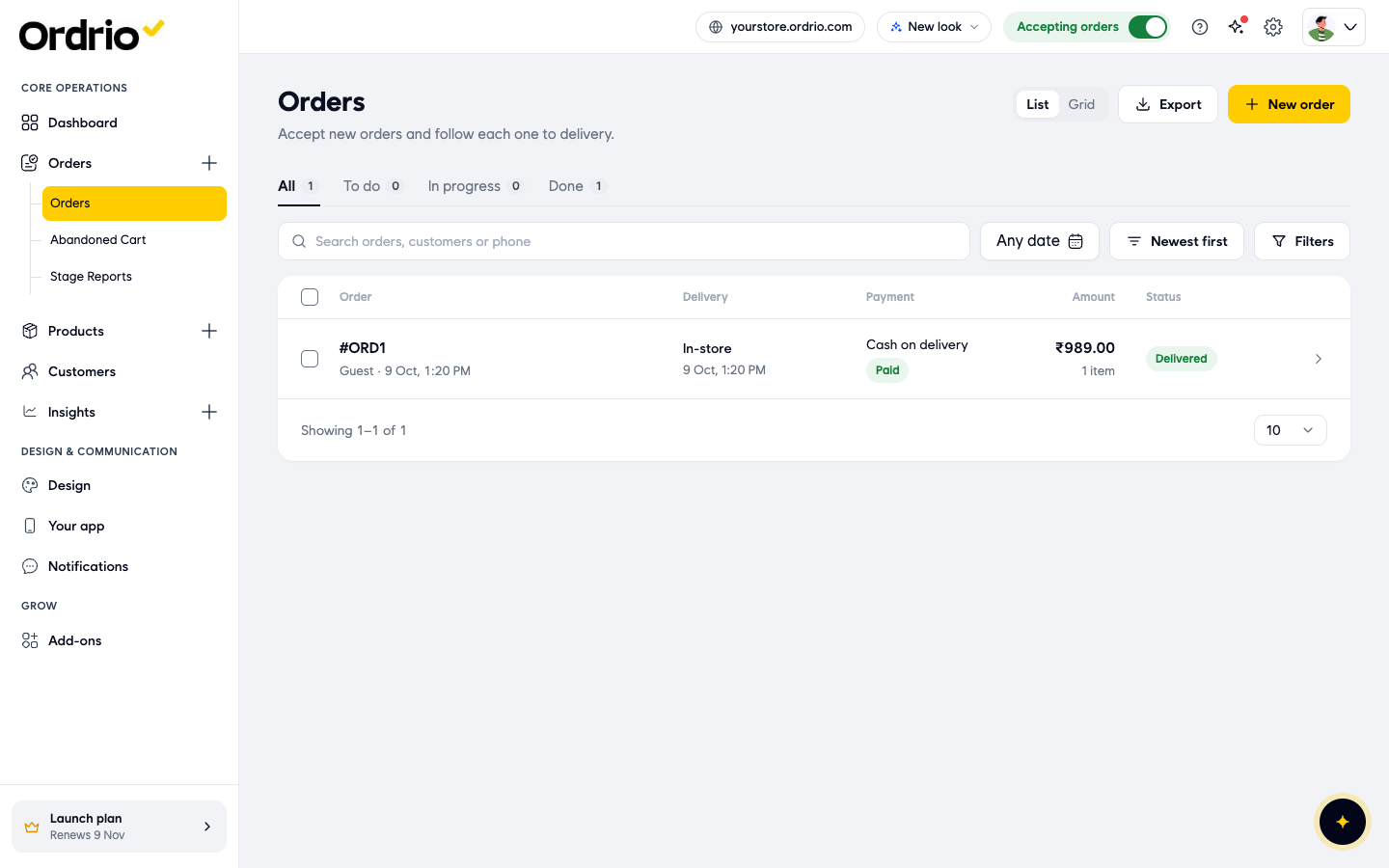
Open nadi.ordrio.com (your Ordrio admin panel) and log in. In the menu on the left, click Orders, then Orders again.
The page says "Accept new orders and follow each one to delivery". At the top right you have:
- List and Grid, to switch how the orders are laid out.
- Export, to download your orders.
- New order, to place an order yourself (see below).
The Orders list and its tabs
The tabs above the list sort orders by where they are in their journey. The number next to each tab shows how many orders it holds.
- All shows every order.
- To do shows new orders that are waiting for you to act on them.
- In progress shows orders you are working on.
- Done shows finished orders.
Under the tabs you can:
- Search with Search orders, customers or phone.
- Pick a date range with Any date.
- Change the order with Newest first.
- Narrow the list with Filters. You can filter by payment type (Online orders, COD orders), delivery type (Standard delivery, Express delivery, Scheduled delivery, Scheduled pickup), order type (Web orders, App orders, Self orders) and by delivery areas and staff.
Each row shows:
- Order: the order number, the customer and when it was placed.
- Delivery: how the order reaches the customer, for example In-store, and the time.
- Payment: the payment method, for example Cash on delivery, and whether it is Paid.
- Amount: the order total and the number of items.
- Status: the stage the order is at, for example Delivered.
Opening an order
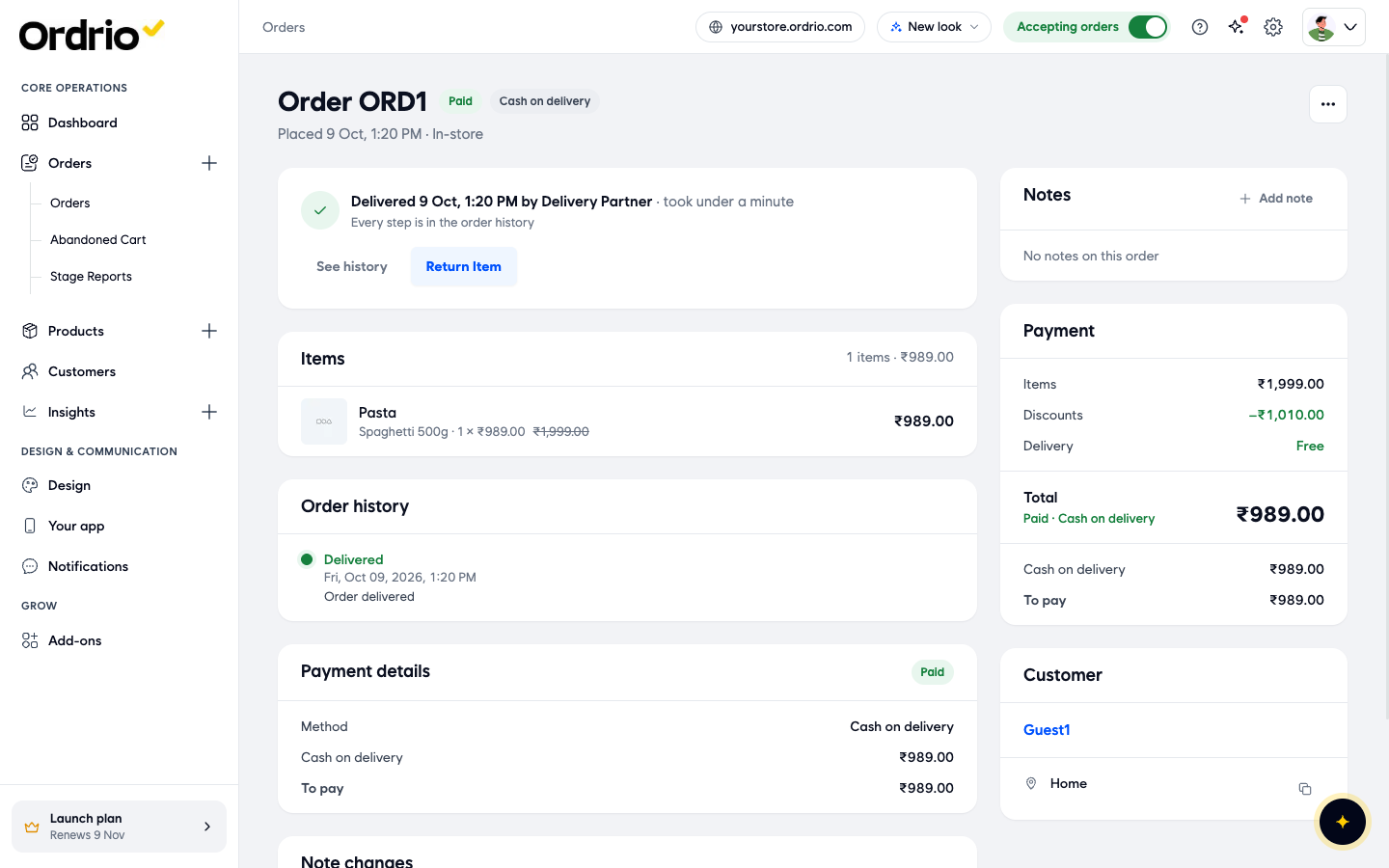
Click any row to open the order. The order screen shows:
- The top line: the order number, a payment badge such as Paid, the payment method, and when and how the order was placed.
- The progress card: the current stage, who completed it and how long it took. Click See history to see every step.
- Items: each product, its size, the quantity and the price.
- Order history: every stage the order has been through, with the date and time.
- Payment details: the payment Method and the amount To pay.
- Notes: click Add note to leave a note for your team on this order.
- Payment (on the right): the items total, Discounts, the Delivery charge and the Total.
- Customer: the customer's name and delivery address, with a button to copy the address.
The ... button at the top right opens more actions, such as Print KOT (a kitchen order ticket). A delivered order also shows a Return Item button.
How an order moves from start to finish
- The order is placed and appears in Orders under To do.
- You accept it and it moves to In progress.
- Your team packs it. The stage becomes Packed.
- For a delivery, the order is given to a rider (Assigned for Delivery) and then leaves your store (Out for Delivery).
- When it reaches the customer, the stage becomes Delivered and the order moves to Done.
Not every order goes smoothly. An order can also end up as:
- Partially Delivered: only some of the items reached the customer.
- Delivery Rescheduled: the delivery moved to another time.
- Delivery Failed: the delivery could not be completed.
- Cancelled: the order was cancelled.
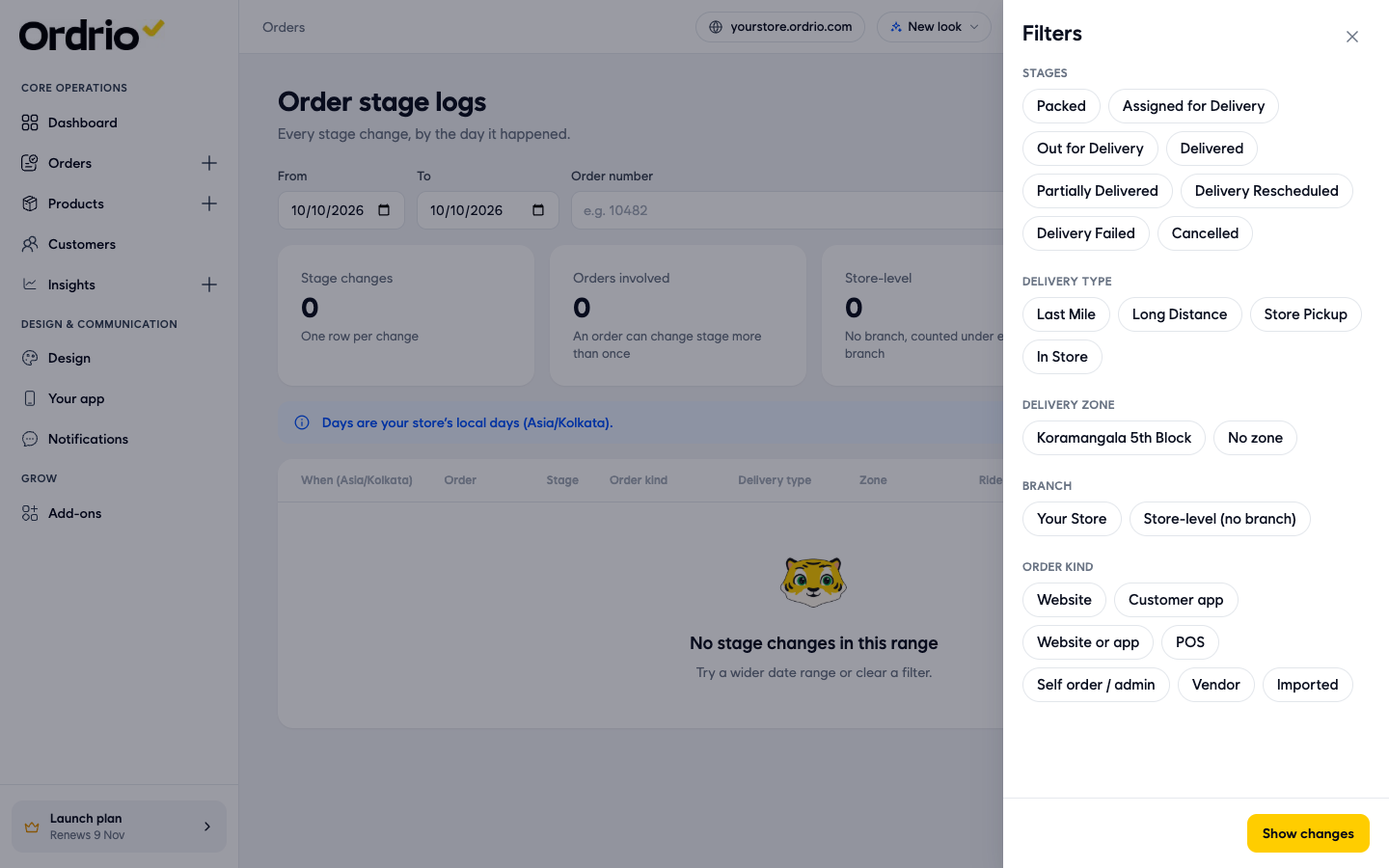
To see every stage change across your store, go to Orders > Stage Reports. The Order stage logs page lists each change by day, with the order, stage, delivery type, zone and rider. Use Filters there to look at one stage, delivery type, delivery zone, branch or order kind.
Delivery or pickup
How an order reaches the customer shows in the Delivery column of the list and at the top of the order. Ordrio uses these delivery types:
- Last Mile: delivery to customers near your store.
- Long Distance: delivery further away.
- Store Pickup: the customer collects the order from your store.
- In Store: the customer buys in your store.
Payment
The payment method and whether the order is paid show in the Payment column of the list, and in Payment details and Payment on the order. Use Filters > Online orders or COD orders to see orders by how customers pay.
Placing an order yourself
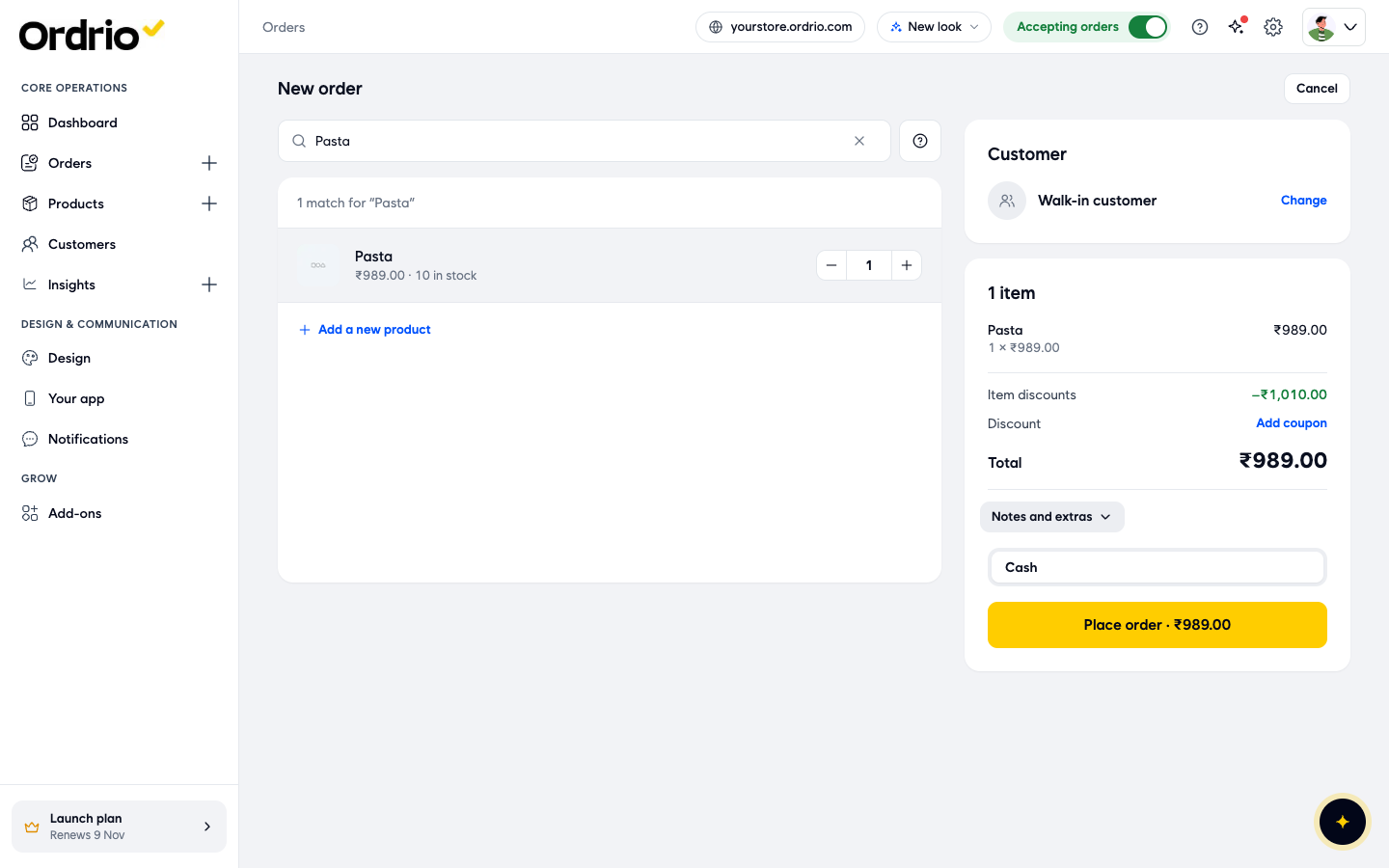
Click New order at the top of Orders to place an order for a customer who calls or walks in.
- Search products: type a product name or scan it, then click Add. If the product has sizes, pick one and click Select.
- Customer: shows Walk-in customer until you click Change and pick a customer. With no customer, it is a walk-in order.
- Items: the products in the order, any Item discounts, Add coupon and the Total.
- Notes and extras: add an Extra discount or an Extra charge.
- How they pay: choose how the customer pays, for example Cash.
- Place order: saves the order. The button shows the total.
Click Cancel to leave without placing the order. The product and price in the screenshot are examples. Use your own products.
Good to know
- Check To do often, so no new order waits too long.
- The Accepting orders switch at the top of your admin panel shows whether your store is open for orders.
- Every stage change is saved in the order's Order history and in Stage Reports, so you can always see what happened and when.
- Use Search orders, customers or phone to find an order fast when a customer calls.
Related
- What is Ordrio
- Recommended setup order for new stores
- What you need before getting started