Overview
Order notifications to customers
How customers get order updates on each channel.
Ordrio can message your customers when something happens to their order, for example when it is out for delivery or delivered. You choose which updates go out, on which channel (WhatsApp, SMS, email or app push), and what each message says, all from one page in your Ordrio admin panel.
Where to find customer messages
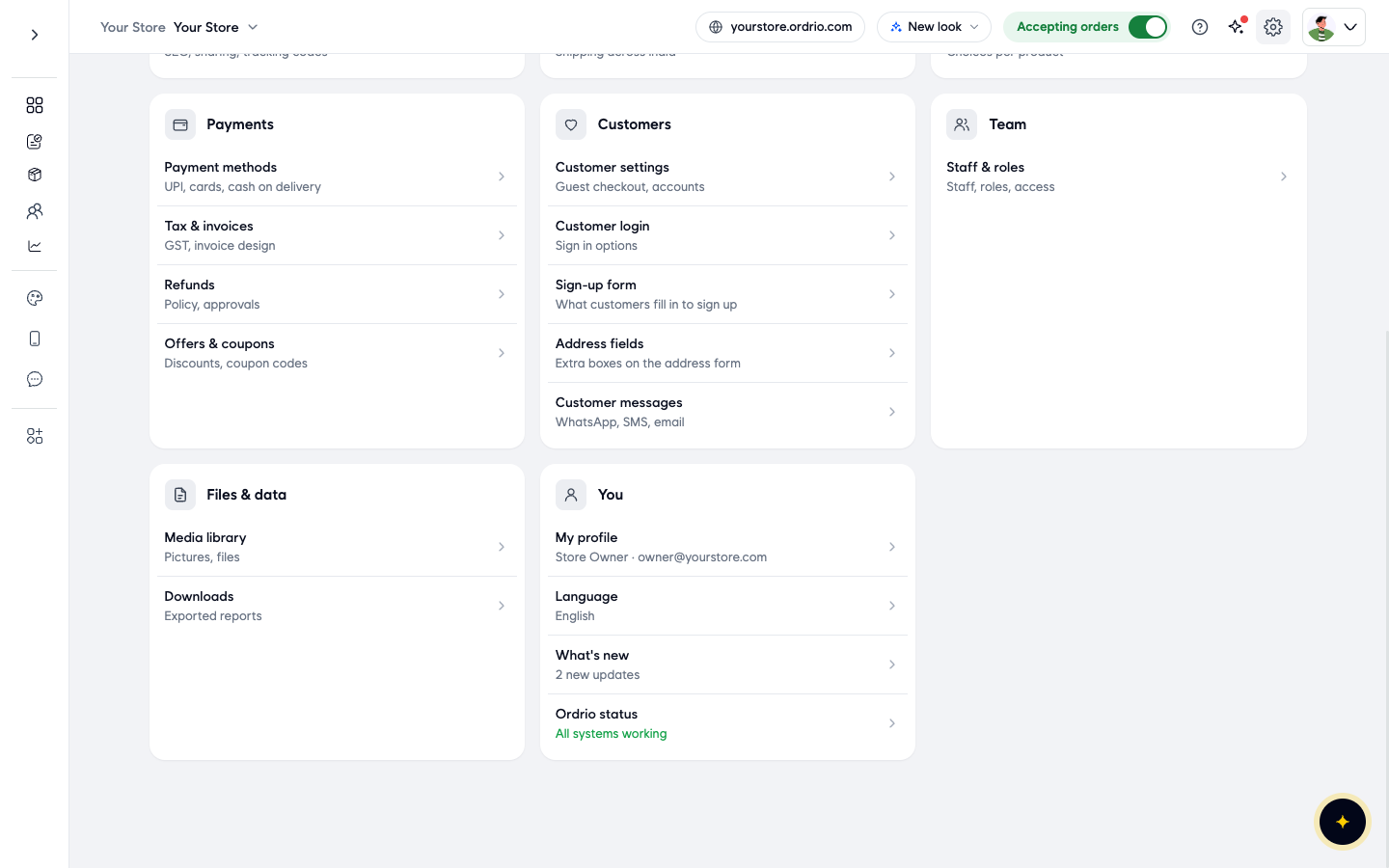
- Open nadi.ordrio.com (your Ordrio admin panel) and log in.
- Click the Settings icon (the gear) at the top right.
- In the Customers box, click Customer messages.
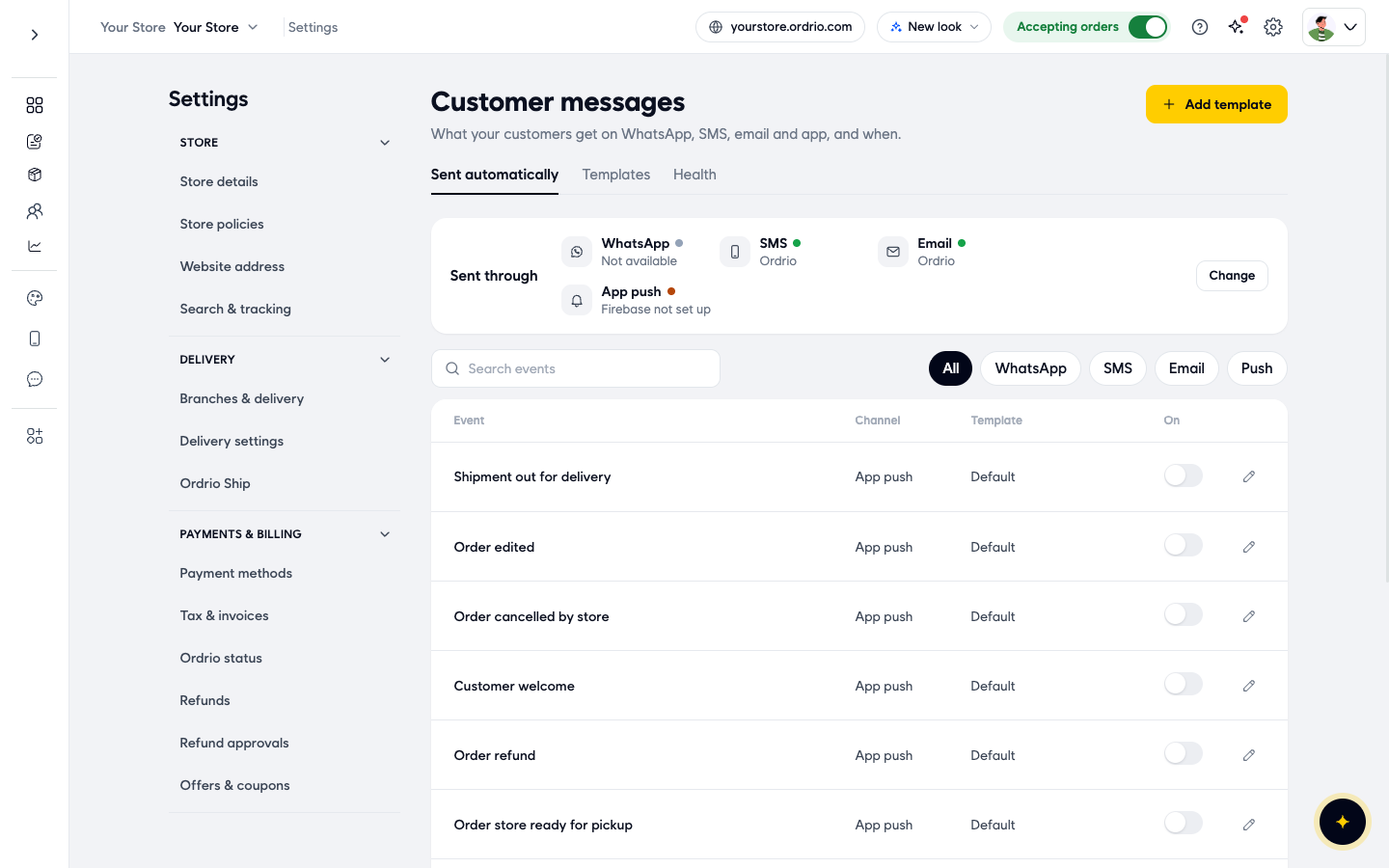
The Customer messages page opens. It has three tabs:
- Sent automatically: which messages go out on their own, and on which channel.
- Templates: the words of your own messages.
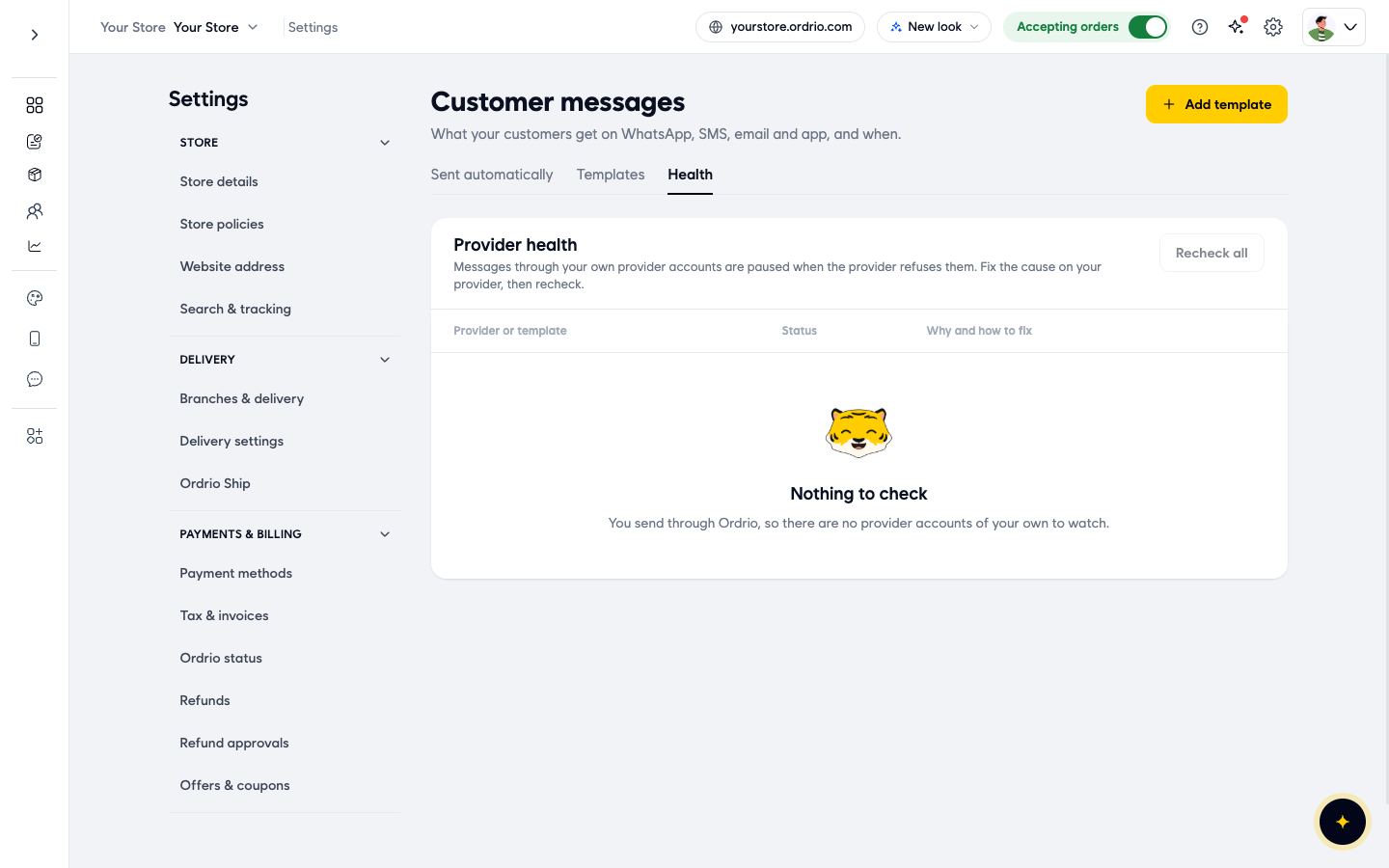
- Health: problems with your own message provider accounts, if you use any.
The Sent through row: your channels
At the top of the Sent automatically tab, the Sent through row shows each channel and who sends it:
- WhatsApp: messages to the customer's WhatsApp number.
- SMS: text messages to the customer's mobile number.
- Email: emails to the customer's email address.
- App push: notifications on the customer's phone, from your store's app.
A green dot means the channel is working. Under each channel you see how it is sent, for example Ordrio, or a note such as Not available or Firebase not set up.
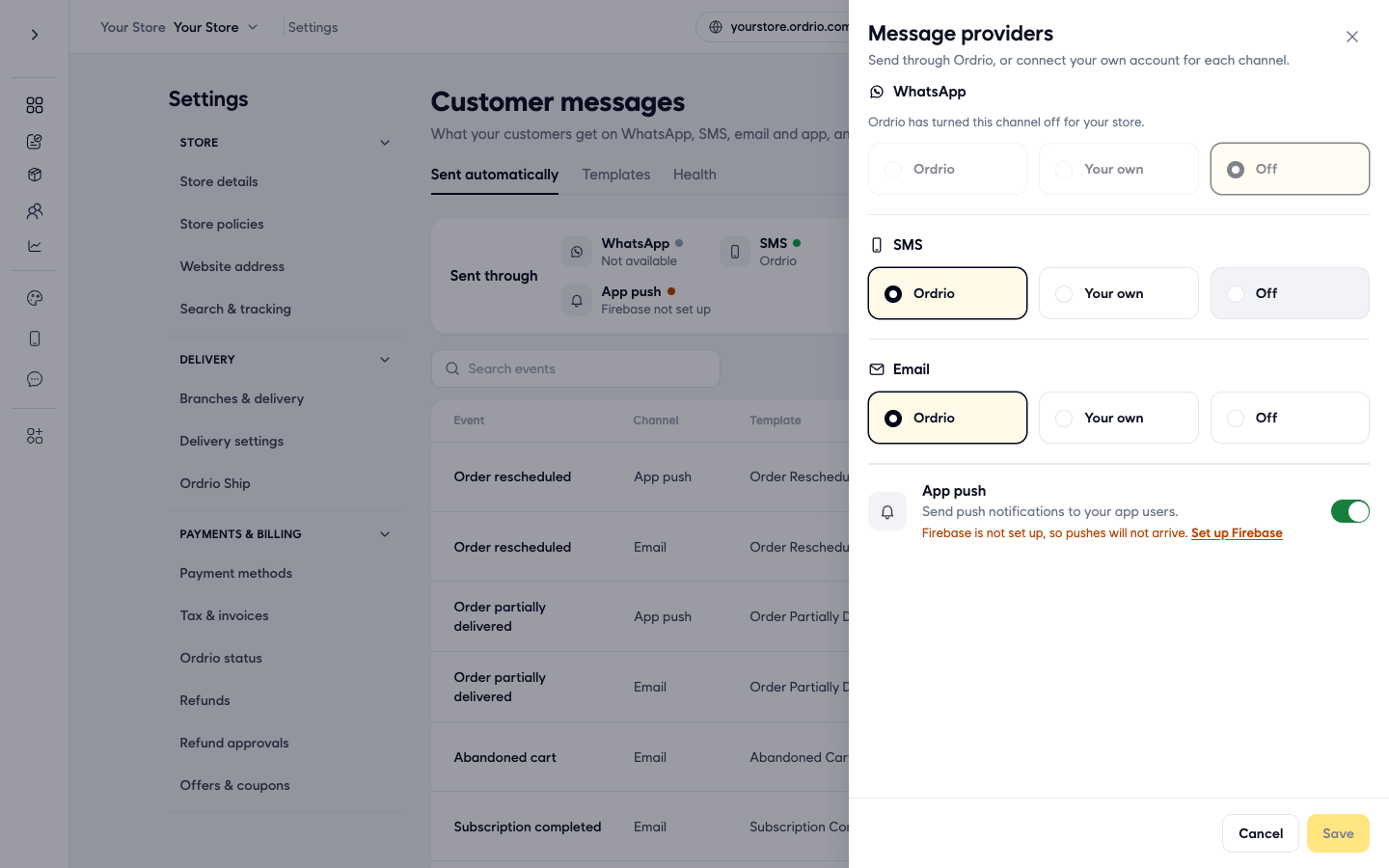
To change how a channel is sent, click Change. The Message providers panel opens. For WhatsApp, SMS and Email you pick one of three options:
- Ordrio: Ordrio sends the messages for you. You don't need your own account.
- Your own: messages go through your own provider account. Pick your provider in Provider and fill in the keys it asks for. For SMS the providers are CHOTAWEB, MSG91, PLIVO and SMSDHAKA (MSG91, for example, asks for an Auth Key). For Email the provider is SMTP EMAIL.
- Off: nothing is sent on this channel.
App push has a single switch. Push messages only arrive once Firebase is set up for your app. Until then, the panel shows "Firebase is not set up, so pushes will not arrive" with a Set up Firebase link.
Click Save to keep your changes, or Cancel to close the panel without changing anything.
What is on by default and what needs setting up
- SMS and Email are sent through Ordrio. They work without any account of your own.
- WhatsApp can show "Ordrio has turned this channel off for your store". Then the options are greyed out and Sent through shows Not available. Contact Ordrio support if you want WhatsApp messages.
- App push needs Firebase. Until you set it up, push messages are not delivered, even if the event is switched on.
- Each message has its own switch. Check the On column on the Sent automatically tab to see exactly which messages your store sends today. Many are switched off until you turn them on.
The messages sent automatically
Below the Sent through row is the list of Messages sent automatically. Each row has:
- Event: what happens, for example Order delivered.
- Channel: how the message goes (App push, Email, SMS or WhatsApp). The same event can have one row per channel.
- Template: the words that are sent. Default means Ordrio's ready-made message.
- On: the switch. Green means the message is sent.
- The pencil: choose a different template for this row.
Use Search events to find an event by name, or the All, WhatsApp, SMS, Email and Push buttons to show one channel. Use the number at the bottom of the list to show 10, 20 or 50 rows per page.
The order updates in the list include:
- New order and Customer order confirmation
- Order accepted
- Order edited and Order rescheduled
- Order scheduled delivery and Order scheduled pickup
- Out for delivery and Shipment out for delivery
- Order ready for pickup and Order picked up
- Order delivered and Order partially delivered
- Order cancelled, Order cancelled by store and Customer order cancelled
- Order refund and Payment failure
- Shipment updates: Shipment in transit, Shipment tracking link, Shipment delivered and Shipping exception alerts
The list also has messages for subscriptions, memberships, wallet top-ups, abandoned carts, back in stock and customer accounts.
Turn a message on or off for one event
- On the Sent automatically tab, type the event in Search events, for example "Order delivered". You see one row for each channel.
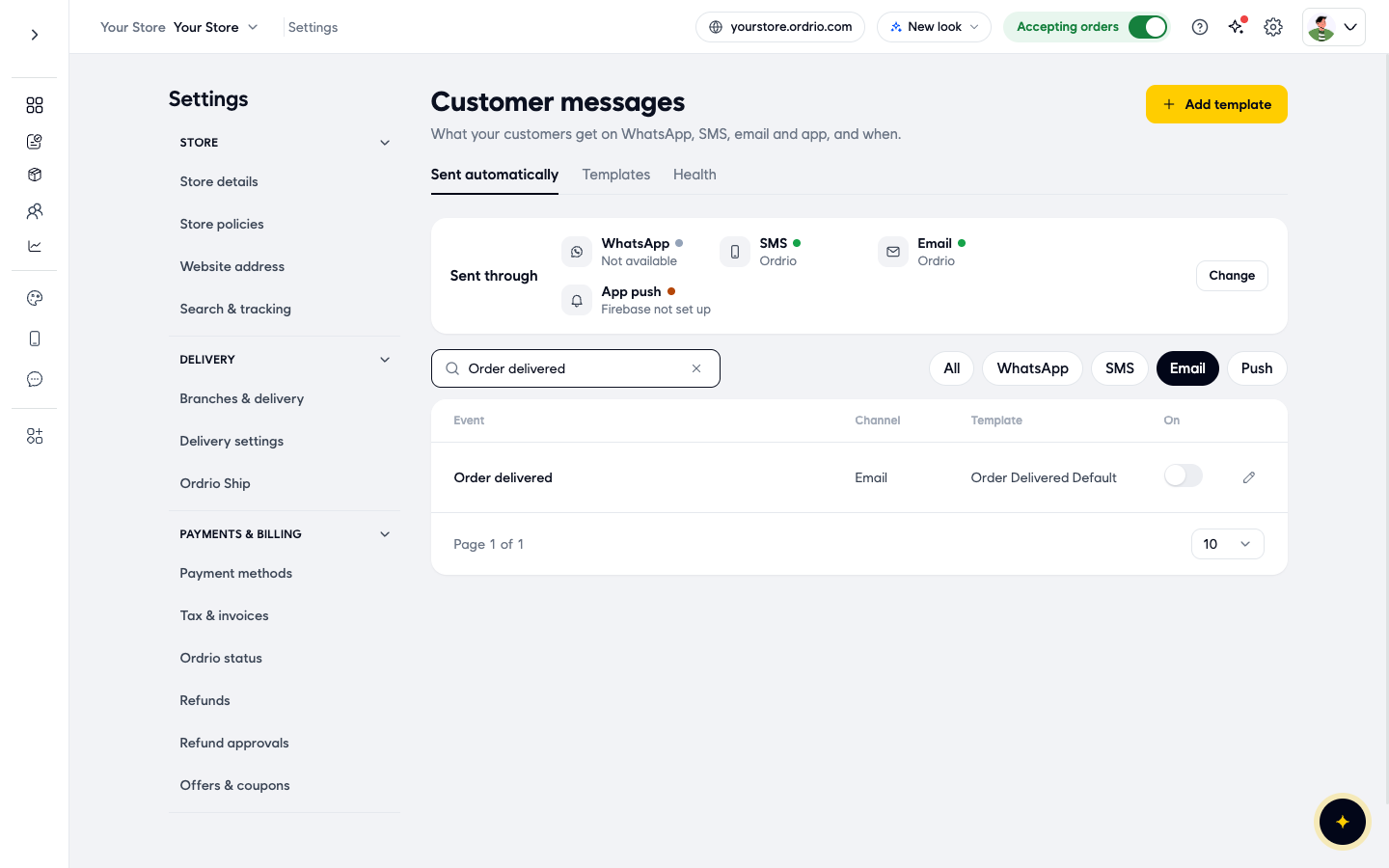
- Click the switch in the On column of the row you want. Green means customers get that message. The change saves straight away. You don't need to click Save.
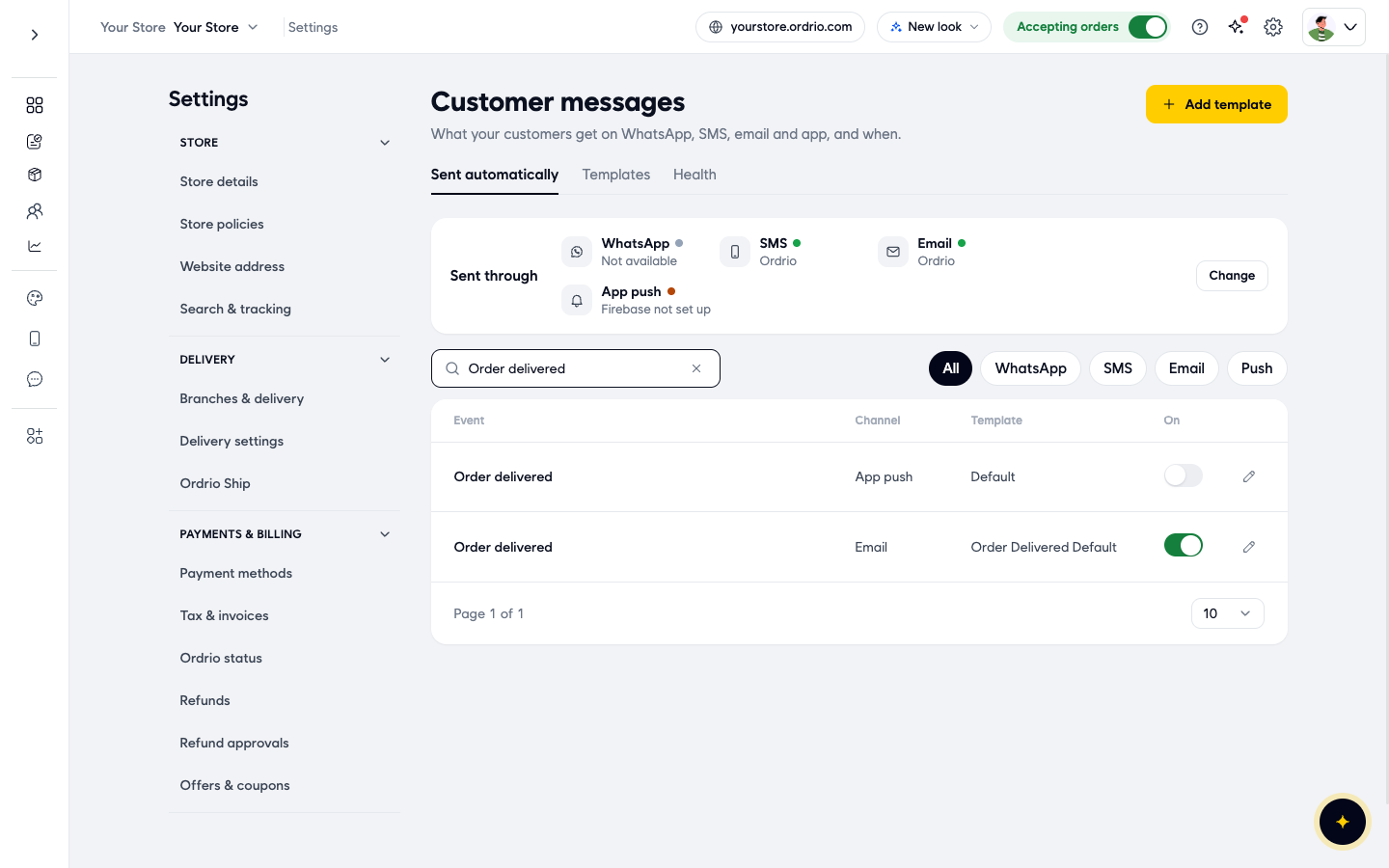
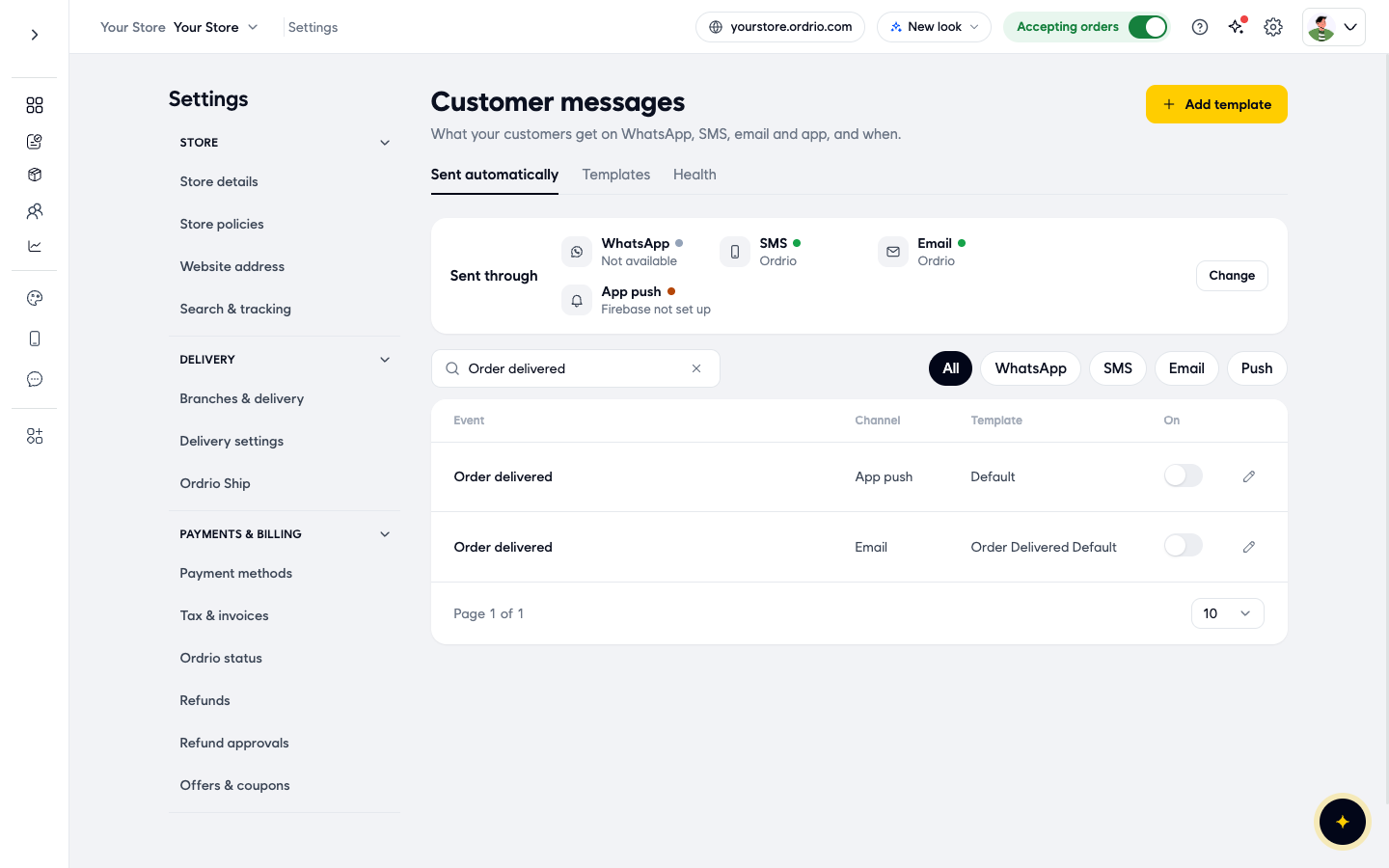
- To stop a message, click the same switch again so it turns grey. Only that event on that channel stops. The other rows don't change.
Choose the template for an event
- In the event's row, click the pencil. The Template for window opens and shows the channel under its title.
- Pick Default (system template) to use Ordrio's message, or pick one of your own templates. Use Search templates to find one by name.
- Click Save.
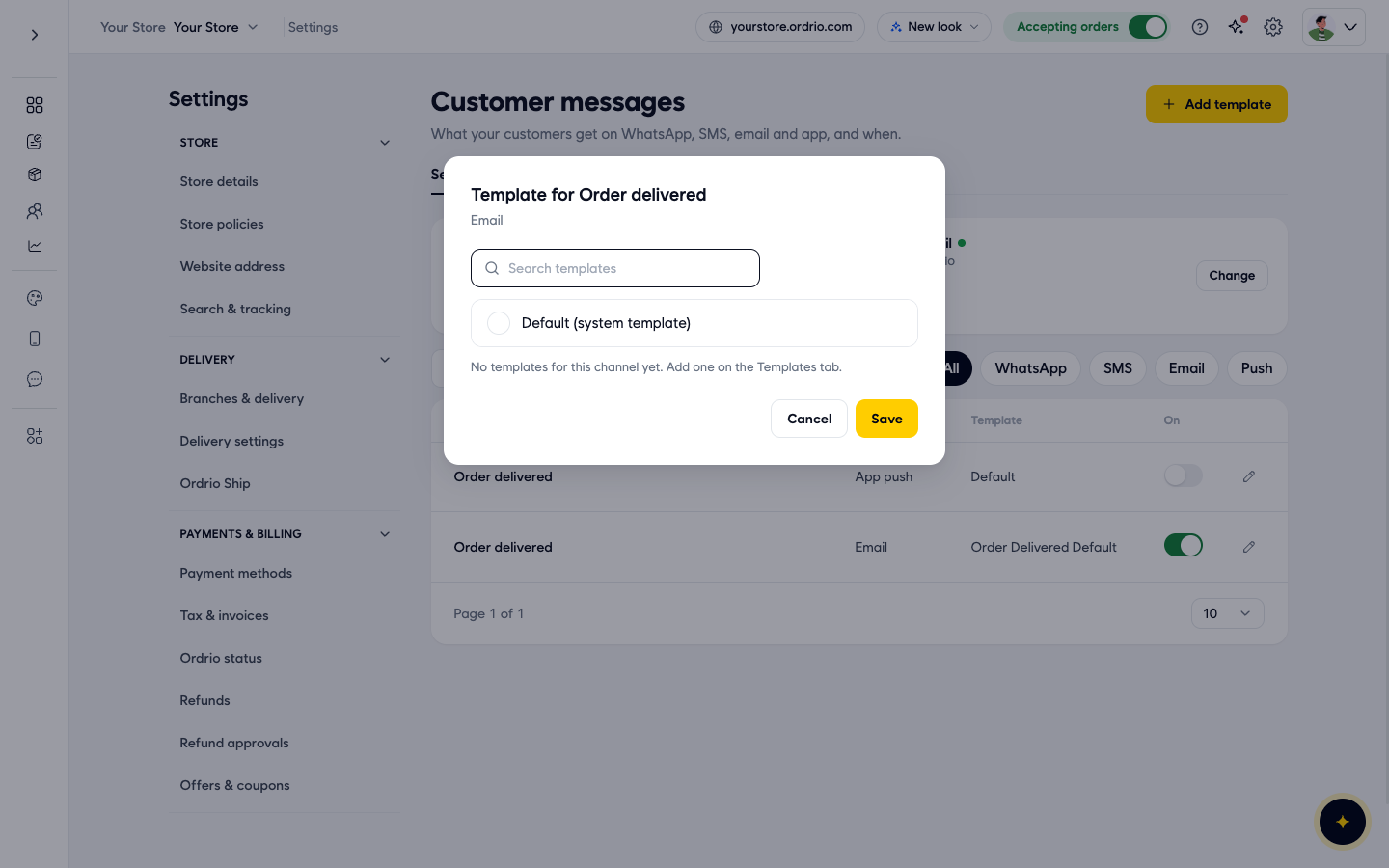
If you have no templates for that channel yet, the window says "No templates for this channel yet. Add one on the Templates tab."
Write and open your own templates
The Templates tab lists your own templates. Each row shows Sent by (the channel), the template name with the start of its message, and Actions: the pencil to open and edit it, and the bin to delete it. Use Search templates or the All, Email, SMS, WhatsApp and Push notification buttons to filter the list.
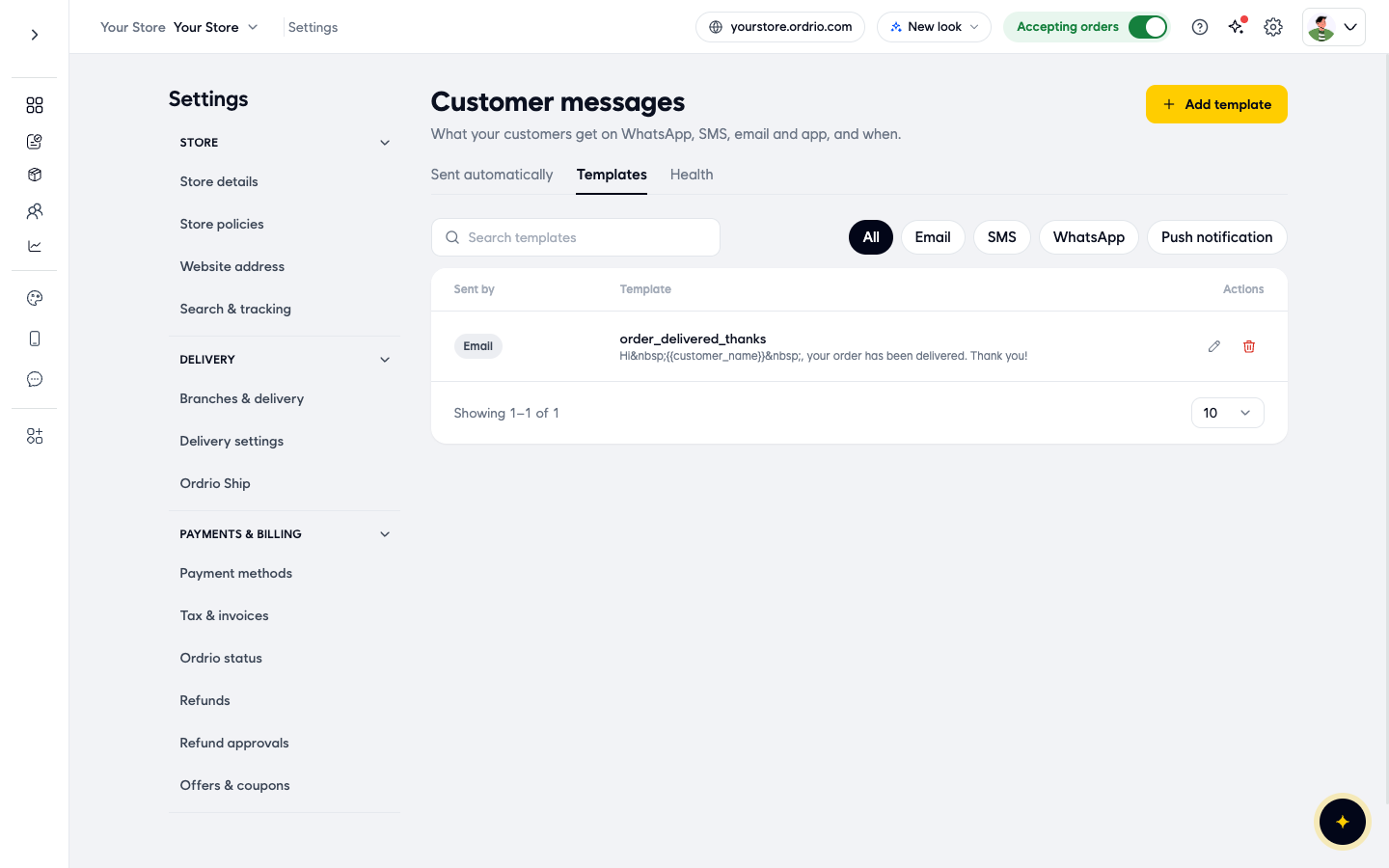
To add one, click Add template at the top right. To open one, click its pencil. The template screen has:
- Channel: WhatsApp, SMS, Email or App push. You can't change the channel of a saved template.
- Template name: a short name you will recognise, up to 50 characters, for example order_delivered_thanks.
- Subject: the email subject line (for email templates).
- Message: the text customers get. For email you can also format the text, add links and add images.
- Tap to add and Insert detail: add details that Ordrio fills in for each customer, such as {customer_name}, {order_id}, {order_total} or {store_name}.
Click Save to keep the template. Then use the pencil on the Sent automatically tab to use it for an event.
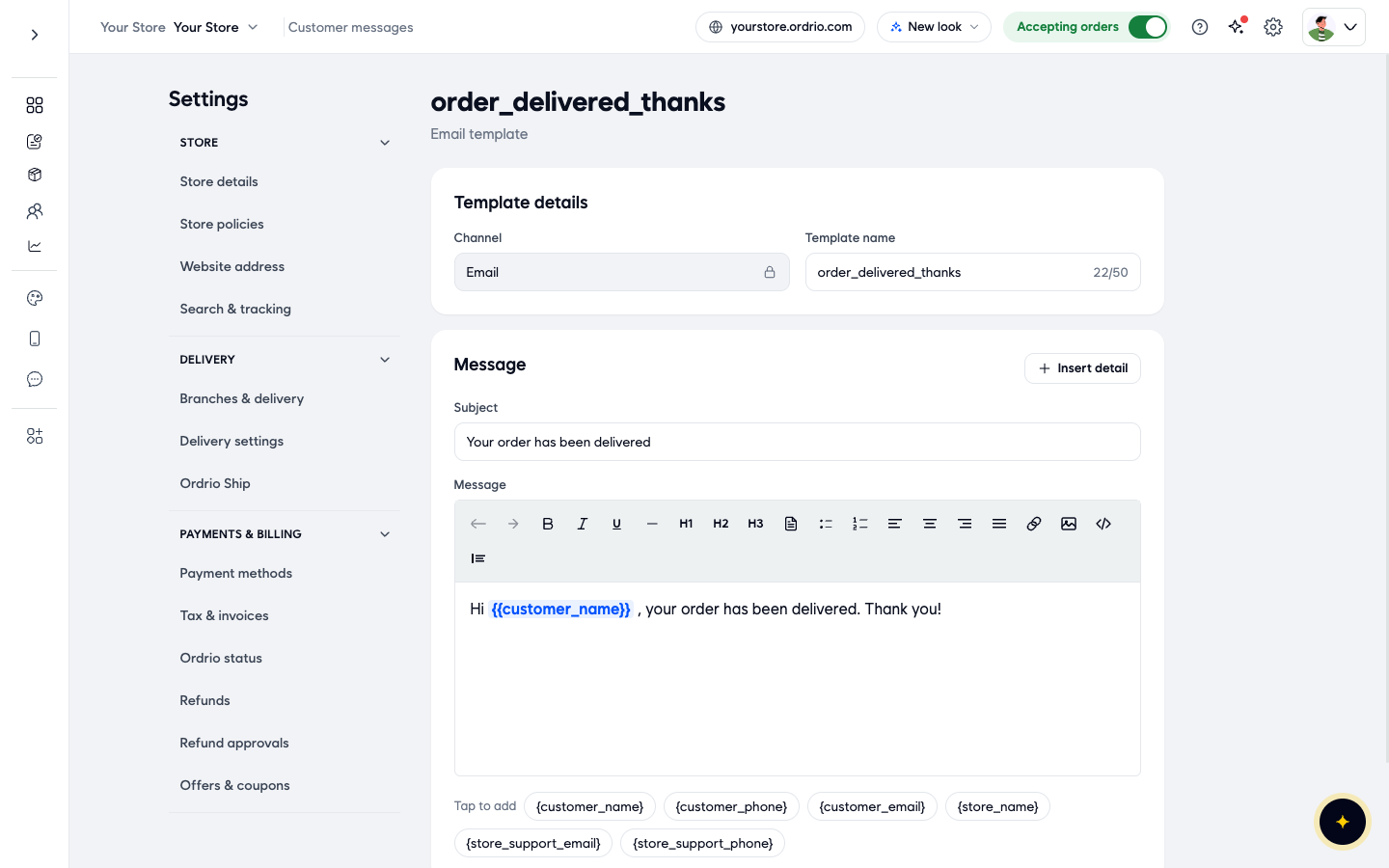
The values on screen are only examples. Write your own template name and message.
Health tab (only if you use your own provider accounts)
The Health tab only matters if you send through Your own provider account. Ordrio pauses messages when your provider refuses them. The tab shows each Provider or template, its Status and Why and how to fix. Fix the problem on your provider's side, then click Recheck or Recheck all. If you send through Ordrio, it says "Nothing to check".
Good to know
- A message only goes out when its row is switched on and its channel is working in Sent through.
- Order updates follow the order status. Keep statuses up to date in Orders, or customers won't get the next update.
- App push messages need your store's app and Firebase.
- Turning a channel Off in Message providers stops every message on that channel. To stop just one message, use its switch instead.
Related
- Marketing notifications
- Viewing and managing orders