How-to guide
Pay later (credit wallet)
Postpaid or credit balances for eligible customers.
Pay later lets trusted, regular customers buy now and pay you at the end of the month. Use it when you already know a customer well, for example a household that takes milk every day or an office that orders every week, and you are happy to send them one monthly bill.
Before you start
- Pay later is a paid add-on. You add it from Add-ons in your Ordrio admin panel, and it renews with your Ordrio billing cycle.
- Customers need at least one way to pay, so keep Cash on delivery or UPI & cards on for customers who are not on pay later.
Turn on Pay later
- Open nadi.ordrio.com (your Ordrio admin panel) and log in.
- Click the Settings icon at the top right. Under Payments & billing, click Payment methods. This page lists every way customers can pay you: UPI & cards, Cash on delivery, Bank transfer and Pay later ("Monthly bill for regulars").
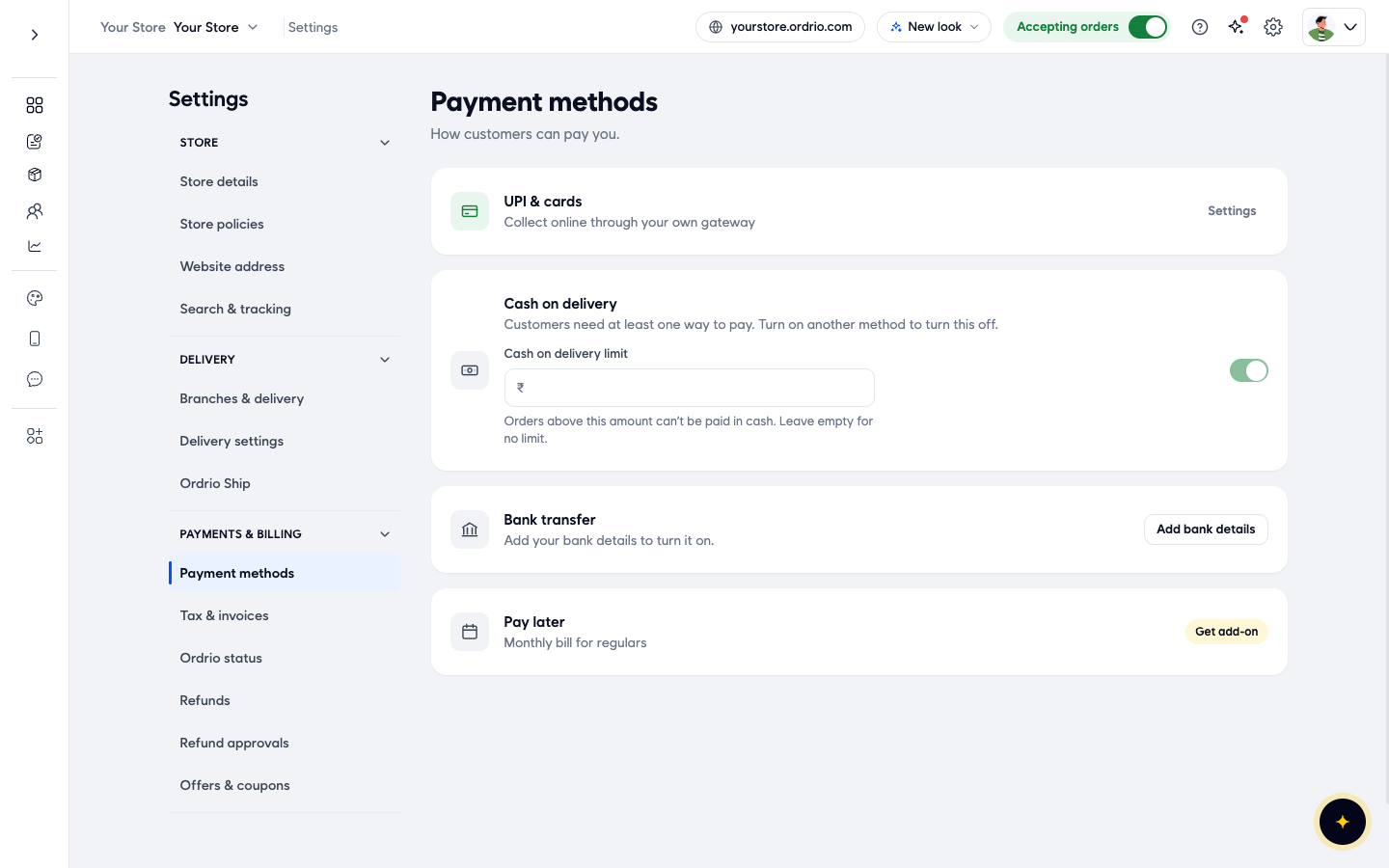
- Next to Pay later, click Get add-on. The Add-ons page opens with the Pay Later panel on the right. It shows what the add-on does ("Trusted customers buy now and pay you at the end of the month"), its Category (Store management) and Billing (Paid add-on).
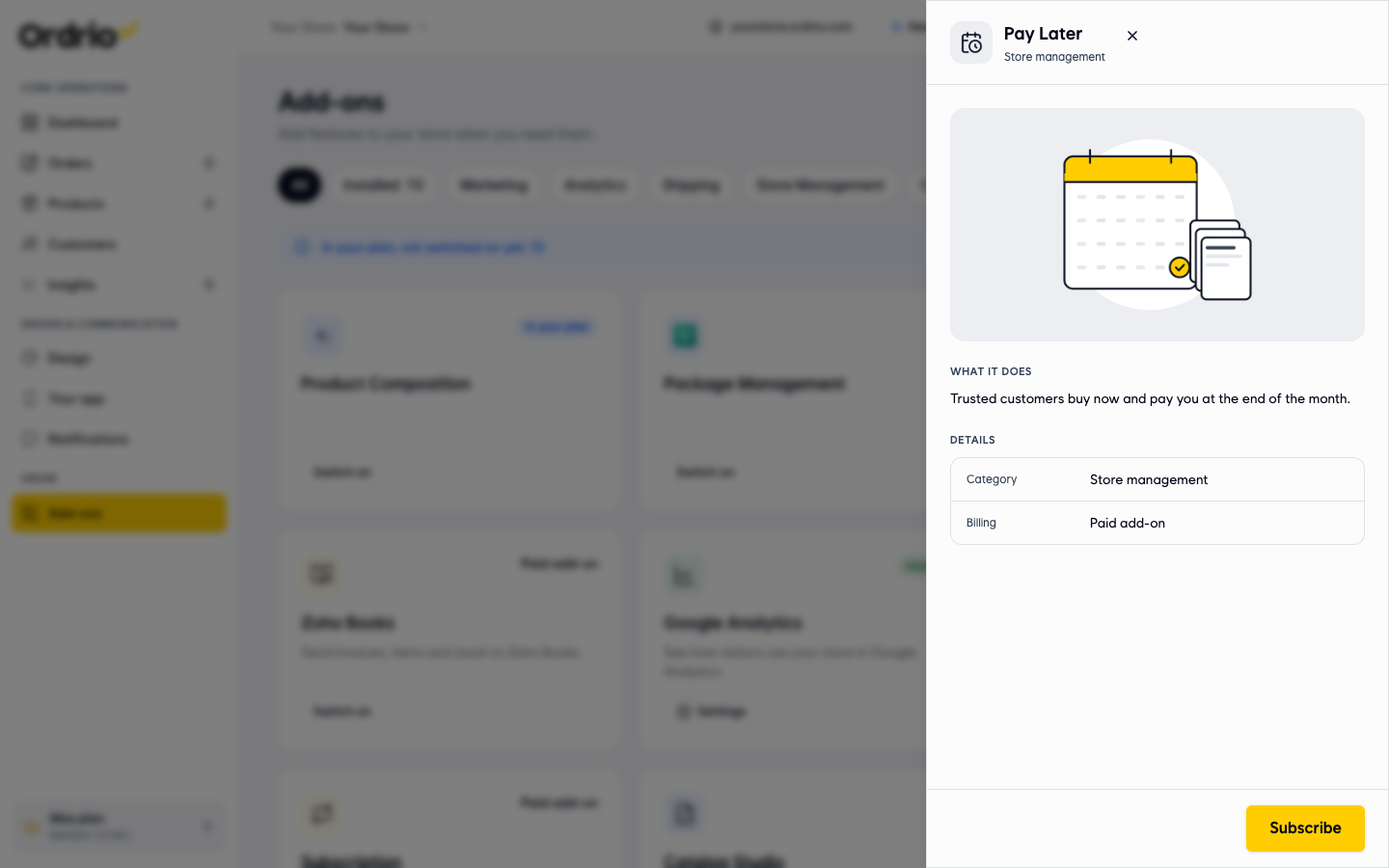
- Click Subscribe. The Add Pay Later window opens and shows:
- Pay Later: the monthly price of the add-on.
- Subtotal: the full monthly price.
- Today, till your renewal: the part you pay now. You only pay for the days left in your current billing cycle.
- GST at 18%: tax on today's amount.
- Pay now: the total you pay today.
Below the amounts, a line tells you how many days are left in your billing cycle and the date from which you pay the full price.
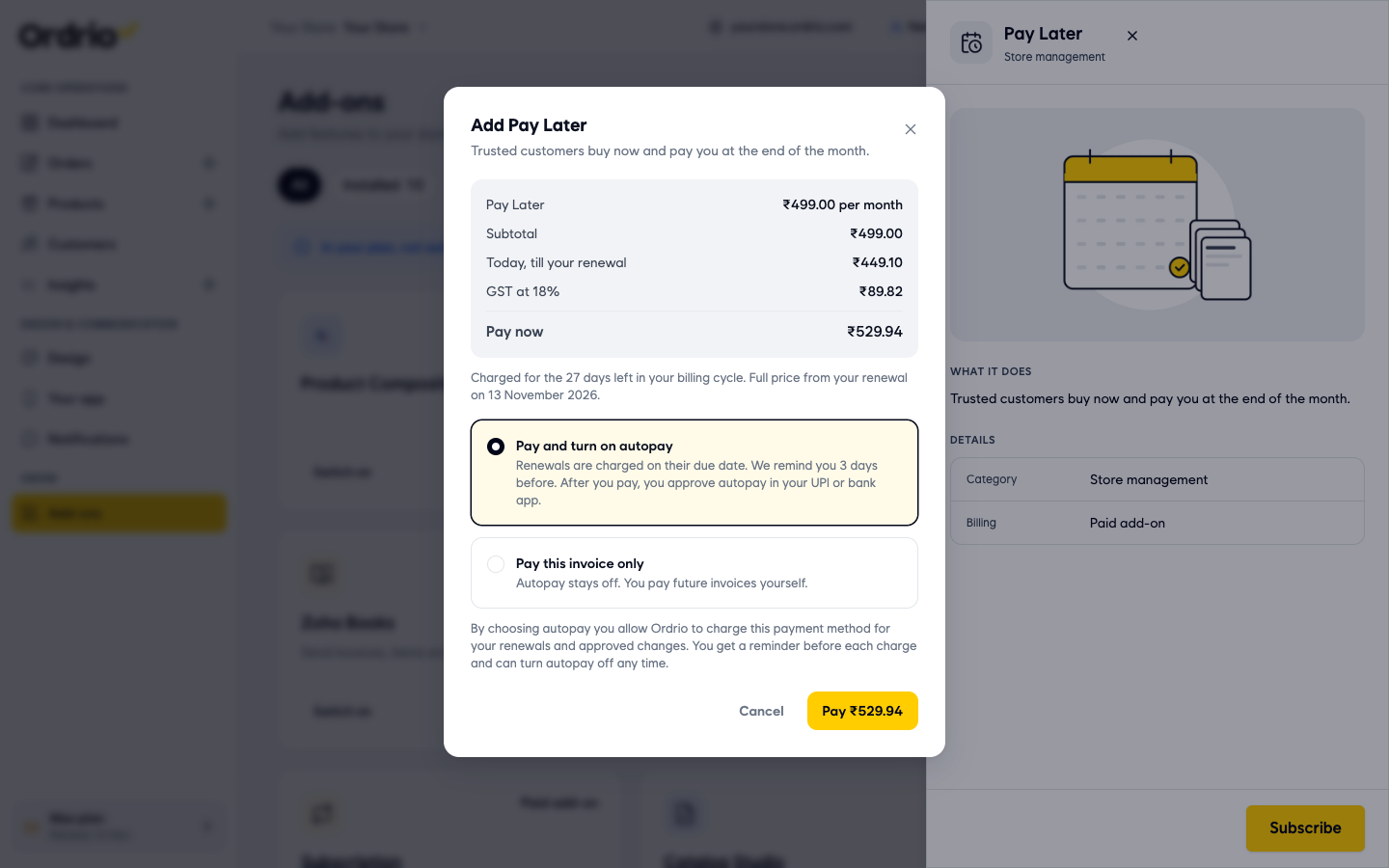
- Under the amounts, choose how to pay:
- Pay and turn on autopay: renewals are charged on their due date, and you get a reminder 3 days before. After you pay, you approve autopay in your UPI or bank app. You can turn autopay off any time.
- Pay this invoice only: autopay stays off and you pay future invoices yourself.
- Click the Pay button (it shows the amount, for example Pay ₹529.94) and complete the payment. Click Cancel if you want to close the window without adding Pay later.
- Go back to Settings > Payment methods to check Pay later for your store.
Good to know
- Pay later is meant for customers you trust. They receive their orders first and pay you later, so offer it only to regulars you know.
- The price in the Add Pay Later window depends on your plan and how many days are left in your billing cycle. The amounts in the screenshot are only an example. Always check the amount shown in your own admin before you pay.
- If you do not see Pay later in Payment methods, contact Ordrio support from Help and support at the top of your admin panel.
- Customers who are not on pay later keep paying with your other payment methods as usual.
Related
- Setting up a payment gateway
- Cash on delivery
- Enabling and managing add-ons
- Partial and advance payments
Was this article helpful?