How-to guide
Refund management
Process full or partial refunds and track their status.
When a customer sends items back, you can refund the whole order or only some items from your Ordrio admin panel. You set your refund rules once, then raise a return on the order and follow the refund until it is paid out.
Before you start
- Open nadi.ordrio.com (your Ordrio admin panel) and log in.
- To refund into the customer's store wallet, you need the Wallet add-on.
Set your refund policy
Your refund policy decides where the money goes, what is included, and whether a refund needs your approval first. It applies when an order is cancelled or returned.
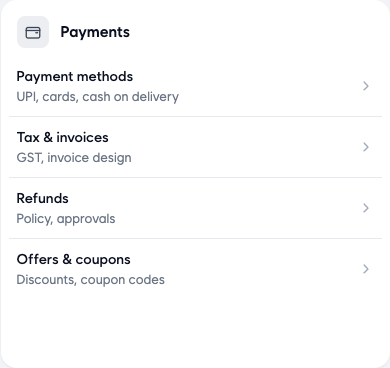
- Click Settings (the gear icon at the top right). Under Payments, click Refunds.
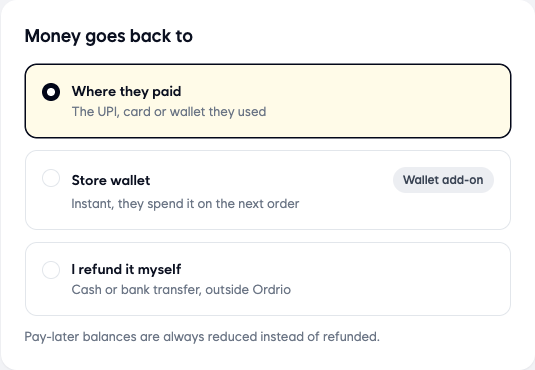
- Under Money goes back to, choose one option:
- Where they paid: the money goes back to the UPI, card or wallet the customer paid with.
- Store wallet: the money is added to the customer's wallet in your store straight away, and they spend it on their next order. This needs the Wallet add-on.
- I refund it myself: you pay the customer back yourself, by cash or bank transfer, outside Ordrio.
Pay-later balances are always reduced instead of refunded.
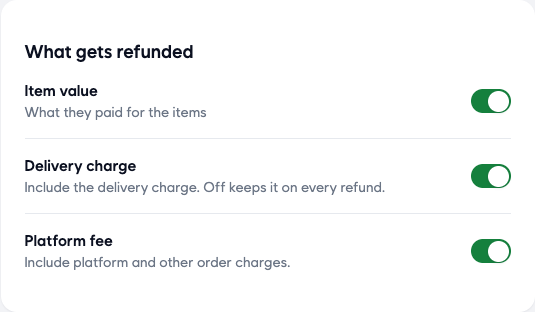
- Under What gets refunded, turn on what you give back:
- Item value: what the customer paid for the items.
- Delivery charge: include the delivery charge. If it is off, you keep the delivery charge on every refund.
- Platform fee: include the platform fee and other order charges.
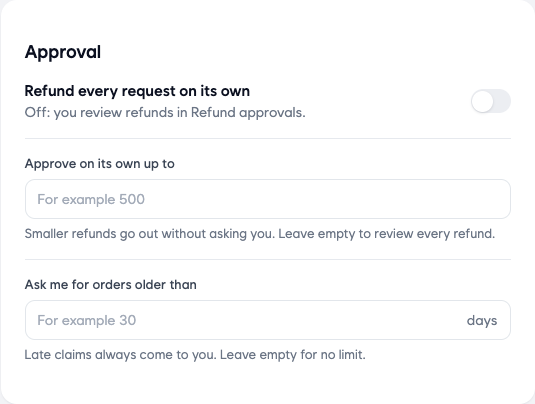
- Under Approval, choose whether refunds go out on their own:
- Refund every request on its own: when this is on, refunds are paid out without asking you. When it is off, refunds wait for you in Refund approvals.
- Approve on its own up to: shown when the switch above is off. Type an amount, for example 500. Refunds below it still go out without asking you. Leave it empty to review every refund.
- Ask me for orders older than: type a number of days, for example 30. Refunds for orders older than this always come to you for review. Leave it empty for no limit.
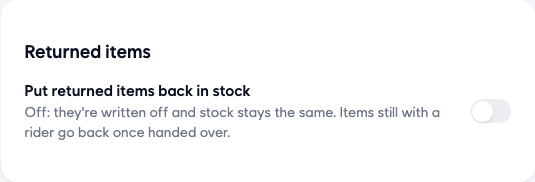
- Under Returned items, turn on Put returned items back in stock if returned items can be sold again. When it is off, returned items are written off and your stock stays the same. Items still with a rider go back once they are handed over.
- Click Save in the bar at the bottom of the page. You see Refund policy saved.
The amounts above (500 and 30) are only examples. Use the numbers that suit your store.
Refund an order
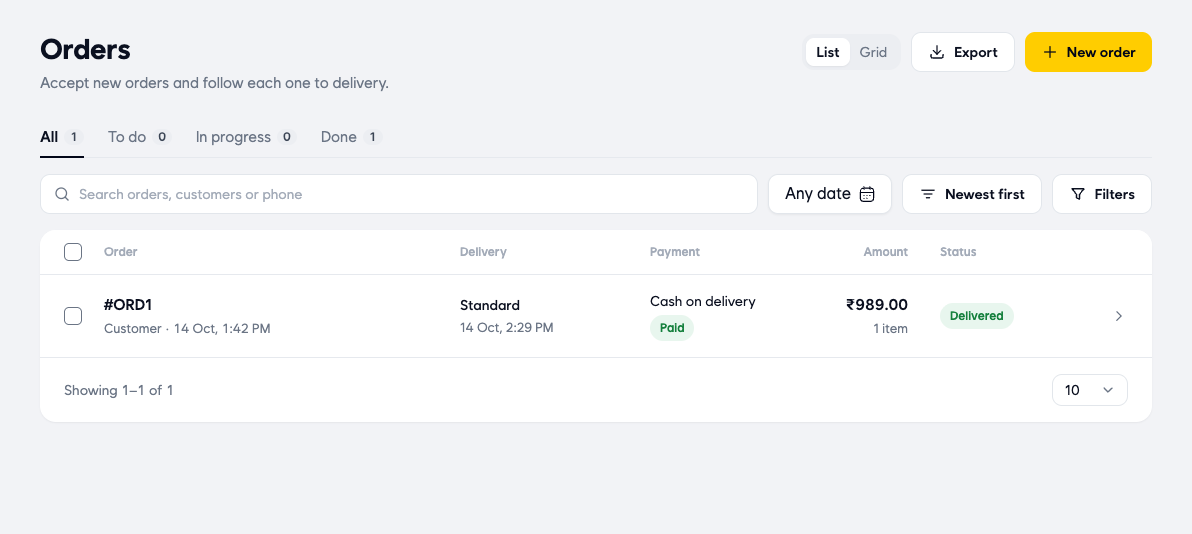
- Click Orders in the left menu, then Orders. Click the order the customer is returning.
- On the order page, click Return Item.

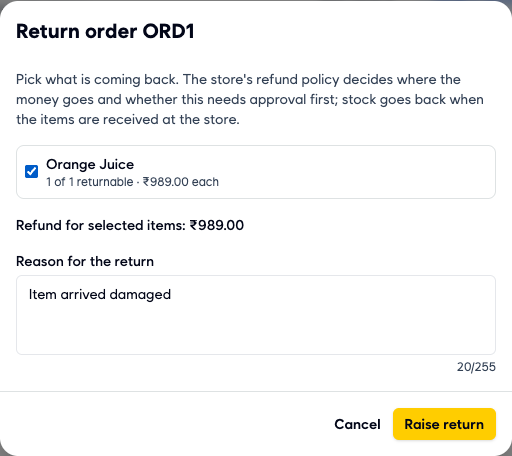
- In the Return order window, tick each item that is coming back:
- For a full refund, tick every item.
- For a partial refund, tick only the items being returned.
Each item shows how many can still be returned and its price, for example "1 of 1 returnable". Refund for selected items shows the amount the customer gets back.
- In Reason for the return, type why the items are coming back (up to 255 characters). This is required. The screenshot shows an example reason. Type your own.
- Click Raise return.
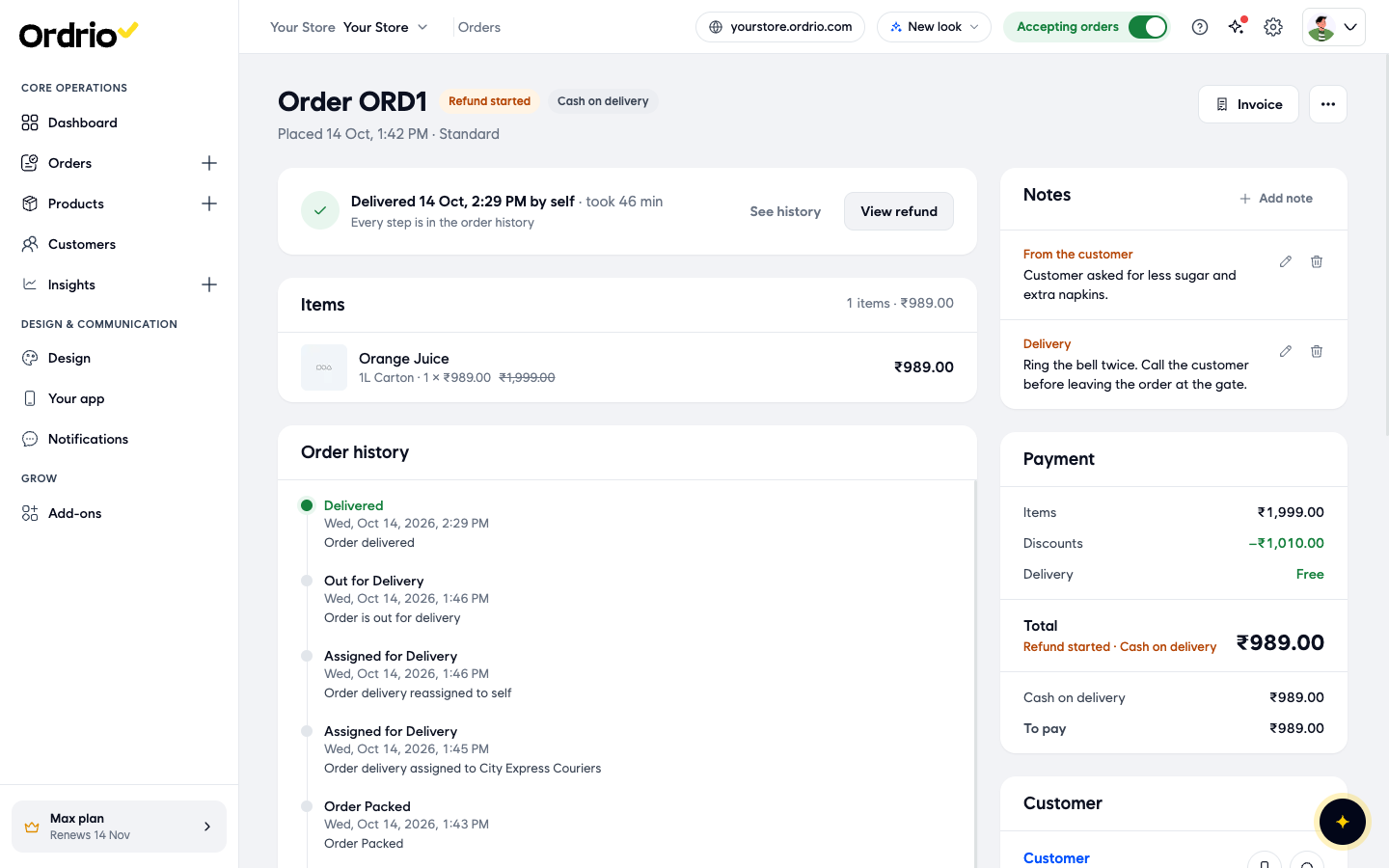
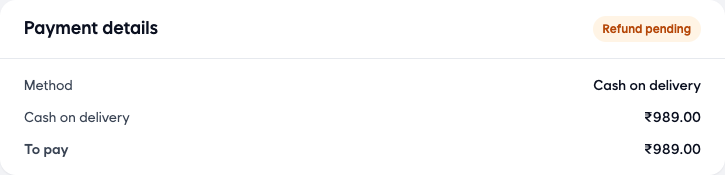
After you raise the return, the order shows Refund started next to the order number, Refund pending under Payment details, and a View refund button in place of Return Item. If your policy needs approval, you see "Return raised. The refund is waiting in the approval queue."
Approve or reject a refund
If Refund every request on its own is off, refunds wait for you.
- Click Settings, then Refund approvals (under Payments & billing in the side menu).
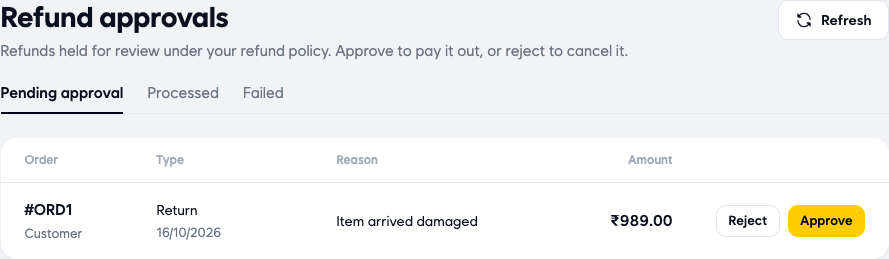
- On the Pending approval tab, find the refund. Each row shows the Order, the Type (for example Return) and date, the Reason and the Amount.
- Click Approve to pay the refund out, or Reject to cancel it. When you approve, you see Refund approved and the refund leaves the list.
Track refund status
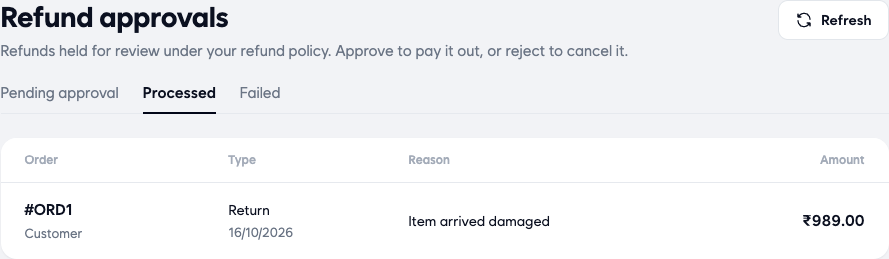
- Refund approvals > Processed: refunds you approved.
- Refund approvals > Failed: refunds you rejected, or that failed to process.
- Refund approvals > Pending approval: refunds still waiting for you. Click Refresh to load the latest list.
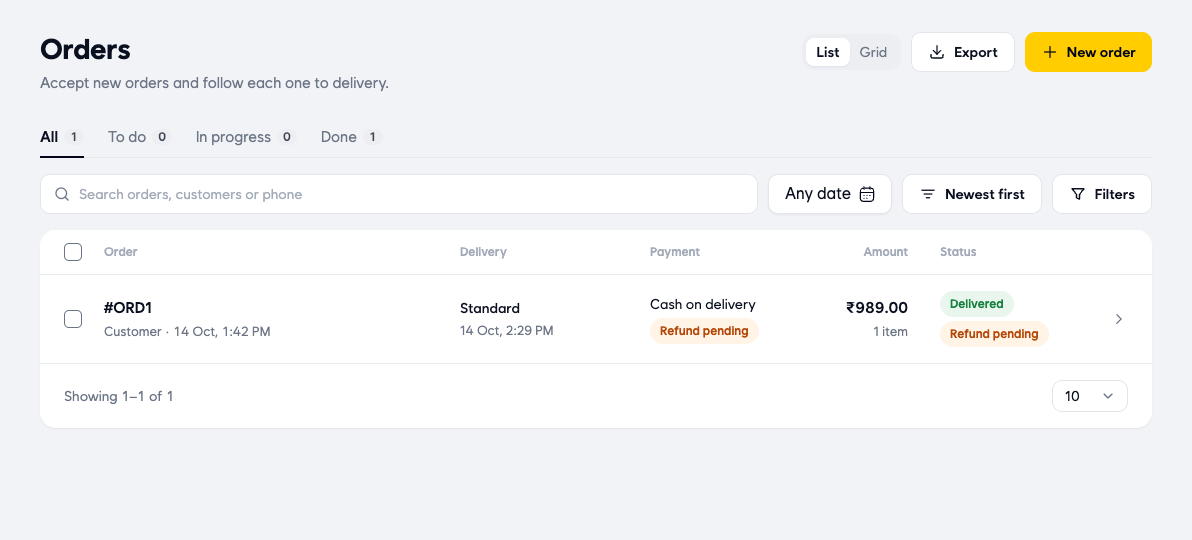
- On the Orders list, the Payment and Status columns show the refund status of each order, for example Refund pending.
- On the order page, Payment details and the Total in the payment summary show the same status.
Good to know
- The return window shows how many of each item can still be returned, for example "1 of 1 returnable".
- Your refund policy, not the return window, decides where the money goes and whether it needs approval.
- Stock goes back only when the items are received at the store, and only if Put returned items back in stock is on.
- If you chose I refund it myself, remember to pay the customer back by cash or bank transfer yourself.
- Customers who paid with a pay-later balance get their balance reduced, not a refund.
Related
- Setting up a payment gateway
- Cancelling orders and refunds
- Cash on delivery
- Configuring store policies