Troubleshooting
Product not showing to customers
Visibility, availability and stock reasons a product is hidden.
If a product is missing from your website or app, a setting is usually hiding it. Go through the checks below in order. Most problems are fixed in the first two.
Where to start
Open nadi.ordrio.com (your Ordrio admin panel) and log in. In the menu on the left, click Products, then Products again. All the checks below start from this list or from the product's own page.
1. The product is switched off
Each product in the list has a Status switch. When the switch is off, the product is hidden from your store.
- A hidden product shows a Deactivated tag next to its name.
- Click Inactive above the list to see only hidden products. Active shows the products customers can see, and All shows both.
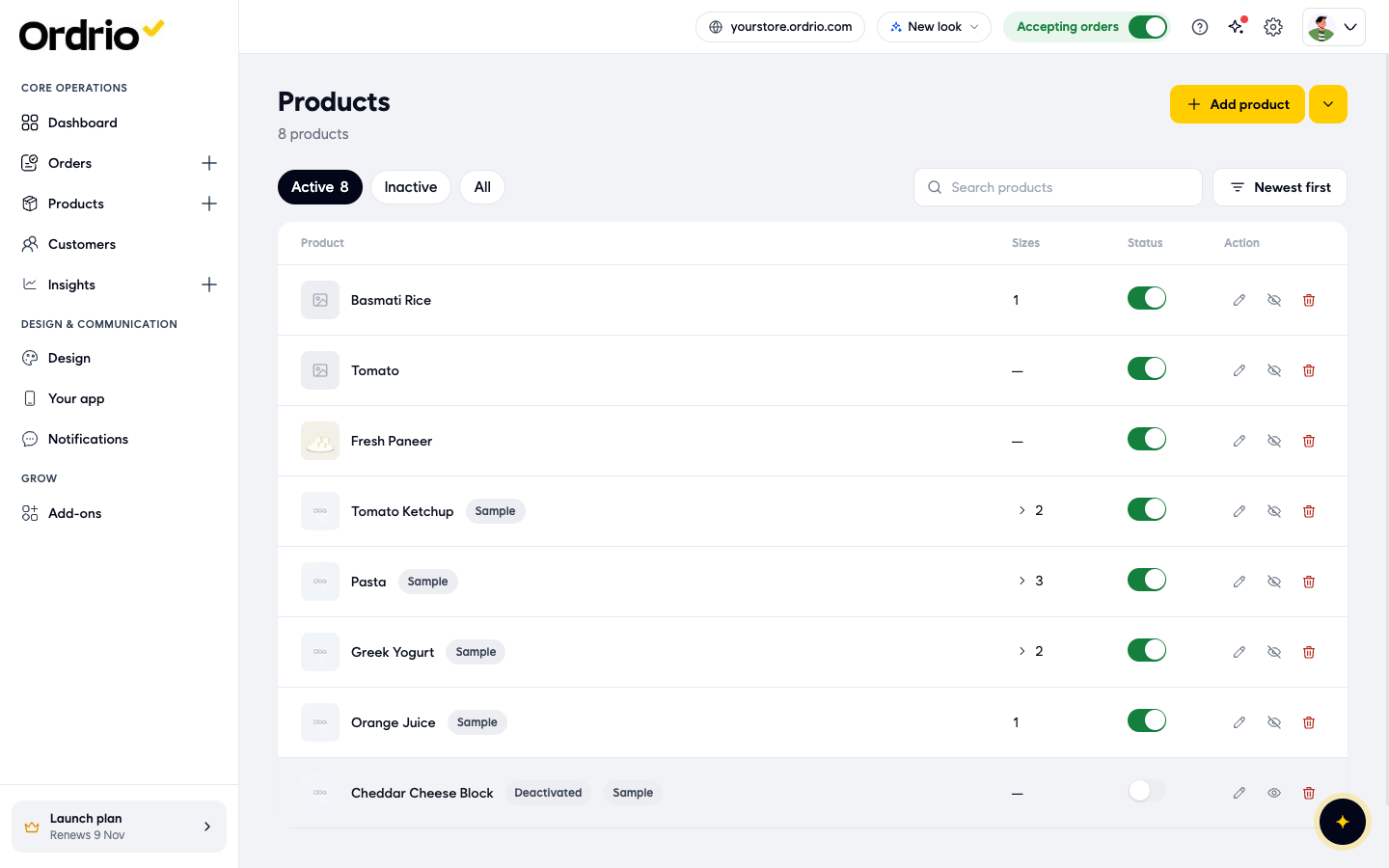
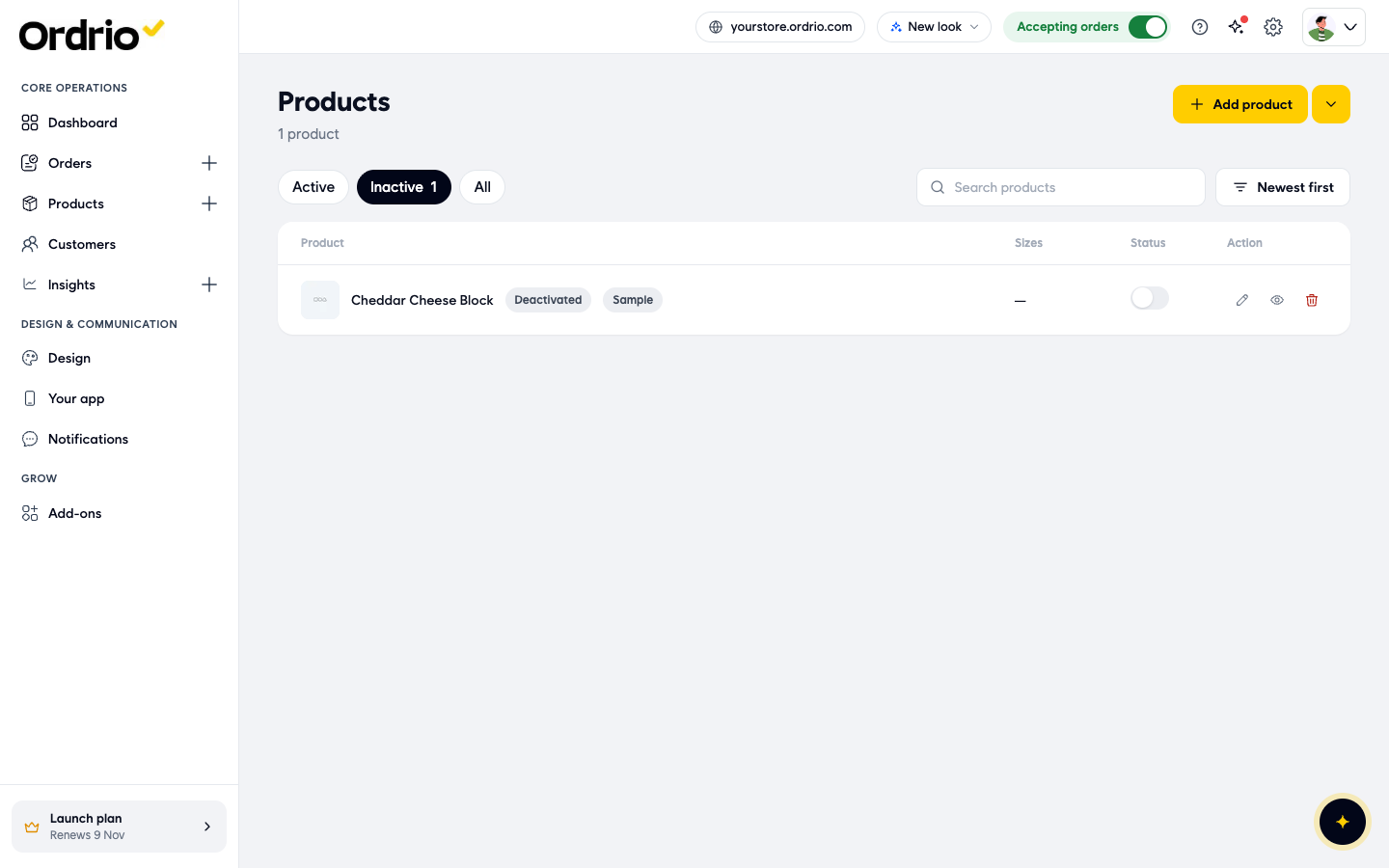
To fix it: turn the Status switch back on, or click the eye button in the Action column (Reactivate). The product moves back to Active.
A product can also be hidden from its own page. Open the product (click its name or the pencil button) and click Hide or delete. You get two choices:
- Hide it for now: takes the product off your store. You can bring it back any time.
- Delete it: removes the product for good. Past orders keep their details. A deleted product cannot be switched back on, so you need to add it again.
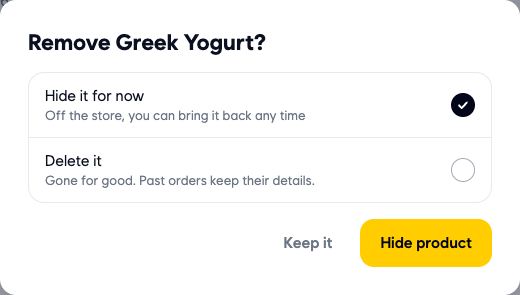
If you opened this box by mistake, click Keep it to close it without changes.
2. The product is not on sale on your website or app
A product can be switched on but set not to sell on the website or the app.
- Open the product.
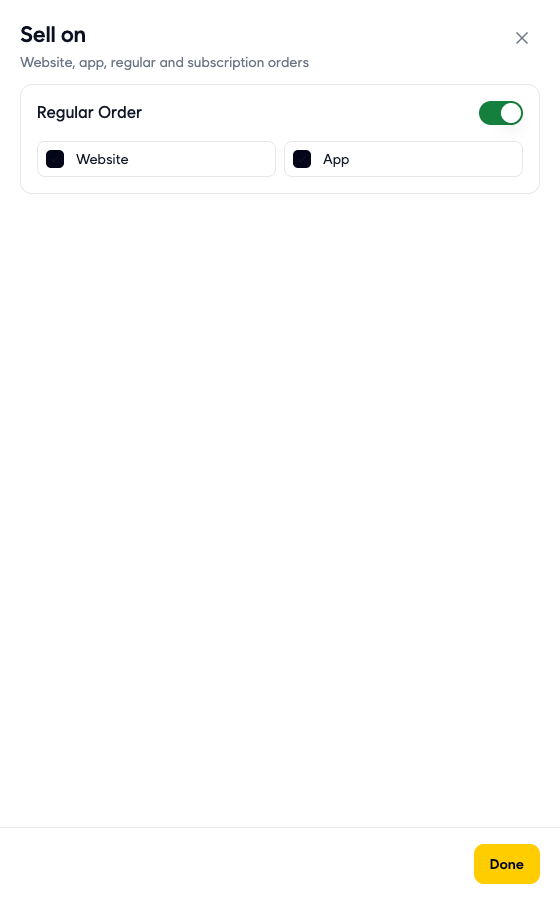
- Under More options, click Sell on. The line under it shows where the product is on sale now.
- Check that Regular Order is switched on.
- Check that both Website and App are ticked. If Website is not ticked, customers do not see the product on your website. If App is not ticked, they do not see it in your app.
- Click Done.
- Click Save to keep your change.
3. A size or option is not on sale
If the product comes in sizes or other options (for example weight or fat content), each option has its own switch.
- Open the product.
- In the Options box, click Edit options.
- Look at the Selling column. Customers can only buy the options whose Selling switch is on.
- Also check each option has a Price.
- Turn on Selling for the options you want to sell, then click Done.
- Click Save to keep your change.
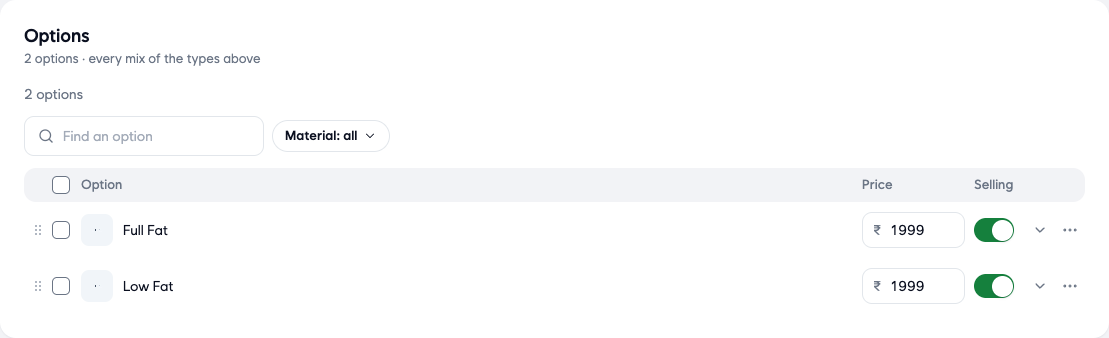
If every option is switched off, customers have nothing they can buy from that product.
4. The category is hidden
Customers often browse your store by category. If the product's category is hidden, customers browsing that way do not find it.
- In the menu on the left, click Products, then Categories.
- Check the Shown in menu switch for the product's category. Turn it on if it is off.
- Click Hidden above the list to see only hidden categories.
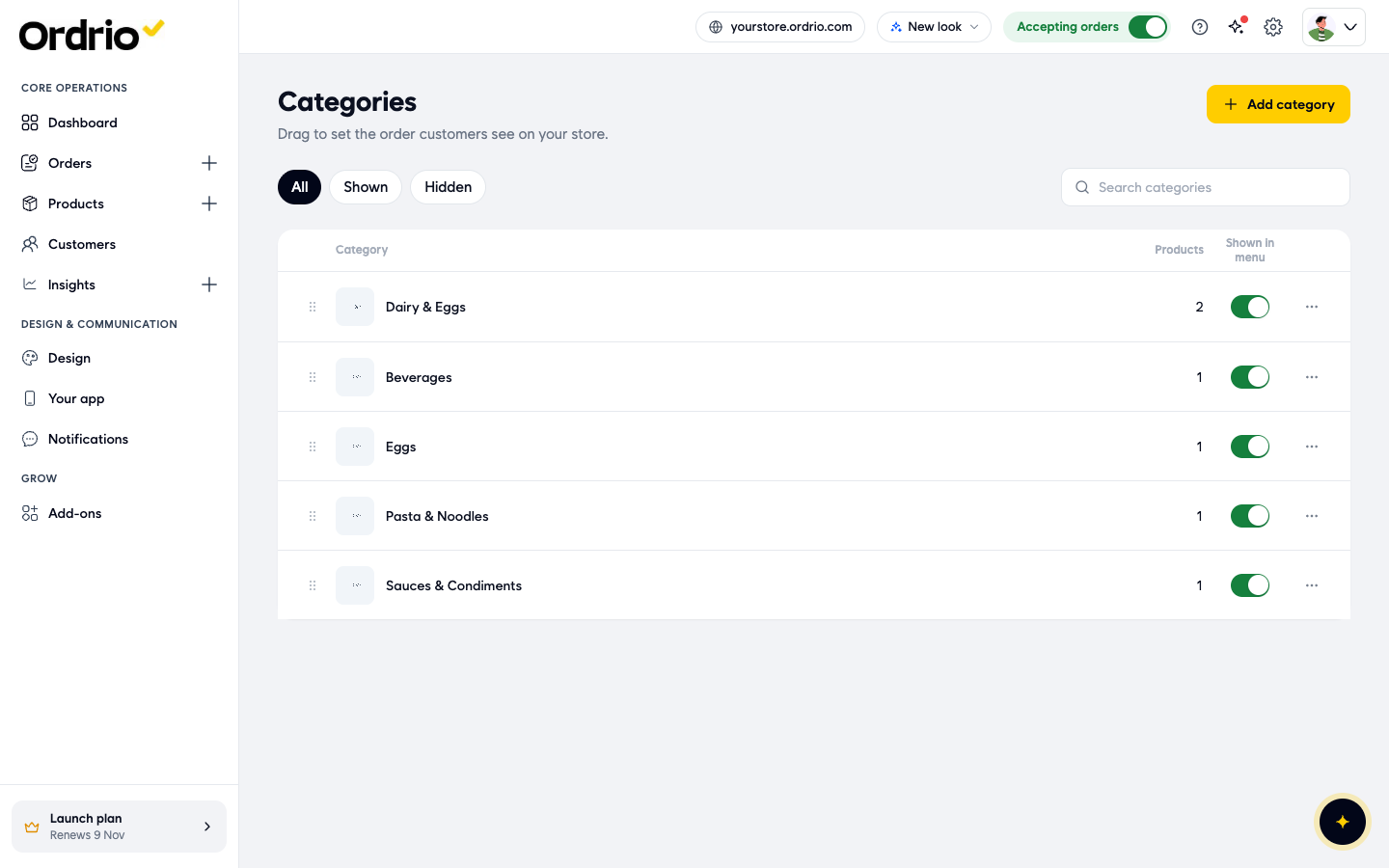
To see which category a product is in, open the product and look at Category under Basics. If it is in the wrong category, choose the right one and click Save.
5. Stock
Ordrio only tracks stock if you have switched on the Inventory Management add-on. You find it in Add-ons, in the menu on the left.
- If you use Inventory Management, check the stock for the product there. A product with no stock left may not be available to customers until you add stock.
- If you have not switched it on, stock does not hide your products, so check the other sections on this page.
6. The product is only sold at certain times
If you use the Time Based Products add-on, a product is only on sale at the times you set for it. Outside those times customers cannot buy it. Check the times set for the product.
Good to know
- Save every change. The product page has a Save button at the top and a Save product button at the bottom. If you leave the page without saving, your change is lost.
- Check your store the way customers see it. Click your store link at the top of your admin panel to open your website, then refresh the page.
- The Accepting orders switch at the top of your admin panel must be on for customers to place orders.
- Products marked Sample are examples Ordrio added to show how your store looks. You can remove them from the Dashboard with Remove samples.
- Still stuck? Click the Help and support button (the question mark) at the top of your admin panel.
Related
- Adding your first product
- Product options and sizes
- Organising products into categories
- Using add-ons