Overview
Product types overview
The product types you can sell, from simple items to subscriptions and services.
With Ordrio you can sell much more than simple items with a single price. This article explains the kinds of products you can sell, from a single item to sizes, items sold by weight, bundles and subscriptions, and where you set each one up.
Where your products live
Open nadi.ordrio.com (your Ordrio admin panel) and log in. In the menu on the left, open Products and then Products.
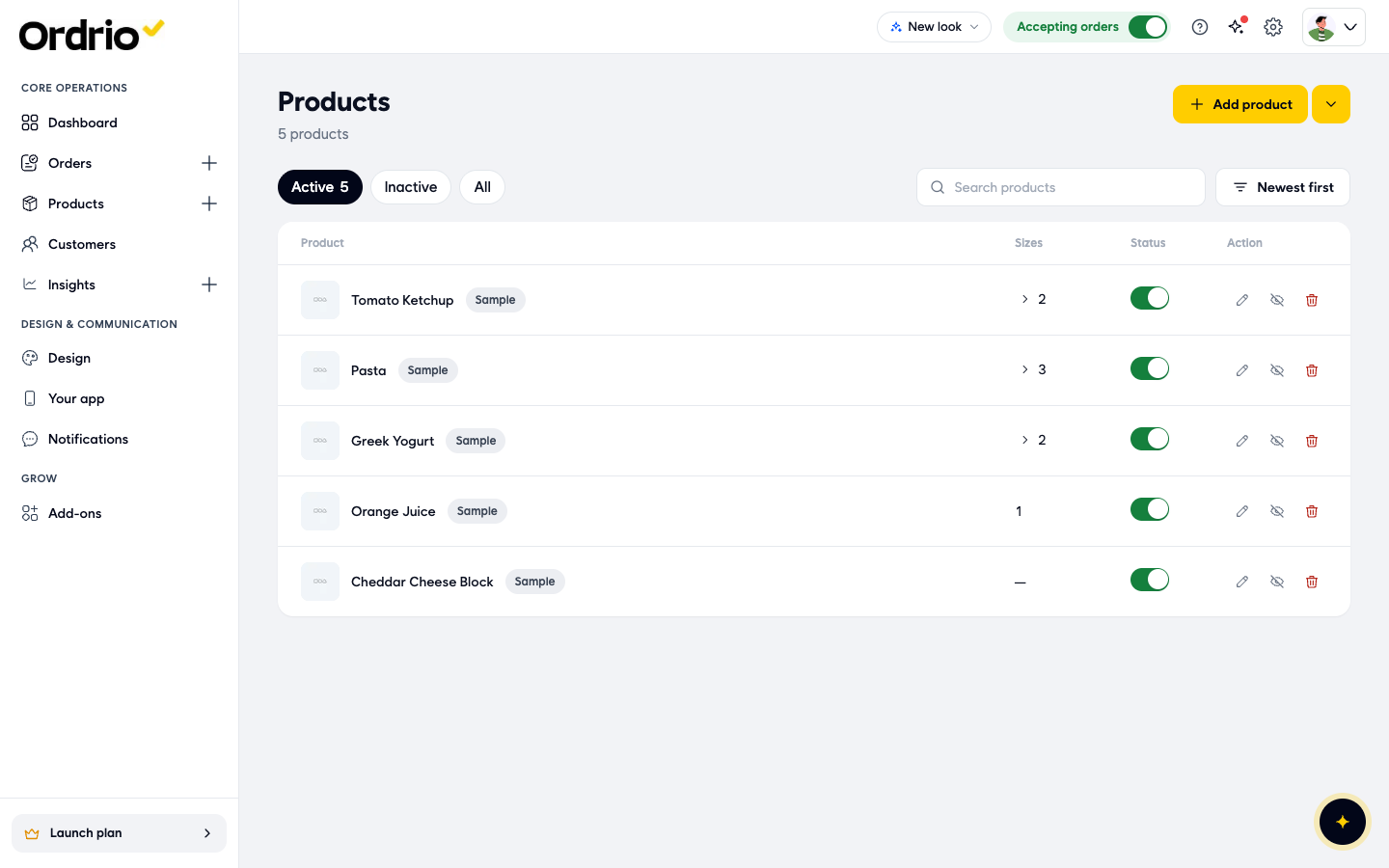
You see a list of all your products. For each product the list shows:
- Product: the name and photo.
- Sizes: how many options the product has. A dash means it has one price and no options.
- Status: the switch that shows or hides the product in your store.
- Action: edit, hide or delete the product.
To add a product, click Add product. To add or change many products at once, click the arrow next to it (More ways to add) and choose Bulk upload or Bulk update.
Simple products with one price
This is the most common type. It is one item with one price, for example a 1 litre bottle of juice or a loaf of bread.
When you click Add product, you fill in:
- Name: the name customers see.
- Category and Brand: where the product sits in your store.
- Short description: one line under the name, up to 50 characters.
- Photos: JPG, PNG, GIF or an MP4 video, up to 5 MB each.
- Price: the normal price.
- Price after discount: the price customers pay if you are offering a discount.
- Cost: what the item costs you. Only you see this.
- Tax slab: the tax that applies to the product.
Then click Create product to save it.
Products with options (sizes, weights, colours)
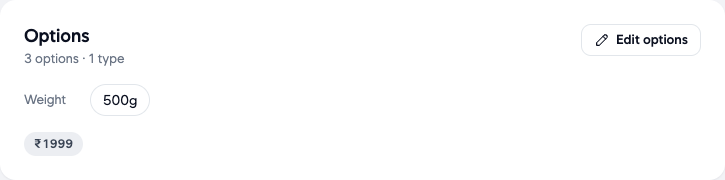
Use options when the same product comes in more than one version, like 500 ml and 1 litre, or small, medium and large. Each option has its own price, so you set prices on each option instead of on the product.
In the Options section of the product, click Add options (or Edit options on a product that already has them). You can use up to 6 option types: size, colour, material, style, weight and storage. Ordrio makes one option for every mix of the types you add. For each option you set the Price and whether it is Selling.
The number of options shows in the Sizes column of your product list.
Where each product is sold
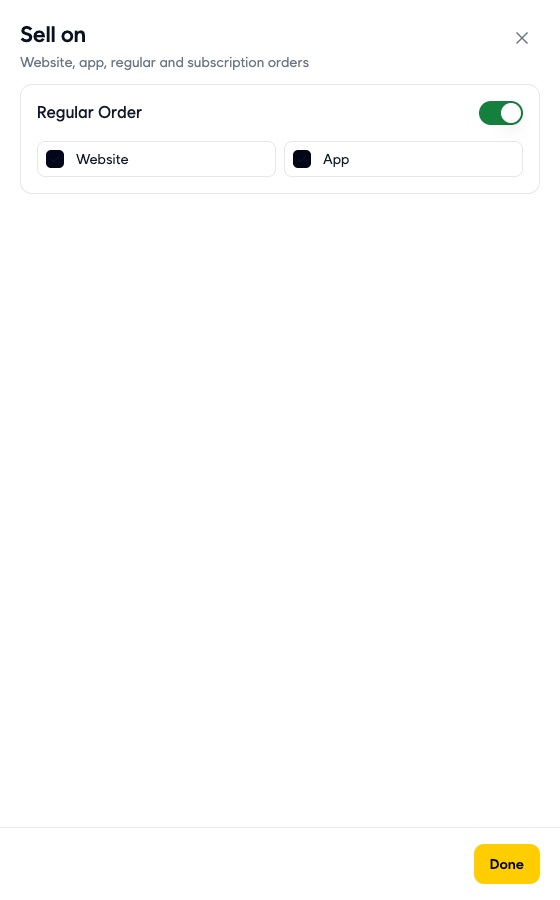
Every product has a Sell on setting under More options. Here you choose where customers can order it:
- Regular Order: turn this on to sell the product in normal orders.
- Website and App: tick where the product appears.
When your store has subscriptions switched on, this is also where a product is made available for subscription orders.
Product types you add with add-ons
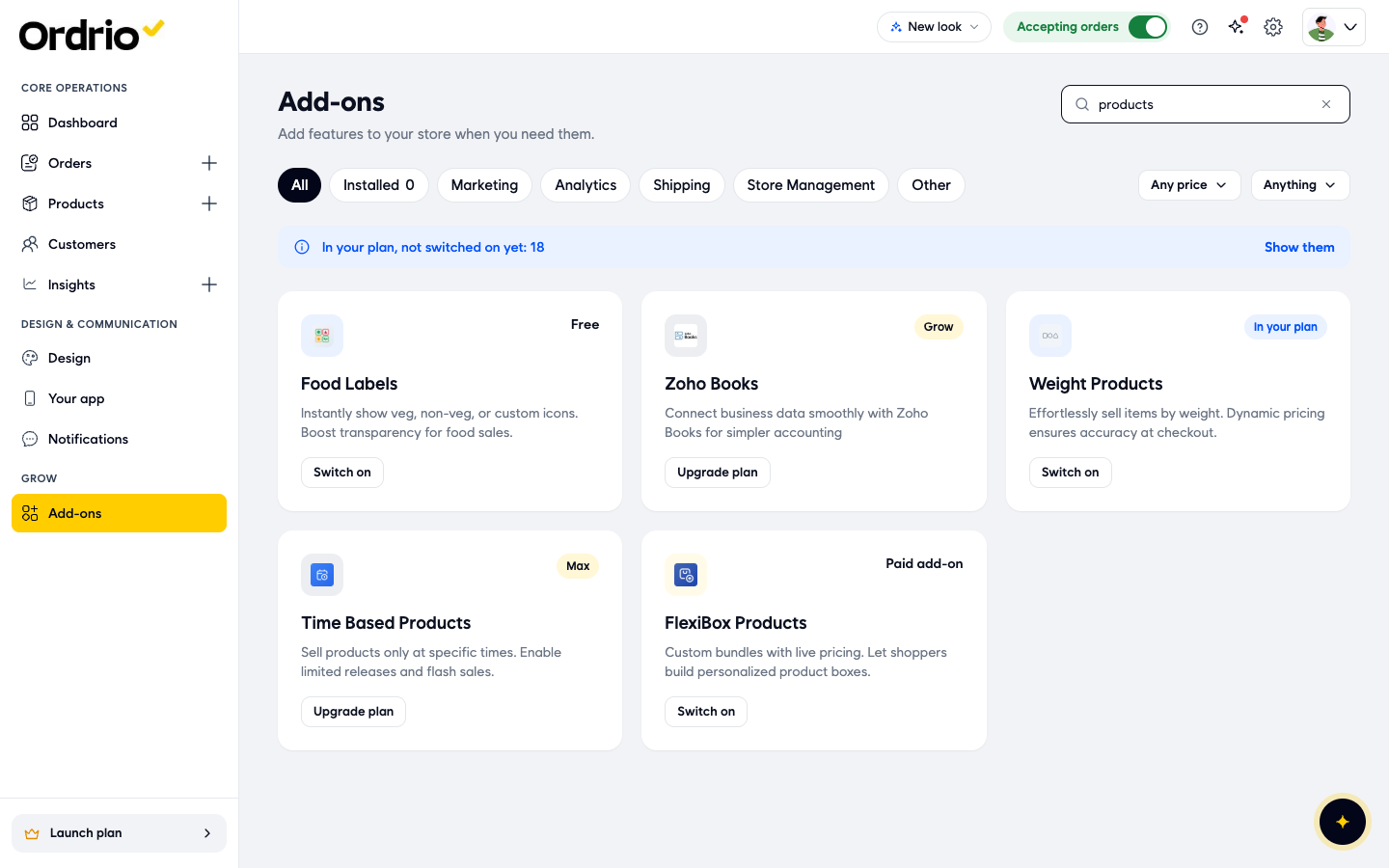
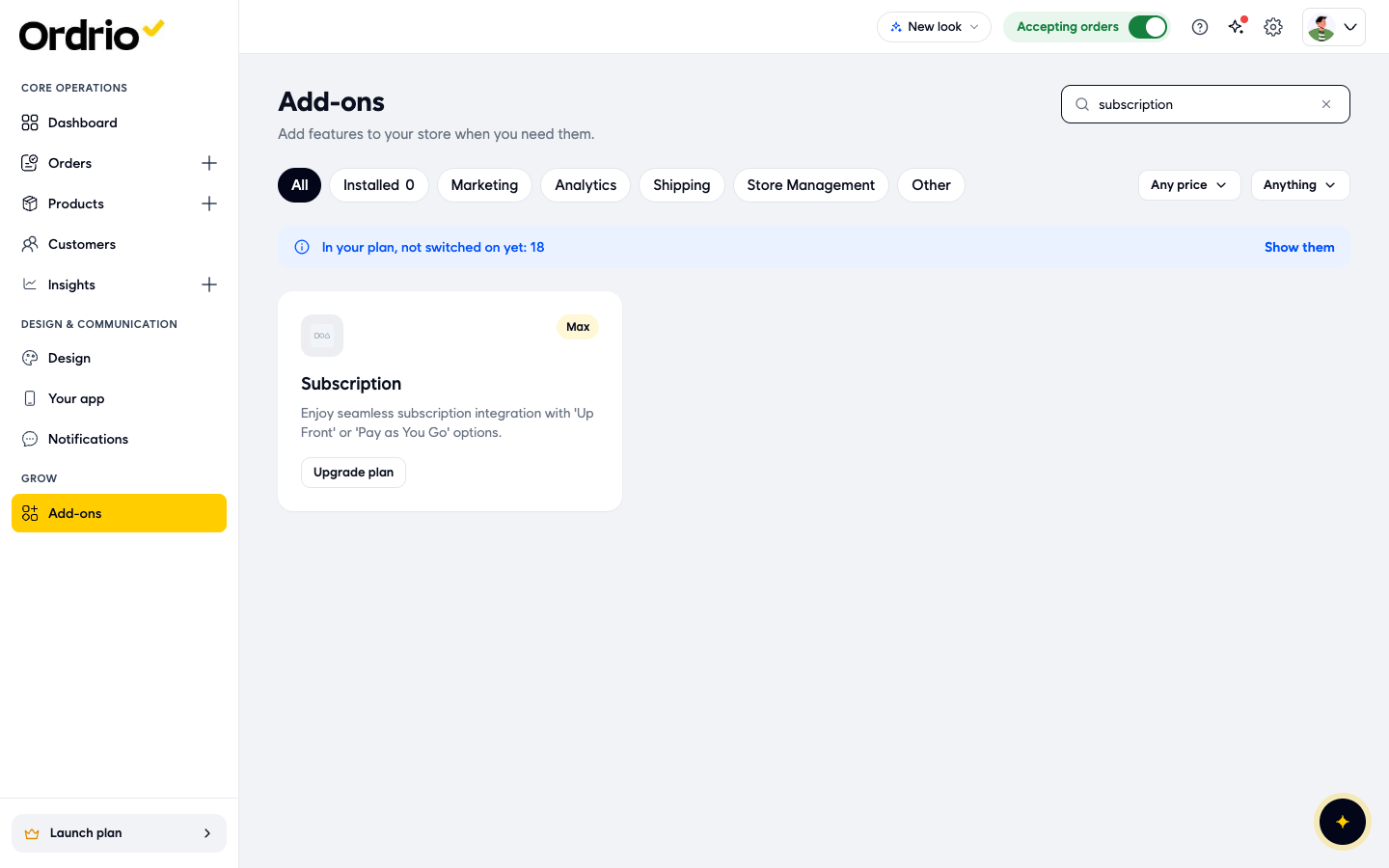
Some product types are switched on from Add-ons in the left menu. Type the name in Search add-ons to find each one. Each card shows whether it is Free, In your plan, a Paid add-on, or needs a higher plan (Upgrade plan).
- Weight Products: sell items by weight, such as vegetables, fruit, meat or fish. The price is worked out from the weight at checkout.
- FlexiBox Products: let customers build their own box or bundle, with the price updating as they add items.
- Time Based Products: sell a product only at certain times, for example a breakfast menu or a flash sale.
- Product Form: collect extra details from the customer when they order, for custom or made-to-order items.
You may also see Product Toppings and Product Composition in the same list.
Subscriptions
Subscriptions are for products customers get again and again, like daily milk, weekly vegetables or a monthly tiffin. Customers subscribe once, and Ordrio creates the orders for each delivery day.
Subscriptions are switched on with the Subscription add-on. It offers two ways to charge: Up Front or Pay as You Go. If the card shows Upgrade plan, subscriptions are not in your current plan yet.
Services and made-to-order items
If you sell something that is not a ready item, like a custom cake or a service visit, add it as a product with a price. If you need details from the customer when they order, such as a message on the cake or a preferred date, use the Product Form add-on.
Good to know
- Start with simple products and products with options. They cover most stores and need no add-ons.
- When a product has options, the price is set on each option, not on the product.
- Turning off a product's Status switch hides it from customers without deleting it.
- What you can switch on in Add-ons depends on your plan. Your current plan shows at the bottom of the menu on the left.
Related
- How to add a product
- Adding sizes and options to a product
- Selling products by weight
- Setting up subscriptions
- Bulk uploading products