How-to guide
Product variations and options
Sell size, weight, colour or quantity options under one product.
Use options when you sell one product in more than one size, weight or colour, for example milk in 500 ml and 1 litre. Customers find one product, and each option keeps its own price.
Before you start
- Open nadi.ordrio.com (your Ordrio admin panel) and log in.
- Create the category you want to use for the product, if you have not already. You do this in Products > Categories.
Add a product with options
The example below uses a product called "Toned Milk" with two sizes. Use your own product name, sizes and prices.
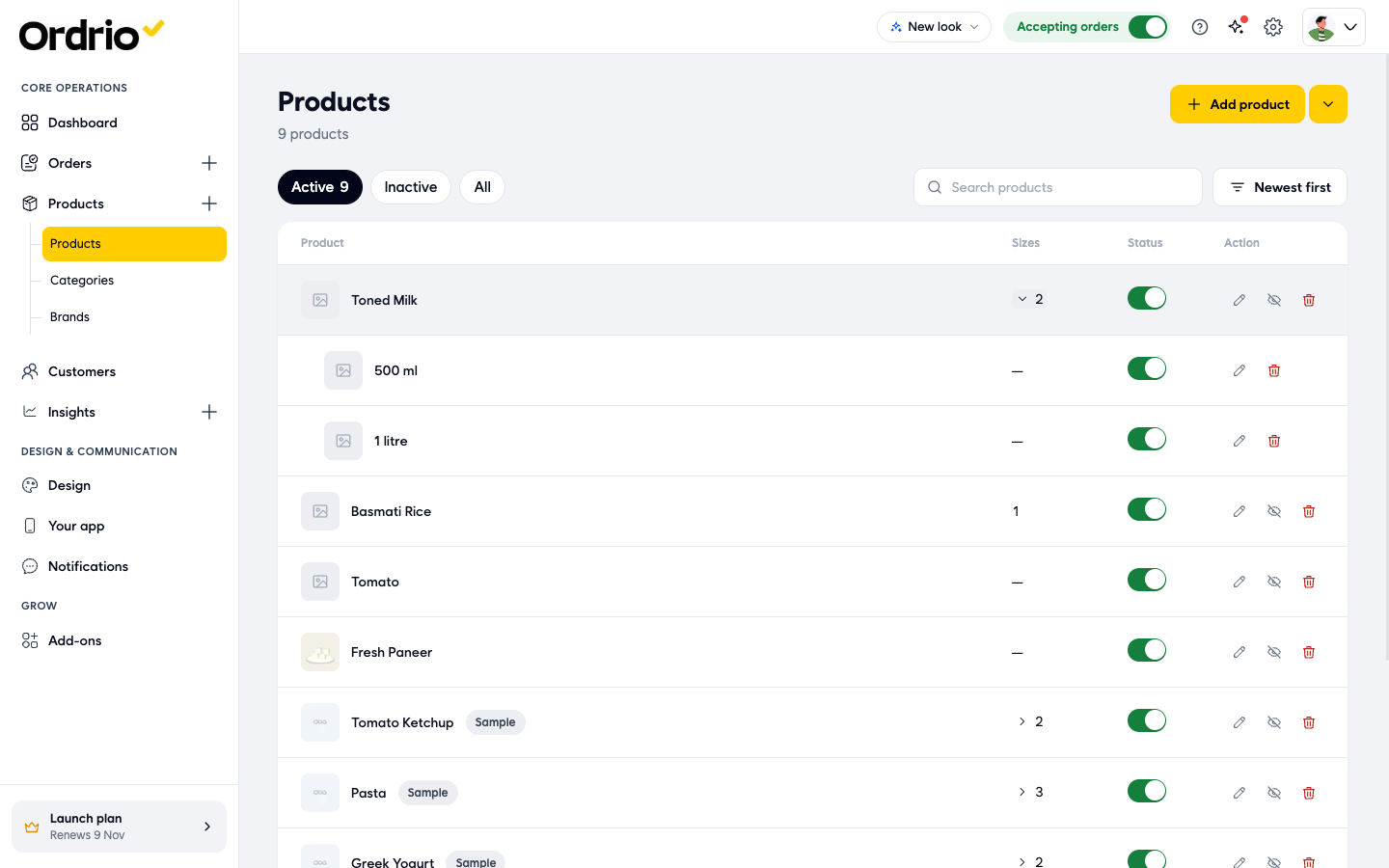
- In the menu on the left, click Products, then Products. You see the list of your products. The Sizes column shows how many options each product has.
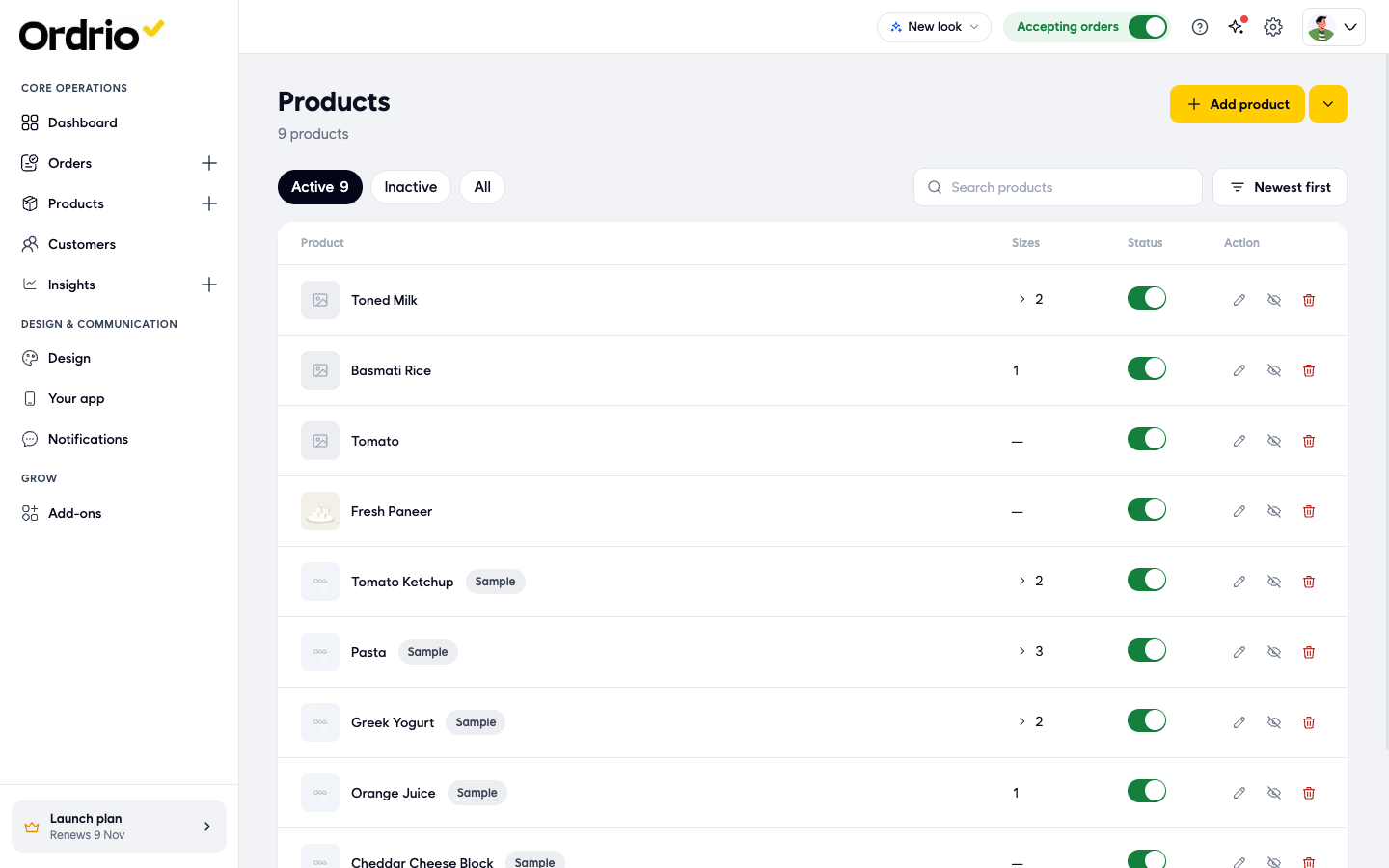
- Click Add product. The Add product screen opens.
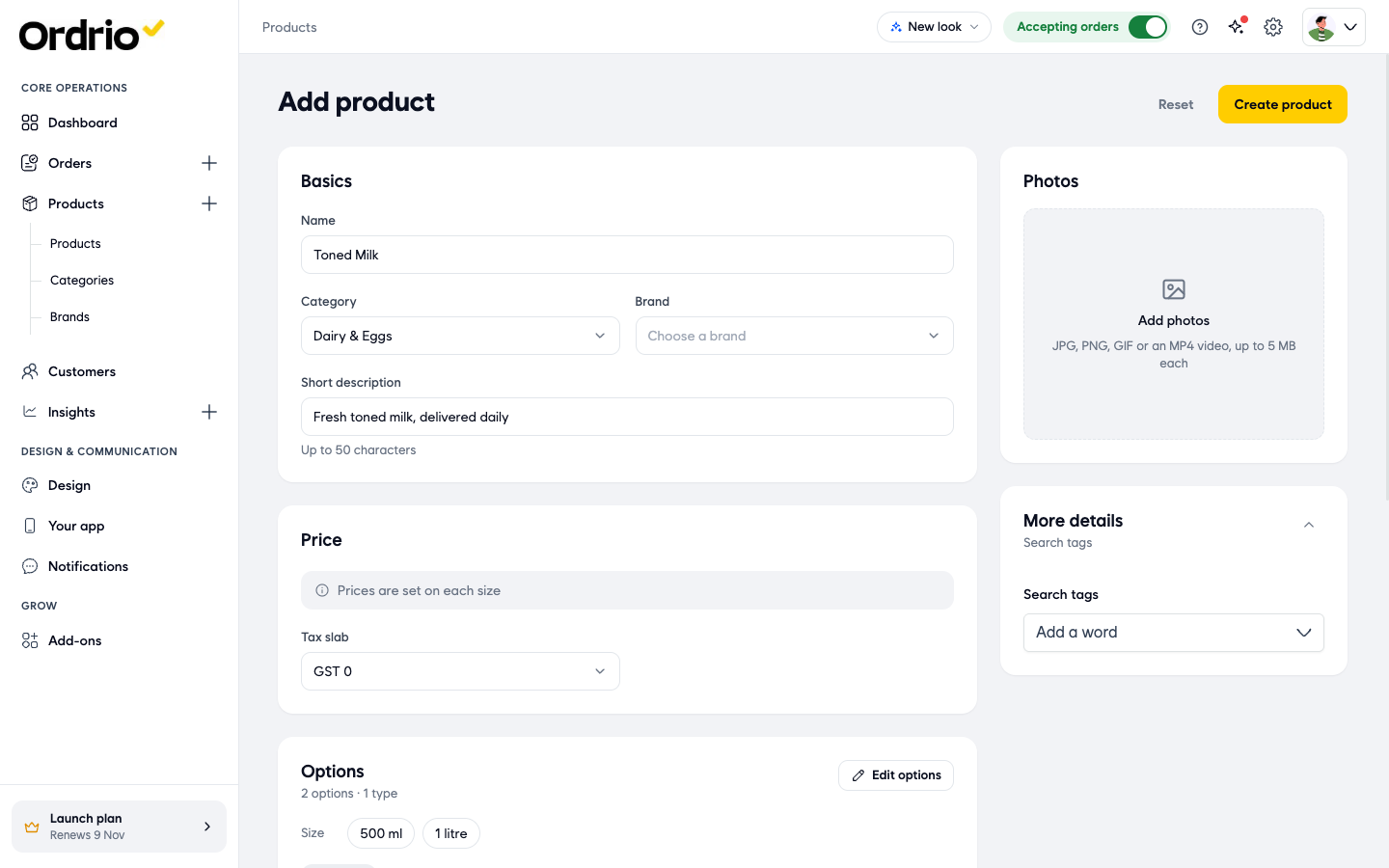
- Fill in the Basics section:
- Name: the product name customers see, for example "Toned Milk".
- Category: choose one or more categories the product appears in.
- Brand: choose a brand, if you use brands. You can leave it empty.
- Short description: one line shown under the name, up to 50 characters.
- Photos: click Add photos to add JPG, PNG, GIF or an MP4 video, up to 5 MB each.
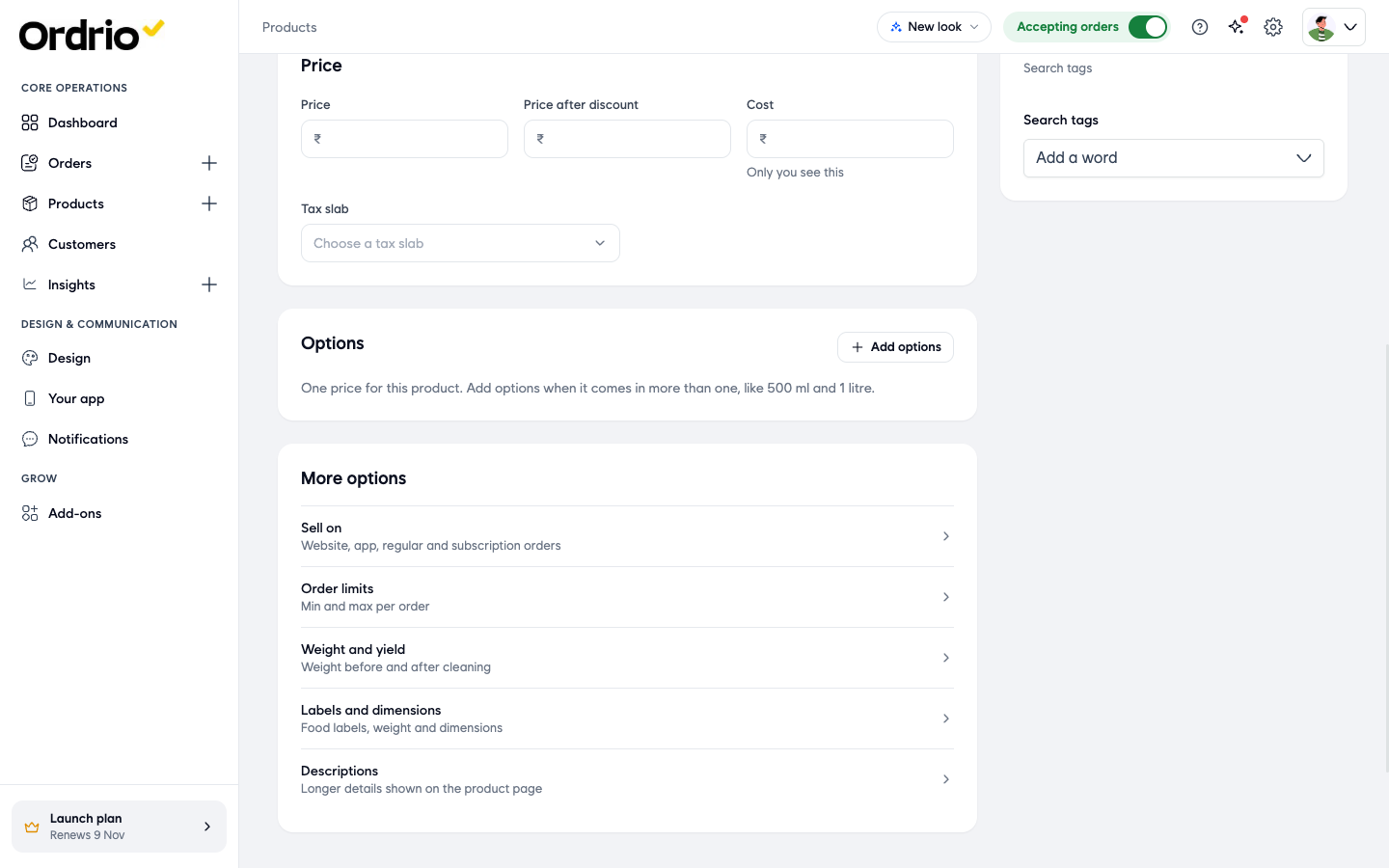
- In the Price section, choose a Tax slab. Leave Price, Price after discount and Cost empty. You set those on each option.
- Scroll to the Options section and click Add options.
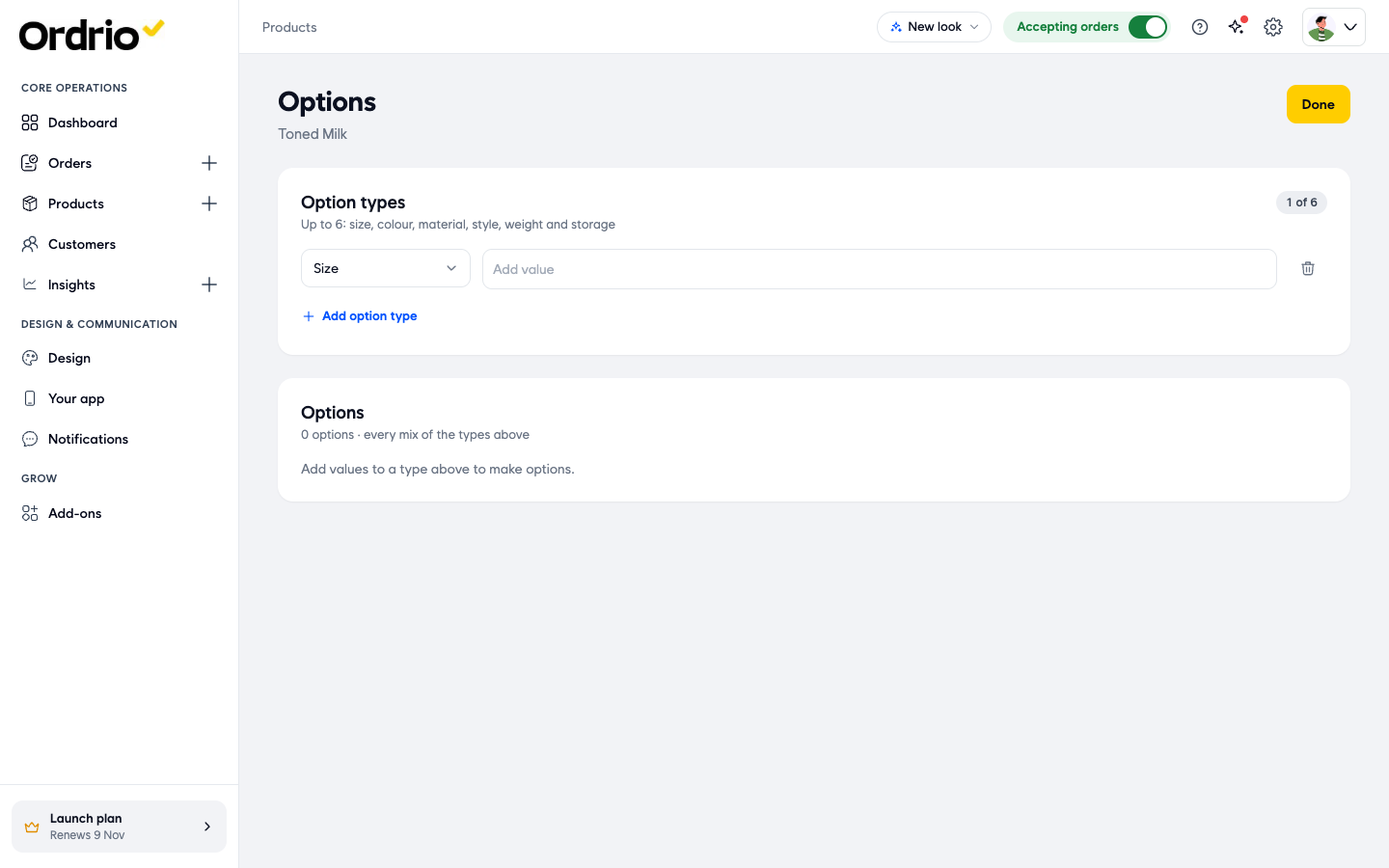
- The Options screen opens. Under Option types, open the drop-down and choose the type you need: Size, Colour, Material, Style, Weight or Storage.
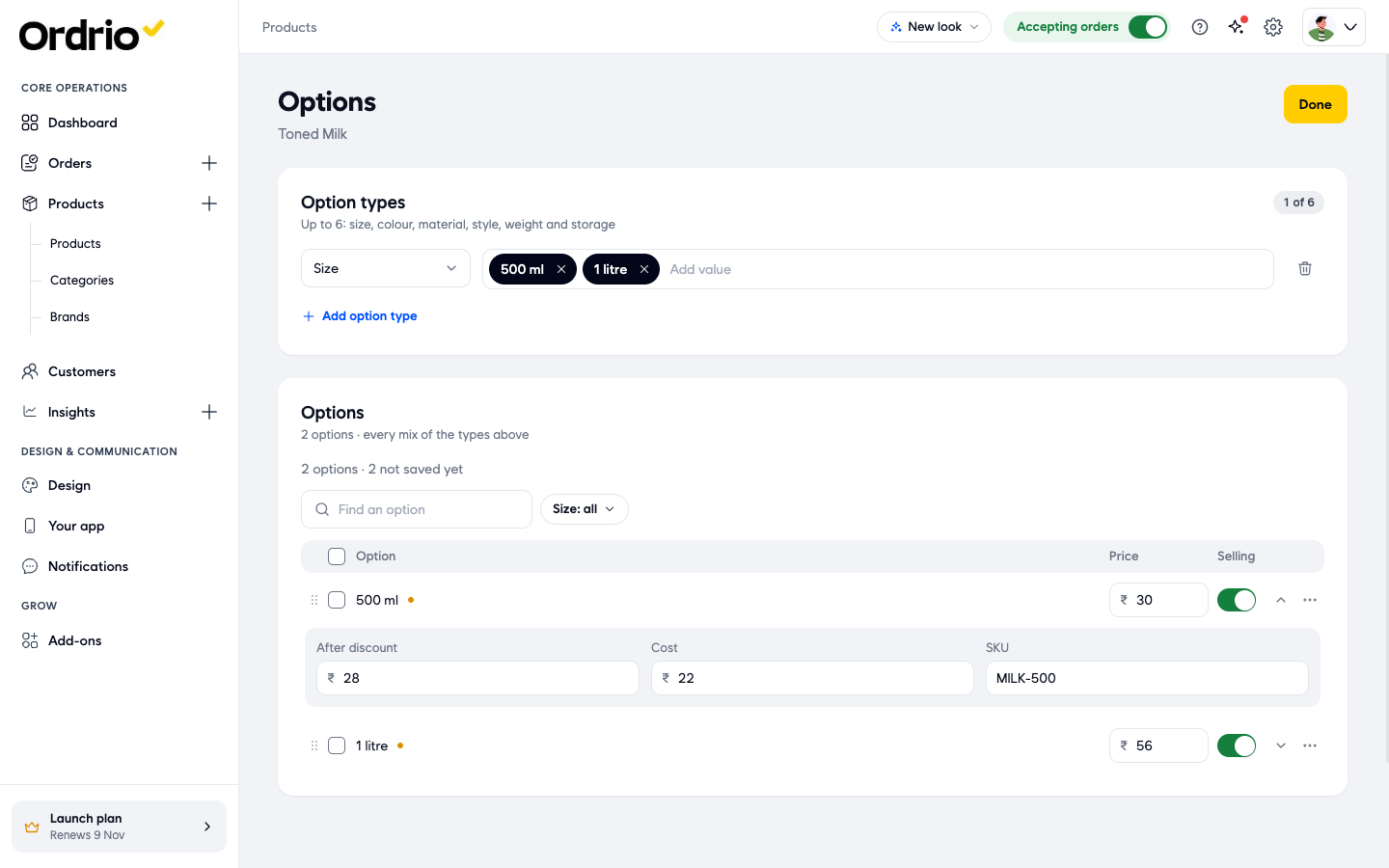
- Click Add value, type the first value (for example "500 ml") and press Enter. Add each value the same way (for example "1 litre"). Each value becomes one option in the Options list below. If you chose Colour, you can also pick a colour swatch for each value.
- In the Options list, type a Price for each option. An option without a price shows "Add a price". Keep the Selling switch on for each option you want to sell.
- To add more for an option, click the arrow next to its price. You can fill in:
- After discount: the lower price customers pay, if the option is on offer.
- Cost: what the option costs you. Only you see this.
- SKU: your own stock code for the option.
- To add a photo, search tags or a description to one option, click the ... button next to it and choose All details. Fill in the fields you need and click Save option. Choose Remove in the same menu to delete an option.
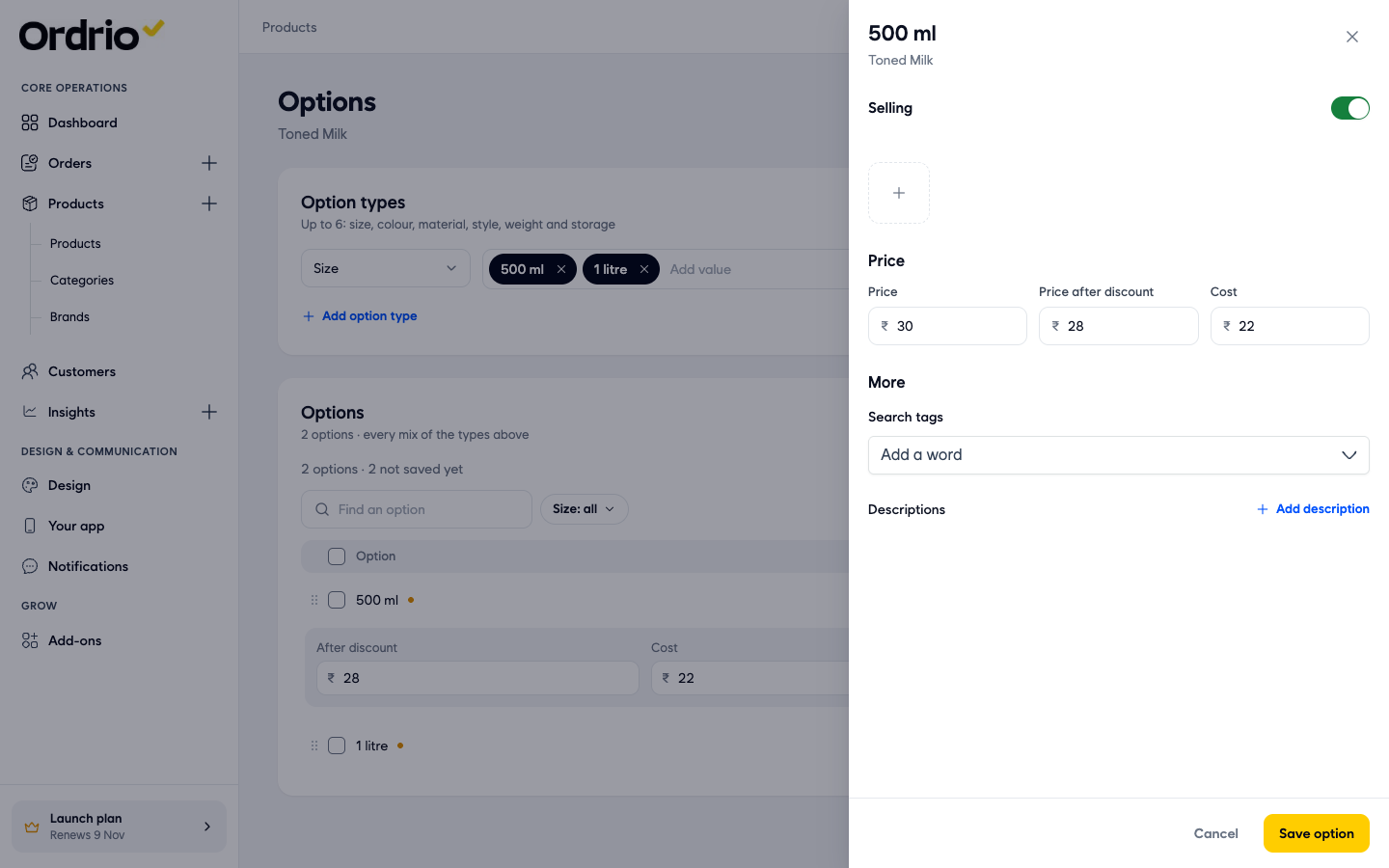
- Click Done. You are back on Add product. The Price section now says "Prices are set on each size", and the Options section shows your option type, its values and the price range.
- Click Create product. You are taken back to Products. Your product shows the number of options in the Sizes column. Click the number to see each option on its own line.
Mix two or more option types
You can use up to 6 option types on one product, for example Size and Colour. Click Add option type on the Options screen and choose another type. Ordrio makes one option for every mix of the values, so 2 sizes and 2 colours give 4 options. Each type can be used only once per product.
If the product already has options, adding a new type asks Add colour to every option? (or the type you chose). Clicking Replace options removes the old options, with their prices and stock, and makes new ones priced like the first option. Click Cancel to keep the options you have.
Change options later
- Go to Products > Products.
- Click the edit (pencil) button next to the product, or next to one of its options.
- Click Edit options in the Options section to change values, prices or the Selling switch, then click Done.
- Click Save.
In the Products list you can also turn off the switch next to a single option to hide just that option, or click its delete button to remove it.
Good to know
- Quantity packs. There is no separate quantity type. To sell packs, type them as values, for example "Pack of 6" and "Pack of 12" under Size.
- Weight. Use the Weight type for things like 250 g, 500 g and 1 kg.
- Order of options. Drag an option in the Options list to change its order. Drag values in Option types to reorder them too.
- Prices. Every option needs its own price. Once a product has options, you no longer set a single price for it.
- Duplicate names. If you give a new product the same name as one you already have, Ordrio shows "Looks like a duplicate" with an Open existing link, so you can add options to the existing product instead.
- Find an option. On products with many options, use Find an option or the type filter (for example Size: all) to find one quickly.
Related
- Adding your first product
- Managing product categories
- Product pricing and taxes
- Product attributes and search tags