How-to guide
Weight-based and variable products
Sell by weight or measure with base and incremental pricing.
Some products are not sold by the piece. Rice, dal, vegetables, fish and meat are sold by weight, and milk or oil by measure. In Ordrio you can sell these in two ways. You can sell loose by quantity, using a base quantity and steps. Or you can sell fixed packs like 500 g, 1 kg and 2 kg, each with its own price. For fish and meat you can also show the weight before and after cleaning.
The names, prices and quantities below are only examples. Use your own products, prices and quantities.
Before you start
- Open nadi.ordrio.com (your Ordrio admin panel) and log in.
- If you charge tax, create your tax slab first so you can pick it in Tax slab.
Choose the right way to sell
- Loose, by quantity (for example rice by the kg, in steps of 0.5): one price, with Base Quantity and Incremental Quantity in Order limits. Follow Part 1.
- Fixed packs (for example fish in 500 g, 1 kg and 2 kg): add Options with the option type Weight, and give each pack its own price and stock. Follow Part 2.
- Weight before and after cleaning (for example prawns that lose weight when cleaned): turn on Weight and yield on a product with one price. Follow Part 3.
Part 1: Sell loose with base and incremental quantity
- In the menu on the left, click Products, then Products. You see the list of your products.
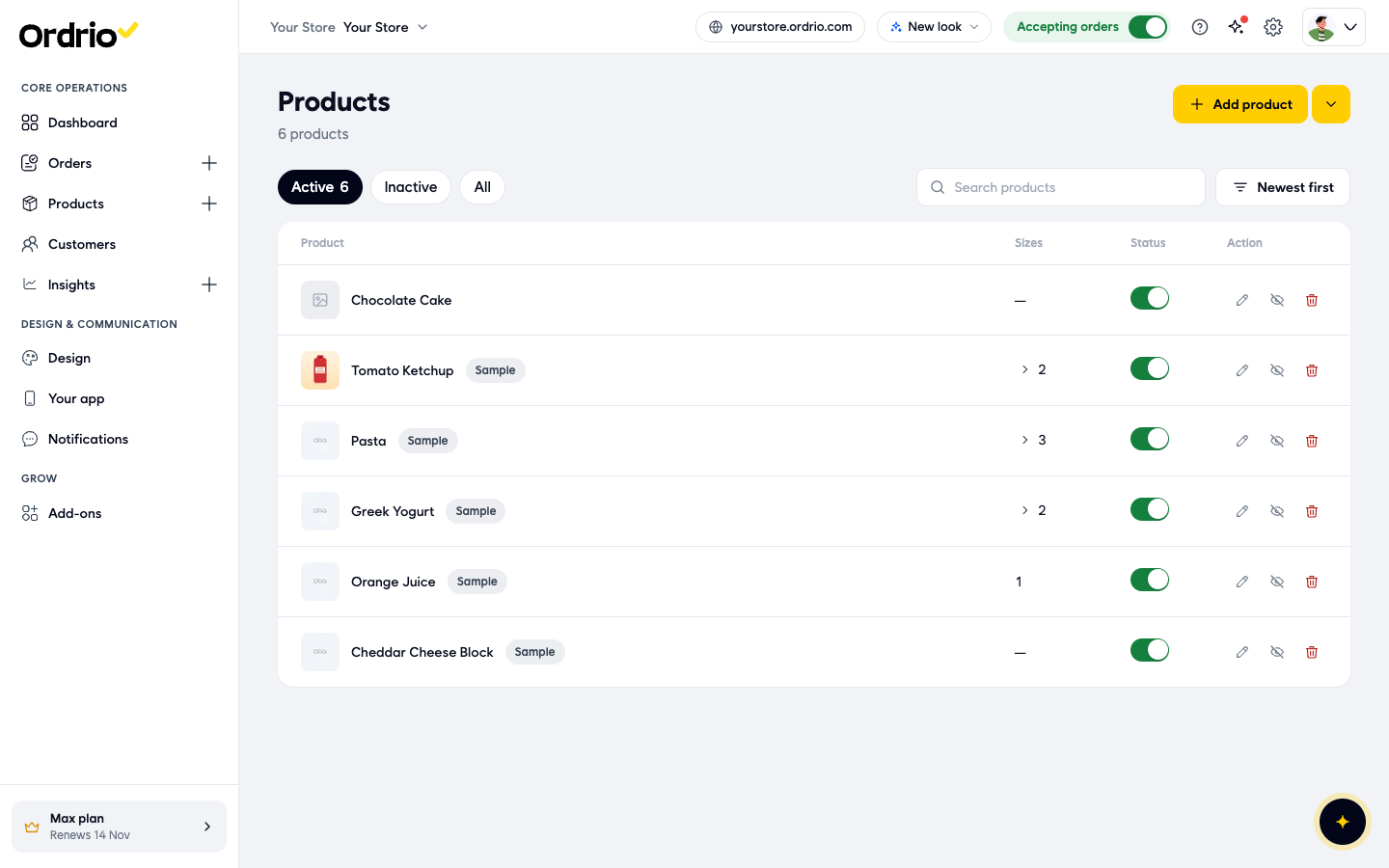
- Click Add product. The Add product screen opens.
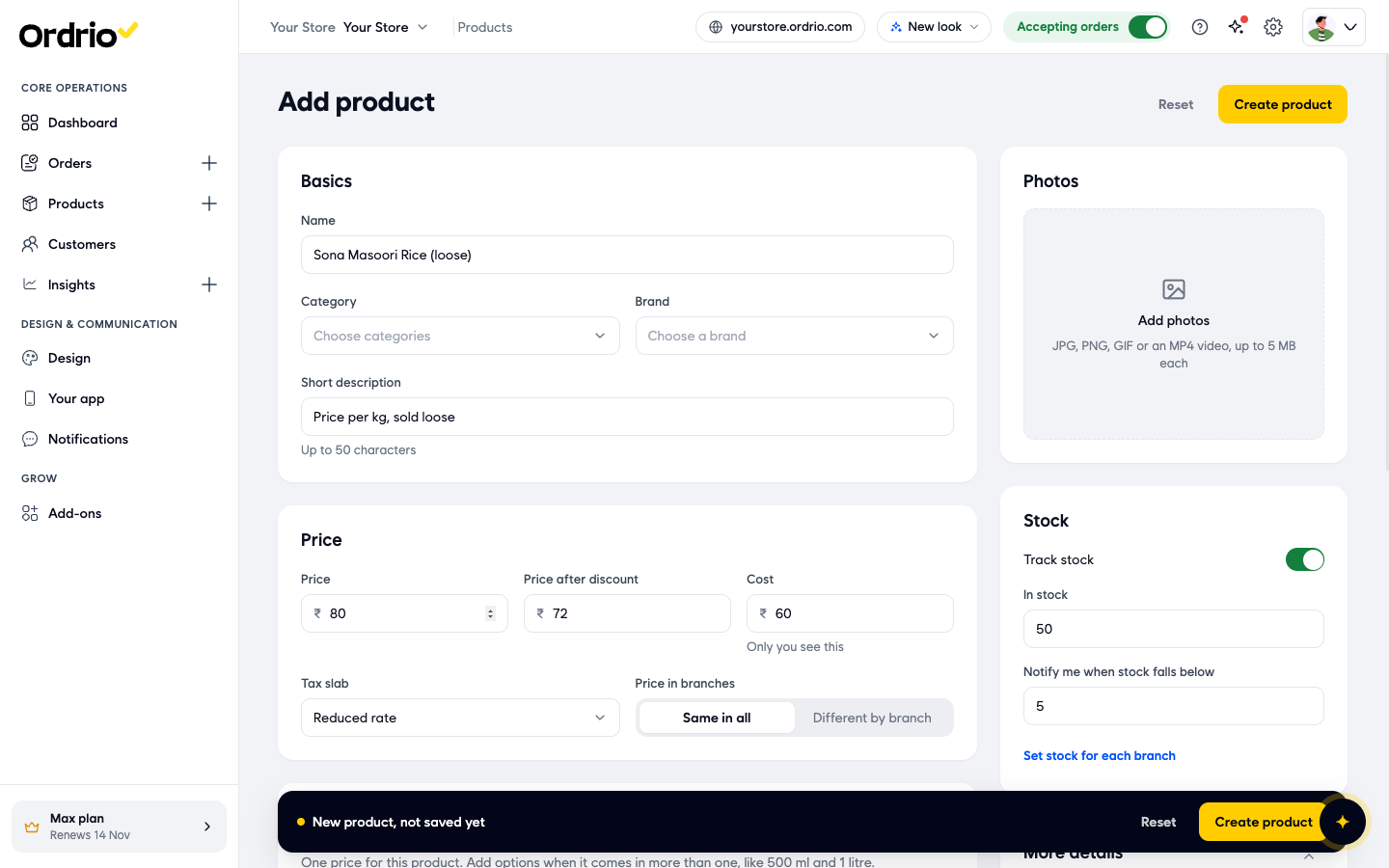
- In Basics, fill in:
- Name: what customers see, for example "Sona Masoori Rice (loose)".
- Category: pick one or more of your categories.
- Brand: pick a brand if the product has one.
- Short description: one line under the name, up to 50 characters. Say what the price is for, for example "Price per kg, sold loose".
- In Price, fill in:
- Price: the selling price, for example 80.
- Price after discount: the lower price if you run an offer, for example 72. Leave it empty if there is no offer.
- Cost: what the product costs you, for example 60. Only you see this.
- Tax slab: pick the tax that applies.
- Price in branches: keep Same in all, or choose Different by branch to set a price for each branch.
- In Stock, keep Track stock on if you want Ordrio to count stock. Type the quantity you have in In stock, for example 50, and a number in Notify me when stock falls below, for example 5, to get a low-stock alert. To set stock branch by branch, click Set stock for each branch.
- Scroll down to More options and click Order limits. The Order limits panel opens.
- Fill in the four fields:
- Base Quantity: the starting quantity for this product. The field suggests values like 0.25 or 1. For example, 0.5.
- Incremental Quantity: how much the quantity goes up by each time, for example 0.5.
- Minimum Selling Quantity: the smallest quantity a customer can order, for example 0.5.
- Maximum Selling Quantity: the largest quantity a customer can order in one order, for example 10.
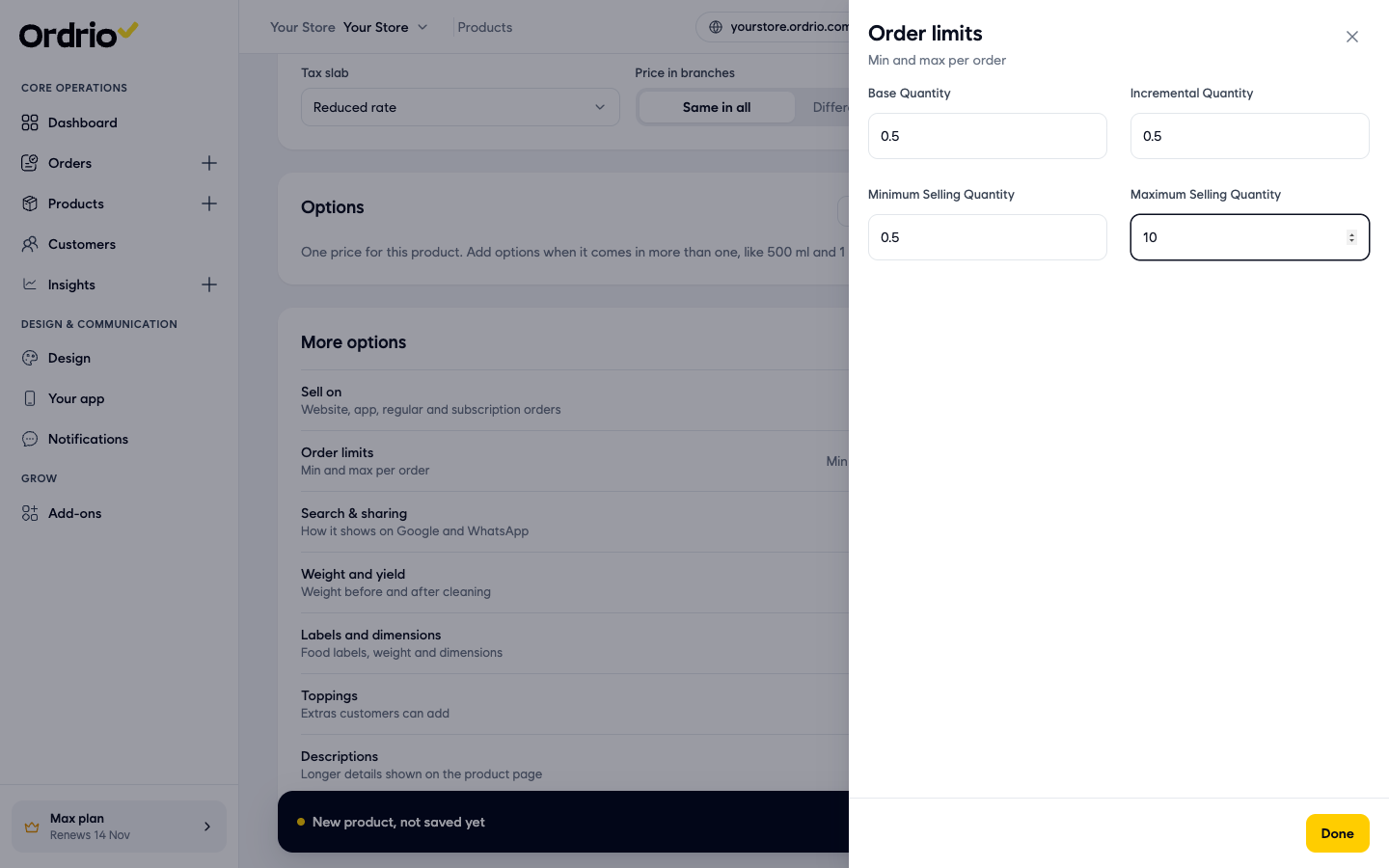
- Click Done. Back on the product screen, Order limits now shows a summary, for example "Min 0.5 · Max 10".
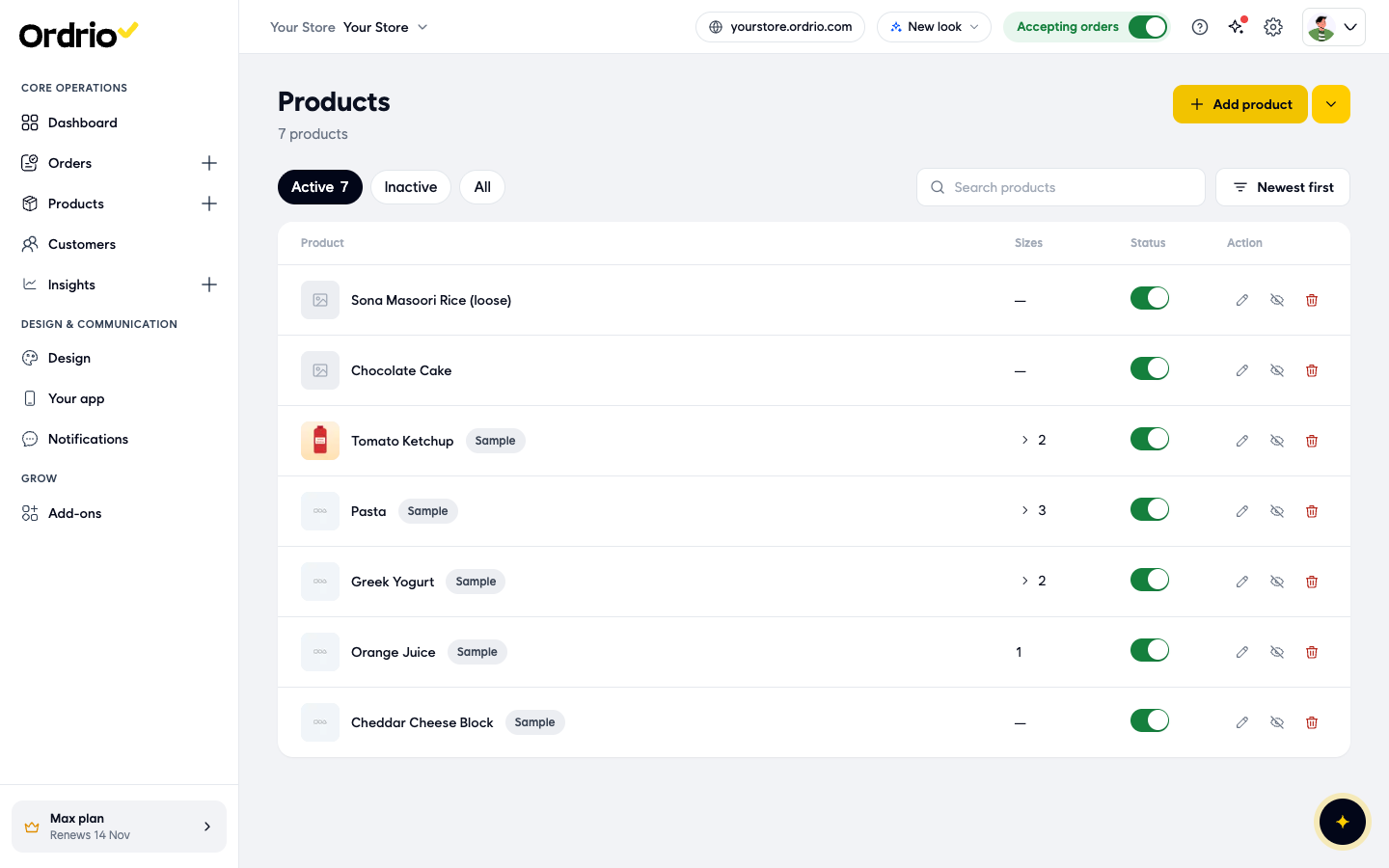
- Click Create product. Ordrio saves the product and takes you back to Products, where the new product is at the top of the list.
Part 2: Sell fixed weight packs with options
- Go to Products and click Add product.
- Fill in Basics and Stock as in Part 1, for example Name "Rohu Fish" and Short description "Fresh river fish, cleaned and cut".
- In the Options section, click Add options. The Options screen opens.
- Under Option types, open the drop-down and choose Weight. You can choose from Colour, Size, Material, Style, Weight and Storage, and add up to 6 option types with Add option type.
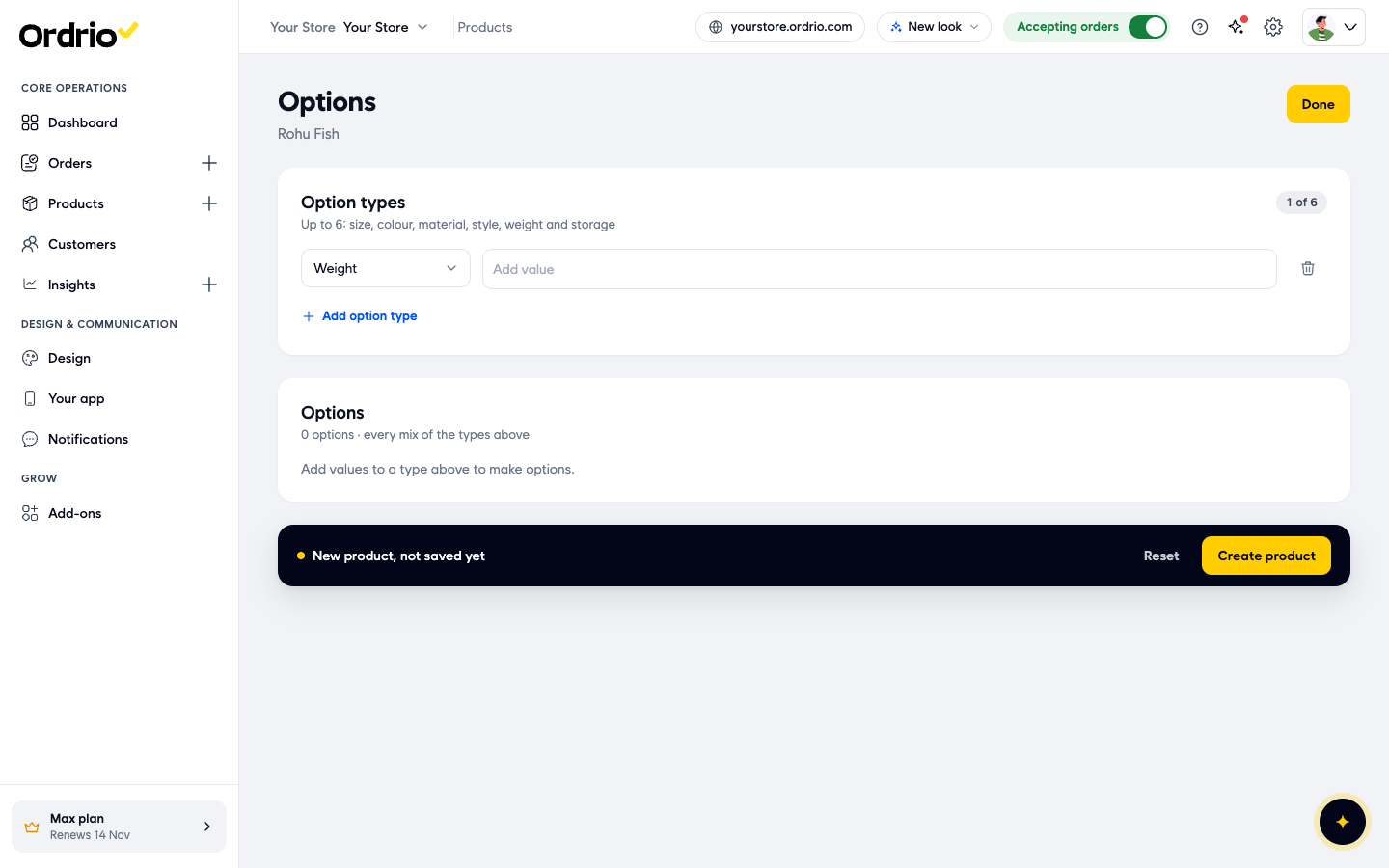
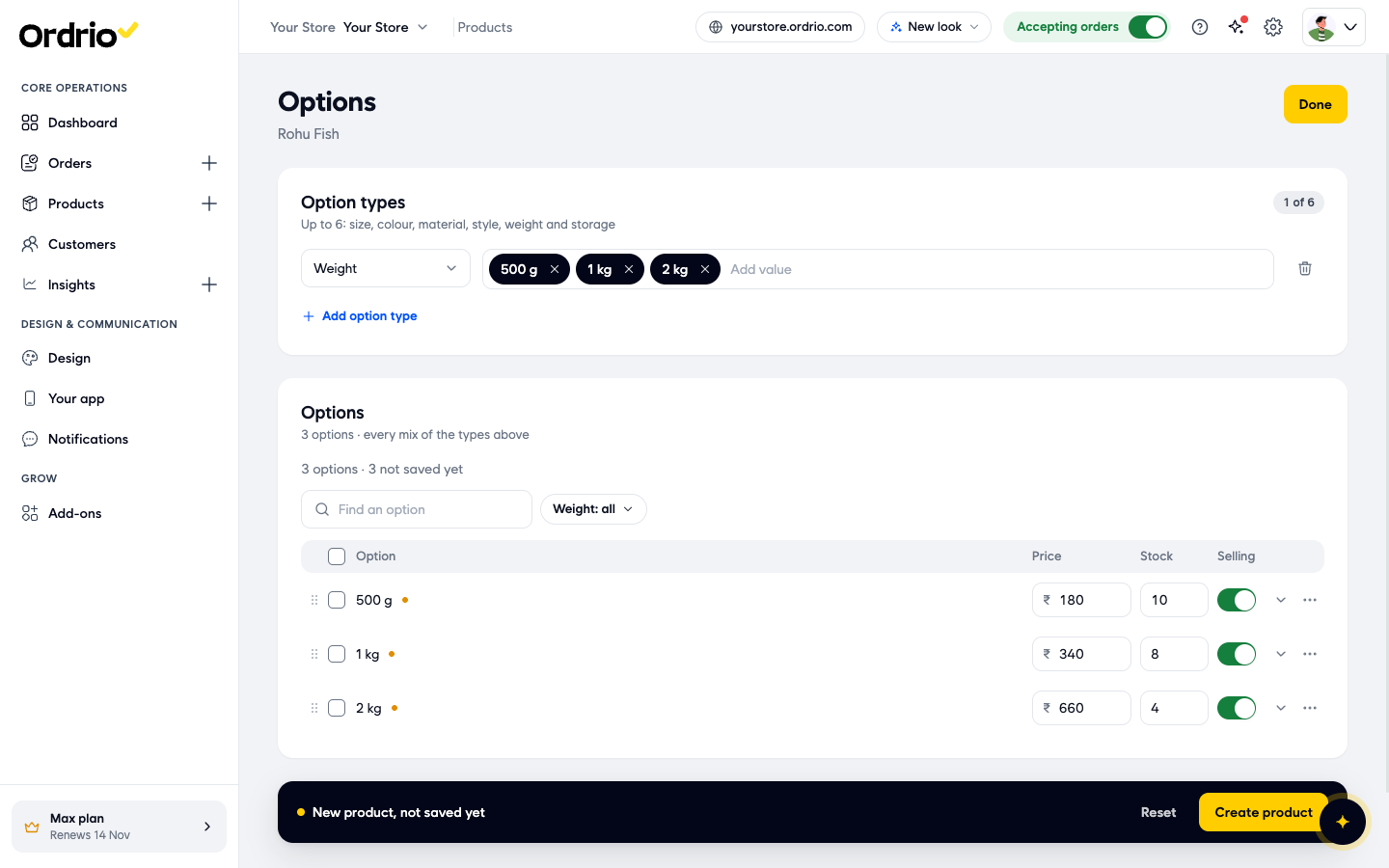
- Click in the Add value box next to Weight, type the first pack size, for example "500 g", and press Enter. Add each pack the same way, for example "1 kg" and "2 kg". Each value becomes one row under Options.
- For each row, fill in:
- Price: the price of that pack, for example 180 for 500 g, 340 for 1 kg and 660 for 2 kg. A row without a price shows "Add a price".
- Stock: how many of that pack you have.
- Selling: keep it on to sell that pack. Turn it off to stop selling just that pack.
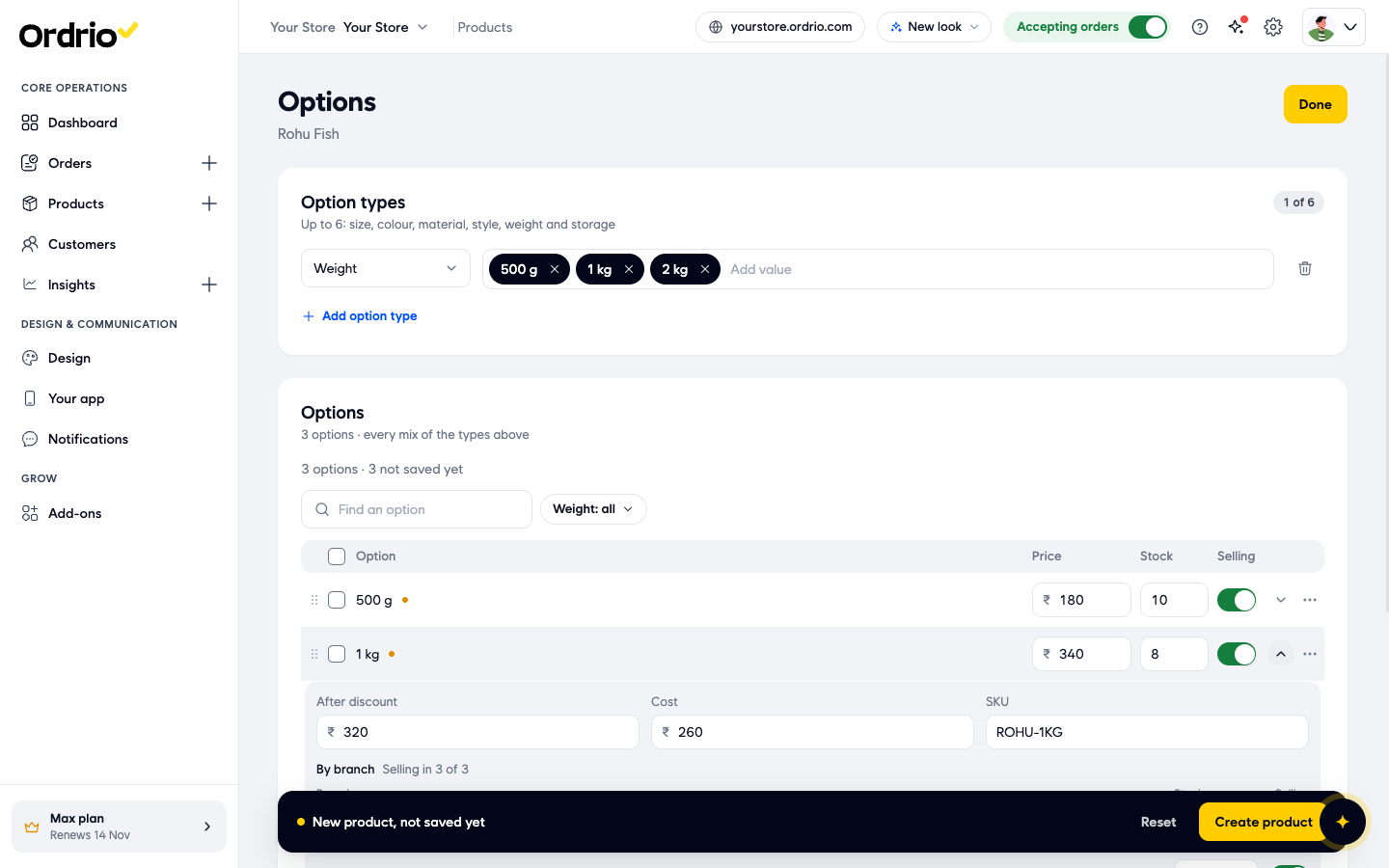
- To add more details to a pack, click the arrow next to its Selling switch. Fill in:
- After discount: the offer price for that pack.
- Cost: what the pack costs you. Only you see this.
- SKU: your own code for the pack, for example "ROHU-1KG".
- By branch: the stock of that pack in each branch, and a switch to sell it there or not.
For photos, a low-stock alert and a description for one pack, click ... next to the row and choose All details, then click Save option.
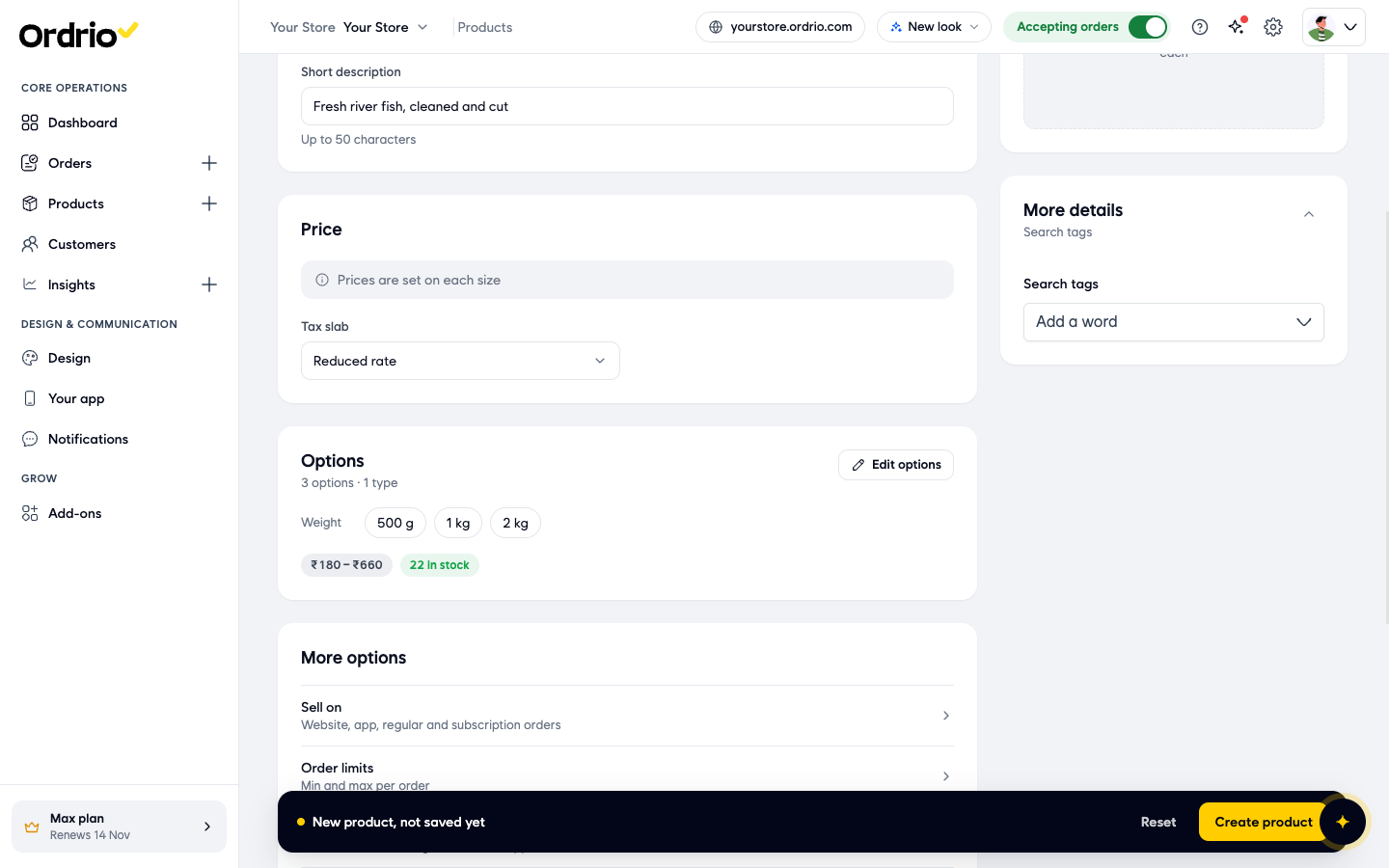
- Click Done. Back on the product screen, Price now says "Prices are set on each size", and Options shows your packs, the price range and the total stock. Pick a Tax slab in Price. To change the packs later, click Edit options.
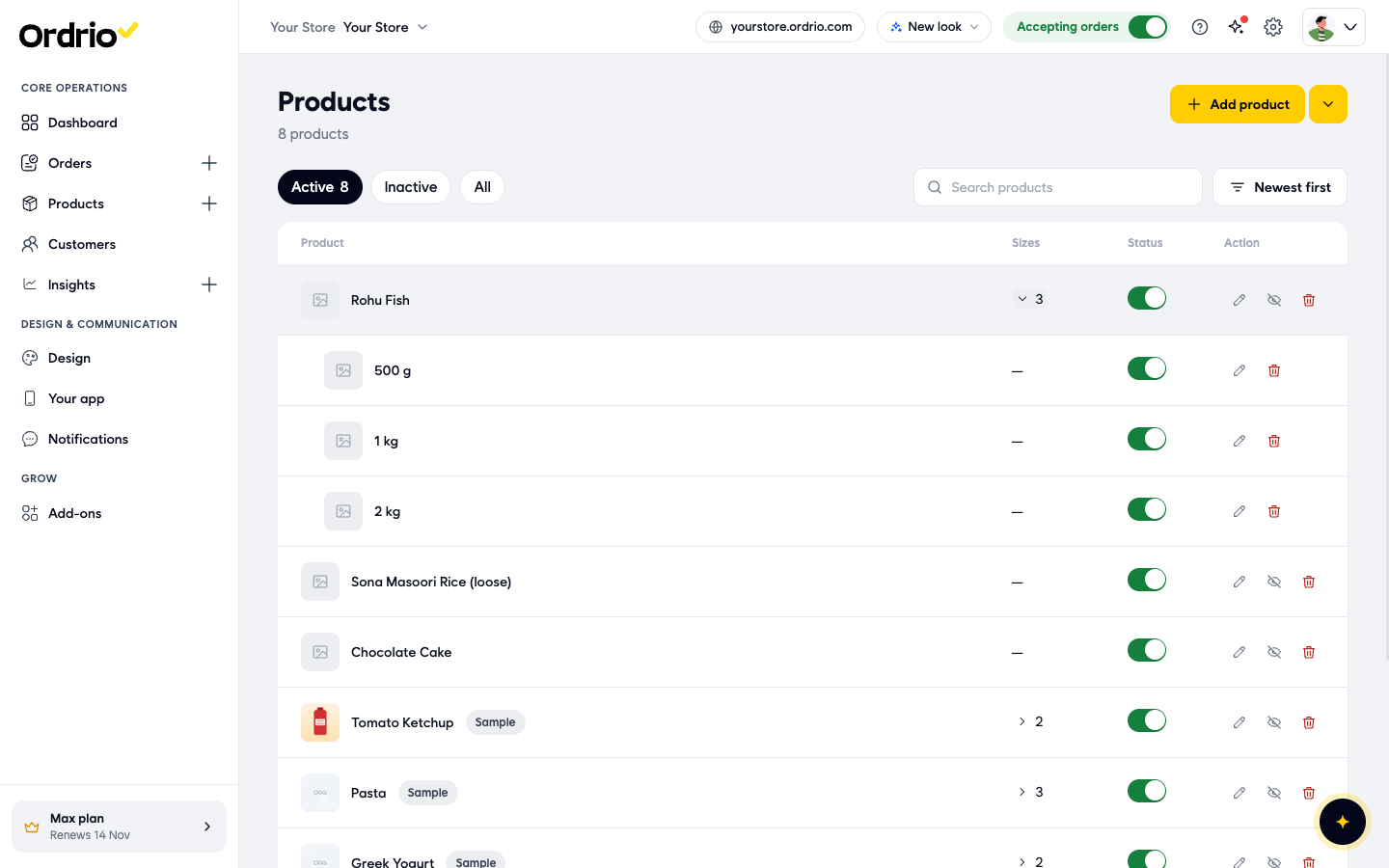
- Click Create product. In Products, the product shows the number of packs in the Sizes column. Click the number to see each pack.
Part 3: Show weight before and after cleaning
Use this for products that lose weight when cleaned, like fish, prawns, chicken or nuts in their shells. It works on a product with one price, not on a product with weight options.
- Go to Products, click Add product, and fill in Basics, Price and Stock as in Part 1. For example, Name "Tiger Prawns (500 g pack)" and Price 450.
- Scroll to More options and click Weight and yield. The Weight and yield panel opens.
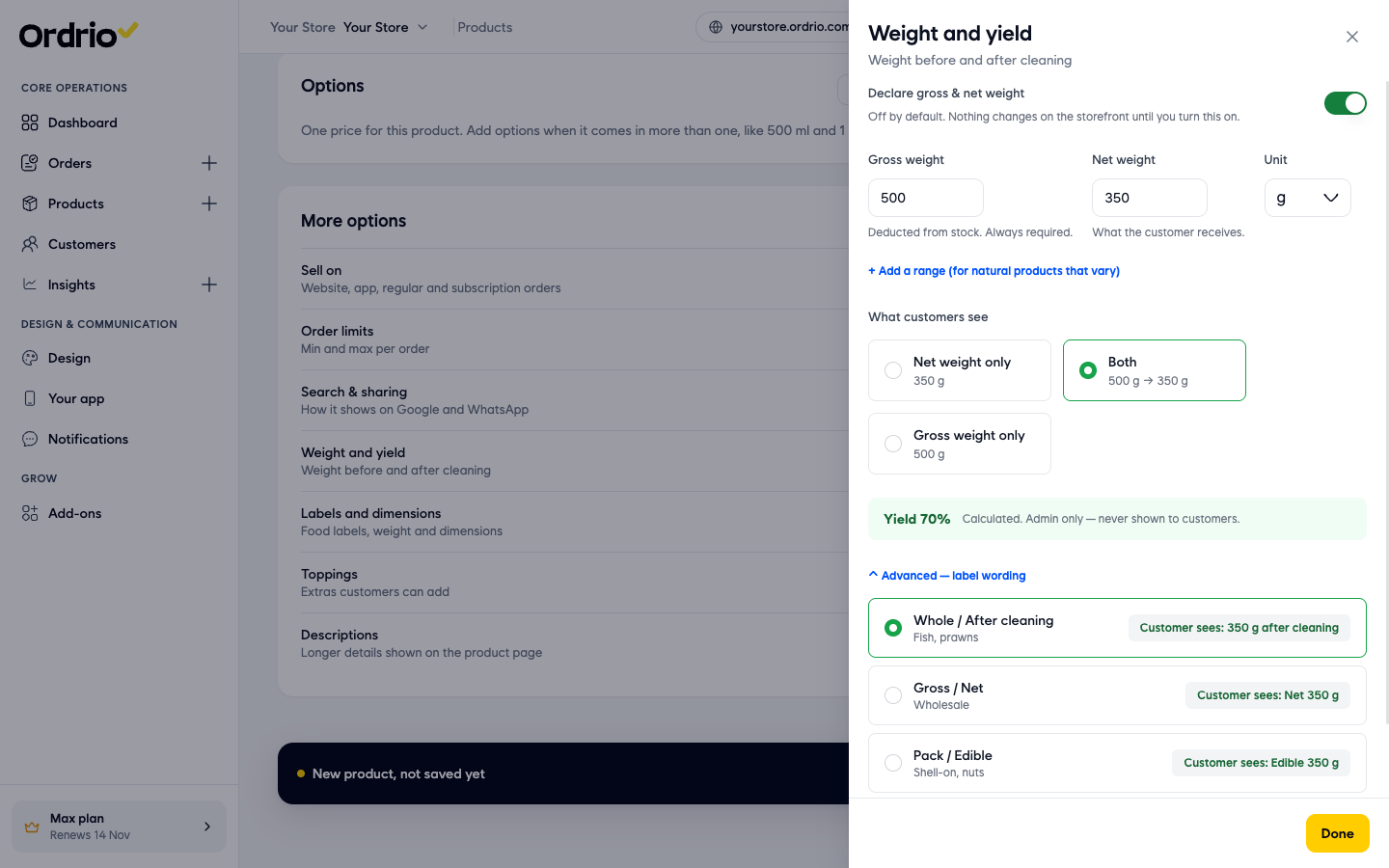
- Turn on Declare gross & net weight. It is off by default, and nothing changes on your store until you turn it on.
- Fill in the weights:
- Gross weight: the weight before cleaning, for example 500. This is the weight taken off your stock, and it is always required.
- Net weight: the weight the customer receives after cleaning, for example 350.
- Unit: choose g, Kg, mL or L.
- For natural products that vary in weight, click + Add a range (for natural products that vary) and type a "from" and "to" value for each weight.
- Under What customers see, choose Net weight only, Both or Gross weight only. Ordrio then shows Yield, the share of the weight that is left after cleaning, for example 70%. Only you see the yield. Customers never see it.
- To change the wording customers see, click Advanced (label wording) and choose one:
- Whole / After cleaning (fish, prawns): for example "350 g after cleaning".
- Gross / Net (wholesale): for example "Net 350 g".
- Pack / Edible (shell-on, nuts): for example "Edible 350 g".
- With bone / Boneless (chicken, mutton): for example "350 g boneless".
- Click Done, then click Create product. The product is saved and appears in Products.
Good to know
- Say what the price is for. For loose products, put the unit in the name or short description, for example "per kg", so customers know what they are paying for.
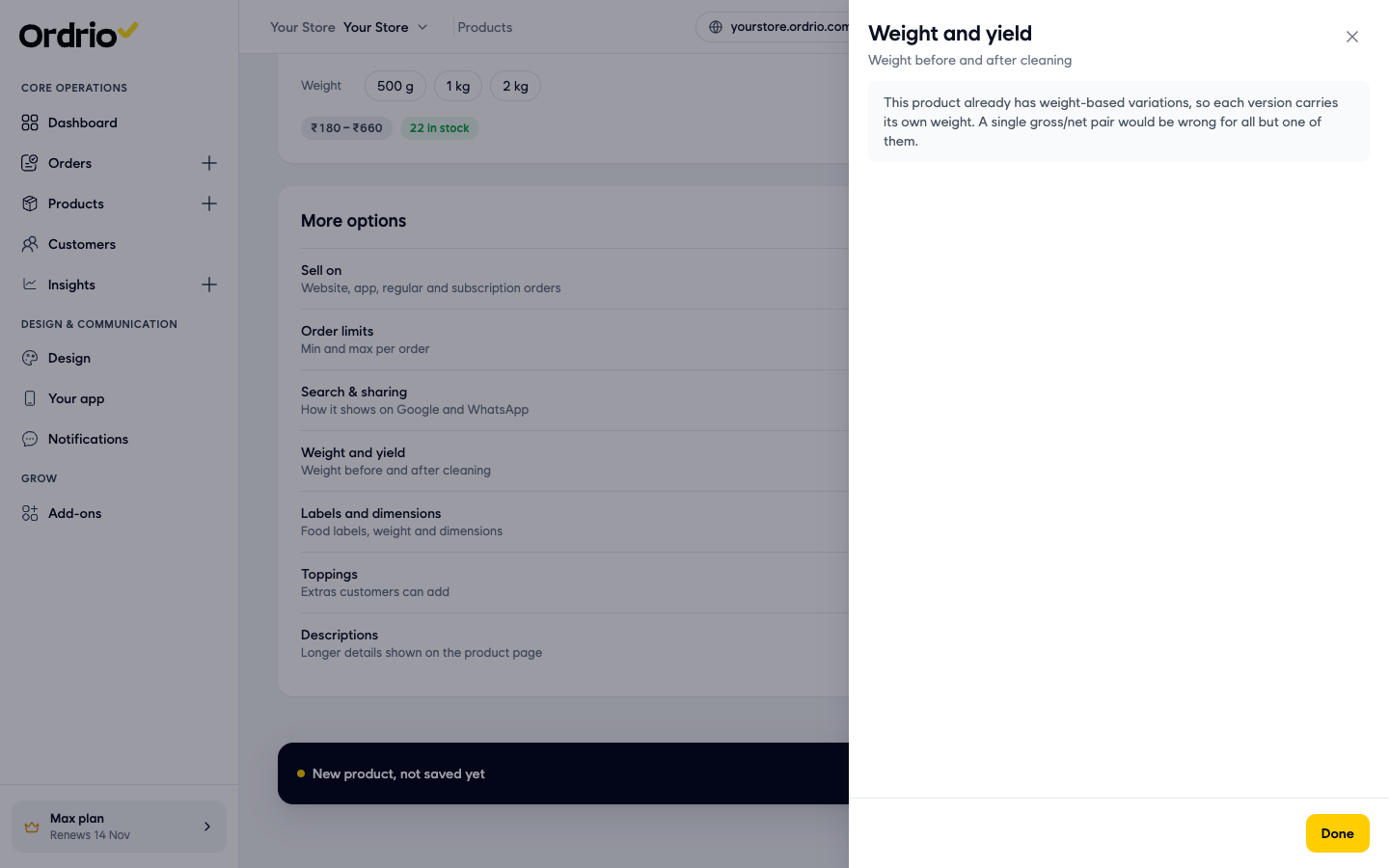
- Weight options and Weight and yield do not mix. If a product already has weight options, the Weight and yield panel shows a message instead of the fields, because each pack carries its own weight.
- Order limits apply to the whole product. Minimum Selling Quantity and Maximum Selling Quantity set the smallest and largest quantity for one order.
- Packs can be switched off one by one. Turn off Selling on a pack to stop selling it without hiding the whole product.
- Change it later. In Products, click the pencil icon next to a product, make your changes and click Save.
- Product weight for delivery is a different setting. Labels and dimensions in More options holds the product's weight and size (height, length and width). It does not change how the product is priced.
Related
- Adding your first product
- Product variations and options
- Smart inventory controls
- Product pricing and taxes