How-to guide
Choosing and applying a theme
Pick the theme that defines how your store looks on web and app.
A theme sets how your store looks to customers, on your website and in your app. You can pick a theme made for your kind of business and switch to it in a few clicks. Your products and settings stay the same when you switch.
Before you start
- You need to log in to your Ordrio admin panel as the store owner.
- Some themes are paid. To use a paid theme, you need to subscribe to it and pay from your admin panel.
The screenshots show an example store called "Your Store" at yourstore.ordrio.com. You will see your own store name and store link.
Choose and apply a theme
- Open nadi.ordrio.com (your Ordrio admin panel) and log in with your own registered email or mobile number.
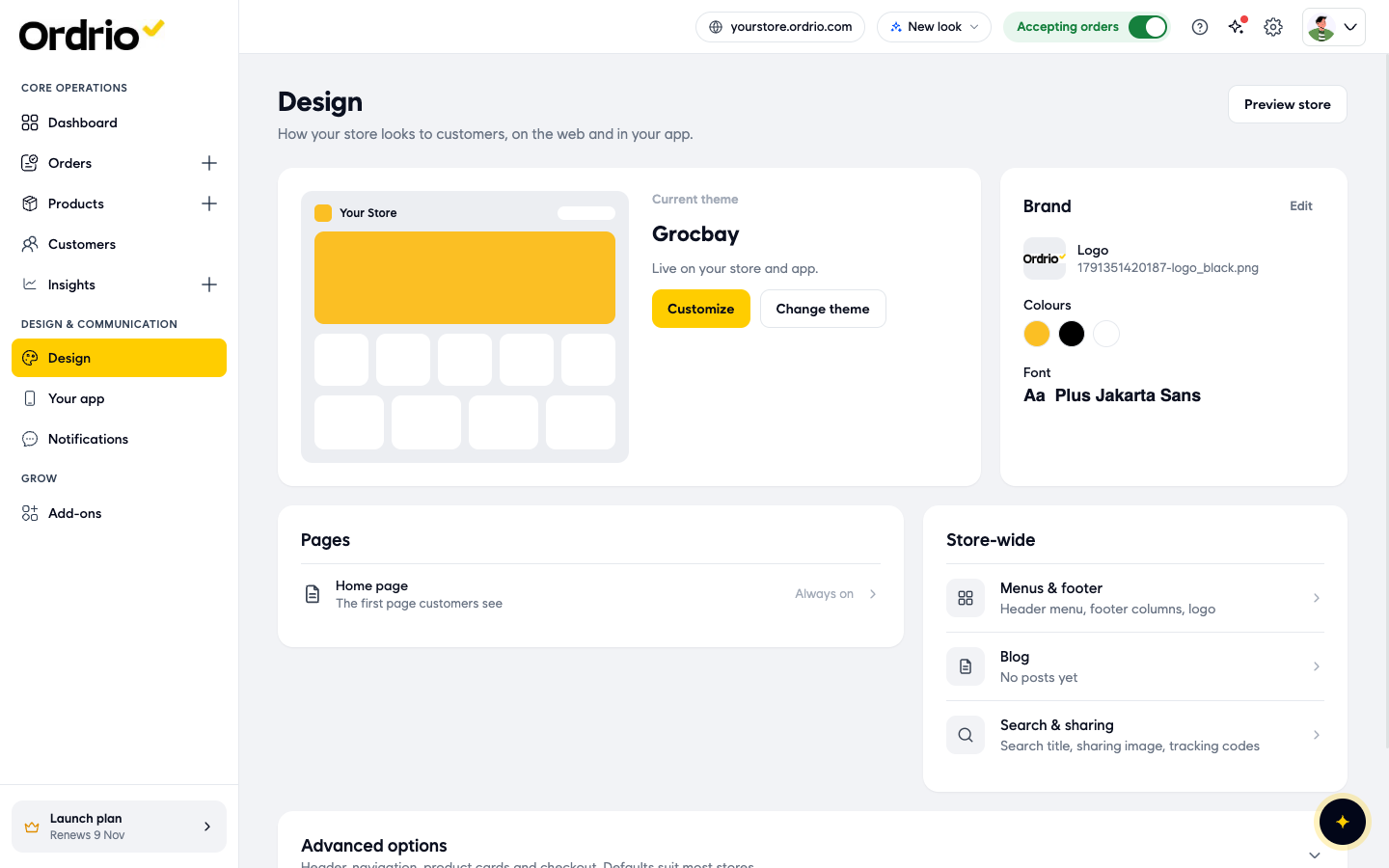
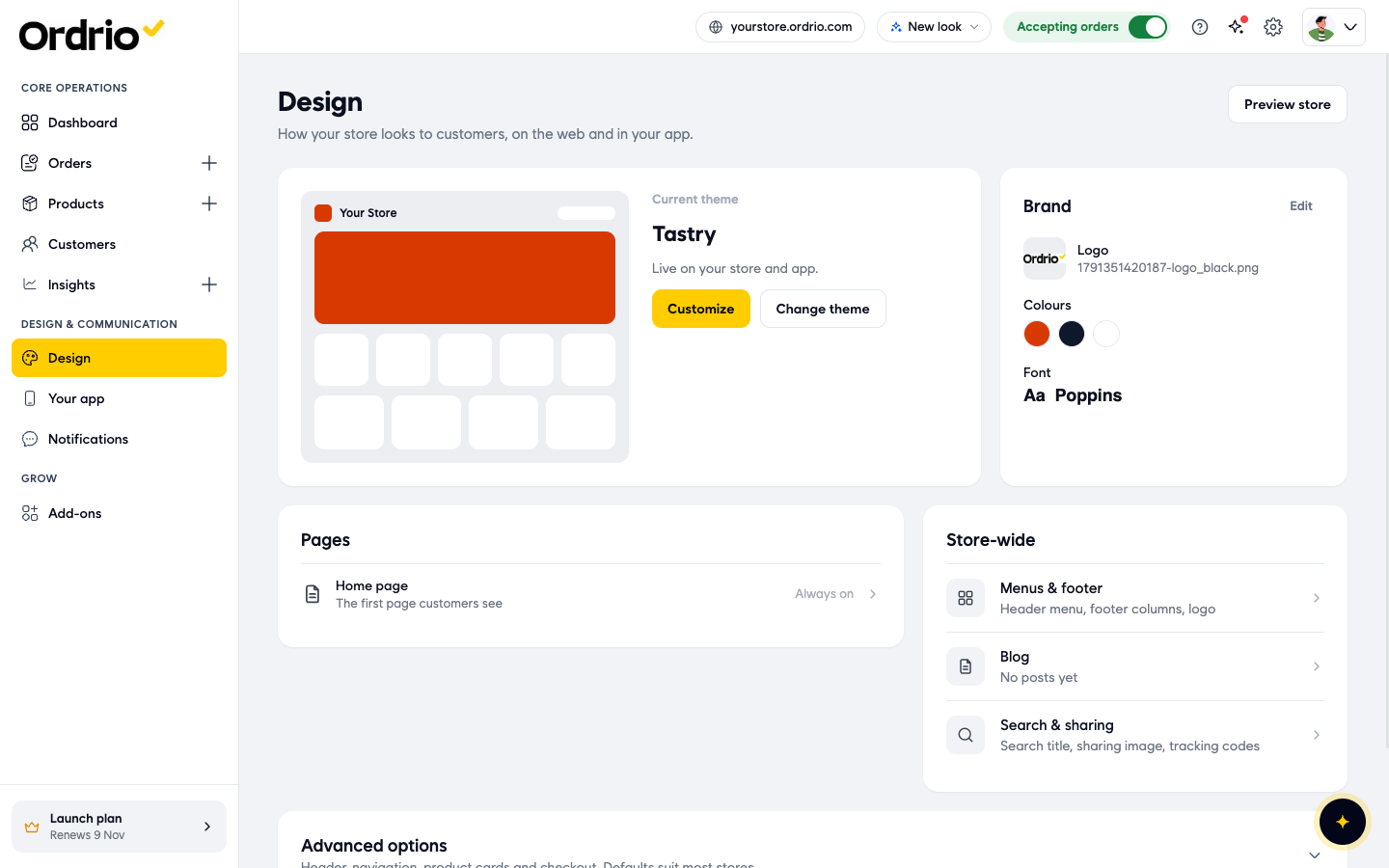
- In the left menu, under Design & Communication, click Design. This page shows how your store looks to customers, on the web and in your app.
- Current theme shows the name of the theme your store uses now, with the line "Live on your store and app."
- Customize opens your home page so you can edit it.
- Change theme opens the list of themes.
- Brand shows your logo, colours and font. Click Edit to change them.
- Preview store (top right) opens your live store in a new tab.
- Click Change theme. The Themes page opens on the Theme tab. Each card shows a picture of the theme, its name and the kind of store it suits, for example "For grocery and daily needs stores" or "For cloud kitchens and food delivery".
- The theme you use now has a Current label.
- Themes you have to pay for have a Paid label.
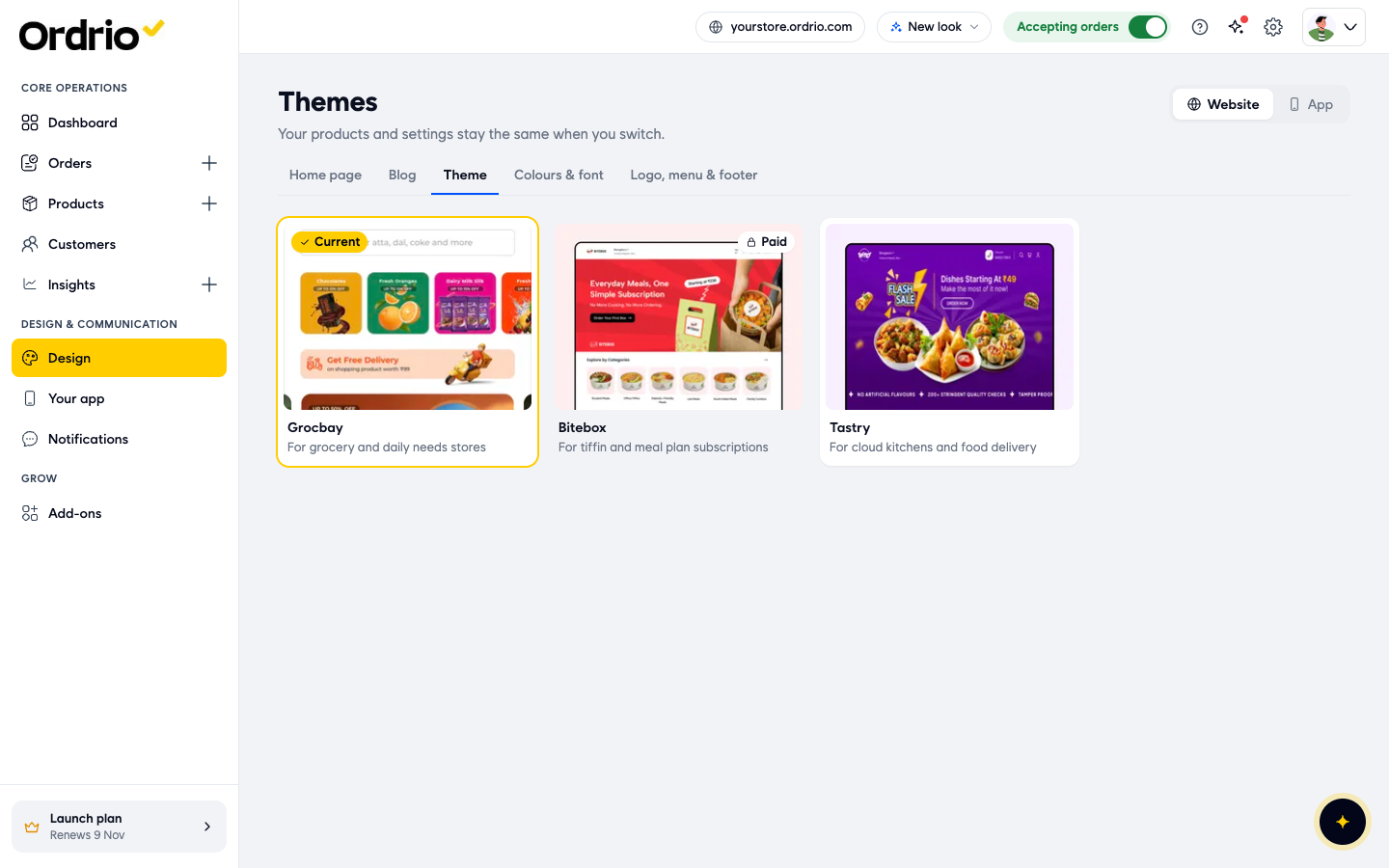
- At the top right, choose Website or App to see how the themes look on your website or in your customer app. Some themes may not have an app picture yet. In that case the card shows "No app picture yet".
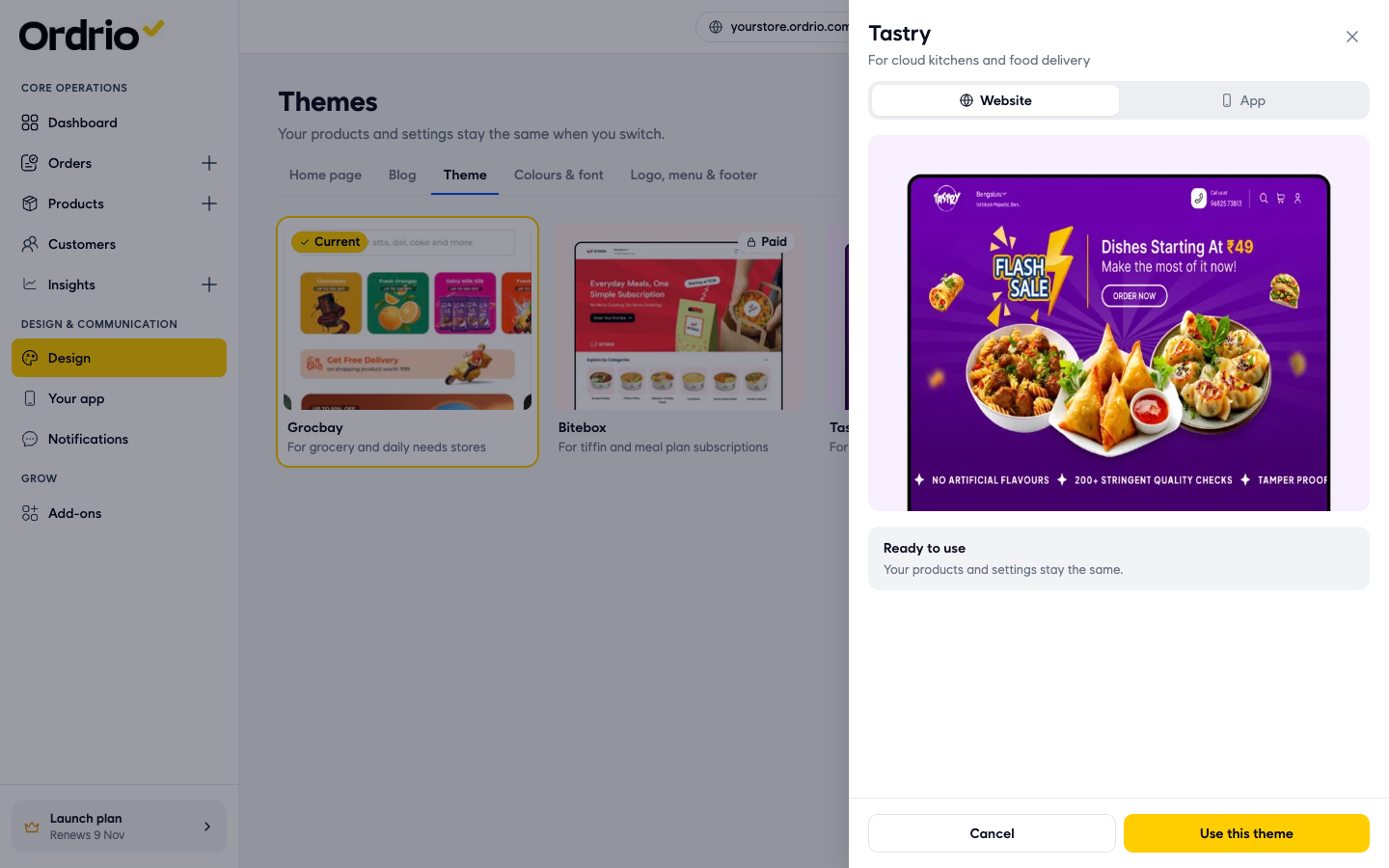
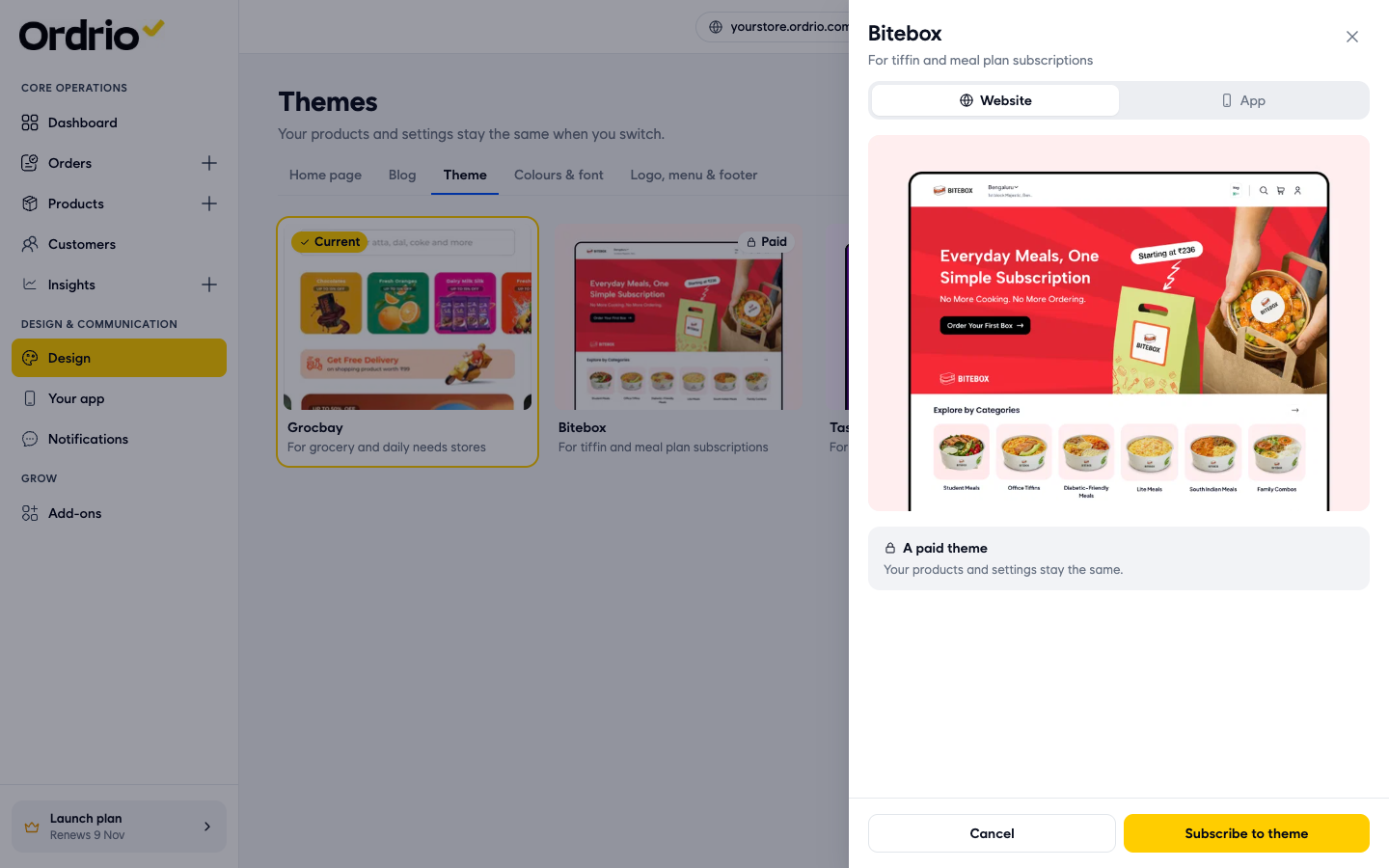
- Click the theme you like. A preview panel opens on the right with a bigger picture of the theme. Use the Website and App tabs in the panel to switch between the two views.
- A free theme shows Ready to use.
- A paid theme shows A paid theme.
- Both show "Your products and settings stay the same."
- Click Cancel or the close button if you want to look at another theme.
- Apply the theme:
- For a free theme, click Use this theme.
- For a paid theme, click Subscribe to theme. The Get screen opens with the theme's monthly price, the Setup fee, GST 18% and the amount Billed now. Check the amounts and click Pay now to pay and apply the theme, or Cancel to go back.
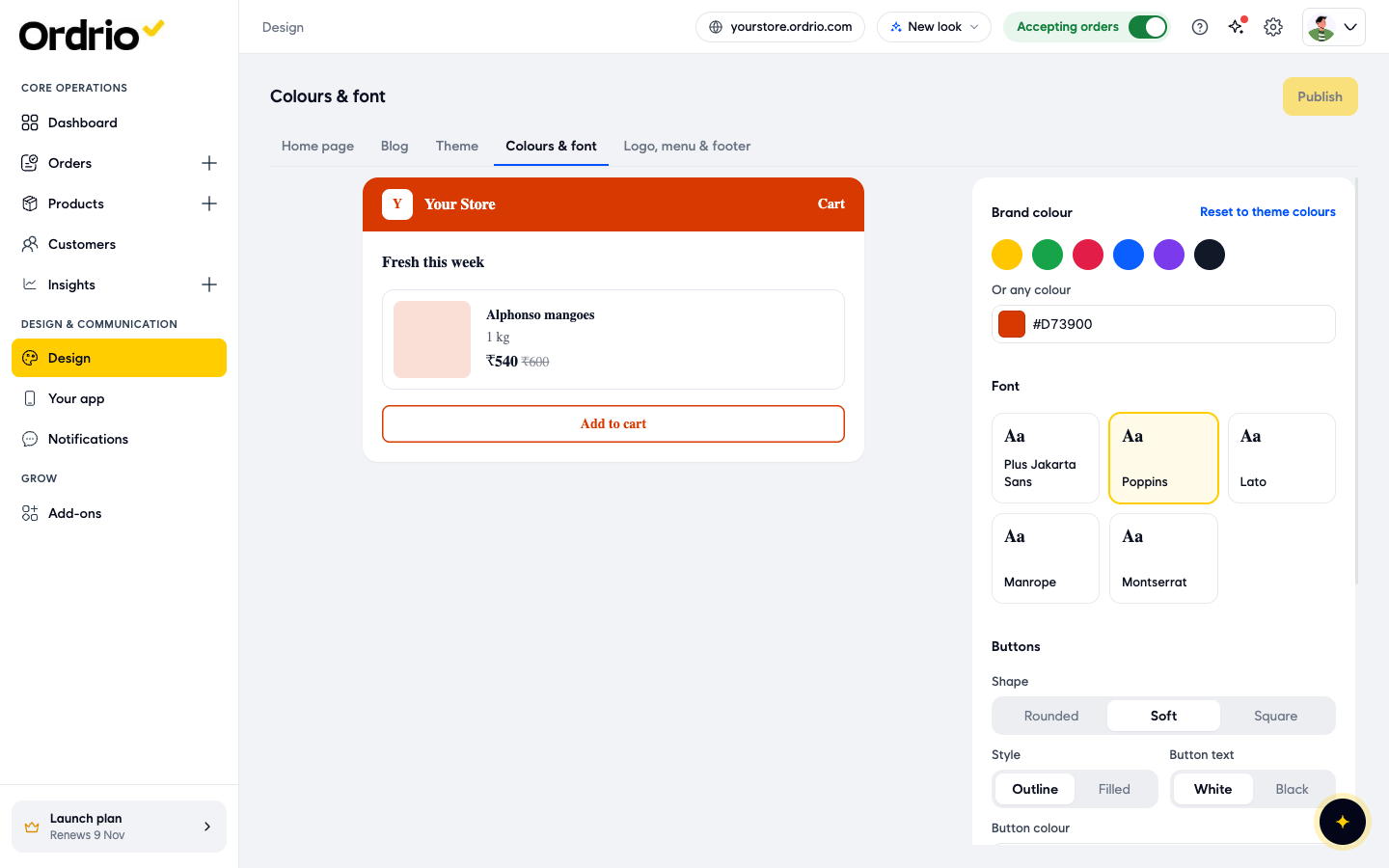
- After you apply the theme, the Colours & font tab opens with the new theme's colours and font. You can keep them as they are, or change them here:
- Brand colour: pick one of the colours, or type any colour code under Or any colour. Reset to theme colours brings back the theme's own colours.
- Font: pick the font for your store, for example Poppins or Lato.
- Buttons: choose the Shape (Rounded, Soft or Square), the Style (Outline or Filled), the Button text colour (White or Black) and the Button colour.
- Page colours: set the Text colour, the Page background and the Lines between sections.
- The preview on the left shows how your store will look. If you change anything here, click Publish to put your changes live.
- Click Design in the left menu to go back. Current theme now shows your new theme, with "Live on your store and app." Click Preview store to see your store the way customers see it.
Good to know
- One theme is used for both your website and your app.
- Changing the theme does not change your products, prices, orders or settings.
- Your new theme is live as soon as you apply it, so customers see it the next time they open your store. Pick a quiet time if you want to check it before many customers visit.
- When you subscribe to a paid theme partway through a billing cycle, you pay only for the days left in that cycle. The full price starts from your next renewal date. The Get screen shows both.
- If you move away from a theme, check its label on the Themes page before you switch. A theme you used before can show as Paid, and you would need to subscribe to it to switch back.
- You can change your logo, menus and footer on the Logo, menu & footer tab, and your home page on the Home page tab.
Related
- Customising store branding
- Setting up your business
- Setting up your store profile
- App branding and white labelling
Was this article helpful?